Can’t Sign In to Apple ID? How to Fix It
Your Apple ID won't sign in, and the message on screen tells you almost nothing useful. Maybe it says "Verification Failed." Maybe the device just spins. Or maybe it keeps asking for a password you know is right.
Here's the thing. How to fix Apple ID not sign in depends entirely on which of those you're seeing. One generic checklist can't cover all of them.
Apple's own specs set the ground rules. A verification code is six digits. A recovery key runs 28 characters.
An Apple Account password needs at least eight. As of 2026, "Apple Account" and "Apple ID" are the same thing, just renamed across iOS 18, iPadOS 18, and macOS Sequoia. So before you reset anything, work out which branch you're actually standing on.
Quick Answer
Most Apple ID sign-in failures clear up in a set order. Check Apple's System Status page before anything else. Then confirm your date, time, and network.
Try signing in from Settings instead of the App Store. If a code never arrives, request a fresh one. Only reset your password when the error blames it.
Why Apple ID Won't Sign In Is Really Five Different Problems
Apple doesn't run a single sign-in system. iCloud authentication, App Store purchase verification, two-factor approval, and on-device restrictions are separate layers. That's exactly why the same account can work fine in Settings and fail in the App Store.
Your error wording is the map. Read it before you guess at a fix.
The five branches at a glance
| What you see | What's usually behind it | Start here |
|---|---|---|
| "Verification Failed" or "Cannot Connect to Apple ID Server" | Network, DNS, VPN, or clock drift | Quick checks below |
| "Apple ID has been disabled" or "not active" | Billing or terms issue | Branch 2 |
| Codes never arrive, or no trusted device | 2FA delivery or account state | Branch 1 |
| Sign-in greyed out or missing | Screen Time, MDM, or restrictions | Branch 3 |
| Everything checks out but it still fails | Locked or flagged account | Account recovery |
"Cannot Connect to Apple ID Server" points at your connection or your clock. It has nothing to do with your password. "This Apple ID has been disabled" is store-side enforcement, and no amount of re-typing will shift it.
That distinction saves you an hour of wasted resets. Pick your branch, then move.
Run These 60-Second Checks Before You Touch Your Password
Work through these first. Each one takes under a minute, and any of them can look exactly like a broken password.
- Check Apple's System Status page. If iCloud Account & Sign In or the App Store shows an outage, stop. Apple's page is the only source that reflects live service state.
- Set date and time to automatic. A clock that drifts breaks the secure connection Apple's servers expect. Manual time settings are a quiet killer.
- Switch networks. Toggle Wi-Fi off, try cellular, or join a different Wi-Fi network entirely.
- Turn off VPN, Private Relay, and content blockers briefly. Then retry.
- Force restart, then update. Post-update glitches are common enough that we've covered what to do when an iPhone 11 misbehaves after a major iOS release.
- Sign in from Settings, not the App Store. Tap your name at the top, then Sign-In & Security. The App Store route fails more often.
- Check saved passwords. iCloud Keychain may be autofilling an old password you changed months ago.

One more thing worth ruling out: a weak mobile connection. If your phone is stuck on crawling 2G data, SMS verification codes can time out before they land.
If every check passes and sign-in still fails, you've got an account problem. That's Branch 1 territory.
Branch 1: Wrong Passwords, 2FA Codes, and Trusted Devices That Never Ring
The first question isn't "what's my password." It's whether you can still prove the account is yours.
Two tools fix two different problems. A password reset is fast and self-service. Account recovery is slower and identity-verified.
Choosing wrong wastes days.
| Your situation | Best route | Typical timeline |
|---|---|---|
| Password is wrong, but you have email or a trusted device | Reset at iforgot.apple.com or in Settings | Minutes |
| Email, phone, and trusted devices are all gone | Account recovery | At least 24 hours, often several days |
| You saved a 28-character recovery key | Use it to reset | Minutes |
| You set up a recovery contact | Ask them for a code | Minutes |
Codes that never arrive usually trace back to a stale trusted phone number. Fix it from a device that's already signed in. Go to Settings, tap your name, then Sign-In & Security, and add the current number.
Then remove old devices from the trusted list. Sold, wiped, or forgotten hardware can still be sitting there.
If the sign-in loop involves third-party tools, be careful. We've written before about a stubborn Apple ID lock that keeps reappearing through those utilities. Most of them want your credentials, which is the exact thing Apple tells you never to hand over.
And if the device starts throwing restore errors while you're locked out, that's a separate fault. A restore failure like iPhone error 10 has its own set of causes.
Branch 2: Disabled Accounts, Unpaid Balances, and Unaccepted Terms
A disabled Apple Account is almost always about money or paperwork. Not your password.
Unpaid balances, a declined card, and unaccepted updated terms are the three usual culprits. Apple locks store access until you clear them.
Here's how to unstick it:
- Sign in on a device or at appleid.apple.com directly. The store prompt alone often won't show you the reason.
- Open your payment methods and update or replace the card.
- Review and accept the current Terms and Conditions.
- Clear any outstanding balance on Apple Music, Apple TV, or app subscriptions.
- Sign out of the App Store and sign back in to force a fresh review.
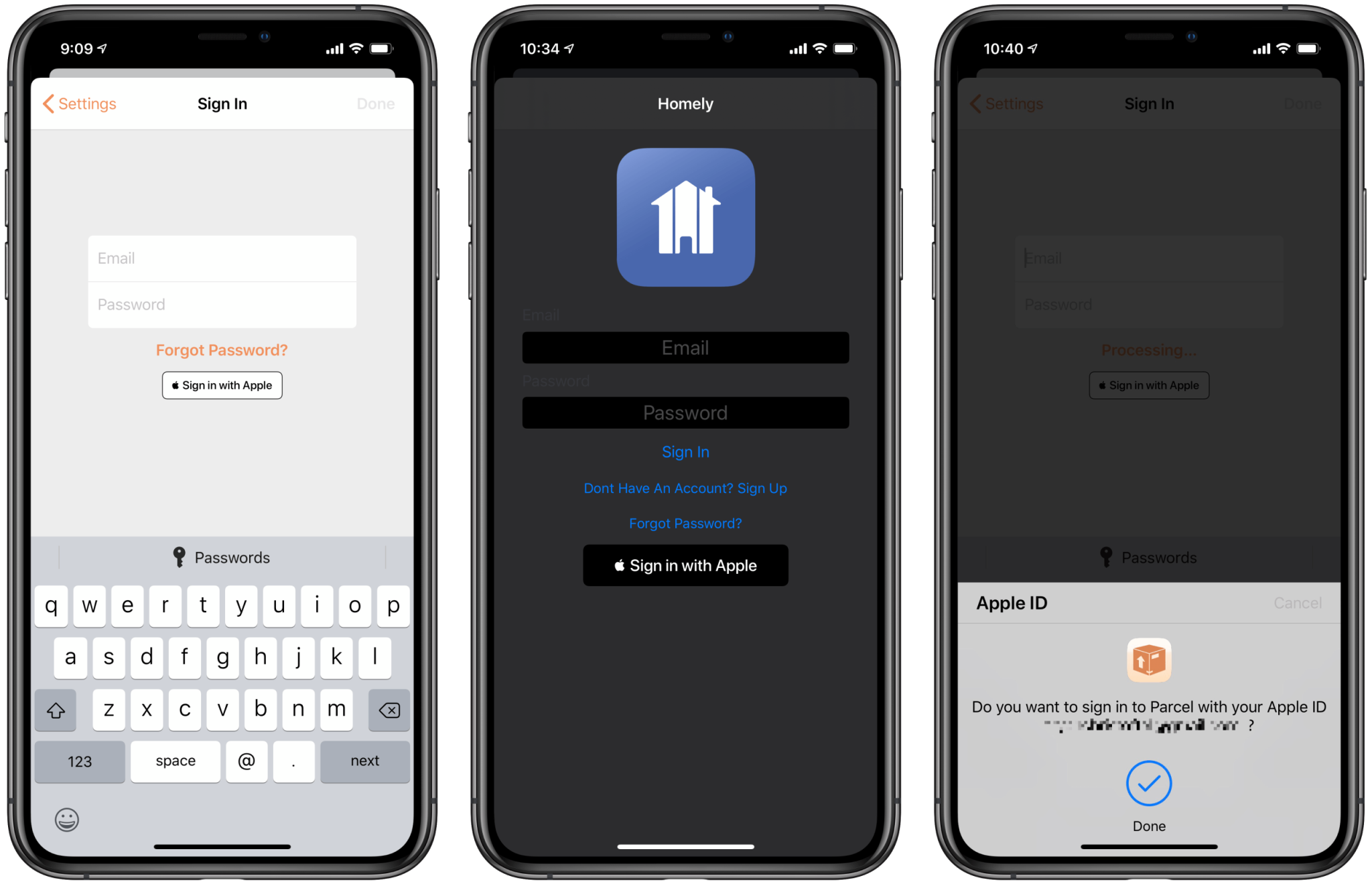
You can also be signed in to iCloud while the App Store stays locked. The two aren't linked as tightly as people assume. That split explains a lot of "my account works but my purchases don't" confusion, including when your cloud photo library quietly stops syncing.
Device origin can bite here too. A handset bought overseas, or one carrying carrier or region restrictions, can throw sign-in errors that have nothing to do with billing.
If the disabled message persists after all five steps, call Apple Support. Billing disputes on a flagged account need a human.
Branch 3: Screen Time, MDM, and Other Blockers Nobody Checks
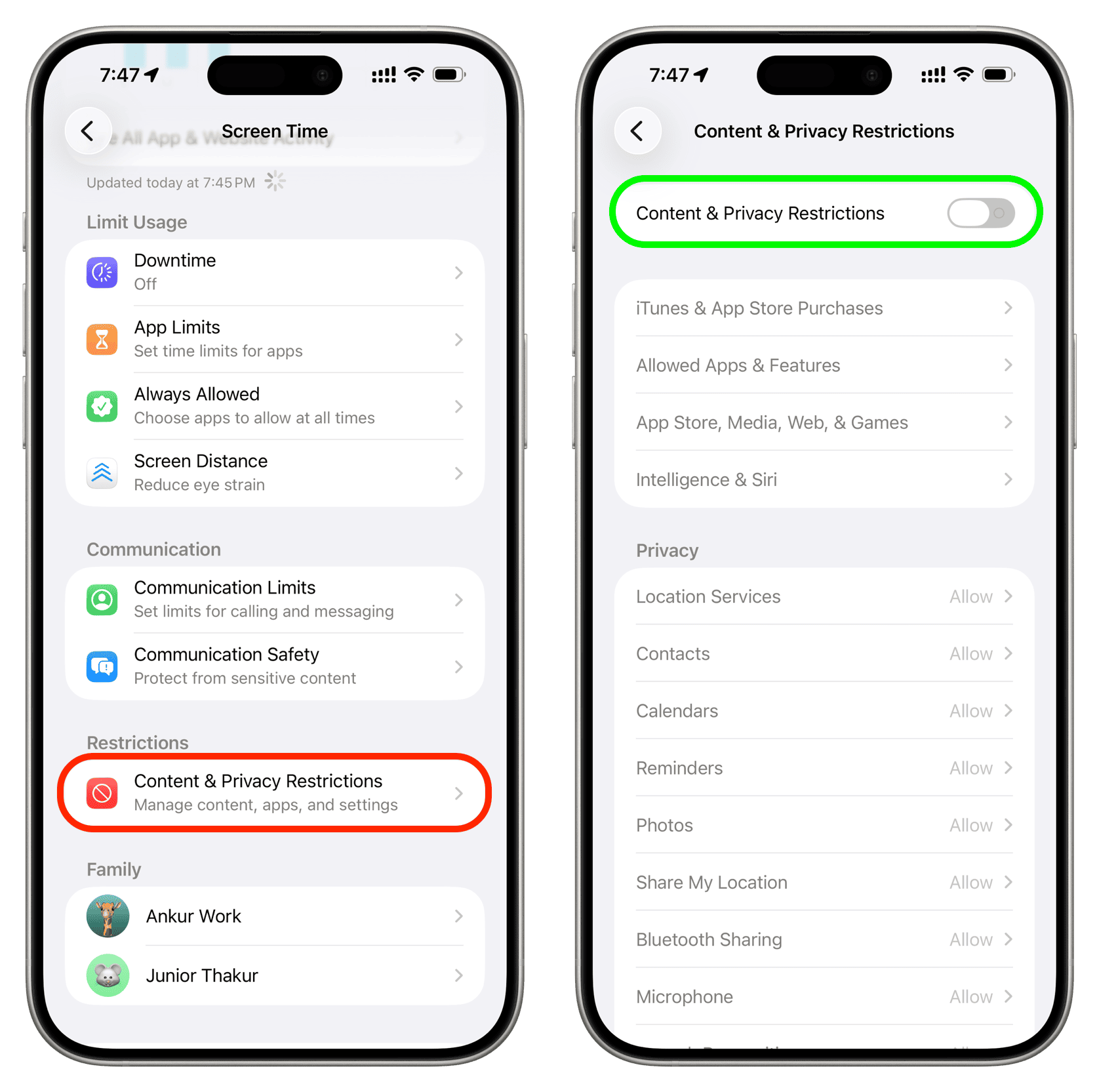
If the Apple Account option is missing or greyed out, a restriction is blocking you. Not a password. Not a network.
This is the branch most guides skip completely.
Screen Time is the usual suspect. A Screen Time passcode can lock account changes on the device. When it's active, the sign-in field just greys out with no error message at all.
On a child's iPhone, that passcode normally belongs to a parent.
MDM comes next. A work or school device carrying a Configuration Profile signs in through a Managed Apple Account. Your personal details won't work there.
Only the administrator can reset that password.
Activation Lock is the third and harshest blocker. If a device was erased while still linked to someone else's Apple Account, Setup Assistant demands their credentials. No password reset gets around it.
You need the original proof of purchase and an Activation Lock removal request through Apple.
Overseas handsets can throw a fourth type of error. That one usually traces back to regional carrier blocks rather than your account at all.
If your photo library went quiet at the same time, treat that as a separate issue and check our notes on photos that stopped syncing.
When Nothing Works: Account Recovery, Apple Support, and What Makes It Worse
Account recovery is Apple's fallback when you can't prove ownership any other way. Apple's official account documentation confirms the wait runs at least 24 hours, and often several days. That delay is a security control, not a fault.
You can shorten the process. Add a recovery contact or save your 28-character recovery key before you actually need them. A recovery key skips the queue entirely.
Then stop doing the things that make it worse:
- Repeated wrong-password attempts. Each one extends the lockout window.
- Sharing a 6-digit code with a caller who claims to be Apple. Nobody legitimate asks for it.
- Paying for third-party unlocking tools. Most harvest your credentials and leave you locked out anyway.
- Buying a used handset with a live Activation Lock. Without the seller's receipt, it's a paperweight.
Apple never requests your password or verification code by phone, email, or text. If someone does, it's phishing. Report it to the FTC at reportfraud.ftc.gov or your national fraud agency.
Still stuck once recovery clears? Contact Apple Support directly. Have the device serial number and proof of purchase ready before you make the call.
Apple ID Sign-In FAQs
Why does my Apple ID say verification failed?
It's almost always the connection or the clock. Set date and time to automatic, switch networks, and switch off any VPN. A genuinely wrong password produces a different message entirely.
How long does Apple account recovery take?
At least 24 hours, and commonly several days. Apple stretches the window based on how much detail you supply. There's no paid shortcut, and anyone offering one isn't legitimate.
Can I sign in without a verification code?
Yes, if you set up alternatives in advance. A recovery key, a recovery contact, or an already-trusted device can approve the sign-in. Without those, account recovery is your only route.
Will erasing my iPhone fix the sign-in problem?
No, it usually makes things worse. Erasing can trigger Activation Lock. That then demands the exact Apple Account details you were already unable to provide.
Why can't I sign in to the App Store but iCloud works?
Because they're separate sign-in layers. The App Store checks billing and terms, so a declined card or unaccepted agreement can block purchases while iCloud keeps working normally.

Similar Posts




















