How To Make Sure Text Messages Are Permanently Deleted?
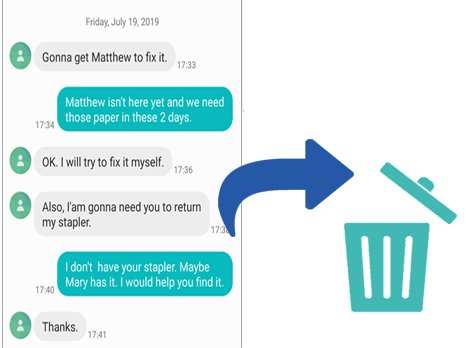
To ensure text messages are permanently deleted android, use a combination of device settings and specialized apps. **You need to delete the messages from both your phone and any backups to guarantee complete removal.**
Knowing how to make sure text messages are permanently deleted android involves clearing caches and avoiding cloud backups. This way, deleted messages won’t resurface later.
Take control of your privacy by following these steps to delete messages securely and confidently.

How to Make Sure Text Messages Are Permanently Deleted on Android
When you delete a message from your Android device, you might think it’s gone forever. But in reality, the message could still be lurking somewhere on your phone or in your backups. If you want to make sure that your texts are **really gone and cannot be recovered**, you need to understand the process of permanently deleting messages and what tools are available to help you do that. In this guide, we’ll walk through the steps to ensure your text messages are fully erased from your Android device, covering everything from simple deletion to advanced methods like data wiping.
Understanding What Happens When You Delete a Text Message
Before diving into deletion techniques, let’s understand what happens when you delete messages on Android. When you delete a message, it typically is moved to a “trash” or “deleted” folder, or it simply gets marked as deleted in the memory. However, the data isn’t immediately erased from the device’s storage. Instead, the space occupied by that message becomes available for new data, but the original information still remains on the device until overwritten.
This means that someone could recover your deleted message using special tools, unless you take extra steps to securely erase it. Data recovery tools can scan your phone’s storage and retrieve messages that appear to be gone. That’s why a **simple delete** isn’t enough if you want to be absolutely certain your messages are gone forever.
Why Simply Deleting Messages Isn’t Enough
– **Data Persistence:** Deleted messages still reside in your device’s storage until overwritten.
– **Recovery Tools:** Specialized software can retrieve deleted data, including text messages.
– **Backup Files:** Messages stored in backups (cloud or local) might still contain your deleted texts.
– **Syncing & Cloud services:** If your messages are synced with services like Google or carrier backups, they might be retrievable from those sources.
Knowing these risks, it’s clear that to truly erase your messages, you need to go beyond just deleting them from your messaging app. You need methods to make the data unrecoverable.
Steps to Securely Delete Text Messages on Android
To ensure your messages are permanently gone, follow these detailed steps. Each process helps to eliminate traces of messages from your device comprehensively.
1. Delete Messages from Your Messaging App
Start with standard deletion:
- Open your messaging app.
- Locate the conversation you want to delete.
- Press and hold on the specific message or conversation.
- Select ‘Delete’ or ‘Remove.’
- Confirm the deletion when prompted.
While this removes the message from your app, it might remain on your device’s storage and in backups.
2. Empty Recycle Bin or Trash Folder
Many Android messaging apps have a temporary trash or recycle bin:
- Open your messaging app’s options or settings.
- Find the ‘Trash’ or ‘Deleted Messages’ folder.
- Empty this folder to permanently delete messages stored there.
This step ensures messages are not recoverable through the app’s interface.
3. Clear Cache and Data of Messaging Apps
Clearing app cache and data helps remove residual files:
- Go to your device’s Settings.
- Tap on ‘Apps’ or ‘Applications.’
- Find your messaging app and select it.
- Tap on ‘Storage.’
- Choose ‘Clear Cache’ and then ‘Clear Data.’
Be aware: Clearing data logs out of your app and deletes all messages stored locally in that app.
4. Overwrite Deleted Data with New Data
Since deleted data isn’t truly gone until overwritten, you can:
- Fill your device storage with new files, such as photos or videos.
- This process writes new data over the space where your messages were stored, making recovery impossible.
However, this is only as effective as the amount of new data you add.
5. Use Dedicated Data Wiping Apps
For an extra layer of security, consider apps designed to securely delete data:
- Look for reputable apps in Google Play Store, like ‘Secure Eraser’ or ‘Privazer.’
- Install and run the app following the instructions.
- Select the option to securely wipe free space or specific files.
These apps often perform multiple passes over storage to ensure data can’t be recovered.
Using Custom Recovery to Permanently Delete Messages
If you want to go a step further, you can use custom recovery tools:
- Root your Android device (note: this can void warranty and carries risks).
- Install tools like ‘Android Data Eraser’ or ‘Eraser’ via a custom recovery environment.
- Follow app-specific instructions to overwrite your device’s storage with random data.
This method is more technical and best suited for users familiar with Android modifications.
Secure Backups and Cloud Storage
Messages stored in backups or cloud services pose another challenge:
- Disable automatic backups for messaging apps if privacy is a concern.
- Delete existing backups from cloud services like Google Drive or carrier backups.
- Ensure that any backups containing sensitive messages are deleted permanently.
Remember, deleting backups from cloud services often requires visiting the specific account settings associated with those services.
The Importance of Factory Reset and Data Wiping for Complete Privacy
When you absolutely need to erase all traces of data, performing a factory reset combined with data wiping is the most thorough approach:
- Back up only what you need before reset.
- Navigate to Settings > System > Reset options > Erase all data (factory reset).
- Follow prompts, and consider also running a data wipe tool available from your device’s recovery menu (often accessed by holding specific hardware buttons during boot).
This process erases all apps, settings, and files, including messages and backups stored locally.
Precautions to Take When Deleting Sensitive Messages
Here are quick tips to enhance your message privacy:
- Always delete messages from within the app, then clear data and cache.
- Use secure deletion tools to overwrite residual data.
- Regularly clear backups and cloud storage containing sensitive information.
- Consider encryption options if your device supports them, adding an extra layer of security.
This multi-layer approach reduces the risk that your messages can be recovered later.
Final Tips for Ensuring Messages Are Truly Gone
– Confirm deletion by using data recovery tools to scan your device afterward.
– Keep your device updated to minimize vulnerabilities.
– Replace or destroy old SD cards or storage devices if they contain sensitive data.
– Maintain good security habits, including strong passwords and encryption.
Ensuring your messages are permanently deleted involves multiple steps and attention to detail. By combining standard deletion, secure wiping tools, and careful management of backups, you can rest assured that once your messages are gone, they stay gone. Remember, the most effective method depends on how sensitive the data is and your comfort with more advanced techniques like rooting or using recovery tools.
Frequently Asked Questions
What steps can I take to ensure deleted messages are not recoverable on my Android device?
To prevent deleted messages from being recovered, consider overwriting the storage space where the messages were stored. Use a data wiping tool designed for Android devices that securely erases data by overwriting it multiple times. Additionally, perform a factory reset if sensitive information was stored locally and you want to ensure complete removal of all data. Remember, deleting messages alone may not be sufficient, so taking extra steps to overwrite the data increases security.
Is it possible to permanently delete text messages from my Android’s internal storage?
Yes, it is possible, but standard deletion might not be enough. Android’s internal storage can retain deleted messages until overwritten. Use specialized data erasure tools that securely overwrite the specific storage sectors. Alternatively, performing a factory reset on your device can wipe all data, including messages, making recovery impossible. Make sure to back up any important information before proceeding with such steps.
Are there specific apps that can help me ensure messages are permanently erased?
Yes, several apps are designed to securely delete messages and other sensitive data from Android devices. Look for reputable apps with features like multiple overwrite passes and certified data wiping technology. These apps typically allow you to select specific conversations or entire message histories for permanent deletion. Always review app permissions and user feedback to ensure the app’s effectiveness and security.
How can I confirm that my deleted messages are not recoverable after deletion?
After deleting your messages, use data recovery tools to scan your device for remnants. If these tools cannot locate the messages, it indicates they have been effectively removed. Additionally, performing a factory reset and overwriting storage with a data wiping tool further minimizes recovery chances. Taking these steps provides confidence that your messages are permanently deleted.
Does removing a SIM card or switching devices delete stored messages completely?
Removing a SIM card or switching devices only affects messages stored on the SIM card or device memory. Messages saved on internal storage or backups may still exist elsewhere. To ensure complete removal, delete messages directly from your device’s messaging app, and consider securely wiping the internal storage. If messages are saved on cloud backups, delete or disable those backups to prevent future recovery.
Final Thoughts
Pour assurer la suppression permanente des messages texte sur Android, il faut d’abord supprimer les conversations de l’application de messagerie. Ensuite, videz le dossier de la corbeille ou de suppression récente. En dernier lieu, utilisez une application spécialisée pour écraser définitivement les données.
Il est important de suivre ces étapes pour éviter toute récupération ultérieure. La suppression manuelle seule ne garantit pas la confidentialité. Ainsi, pour faire en sorte que text messages are permanently deleted android, adoptez ces méthodes pour sécuriser vos informations.

Similar Posts































