How to Recover Deleted WhatsApp Messages
You've deleted a message. Maybe a whole chat. Your stomach drops when you realize it's gone, and now you're asking the question everyone asks at that moment: How can I recover deleted WhatsApp messages?
Here's the good news: it's often possible. But whether you actually get your chats back depends on a few very specific things you did (or didn't do) before the deletion. As of 2026, WhatsApp still doesn't have a magic "undo" button, but the backup systems built into the app are powerful if you know how to use them.
In our research, the single biggest factor isn't the recovery tool you use, it's your backup timing. Let's figure out your situation step by step.
Quick Answer
You can recover deleted WhatsApp messages if you have a backup. Android users restore from Google Drive. iPhone users restore from iCloud. The process requires uninstalling and reinstalling the app.
Local files on Android offer another path. No backup means no recovery without third-party tools. Act fast before backups overwrite.
First, Figure Out What You're Working With
Before you do anything else, you need to answer three quick questions. Your recovery path depends entirely on your specific situation. Guessing here can cost you everything.
Do You Have a Backup at All?
This is the single most important question. Open WhatsApp and go to Settings > Chats > Chat backup. That screen tells you everything.
If you see a last backup date, you have something to work with. If it says "Never" or there's no backup listed, your options shrink dramatically.
Here's what that screen shows:
- The date and time of your last successful backup
- Whether backups are set to automatic or manual only
- Which Google account (Android) or iCloud account (iPhone) is linked
- The size of your last backup
If you've never manually backed up and your phone backed up automatically at 2:00 AM overnight, you're still in luck. WhatsApp's default settings on both platforms include daily automatic backups, provided the phone was connected to Wi-Fi and had adequate storage. Many people don't realize this and assume they have nothing.
You might have more than you think.
Android or iPhone? (It Changes Everything)
The recovery process differs completely between the two platforms. Android uses Google Drive for cloud backups and also keeps a local backup file directly on your phone's internal storage. iPhone uses iCloud exclusively for backups, and it doesn't maintain a separate local file you can manually access.
That distinction matters. If your Android phone is broken but the storage chip is intact, a repair shop might still extract the local msgstore.db.crypt14 file. iPhone users don't have that fallback. They must rely entirely on iCloud, which means if no iCloud backup exists, the data is gone.
Your platform also changes how you restore. Android prompts you to restore when you reinstall and verify your phone number. iPhone does the same, but the restore happens from iCloud during the setup process. The steps look similar, but the underlying mechanics differ.
Deleted Just Now, or Days Ago?
Timing is critical for one reason: overwrites. WhatsApp creates a new local backup every time you use the app for a while. If you deleted a chat yesterday and keep using WhatsApp today, that older backup on your phone might already be replaced.
The same logic applies to cloud backups. Google Drive stores your WhatsApp backup for as long as the file remains active, but a new daily backup replaces the old one. If you want to recover a chat you deleted three weeks ago, and your phone has backed up 15 times since then, the specific chat you need might only exist in the cloud if the backup predates your deletion.
In contrast, if you delete a message and immediately put your phone in airplane mode, you might still be able to recover it from the local backup file that was made earlier that day. Speed genuinely matters here.
Branch 1: You Have a Google Drive Backup (Android)
If you're on Android and your Chat backup settings show a recent backup, here's your path. This is the most common recovery scenario for Android users, so we'll walk through it carefully.
How to Check Your Last Backup Date
Go to Settings > Chats > Chat backup. Look for the line that says "Back up to Google Drive." Below that, you'll see "Last backup:" followed by a date and time. Take a screenshot of this screen.
You'll want to remember exactly when your last backup occurred.
Also check which Google account is connected. If you've changed Google accounts since setting up WhatsApp, the backup might be under a different email address. You'll need to sign back into that original account during the restore process, or the backup won't appear.
The other thing to verify: is your backup set to "Daily," "Weekly," or "Only when I tap back up"? Daily is the default. If it's set to weekly or manual only, your backup might be older than you expect.
Check the actual date rather than assuming the setting.
The Restore Process: Uninstall and Reinstall
This is the part that makes people nervous, and rightfully so. Restoring from Google Drive requires you to uninstall WhatsApp completely, then reinstall it. This wipes the app's local data from your phone, including any chats you've received since your last backup.
Here's the scary part to understand upfront: restoring from a backup will replace everything currently on your phone. If you received important messages after that backup, they'll be gone once you restore. There's no way to merge those newer messages with your old backup.
It's an all-or-nothing trade.
To restore, follow these steps:
- Open WhatsApp and go to Settings > Chats > Chat backup.
- Tap "Back up" to create one final backup of your current data (if you want to keep it).
- Uninstall WhatsApp from your phone.
- Reinstall WhatsApp from the Google Play Store.
- Open WhatsApp and verify your phone number.
- When prompted, tap "Restore" to recover your chat history from Google Drive.
- Wait for the restore to complete. It can take several minutes depending on backup size.
The app will show a progress bar during the restore. Large backups with tons of media can take 10 to 20 minutes. Don't close the app during this process.
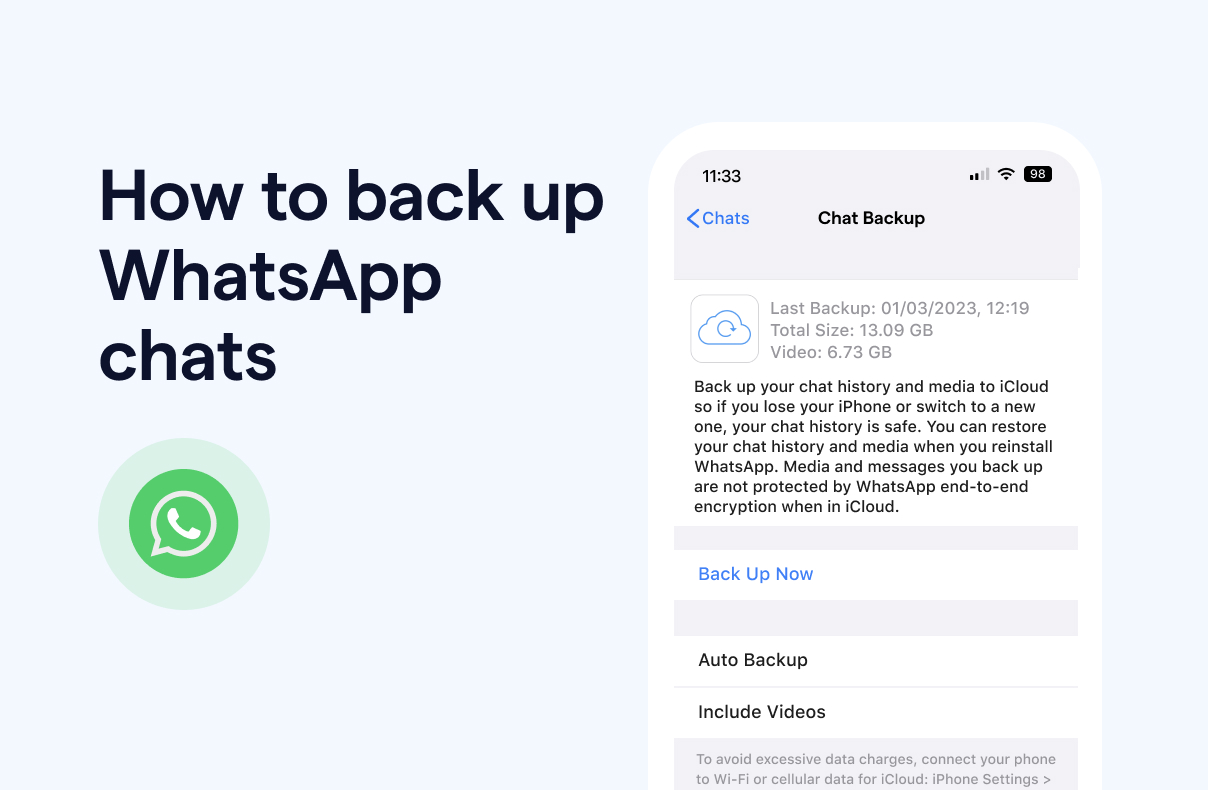
Image source: Bing (Web (fair-use with source credit))
Why Restoring Wipes Your Current Chats (and How to Handle It)
The restore process replaces your current data with the backup. That's the entire point, but it's also the biggest gotcha. Say you have a backup from Monday, and today is Wednesday.
You've received 50 new messages since Monday. Restoring from Monday's backup means losing those 50 messages.
Here's a trick many people miss: before you uninstall, create a manual backup. Go to Settings > Chats > Chat backup and tap "Back up." This creates a fresh backup right now. When you reinstall and restore, WhatsApp will restore to this exact moment, not the older daily backup.
This works if you're recovering from a mistake you made minutes ago. But if you deleted a chat last week, a fresh manual backup won't include it. In that case, you're intentionally choosing to go back to an older backup and sacrificing newer messages.
Weigh that trade carefully before you proceed. If you're curious about the iPhone side of this, our guide on recovering deleted chats on iPhone breaks down the differences in more detail.
Branch 2: You Have an iCloud Backup (iPhone)
iPhone users have a slightly different process, but the core logic is the same. You'll uninstall, reinstall, and restore from iCloud. The key difference is how you confirm your backup exists in the first place.
Confirming iCloud Backup Is On for WhatsApp
Open your iPhone's Settings app, not WhatsApp itself. Tap your name at the top, then tap iCloud. Scroll down to see which apps are using iCloud.
Find WhatsApp and make sure the toggle is on.
There's a second layer to check: iCloud Backup (the device-level backup) versus iCloud Drive (the app-level data storage). WhatsApp uses both, depending on your iOS version. If either is disabled, your backup might not exist or might be incomplete.
Go back to WhatsApp > Settings > Chats > Chat backup. It shows the last backup date and the linked iCloud account. The same rules apply here: the backup only helps you if it predates the deletion you're trying to undo.
Restoring via Uninstall and Reinstall
The restore process follows the same basic steps as Android, with one important difference. On iPhone, you don't tap a "Back up" button before uninstalling. Instead, you can either create a fresh iCloud backup manually or accept that you'll lose messages since the last automatic backup.
Here's the step-by-step:
- Open WhatsApp and go to Settings > Chats > Chat backup.
- Tap "Back Up Now" if you want a fresh snapshot before you wipe anything.
- Delete WhatsApp from your iPhone (long-press the icon and tap Remove App).
- Reinstall WhatsApp from the App Store.
- Open the app and verify your phone number.
- iOS will prompt you to restore your chat history from iCloud. Tap "Restore."
- Wait for the restore to finish. Do not switch apps or lock your phone during this time.
One thing Apple users hit frequently: the restore gets stuck at 99% or shows an error partway through. This usually happens with large backups or a weak Wi-Fi connection. If that happens, don't panic.
Delete WhatsApp again, reboot your iPhone, and try once more. The restore picks up from where it left off in some cases, but starting over is the safer bet.
What Happens If the Restore Gets Stuck
A stuck restore is frustrating, but it's almost always fixable. Start by checking your iCloud storage. If you've filled your 5GB free tier, the backup itself might be incomplete.
Go to Settings > Your Name > iCloud > Manage Storage to see your usage.
If storage isn't the issue, check your Wi-Fi connection. Cellular data won't work reliably for large restores. Switch to a stable Wi-Fi network and try again.
Another common cause: the iCloud backup is encrypted but you've forgotten the password. If you enabled "Advanced Data Protection" or an encrypted backup, you need that password to restore. Without it, even Apple can't help you.
This is where managing your automatic updates mindset comes in: check your settings before you need them, not after.
Branch 3: No Cloud Backup, But You Have Local Files (Android)
This is the hidden gem for Android users. Even without Google Drive, WhatsApp keeps a daily local backup on your phone's internal storage. It sits in a folder called Databases inside the WhatsApp directory.
If you've never touched this folder, you might have weeks of old backups waiting.
Finding the msgstore.db.crypt14 File on Your Phone
You'll need a file manager app for this. Google Files works fine. Open it and navigate to: Internal Storage > Android > media > com.whatsapp > WhatsApp > Databases.
Here's what you'll find:
msgstore.db.crypt14, your most recent backupmsgstore-YYYY-MM-DD.1.db.crypt14, dated backups from previous daysmsgstore.db.crypt15, a newer encryption format on recent Android versions
Each of these files is a complete snapshot of your chats from that moment. The filename tells you the exact date. If you see a file from the day you made your mistake, you might be in luck.
Using a File Manager to Replace the Database
This method works by tricking WhatsApp into thinking an older backup is actually your newest one. You'll rename files and uninstall the app in a specific order. Follow these steps carefully:
- Close WhatsApp completely.
- Go to the Databases folder and find the dated backup you want to restore.
- Rename it to
msgstore.db.crypt14(or.crypt15if that's the format). - Move the current
msgstore.db.crypt14to a safe location or rename it as a backup. - Uninstall WhatsApp.
- Reinstall WhatsApp and verify your number.
- WhatsApp detects the local backup file and offers to restore it.
The order matters. If you delete the current file instead of renaming it, you lose your most recent data permanently. Always rename rather than delete.

Image source: Web (Bing) / pictoa.com (Web image (fair-use with source credit))
Why This Only Works on Android
iPhone doesn't expose local backup files. iOS doesn't let you browse the app's internal storage. That's why this entire branch is Android-only. Apple users have iCloud or nothing.
The local backup method also has a time limit. WhatsApp keeps about seven days of local backups before older ones get cleaned up automatically. If your target chat deletion happened more than a week ago, this path probably won't help.
Your cloud backup would be your only option at that point.
One more caveat: this method restores your entire chat history to that older date. Messages from after that backup will disappear. It's the same trade-off as the cloud method, but you're working with a potentially older snapshot.

Similar Posts





















