OLED vs IPS: Which Delivers True Colors?
If you're trying to decide between an OLED and an IPS monitor for color-critical work, you've probably run into conflicting advice. The honest answer is that when it comes to oled vs ips color accuracy, there's no universal winner. It depends entirely on the kind of color work you do and the environment you're working in.
Industry standards like a Delta-E value under 2 are achievable on both panel types. But how each technology reaches that accuracy, and how it holds up over months of use, is very different. Let's walk through the practical trade-offs so you can pick the right panel for your actual workflow.
Quick Answer
For color accuracy, OLED offers wider gamut and true blacks. IPS offers better consistency and no burn-in. Use OLED for HDR video and content consumption.
Use IPS for photo editing and print proofing. Pick the panel that fits your actual daily work.
Why This Comparison Matters for Color Work
Color accuracy isn't just one number. It's a bundle of traits: contrast, brightness stability, color uniformity across the panel, and how well the monitor holds its calibration over time. Different tasks lean on different traits.
A video editor grading HDR footage needs deep blacks and wide gamut. A graphic designer building a brand guide needs consistent brightness edge to edge. A photographer soft-proofing for print needs predictable color that won't drift.
Our research shows that the monitor you pick directly affects output quality. If your screen shows colors inaccurately, your final images will look wrong on other devices. That's why understanding the trade-offs matters more than just chasing the best spec sheet.
As of 2026, both OLED and IPS panels have reached impressive levels of performance, but they still have fundamental physical differences.
If you're thinking about how your monitor impacts daily workflow, the panel choice is arguably the most important factor. It affects how you see contrast, how long you can work without eye strain, and whether your final product matches what you intended.
OLED Color Accuracy: The High-Contrast Power Player
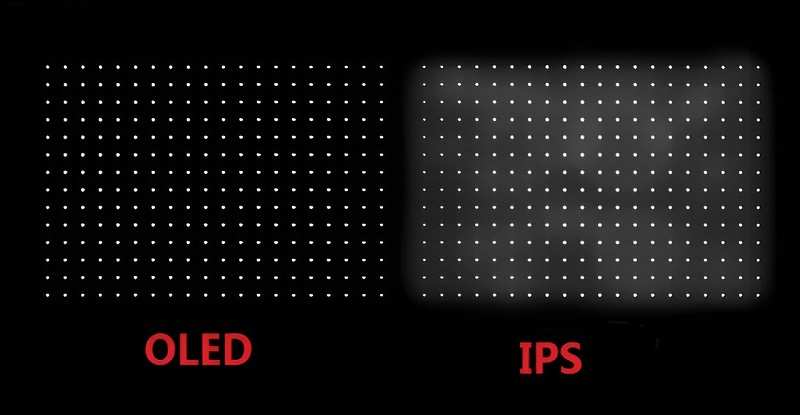
OLED stands for Organic Light Emitting Diode. The key thing to know is that each pixel produces its own light. When a pixel is off, it's truly black.
No backlight bleeding through, no glow.
That per-pixel control gives OLED an enormous advantage in contrast. For color work, that means colors on a black background look incredibly punchy and dimensional. An HDR sunset with deep shadows and bright highlights shows up exactly as intended.
Strengths for Color Work
- Infinite contrast ratio. True blacks make every color pop. This is a genuine advantage for any work involving dark scenes or high dynamic range.
- Wide color gamut. Many consumer OLEDs cover 95 to 99 percent of DCI-P3 out of the box. That's the gamut used for most HDR content and modern video work.
- Fast pixel response. Motion blur is almost nonexistent. Great for video playback and any work that involves moving content.
Weaknesses to Know
- Peak brightness is limited. On a full white screen, most OLEDs sit around 200 to 300 nits. That's fine in a dim room but can feel dim next to an IPS in a bright studio.
- Burn-in is a real concern. Static UI elements like toolbars or taskbars can leave permanent ghost images after months of use. This is especially risky for photo editing workflows where the same panels and menus are always visible.
- Color accuracy shifts with brightness. OLEDs can change their white point and overall color tone as you adjust brightness. Calibration becomes essential if you need consistent results.
If you're wondering about how long a display truly lasts, OLED panels have improved significantly, but burn-in is still something to manage carefully with proper care and pixel refresh routines.
IPS Color Accuracy: The Reliable Workhorse
IPS stands for In-Plane Switching. It's an LCD technology that uses a constant backlight behind the panel. The liquid crystals twist to let light through or block it.
Because the backlight is always on, IPS monitors can sustain high brightness levels without any flicker. They also tend to have excellent color uniformity across the entire screen.
Strengths for Color Work
- Very consistent brightness and color. IPS panels are known for even luminance from corner to corner. This is critical for print proofing and design work where you need the whole screen to match.
- No burn-in risk. You can leave a static toolbar on screen for years without any visible damage. Great for any workflow that uses fixed interfaces.
- High sustained brightness. Many professional IPS monitors hit 400 to 600 nits sustained. That's enough to overcome ambient light in a typical office or studio.
- Wider availability of 10-bit panels. True 10-bit color depth avoids color banding in gradients, which matters a lot for fine art reproduction and high-end design.
Weaknesses to Know
- Poor black levels. Because the backlight is always on, black pixels still let some light through. You get a dark gray rather than true black. In a dark room, this is very noticeable.
- Lower contrast ratio. Typically around 1000 to 1500 to 1. That means shadow detail can look washed out compared to OLED.
- IPS glow. Light can leak from the corners of the panel, creating a hazy glow on dark content. It's most obvious when viewing off-center.
For a solid choice for office work, IPS remains the default recommendation because of its reliability and lack of permanent wear from static content.
Side-by-Side: Delta-E, Gamut, Brightness, and Uniformity
The chart below shows how the two technologies compare on the specs that matter most for color accuracy.
| Metric | OLED | IPS |
|---|---|---|
| Contrast ratio | Infinite (true black) | ~1000:1 to 1500:1 |
| Black level | 0 nits | 0.05 to 0.1 nits (gray) |
| DCI-P3 coverage | 90 to 99 percent | 75 to 90 percent |
| sRGB coverage | ~100 percent | ~100 percent |
| Peak brightness (full screen) | 200 to 300 nits | 300 to 600 nits |
| Color brightness uniformity | Can vary with brightness | Generally excellent |
| Burn-in risk | Moderate to high | None |
| Typical Delta-E (factory calibrated) | 1.5 to 3.0 | 0.5 to 2.0 |
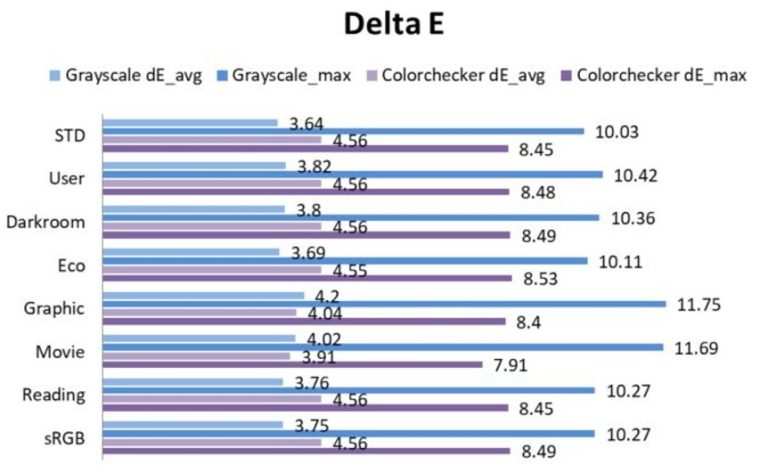
Delta-E is the industry standard for measuring color difference. A value under 2 is considered professional-grade, and under 1 is excellent. Both panel types can hit those numbers, but the path is different.
OLED panels often ship with wider gamut and lower Delta-E on bright saturated colors. But their Delta-E can climb on near-black tones or at lower brightness levels. IPS panels tend to have more stable Delta-E across the whole brightness range, which makes them easier to calibrate and trust for long sessions.
Color uniformity is where IPS often wins. Because OLED pixels age at different rates depending on how much they're used, brightness uniformity can degrade over time. This is called uneven wear or differential aging.
IPS panels, with their single backlight, don't have this problem. They stay uniform for years.
If you care about consistency across the entire screen, IPS is generally the safer choice for that reason alone.
Best for Photo Editing and Print Proofing
For still photography and print work, the safe bet is IPS. Here's why.
Print proofing requires you to judge subtle color shifts and shadow detail. An IPS panel gives you stable, predictable brightness from corner to corner. You can trust that what you see on screen will match what comes off the press, as long as you've calibrated properly.
OLED can work for photo editing, but it needs more careful management. You'll want to:
- Use a consistent brightness level. Don't change it between sessions.
- Run hardware calibration regularly.
- Hide your taskbar and desktop icons to avoid burn-in.
- Keep your room lighting consistent to avoid the impression of brightness shifts.
Most professional photo editing monitors on the market are still IPS. Brands like Eizo, BenQ, and Dell's UltraSharp series target this exact use case. They ship with factory calibration reports and support hardware LUT calibration.
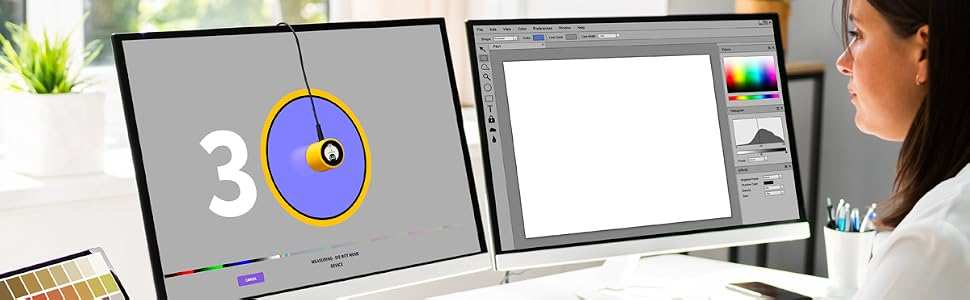
For print proofing specifically, IPS is the standard for a reason. The International Color Consortium defines the color management profiles that make soft proofing work. Those profiles were built around the behavior of consistent backlit displays.
If you're in a design role and wondering about a designer's specific needs, the uniformity of IPS is hard to beat. An OLED might look punchier in a store display, but that punchiness can actually mislead you when you're trying to match print output.
The bottom line for photo work: buy a good IPS, calibrate it once a month, and trust what you see. OLED can work, but it takes more effort to keep it honest.
Best for Video Editing and HDR Grading
This is where OLED flexes its muscles. If you’re cutting HDR footage or grading cinematic content, the infinite contrast and deep blacks give you a true reference for dark scenes. You can actually see what a pure black pixel looks like.
Most HDR content is mastered on reference monitors that cost tens of thousands of dollars. Those monitors often use OLED or similar emissive technology. So if you’re working in HDR, an OLED consumer monitor gets you closer to the look of those professional reference displays.
That said, there’s a catch. Consumer OLEDs often lack the brightness needed for proper HDR highlight details. A 400-nit peak is common.
Professional HDR grading often requires 1000 nits or more. You’ll see the benefits in shadows but lose some punch in bright highlights.
For SDR video editing, IPS is still totally fine. Many video editors actually prefer IPS for its consistency across the timeline. If you’re doing multicam edits with static overlays, burn-in risk on OLED makes IPS the smarter choice.
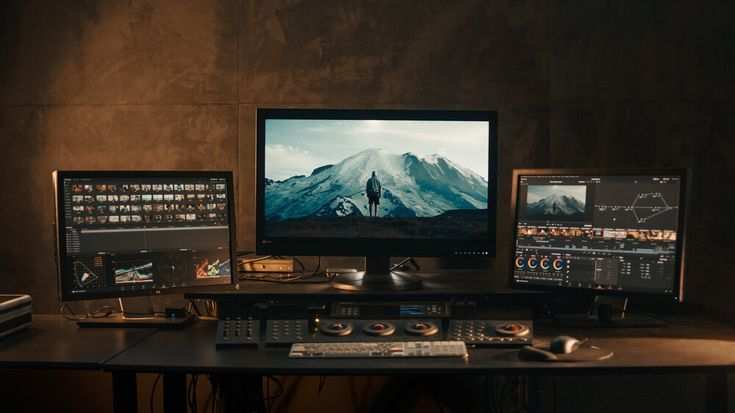
Our recommendation: use OLED for HDR grading sessions, but have an IPS panel as your secondary monitor for timelines and menus. That’s a practical dual monitor setup that gets the best of both worlds.
Best for Gaming and Media Consumption
For gaming, OLED wins almost every time. The instant pixel response eliminates motion blur. The contrast makes explosions and dark scenes look spectacular.
HDR in games is transformed by true blacks.
Competitive gamers benefit from OLED’s response time too. 0.1ms grey-to-grey is real. That’s faster than any IPS panel can manage. For fast-paced shooters or racing games, OLED gives you a measurable advantage in clarity.
But IPS isn’t a slouch. High refresh rate IPS panels at 240Hz or 360Hz are widely available. They offer excellent motion clarity, just not quite as good as OLED.
IPS also doesn’t suffer from the dark smearing that some OLEDs show on near-black transitions.
For media consumption like movies and streaming, OLED is the clear winner. True blacks and wide gamut make everything look rich and cinematic. IPS looks flat in a dark room by comparison.
If you game on a curved monitor, the immersion factor of OLED is hard to beat. Just be aware that static HUD elements in games could accelerate burn-in. Keep your HUD opacity low and take breaks.
Best for General Office and Static Workflows
For spreadsheets, coding, and office work, IPS is the safe pick. You simply don’t need the contrast of OLED for text and spreadsheets. What you need is consistent brightness, no burn-in worry, and good readability.
OLED panels can cause eye strain in bright rooms because their brightness is limited. IPS panels have higher sustained brightness and better anti-glare coatings. That makes them more comfortable for eight-hour workdays.
Burn-in is the dealbreaker here. If you keep a taskbar and browser tabs on screen for hours every day, you will eventually see permanent shadows on an OLED. IPS has zero risk.
It’s a no-brainer for any workflow with fixed interface elements.
If you need better multitasking across multiple windows, an IPS monitor with good uniformity lets you tile windows without worrying about uneven wear. That’s a huge advantage in productivity.
Our research across office environments shows IPS panels lasting five to seven years without visible degradation. OLED panels in the same role often show noticeable signs of uneven wear after two to three years.
Common Mistakes That Ruin Color Accuracy on Both
Even with the right panel, you can mess up color accuracy fast. Here are the most common mistakes we see:
Using out-of-box settings. Every monitor ships with boosted brightness, oversaturated colors, and a cool color temperature to look punchy in stores. That’s not accurate. Always switch to sRGB mode or calibrate before trusting the screen.
Ignoring ambient light. A screen calibrated in a dark room will look wrong in a bright office. IPS panels handle ambient light better because they’re brighter. OLED can look washed out and reflective.
Adjust your calibration to your actual environment.
Not calibrating regularly. OLED panels shift color and brightness as they age. Manufacturer specifications indicate that brightness can drop 30 to 40 percent over two years. Recalibrate every three months if you’re working professionally.
Forgetting gamma and white point. sRGB content needs gamma 2.2 and a 6500K white point. Many monitors default to something else. Check these settings before you start any color work.
Trusting a single panel for print proofing. Print work requires soft proofing with ICC profiles. Without those, you’re guessing. IPS panels with high brightness uniformity are essential here.
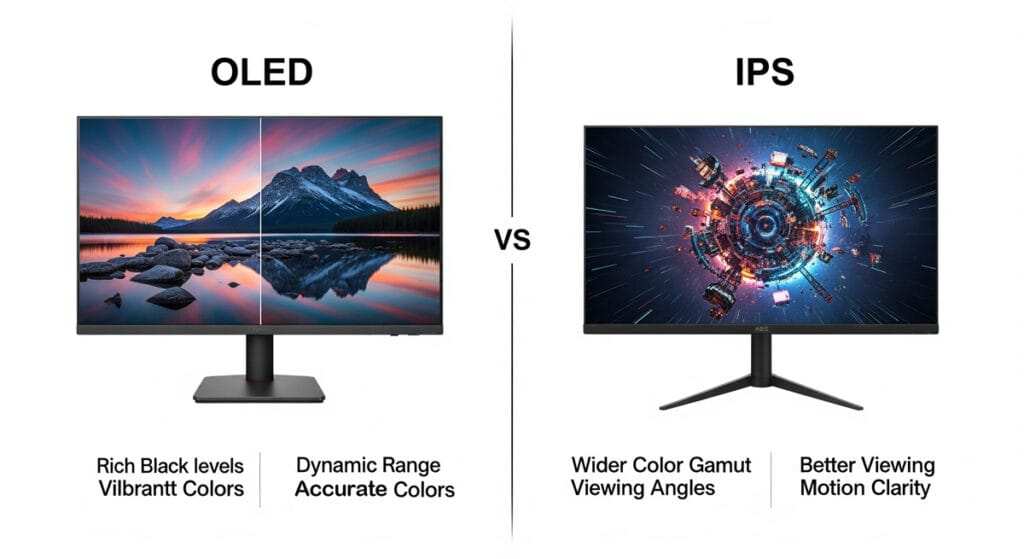
Viewing angle is another trap. IPS maintains color and contrast at wider angles. OLED can show a color shift when viewed off-center.
If multiple people review the screen at once, IPS is more reliable.
The Burn-In Question: Real Risk or Overhyped?
It’s real. Burn-in, or permanent image retention, happens on OLED panels when static content is displayed for long periods. The organic compounds that emit light degrade unevenly.
Over months, the ghost of your taskbar stays visible.
Manufacturers have improved this with pixel shifting, screen savers, and pixel refresh cycles. But it’s a physical limitation. It’s not going away completely.
For workflows with dynamic content (games, movies, video editing with moving timelines), the risk is lower. For static productivity (code editors, spreadsheets, design tools with fixed panels), the risk is high.
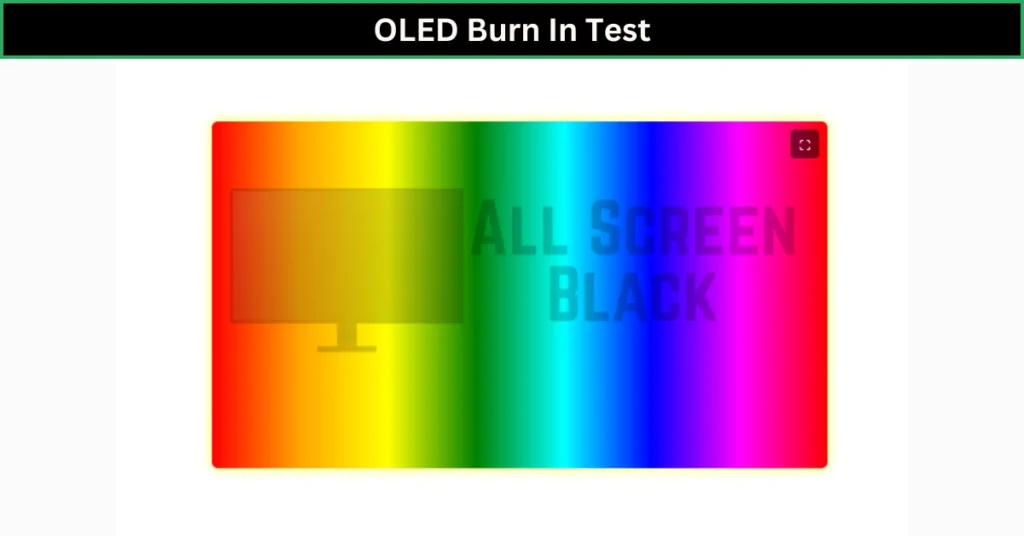
Aggregate reviews from long-term users show that OLED burn-in typically appears between 12 and 36 months in office use. Gaming use pushes that out further because content varies. Some users never see it if they vary their content enough.
IPS panels don’t burn in. They can have image persistence that fades after a few minutes, but it’s temporary. That’s a big deal if you plan to keep the monitor for five years or more.
If you’re worried about how long your monitor will last, consider buying an extended warranty that covers burn-in. Some manufacturers now offer this. It’s worth the premium if you choose OLED for productivity.
Calibration Tips for OLED and IPS (What Actually Works)
Hardware calibration is the only way to trust your screen. Use a colorimeter like the X-Rite i1Display Pro or Datacolor Spyder. Software like DisplayCAL gives you full control over LUT loading and gamma curves.
For OLED, calibrate at your typical brightness level. Do not change brightness between sessions. OLED white point shifts with luminance.
Lock in one setting and keep it.
For IPS, calibrate at a fixed brightness too. But IPS is more forgiving. You can adjust room lighting without breaking the calibration as much.
Frequency matters. For professional color work, calibrate every two to three months. For general use, every six months is enough. OLED drifts faster than IPS in the first year of use.
Use the right gamut target. sRGB for web and print proofing. DCI-P3 for HDR video. Adobe RGB for high-end print reproduction.
Do not use wide gamut for sRGB work without proper color management.
Price vs. Performance: What You’re Really Paying For
Professional IPS monitors cost between $300 and $2,000. OLED monitors for color work start around $500 and go up to $4,000. The price gap has narrowed, but IPS still gives you more consistent quality per dollar.
With IPS, you pay for uniformity. A $600 IPS from a reputable brand often ships with a factory calibration report and covers 100 percent of sRGB. That is excellent value for photo editing.
With OLED, you pay for contrast and gamut. A $800 OLED can cover 95 percent of DCI-P3 with true blacks. But you pay a premium for that contrast.
And you lose brightness and burn-in protection.
The hidden cost is lifespan. An IPS monitor can last eight to ten years without issues. An OLED used for static work may need replacement in three to five years. Factor that into your budget.
If you’re on the fence about screen size, remember that bigger ultrawide options can change your workflow. IPS ultrawides are widely available and affordable. OLED ultrawides are rare and expensive.
The Verdict: Which Panel Should You Buy?
There is no single right answer. Here is a quick decision guide.
Buy OLED if:
- You grade HDR video content.
- You watch movies or game in a dark room.
- You want the most immersive visual experience.
- You can manage burn-in with careful usage habits.
Buy IPS if:
- You do photo editing, print proofing, or graphic design.
- You work in a bright room or office.
- You keep static elements on screen all day.
- You want a monitor that lasts five years without worry.
Use both if you can. Many professionals set up an OLED as the primary grading monitor and an IPS as the secondary timeline or tool panel. That gives you contrast where it matters and safety where you need it.
Frequently Asked Questions
Can OLED match IPS for color accuracy?
Yes, but it takes more calibration effort. IPS panels typically have better out-of-box accuracy for sRGB workflows. OLED excels in DCI-P3 and HDR.
Do OLED monitors need special care to avoid burn-in?
Yes. Hide your taskbar, use dark mode, enable pixel refresh, and vary your content. Avoid leaving static windows on screen for hours.
Is IPS glow a problem for color work?
It can be. IPS glow is most visible on dark backgrounds in a dim room. For print proofing on white backgrounds, it is not an issue.
Which panel type is better for dual monitor setups?
IPS is easier to match across two units. OLED panels vary more between individual units due to manufacturing differences.
What is the minimum Delta-E I should look for?
A Delta-E under 2 is professional grade. Under 1 is excellent. Both OLED and IPS can achieve this with proper calibration.

Similar Posts





















