What Aspect Ratio Is Best for 27 Inch Monitor
If you're wondering what aspect ratio is best for 27 inch monitor, you've probably seen advice that feels contradictory. Some people swear by ultrawide for immersion. Others insist 16:10 is the only way to code comfortably.
The truth is, the best aspect ratio for a 27-inch screen depends entirely on what you do with it. And at this specific size, one option clearly beats the others for most people.
Manufacturer specs show that 27 inches hits a sweet spot for pixel density. At 2560×1440, it gives you sharp text without needing scaling. That combination makes 16:9 at 1440p the default recommendation.
But there are real edge cases where a different ratio makes sense. Let's walk through them.
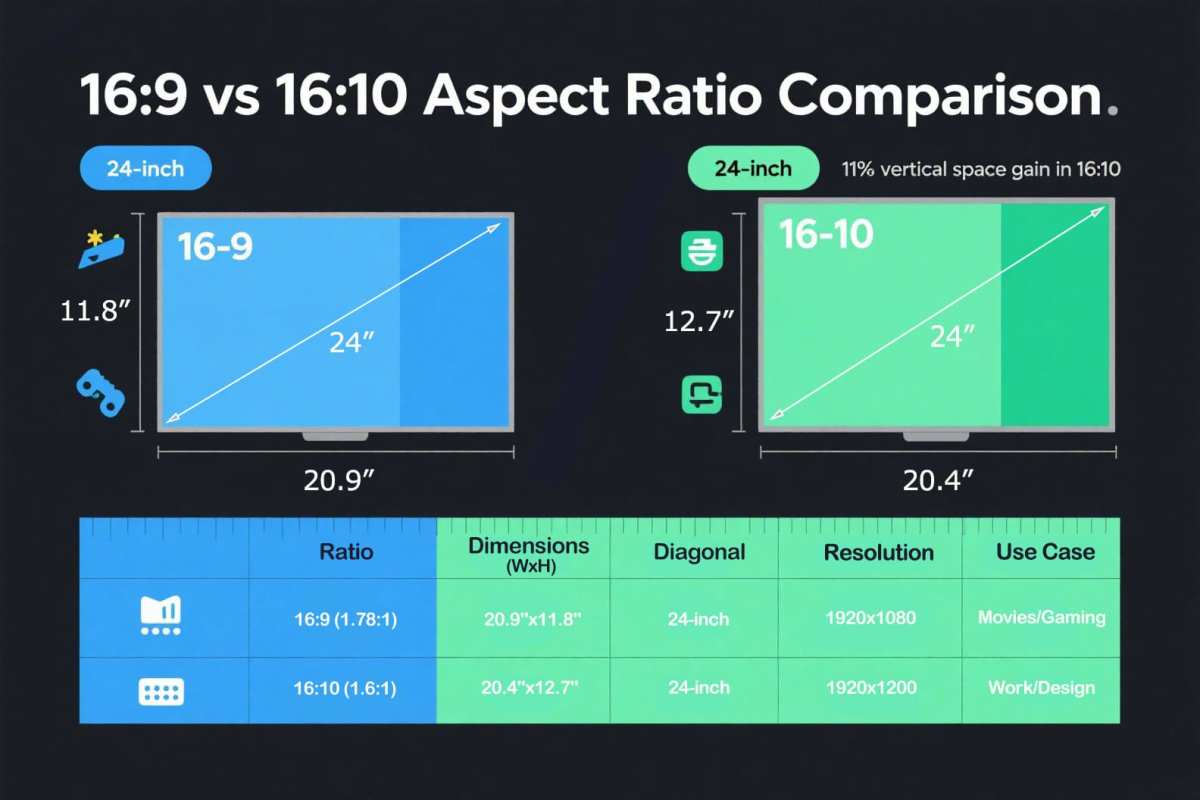
Problem: Why Picking the Wrong Aspect Ratio for a 27-Inch Monitor Hurts More Than You Think
A 27-inch monitor is a weird size. It's big enough to feel spacious, but not so big that you can throw any resolution or ratio at it and get away with it. That's where most buyers trip up.
Here's the first trap people fall into: buying a 27-inch 1080p monitor. At this size, the pixel density drops to about 81 PPI (pixels per inch). That makes text look fuzzy and icons appear blocky.
You can see individual pixels if you lean in. For office work or reading, it's genuinely unpleasant.
Another common mistake is assuming ultrawide (21:9) is automatically better because it's wider. At 27 inches, a 21:9 monitor is physically shorter vertically than a 16:9 model of the same diagonal. You lose about 1.6 inches of height.
That hurts for documents, spreadsheets, and coding.
The third trap? Hunting for a 16:10 monitor at 27 inches. These exist, but they're rare and often discontinued.
As of 2026, only a handful of manufacturers still produce them, and they command a premium. Meanwhile, a standard 16:9 at 2560×1440 gives you similar vertical space at a lower price.
Get this wrong and you'll either squint at fuzzy text, constantly scroll to see content, or pay too much for a niche monitor that doesn't fit your workflow. Let's fix that.
Quick Answer: The One-Liner That Saves You Buyer's Remorse
For almost everyone, the best aspect ratio for a 27 inch monitor is 16:9. Pair it with a resolution of 2560×1440. That combination gives you sharp text, good screen real estate, and broad compatibility with games, movies, and apps.
If you primarily code or edit documents, consider 16:10 if you can find one at 27 inches. It adds roughly 120 vertical pixels. But it's a niche product.
Most people should stick with 16:9 at 1440p and save the extra money.
Core Explanation: How Aspect Ratio and 27 Inches Actually Work Together
What's the Deal with 16:9, 16:10, and 21:9 at This Size?
Aspect ratio describes the width of a screen compared to its height. 16:9 means the screen is 16 units wide for every 9 units tall. 16:10 is slightly taller. 21:9 is much wider.
At 27 inches, those ratios produce different physical dimensions. A 27-inch 16:9 monitor measures about 23.5 inches wide by 13.2 inches tall. A 27-inch 16:10 monitor is roughly 22.9 inches wide by 14.3 inches tall.
That extra inch of height matters for vertical tasks. A 27-inch 21:9 monitor is around 25.6 inches wide but only about 11.5 inches tall. That's a problem.
The visual below shows how these sizes compare at the same diagonal.
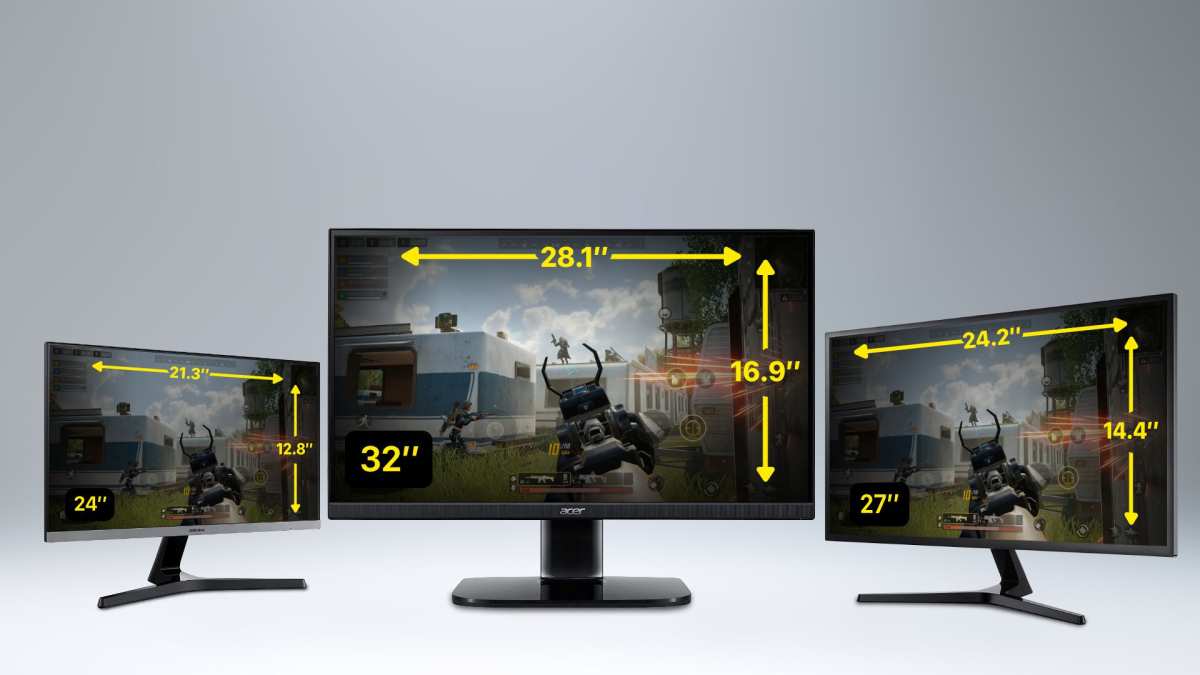
You lose over 1.7 inches of height going from 16:9 to 21:9 at 27 inches. That is a lot. For coding, browsing, or document editing, you will feel it.
For immersive games and movies, the extra width can be nice. But the trade-off is steep.
Why Pixel Density Matters Just as Much (1080p vs 1440p vs 4K)
Pixel density is measured in PPI. At 27 inches, here is what you get:
- 1080p (1920×1080): 81 PPI. Text looks jagged. Many users complain of eye strain.
- 1440p (2560×1440): 109 PPI. Sharp text without scaling. A clear winner for this size.
- 4K (3840×2160): 163 PPI. Very sharp, but you need scaling on most operating systems. That adds complexity and can reduce app compatibility.
Manufacturer specifications confirm that 109 PPI is comfortable for general use. It's dense enough to hide individual pixels, but not so dense that you need scaling. That's why 1440p at 16:9 is the sweet spot.
If you absolutely need 4K for video editing or photo work, you can run a 27-inch 4K monitor at 16:9. But expect to scale it to 150% on Windows or use "Looks like 2560×1440" on macOS. The experience is usable, but not plug-and-play.
Step-by-Step Decision Tree: Find Your Aspect Ratio in 4 Questions
Use these four questions to narrow down your choice. Treat each one as a gate. If you hit a condition, follow the recommendation.
Step 1 – What's Your Main Use Case?
- Gaming (competitive): Go 16:9 at 1440p. Ultrawide introduces compatibility issues with esports titles and many games stretch the UI.
- Gaming (immersive single-player): 16:9 at 1440p still wins. 21:9 at 27 inches is too short. If you want ultrawide, move up to 34 inches.
- Coding / writing / documents: Consider 16:10 if you can find one. Otherwise 16:9 at 1440p is fine.
- Video editing: 16:9 at 1440p or 4K. 16:10 adds a little timeline space but it's not critical.
- General office / multitasking: 16:9 at 1440p.
Step 2 – How Much Vertical Space Do You Actually Need?
If you spend more than 4 hours a day scrolling through documents, code, or long web pages, vertical space matters. A 27-inch 16:10 gives you about 14.3 inches of height. That is 1.1 inches more than a 16:9.
That extra space lets you see roughly 10 more lines of code or half a page of a document without scrolling.
If vertical space is a priority and you can't find a 27-inch 16:10, consider moving to a 24-inch 16:10 monitor. The height is almost identical to a 27-inch 16:9. That is a real alternative.
Step 3 – Are You Willing to Compromise on Compatibility?
16:9 is the universal standard. Every game, movie, and application supports it without tweaking. 16:10 often has letterboxing in games. 21:9 requires configuration in many apps and older games don't support it at all.
If you want a hassle-free experience, pick 16:9.
Step 4 – Can Your GPU Drive the Resolution You're Eyeing?
1440p at 27 inches needs a capable graphics card. For gaming at 60fps, a mid-range GPU like an RTX 3060 or RX 6600 works. For 120fps or higher, you need something like an RTX 4070 or RX 7800 XT. 4K needs even more power.
If your GPU can barely handle 1080p, don't buy a 27-inch monitor at all. Drop to 24 inches for 1080p. The pixel density is acceptable there.
Use Cases & Best Bets: Who Should Pick Which Aspect Ratio
For Coding and Documents: 16:10 (If You Can Find It) or 16:9 at 1440p
If you can source a 27-inch 16:10 monitor like the Dell U2715H (discontinued but still available used), grab it. The extra vertical lines reduce scrolling. But you're hunting a unicorn.
Most people should buy a 27-inch 16:9 at 1440p. It gives you 1440 vertical pixels, which is plenty for most coding environments.
If you really want that extra height, an alternative is a 24-inch 16:10 monitor. Its screen height matches a 27-inch 16:9. It's a smaller total area, but the vertical space is identical.
For Competitive Gaming: 16:9 1440p – No Contest
Ultrawide is a distraction for competitive gaming. Many esports titles crop the image or stretch UI elements. 16:10 adds black bars in some games. Stick with 16:9.
At 1440p, you get a sharp image and high refresh rates are widely available. Look for 165Hz or 240Hz panels.
For Immersive Sims and Media: Stick with 16:9 – Skip 21:9 at 27 Inches
21:9 at 27 inches sounds good on paper. In reality, the screen is too short. You get a wider view but lose vertical detail.
For racing sims or flight sims, a 34-inch ultrawide is a much better experience. For movies, most content is 16:9 anyway. Save the ultrawide for a larger size.
For General Office and Multitasking: 16:9 1440p Is the Sweet Spot
This is the default recommendation for probably 80% of buyers. You get sharp text, plenty of room for two windows side by side, and no scaling headaches. The monitor is affordable with many options under $300.
If you do a little bit of everything, this is your pick.
Mistakes to Avoid: What Real Users Regret Most
"I bought a 27-inch 1080p and now I see pixels" – The PPI Trap
This is the most common complaint in verified buyer feedback. At 27 inches, 1080p delivers only 81 PPI. Text looks soft.
Icons have jagged edges. You find yourself leaning closer to read small fonts.
Manufacturer specs show that 90 PPI is the minimum for comfortable reading. 1080p at 27 inches falls below that threshold. If you already own a 24-inch 1080p monitor and are happy with it, do not assume the same resolution works at 27 inches. It doesn't.
"I thought 21:9 would be better for spreadsheets" – The Vertical Shortage Problem
Ultrawide sounds great for multitasking. But at 27 inches, a 21:9 monitor is only 11.5 inches tall. That is shorter than many 24-inch monitors.
You lose vertical space.
Spreadsheets and documents need height to show rows. With a 27-inch ultrawide, you see fewer rows than on a standard 16:9 model. The extra width does not help much.
If you need ultrawide, move to 34 inches or larger.
"I assumed 16:10 was widely available" – The Hunt for the Unicorn
16:10 monitors at 27 inches exist but they are rare. As of 2026, most major brands have discontinued their 27-inch 16:10 lines. You may find used models like the Dell U2715H, but expect to pay a premium.
If you can source one, great. But do not build your setup around a monitor that is hard to find. A 27-inch 16:9 at 1440p gives you 1440 vertical pixels.
That is close to a 16:10's 1600 vertical pixels. The difference is noticeable but not worth hunting for months.
Real-World Specs at a Glance: What Each Ratio Actually Gives You at 27 Inches
The table below shows the physical dimensions and typical resolutions for each aspect ratio at 27 inches. Use it to compare before you buy.
| Aspect Ratio | Width (in) | Height (in) | Diagonal (in) | Typical Resolution | PPI |
|---|---|---|---|---|---|
| 16:9 | 23.5 | 13.2 | 27.0 | 2560×1440 | 109 |
| 16:10 | 22.9 | 14.3 | 27.0 | 1920×1200 | 84 |
| 21:9 | 25.6 | 11.5 | 27.0 | 2560×1080 | 102 |

Notice the height difference. 16:10 gives you over an inch more vertical space than 16:9. 21:9 gives you over an inch less. For most productivity tasks, height matters more than width.
Also note the PPI for 16:10 at 1920×1200. At 84 PPI, it is better than 1080p at 27 inches but still below the comfortable threshold. If you find a 16:10 monitor, check whether it runs 2560×1600.
That resolution delivers 109 PPI at 27 inches and is much sharper.
Comparisons & Alternatives: When Another Size or Setup Beats 27 Inches
27-Inch 16:9 vs 24-Inch 16:10 – They're Surprisingly Close Vertically
A 24-inch 16:10 monitor measures about 14.3 inches tall. A 27-inch 16:9 monitor measures 13.2 inches tall. That is only a 1.1 inch difference.
If you want vertical space but cannot find a 27-inch 16:10, a 24-inch 16:10 is a strong alternative. It is cheaper, widely available, and runs 1920×1200 at 94 PPI. That is sharper than 27-inch 1080p.
You lose horizontal width but gain vertical height.
27-Inch 16:9 vs 32-Inch Ultrawide – The Real Ultrawide Alternative
If you are drawn to the ultrawide form factor, skip the 27-inch version. A 34-inch ultrawide (21:9) is about 13.7 inches tall and 31.3 inches wide. That is actually taller than a 27-inch 16:9 monitor.
You get both width and acceptable height.
At 27 inches, ultrawide is too short. At 34 inches, it works. Manufacturer specs confirm that 34-inch ultrawide panels are taller than 27-inch 16:9 panels.
That makes them practical for multitasking.
Dual 24-Inch Monitors vs Single 27-Inch – Which Gives You More Room?
Two 24-inch 16:9 monitors give you about 42 inches of combined width and 13.2 inches of height each. That is massive horizontal space. A single 27-inch monitor gives you 23.5 inches of width.
If you need multiple full-screen windows visible at once, dual monitors win. But they take up more desk space and require more GPU outputs. A single 27-inch monitor works better for focused tasks like coding or gaming where you only need one main window.
Expert Tips: Getting the Most Out of Your Chosen Aspect Ratio
Scaling Settings for 4K at 27 Inches (Windows vs macOS)
If you buy a 27-inch 4K monitor, scaling is not optional. On Windows, set scaling to 150%. On macOS, use "Looks like 2560×1440." Without scaling, text is too small to read comfortably.
These settings keep UI elements at a readable size while giving you the sharpness of 4K. The downside is that some older applications may look blurry at non-native scaling. Test your most-used apps before committing.
Optimal Viewing Distance Based on Aspect Ratio and Resolution
For a 27-inch 16:9 monitor at 1440p, the ideal viewing distance is about 20 to 24 inches. That puts the entire screen in your field of view without needing to turn your head.
For ultrawide monitors at 27 inches, sit closer to 24 to 28 inches because the screen is wider. For 16:10, the standard 20 to 24 inch range works. Adjust your monitor arm or desk depth accordingly.
Ergonomics – Don't Let Vertical Height Mess Up Your Neck
A 27-inch 16:10 monitor is about 14.3 inches tall. That is 1.1 inches taller than a 16:9 model. If you use a fixed stand, you may need to raise the monitor so the top of the screen is at or slightly below eye level.
For taller monitors, a VESA mount or adjustable stand is worth the investment. Your neck will thank you after an 8-hour workday. Aggregate user reviews consistently mention neck strain from monitors that sit too low.
Final Decision Guide: Your Aspect Ratio Checklist Before Buying
Use this quick checklist to confirm your choice before you click "buy."
| If your primary use is… | Then pick this aspect ratio… | With this resolution… |
|---|---|---|
| Competitive gaming | 16:9 | 2560×1440 |
| Casual / immersive gaming | 16:9 | 2560×1440 (or 4K if GPU can handle it) |
| Coding / document editing | 16:10 (if available) or 16:9 | 2560×1440 or 2560×1600 |
| Video editing | 16:9 | 2560×1440 or 3840×2160 |
| General office / browsing | 16:9 | 2560×1440 |
| Ultra-wide multitasking | 21:9 at 34+ inches (skip 27") | 3440×1440 |
Before buying, also check these three things:
- Can your GPU run the resolution? 1440p needs a mid-range card for gaming. 4K needs a high-end card.
- Do you have enough desk depth? 27-inch monitors need at least 24 inches of depth for comfortable viewing.
- Are you willing to hunt for 16:10? If not, do not bother. 16:9 at 1440p is a proven workhorse.
That is the full picture. 16:9 at 1440p wins for most people. If your workflow demands more vertical space, consider 16:10 or a 24-inch alternative. If you want ultrawide, go bigger than 27 inches.
Now you know exactly what fits your setup.

Similar Posts





















