how to create images in chatgpt

If you've been wondering how to create images in ChatGPT, the short answer is that you absolutely can, but only if you're on a paid plan. OpenAI rolled out native image generation powered by GPT-4o, and it's built right into the chat interface you already know.
As of 2026, image generation requires at least a ChatGPT Plus subscription at $20 per month. The free tier doesn't support it. Once you're on a paid plan, you just type a prompt and the model generates your image in seconds.

Image source: Bing (Web (fair-use with source credit))
Quick Answer
You can create images in ChatGPT by subscribing to ChatGPT Plus or higher. Open the chat interface and type a detailed image prompt. GPT-4o generates your image in seconds.
You then refine it with follow-up messages. Download the result when you're happy with it.
How Image Generation Works Inside ChatGPT
ChatGPT's image generation isn't a separate tool anymore. It's baked directly into the GPT-4o model, which means you don't need to switch platforms or open a different app. You just describe what you want in plain language, and the model creates it.
The system uses what OpenAI calls native multimodal generation. GPT-4o handles both text and image output within the same model architecture. This is a big shift from how things used to work.
The Model Behind It: GPT-4o and DALL·E 3
Here's where it gets a little confusing. OpenAI originally used a standalone model called DALL·E 3 for image generation. That model was separate from ChatGPT's text capabilities.
You'd write a prompt, DALL·E would process it, and you'd get an image.
Now GPT-4o handles image generation natively. The model was trained on both text and visual data, so it understands your prompt and generates pixels in one unified process. DALL·E 3's training and capabilities essentially got absorbed into GPT-4o over time.
The practical takeaway is simple. You don't need to know which model is doing the work. You just open ChatGPT and start typing.
What Changed From the Old DALL·E Integration
The old workflow required you to select DALL·E as a separate tool or use a specific prompt format. It felt like switching between two different apps. Now everything happens in the same conversation thread.
You can generate an image, ask ChatGPT to modify it, then ask it to write accompanying text for a blog post. All in one place. The conversational iteration is the real upgrade here.
You're not locked into a single prompt either. If the first result isn't quite right, you can say "make the background darker" or "change the style to watercolor" and GPT-4o adjusts accordingly. That back-and-forth is what makes this genuinely useful for real projects.
Do You Need ChatGPT Plus to Create Images?
Yes. Image generation is locked behind a paid subscription. If you're on the free tier, you won't see the option at all.
This is one of the main reasons people upgrade.
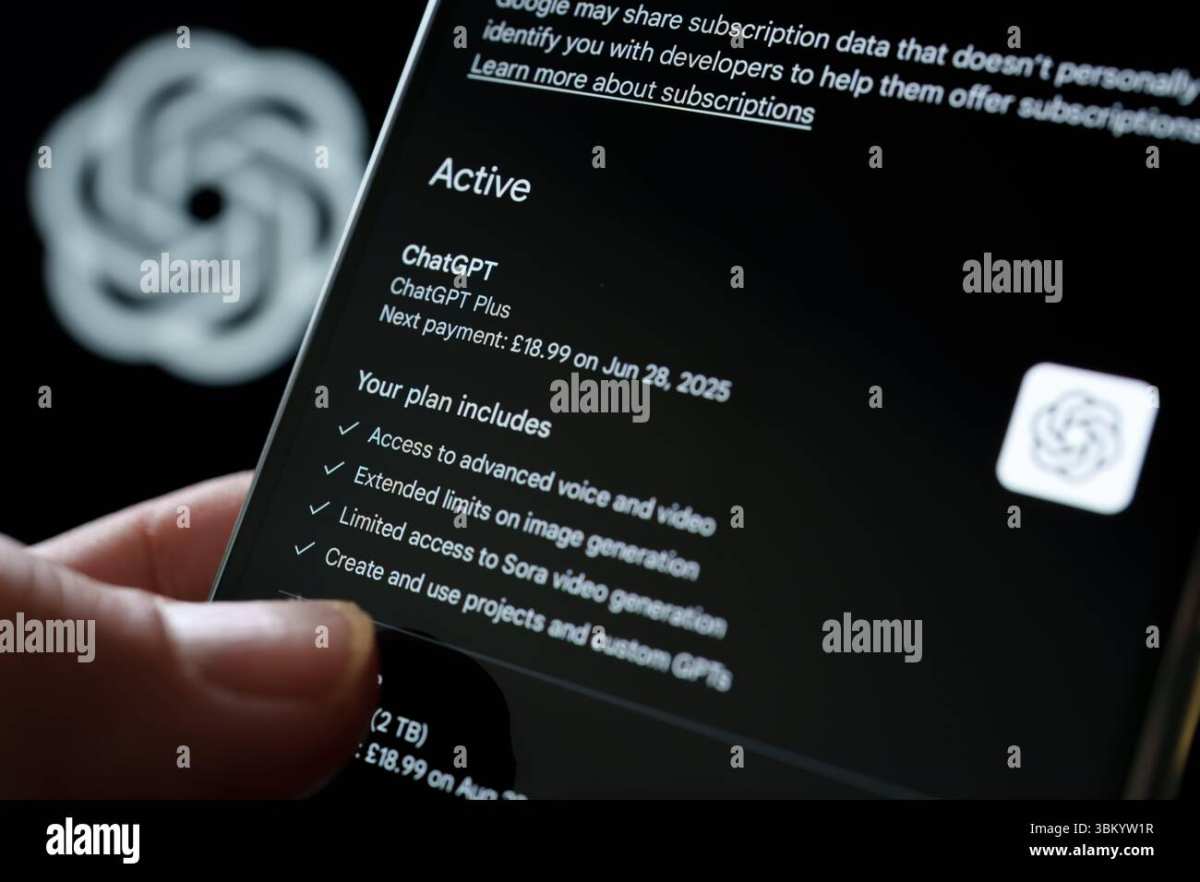
Image source: Bing (Web (fair-use with source credit))
Free Tier vs. Plus vs. Pro: What You Get
Here's the breakdown of what each tier offers for image generation.
| Feature | Free | Plus ($20/mo) | Pro ($200/mo) | Team ($25/user/mo) |
|---|---|---|---|---|
| Image generation | No | Yes | Yes | Yes |
| GPT-4o access | Limited | Yes | Yes | Yes |
| Resolution options | N/A | 1024×1024, 1024×1792, 1792×1024 | Same | Same |
| Generation speed | N/A | Standard | Faster priority | Standard |
| Commercial use rights | N/A | Yes | Yes | Yes |
| Conversational refinement | N/A | Yes | Yes | Yes |
The free tier gives you GPT-4o for text conversations but blocks image generation entirely. Plus unlocks it with no additional per-image charges. Pro gives you faster generation during high-traffic periods, which matters if you're generating lots of images during business hours.
Is It Worth Paying For?
That depends on how many images you need. If you're generating a handful of social media graphics per week, the $20 monthly cost is cheaper than a single stock photo subscription. If you need images daily for a business, it's a no-brainer compared to hiring a designer.
The real value isn't just the image generation itself. It's the combination of text brainstorming and visual output in one workflow. You can plan your content strategy, write your copy, and generate your visuals without leaving ChatGPT.
How to Create an Image in ChatGPT: Step by Step
The process is straightforward once you have the right subscription. Here's exactly how to do it.
Step 1: Make Sure You're on a Paid Plan
Log into ChatGPT at chat.openai.com or open the mobile app. If you see "Plus" or "Pro" in your account settings, you're good to go. If you see "Free," you'll need to upgrade first.
Upgrading takes about a minute. Go to your account settings, select "Upgrade plan," and follow the prompts. Once you're on Plus, image generation is available immediately.
Step 2: Start a Fresh Conversation
Open a new chat. This isn't strictly required, but it gives you a clean slate. Previous conversation context can sometimes influence image generation in unexpected ways.
A fresh conversation means the model focuses entirely on your image prompt without getting distracted by earlier messages.
Step 3: Write a Detailed Image Prompt
This is where the magic happens. Type a clear, descriptive prompt that tells GPT-4o exactly what you want. The more specific you are, the better your results.
A weak prompt looks like this: "a dog." A strong prompt looks like this: "a golden retriever sitting in a sunlit meadow with wildflowers, photorealistic style, warm golden hour lighting, shallow depth of field."
We'll cover prompt engineering in detail later, but the key principle is simple. Describe your subject, setting, style, lighting, and mood. Every detail you add gives the model more to work with.
Step 4: Wait, Review, and Refine
After you hit enter, GPT-4o generates your image in roughly 10 to 30 seconds. The image appears right in the chat window. Take a look at it.
If it's not quite right, type a follow-up instruction. You can say things like "make it more cartoonish," "add a sunset background," or "put the subject in the center." The model reads your conversation history, so it understands you're modifying the previous image.
Most people need two or three rounds of refinement to get exactly what they want. That's normal. The conversational iteration is the whole point.
Step 5: Download and Use Your Image
When you're satisfied, click the image to expand it, then use the download button to save it to your device. The image saves as a PNG file.
You can then use it however you need. Post it on social media, drop it into a blog post, add it to a presentation. Your subscription includes commercial use rights, so you can use generated images in business contexts.
What Kind of Images Can You Actually Make?
ChatGPT's image generation is versatile, but it has clear strengths and weaknesses. Understanding both helps you decide when to use it and when to look elsewhere.
What It's Good At
ChatGPT excels at several types of image creation.
- Illustrations and digital art. Stylized images, concept art, and creative scenes come out well.
- Social media graphics. Posts, banners, and thumbnails with clear subjects and simple compositions.
- Marketing visuals. Blog headers, ad concepts, and presentation slides.
- Product mockups. Simple product shots and lifestyle imagery for brainstorming.
- Educational diagrams. Visual explanations of concepts and processes.
- Background textures and patterns. Abstract designs and decorative elements.
The model handles scenes with clear subjects and descriptive styles particularly well. If you can describe it in words, GPT-4o can usually render a solid version of it.
Where It Falls Short
There are some things GPT-4o still struggles with.
- Text in images. Words, signs, and labels often come out garbled or misspelled. This is a known limitation.
- Hands and fingers. Human hands still render incorrectly more often than we'd like.
- Photorealistic human faces. The model avoids generating realistic faces of real people, and even fictional faces can look slightly off.
- Precise spatial layouts. Complex scenes with multiple objects in specific positions may not match your description exactly.
- Print-quality resolution. The maximum output is 1792 pixels on the longest side, which isn't sufficient for large-format printing.
- Style consistency. Generating a series of images in the exact same style across multiple prompts is difficult.
If you need precise text rendering, Ideogram handles that better. If you need high-quality artistic outputs, Midjourney still leads in that space. ChatGPT's strength is convenience and speed, not absolute quality.
ChatGPT vs. Other AI Image Tools
ChatGPT isn't the only option for AI image generation. Several other tools compete on quality, features, and pricing. Here's how they stack up.
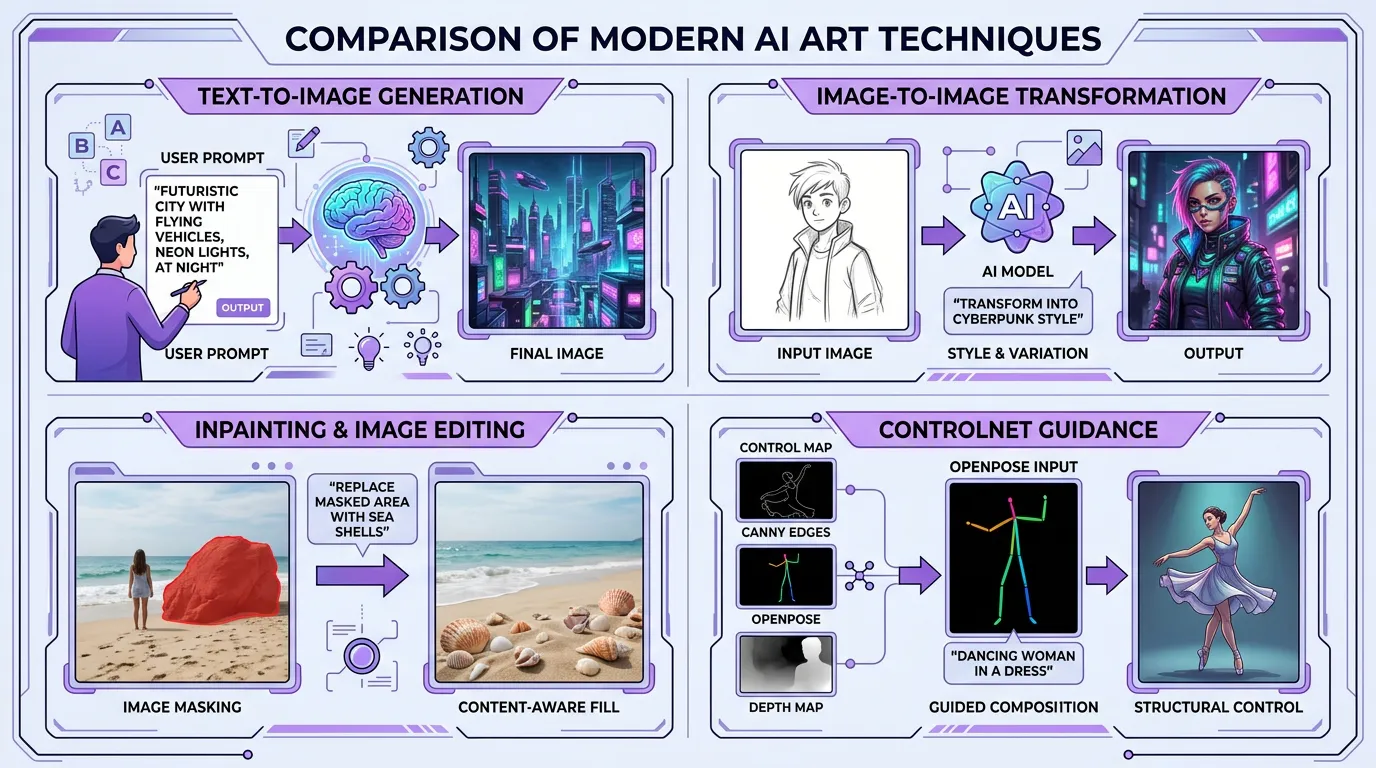
Image source: Bing (Web (fair-use with source credit))
When ChatGPT Is the Right Choose
ChatGPT makes the most sense when you want an all-in-one tool. You're already using it for writing, research, or brainstorming, and you want to add images without switching apps. The conversational refinement is genuinely useful for iterating quickly.
It's also a solid choice when you need images for content you're creating in the same workflow. Blog posts, social media campaigns, and presentations all benefit from having text and image generation in one place.
The $20 per month cost covers everything. There are no per-image credits to manage or worry about running out of.
When You Should Use Something Else
Other tools beat ChatGPT in specific scenarios.
- Midjourney produces higher-quality artistic images with better aesthetic coherence. It's the go-to for artists and designers who care about visual quality above all else.
- Adobe Firefly is trained on commercially safe data, making it a better choice for businesses worried about copyright issues.
- Ideogram handles text rendering in images far better than any other tool. If your image needs words, use Ideogram.
- Stable Diffusion gives you full control and runs locally on your hardware. It's free but requires technical setup.
- Canva's Magic Design is easier for beginners who want template-based designs rather than pure generation.
The right tool depends on your specific need. ChatGPT wins on convenience and integration. Specialized tools win on quality and specific capabilities.
Prompt Engineering: The Real Skill Behind Good Results
The quality of your output depends almost entirely on the quality of your input. Prompt engineering is the skill that separates mediocre AI images from genuinely useful ones.
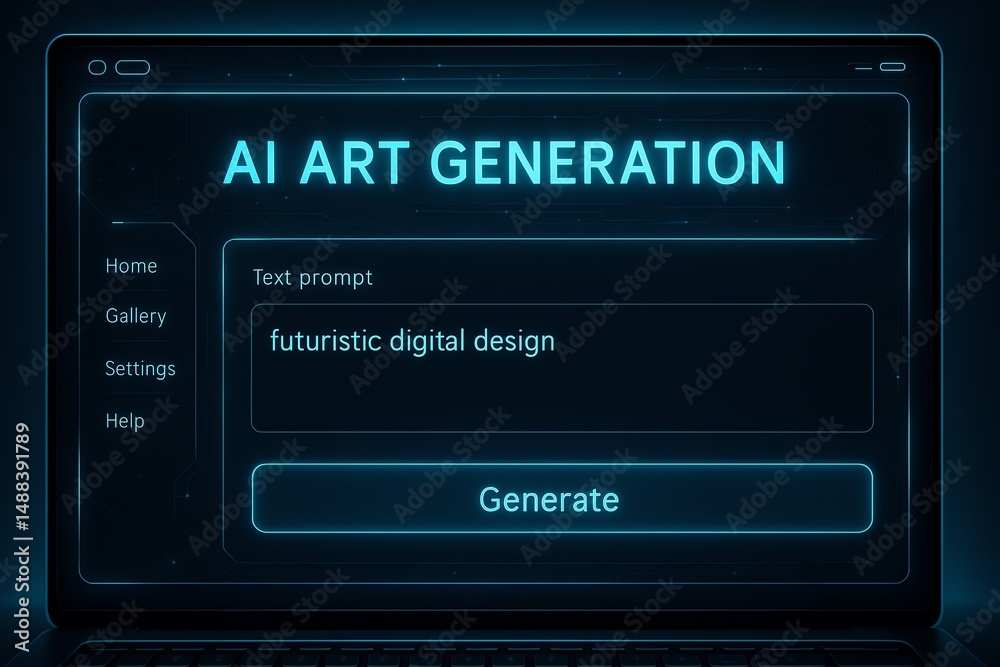
Image source: Bing (Web (fair-use with source credit))
The Anatomy of a Strong Image Prompt
A good image prompt includes several key elements.
- Subject. What is the main focus of the image? Be specific. "A red fox in a forest" is better than "an animal."
- Style. What artistic style do you want? Photorealistic, watercolor, cartoon, oil painting, 3D render, pixel art.
- Lighting. Describe the light source and quality. Golden hour, studio lighting, overcast daylight, neon glow.
- Composition. Where is the subject positioned? Close-up, wide shot, centered, rule of thirds.
- Mood. What feeling should the image convey? Warm and inviting, dark and moody, energetic, peaceful.
- Color palette. Do you want vibrant colors, muted tones, monochrome, or specific colors.
You don't need to include every element in every prompt. But the more you specify, the more control you have over the output.
Common Prompt Mistakes That Ruin Outputs
These are the most common mistakes people make when writing image prompts.
- Being too vague. "A nice landscape" gives the model nothing to work with. Describe the terrain, weather, time of day, and style.
- Overloading the prompt. Cramming too many unrelated elements into one prompt creates chaotic results. Keep it focused.
- Ignoring style specification. If you don't specify a style, the model picks one for you. Always state what you want.
- Forgetting lighting and mood. These elements make the difference between a flat image and a compelling one.
- Expecting perfection on the first try. Plan for iteration. Your first image is a starting point, not a final product.
Start with a clear subject and style, then add details as needed. If the first result is close but not right, refine your prompt or use follow-up instructions to adjust specific elements.
Real Use Cases Where ChatGPT Image Generation Shines
Let's look at practical scenarios where ChatGPT's image generation actually delivers value.
Social Media Content
Creating consistent social media visuals is one of the most common use cases. You can generate custom images for Instagram posts, Twitter headers, LinkedIn articles, and YouTube thumbnails without hiring a designer.
The speed is the advantage here. You can generate and iterate on a post image in under a minute. That's faster than searching for stock photos or waiting for a designer to deliver.
Marketing and Blog Graphics
Blog post featured images, email newsletter headers, and ad creative concepts all work well with ChatGPT. You describe the concept, generate a few options, pick the best one, and refine it.
For small businesses and solo creators, this replaces what used to require a design subscription plus a freelancer. It's not going to replace a professional designer for high-stakes brand work, but it handles everyday marketing visuals just fine.
Brainstorming and Concept Work
Sometimes you just need to visualize an idea. ChatGPT is excellent for rapid concept exploration. You can generate ten variations of a concept in minutes and use them as reference points for further work.
Designers use this too. It's a quick way to explore composition ideas or color schemes before committing to a polished design.
Education and Presentations
Teachers, trainers, and presenters can generate custom illustrations for slides, handouts, and educational materials. Instead of searching for the perfect stock image, you can create exactly what you need.
A history teacher might generate a scene from ancient Rome. A science teacher might create a diagram of a cell structure. The specificity is what makes this useful.
Legal, Ethical, and Safety Considerations
There are some important things to understand about the legal and ethical side of AI image generation.
Who Owns the Images You Generate?
Per OpenAI's usage policies, you own the images you generate. You can use them commercially, modify them, and distribute them. This applies to all paid subscription tiers.
However, the legal landscape around AI-generated content is still evolving. Some jurisdictions are developing specific regulations around AI-generated works. It's worth staying informed about developments in your region.
What You Can't (and Shouldn't) Generate
OpenAI enforces content policies that restrict certain types of image generation.
- No images depicting violence or gore.
- No sexually explicit content.
- No images of real public figures or politicians.
- No content that promotes hate speech or harassment.
- No attempts to generate images that infringe on existing copyrighted characters.
These restrictions are enforced automatically. If your prompt violates the policy, the model refuses to generate the image.
Commercial Use Rights
Commercial use is included with all paid plans. You can use generated images in marketing materials, products, websites, and client work. You don't need to credit OpenAI or ChatGPT.
That said, some platforms and publishers are developing disclosure requirements for AI-generated content. Check the specific requirements of wherever you plan to publish or distribute your images.
Common Mistakes and How to Avoid These Errors
Here are the most frequent mistakes people make when generating images in ChatGPT, along with how to fix them.
- Using the free tier and wondering why it doesn't work. Image generation requires Plus or higher. Upgrade first.
- Writing vague prompts. "A cool image" produces generic results. Be specific about subject, style, lighting, and mood.
- Expecting text in images to be accurate. The model struggles with text rendering. If your image needs words, add them later in an image editor.
- Giving up after one attempt. Iteration is part of the process. Use follow-up prompts to refine.
- Ignoring resolution limits. The maximum output resolution is 1792 pixels on the longest side. Don't expect to print a billboard from that.
- Not checking content policies. If your prompt gets rejected, it likely violates a content rule. Review the guidelines and adjust.
- Assuming all AI tools produce the same results. Each tool has different strengths. Choose based on your specific need.
Frequently Asked Questions
Can I generate images in ChatGPT for free?
No. Image generation requires a paid subscription. You need at least ChatGPT Plus at $20 per month.
The free tier only supports text conversations.
What resolution are ChatGPT-generated images?
ChatGPT outputs images at 1024×1024 pixels for square format, 1024×1792 for portrait, and 1792×1024 for landscape. These resolutions work well for web and social media use but aren't sufficient for large-format printing.
Can I use ChatGPT-generated images commercially?
Yes. All paid plans include commercial use rights. You can use generated images in marketing materials, products, and client work without crediting OpenAI.
Does ChatGPT generate images with accurate text?
Not reliably. Text rendering in AI-generated images remains a common weakness across most models. If your image needs precise text, plan to add it later using an image editing tool.
How long does it take to generate an image in ChatGPT?
Most images generate in 10 to 30 seconds. During peak usage times, Pro subscribers get priority processing, which can reduce wait times.
Can I edit an existing image using ChatGPT?
You can upload an image and ask ChatGPT to analyze or describe it. However, direct image editing capabilities are limited. You can generate new images based on descriptions of changes you want, but you can't directly modify a uploaded photo the way you would in an image editor.
The Bottom Line: Should You Use ChatGPT for Image Generation?
ChatGPT's image generation is a practical, fast, and affordable tool for everyday visual content. It's not going to replace professional designers or specialized AI art tools. But for social media graphics, blog images, marketing visuals, and rapid brainstorming, it delivers genuine value.
The $20 per month ChatGPT Plus subscription makes sense if you're already using ChatGPT for text work and want to add image generation to your workflow. If you only need images and nothing else, tools like Midjourney or Ideogram might serve you better for pure visual quality.
The convenience factor is real. Having text and image generation in one place, with conversational refinement, streamlines the content creation process in a way that standalone image tools can't match. For most casual and small-business use cases, that tradeoff is worth it.

Features and Attributes Worth Knowing
Beyond basic generation, ChatGPT includes several features that affect how you work with images.
Resolution options let you choose between square (1024×1024), portrait (1024×1792), and landscape (1792×1024) formats. You specify the orientation in your prompt or select it from the interface depending on your platform.
Conversational iteration means you don't start over when something's slightly off. You just describe the change you want. The model maintains context from earlier in the conversation, so it understands you're modifying the previous generation.
You can also upload reference images for ChatGPT to analyze. This isn't image generation, but it's useful. Upload a photo, ask about the composition, then use that analysis to write a better generation prompt.
Pricing Breakdown and Value
We covered the subscription tiers earlier, but here's what matters most for image use. ChatGPT Plus at $20 per month gives you unlimited image generation with no per-image limits. Pro at $200 per month adds faster processing during peak hours.
There are no hidden costs, no credit systems, and no watermarks on your outputs. Once you're subscribed, every image you generate is yours to use freely.
Compare that to standalone image tools. Midjourney starts at $10 per month but limits fast generation hours. Canva's Pro plan runs $13 per month with AI features included.
Credit-based platforms like Leonardo or Nightcafe require you to manage usage budgets.
ChatGPT's model is simple. You pay the monthly fee, you get unlimited images. That predictability makes budgeting easy, especially for small businesses and solo creators.
How It Fits Into a Larger Workflow
Think of ChatGPT image generation as one tool in a broader content pipeline, not a complete replacement for everything.
A practical workflow looks like this: brainstorm content ideas in ChatGPT, generate a draft of your copy, create supporting images with the image generation feature, then polish everything in your preferred editing software.
Most people don't use ChatGPT images as final deliverable. They use them as starting points, mockups, or supplementary visuals. A social media manager might generate a concept, refine it in Canva, add branded text, and then publish.
The integration saves time on the ideation and rough creation stages. But you'll still want dedicated tools for fine-tuning, especially for professional or client-facing work.
Limitations You Should Expect
Every AI image tool has trade-offs, and ChatGPT is no exception. Knowing these upfront saves frustration.
Text in images remains unreliable. If your design needs a sign, label, or headline, add it afterward in Canva, Photoshop, or any editor you prefer.
Anatomical accuracy is inconsistent. Hands, fingers, and teeth often look slightly wrong in generated images. This is a well-documented limitation across current AI models.
High-resolution output isn't available yet. The 1792-pixel maximum works fine for screens but won't cut it for print materials beyond small formats.
Style control across multiple images is limited. If you generate ten images in a row, don't expect them all to look like they belong together. Each prompt starts fresh, even within the same conversation.
Being aware of these limits helps you plan around them instead of being disappointed by them.
Practical Tips for Better Results
A few strategies consistently improve image quality regardless of what you're creating.
Start simple. Write a clear prompt with just your subject and style. Add details only if the first result needs them.
Overcomplicating the prompt often makes results worse.
Use style references in your prompt. Phrases like "in the style of a vintage travel poster" or "resembling a watercolor painting" give the model a clear creative direction.
Iterate three to five times per image. The first generation is rarely the best. Each refinement round gets you closer to what you want.
Save your best prompts as templates. If you find a prompt structure that works well for your needs, reuse it with different subjects. This saves time and improves consistency over time.
Finally, generate multiple variations and pick the best one. Two or three generations of the same prompt often produce noticeably different results. Compare them before you start refining.
How to Create Images in ChatGPT: A Practical Guide for 2026
If you've been wondering how to create images in ChatGPT, the short answer is that you absolutely can, but only if you're on a paid plan. OpenAI rolled out native image generation powered by GPT-4o, and it's built right into the chat interface you already know.
As of 2026, image generation requires at least a ChatGPT Plus subscription at $20 per month. The free tier doesn't support it. Once you're on a paid plan, you just type a prompt and the model generates your image in seconds.

Image source: Bing (Web (fair-use with source credit))
Quick Answer
You can create images in ChatGPT by subscribing to ChatGPT Plus or higher. Open the chat interface and type a detailed image prompt. GPT-4o generates your image in seconds.
You then refine it with follow-up messages. Download the result when you're happy with it.
How Image Generation Works Inside ChatGPT
ChatGPT's image generation isn't a separate tool anymore. It's baked directly into the GPT-4o model, which means you don't need to switch platforms or open a different app. You just describe what you want in plain language, and the model creates it.
The system uses what OpenAI calls native multimodal generation. GPT-4o handles both text and image output within the same model architecture. This is a big shift from how things used to work.
The Model Behind It: GPT-4o and DALL·E 3
Here's where it gets a little confusing. OpenAI originally used a standalone model called DALL·E 3 for image generation. That model was separate from ChatGPT's text capabilities.
You'd write a prompt, DALL·E would process it, and you'd get an image.
Now GPT-4o handles image generation natively. The model was trained on both text and visual data, so it understands your prompt and generates pixels in one unified process. DALL·E 3's training and capabilities essentially got absorbed into GPT-4o over time.
The practical takeaway is simple. You don't need to know which model is doing the work. You just open ChatGPT and start typing.
What Changed From the Old DALL·E Integration
The old workflow required you to select DALL·E as a separate tool or use a specific prompt format. It felt like switching between two different apps. Now everything happens in the same conversation thread.
You can generate an image, ask ChatGPT to modify it, then ask it to write accompanying text for a blog post. All in one place. The conversational iteration is the real upgrade here.
You're not locked into a single prompt either. If the first result isn't quite right, you can say "make the background darker" or "change the style to watercolor" and GPT-4o adjusts accordingly. That back-and-forth is what makes this genuinely useful for real projects.
Do You Need ChatGPT Plus to Create Images?
Yes. Image generation is locked behind a paid subscription. If you're on the free tier, you won't see the option at all.
This is one of the main reasons people upgrade.

Image source: Bing (Web (fair-use with source credit))
Free Tier vs. Plus vs. Pro: What You Get
Here's the breakdown of what each tier offers for image generation.
| Feature | Free | Plus ($20/mo) | Pro ($200/mo) | Team ($25/user/mo) |
|---|---|---|---|---|
| Image generation | No | Yes | Yes | Yes |
| GPT-4o access | Limited | Yes | Yes | Yes |
| Resolution options | N/A | 1024×1024, 1024×1792, 1792×1024 | Same | Same |
| Generation speed | N/A | Standard | Faster priority | Standard |
| Commercial use rights | N/A | Yes | Yes | Yes |
| Conversational refinement | N/A | Yes | Yes | Yes |
The free tier gives you GPT-4o for text conversations but blocks image generation entirely. Plus unlocks it with no additional per-image charges. Pro gives you faster generation during high-traffic periods, which matters if you're generating lots of images during business hours.
Is It Worth Paying For?
That depends on how many images you need. If you're generating a handful of social media graphics per week, the $20 monthly cost is cheaper than a single stock photo subscription. If you need images daily for a business, it's a no-brainer compared to hiring a designer.
The real value isn't just the image generation itself. It's the combination of text brainstorming and visual output in one workflow. You can plan your content strategy, write your copy, and generate your visuals without leaving ChatGPT.
How to Create an Image in ChatGPT: Step by Step
The process is straightforward once you have the right subscription. Here's exactly how to do it.
Step 1: Make Sure You're on a Paid Plan
Log into ChatGPT at chat.openai.com or open the mobile app. If you see "Plus" or "Pro" in your account settings, you're good to go. If you see "Free," you'll need to upgrade first.
Upgrading takes about a minute. Go to your account settings, select "Upgrade plan," and follow the prompts. Once you're on Plus, image generation is available immediately.
Step 2: Start a Fresh Conversation
Open a new chat. This isn't strictly required, but it gives you a clean slate. Previous conversation context can sometimes influence image generation in unexpected ways.
A fresh conversation means the model focuses entirely on your image prompt without getting distracted by earlier messages.
Step 3: Write a Detailed Image Prompt
This is where the magic happens. Type a clear, descriptive prompt that tells GPT-4o exactly what you want. The more specific you are, the better your results.
A weak prompt looks like this: "a dog." A strong prompt looks like this: "a golden retriever sitting in a sunlit meadow with wildflowers, photorealistic style, warm golden hour lighting, shallow depth of field."
We'll cover prompt engineering in detail later, but the key principle is simple. Describe your subject, setting, style, lighting, and mood. Every detail you add gives the model more to work with.
Step 4: Wait, Review, and Refine
After you hit enter, GPT-4o generates your image in roughly 10 to 30 seconds. The image appears right in the chat window. Take a look at it.
If it's not quite right, type a follow-up instruction. You can say things like "make it more cartoonish," "add a sunset background," or "put the subject in the center." The model reads your conversation history, so it understands you're modifying the previous image.
Most people need two or three rounds of refinement to get exactly what they want. That's normal. The conversational iteration is the whole point.
Step 5: Download and Use Your Image
When you're satisfied, click the image to expand it, then use the download button to save it to your device. The image saves as a PNG file.
You can then use it however you need. Post it on social media, drop it into a blog post, add it to a presentation. Your subscription includes commercial use rights, so you can use generated images in business contexts.
What Kind of Images Can You Actually Make?
ChatGPT's image generation is versatile, but it has clear strengths and weaknesses. Understanding both helps you decide when to use it and when to look elsewhere.
What It's Good At
ChatGPT excels at several types of image creation.
- Illustrations and digital art. Stylized images, concept art, and creative scenes come out well.
- Social media graphics. Posts, banners, and thumbnails with clear subjects and simple compositions.
- Marketing visuals. Blog headers, ad concepts, and presentation slides.
- Product mockups. Simple product shots and lifestyle imagery for brainstorming.
- Educational diagrams. Visual explanations of concepts and processes.
- Background textures and patterns. Abstract designs and decorative elements.
The model handles scenes with clear subjects and descriptive styles particularly well. If you can describe it in words, GPT-4o can usually render a solid version of it.
Where It Falls Short
There are some things GPT-4o still struggles with.
- Text in images. Words, signs, and labels often come out garbled or misspelled. This is a known limitation.
- Hands and fingers. Human hands still render incorrectly more often than we'd like.
- Photorealistic human faces. The model avoids generating realistic faces of real people, and even fictional faces can look slightly off.
- Precise spatial layouts. Complex scenes with multiple objects in specific positions may not match your description exactly.
- Print-quality resolution. The maximum output is 1792 pixels on the longest side, which isn't sufficient for large-format printing.
- Style consistency. Generating a series of images in the exact same style across multiple prompts is difficult.
If you need precise text rendering, Ideogram handles that better. If you need high-quality artistic outputs, Midjourney still leads in that space. ChatGPT's strength is convenience and speed, not absolute quality.
ChatGPT vs. Other AI Image Tools
ChatGPT isn't the only option for AI image generation. Several other tools compete on quality, features, and pricing. Here's how they stack up.

Image source: Bing (Web (fair-use with source credit))
When ChatGPT Is the Right Choice
ChatGPT makes the most sense when you want an all-in-one tool. You're already using it for writing, research, or brainstorming, and you want to add images without switching apps. The conversational refinement is genuinely useful for iterating quickly.
It's also a solid choice when you need images for content you're creating in the same workflow. Blog posts, social media campaigns, and presentations all benefit from having text and image generation in one place.
The $20 per month cost covers everything. There are no per-image credits to manage or worry about running out of.
When You Should Use Something Else
Other tools beat ChatGPT in specific scenarios.
- Midjourney produces higher-quality artistic images with better aesthetic coherence. It's the go-to for artists and designers who care about visual quality above all else.
- Adobe Firefly is trained on commercially safe data, making it a better choice for businesses worried about copyright issues.
- Ideogram handles text rendering in images far better than any other tool. If your image needs words, use Ideogram.
- Stable Diffusion gives you full control and runs locally on your hardware. It's free but requires technical setup.
- Canva's Magic Design is easier for beginners who want template-based designs rather than pure generation.
The right tool depends on your specific need. ChatGPT wins on convenience and integration. Specialized tools win on quality and specific capabilities.
Prompt Engineering: The Real Skill Behind Good Results
The quality of your output depends almost entirely on the quality of your input. Prompt engineering is the skill that separates mediocre AI images from genuinely useful ones.

Image source: Bing (Web (fair-use with source credit))
The Anatomy of a Strong Image Prompt
A good image prompt includes several key elements.
- Subject. What is the main focus of the image? Be specific. "A red fox in a forest" is better than "an animal."
- Style. What artistic style do you want? Photorealistic, watercolor, cartoon, oil painting, 3D render, pixel art.
- Lighting. Describe the light source and quality. Golden hour, studio lighting, overcast daylight, neon glow.
- Composition. Where is the subject positioned? Close-up, wide shot, centered, rule of thirds.
- Mood. What feeling should the image convey? Warm and inviting, dark and moody, energetic, peaceful.
- Color palette. Do you want vibrant colors, muted tones, monochrome, or specific colors.
You don't need to include every element in every prompt. But the more you specify, the more control you have over the output.
Common Prompt Mistakes That Ruin Outputs
These are the most common mistakes people make when writing image prompts.
- Being too vague. "A nice landscape" gives the model nothing to work with. Describe the terrain, weather, time of day, and style.
- Overloading the prompt. Cramming too many unrelated elements into one prompt creates chaotic results. Keep it focused.
- Ignoring style specification. If you don't specify a style, the model picks one for you. Always state what you want.
- Forgetting lighting and mood. These elements make the difference between a flat image and a compelling one.
- Expecting perfection on the first try. Plan for iteration. Your first image is a starting point, not a final product.
Start with a clear subject and style, then add details as needed. If the first result is close but not right, refine your prompt or use follow-up instructions to adjust specific elements.
Real Use Cases Where ChatGPT Image Generation Shines
Let's look at practical scenarios where ChatGPT's image generation actually delivers value.
Social Media Content
Creating consistent social media visuals is one of the most common use cases. You can generate custom images for Instagram posts, Twitter headers, LinkedIn articles, and YouTube thumbnails without hiring a designer.
The speed is the advantage here. You can generate and iterate on a post image in under a minute. That's faster than searching for stock photos or waiting for a designer to deliver.
Marketing and Blog Graphics
Blog post featured images, email newsletter headers, and ad creative concepts all work well with ChatGPT. You describe the concept, generate a few options, pick the best one, and refine it.
For small businesses and solo creators, this replaces what used to require a design subscription plus a freelancer. It's not going to replace a professional designer for high-stakes brand work, but it handles everyday marketing visuals just fine.
Brainstorming and Concept Work
Sometimes you just need to visualize an idea. ChatGPT is excellent for rapid concept exploration. You can generate ten variations of a concept in minutes and use them as reference points for further work.
Designers use this too. It's a quick way to explore composition ideas or color schemes before committing to a polished design.
Education and Presentations
Teachers, trainers, and presenters can generate custom illustrations for slides, handouts, and educational materials. Instead of searching for the perfect stock image, you can create exactly what you need.
A history teacher might generate a scene from ancient Rome. A science teacher might create a diagram of a cell structure. The specificity is what makes this useful.
Legal, Ethical, and Safety Considerations
There are some important things to understand about the legal and ethical side of AI image generation.
Who Owns the Images You Generate?
Per OpenAI's usage policies, you own the images you generate. You can use them commercially, modify them, and distribute them. This applies to all paid subscription tiers.
However, the legal landscape around AI-generated content is still evolving. Some jurisdictions are developing specific regulations around AI-generated works. It's worth staying informed about developments in your region.
What You Can't (and Shouldn't) Generate
OpenAI enforces content policies that restrict certain types of image generation.
- No images depicting violence or gore.
- No sexually explicit content.
- No images of real public figures or politicians.
- No content that promotes hate speech or harassment.
- No attempts to generate images that infringe on existing copyrighted characters.
These restrictions are enforced automatically. If your prompt violates the policy, the model refuses to generate the image.
Commercial Use Rights
Commercial use is included with all paid plans. You can use generated images in marketing materials, products, websites, and client work. You don't need to credit OpenAI or ChatGPT.
That said, some platforms and publishers are developing disclosure requirements for AI-generated content. Check the specific requirements of wherever you plan to publish or distribute your images.
Common Mistakes and How to Avoid These Errors
Here are the most frequent mistakes people make when generating images in ChatGPT, along with how to fix them.
- Using the free tier and wondering why it doesn't work. Image generation requires Plus or higher. Upgrade first.
- Writing vague prompts. "A cool image" produces generic results. Be specific about subject, style, lighting, and mood.
- Expecting text in images to be accurate. The model struggles with text rendering. If your image needs words, add them later in an image editor.
- Giving up after one attempt. Iteration is part of the process. Use follow-up prompts to refine.
- Ignoring resolution limits. The maximum output resolution is 1792 pixels on the longest side. Don't expect to print a billboard from that.
- Not checking content policies. If your prompt gets rejected, it likely violates a content rule. Review the guidelines and adjust.
- Assuming all AI tools produce the same results. Each tool has different strengths. Choose based on your specific need.
Frequently Asked Questions
Can I generate images in ChatGPT for free?
No. Image generation requires a paid subscription. You need at least ChatGPT Plus at $20 per month.
The free tier only supports text conversations.
What resolution are ChatGPT-generated images?
ChatGPT outputs images at 1024×1024 pixels for square format, 1024×1792 for portrait, and 1792×1024 for landscape. These resolutions work well for web and social media use but aren't sufficient for large-format printing.
Can I use ChatGPT-generated images commercially?
Yes. All paid plans include commercial use rights. You can use generated images in marketing materials, products, and client work without crediting OpenAI.
Does ChatGPT generate images with accurate text?
Not reliably. Text rendering in AI-generated images remains a common weakness across most models. If your image needs precise text, plan to add it later using an image editing tool.
How long does it take to generate an image in ChatGPT?
Most images generate in 10 to 30 seconds. During peak usage times, Pro subscribers get priority processing, which can reduce wait times.
Can I edit an existing image using ChatGPT?
You can upload an image and ask ChatGPT to analyze or describe it. However, direct image editing capabilities are limited. You can generate new images based on descriptions of changes you want, but you can't directly modify a uploaded photo the way you would in an image editor.
The Bottom Line: Should You Use ChatGPT for Image Generation?
ChatGPT's image generation is a practical, fast, and affordable tool for everyday visual content. It's not going to replace professional designers or specialized AI art tools. But for social media graphics, blog images, marketing visuals, and rapid brainstorming, it delivers genuine value.
The $20 per month ChatGPT Plus subscription makes sense if you're already using ChatGPT for text work and want to add image generation to your workflow. If you only need images and nothing else, tools like Midjourney or Ideogram might serve you better for pure visual quality.
The convenience factor is real. Having text and image generation in one place, with conversational refinement, streamlines the content creation process in a way that standalone image tools can't match. For most casual and small-business use cases, that tradeoff is worth it.






















