OLED vs IPS for Work: Which Display Wins?
You know the feeling. You stare at a screen eight hours a day, and something just feels off. Maybe your eyes ache by 3 PM.
Maybe dark scenes in a video look washed out. Maybe text seems slightly fuzzy. For anyone asking about oled vs ips for work, the answer isn't a simple winner.
It's about what your specific work demands. The wrong pick costs you comfort, clarity, and cash.
Manufacturer specs confirm that a typical IPS panel delivers around 1000:1 static contrast. OLED panels hit contrast ratios above 1,000,000:1. That sounds like a slam dunk for OLED.
But contrast is just one variable. Your real work involves spreadsheets, code, email, and web browsing. So the choice comes down to which technology makes those tasks easier over a full workday.
Quick Answer
OLED wins on contrast and blacks. IPS wins on text clarity and burn-in resistance. For general office work, choose IPS.
For media work with varied content, choose OLED. Burn-in risk is real for static screens. Text fringing on OLED can bother coders and writers.
IPS costs less per inch and lasts longer under static use.
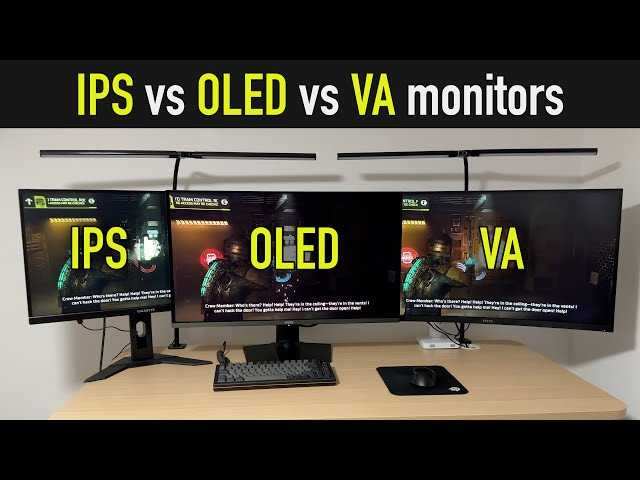
Why This Choice Matters for How You Actually Work
Your monitor is the tool you touch all day. It affects your productivity, your comfort, and even your sleep. Getting it wrong means squinting at text, adjusting brightness constantly, or worrying about burn-in with every saved file.
The fundamental difference between OLED and IPS comes down to how they create light. IPS panels use a backlight that shines through liquid crystals. That backlight is always on, even when displaying black.
That's why blacks on IPS look dark gray in a dim room. OLED pixels emit their own light. Black pixels simply turn off.
That gives you true black and infinite contrast.
But here is where work changes the equation. A backlight that stays on means consistent brightness across the entire screen. Every pixel gets the same light source.
OLED pixels age at different rates depending on how much they glow. A static taskbar or document toolbar gets used more than surrounding areas. That creates uneven wear over time.
Our research shows that for all-day productivity, these differences matter more than gaming benchmarks or movie specs. You need to think about how the panel handles static content, text rendering, and long sessions without fatigue.
OLED vs IPS: The Simple Difference That Changes Your Day
Think of IPS as a reliable workhorse. It delivers predictable brightness and sharp text at a reasonable price. It does not change as it ages.
Your color accuracy stays consistent month after month.
Think of OLED as a premium experience with compromises. It looks stunning for video and design work. But it asks you to change your habits.
You might hide your taskbar, use dark mode everywhere, or rotate your wallpaper frequently. Those small adjustments add up.
Both technologies have a place. The question is which one fits how you actually work, not how you want your screen to look in a dark room.
Side-by-Side: Specs That Affect Your Work (Not Just Marketing Numbers)
Spec sheets focus on contrast ratio and peak brightness. Those numbers matter for HDR movies. For work, you care about different specs.
Here is what actually affects your daily experience.
The Specs That Matter for Productivity
| Spec | IPS | OLED | Why It Matters for Work |
|---|---|---|---|
| Contrast ratio | 1000:1 static | 1,000,000:1+ | IPS blacks look gray in dim light |
| Subpixel layout | RGB stripe | Varies (Pentile, WRGB) | OLED text can show color fringing |
| Sustained brightness | 250-400 nits | 200-350 nits | IPS works better in bright offices |
| Burn-in risk | None | Real over time | Static UI elements cause permanent ghosting |
| Response time | 1-5ms | 0.1-1ms | Not a factor for typing or spreadsheets |
| Viewing angles | Wide, but shifts color | Near perfect | Both work well, OLED stays more consistent |
| Price per inch | Lower | Higher | IPS gives you more screen for your budget |

The subpixel layout difference matters more than most buyers realize. Standard IPS uses an RGB stripe pattern. Operating systems optimize text rendering for that layout.
OLED panels often use different subpixel arrangements. The result is colored fringing around small text characters. You notice it most on white backgrounds with black text, which is exactly what coders and writers stare at all day.
How Each Panel Performs in Real Work Scenarios
Let's walk through actual work tasks and see how each panel handles them.
Spreadsheets and Documents
IPS wins here. Text looks sharp and crisp. The matte coating on most IPS monitors reduces glare from overhead lights.
You can work for hours without eye strain. The consistent brightness across the whole panel means cells in the corners match the center.
OLED works but has drawbacks. Text fringing is noticeable on small fonts. Glossy coatings on many OLED monitors reflect office lighting.
You end up adjusting your seating position or closing blinds.
Coding and Terminals
Developers face a specific challenge. Code editors often have white or light backgrounds with small monospaced text. IPS handles this perfectly.
Your code looks clean and readable.
OLED introduces the burn-in worry. A terminal window with the same layout all day creates a static image. The bright white background area ages faster than the dark sidebar.
After months, you may see a faint ghost of your editor layout.
Graphic Design and Color-Critical Work
This is where OLED shines. True blacks help you see actual shadow detail. The wide color gamut covers DCI-P3 and Adobe RGB well.
Color accuracy can be excellent on premium models.
But IPS is no slouch. High-end IPS monitors achieve Delta E under 2, which is professional grade. They also maintain consistent color over years of use.
OLED panels can shift color over time as organic materials degrade.
Bright Offices vs Dim Home Offices
IPS dominates in bright rooms. A typical IPS panel pushes 300-400 nits. The matte finish scatters ambient light.
You see your work clearly even with a window behind you.
OLED panels struggle here. They typically sustain 200-350 nits. Glossy coatings reflect overhead lights and windows.
You may need to dim the room to get the full benefit of deep blacks and high contrast.

Burn-In: The Real Risk for a Work Monitor (Not Hype)
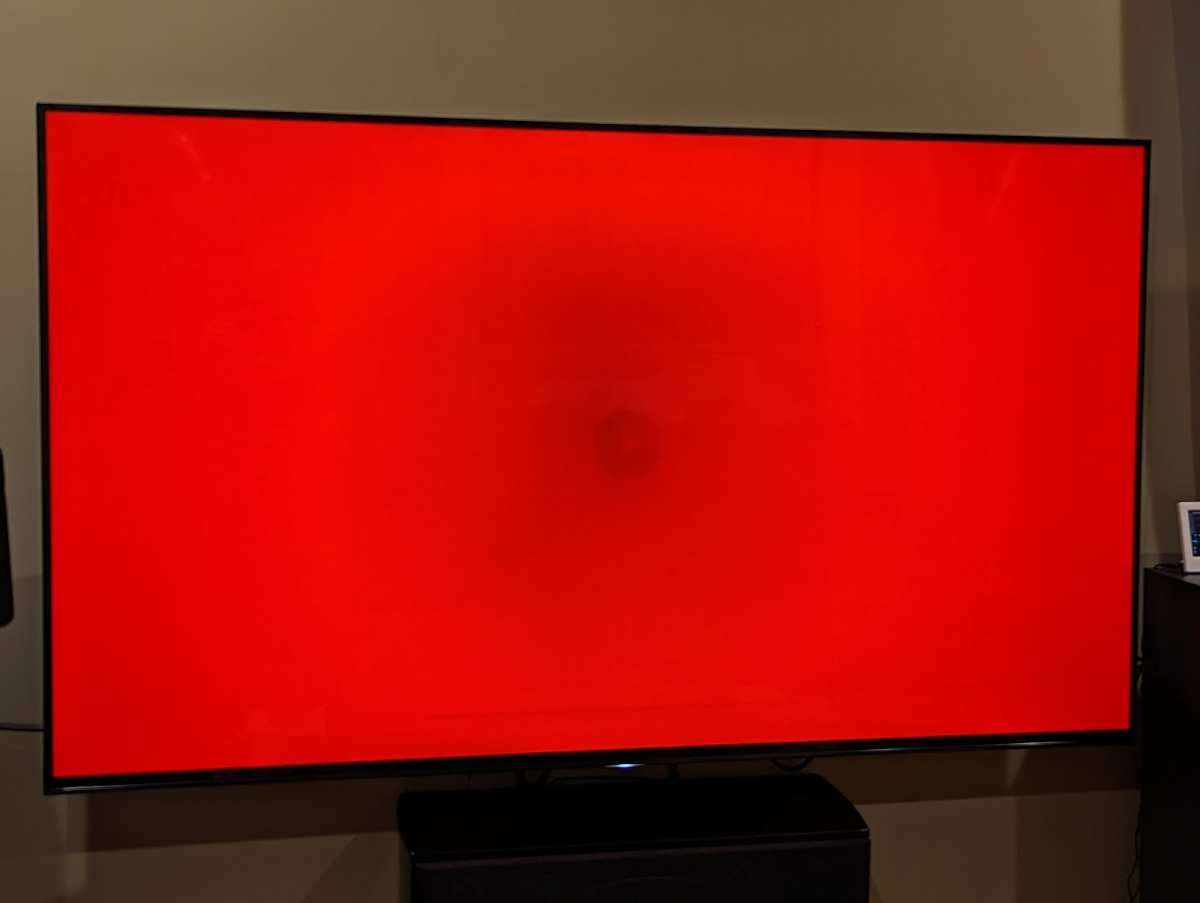
Burn-in is not a myth. It is a measurable phenomenon where organic compounds in OLED pixels degrade at different rates. Bright pixels wear faster than dim ones.
A 2023 analysis by Rtings showed significant burn-in on OLED monitors used for static productivity work within 12 months. The taskbar area, browser tab bar, and document toolbar all showed visible retention.
Here is what makes it worse for work:
- Static UI elements. Your taskbar, dock, browser tabs, and toolbars stay in the same place for hours.
- High brightness. Offices tend to use bright screens. Higher brightness accelerates pixel degradation.
- Long daily sessions. Eight hours a day for years adds up. IPS shows no wear from static content.
Brands have added mitigation features. Pixel shift moves the image slightly. Screen savers activate after short idle periods.
Logo dimming detects static elements and reduces their brightness. But these measures reduce rather than eliminate the risk.
If you plan to keep a monitor for three to five years of daily work, burn-in is a legitimate concern. IPS carries no such risk.
Text Clarity: Why Some OLEDs Make Reading Harder
This is the most under-discussed difference between the two technologies. Text clarity on OLED varies significantly depending on the subpixel layout.
Most IPS monitors use a standard RGB stripe arrangement. Windows ClearType and macOS font smoothing are designed for this exact layout. Characters render with precise edges and consistent color.
Many OLED monitors use alternative subpixel layouts. LG's WOLED uses a WRGB arrangement with a white subpixel. Samsung's QD-OLED uses a triangular layout.
These designs optimize brightness and color gamut at the expense of text definition.
The result is visible color fringing around characters. You might see magenta or green edges on black text against a white background. It is most noticeable on small font sizes, which is exactly what code editors, spreadsheets, and email clients use.
Some users adapt within a few days. Others find it permanently distracting. If you read or write text for most of your workday, test an OLED monitor with your actual workflow before committing.
Cost Reality Check: What You Get for the Money
OLED commands a significant premium. As of 2026, here is what you can expect to pay for comparable monitor sizes.
| Size and Resolution | IPS Price Range | OLED Price Range | Premium |
|---|---|---|---|
| 27-inch 4K | $250-$600 | $800-$1,300 | 2-4x |
| 32-inch 4K | $350-$800 | $1,000-$2,000 | 2-3x |
| 34-inch ultrawide | $300-$700 | $900-$1,500 | 2-3x |
The price gap is narrowing but still substantial. For the cost of one OLED, you could buy two good IPS monitors and set up a dual monitor arrangement. Many productivity tasks benefit more from the extra screen space than from deeper blacks.
Our research shows that for most office workers, the practical choice is a quality IPS panel. Spend the savings on a better ergonomic setup, a higher resolution, or a second monitor.
Who Should Choose IPS (and Why It's Still the Safe Pick)
IPS is the default for a reason. It covers most work scenarios without compromise. Choose IPS if you do any of the following for most of your day:
- Read and write documents
- Code in editors with light backgrounds
- Work in bright office lighting
- Use multiple monitors side by side
- Keep monitors for three years or longer
- Want consistent color and brightness over time
The best IPS monitors for work include models with USB-C connectivity, built-in KVM switches, and adjustable stands. Many Dell UltraSharp and BenQ PD series monitors hit these marks well. They offer factory-calibrated sRGB modes and TÜV Rheinland certification for reduced eye strain.
For maximizing your workspace across multiple screens, many users find that replacing two screens with a single wider display also works well alongside an IPS choice.
Who Should Choose OLED (and When It's Actually Worth It)
OLED makes sense for specific work contexts. Choose OLED if you work primarily with:
- Video editing and color grading
- Graphic design with dark themes
- Photography with shadow detail to evaluate
- Mixed media where content changes frequently
- Controlled lighting where you can manage ambient brightness
OLED also suits users who replace monitors every two to three years. The burn-in risk is manageable over shorter ownership periods. Premium OLED monitors from LG, Dell, and ASUS include three-year burn-in warranties on some models, which reduces the financial risk.
For reducing visual fatigue during long sessions, some users prefer OLED's per-pixel dimming. But aggregate reviews indicate that IPS with proper bias lighting and flicker-free backlights is equally comfortable.
The Middle Ground: Mini-LED and High-End IPS That Almost Do Both
Mini-LED technology bridges the gap. It uses thousands of tiny LEDs as a backlight with local dimming zones. This gives IPS panels much better contrast while maintaining the text clarity and burn-in resistance of LCD.
Mini-LED monitors like the Asus ProArt PA32UCG or Apple's XDR displays reach contrast ratios above 100,000:1 in HDR mode. They rival OLED for media work while keeping IPS advantages for productivity.
The tradeoff is cost. Mini-LED monitors sit between premium IPS and OLED in price. They also introduce blooming around bright objects on dark backgrounds, though newer models with more zones minimize this effect.
If you want the best of both worlds and have the budget, Mini-LED is worth considering.
Mistakes People Make When Buying a Work Monitor
Picking Based on Gaming Reviews
Most monitor reviews focus on gaming performance. Response time, refresh rate, and HDR gaming scores dominate. These metrics barely matter for spreadsheet work.
Ignore gaming reviews and look for productivity-focused evaluations.
Ignoring the Coating
OLED monitors often use glossy coatings. IPS monitors typically use matte coatings. Test your room lighting.
A glossy screen with a window behind you creates a mirror. A matte screen reduces reflections but softens text slightly.
Buying a Single Task Monitor
If you do varied work, consider a monitor that handles multiple scenarios. A high-end IPS with good contrast and wide color gamut serves most purposes. A dedicated OLED for media work plus a good IPS for text work is a strong combo.
Overlooking Ergonomics
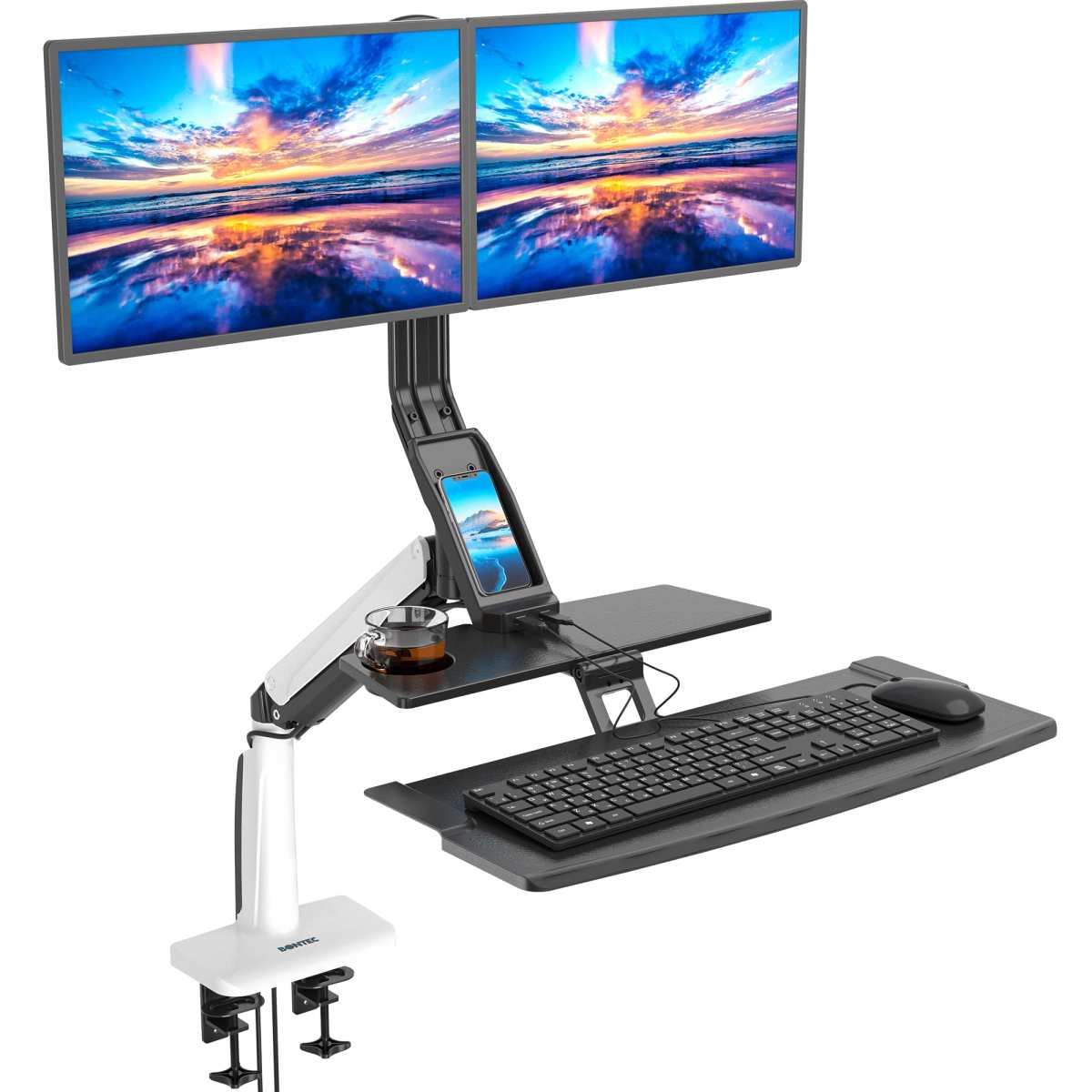
Monitor height, tilt, and distance affect your comfort more than panel type. A good ergonomic setup with bias lighting reduces eye strain regardless of OLED or IPS. Investing in a quality monitor arm and proper desk lighting matters more than panel choice for many users.
For what an office setup really needs, prioritize adjustability and connectivity before splurging on OLED.
The Two-Minute Decision Guide
Here is your shortcut. Answer these three questions.
Do you spend more than half your day reading or writing text? If yes, choose IPS. Text clarity and burn-in safety win.
Do you work in graphic design, video production, or photography with varied content? If yes, choose OLED. The contrast and color depth directly improve your work.
Do you keep monitors for over three years? If yes, choose IPS. Burn-in risk on OLED increases with time.
Still unsure? Find a balance with a high-end IPS or a Mini-LED panel. You get strong contrast, zero burn-in risk, and excellent text clarity.
That is the safe bet for most office workers.
Frequently Asked Questions
Is OLED worse than IPS for eye strain?
Not inherently. Both technologies can cause eye strain if used incorrectly. OLED's deep blacks reduce ambient light scatter, which some users find easier on the eyes.
However, PWM flickering on some OLED models at low brightness can cause fatigue. Choose a flicker-free certified model from either technology.
Can I use OLED for coding all day?
Yes, but take precautions. Use dark mode in your editor to reduce white area burn-in. Enable pixel shift and a short screen saver timer.
Hide your taskbar and use rotating desktop backgrounds. Many developers report success with these habits, but IPS remains the safer choice.
How long do OLED monitors last for work use?
Manufacturers typically rate OLED panels for 30,000 to 50,000 hours before noticeable brightness degradation. At 8 hours per day, that is 10 to 17 years. However, uneven wear from static content appears much sooner.
Most users see burn-in between 1 and 3 years with heavy office use.
Does IPS have any image quality advantage over OLED?
Yes. IPS delivers consistent brightness across the entire screen. OLED panels can show slightly different brightness levels as individual pixels age.
IPS also handles bright ambient light better, with higher sustained brightness and matte coatings that reduce reflections.
Which is better for a dual monitor setup?
IPS is the practical choice. Two IPS monitors match perfectly in brightness and color. An OLED next to an IPS looks noticeably different due to contrast and black level differences.
For consistency across multiple screens, stick with IPS.
Are there OLED monitors designed specifically for work?
Yes. The Dell UltraSharp U4021QW uses IPS, but Dell has introduced OLED work monitors like the UP3218KA. LG's UltraFine OLED and Apple's Pro Display XDR target creative professionals.
These models include burn-in warranties and productivity-focused features like USB-C hubs and KVM switches.

Similar Posts





















