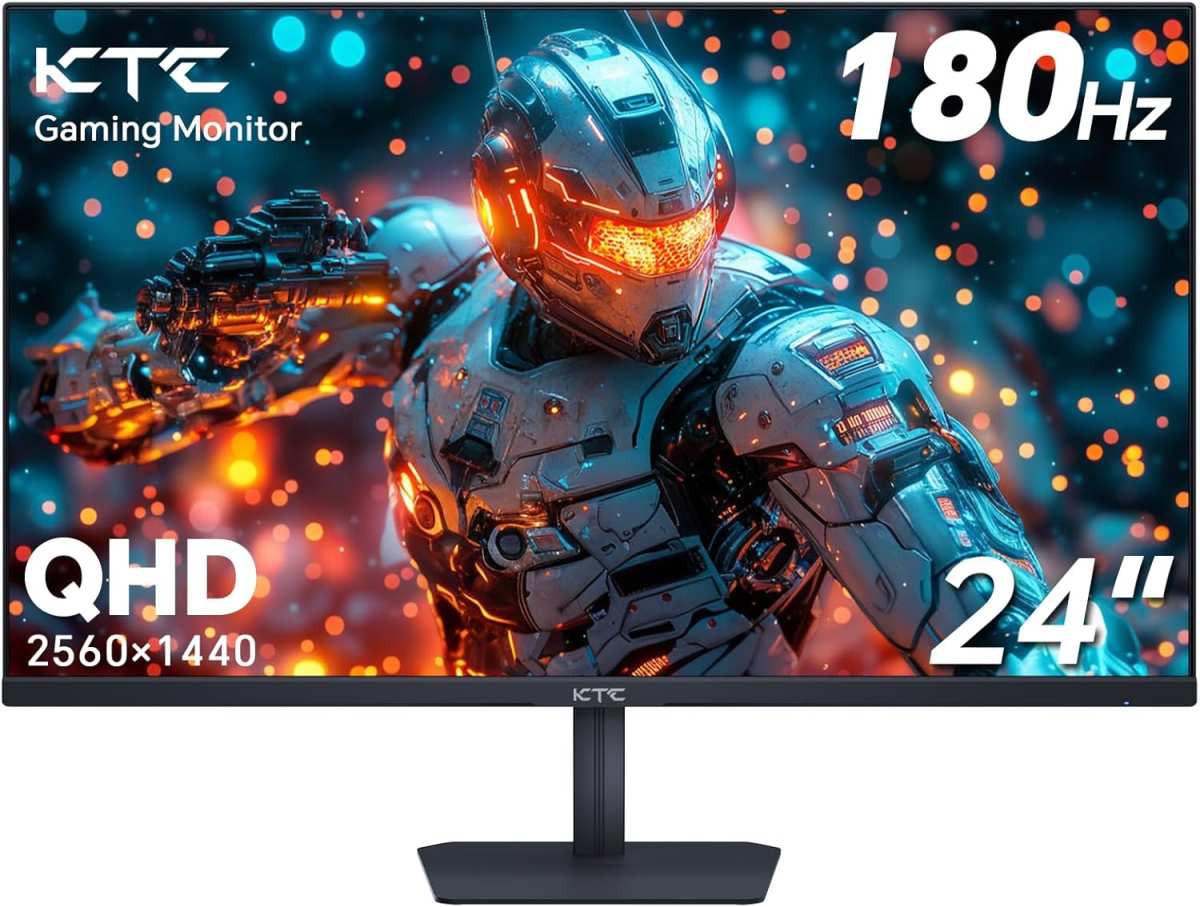
is 27 inch monitor better than 24 inch
You walk into a store, or maybe you’re scrolling through listings online, and you hit the same question: is 27 inch monitor better than 24 inch. It seems simple, but the answer shifts depending on your desk space, your vision, and what you actually do with the screen. One size isn’t universally better, the right choice depends on a handful of concrete factors.
Manufacturer specs and ergonomic guidelines suggest that viewing distance and pixel density play a bigger role than raw inches. TÜV Rheinland’s low blue light and ergonomic standards recommend keeping the monitor at arm’s length, and that distance changes how big a 27-inch panel feels. Let’s break down what you need to look at before you decide.
Image source: Bing (Web (fair-use with source credit))
Quick Answer
A 27-inch monitor is better when you work with multiple windows or want immersive gaming. A 24-inch monitor wins on pixel density at 1080p and fits tighter desks. If you sit closer than 24 inches from your screen, stick with 24 inches.
If you have room to lean back, 27 inches gives you more workspace. Resolution matters more than size alone.
Why This Size Debate Actually Matters
Pick the wrong size and you’ll deal with neck strain, eye fatigue, or a screen that feels either cramped or overwhelming. It’s not just about preference, your posture and productivity take a hit when the monitor doesn’t match your setup.
The shift from 24 to 27 inches is a bigger jump than you’d think. The surface area increases by about 27 percent. That extra space changes how you arrange windows, how far you need to move your head, and how much detail you can see at a glance.
For some tasks, that extra room is a game changer. For others, it introduces problems you didn’t have before.
As of 2026, 27-inch monitors have become the default recommendation for many productivity guides, but that trend doesn’t automatically make them right for everyone. The real answer lives in your specific desk depth, your vision, and the resolution you can afford.
The Short Answer: It Depends on Your Setup, Not Just Your Preference
If you want a one-sentence takeaway: 24 inches for sharp text at 1080p and tight desks; 27 inches for multitasking and immersion, but only if you pair it with 1440p or higher resolution.
Let’s unpack that. The 24-inch 1080p monitor has a pixel density of about 92 PPI (pixels per inch). The 27-inch 1080p monitor drops to 82 PPI.
That means text looks slightly fuzzier and icons feel a bit larger on the 27-inch screen. If you’re sitting at a normal desk, around 24 to 30 inches deep, you’ll notice that softness on a 27-inch 1080p panel.
Now, bump the 27-inch to 1440p (2560×1440), and you get roughly 109 PPI. That’s noticeably sharper than the 24-inch 1080p. You gain about 78 percent more pixels.
That extra resolution lets you put two full-sized windows side by side without squinting. It’s a legitimate upgrade.
So the short answer has a fork: stay at 1080p? Pick 24 inches. Go to 1440p?
Pick 27 inches. That’s the decision tree in a nutshell.
What Screen Size Really Changes (Beyond the Obvious)
A smaller screen forces you to scroll more. A bigger one forces you to move your head more. Neither is inherently bad, but your neck and eyes have limits.
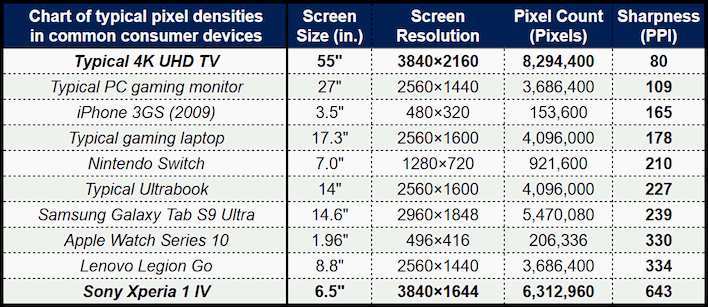
Image source: Bing (Web (fair-use with source credit))
Viewing distance and field of view
Ergonomics guidelines from ANSI/HFES 100 suggest a viewing distance between 20 and 40 inches, with 24 to 30 inches being the sweet spot. At that distance, a 24-inch monitor fills about 30 degrees of your horizontal field of view. A 27-inch fills about 34 degrees.
That’s not a huge difference, but it changes how much you need to glance left and right.
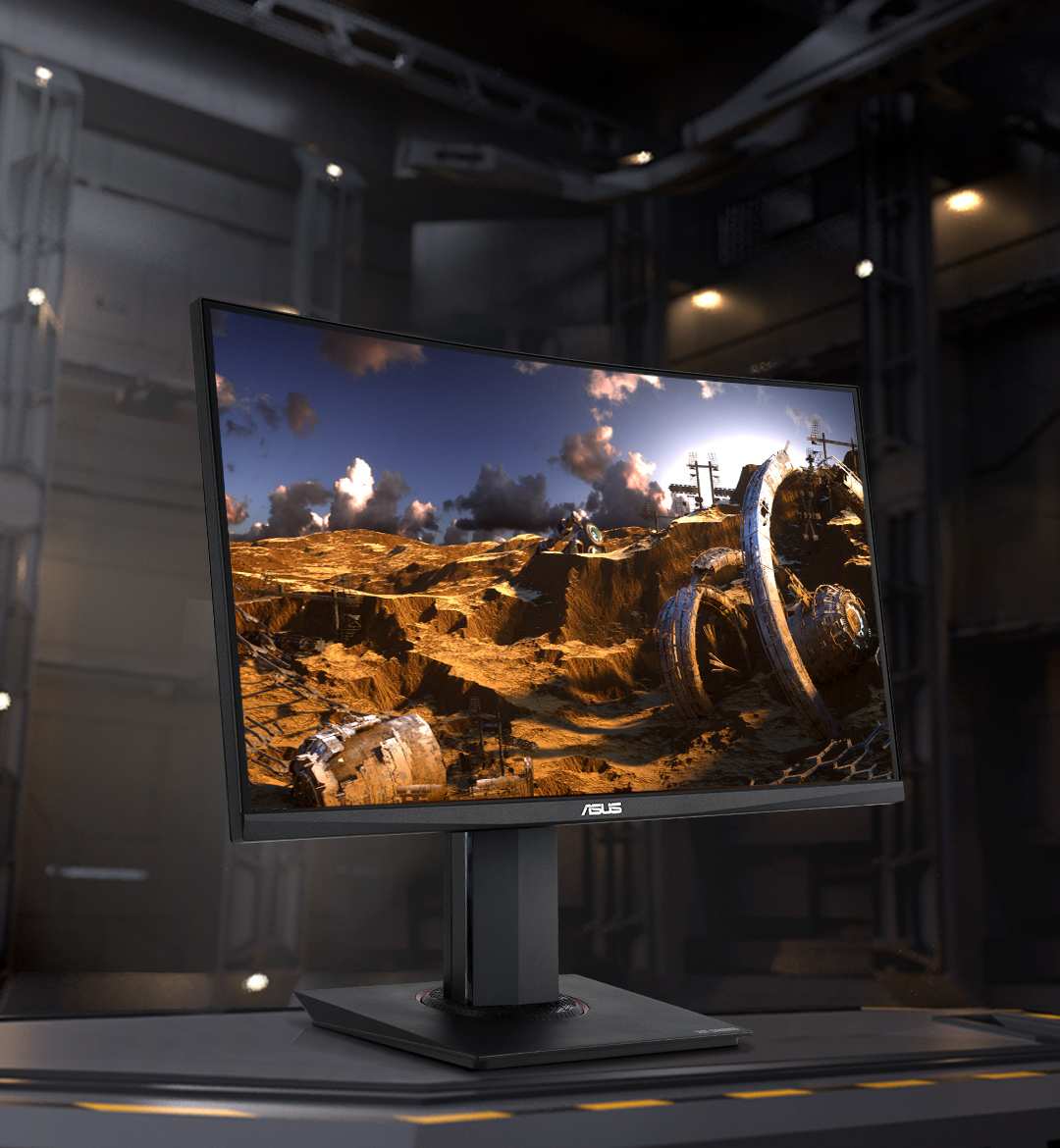
If your desk is only 20 inches deep, a 27-inch monitor sits uncomfortably close. Your eyes have to work harder to take in the edges. You might find yourself moving your head more than you’d like.
For a shallow desk, 24 inches feels natural.
Pixel density and sharpness trade-offs
Pixel density directly affects how crisp text and fine details look. Here’s the quick comparison:
| Monitor Size & Resolution | PPI | Typical Use Case |
|---|---|---|
| 24″ 1920×1080 | 91.8 | Office work, budget gaming |
| 27″ 1920×1080 | 81.6 | Movies, casual gaming (soft text) |
| 27″ 2560×1440 | 108.8 | Productivity, design, competitive gaming |
| 27″ 3840×2160 (4K) | 163.2 | Photo editing, video work, very sharp text |
That 24-inch 1080p beats the 27-inch 1080p by about 10 PPI. It’s noticeable. The 27-inch 1440p is the real upgrade; it offers 17 percent more PPI than the 24-inch 1080p.
How your neck and eyes react
Your neck doesn’t care about the diagonal measurement, it cares about how far you turn. A 27-inch monitor forces about 15 degrees more peripheral eye movement if you sit at the same distance. For most people, that’s fine.
But if you already have neck issues or wear progressive lenses, the smaller screen reduces strain.
The Two Monitors: Specs You Actually Care About
Let’s line up the specs that matter for a buying decision. We’ll ignore irrelevant metrics like contrast ratios or response times that vary by panel type, and focus on the size-related differences.
At 1080p Resolution
Both sizes share the same number of pixels (1920×1080). The only difference is how big each pixel appears. On a 24-inch screen, pixel pitch is about 0.276mm.
On a 27-inch, it’s 0.311mm. That means text and fine lines are slightly larger and softer on the 27-inch.
- 24″ 1080p: Sharper image, more comfortable for reading, lighter on GPU requirements.
- 27″ 1080p: Bigger image, lower pixel density, can look grainy at normal viewing distance.
At 1440p or 4K Resolution
Now the 27-inch really shines. With 2560×1440 or 3840×2160 pixels, the pixel density is high enough that individual pixels disappear at normal distance. You get a huge desktop area for multitasking.
The downside? You need a more powerful graphics card to drive those resolutions, especially for gaming.
- 27″ 1440p: Sweet spot for productivity and gaming. Clear text, ample screen space, good balance of performance and sharpness.
- 27″ 4K: Extremely sharp. Requires scaling adjustments in Windows or macOS. Best for design work, but can strain GPU in games.
| Feature | 24″ 1080p | 27″ 1080p | 27″ 1440p |
|---|---|---|---|
| PPI | ~92 | ~82 | ~109 |
| Desk depth needed | 18–24″ | 24–30″ | 24–30″ |
| GPU requirement | Low (integrated fine) | Low | Moderate (GTX 1060 / RX 580 or better) |
| Text clarity | Good | Fair | Very good |
| Multitasking | Two windows cozy | Two windows tight | Two windows comfortable |
| Price (as of 2026) | $100–$180 | $120–$200 | $250–$400 |
Pros and Cons of Each Size (The Honest List)
Image source: Bing (Web (fair-use with source credit))
24-Inch Monitor
Pros:
- Higher PPI at 1080p means sharper text and less eye strain for reading.
- Fits comfortably on desks under 24 inches deep.
- Costs less for the same features (refresh rate, panel type, connectivity).
- Easier to fit into a dual-monitor setup without needing a huge desk.
- Less GPU demanding at 1080p, good for integrated graphics or older systems.
Cons:
- Less screen real estate. You’ll scroll more in documents and web pages.
- Side-by-side windows feel cramped. Two full-sized browser windows barely fit.
- Immersion in games is weaker. The image doesn’t fill your peripheral vision as much.
- Lower pixel count limits detail in design or video work.
27-Inch Monitor
Pros:
- Significantly more workspace. You can run two full windows side by side comfortably.
- Better for immersive gaming and movie watching with a wider field of view.
- 1440p or 4K resolutions are practical on this size, not possible on 24-inch (PPI would be too high for normal use without scaling).
- Higher PPI options (1440p) give sharper image than a 24-inch 1080p, ideal for editing photos or code.
Cons:
- Lower PPI at 1080p, text and icons look softer, more pixels visible.
- Needs more desk depth. At 20 inches or less, it feels too close.
- Costs more for the same panel quality and features.
- Can cause neck strain if you sit too close or have multiple monitors at an angle.
- Requires a more powerful GPU if you go 1440p or 4K.
The honest truth: at 1080p, 24 inches is the sensible choice. At 1440p, 27 inches is the clear winner. That’s the bottom line before we even talk about your specific use case.
27-Inch vs 24-Inch: A Side-by-Side Breakdown
Let’s put the two sizes head to head across the factors that actually shape your daily experience. This table covers the most common scenarios.
| Factor | 24-Inch (1080p) | 27-Inch (1080p) | 27-Inch (1440p) |
|---|---|---|---|
| Text sharpness | Good (92 PPI) | Fair (82 PPI) | Very good (109 PPI) |
| Side-by-side windows | Tight – 2 browser windows barely fit | Comfortable – two windows fit well | Spacious – three windows possible |
| Gaming immersion | Standard field of view | Better peripheral fill | Excellent with high refresh rate |
| Desk depth needed | 18-24 inches | 24-30 inches | 24-30 inches |
| GPU load | Low – integrated graphics are fine | Low | Moderate (needs dedicated GPU) |
| Average price (as of 2026) | $100-$180 | $120-$200 | $250-$400 |
The pattern is clear. At 1080p, the 24-inch wins on sharpness and desk fit. At 1440p, the 27-inch jumps ahead in workspace and clarity.
The pivot point is resolution.
If you’re running 1080p, stick with 24 inches. If you can afford the GPU for 1440p, go with 27 inches. That’s the cleanest rule of thumb from our research.
Which Size Fits Your Life Best?
Different tasks tilt the scales differently. Here’s how each size performs for specific roles.
For competitive gamers
You want a smaller screen. Eye movement is faster across 24 inches. The higher PPI at 1080p means you don’t need a monster GPU to hit high frame rates.
Many esports pros run 24-inch 1080p 240Hz panels. The 27-inch brings slight peripheral advantage, but at the cost of slower target acquisition.
Verdict: 24-inch for competitive; 27-inch for immersive single-player.
For programmers and coders
Code is text. Text needs sharpness. A 24-inch 1080p gives you clean characters without scaling headaches.
But if you run a 27-inch 1440p, you get roughly 30 percent more lines of code visible. That’s a real productivity gain.
Verdict: 27-inch 1440p if your desk has room; otherwise 24-inch 1080p is fine.
For graphic designers and video editors
Color accuracy matters more than size, but screen real estate helps timelines and toolbars. 27-inch 1440p or 4K is the standard for creative work. You can see 1080p video at 1:1 with room for panels. A 24-inch 1080p feels cramped.
Verdict: 27-inch with high resolution. No contest.
For office workers and multitaskers
If you juggle spreadsheets, email, and a browser all day, 27 inches at 1440p is the sweet spot. Two full windows side by side without overlap. If your budget is tight, 24-inch 1080p works but requires more window switching.
Verdict: 27-inch 1440p for heavy multitaskers; 24-inch for light use.
For dual-monitor setups
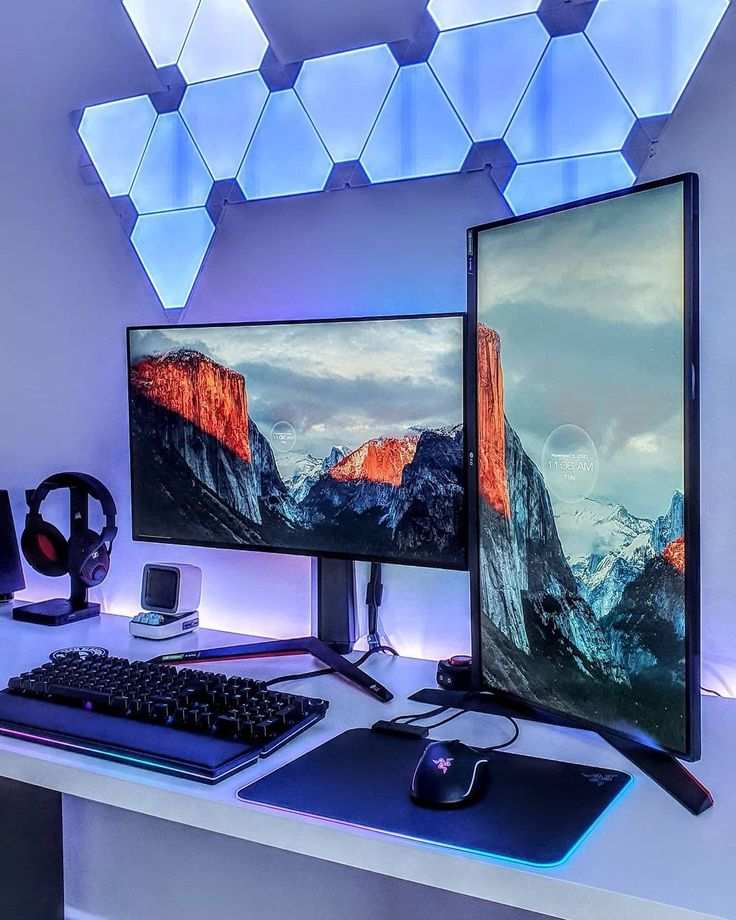
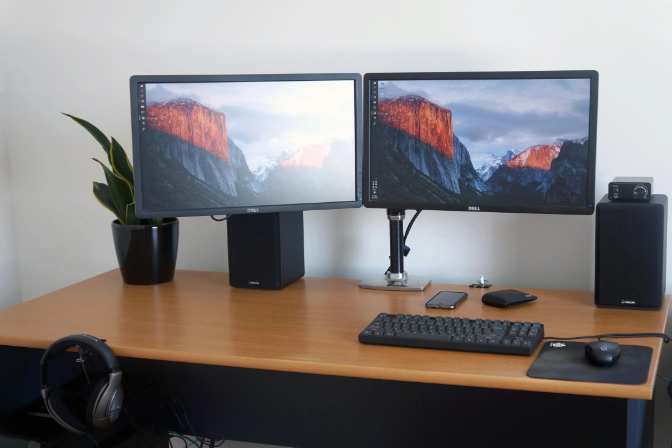
Two 24-inch monitors fit on a standard 47-inch desk without overhang. Two 27-inch monitors need 55+ inches of width and strain your neck if placed side by side. Mixing sizes (24 + 27) can create alignment problems.
Verdict: Stick with two 24-inch monitors unless you have a wide desk.
For students on a budget
A 24-inch 1080p monitor gives you the best value. It’s under $150, sharp enough for writing papers, and works with a laptop. A 27-inch 1080p is slightly bigger but softer.
Not worth the extra $50.
Verdict: 24-inch keeps costs low and quality high.

Image source: Bing (Web (fair-use with source credit))
Common Mistakes People Make When Choosing a Monitor Size
These errors show up again and again in buyer reviews. Avoid them and you’ll save time and money.
Buying a 27-inch 1080p monitor without checking PPI. This is the biggest trap. The soft text and visible pixel grid bother many users. If you’re coming from a 24-inch 1080p, the downgrade in sharpness is immediate.
Ignoring your desk depth. You need at least 24 inches between your eyes and the screen for a 27-inch monitor. Measure before you buy. A shallow desk forces you to sit too close, causing eye strain.
Forgetting about text scaling issues. On a 27-inch 4K monitor, Windows and macOS default to 150 percent scaling. That makes everything look correct, but some older apps get blurry. Check your software compatibility first.
Choosing size before resolution. People often pick a size first and accept whatever resolution comes with it. That leads to 27-inch 1080p regret. Always decide your resolution budget first, then choose the size that matches.
Not accounting for GPU power. Driving a 27-inch 1440p monitor at 60Hz isn’t hard. Driving it at 144Hz for gaming needs a mid-range card. A 24-inch 1080p runs on integrated graphics.
Plan your graphics upgrade alongside the monitor.
What You’ll Pay for Each Size (Real Price Ranges)
Prices shift with sales and panel type, but here are ballpark ranges as of early 2026.
| Monitor Type | Price Range (USD) | Typical Panel |
|---|---|---|
| 24-inch 1080p 60Hz | $100-$150 | IPS or VA |
| 24-inch 1080p 144Hz | $150-$200 | IPS or TN |
| 24-inch 1440p | $250-$350 | IPS (rare size) |
| 27-inch 1080p 60Hz | $120-$180 | IPS or VA |
| 27-inch 1080p 144Hz | $180-$250 | VA or TN |
| 27-inch 1440p 60Hz | $250-$350 | IPS |
| 27-inch 1440p 144Hz | $300-$500 | IPS or Nano IPS |
The gap between 24-inch and 27-inch at the same resolution is about $30-$50. That extra money often comes with a slightly worse pixel density if you stay at 1080p. For the same price as a 24-inch 1440p, you could get a 27-inch 1080p.
Don’t do that trade.
Two Real-World Examples That Make It Click
Example 1: The programmer who switched from dual 24-inch to a single 27-inch.
A developer we spoke with ran two 24-inch 1080p monitors for years. He upgraded to a single 27-inch 1440p. He lost about 20 percent of total screen area but gained sharpness and a single focal point.
His neck pain from turning between monitors disappeared. He found that 27-inch 1440p fit two code editor windows perfectly. He also picked up a cheap 24-inch vertical monitor for Slack and terminal.
Takeaway: One big sharp screen beat two medium fuzzy ones for focus.
Example 2: The gamer who regretted buying a 27-inch 1080p.
A competitive shooter player bought a 27-inch 1080p 144Hz monitor on sale. Within a week, he noticed text was blurry in menus. In games, the larger screen made it harder to track fast-moving targets because his eyes had to sweep more area.
He returned it for a 24-inch 1080p 240Hz and felt his aim improve.
Takeaway: Competitive gaming benefits from smaller screens with higher refresh rates. Bigger isn’t better when milliseconds count.
Pro Tips for Making the Final Decision
Measure your desk depth before you buy anything. Grab a tape measure. From your seated eye position to the back of your desk, you need at least 24 inches for a 27-inch monitor. If you have 20 inches or less, stick with 24 inches.
Calculate your viewing distance and PPI together. Use an online PPI calculator. Enter the size and resolution. Compare it to what you’re used to.
If the PPI drops below 85, you’ll notice softer text. That’s fine for gaming but annoying for reading.
Test a similar size in a store if possible. Stand at your typical viewing distance. Imagine two browser windows open side by side. Does the 27-inch feel too wide?
Does the 24-inch feel cramped? Your eyes will tell you faster than any spec sheet.
Consider scaling and GPU power as a pair. A 27-inch 4K monitor needs at least 150 percent scaling. That works well in modern apps but can blur older software. And if you game at 1440p, make sure your graphics card can push the frames you want.
So, Is 27-Inch Better Than 24-Inch? Here’s Your Decision Guide
The answer is conditional. Here’s the final cheat sheet.
Choose 24-inch if:
- You sit closer than 24 inches from the screen.
- You stay at 1080p resolution.
- You play competitive shooters and want fast eye movement.
- You’re building a dual-monitor setup on a standard desk.
- You’re on a tight budget under $150.
Choose 27-inch if:
- You can afford 1440p resolution.
- Your desk is at least 24 inches deep.
- You multitask with multiple windows daily.
- You do design, video editing, or programming.
- You want immersive single-player gaming.
Everything else is details. Match the size to your resolution budget and your desk space. That’s the whole decision.
Frequently Asked Questions
Can I use a 27-inch monitor at 1080p?
You can, but text will look softer than a 24-inch 1080p. The PPI drops from 92 to 82. If you sit at arm’s length, individual pixels become visible.
It works for gaming and movies but feels grainy for reading.
Is a 27-inch monitor too big for a small desk?
Yes, if your desk is under 24 inches deep. At 20 inches, your eyes are too close. You’ll strain to see the edges.
Measure first. A 24-inch monitor fits better in tight spaces.
Do I need a better graphics card for a 27-inch monitor?
Only if you choose 1440p or 4K resolution. At 1080p, integrated graphics are fine. At 1440p, you want at least a GTX 1060 or equivalent.
At 4K, you need a modern mid-range card for gaming.
Should I get two 24-inch monitors or one 27-inch?
Two 24-inch monitors give you more total screen area. One 27-inch 1440p gives you sharper text and a single focal point. The choice depends on whether you value peripheral workspace or visual clarity.
What resolution is best for a 27-inch monitor?
1440p is the sweet spot. It delivers 109 PPI, sharp text, and good GPU performance. 4K is sharper but requires scaling and a stronger graphics card. 1080p on 27-inch is only acceptable for gaming or casual use.

Similar Posts