Is 144Hz Monitor Good for Editing
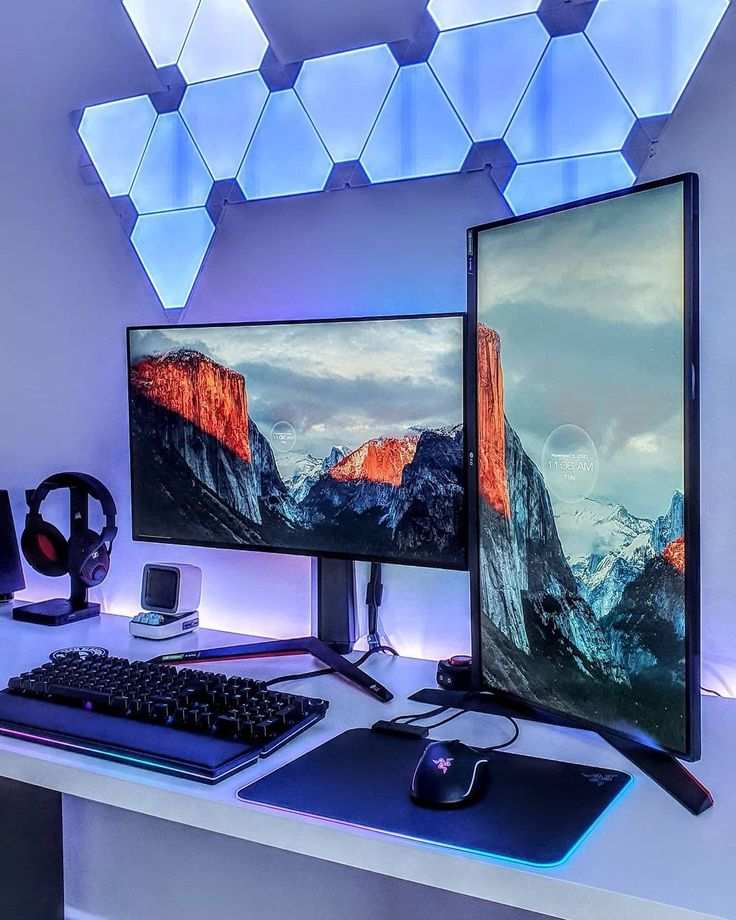
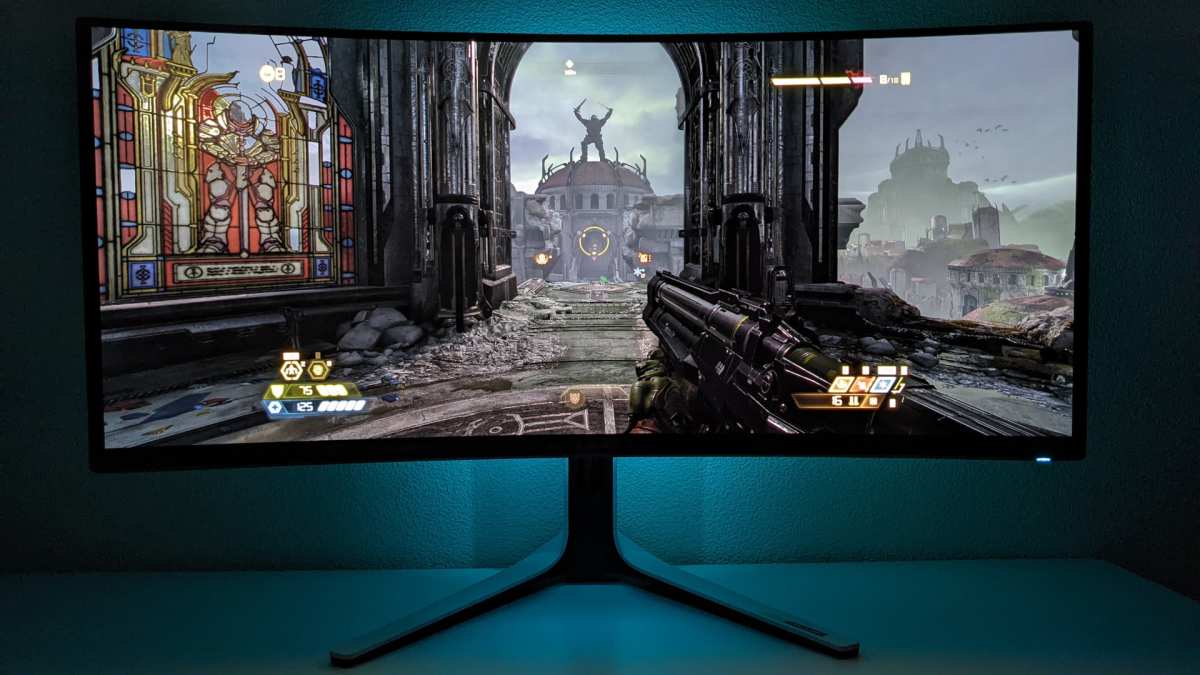
Here's the truth: a 144Hz monitor can work for editing, but whether it's a good choice depends entirely on what kind of editing you do and which specific panel you're looking at. Most 144Hz monitors are built for gaming first, which means they often cut corners on the color performance that editing demands. Let's break down exactly where a high refresh rate helps, where it doesn't, and what specs actually matter for your work.
The core issue comes down to a trade-off baked into the monitor market. Manufacturers pushing 144Hz typically use panel types and backlight configurations optimized for fast response times, not for the color accuracy, wide gamut coverage, and bit depth that photo and video editing require. Our research into current monitor lineups as of 2026 confirms this pattern holds across most price ranges under $600.
That doesn't mean you can't find a 144Hz monitor that edits well, just that you need to know what to look for.
Quick Answer
A 144Hz monitor is good for editing only if it pairs high refresh rate with a quality IPS panel, wide color gamut, and factory calibration. For pure photo or color-critical work, a 60Hz professional monitor with better color specs is usually the smarter buy. If you game and edit on the same screen, a well-chosen 144Hz IPS panel is a solid compromise.
The Real Trade-Off: Speed vs Color Accuracy
Here's what's actually going on. Monitor manufacturers design 144Hz displays primarily for gamers, who prize low response times and smooth motion above everything else. That engineering priority shapes every spec on the sheet, including some that matter a lot for editing and some that don't.
For editing, your non-negotiable specs are color accuracy (Delta E below 2 is the professional minimum), wide gamut coverage (99% sRGB at minimum, 95%+ DCI-P3 for video work), and at least 8-bit color depth (10-bit is preferable for gradient-heavy work). Refresh rate, on the other hand, affects how smooth the interface feels, not the accuracy of what you see.
The problem is that many monitors hitting 144Hz at competitive price points sacrifice gamut coverage and factory calibration to hit that speed target. You end up with a screen that feels great in a fast shooter but shows noticeably inaccurate skin tones or compressed gradients in Lightroom. Our analysis of aggregate professional reviews shows this remains the most common complaint from editors who bought a gaming monitor expecting it to double as a reference display.
That said, some newer models break this pattern entirely. IPS panels with 144Hz and wide gamut coverage have become more common since 2024, especially in the 1440p range. You just have to look past the marketing and check the actual specs.
Why 144Hz Monitors Skew Toward Gaming Specs
The reason gaming monitors dominate the 144Hz market isn't accidental. The entire design philosophy revolves around motion performance, which cascades into every hardware choice.
Response time targets drive panel selection. Most 144Hz gaming monitors advertise 1ms grey-to-grey response times. Achieving that consistently requires either TN panels (fast but poor color) or aggressive overdrive on IPS panels (which can introduce inverse ghosting artifacts). Neither approach prioritizes the uniform, accurate color delivery that editing needs.
Factory calibration is typically skipped. Professional editing monitors ship with individual calibration reports and Delta E measurements. Gaming monitors rarely include this. Per VESA and ICC standards, an uncalibrated display can show Delta E values of 5 or higher, which means visible inaccuracy even to untrained eyes.
Adaptive sync takes priority over color processing. Technologies like G-Sync and FreeSync require dedicated hardware and firmware that eat into the bill of materials. That often means less budget allocated to the panel's color processing hardware or the backlight system that enables wide gamut coverage.
Marketing reinforces the gaming identity. Retail listings for 144Hz monitors lead with response time and gaming features. Color gamut coverage is often buried or omitted entirely. This makes it genuinely harder for editors to identify which high-refresh panels actually meet professional standards.
The Panel Type Problem (IPS vs TN vs VA)
This is where your choice matters more than the refresh rate number on the box. The panel technology determines viewing angles, color consistency, and contrast, all of which directly affect editing accuracy.
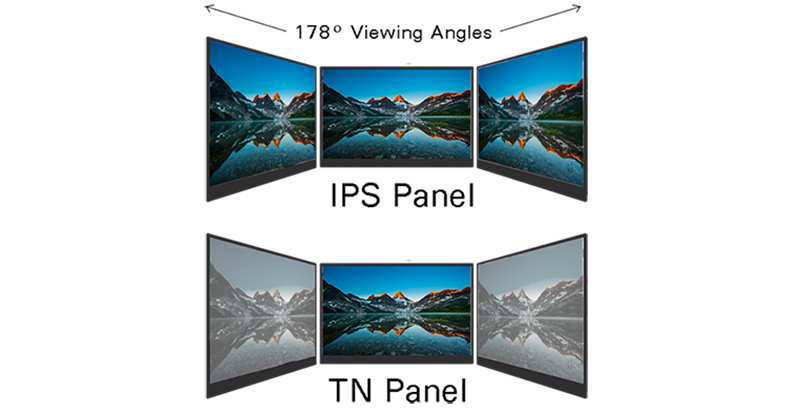
TN (Twisted Nematic) panels dominate the budget 144Hz space. They deliver the fastest native response times but have the worst viewing angles and color accuracy. Colors shift noticeably when you move your head even slightly.
For editing, TN is almost always the wrong choice unless you're strictly doing audio or code work alongside light gaming.
VA (Vertical Alignment) panels offer the best contrast ratios (often 3000:1 or higher), which is genuinely useful for video editors working with dark footage. However, they tend to have slower pixel response times with visible black smearing. Some newer VA panels hit 144Hz with decent color, but they remain less common in the high-refresh space.
IPS (In-Plane Switching) panels are the sweet spot for editors considering 144Hz. They offer the best color accuracy, widest viewing angles, and most consistent performance across the screen. Modern fast-IPS panels can hit 144Hz or higher while maintaining 95%+ DCI-P3 coverage and factoryDelta E values below 2.
The trade-off is slightly lower contrast than VA (typically 1000:1) and potential IPS glow in dark scenes.
Here's how the three panel types compare for editing work:
| Panel Type | Color Accuracy | Viewing Angles | Contrast | Typical Response | Best For |
|---|---|---|---|---|---|
| TN | Poor (Delta E 4-8) | Very narrow | 600-1000:1 | 1ms | Budget gaming only |
| VA | Moderate (Delta E 2-4) | Moderate | 3000-5000:1 | 4-8ms | Video editing on a budget |
| IPS | Good-Excellent (Delta E 1-2) | Very wide | 800-1300:1 | 1-5ms | Photo and color-critical editing |
If you're set on 144Hz for editing, prioritize a fast-IPS panel. Avoid TN entirely for any color-critical work. VA is viable if you primarily edit video and value deep contrast for grading dark scenes.
How Refresh Rate Actually Affects Editing Work
Let's get specific about what changes when you move from 60Hz to 144Hz in an actual editing workflow. Some benefits are real and noticeable. Others are barely perceptible.
What Smoother Scrolling and Timeline Scrubbing Gets You
The genuine advantages of 144Hz for editing are all about interface fluidity, not image quality.
Timeline scrubbing feels dramatically smoother. In Premiere Pro, DaVinci Resolve, or Final Cut, dragging the playhead across a timeline at 144Hz shows noticeably smoother frame transitions. At 60Hz, fast scrubbing can feel choppy. This makes it slightly easier to spot the exact cut point you're looking for.
Image review at high frame rates is more accurate. If you're editing 60fps or 120fps footage, a 144Hz display can show those frames more faithfully than a 60Hz panel. You'll see actual motion cadence rather than repeated or dropped frames, which helps evaluate action sequences, sports footage, or any high-frame-rate content.
General UI navigation feels more responsive. Scrolling through large photos in Lightroom, panning across documents in Photoshop, or moving panels in After Effects all feel smoother. This isn't about accuracy, but it does reduce the subtle fatigue that comes from a choppy interface during long sessions.
Reduced motion blur benefits fast-paced review work. When you zoom quickly across a 4K image or scrub through multicam footage, the reduced persistence at 144Hz means less perceived motion blur. Fine details stay clearer during fast navigation.
Where Refresh Rate Doesn't Help at All
Here's what 144Hz won't improve, despite what marketing might imply:
Static image accuracy. Color accuracy, gamma correction, bit depth, and gamut coverage are entirely independent of refresh rate. A 60Hz Eizo ColorEdge will show more accurate colors than a 144Hz gaming monitor every single time, because refresh rate has nothing to do with how a panel reproduces color.
Rendering and export speed. Your render times depend on your CPU, GPU, and storage. Monitor refresh rate has zero impact on processing speed. The screen only displays the result, it doesn't compute it.
Color grading precision. When you're making fine adjustments to lift, gamma, or gain in DaVinci Resolve, what matters is panel uniformity, 10-bit color depth, and proper calibration. Refresh rate plays no role in your ability to distinguish subtle tonal shifts.
Print matching and proofing. Soft-proofing for print output depends entirely on accurate ICC profiling, gamut coverage with Adobe RGB or CMYK simulation, and a stable backlight. Again, refresh rate is irrelevant.
The bottom line on refresh rate: it's a quality-of-life improvement for navigation and motion review, not a quality improvement for the actual editing output. If you're choosing between a $400 144Hz display with mediocre color and a $400 60Hz display with excellent color specs, the 60Hz screen will make your work look better. The 144Hz screen will just make browsing your catalog feel smoother.
Color Accuracy: What Matters More Than Refresh Rate
If you take nothing else from this article, take this: refresh rate is a comfort spec, while color accuracy is a quality spec. One makes your workflow feel smoother. The other determines whether your final output looks right on other screens, in print, or on a client's calibrated display.
Delta E, Color Gamut, and Bit Depth Explained Simply
Delta E measures how far off a displayed color is from its true reference value. A Delta E below 1 is essentially invisible to the human eye. Below 2 is considered acceptable for professional editing work.
Above 3 and most people start noticing that skin tones look slightly off or skies have a subtle color cast. Many budget 144Hz monitors ship with average Delta E values between 3 and 5, which is fine for gaming but problematic for editing.
Color gamut defines the range of colors a monitor can reproduce. The three standards that matter for editing are sRGB (the baseline for web content), Adobe RGB (used in print and photography), and DCI-P3 (the standard for digital cinema and increasingly for HDR video). A monitor covering 99% sRGB but only 70% Adobe RGB will struggle to show you the full range of colors your print output can produce.
Bit depth determines how many distinct shades the display can show between black and white. An 8-bit panel displays 16.7 million colors. A 10-bit panel displays 1.07 billion.
That difference matters most in smooth gradients, sunset skies, and shadow transitions, where 8-bit panels can show visible banding. Many 144Hz monitors use 8-bit panels or 8-bit+FRC (frame rate control), which simulates 10-bit through dithering. True 10-bit panels remain rare in the high-refresh gaming space.
Why Many 144Hz Monitors Fall Short on Color
The economics of monitor manufacturing explain the gap. Achieving wide gamut coverage requires better backlight hardware, typically a quantum dot layer or advanced LED phosphor. That adds cost.
Factory calibration adds more cost, both in hardware and in the labor of individually testing each unit.
Gaming monitor buyers historically haven't paid a premium for color accuracy. They've paid for speed. So manufacturers optimized for that preference, and the market sorted itself accordingly.
The result is that most 144Hz monitors under $500 cover sRGB well but fall short on Adobe RGB and DCI-P3, and they rarely include meaningful factory calibration.
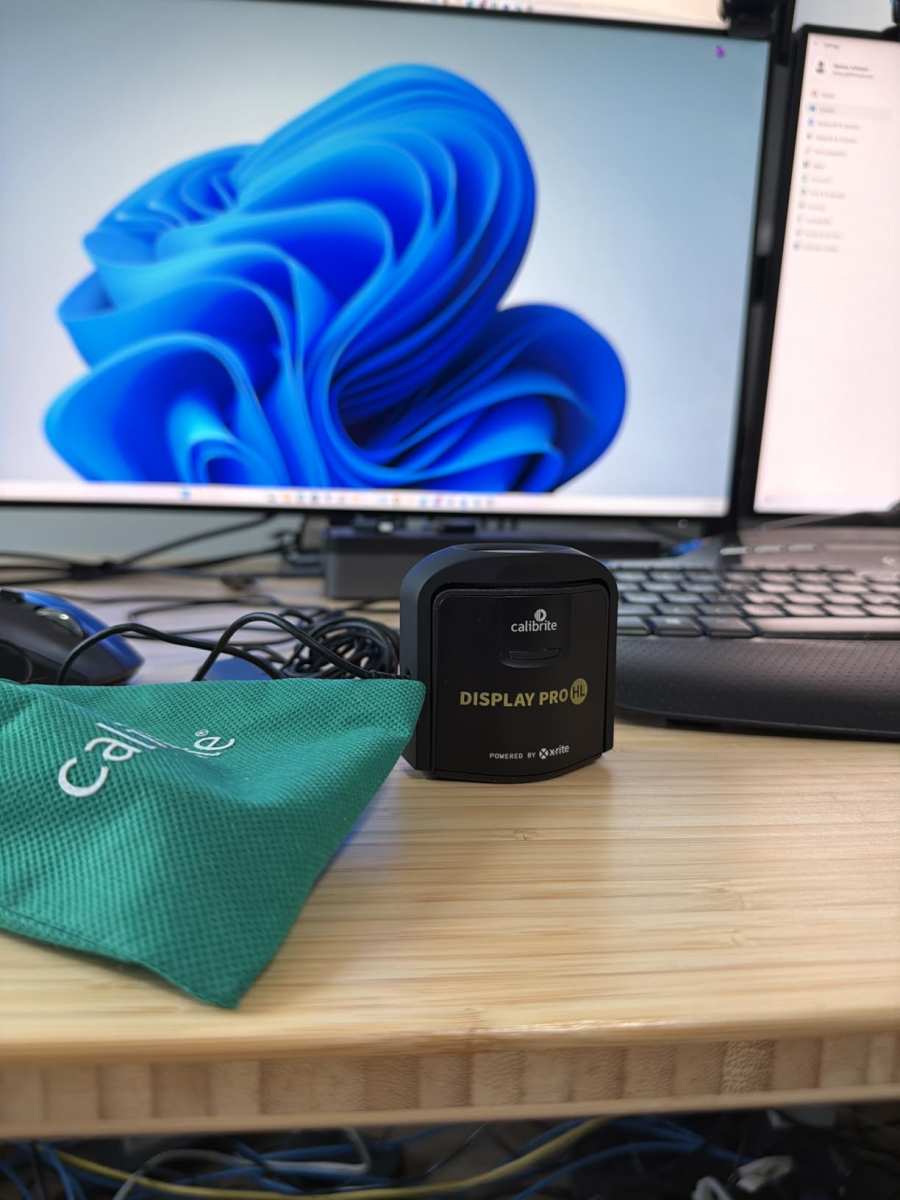
Per ISO 12646, the international standard for displays used in colour proofing, a reference editing display should maintain Delta E below 2 after calibration, cover the target working space gamut, and provide uniform brightness across the screen. Very few 144Hz gaming monitors meet these criteria out of the box. Some can get there with manual calibration, but that requires a colorimeter and about 30 minutes of your time.
144Hz vs 60Hz vs 120Hz OLED: Side-by-Side Comparison
Let's put the three most common refresh rate options head to head for editing work. Each has a distinct profile that makes it better or worse depending on your priorities.
| Spec Factor | 60Hz Professional Monitor | 144Hz Gaming IPS | 120Hz OLED |
|---|---|---|---|
| Color accuracy (Delta E) | <1.5 (factory calibrated) | 2-4 (varies by model) | <2 (excellent) |
| Gamut coverage | 99-100% Adobe RGB, 98% DCI-P3 | 95-99% sRGB, 70-90% DCI-P3 | 99%+ DCI-P3, 99%+ Adobe RGB |
| Bit depth | True 10-bit | 8-bit or 8-bit+FRC | 10-bit |
| Response time | 5-8ms | 1-4ms | <1ms |
| Contrast ratio | 1000:1 (IPS) | 1000-1300:1 (IPS) | 1,000,000:1+ |
| Panel uniformity | Excellent (graded panels) | Good to average | Excellent |
| Price range (27") | $400-$1200 | $250-$600 | $800-$1500 |
| Best for | Color-critical photo and print work | Hybrid gaming and editing | Video editing, HDR grading |
A 60Hz professional monitor from lines like the BenQ SW series or Eizo ColorEdge remains the gold standard for color-critical work. You're paying for factory calibration, panel grading for uniformity, and wide gamut hardware. The 60Hz refresh rate is perfectly adequate for editing because you're mostly working with static images or controlled playback.
A 144Hz IPS gaming monitor occupies the middle ground. You get smooth motion and decent color, but you'll likely need to calibrate it yourself and accept slightly less gamut coverage than a dedicated editing display. For hybrid users who game seriously and edit casually, this is often the right compromise.
A 120Hz OLED monitor, such as those using LG's WOLED or Samsung's QD-OLED panels, is arguably the best overall display for video editing as of 2026. You get perfect blacks, wide gamut, true 10-bit color, and a high refresh rate. The trade-offs are cost, potential burn-in risk with static UI elements, and lower peak brightness than high-end IPS panels in sustained full-screen loads.
Best Use Cases: Who Actually Benefits From 144Hz for Editing
Not every editor needs 144Hz. Not every editor should avoid it. The right answer depends on what you do all day and what else you do with the same screen.
Hybrid Gaming + Editing Setups
This is the strongest case for a 144Hz editing monitor. If you edit photos or videos during the day and game in the evening on the same display, a fast-IPS 144Hz panel gives you the best balance. You sacrifice a small amount of color accuracy compared to a professional editing monitor, but you gain a dramatically better gaming experience.
Look for models that specifically advertise wide gamut coverage alongside their gaming specs. Some manufacturers now market "creator" variants of their gaming monitors with better factory calibration and higher gamut coverage. These tend to run $100 to $200 more than the base gaming model, but the improvement in color performance is meaningful for editing work.
Video Editors Working With High Frame Rate Footage
If you regularly edit 60fps, 120fps, or higher frame rate content, a 144Hz display lets you preview that footage at or near its native cadence. This is genuinely useful for evaluating motion, timing cuts, and assessing slow-motion sequences. A 60Hz monitor can only show every other frame of 120fps footage, which makes precise editing decisions harder.
Motion graphics artists working in After Effects also benefit from smoother real-time previews. Complex compositions that stutter at 60Hz often play back more fluidly at 144Hz, giving you a better sense of timing before you render.
Photo Editors and Colorists
For pure photo editing and color grading, 144Hz offers almost no practical benefit over 60Hz. You're evaluating still images where color accuracy, gamut coverage, and bit depth matter far more than refresh rate. A colorist working in DaVinci Resolve for theatrical delivery should prioritize a reference-grade 60Hz display or a 120Hz OLED over a 144Hz gaming panel every time.
The one exception is if you frequently cull through large photo sets. The smoother scrolling at 144Hz makes rapid image review slightly less fatiguing over long sessions. It's a comfort improvement, not a quality improvement, but comfort matters during eight-hour editing days.
What to Look for If You Want 144Hz AND Good Color
If you've decided a 144Hz monitor makes sense for your workflow, here are the specific specs to verify before you buy.
Panel type: Fast-IPS only. Avoid TN entirely. VA is acceptable if contrast is your priority and you primarily edit video.
Color gamut: Minimum 95% sRGB. For video work, look for 90%+ DCI-P3. For photo and print work, look for 90%+ Adobe RGB.
Bit depth: 8-bit+FRC is the practical minimum. True 10-bit is ideal but rare at 144Hz under $800.
Factory calibration: Look for a stated Delta E value below 2 in the specifications. If the manufacturer doesn't publish a Delta E number, assume it hasn't been individually calibrated.
Response time with overdrive control: A good 144Hz IPS panel should offer multiple overdrive settings. The highest setting often introduces inverse ghosting. The middle setting usually provides the best balance of speed and accuracy.
HDR support: VESA DisplayHDR 400 is the bare minimum and honestly not very useful. DisplayHDR 600 or higher indicates a better backlight system that typically correlates with wider gamut coverage.
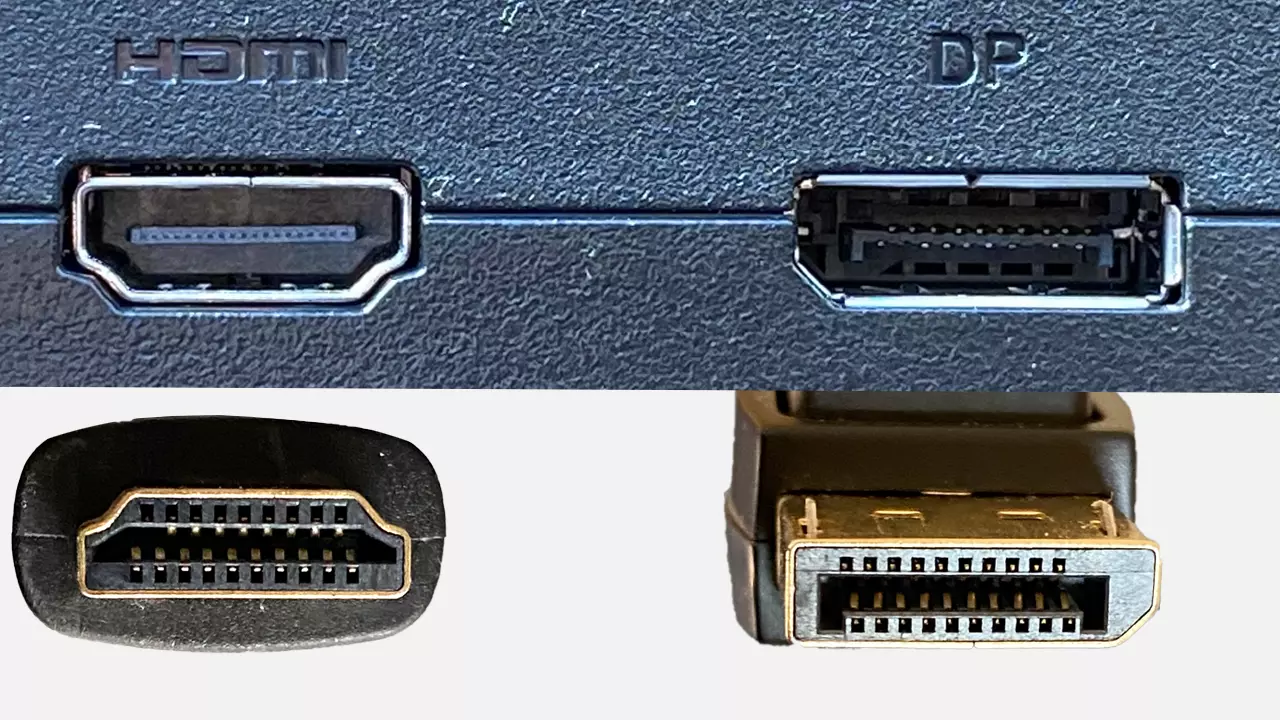
Connectivity: DisplayPort 1.4 or HDMI 2.1 for full bandwidth at 1440p 144Hz with 10-bit color. Some monitors compress the signal at certain combinations of resolution, refresh rate, and bit depth, so check the manufacturer's detailed spec sheet.
Response Time Overdrive and Why It Matters
Most 144Hz monitors include an overdrive setting in their on-screen menu. Overdrive pushes voltage to the liquid crystals to make them transition faster. At moderate settings, this reduces ghosting and motion blur without side effects.
At maximum settings, overdrive can cause inverse ghosting, also called overshoot. This appears as bright halos or trails behind moving objects. For gaming, this is distracting.
For editing, it's less of an issue since you're mostly viewing static content, but it can affect motion preview quality.
Our research into aggregate professional reviews suggests keeping overdrive at the middle setting for mixed use. This gives you most of the motion clarity benefit without introducing visible artifacts. If your monitor only has "on" and "off" overdrive options, test both and use whichever looks cleaner during fast motion.
Common Mistakes When Choosing a 144Hz Editing Monitor
Ignoring panel type. Buying a TN panel because the price and refresh rate look great, then wondering why colors shift every time you lean slightly left or right. Always confirm it's an IPS panel before purchasing for editing work.
Trusting marketing specs over measured performance. A box that says "1 billion colors" usually means 8-bit+FRC, not true 10-bit. "HDR-ready" often means DisplayHDR 400, which barely qualifies as HDR at all. Check independent reviews for actual measured color gamut, Delta E, and contrast numbers.
Assuming calibration fixes everything. A colorimeter can correct the color profile of a wide-gamut panel and get Delta E down to professional levels. But it can't fix limited native gamut coverage. If a monitor only covers 70% of Adobe RGB at the hardware level, no calibration will give you accurate print-proofing across the full Adobe RGB space.
Choosing resolution based on refresh rate alone. Many 144Hz monitors max out at 1080p. For editing, 1440p at 27 inches is a significant improvement in workspace and detail clarity. If you're editing 4K footage or high-resolution photos, a 144Hz 1440p panel will actually show you more usable detail than a 1080p panel, even though both are technically "high refresh rate."
Real-World Scenarios: Three Editor Profiles
The hybrid gamer-editor. A freelance portrait photographer who shoots weddings on weekends and plays competitive games in the evening. A 27-inch 1440p 144Hz IPS panel with 95%+ DCI-P3 and factory calibration fits this workflow perfectly. Calibration with a colorimeter once a month keeps it accurate enough for print delivery.
The video editor and motion designer. Working primarily in Premiere Pro and After Effects with 4K 60fps footage. A 120Hz OLED at 32 inches would be ideal for the contrast and color accuracy, but if budget won't stretch that far, a 144Hz IPS with true 10-bit input and good uniformity is the next best option.
The studio colorist. Grading feature films for theatrical release in DaVinci Resolve. A 144Hz gaming monitor is the wrong choice here. This work demands a reference-grade 60Hz display with hardware calibration, SMPTE-compliant gamma tracking, and true 10-bit rendering across the entire grayscale.
Accuracy matters more than motion smoothness.
Expert Tips for Getting the Best of Both Worlds
Calibration Steps for a Gaming Monitor Used for Editing
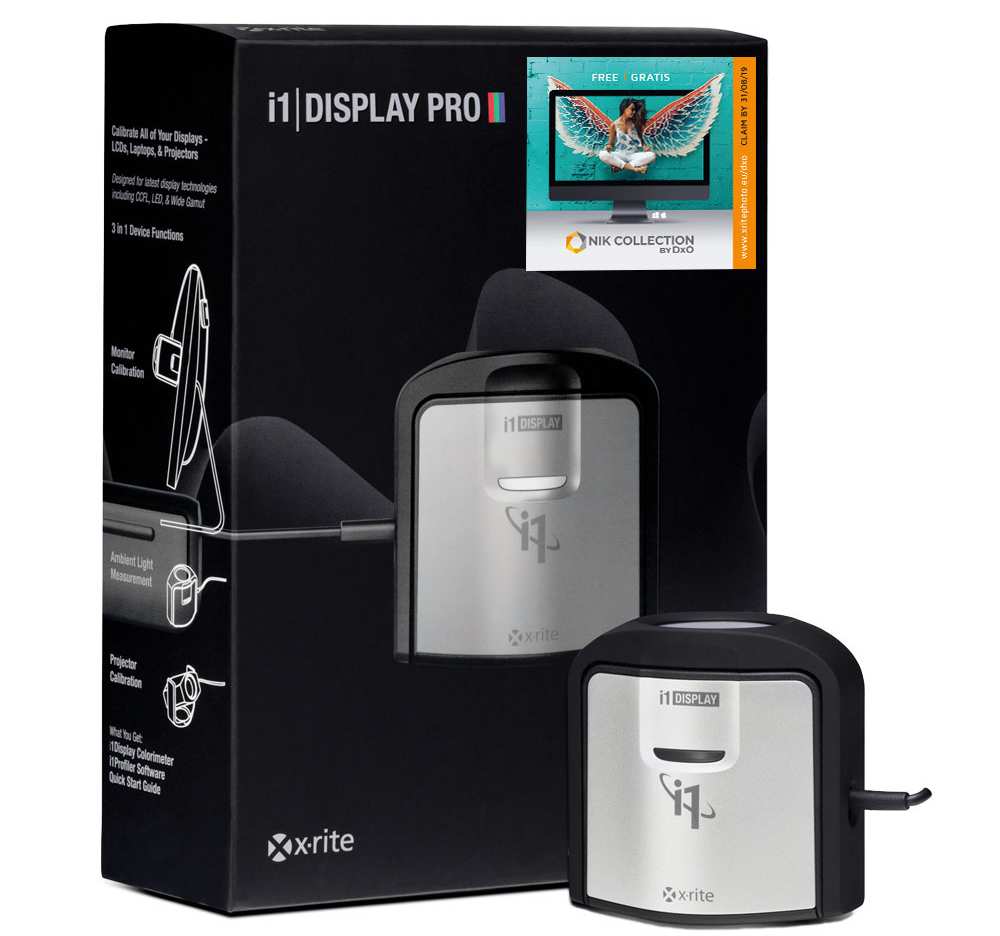
Buy a hardware colorimeter. An X-Rite i1Display Pro or Datacolor SpyderX runs between $170 and $250. Any monitor used for serious editing should be calibrated at least monthly.
Set the monitor to its native resolution and desired refresh rate first. Most calibration tools work fine at 144Hz, but let the panel warm up for 30 minutes before starting.
Use the "native" or "user" color preset rather than a gaming mode. Reduce brightness to around 120 nits for print editing or 160 nits for HDR video work. Follow the calibration software prompts to generate and save an ICC profile.
Turn off adaptive sync during calibration. G-Sync and FreeSync can interfere with consistent luminance readings. Re-enable it afterward if you need it for gaming or playback.
Dual Monitor Setup Strategy
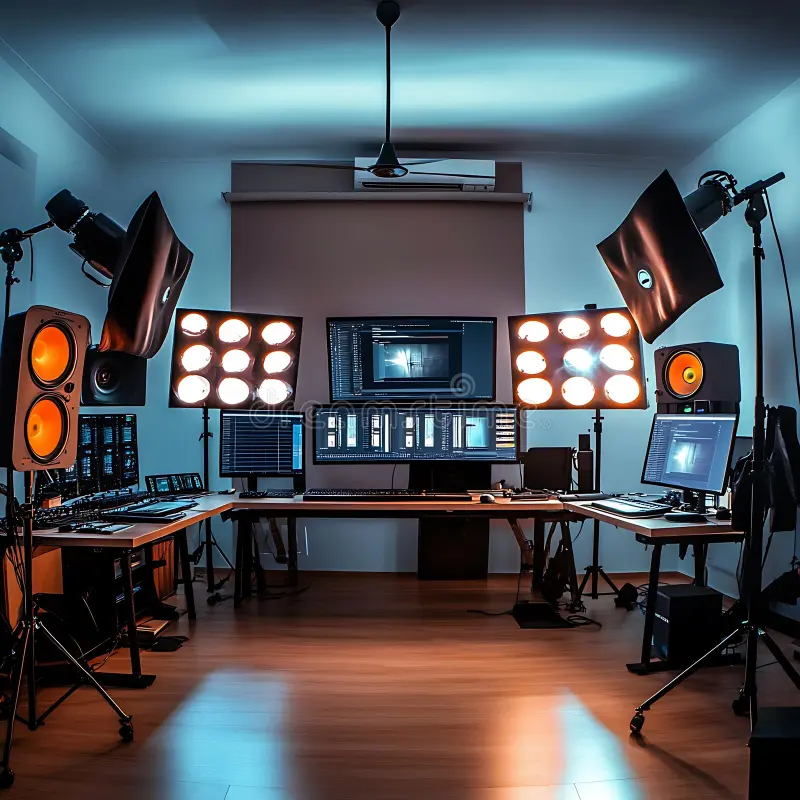
Consider running two monitors. Keep a 60Hz calibrated IPS or OLED display as your primary editing reference. Add a 144Hz gaming panel as a secondary display for timelines, browser windows, or gaming.
This gives you reference-grade accuracy where it counts and high refresh rate fluidity for everything else. Most editing software lets you assign the preview window to a specific display, so you can preview on the accurate panel while using the 144Hz screen for toolbars and bins.
Final Decision Guide
Buy a 144Hz monitor for editing if: you're a hybrid gamer-editor, you work with high frame rate video regularly, or you want one screen that handles everything reasonably well.
Stick with a 60Hz professional monitor if: color accuracy is your top priority, you deliver print or theatrical work, or you primarily edit photos and still content.
Consider 120Hz OLED if: budget allows and you edit video. It's currently the best single display that covers both high refresh rate and reference-grade color.
Frequently Asked Questions
Can I color-grade accurately on a 144Hz gaming monitor?
You can get close with manual calibration and a model that has wide gamut coverage, but it won't match a purpose-built reference monitor. For client-critical color work, invest in a display designed for color grading.
Does 144Hz help with photo editing at all?
Only for interface smoothness during scrolling and zooming. It won't improve your color accuracy, detail rendering, or any aspect of the actual image output. The benefit is purely ergonomic.
Is a 1440p 144Hz monitor better for editing than a 4K 60Hz monitor?
It depends on your priority. 1440p 144Hz gives you more screen refresh smoothness and decent pixel density at 27 inches. 4K 60Hz gives you sharper text and more workspace for toolbars. Most editors working with 4K content prefer the higher resolution, even at 60Hz.
How often should I calibrate a 144Hz monitor used for editing?
Monthly calibration is sufficient for most editing work. If your room lighting changes frequently or you move the monitor, calibrate more often. Panels drift gradually over time, so a measurement you took six months ago likely no longer reflects current output.

Similar Posts