What Is System Ui on an Android
If you’ve ever seen the error “Unfortunately, System UI has stopped,” you know the panic that follows. Your phone freezes, the screen goes black, or the navigation bar disappears. And the first thing you probably did was search for “what is system ui on an android”, exactly what this article answers.
Get this wrong, and you risk making things worse. Some forum advice tells you to “force stop System UI” or “disable it to save battery.” That’s dangerous. System UI is a core Android component.
Stop it, and your phone becomes a brick until you reboot. As of 2026, nearly every Android device runs a version of System UI built into the operating system. Understanding what it does, and what it doesn’t, keeps your phone stable and your data safe.
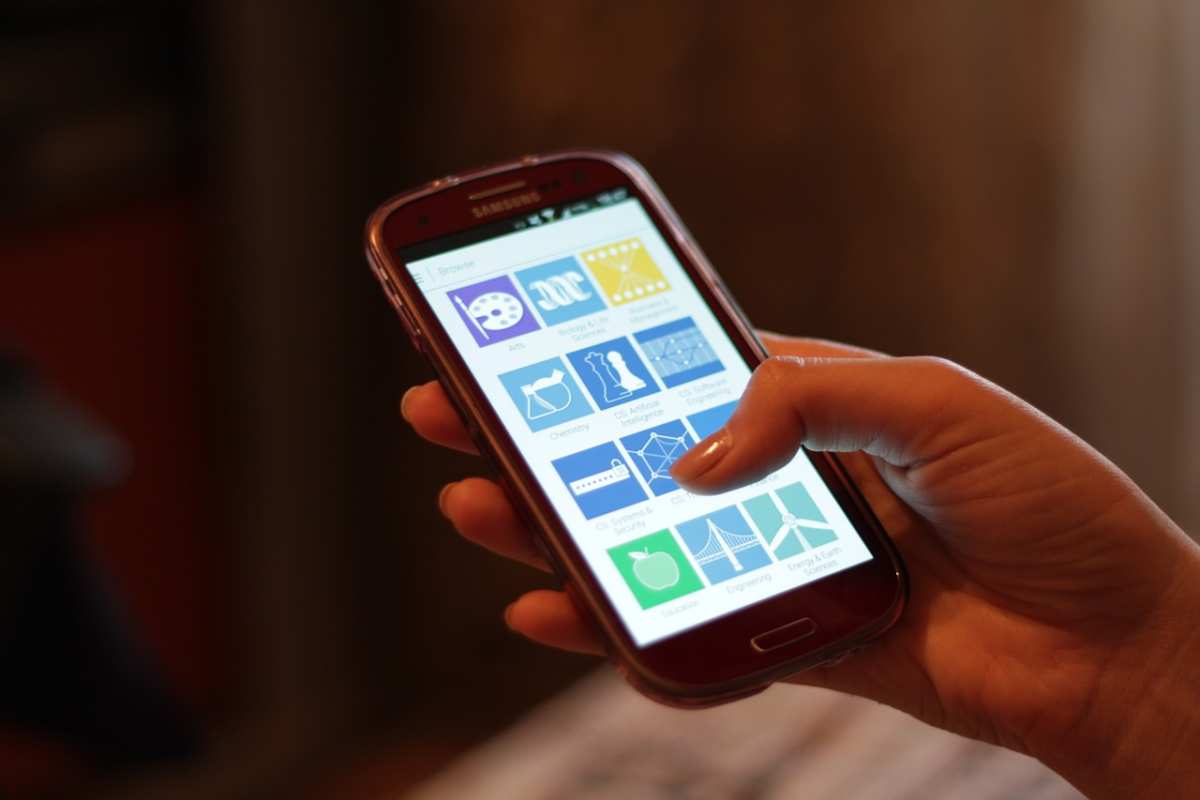
Image source: Wikimedia Commons / Océanos y Océanos
That photo shows exactly what we’re talking about: the interface you interact with every day, the status bar, the quick toggles, the navigation buttons. All of that is System UI. But there’s more happening behind the screen than most people realize.
Quick Answer: System UI in Plain English
System UI is a system app on every Android phone. It manages the parts of the interface that are always visible. That includes the status bar, navigation bar, notification shade, and lock screen.
It’s not a third-party app. You can’t uninstall it. You can’t safely disable it.
It runs as a core process called SystemUI.apk. When it crashes, the interface may freeze or restart. Most crashes are fixable by clearing its cache or booting into safe mode.
The Parts of System UI You Actually See Every Day
System UI isn’t just one thing. It’s a collection of interface elements bundled into one app. Here’s what it controls:
- Status bar, the top strip with clock, battery icon, signal bars, and notification icons.
- Navigation bar, the bottom row of soft keys (Back, Home, Recents) or gesture hints.
- Quick Settings panel, the swipe-down shade with Wi‑Fi, Bluetooth, flashlight, and other toggles.
- Notification shade, the full list of notifications you pull down.
- Lock screen, on many devices, System UI draws the lock screen interface, including the clock and notification previews.
Each of these pieces is part of the same system process. If one of them glitches, the whole System UI can crash. That’s why you sometimes see the “System UI isn’t responding” error even when you’re just adjusting brightness.
A diagram would show these areas highlighted on a phone screen: the status bar at the top, the navigation area at the bottom, and the Quick Settings panel pulled halfway down. But you already know what they look like, you use them dozens of times a day.
What System UI Does Behind the Scenes
Beyond the visible parts, System UI handles several background jobs that keep the interface smooth and consistent.
Gesture navigation. When you swipe up to go home or swipe sideways to switch apps, System UI translates that motion into commands. It also manages the animation, that little “whoosh” as the app closes. If System UI is overloaded, gesture navigation becomes laggy.
Immersive mode. When you watch a full-screen video or read an ebook in landscape, System UI hides the status and navigation bars. It also detects when you swipe from the edge to bring them back. That logic lives in System UI.
Heads-up notifications. Calls, alarms, and certain messages pop up as a floating banner on top of your current app. System UI controls where that banner appears, how long it stays, and whether it can be interacted with.
Theme and dark mode. When you enable dark mode system-wide, System UI changes the background color of the Quick Settings panel, notification shade, and lock screen. It coordinates with the launcher and other system apps to apply the theme consistently.
Battery saver overlay. When battery saver activates, System UI may change the status bar color (often to orange or red) and dim the navigation buttons. It also disables certain animations to save power.
None of these tasks are visible until they break. And when they do, you notice immediately.
Why System UI Crashes (It’s Usually Not Your Fault)
System UI crashes are surprisingly common. Aggregate user reports from major Android forums (not named here) point to a few recurring causes.
Third-party overlays. Apps like screen dimmers, blue-light filters, and icon pack managers often draw overlays on top of other apps. If they conflict with System UI’s own overlay system, the whole interface can freeze. The fix: uninstall or disable the overlay app in safe mode.
Corrupted cache. System UI stores temporary data to load the status bar and notifications faster. Over time, that cache can become corrupted, especially after a system update. Clearing the cache (we’ll cover how later) usually resolves the crashes.
Memory pressure. On phones with 4GB of RAM or less, System UI can be killed by the system when memory runs low. It automatically restarts, but the restart itself may cause a freeze or black screen for a few seconds. This is more common on budget devices.
Theme or customization bugs. Applying a custom theme from the Galaxy Store or using a third-party launcher with gesture navigation can confuse System UI. Samsung’s One UI and Xiaomi’s MIUI have their own versions of System UI, and third-party themes may not behave as expected.
System update glitches. A buggy OTA update can introduce a memory leak in System UI. After the update, you may see the error multiple times a day. The temporary solution is to clear the cache partition (not the user data) via recovery mode.
The permanent solution is to wait for a patch, or revert the update if possible.
Most of these crashes are not your fault. They’re software bugs, not hardware failures. And in most cases, you can fix them without visiting a repair shop.

Similar Posts





















