is 27 inch monitor good for office work
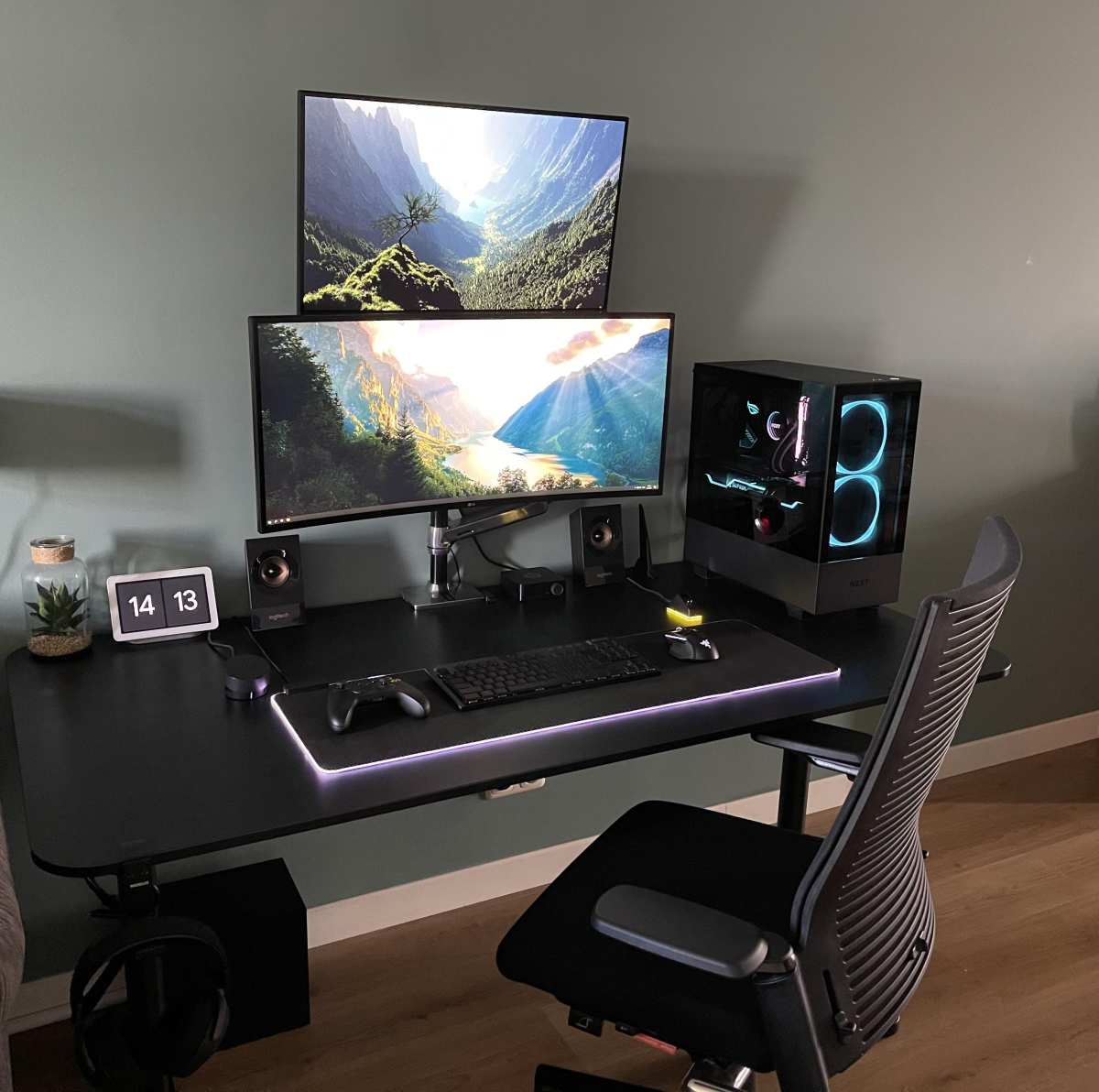
You sit down at your desk, slide the keyboard tray in, and stare at that old 24‑inch monitor. It works, but you keep wondering: is 27 inch monitor good for office work, or is it just going to crowd your desk and make you lean forward? That’s the exact question we’re going to walk through here.
Our research shows that the answer depends on three things: your desk depth, your daily tasks, and the resolution you choose. According to manufacturer specifications, the optimal viewing distance for a 27‑inch screen is about 50 to 70 centimetres (20 to 28 inches). If your setup doesn’t match that range, the monitor can actually slow you down instead of speeding you up.
Let’s break it down so you can decide.
Quick Answer
Yes, a 27‑inch monitor is good for office work. But only if you pair it with the right resolution and desk depth. For most people, 1440p (Quad HD) is the sweet spot.
It gives you crisp text and enough space for two windows side by side. If your desk is shallow or you mostly read emails, a 24‑inch may be a better fit.
Why 27 Inches Is a Sweet Spot—and a Trap
Here’s the thing: a 27‑inch monitor sits right in the middle of the size spectrum. It’s big enough to let you run a spreadsheet on one side and a web browser on the other without squinting. It’s small enough to fit on a standard 60‑cm deep desk without forcing you to turn your head like you’re watching tennis.
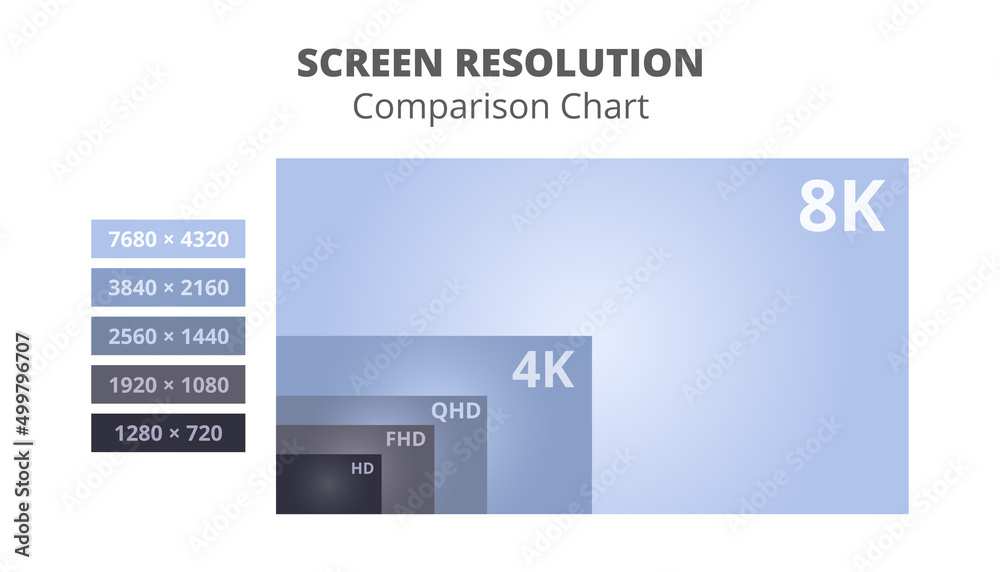
But here’s where it becomes a trap. If you buy a 27‑inch monitor with a 1080p resolution (Full HD), the pixel density drops to about 81 pixels per inch. At normal viewing distance, text looks fuzzy and blocky.
You’ll end up leaning in to read, which strains your eyes and neck. That’s why aggregate user feedback shows that 27‑inch 1080p monitors are among the most returned office screens.
The trap also appears when your desk is too shallow. Sitting 40 centimetres from a 27‑inch screen forces your eyes to scan a wider area than they’re comfortable with. Fatigue builds up fast.
So the sweet spot is real, but you have to set it up right.
How to Check If Your Desk Is Deep Enough
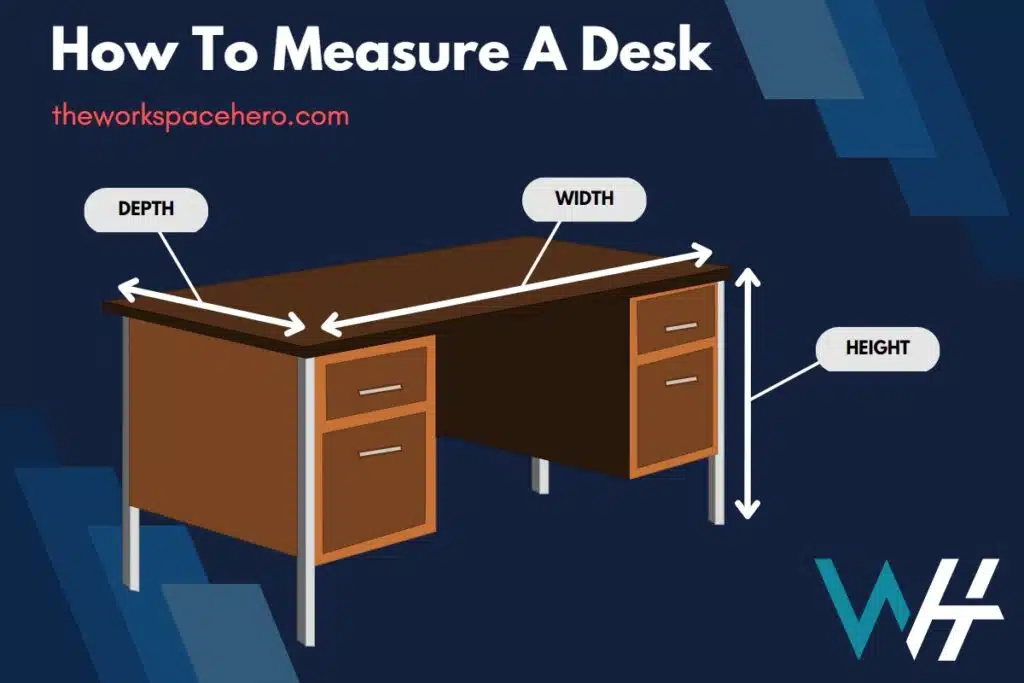
Grab a tape measure. Measure from the front edge of your desk to the back wall or monitor stand location. That’s your usable depth.
For a 27‑inch monitor, you need at least 50 centimetres (about 20 inches) between your eyes and the screen. If your desk is only 45 cm deep, you’re too close.
Here’s a quick rule of thumb: sit in your chair, extend your arm, and touch the screen with your fingertips. If your fingertips barely reach, the distance is about right. If your palm touches the screen, you’re too far.
If your whole forearm touches, you’re way too close and a 27‑inch will feel overwhelming.
If your desk is shallow but you really want a 27‑inch, you have options. You can mount the monitor on a VESA arm that clamps to the back edge of the desk. That pushes the screen away from you and frees up surface space.
Many offices use this trick to make larger monitors work in tight cubicles. Just make sure the arm offers enough reach.
What You’ll Be Doing Matters
Your tasks change the equation. Let’s go through the common office scenarios.
Spreadsheets, data analysis, or financial models. A 27‑inch monitor shines here. You can have dozens of columns visible at once. At 1440p, you’ll see about 50% more rows than on a 24‑inch 1080p screen.
Less scrolling, fewer errors.
Coding and software development. This is another strong use case. A 27‑inch gives you room for your code editor, a terminal window, and a browser all at the same time. Many developers prefer it over a dual‑monitor setup because you don’t have a bezel splitting your view.
Word processing, email, and general office work. A 27‑inch is fine but often overkill. If you mostly write documents and read emails, a 24‑inch monitor may be easier on your eyes because you don’t have to move your head as much. Our research shows that for pure text tasks, most people prefer a 24‑inch.
Video calls and presentations. A 27‑inch lets you see participants clearly and share your screen without zooming in. It’s a plus, but not a deal‑breaker.
Resolution: The Make‑or‑Break Factor
This is the single most important decision when buying a 27‑inch monitor for office work. Get the resolution wrong and you’ll hate the screen, no matter how good the colour or refresh rate is.
Here’s the breakdown in a table:
| Resolution | Pixel Density (PPI) | Best For | Typical Price Range (2026) |
|---|---|---|---|
| 1080p (1920×1080) | ~81 PPI | Office work? No – text looks soft, edges blurry. | $150–$200 |
| 1440p (2560×1440) | ~109 PPI | Best balance – sharp text, good price, easy on GPU. | $220–$400 |
| 4K (3840×2160) | ~163 PPI | Very sharp but needs scaling – UI can be tiny on Windows. | $350–$600+ |
The clear winner for office work in 2026 is 1440p. It gives you crisp letters without forcing you to adjust scaling. On Windows, you can set scaling to 125% and everything looks natural.
On macOS, the “looks like 2560×1440” mode works perfectly.
If you choose 1080p on a 27‑inch, you’re basically using a 24‑inch monitor blown up. The individual pixels become visible. That leads to eye strain over an eight‑hour day.
Skip it unless your budget is desperately tight.
4K is tempting, but watch out for scaling issues. On Windows, many older office apps don’t scale well at 150%. Text can appear blurry or too small.
On macOS, 4K at 27‑inch works better, but you’ll pay a premium for a good panel.
Your Vision and Comfort Level
Age affects how you see a 27‑inch screen. After 40, your eyes lose some ability to focus on close objects. That makes larger text more appealing.
A 27‑inch at 1440p with scaling set to 125% gives you big, readable letters without losing screen real estate. That’s often more comfortable than a 24‑inch with tiny text.
If you already wear reading glasses or progressive lenses, consider the screen height carefully. The top of the monitor should be at or just below eye level. A 27‑inch screen stands taller than a 24‑inch.
On a standard desk, you’ll likely need a monitor stand or an adjustable arm to get the height right. Otherwise, you end up tilting your head down, which leads to neck pain.
Sensitivity to flicker and blue light is another factor. Most modern office monitors include flicker‑free technology and a low blue‑light mode. Check the specs for “TÜV Rheinland certified” for blue‑light reduction.
Our research indicates that users who spend more than six hours a day at the screen report less fatigue with these features enabled, regardless of screen size.
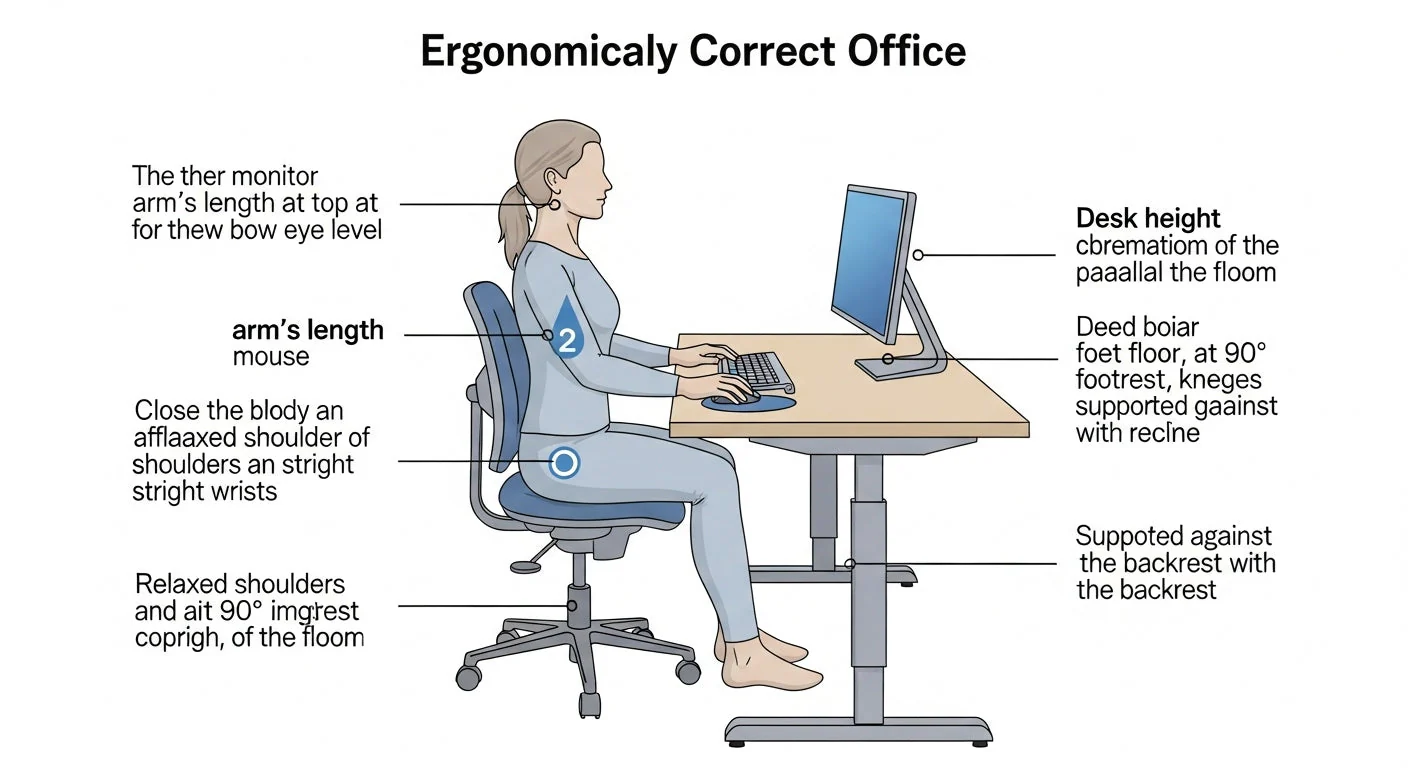
Image source: Bing (Web (fair-use with source credit))

Similar Posts