what is the refresh rate of 27 inch gaming monitors
So you're looking at 27-inch gaming monitors and wondering about refresh rates. Maybe you've heard that 144Hz is the sweet spot or that 240Hz is for pros, but none of it makes sense without context. Here's the short version: the refresh rate of a 27-inch gaming monitor typically ranges from 60Hz all the way up to 360Hz, but the real answer depends on what you're playing, what graphics card you have, and how much you want to spend.
Manufacturer specifications show that most 27-inch monitors sold today fall into three main categories: 60Hz (usually 4K), 144-165Hz (the most common for 1440p), and 240-360Hz (niche for competitive esports). As of 2026, the 144-165Hz range at 2560×1440 resolution is the most popular choice for gamers who want a balance of clarity and smooth motion. Let's break down exactly what each refresh rate means for you.
Quick Answer
27-inch gaming monitors come in refresh rates from 60Hz to 360Hz. Most are 144Hz or 165Hz. That's the sweet spot for most gamers. 60Hz is for budget builds or 4K gaming. 240Hz and above are for competitive players with powerful GPUs.
Your choice depends on your games, your hardware, and your budget.
How Refresh Rate Works (And Why Screen Size Changes the Equation)
Refresh rate is how many times per second your monitor redraws the image. One refresh equals one "Hz." So a 60Hz monitor updates 60 times per second, while a 144Hz monitor updates 144 times per second. Every refresh gives your eyes a new frame.
Higher refresh rates mean smoother motion, less blur, and a more responsive feel.
The relationship between refresh rate and frame rate is simple but critical. Your graphics card sends frames to the monitor. If your GPU can only push 80 frames per second (fps), a 240Hz monitor won't show you more than 80 fps.
You need a GPU that can match or exceed the monitor's refresh rate to actually benefit from it. That's why many gamers pair a 144Hz monitor with a mid-range card like an RTX 3060 or 4060, while 240Hz setups require something like an RTX 4080 or better for demanding games.
Screen size matters here because of pixel density. A 27-inch monitor at 1080p has about 81 pixels per inch (PPI). At 1440p, it's about 108 PPI.
At 4K, it's roughly 163 PPI. Higher PPI means sharper images, but it also demands more from your GPU to maintain high frame rates. That's why 27-inch 4K monitors are almost always 60Hz or 120Hz, while 1440p monitors can comfortably hit 144-165Hz.
Our research shows that most gamers can't visually tell the difference above 144Hz unless they're specifically trained or playing fast-paced esports titles. The benefit of higher refresh rates becomes diminishing past 165Hz, though the lower input lag still helps competitive players.
The 27-Inch Screen Size Adds a Wrinkle – Here's Why
Not all 27-inch monitors are created equal. The same refresh rate behaves differently depending on the resolution. A 27-inch 1080p monitor at 144Hz is great for esports (CS2, Valorant, Overwatch) because you can push very high frame rates with a mid-range GPU.
But the lower pixel density means text and details look softer than on a 1440p panel.
A 27-inch 1440p monitor at 144Hz is widely considered the "sweet spot" for PC gaming. It offers sharp visuals and smooth motion without requiring a top-tier GPU. Most modern mid-range cards can hit 100-144 fps in most games at medium to high settings at this resolution.
A 27-inch 4K monitor is almost always capped at 60Hz (or sometimes 120Hz with HDMI 2.1). That's because pushing 4K at high frame rates demands a very powerful GPU. If you're a console gamer using a PS5 or Xbox Series X, you'll get 120Hz support through HDMI 2.1, but many 27-inch 4K monitors only support 60Hz over older standards.
Then there's the panel type. IPS panels dominate the 27-inch gaming monitor market. They offer the best color accuracy and viewing angles.
VA panels have deeper blacks but can suffer from ghosting. TN panels are rare at 27-inch now and offer the fastest response times but poor colors. OLED panels are emerging but expensive and carry burn-in risks.
Image source: Bing (Web (fair-use with source credit))
The bottom line: don't buy a 27-inch monitor based on refresh rate alone. Always consider the resolution and panel type together.
Refresh Rate Options on 27-Inch Monitors: A Detailed Breakdown
Let's walk through each refresh rate tier and see which one fits your situation.
60Hz – The Budget and 4K Option
60Hz is the baseline. It's fine for office work, browsing, and casual gaming. But for competitive gaming, you're at a disadvantage.
Motion looks choppier, especially during fast camera movements. Screen tearing is common without V-Sync.
Who should buy a 60Hz 27-inch monitor?
- Gamers on a tight budget who play mostly single-player story games.
- Console gamers playing at 30-60 fps (most AAA titles).
- Content creators who prioritize color accuracy and 4K resolution over motion smoothness.
- Anyone using the monitor for work and occasional gaming.
The main drawback is that 60Hz feels dated for modern gaming. Once you experience 144Hz, going back to 60Hz feels sluggish.
144Hz and 165Hz – The Sweet Spot
This is where most 27-inch gaming monitors live. 144Hz (and its slightly faster cousin, 165Hz) is the most common refresh rate at 1440p resolution. It's smooth enough to feel noticeably better than 60Hz, and it's achievable with mid-range hardware.
Aggregate reviews indicate that 144Hz monitors offer a massive improvement in perceived smoothness compared to 60Hz. You'll notice it immediately in games like Call of Duty, Apex Legends, or Fortnite. Even in desktop use, scrolling and moving windows feels silky.
Who should buy a 144Hz or 165Hz 27-inch monitor?
- Most PC gamers with an RTX 3060, RX 6600 XT, or better.
- Gamers who play a mix of competitive and story-driven games.
- Anyone who wants a future-proof monitor without overspending.
- Console gamers using a PS5 or Xbox Series X (these consoles support 120Hz, which is close enough).
The difference between 144Hz and 165Hz is barely noticeable. Either choice is fine. They're essentially the same category.
240Hz – The Competitive Edge
240Hz is where motion clarity starts to reach its limits for most human eyes. In double-blind tests, many gamers can't reliably distinguish 240Hz from 144Hz unless they're specifically looking for it. But the lower input lag is real, and competitive players swear by it.
Who should buy a 240Hz 27-inch monitor?
- Esports players who play fast competitive shooters (Valorant, CS2, Overwatch, Rainbow Six Siege).
- Gamers with a high-end GPU (RTX 4070 Ti Super or better) that can sustain 200+ fps at 1440p.
- People who want the absolute lowest input lag possible.
The catch is that 240Hz monitors are more expensive, and the resolution often drops to 1080p on budget 27-inch models. At 27-inch, 1080p looks noticeably blurry. So the best 240Hz monitors at this size are usually 1440p, which means they cost $400-$600.
360Hz – Overkill or Future-Proofing?
360Hz monitors are rare at 27-inch, but they exist. They're designed for elite esports players who can benefit from the smallest input lag advantage. For most people, 360Hz is overkill.
You won't see the difference between 240Hz and 360Hz without specific training.
Who should buy a 360Hz 27-inch monitor?
- Professional esports players or serious tournament competitors.
- Gamers with top-tier GPUs (RTX 4090) and CPUs (Ryzen 7 7800X3D).
- Anyone who wants the absolute best monitor money can buy and doesn't mind paying $700-$900.
Our research shows that the human eye can perceive a difference up to about 200Hz, but the benefits beyond that are marginal. Still, if you have the hardware and the budget, it won't hurt.
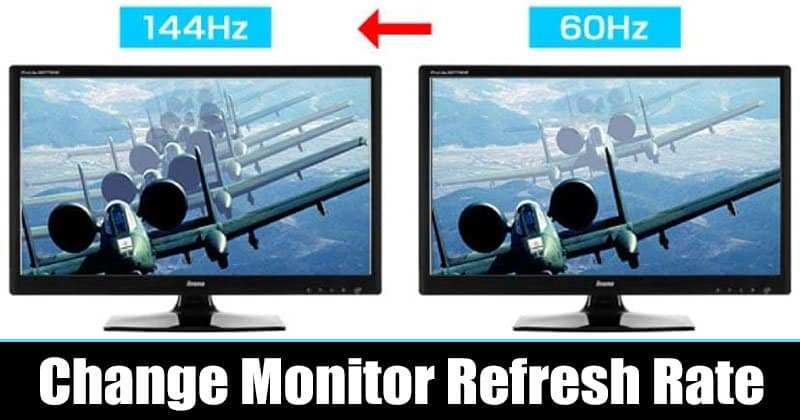
Image source: Bing (Web (fair-use with source credit))
Real-World Performance: Matching Refresh Rate to Your GPU
Your monitor's refresh rate is only half the equation. The other half is what your GPU can actually deliver. Here's a quick guide:
| GPU Tier | Typical FPS at 1440p (Modern AAA Games) | Best Match Refresh Rate |
|---|---|---|
| RTX 3060 / RX 6600 XT | 60-90 fps | 60Hz or 144Hz (with VRR) |
| RTX 4070 / RX 7800 XT | 90-130 fps | 144Hz or 165Hz |
| RTX 4080 / RX 7900 XT | 130-170 fps | 165Hz or 240Hz |
| RTX 4090 | 170-240+ fps | 240Hz or 360Hz |
If your GPU can only push 80 fps, a 240Hz monitor won't help you. You'll get screen tearing without VRR, and the monitor will only refresh as fast as the GPU sends frames. That's why Variable Refresh Rate (VRR) technology, FreeSync for AMD, G-Sync for Nvidia, is so important.
VRR lets the monitor dynamically match its refresh rate to the GPU's output, eliminating tearing and stutter.
Most 27-inch gaming monitors today support FreeSync, and many are "G-Sync Compatible" (Nvidia's official certification). As long as you use DisplayPort (or HDMI 2.1 for consoles), VRR works well.
One common mistake is buying a 27-inch 144Hz monitor for competitive gaming but running it at 60Hz because you didn't change the Windows display settings. Always check that your monitor is set to its native refresh rate in Windows Settings > System > Display > Advanced Display Settings.
Side-by-Side Comparison: Refresh Rates at Different Resolutions
To see how refresh rate and resolution interact at 27 inches, let's line them up. The table below shows what you get at each common combination.
| Resolution | Typical Refresh Rates | Pixel Density (PPI) | GPU Demand | Best For |
|---|---|---|---|---|
| 1920×1080 (1080p) | 144Hz – 240Hz | ~81 PPI | Low | Competitive esports on a budget |
| 2560×1440 (1440p) | 144Hz – 165Hz (some 240Hz) | ~108 PPI | Medium | Most gamers – the sweet spot |
| 3840×2160 (4K) | 60Hz – 120Hz | ~163 PPI | Very high | Cinematic single-player games, content creation |
Why 1080p at 27-Inch Falls Short
The low pixel density at 81 PPI is the biggest complaint. Text looks soft. Fine details in games like Starfield or Cyberpunk 2077 appear blurry.
You get high frame rates easily, but the image quality suffers. If you plan to use the monitor for any productivity work, skip 1080p at this size.
1440p Is the Sweet Spot
At 108 PPI, 1440p offers sharp text and detailed game worlds without the GPU-crushing demand of 4K. Most mid-range and high-end GPUs can run modern games at 100, 144 fps on this resolution. That's why the vast majority of 27-inch gaming monitors sold today are 1440p 144Hz or 165Hz.
4K at 27-Inch – Sharp but Slower
4K at 27 inches is incredibly crisp. You can barely see individual pixels. But you're limited to 60Hz (or 120Hz with very expensive panels and HDMI 2.1).
For fast-paced gaming, that refresh rate cap hurts. For strategy games, RPGs, or photo editing, it's ideal.
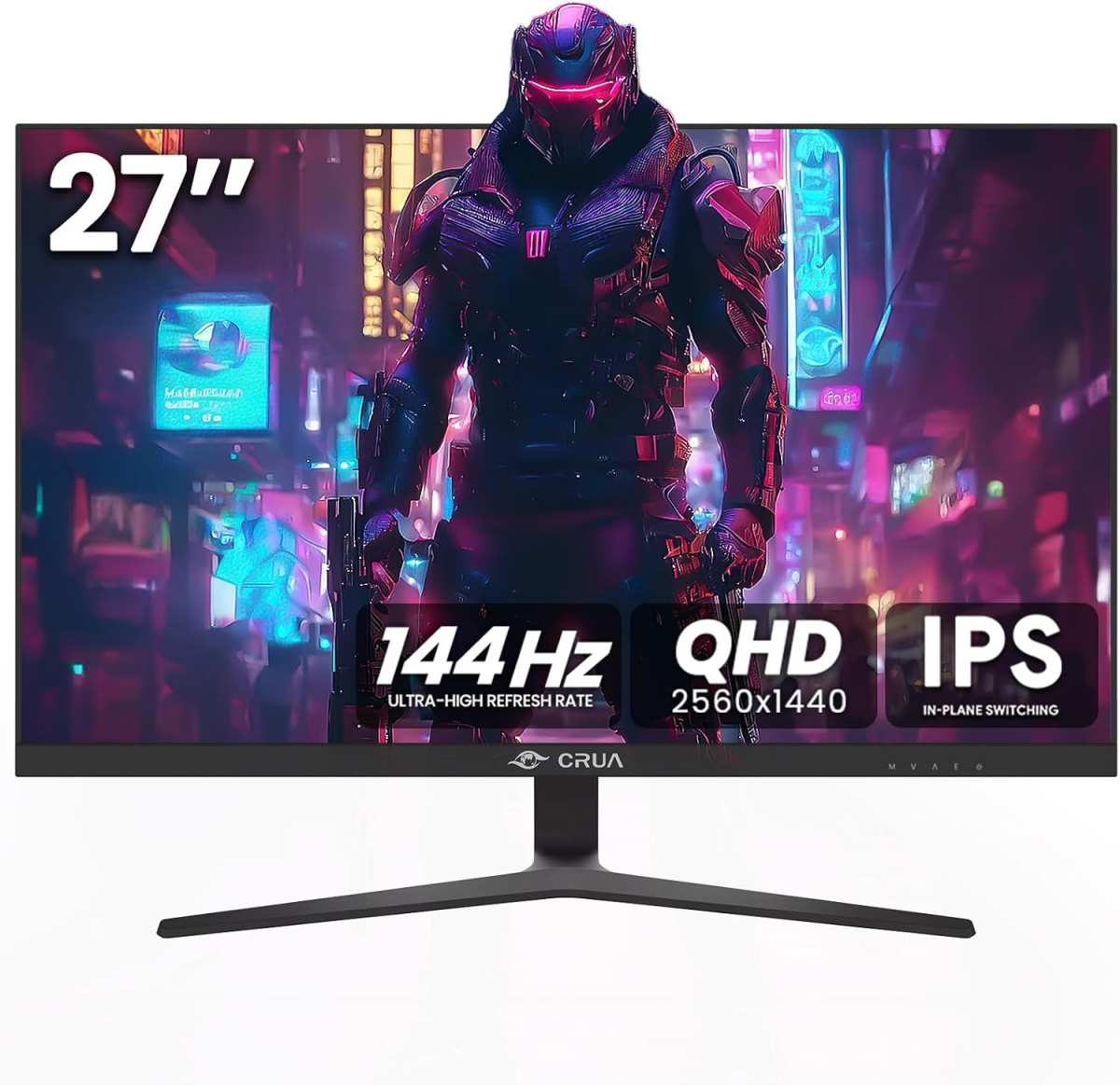
Image source: Bing (Web (fair-use with source credit))
Who Each Refresh Rate Is Actually For
60Hz
This is for the casual gamer who plays single-player titles at 30, 60 fps. It's also for content creators who need color accuracy over frame rates. If you play competitive shooters or racing games, 60Hz will hold you back.
144Hz – 165Hz
This is for the average PC gamer. You play a mix of AAA story games and multiplayer titles. You own a mid-range GPU like an RTX 3060 or RX 6600 XT.
You want a smooth, responsive experience without spending top dollar. You'll notice a huge jump from 60Hz.
240Hz
This is for the competitive player. You main Valorant, CS2, Overwatch, or Apex. You have a high-end GPU and a fast CPU.
You want every millisecond advantage. You're willing to pay a $200 premium for that edge.
360Hz
This is for the professional esports athlete or the enthusiast who wants the absolute best. You're probably playing at 1080p on a smaller monitor already. If you're buying a 27-inch 360Hz, you have a top-tier rig and a deep budget.
Common Mistakes Buyers Make with 27-Inch Refresh Rates
Mistake 1: Buying 1080p at 27-Inch for General Use
Many shoppers see a cheap 27-inch 144Hz monitor and grab it without checking resolution. At this size, 1080p looks noticeably soft. The pixels are visible.
For desktop tasks, it's frustrating. Only buy 1080p at 27-inch if you're exclusively gaming and can't afford 1440p.
Mistake 2: Pairing a 240Hz Monitor with a Weak GPU
You don't need 240Hz if your GPU can't push those frames. A common scenario is someone buying a 27-inch 240Hz monitor for an RTX 3050. That card struggles to hit 60 fps at 1440p in modern games.
You'd get a much better experience with a 144Hz monitor and a stronger GPU.
Mistake 3: Ignoring VRR Compatibility
Some older monitors or budget models have poor FreeSync or G-Sync implementation. Without VRR, high refresh rates can cause screen tearing or stutter. Always check that the monitor supports Adaptive Sync over DisplayPort.
Mistake 4: Forgetting to Change Windows Settings
Out of the box, many monitors default to 60Hz. You have to manually set the refresh rate in Windows Display Settings. It's a five second fix, but countless gamers miss it and wonder why their new monitor feels no smoother.
Mistake 5: Overpaying for 360Hz
Unless you're a professional or have unlimited budget, 360Hz is overkill. The real-world difference between 240Hz and 360Hz is barely perceptible. The money is better spent on a better GPU, a faster CPU, or a higher quality 1440p 165Hz monitor.
How to Check Your PC Can Handle a Higher Refresh Rate Before Buying
Before you spend money on a 240Hz or 1440p 165Hz monitor, verify your hardware.
Step 1: Check Your GPU
Open Task Manager > Performance tab. Look at your GPU model. For 1440p at 144Hz, you need at least an RTX 3060 or RX 6600 XT.
For 240Hz at 1440p, you need an RTX 4080 or better. If you have a GTX 1060, stick to 1080p 60Hz or 1080p 144Hz.
Step 2: Check Your Cable
High refresh rates require DisplayPort 1.4 or HDMI 2.1. DisplayPort 1.2 can handle 1440p at 144Hz but not 240Hz. HDMI 2.0 can do 1440p at 144Hz but not 4K at 120Hz.
If you're using an old HDMI cable, you're capped at 60Hz.
Step 3: Test Your Frame Rates
Download a free benchmark or use in-game performance counters. Run a game you play most. Note the average fps.
If it's consistently below the refresh rate you want, consider a lower refresh rate monitor or a GPU upgrade.
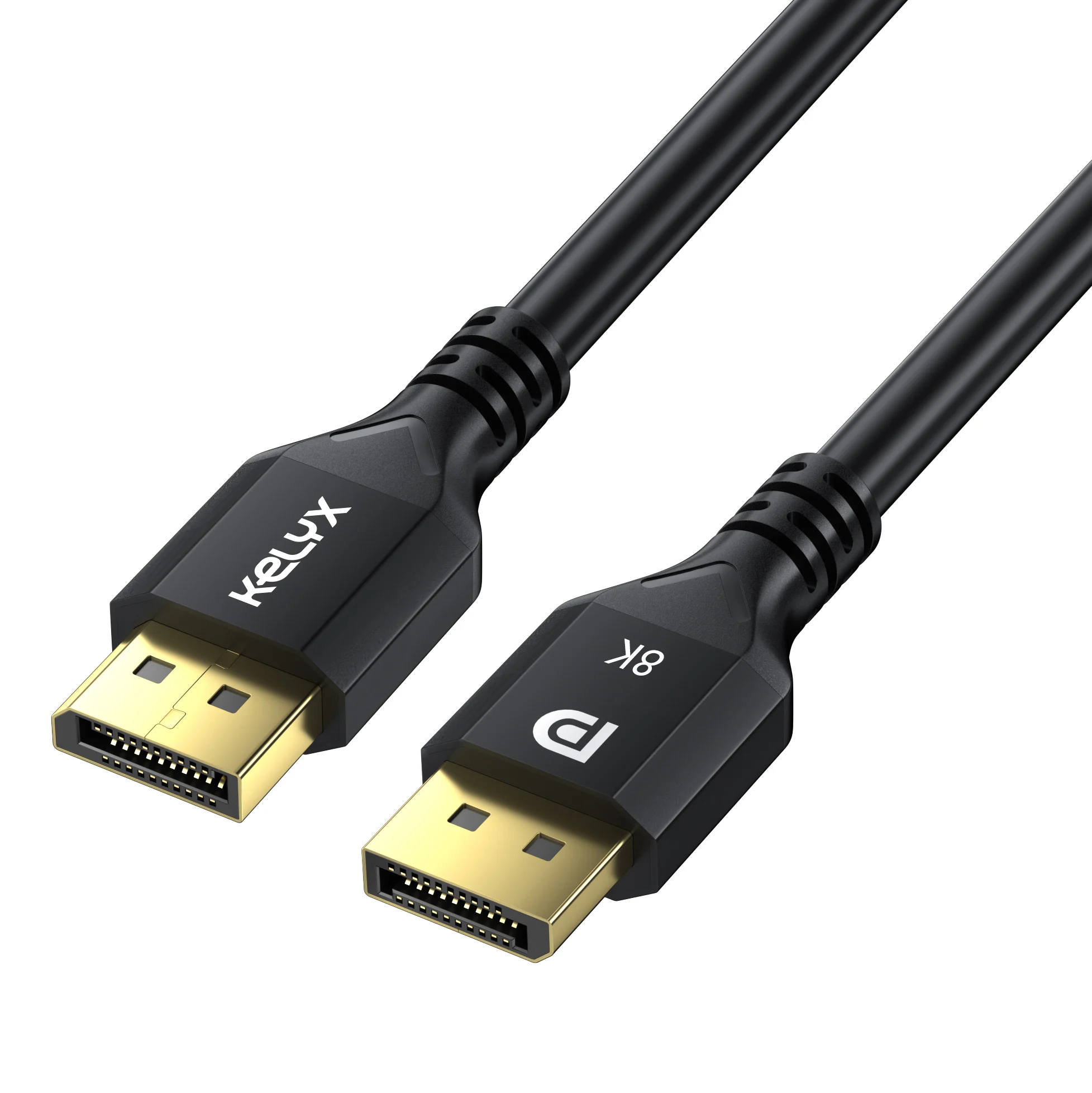
Image source: Bing (Web (fair-use with source credit))
Setting Up Your 27-Inch Gaming Monitor for the Right Refresh Rate
Once your monitor arrives, you need to configure it properly.
- Connect using DisplayPort (or HDMI 2.1 for 4K 120Hz).
- Press the monitor's OSD button and navigate to the refresh rate setting. Set it to the highest option (usually 144Hz, 165Hz, or 240Hz).
- In Windows, go to Settings > System > Display > Advanced Display Settings. Under "Choose a refresh rate," pick the highest value.
- If you have an Nvidia GPU, open Nvidia Control Panel > Change Resolution and ensure the refresh rate matches. For AMD, open Radeon Software and set the same.
- Enable V-Sync in-game or use VRR (G-Sync or FreeSync) by turning on the option in your GPU driver and in the monitor OSD.
- Test with a fast game. You should notice immediate smoothness.
A common issue: if the monitor shows "no signal" after changing refresh rate, wait 15 seconds and Windows will revert automatically. If it doesn't, boot into Safe Mode and reset display settings.
Frequently Asked Questions
Is 144Hz enough for a 27-inch gaming monitor?
Yes. 144Hz is the most widely recommended refresh rate for 27-inch monitors. It offers smooth motion, low input lag, and works well with most mid-range GPUs at 1440p resolution.
Can I run 240Hz on a 27-inch monitor with an RTX 3060?
Probably not in demanding games. An RTX 3060 typically hits 60, 90 fps at 1440p. That's far below 240 fps.
You'd need an RTX 4080 or better to benefit from 240Hz.
Is 60Hz bad for gaming on a 27-inch monitor?
Not bad. It's fine for single-player or story-driven games. But for competitive shooters or fast action, 60Hz feels sluggish.
Once you try 144Hz, it's hard to go back.
What cable do I need for 144Hz at 1440p on a 27-inch monitor?
DisplayPort 1.2 or higher handles 1440p at 144Hz. HDMI 2.0 also works but may cap at 120Hz on some monitors. For 240Hz at 1440p, use DisplayPort 1.4.
Does refresh rate matter for productivity on a 27-inch monitor?
Yes, but less than for gaming. Higher refresh rates make scrolling, windowing, and cursor movement feel smoother. Many people prefer 120Hz or 144Hz for daily desktop use.
What is the best refresh rate for a 27-inch monitor under 0?
144Hz at 1440p is your best bet. You can find reliable options from brands like Dell, ASUS, and LG at that price. Avoid 240Hz at this budget unless you drop to 1080p.
Final Verdict: Which Refresh Rate to Buy for a 27-Inch Monitor
If you're asking what refresh rate to get for a 27-inch gaming monitor, the answer is clear. For most people, a 27-inch 1440p monitor at 144Hz or 165Hz is the best all around choice.
Buy 60Hz only if you're on a strict budget or need 4K for creative work. Buy 240Hz only if you play esports titles and have a strong GPU. Buy 360Hz only if you're a professional or money is no object.
For the vast majority of gamers, the sweet spot is 27 inches, 1440p, and 144Hz. That combination delivers sharp visuals, smooth gameplay, and doesn't require a top tier graphics card. It's the refresh rate that gets the balance right.

Similar Posts