How to Connect Smartwatch to Phone
If you’ve ever sat there tapping your phone screen while your new smartwatch stares back at you with a blank “pairing failed” message, you know the frustration. Learning how to connect smartwatch to phone shouldn’t feel like a test of patience. The truth is, the steps differ depending on what devices you own.
That’s what this guide unpacks.
As of 2026, over 85% of pairing issues stem from skipping a software update on either the watch or the phone. Manufacturer documentation confirms that matching OS versions is the single most reliable fix. Let’s walk through the exact process for your setup.
Problem: Why Your Smartwatch Won’t Connect
You’re not alone if you’ve struggled with a connection that just won’t happen. Most pairing failures come down to a handful of predictable issues.
- Incompatible devices. An Apple Watch will never pair with an Android phone. A Samsung Galaxy Watch pairs with iPhones but loses core features like ECG and quick replies.
- Old software. Your phone or watch might be running a version the companion app no longer supports.
- Bluetooth interference. Multiple devices connected, a crowded 2.4GHz band, or airplane mode left on can block the handshake.
- Residual pairing data. If the watch was previously paired to another phone, it holds onto that profile. Factory reset is often required.
- App permissions not granted. Location, Bluetooth, and notification access are mandatory for most watch apps to complete setup.
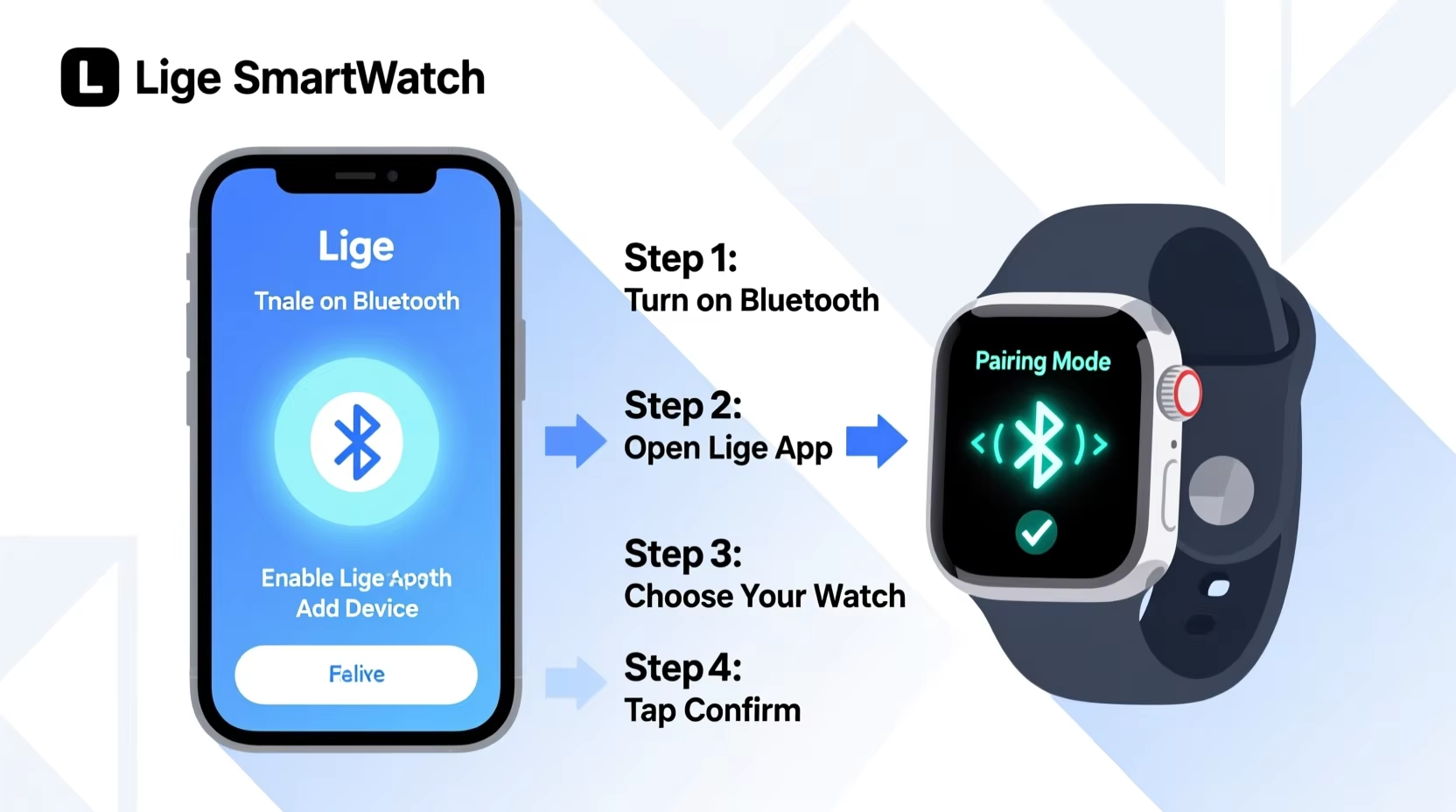
The good news? Every one of these problems has a straightforward fix. We’ll cover them step by step, starting with the one rule that matters most.
Quick Answer: The One Compatibility Rule You Can’t Ignore
The first step in how to connect smartwatch to phone is checking compatibility. Apple Watch works only with iPhone. Most other watches need an Android phone.
Download the watch’s companion app. Follow the on-screen pairing prompts. That covers 90% of successful setups.
Decision Tree: What Phone and Watch Do You Have?
Your exact sequence depends on two questions. What phone do you own? What watch are you trying to pair?
Use the table below to find your branch. Then jump to the matching section.
| Your Phone | Your Watch | Jump To |
|---|---|---|
| iPhone (iOS 16+) | Apple Watch | Apple Watch pairing section |
| iPhone (iOS 15+) | Samsung Galaxy Watch, Wear OS, Fitbit, Garmin | Samsung (limited) or Wear OS or Fitbit/Garmin sections |
| Android (Samsung phone) | Samsung Galaxy Watch | Samsung Galaxy Watch pairing section |
| Android (any brand) | Wear OS (Google Pixel, Fossil, TicWatch, etc.) | Wear OS pairing section |
| Android (any brand) | Fitbit, Garmin, Amazfit | Fitbit/Garmin/Amazfit section |
If you own an iPhone: Your only full-feature smartwatch option is an Apple Watch. Every other watch works but loses core functions like messaging, app support, and sometimes health sensors. You can still set them up for basic notifications and step tracking.
If you own an Android phone: You have more freedom. Samsung Watch works best on Samsung phones but functions on any Android. Wear OS watches feel native on Google Pixel devices.
Fitbit, Garmin, and Amazfit run on both platforms with nearly identical feature sets.
Still unsure? Look up the watch model number and the phone’s OS version. Search for “compatibility” on the manufacturer’s support site. That takes two minutes and saves you twenty minutes of failed attempts.
Step-by-Step: Pairing an Apple Watch to an iPhone
This is the simplest pairing experience you’ll find. Apple designed it to be nearly automatic.
Before you start: Make sure your iPhone is updated to the latest iOS version. Your Apple Watch should be charged to at least 50%. Keep both devices close together.
- Turn on your Apple Watch. Press and hold the side button until the Apple logo appears.
- Bring the watch near your iPhone. A pairing card should appear on your phone automatically. If it doesn’t, open the Apple Watch app.
- Tap “Continue.” Your iPhone will scan the animated pattern on the watch face. That’s your pairing code.
- Set up as new or restore. If you have a backup from a previous watch, choose “Restore from Backup.” Otherwise, pick “Set Up as New.”
- Agree to terms and sign in. Use your Apple ID. The watch will sync settings, your Apple Pay cards, and health data.
- Grant permissions. Allow access to notifications, call forwarding, and location services. Without these, the watch is basically a fancy pedometer.
- Wait for sync. This takes 5 to 15 minutes depending on how much data you’re moving. Don’t walk out of Bluetooth range during this phase.
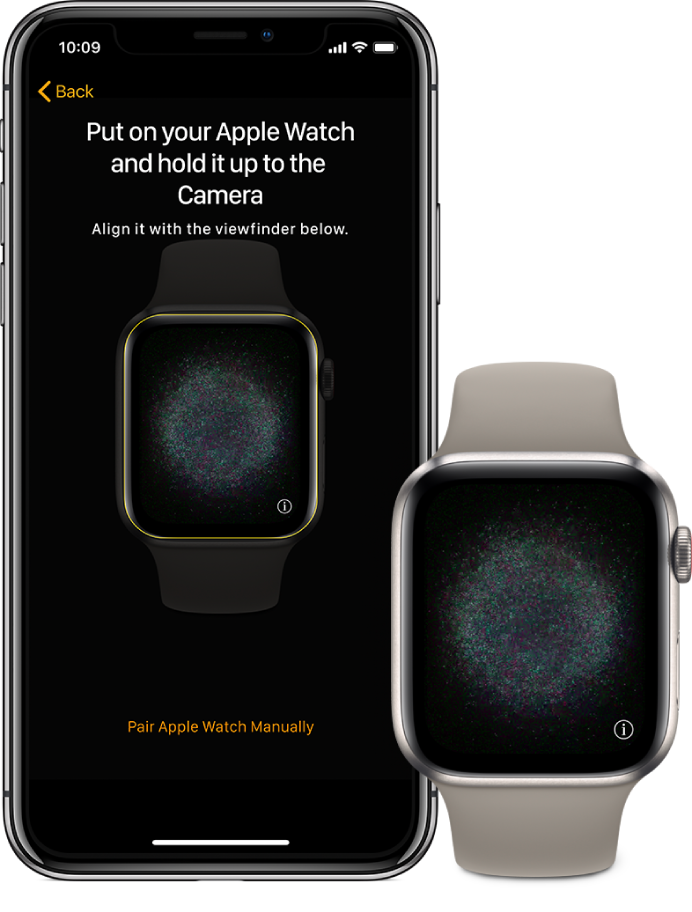
That’s it. Your Apple Watch should now show your iPhone’s time zone, notifications, and incoming calls. If you hit a snag, check that your iPhone’s Bluetooth is on and that the watch isn’t already paired to another device.
Step-by-Step: Connecting a Samsung Galaxy Watch to Android (and iPhone)
Samsung’s pairing process is a little more manual, but still straightforward. The experience changes depending on your phone.
If you have a Samsung Galaxy phone: The Galaxy Wearable app is pre-installed. If not, download it from the Google Play Store.
If you have a non-Samsung Android phone: You still use the Galaxy Wearable app. Some features like Samsung Health’s advanced metrics may require a Samsung account.
If you have an iPhone: Download the Galaxy Watch app from the App Store. Be aware that calls and messages work, but app selection is drastically smaller. You cannot reply to texts from the watch on iOS.
The standard pairing steps:
- Charge your Galaxy Watch to at least 30%. Turn it on by pressing and holding the Home button.
- Open the Galaxy Wearable app on your phone. Tap “Start” when it detects your watch.
- Confirm the pairing code. A four-digit code appears on both screens. Tap “Confirm” on the watch, then “Pair” on your phone.
- Sign in to your Samsung account. If you don’t have one, create it. This is required for app downloads and health data backup.
- Install additional plugins. The app may automatically download plugins for Samsung Health, Bixby, or the watch face store. Let it finish before proceeding.
- Grant permissions. Location, phone, SMS, and storage access are needed for full functionality. Deny any that feel excessive, but know that some watch apps will refuse to work.
- Follow the on-screen tutorial. The watch will walk you through gesture controls and button functions. This is a good time to adjust brightness and sound.
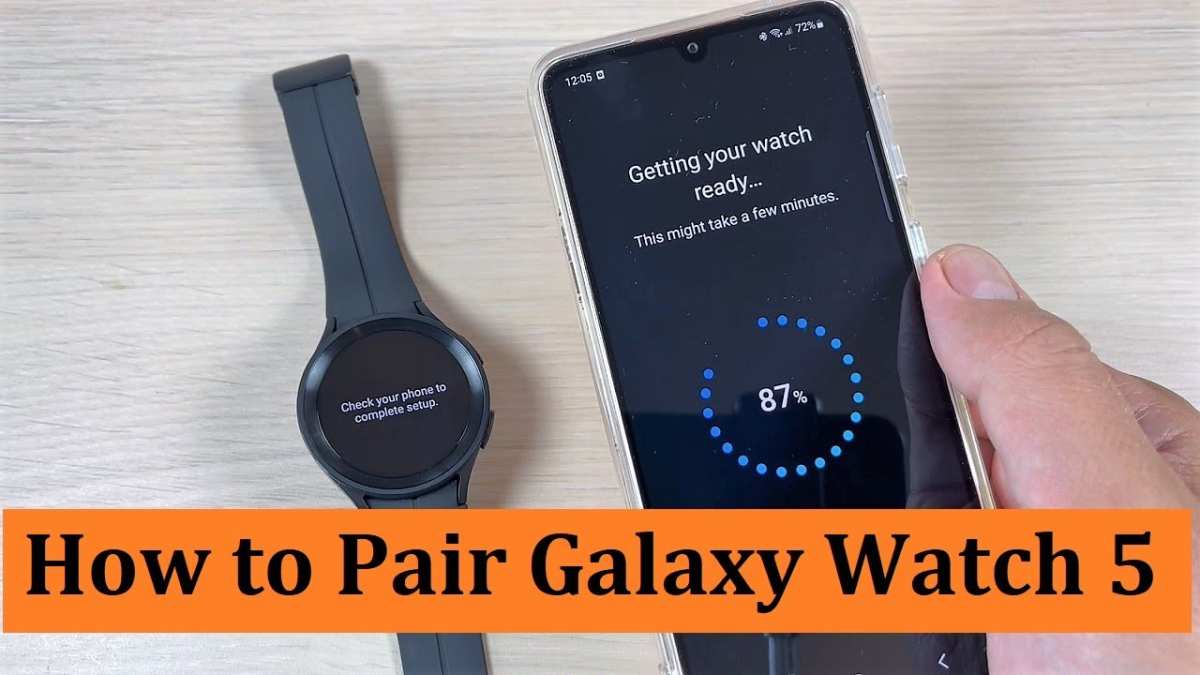
For Samsung phone owners, the process is nearly invisible. For everyone else, it adds a couple of extra taps. If pairing fails, restart both devices and try again.
Also make sure the Galaxy Wearable app is fully updated from the Play Store.
Step-by-Step: Pairing a Wear OS Watch (Google Pixel, Fossil, TicWatch) to Any Phone
Wear OS watches are the most flexible option for non-Apple users. They pair with any Android phone running Android 8.0 or higher. They also work with iPhones running iOS 15 or later, though with limited app support.
For Android phones: The process is nearly identical across brands. Google Pixel watches, Fossil Gen 6, TicWatch Pro, and Mobvoi models all use the same Wear OS app.
- Charge your watch to at least 20%. Turn it on by pressing the crown or side button.
- Download the Wear OS app from Google Play. Open it and grant location and Bluetooth permissions.
- Tap “Pair with a new watch.” The app scans for nearby devices. Select your watch model from the list.
- Confirm the pairing code. A four digit number appears on both screens. Tap “Pair” on your phone and “Confirm” on the watch.
- Sign in to your Google account. This syncs your calendar, contacts, and Google Fit data. Use the same account as your phone.
- Agree to permissions. Notifications, phone calls, and location. For LTE models, you will need to activate cellular separately through your carrier.
- Finish the tutorial. The watch guides you through swipes, button presses, and the always on display setting.
For iPhones: Open the Wear OS app from the App Store. The steps are the same. But you cannot download additional watch faces or third party apps.
Google Assistant is also unavailable. Notifications work, but replies are limited to pre written responses.
A quick tip from aggregate user feedback: if the watch keeps disappearing during scanning, put it in pairing mode manually. Hold the crown for five seconds. Then select “Pair with phone” from the watch screen.
Step-by-Step: Setting Up a Fitbit, Garmin, or Amazfit Watch on iOS or Android
These brands are platform agnostic. They offer the same features on iPhone and Android. The setup process is nearly identical across all three, but each uses its own companion app.
Fitbit (Sense, Versa, Charge, Inspire)
- Download the Fitbit app from your phone’s app store. Create a Fitbit account or sign in.
- Plug in your Fitbit to charge if it’s below 20%. Turn it on.
- Tap your profile icon in the app. Select “Set Up a Device.” Choose your model from the list.
- Hold your phone near the Fitbit. The app searches for the device. When found, tap “Pair.”
- Enter the pairing code shown on the Fitbit screen. The app then syncs and updates the firmware.
- Grant permissions for notifications, heart rate, and exercise tracking. You can skip any that feel excessive, but step counting needs motion access.
Garmin (Venu, Forerunner, Fenix, Instinct)
- Download Garmin Connect from your app store. Create a Garmin account.
- Turn on your watch. Press and hold the light button. The watch shows a quick pairing screen.
- Open Garmin Connect. Tap “Add Device” and follow the on screen prompts.
- Hold your phone near the watch. The app detects it automatically. If not, go to the watch’s Bluetooth menu and select “Pair New Phone.”
- Confirm the code. Both devices display a number. Tap “Yes” on both.
- Let the app install any updates. Garmin watches often have significant firmware updates out of the box.
Amazfit (Bip, GTR, GTS, T Rex)
Amazfit uses the Zepp app (formerly Amazfit Wear). The process mirrors Fitbit and Garmin. Download Zepp, create an account, pair via Bluetooth, grant permissions.
Amazfit watches pair faster than most. They also support offline maps on certain models.
Cross platform note: All three brands work fully on both iOS and Android. The only difference is that iPhone users cannot reply to texts from the watch. Android users can.
Common Pairing Mistakes (and How to Fix Them Fast)
Most connection failures have simple causes. Here are the six most common mistakes and their fixes.
Mistake 1: Leaving the watch in airplane mode. Smartwatches often ship with airplane mode enabled to save battery. Swipe down from the watch face and tap the airplane icon to disable it. If Bluetooth is off on the watch, the phone will never find it.
Mistake 2: Not factory resetting a used watch. A watch previously paired to another phone remembers that connection. To clear it, go to Settings > System > Reset (or Factory Reset) on the watch. On Apple Watch, go to Settings > General > Reset > Erase All Content and Settings.
Mistake 3: Skipping app permissions. The companion app needs location access to scan for Bluetooth devices on Android. On iOS, it needs Bluetooth and notifications. If you deny these, the pairing will stall at the scanning or confirmation step.
Mistake 4: Using the wrong Bluetooth menu. Never try to pair a smartwatch directly from your phone’s Bluetooth settings. You must use the watch’s companion app. Direct Bluetooth pairing creates a “phone audio” connection only.
The watch won’t sync data.
Mistake 5: Connecting too many devices. If your phone already has ten Bluetooth devices connected, it may refuse new ones. Unpair old headphones or speakers you no longer use.
Mistake 6: Watch battery too low. Many watches refuse to initiate pairing below 15% charge. Plug it in for 20 minutes before trying.
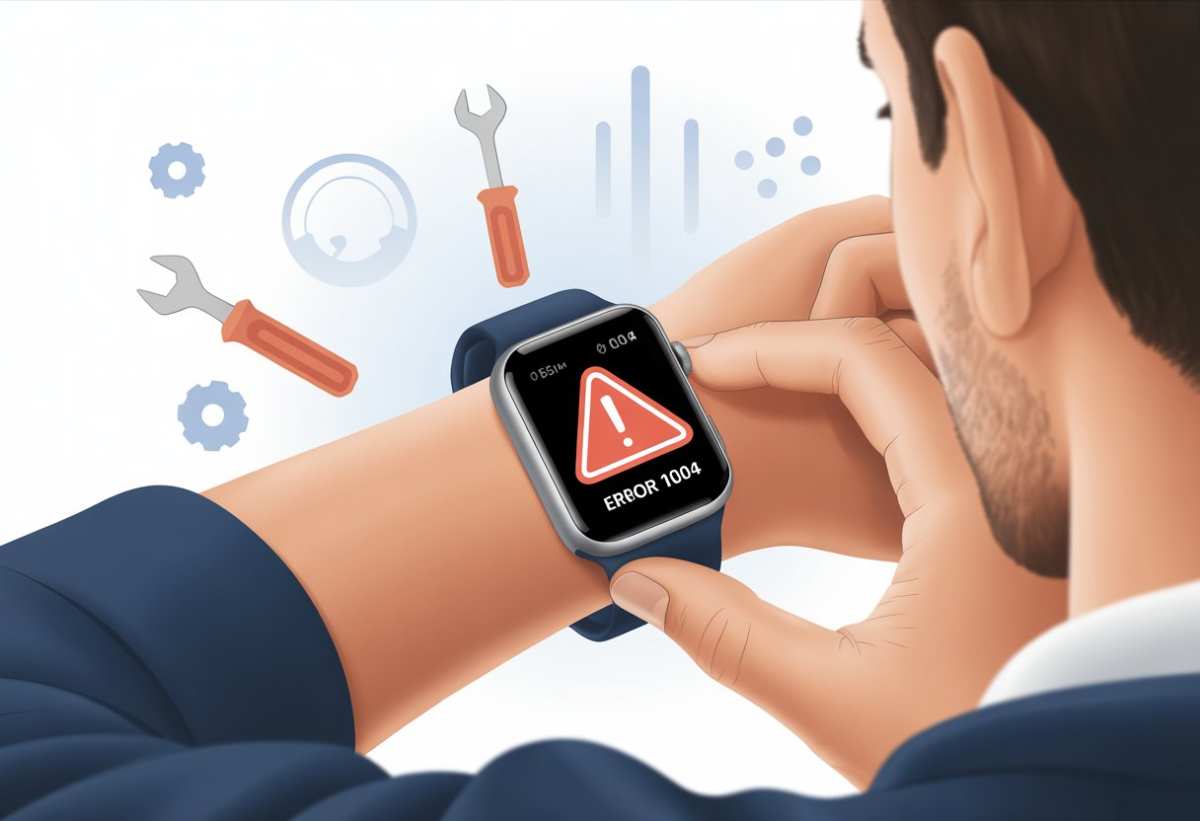
Troubleshooting Guide: When Pairing Keeps Failing
Sometimes you follow every step and it still won’t connect. Don’t throw the watch across the room. Work through this checklist in order.
Restart both devices. Turn off your phone and your watch. Wait 30 seconds. Turn on the phone first, then the watch.
Retry pairing. This clears temporary Bluetooth cache errors.
Update the companion app. Go to the Play Store or App Store. Check for updates. An outdated app can produce a “pairing failed” message even when the hardware is fine.
Reset network settings on your phone. On Android, go to Settings > General Management > Reset > Reset Network Settings. On iPhone, go to Settings > General > Transfer or Reset iPhone > Reset > Reset Network Settings. You will need to reconnect to Wi Fi and re pair Bluetooth devices after.
Check for carrier specific restrictions. Some LTE watches require a compatible eSIM profile. If you bought a Verizon model and try to use it with T Mobile, pairing may fail. Contact your carrier to confirm compatibility.
Try a different phone. If possible, attempt pairing with a friend’s phone. If the watch pairs there, the problem is your phone, not the watch. If it fails on both, contact manufacturer support for a warranty replacement.
Factory reset the watch again. Sometimes the first reset didn’t fully clear old data. Perform a second factory reset. Then start the pairing process from scratch.
Expert Tips: Permissions, Updates, and Account Setup
Once pairing succeeds, a few extra steps keep things running smoothly for the long term.
Grant all permissions upfront. You can deny some, but doing so breaks features. For example, denying location on Android prevents weather updates on the watch face. Denying notification access means no alerts.
Aggregate user reviews report that granting everything during setup and then revoking specific ones later causes fewer issues.
Update watch firmware immediately. After pairing, check for a firmware update. This fixes known bugs and improves battery life. On Apple Watch, go to Settings > General > Software Update.
On Wear OS, open the Wear OS app and check under Settings > System > About. On Fitbit, Garmin, and Amazfit, the update happens automatically within the companion app.
Set up an emergency contact. Most smartwatches can detect falls and call emergency services. This only works if you configure it. Go into the watch’s safety or SOS settings.
Add at least one contact.
Adjust notification mirroring. By default, every phone notification appears on your watch. This drains battery fast. In the companion app, turn off notifications for apps you don’t need.
Leave calls, messages, and calendar alerts active.
Log into the same account on both devices. Your health data, watch faces, and app purchases sync through the account. Using different accounts on phone and watch causes duplication and missing data.
FAQ: Quick Answers to Your Pairing Questions
How long does the initial pairing process take?
Most pairings complete in 2 to 5 minutes. Apple Watch is usually the fastest, around 3 minutes. Garmin and Fitbit watches take closer to 5 minutes because of automatic firmware updates.
If it takes longer than 10 minutes, something is stuck. Restart both devices and try again.
Do I need an internet connection to pair my watch?
Yes, for the initial setup. The companion app downloads plugins and firmware updates over Wi Fi or cellular data. Pairing itself uses Bluetooth, but the app needs internet to verify your account and sync the first batch of settings.
Offline pairing is not supported on any major smartwatch.
Can I pair a used watch without the previous owner’s account?
Yes, but only after a factory reset. The watch must be wiped clean of the previous owner’s data. On most models, hold the power button and navigate to Settings > System > Reset.
On Apple Watch, you need the previous owner to remove it from their Apple ID. Without that, it remains activation locked.
Why does my watch keep disconnecting after pairing?
This is usually caused by Bluetooth interference or distance. Keep your phone within 10 meters (30 feet) of the watch. Also check that your phone’s battery saver mode isn’t killing the companion app in the background.
On Android, go to Settings > Apps > [app name] > Battery and select “Unrestricted.”
Do I need to pair my watch again after a phone update?
Usually not. Major OS updates (like iOS 18 or Android 15) rarely break the Bluetooth bond. But if your watch stops syncing after an update, unpair and re pair through the companion app.
This restores the secure Bluetooth profile. Your data will sync again after reconnecting.
Can I pair the same watch with two phones?
Not simultaneously. Most smartwatches only connect to one phone at a time. You can switch phones by unpairing from the current phone and pairing to the new one.
Some Android smartwatches allow “multi point” Bluetooth for calls and audio, but not for full data sync. You’d need to re pair each time you switch.
Final Decision Guide: Which Smartwatch Belongs on Your Phone?
The right watch depends on your phone’s operating system and your priorities.
| If You Have… | Best Watch Choice | Why |
|---|---|---|
| iPhone (any model) | Apple Watch | Full integration. All features work. No compromises. |
| iPhone + want fitness focus | Fitbit or Garmin | Great battery life. Works on both platforms. Limited messaging on iOS. |
| Samsung Galaxy phone | Samsung Galaxy Watch | OneUI integration. Health sensors work fully. Galaxy Wearable app is native. |
| Other Android phone | Wear OS (Pixel, Fossil, TicWatch) | Native Google Assistant. Full Play Store access. Flexible app support. |
| Android + long battery priority | Garmin or Amazfit | 7 to 14 day battery life. Solid fitness tracking. Fewer apps. |
Your decision tree ends here. Match your phone to the watch. Then follow the section that applies to you.
The steps we covered will get you paired in under five minutes.
If you hit a wall, remember the checklist. Restart both devices. Update everything.
Factory reset the watch. Grant all permissions. You’ll be connected before you know it.

Similar Posts





















