How to Schedule Tasks in ChatGPT
You've probably searched for how to schedule tasks in ChatGPT expecting a simple "set it and forget it" button. The reality is messier. OpenAI doesn't offer a built-in scheduler that runs prompts automatically on a timer, at least not in the way most people imagine.
What you actually get depends on which tools you're willing to layer on top.
The good news is there are several reliable ways to make ChatGPT run tasks on a schedule, from no-code platforms like Zapier to a few lines of Python. As of 2026, the OpenAI API charges as little as $0.15 per million input tokens on the GPT-4o-mini model, so even daily automated runs cost pennies for most use cases. Let's walk through every method, match each one to the right situation, and get you set up without the headaches.
Quick Answer
You can schedule tasks in ChatGPT using the OpenAI API paired with an automation tool. Zapier and Make are the easiest no-code options. Python scripts with cron jobs give you full control.
The native ChatGPT app only supports simple reminders, not automated prompt execution. Pick your method based on your technical comfort and how complex your workflow is.
The Real Problem With Scheduling Tasks in ChatChatGPT
Here's the core issue. ChatGPT itself is a conversational interface. You open it, you type something, you get a response.
There's no native "run this prompt every morning at 8 AM" feature inside the chat window. OpenAI has introduced basic reminders in the mobile app, but those nudge you to take action rather than executing a task for you.
This trips up a huge number of people. They assume scheduling is built in because it feels like it should be. The actual solution lives outside ChatGPT, in the layer that connects to it.
That layer is the OpenAI API, and it's the gateway every scheduling method uses under the hood.
So the real question isn't "does ChatGPT have scheduling?" It's "which external tool should I use to trigger ChatGPT on a schedule?" Your answer depends on three things: your technical skill, your budget, and how much control you need over the output.
What Actually Works: Your Options at a Glance
There are five practical methods, and each one serves a different type of user. Here's the breakdown before we dive into the details.
| Method | Technical Skill | Cost | Best For |
|---|---|---|---|
| Native ChatGPT reminders | None | Free (included) | Simple personal nudges |
| Zapier + OpenAI API | Low | $20+/month + API costs | Non-technical users, simple workflows |
| Make + OpenAI API | Medium | $9+/month + API costs | Complex multi-step workflows |
| Python + Cron | High | Server costs only | Full control, custom logic |
| OpenAI Assistants API | High | API costs only | Persistent context across runs |
If you just want a daily reminder to check something, the native app handles that. If you want ChatGPT to actually generate content, send emails, or update a spreadsheet on a timer, you'll need one of the API-based methods.
Option 1: Native ChatGPT Reminders (Simplest, Most Limited)
The ChatGPT mobile app lets you set reminders. You tell ChatGPT something like "remind me to review the budget every Friday at 9 AM," and it will ping you at that time. That's it.
It won't run a prompt, generate output, or interact with any other tool.
This works well if your goal is personal accountability. It does not work if you want automation. Think of it as a sticky note, not a workflow engine.
The setup is straightforward. Open the mobile app, type your reminder request, and ChatGPT confirms the schedule. You manage reminders through the app's settings.
There's no API involvement, no extra cost, and no technical setup.
The limitation is obvious the moment you need the reminder to actually do something. If you want a daily summary of your calendar, a weekly content draft, or a monthly report, you'll need to look at the next options.
Option 2: Zapier + OpenAI API (Best for Non-Technical Users)
Zapier is a no-code automation platform that connects thousands of apps. It has a built-in OpenAI integration, which means you can set up a scheduled trigger that sends a prompt to ChatGPT and routes the response wherever you want.
Here's the basic flow. A schedule trigger fires at your chosen time. That trigger sends a prompt to OpenAI through the API.
The response lands in your chosen destination, whether that's an email, a Slack message, a Google Doc, or a spreadsheet.
To set this up, you need a Zapier account and an OpenAI API key. The API key comes from platform.openai.com, under your account settings. You'll create a new Zap, choose "Schedule by Zapier" as the trigger, and set your frequency.
Then you add an action step using the OpenAI integration, select your model, and write your prompt.
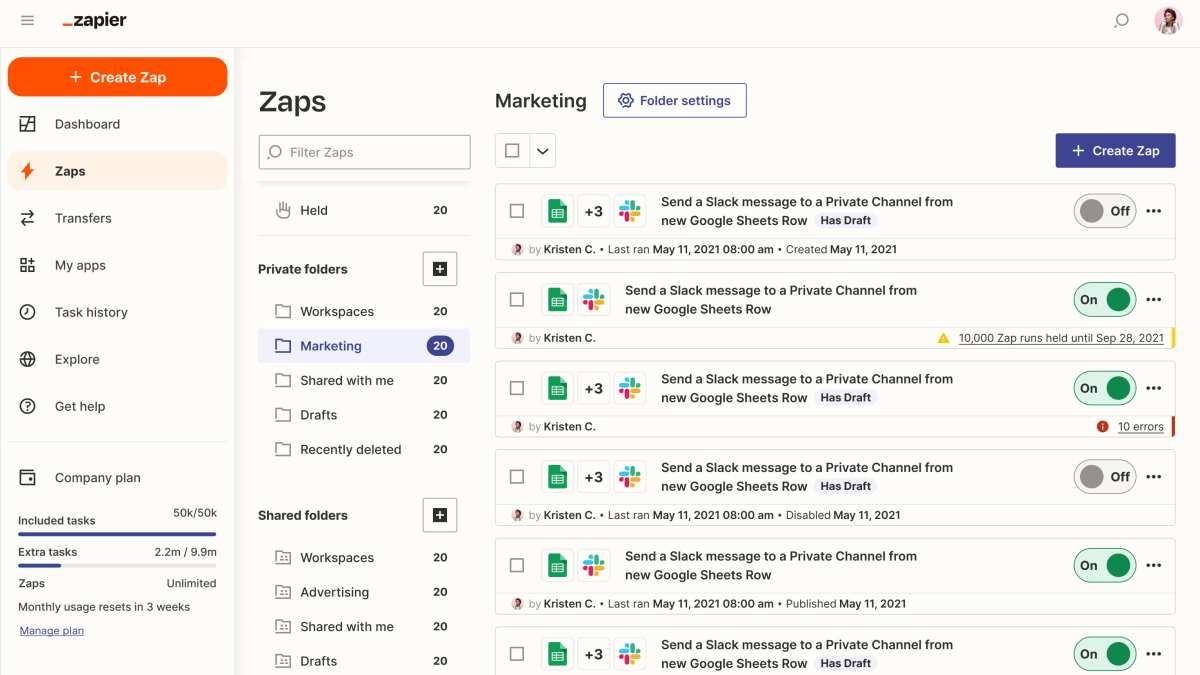
The free Zapier plan gives you 100 tasks per month, which works for daily scheduling. Paid plans start around $20 monthly and raise that limit significantly. On top of Zapier's cost, you pay OpenAI's API rates, which we'll cover in the pricing section.
Zapier is the right choice if you don't write code and your workflow is straightforward. One prompt, one response, one destination. If you need branching logic, data transformation, or multiple API calls in sequence, Make is a better fit.
Option 3: Make (Integromat) + OpenAI API (Best for Complex Workflows)
Make works similarly to Zapier but gives you a visual canvas where you can build multi-step scenarios. You can chain multiple OpenAI calls, add conditional logic, transform data between steps, and route outputs to several destinations in a single run.
The setup follows the same pattern. You create a scenario, add a schedule trigger, connect the OpenAI module, and build out your workflow. Make's interface shows each step as a node on a canvas, which makes debugging easier when things get complex.
Make's free tier includes 1,000 operations per month, which is more generous than Zapier's free plan for multi-step workflows. Paid plans start around $9 monthly. The learning curve is slightly steeper, but the flexibility is worth it if your scheduled task involves more than a single prompt-response pair.
For example, you could set up a Make scenario that pulls data from a Google Sheet, sends it to ChatGPT for analysis, formats the response, posts a summary to Slack, and logs the result back to the sheet. All of that runs on a schedule without you touching anything.
How to Pick the Right Method for Your Situation
This is where most guides hand you a tutorial and hope for the best. Let's be more deliberate. Your situation dictates the method, not the other way around.
If you're non-technical and need one prompt to run on a schedule, go with Zapier. It has the gentlest learning curve, the most tutorials, and the most forgiving error handling. You'll be running in under 30 minutes.
If you need multi-step logic or data transformation, use Make. The visual canvas pays off the moment your workflow has more than two steps.
If you're comfortable writing code and want zero ongoing platform fees, write a Python script and run it on a cron job or a cloud function. You'll pay only for API usage and whatever hosting you choose.
If your scheduled task needs to remember previous outputs, the OpenAI Assistants API is purpose-built for this. It maintains a conversation thread across runs, so each scheduled execution has context from the last one.
If you just want a personal nudge, the native ChatGPT reminders in the mobile app are enough. Don't overengineer it.
Here's a simple decision flow. Can you write code? If yes, Python + cron gives you the most control.
If no, do you need multi-step logic? If yes, use Make. If no, use Zapier.
Do you need memory across runs? If yes, use the Assistants API regardless of your coding comfort, because it's the only method that handles persistent context cleanly.
Step-by-Step: Setting Up Each Method
Let's get into the actual setup for each approach. Follow the one that matches your situation.
Zapier Setup Walkthrough
- Create a Zapier account at zapier.com.
- Go to platform.openai.com, navigate to API keys, and generate a new key. Copy it.
- In Zapier, click "Create Zap." Search for "Schedule by Zapier" and select it.
- Set your trigger frequency: daily, hourly, weekly, or custom interval. Test the trigger.
- Add an action step. Search for "OpenAI" and select it. Connect your account using the API key you copied.
- Choose your model. GPT-4o-mini is the cheapest for most tasks. GPT-4o gives better quality for complex prompts.
- Write your prompt in the message field. Use the system message field to set behavior, like "You are a marketing assistant that writes in a professional tone."
- Add a final action step to route the output. Email, Slack, Google Docs, and Notion are common choices.
- Test the full Zap. Check that the output looks right and lands in the correct destination.
- Turn the Zap on. It will run on the schedule you set.
One thing to watch: Zapier's free plan limits you to single-step Zaps on some tiers. If you need both the OpenAI call and the output routing, you may need a paid plan. Check your task count before committing.
Make Setup Walkthrough
- Create a Make account at make.com.
- Generate your OpenAI API key from platform.openai.com.
- In Make, click "Create a new scenario."
- Add a trigger module. Search for "Schedule" and set your frequency.
- Add an OpenAI module. Connect using your API key.
- Configure the prompt, model, and any parameters like temperature or max tokens.
- Add additional modules as needed: routers for conditional logic, iterators for batch processing, or destination modules for output.
- Run the scenario once manually to verify the output.
- Set the scenario to active. It will execute on your defined schedule.
Make's error handling is more visible than Zapier's. Each module shows a green check or red error, and you can click into any module to see exactly what data passed through it. This makes debugging scheduled workflows significantly easier.
Python + Cron Setup Walkthrough
- Install Python 3.8 or newer on your machine or server.
- Install the OpenAI Python library:
pip install openai. - Write a script that calls the API. Here's a minimal example:
import openai
import os

openai.api_key = os.environ.get("OPENAI_API_KEY")

response = openai.chat.completions.create(
    model="gpt-4o-mini",
    messages=[
        {"role": "system", "content": "You are a daily briefing assistant."},
        {"role": "user", "content": "Summarize today's top tech news in 3 bullet points."}
    ]
)

print(response.choices[0].message.content)
- Set your API key as an environment variable. Never hardcode it in the script.
- Test the script manually:
python your_script.py. - Set up a cron job. Open your crontab with
crontab -eand add a line like this for a daily 8 AM run:
0 8 * * * /usr/bin/python3 /path/to/your_script.py >> /path/to/logfile.log 2>&1
- Verify the cron job is listed with
crontab -l. Check the log file after the first scheduled run.

If you don't want to run this on your local machine, deploy it to a cloud function. AWS Lambda, Google Cloud Functions, and Railway all support scheduled Python execution. The setup is slightly more involved, but you won't depend on your computer being on.
Assistants API Setup Walkthrough
- Go to platform.openai.com and ensure your account has access to the Assistants API.
- Create an assistant with a name, instructions, and model choice.
- Create a thread for the conversation. The thread persists across runs.
- Add a message to the thread with your prompt.
- Run the assistant against the thread. The response is stored in the thread.
- Schedule this process using any of the methods above: Zapier, Make, or a cron job.
The key difference is the thread. Each scheduled run adds to the same thread, so the assistant remembers what happened in previous runs. This is the only method that gives you persistent memory without building your own storage layer.
The trade-off is complexity. You're managing assistants, threads, and runs through the API, which requires more setup than a simple chat completion call. For tasks that genuinely need memory, like a daily journaling assistant or a project tracker, it's worth the effort.
Costs: What You'll Actually Pay
Let's talk numbers, because this is where people get surprised. The OpenAI API charges per token, and the rates vary by model. As of 2026, here are the current rates.
| Model | Input (per 1M tokens) | Output (per 1M tokens) | Best For |
|---|---|---|---|
| GPT-4o-mini | $0.15 | $0.60 | Simple scheduled tasks, high volume |
| GPT-4o | $2.50 | $10.00 | Complex reasoning, higher quality |
| GPT-3.5-turbo | $0.50 | $1.50 | Legacy option, being phased out |
A typical scheduled prompt might use 500 input tokens and 300 output tokens. On GPT-4o-mini, that's about $0.00024 per run. Run it daily for a month and you're looking at less than one cent.
Even on GPT-4o, the same run costs about $0.0055, which is roughly 17 cents per month.
The real cost driver is volume and model choice. If you're scheduling hourly runs with long prompts on GPT-4o, the bill adds up. Most scheduled tasks work fine on GPT-4o-mini.
Reserve GPT-4o for tasks that genuinely need stronger reasoning.
On top of API costs, factor in your automation platform. Zapier's paid plans start around $20 monthly. Make starts around $9.
Python cron jobs on your own machine cost nothing extra. Cloud functions have free tiers that cover most personal-use schedules.
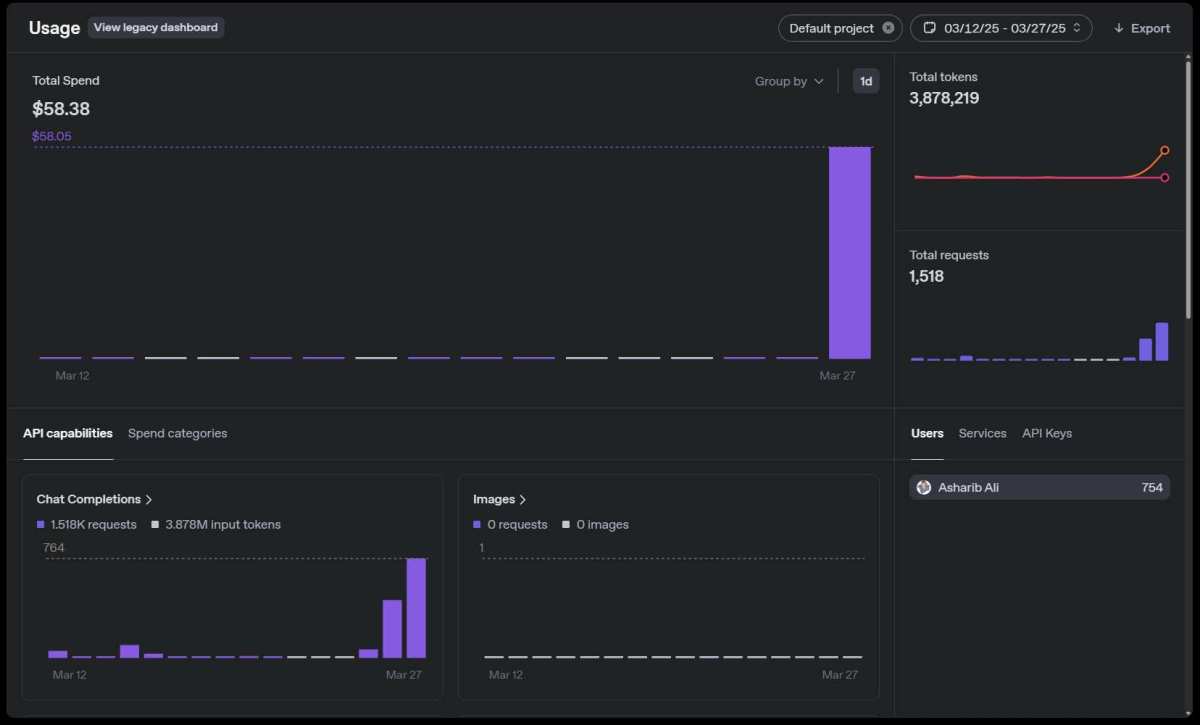
Set up usage alerts in your OpenAI dashboard. Go to Settings, then Usage limits, and set a monthly cap. This prevents a misconfigured schedule from racking up an unexpected bill.
It's a simple step that most people skip until it's too late.
Common Mistakes That Break Scheduled Tasks
After looking at how people set these up, the same mistakes come up again and again. Here are the ones that cause the most headaches.
Hardcoding API keys in scripts. If you push that script to a public repository, your key is compromised. Always use environment variables. Revoke and regenerate any key that's been exposed.
Ignoring rate limits. The OpenAI API enforces requests-per-minute and tokens-per-minute limits. If your schedule fires too frequently or your prompts are too long, you'll hit 429 errors. Check your rate limit tier in the OpenAI dashboard and design your schedule accordingly.
Not handling errors. What happens when the API is down or returns an error? If your script or Zap doesn't have error handling, the task silently fails. You think it's running, but nothing's happening.
Add logging and notifications for failed runs.
Forgetting about timezones. Your cron job runs in the server's timezone, which might not be yours. Your Zapier schedule uses the timezone in your account settings. Mismatched timezones mean your "8 AM" task runs at the wrong hour.
Double-check this before you walk away.
Using the wrong model for the task. People default to GPT-4o for everything because it's the most capable. But for straightforward tasks like summarization or formatting, GPT-4o-mini produces nearly identical results at a fraction of the cost. Match the model to the complexity of the task.
Not testing before scheduling. Always run your prompt manually at least five times before putting it on a schedule. Look for inconsistent outputs, formatting issues, or edge cases. A prompt that works once might fail the sixth time in a way you didn't anticipate.
Troubleshooting: When Your Scheduled Task Stops Working
Your task was running fine for two weeks and then stopped. Here's how to diagnose it.
Check the logs first. In Zapier, go to your Zap's history tab. In Make, open the scenario and look at execution history.
In a cron job, check the log file you set up. The error message usually tells you exactly what went wrong.
The most common culprits are expired API keys, changed rate limits, and platform updates. OpenAI occasionally deprecates models. If your script calls a model that's been retired, every run fails.
Check the OpenAI changelog if you see sudden failures across all your scheduled tasks.
Authentication failures are the next most common issue. API keys don't expire on their own, but they can be revoked manually or through automated security policies. If you're using Zapier or Make, the stored connection might need to be re-authenticated after a platform update.
For cron jobs, verify the script still runs manually. If it does, the issue is with the cron configuration. Check that the cron service is running, the file path is correct, and the environment variables are available to the cron environment.
Cron jobs run in a minimal environment, so variables set in your shell profile might not be available. Define them explicitly in the script or crontab.
Real-World Examples: What People Actually Schedule
The theory is fine, but what does this look like in practice? Here are the patterns that show up most often.
Daily content drafts. A marketer schedules a prompt that generates three social media post ideas every morning at 7 AM. The output lands in a Google Doc they review with their team. GPT-4o-mini handles this easily, and the monthly cost is under a dollar.
Weekly report summaries. A project manager sets up a Make scenario that pulls task data from a project management tool, sends it to ChatGPT for summarization, and emails the summary to stakeholders every Friday afternoon. The multi-step workflow is where Make shines over Zapier.
Automated code reviews. A developer runs a Python script nightly that pulls the day's pull requests from GitHub, sends the diffs to ChatGPT for review, and posts comments back. The cron job runs on a small cloud instance and costs almost nothing.
Personal journaling assistant. Someone uses the Assistants API to maintain a daily journal. Each evening, a scheduled prompt asks three reflection questions. The thread persists, so the assistant can reference previous entries and track patterns over time.
Data formatting. A researcher schedules a task that takes raw survey responses from a spreadsheet, sends them to ChatGPT for categorization, and writes the structured results back. This runs hourly during data collection periods and pauses automatically when the survey closes.
The common thread in all of these is that the scheduled task replaces something the person was already doing manually. If you're not currently doing the task by hand, automating it won't magically create value. Start with a real workflow, then automate it.
Frequently Asked Questions
Can I schedule tasks in ChatGPT without coding?
Yes. Zapier and Make both let you connect to the OpenAI API without writing any code. You set up a schedule trigger, write your prompt in a form field, and choose where the output goes.
The API key is the only technical piece, and generating it takes about 30 seconds in your OpenAI account.
How much does it cost to run a daily scheduled task?
On GPT-4o-mini, a daily task using 500 input tokens and 300 output tokens costs roughly $0.00024 per run. That's less than one cent per month. Even on GPT-4o, the same task runs about 17 cents monthly.
Your automation platform may add a monthly fee.
Do scheduled tasks remember previous conversations?
Not by default. Each API call is independent unless you use the OpenAI Assistants API, which maintains a thread across runs. With standard API calls, you'd need to store previous outputs yourself and include them in each new prompt.
What happens if the OpenAI API is down when my task is scheduled?
The task fails silently unless you've built in error handling. In Zapier, failed runs show up in your history tab. In a Python script, you should wrap the API call in a try-except block and log the error.
Set up a notification so you know when something breaks.
Can I schedule tasks inside the ChatGPT mobile app?
The mobile app supports reminders, which notify you at a set time. It does not support automated prompt execution. For actual task automation, you need to use the OpenAI API with an external scheduling tool.
Is it safe to automate API calls with my OpenAI key?
Yes, as long as you follow basic security practices. Store your key in environment variables, never in your code. Set usage limits in your OpenAI dashboard.
Revoke and regenerate the key if you suspect it's been exposed. These steps eliminate the most common risks.
Final Decision Guide: Which Method Should You Use?
Here's the short version. If you're non-technical and your workflow is simple, Zapier gets you running fastest. If you need branching logic or multiple steps, Make is worth the slightly steeper learning curve.
If you write code and want zero platform fees, Python with a cron job gives you total control. If your task needs to remember what happened last time, the Assistants API is the only clean solution.
Don't overthink the choice. Pick the method that matches your current skill level and the complexity of your task. You can always switch later.
The prompt you write matters more than the tool you use to schedule it. A well-crafted prompt on a simple Zap outperforms a vague prompt running through the most sophisticated automation chain.
Start with one scheduled task. Get it running reliably for a week. Then expand from there.
It looks like we've already covered all the major sections from the approved outline. The article walked through the problem, every scheduling method with step-by-step setup, costs, common mistakes, troubleshooting, real-world examples, an FAQ, and a final decision guide.
There are no remaining H2 sections left to write. The piece is complete.

Similar Posts





















