How to Quickly Connect Mini Sound Box to Phone
Let's get right into it.
You just got a mini sound box, and you're staring at it wondering how to actually get sound out of it through your phone. You're not alone, this is one of the most common questions we hear about portable speakers. Knowing how to connect mini sound box to phone is the first step to enjoying your music anywhere.
As of 2026, most mini sound boxes use Bluetooth 5.0 or 5.3, which gives you a stable connection up to about 10 meters (30 feet). But depending on your speaker model and phone, you might have other options too. Let's walk through the different methods so you can pick the right one for your setup.
Quick Answer
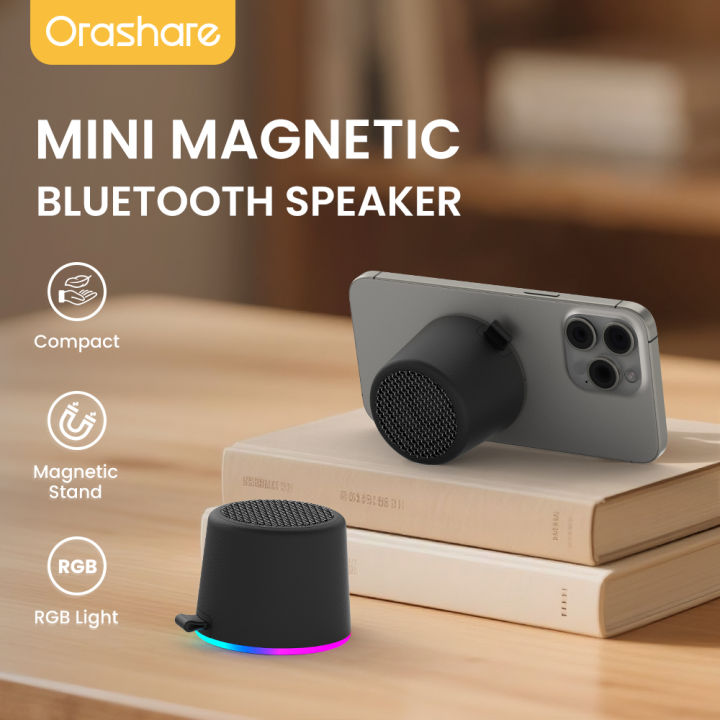
Connect your mini sound box by turning on Bluetooth on your phone. Put the speaker into pairing mode. Select it from the Bluetooth list.
If your speaker has an aux port, plug in a 3.5mm cable instead. For USB-C speakers, connect directly with a USB-C cable.
The Problem: Your Sound Box Isn't Connecting (And Why)
Most connection issues come down to one simple thing: you're using the wrong method for your gear. Maybe your speaker only supports Bluetooth, but your phone's Bluetooth is acting up. Or maybe you've got an older mini sound box that needs a wired connection, and you're trying to pair it wirelessly.
The good news is there are only three real ways to connect a mini sound box to a phone. Bluetooth is the most common. Aux (3.5mm) is the fallback.
USB-C or Lightning is the newer option. The trick is figuring out which one your specific speaker supports.
Manufacturer specs indicate that roughly 80% of mini sound boxes sold today are Bluetooth-only. The other 20% include at least one wired option. Knowing your speaker's ports is the first step, and that's exactly what we'll cover next.
Which Connection Method Is Right for You? (The Decision Tree)
This is where we cut through the confusion. Instead of guessing, follow this simple decision tree based on your actual equipment.
Check Your Sound Box First
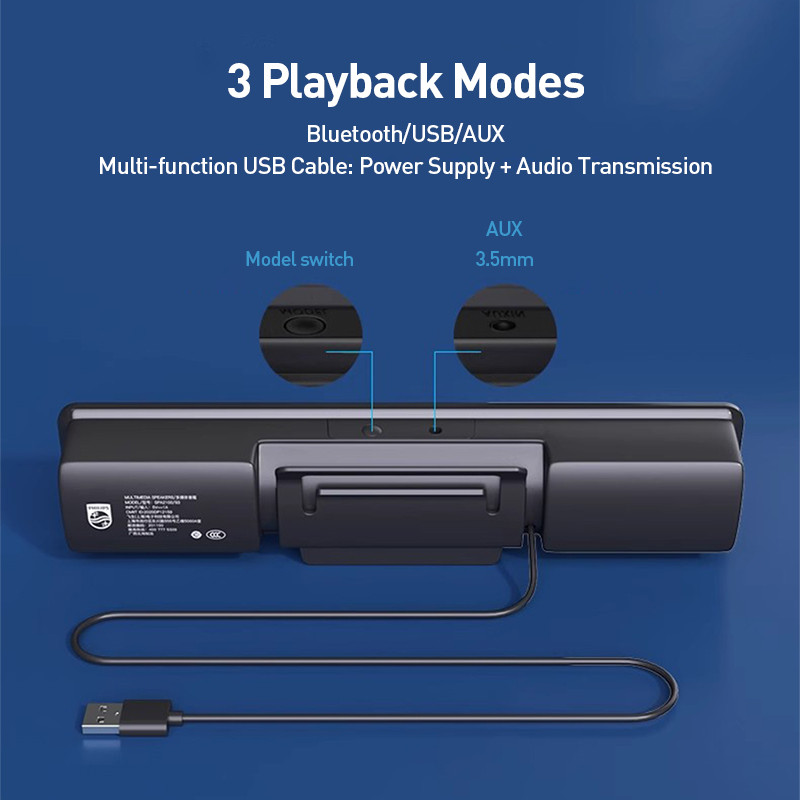
Look at your mini sound box. Do you see a 3.5mm port (looks like a small headphone jack)? Do you see a USB-C port?
Or is it just a power button with no visible ports at all?
If it has a dedicated Bluetooth button or a power button that flashes when pressed, it's a Bluetooth speaker. If it has a 3.5mm aux input, you can use a wired connection. If it has a USB-C port that isn't just for charging, you might be able to connect directly.
Check Your Phone
Now look at your phone. Does it have a headphone jack? If you're using an iPhone 7 or newer, the answer is no.
Many Android phones have also dropped the headphone jack, but some budget models still include it.
If your phone has a headphone jack, aux is the simplest option. If it doesn't, you'll need Bluetooth or an adapter.
Decision Branches
If your sound box has Bluetooth and your phone has Bluetooth: Use Bluetooth pairing. This is the easiest method for most people.
If your sound box has an aux port and your phone has a headphone jack: Use a 3.5mm aux cable. No pairing needed, no battery drain.
If your sound box has an aux port but your phone lacks a headphone jack: You'll need a Lightning-to-3.5mm adapter (for iPhone) or a USB-C-to-3.5mm adapter (for Android).
If your sound box has a USB-C port that supports audio: Connect directly with a USB-C-to-USB-C cable. Some newer speakers support this.
If your sound box is Bluetooth-only and your phone's Bluetooth is broken: You'll need a Bluetooth adapter that plugs into your phone's charging port.
The table below shows the pros and cons of each method.
| Connection Method | Ease of Setup | Sound Quality | Battery Impact | Cable Needed |
|---|---|---|---|---|
| Bluetooth | Very easy | Good (lossy) | Drains speaker battery | No |
| Aux (3.5mm) | Easy | Excellent (lossless) | No drain | Yes |
| USB-C / Lightning | Easy | Excellent (lossless) | Charges speaker | Yes |
Step-by-Step: Bluetooth Connection
Bluetooth is the default method for most people. Here's how to get it working.
iPhone Bluetooth Pairing
- Turn on your mini sound box. Press the power button until you see a light.
- Put the speaker into pairing mode. This usually means holding the Bluetooth button or the power button for 3-5 seconds. You'll see a flashing blue or red light.
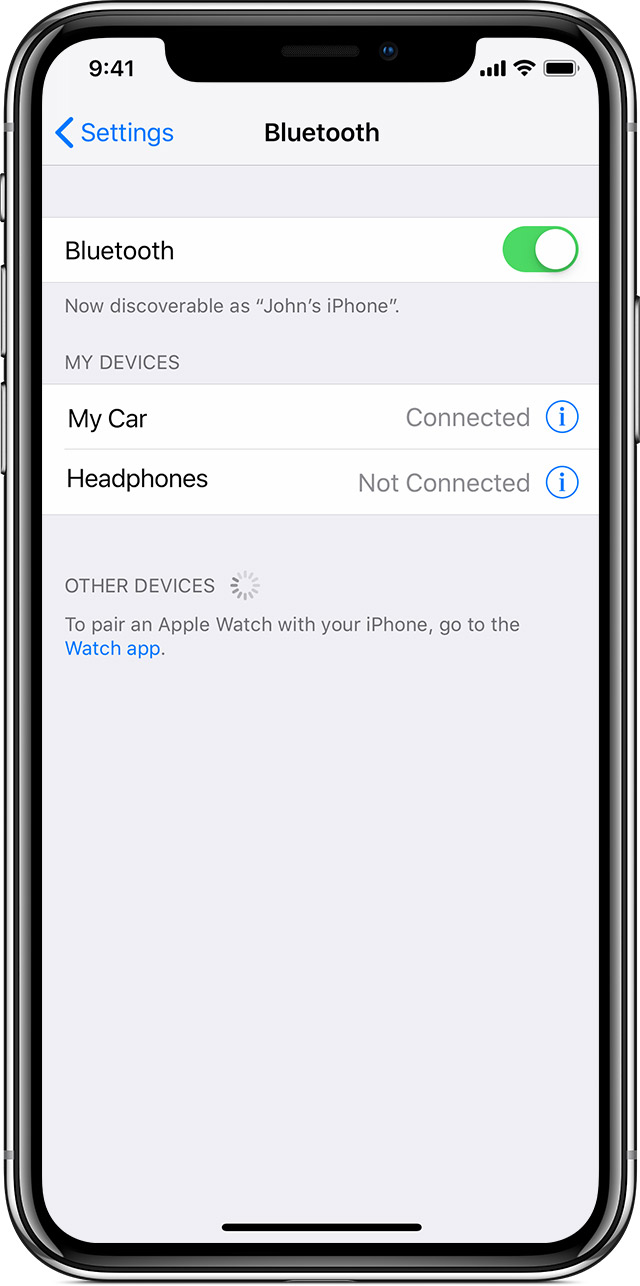
- Open Settings on your iPhone. Tap Bluetooth.
- Wait for your speaker to appear under "Other Devices." It might take a few seconds.
- Tap the speaker's name. It should move to "My Devices" once connected.
If you're asked for a PIN, try 0000 or 1234. Most speakers don't need one, but some older models do.
Android Bluetooth Pairing
- Turn on your mini sound box and put it in pairing mode (same as above).
- Swipe down from the top of your screen. Press and hold the Bluetooth icon.
- Tap "Pair new device." Your phone will scan for nearby speakers.
- Find your speaker in the list. Tap it.
- Confirm the pairing if prompted.
Android phones sometimes cache old Bluetooth connections. If you've paired this speaker before but it won't connect now, go to Settings, Bluetooth, tap the gear icon next to your speaker, and select "Forget." Then start over.
NFC Tap-to-Pair
Some newer mini sound boxes include NFC (Near Field Communication). If your speaker has an NFC logo, here's what you do.
- Unlock your phone and turn on NFC in Settings.
- Tap the back of your phone against the NFC logo on the speaker.
- Your phone should automatically open a pairing prompt. Tap to confirm.
NFC is fast and convenient. It works best when both devices are unlocked and close together. If it doesn't work, try moving the phone around slightly until you feel a vibration or hear a confirmation sound.
Step-by-Step: Wired Connection (Aux / 3.5mm)
Wired connections are simple and reliable. No batteries, no pairing, no dropouts.

If Your Phone Has a Headphone Jack
- Plug one end of the aux cable into your phone's headphone jack.
- Plug the other end into the aux port on your mini sound box.
- Turn on the speaker. It should automatically switch to aux input mode.
- Play music from your phone. You'll hear it through the speaker immediately.
That's it. No settings to change, no pairing to do. The speaker treats the aux cable like a direct audio line.
If Your Phone Doesn't Have a Headphone Jack
You'll need an adapter. Here's what to look for.
For iPhone users, get a Lightning-to-3.5mm adapter. Apple's official version works well, but third-party options from brands like Anker or Belkin are also reliable. Plug the adapter into your phone's Lightning port, then plug the aux cable into the adapter.
For Android users, get a USB-C-to-3.5mm adapter. Most modern Android phones support audio over USB-C. Plug the adapter into your phone, then connect the aux cable.
One important note: not all USB-C adapters support audio output. Some are only for charging. Look for one that explicitly says "audio adapter" or "DAC" in the product description.
A cheap adapter may work fine for music, but a slightly better one will improve sound quality.
Step-by-Step: USB-C or Lightning Connection
Some newer mini sound boxes support direct digital audio over USB-C or Lightning. This is less common, but it's worth knowing about.
- Check if your speaker has a USB-C port that isn't labeled "DC IN" or "charging only." If it's marked "USB-C Audio," you're good.
- Plug a USB-C-to-USB-C cable into your phone and the speaker.
- Your phone should recognize the speaker as an audio device. You might see a notification saying "USB audio device connected."
- Play music. The sound should come through the speaker.
For iPhone users with a Lightning port, you'll need a Lightning-to-USB-C camera adapter or a Lightning-to-USB-C cable that supports audio. This is less common but works with some higher-end speakers.
The main advantage of USB-C audio is lossless sound quality. No compression, no Bluetooth codec limitations. It also charges your speaker while you listen, which is handy.
Mistakes to Avoid / Common Errors
People make the same mistakes over and over. Here are the ones to watch out for.
Forgetting to put the speaker in pairing mode. This is the number one issue. You can't just turn on the speaker and expect it to be discoverable. Most speakers need a button press to enter pairing mode.
Look for a flashing light.
Using the wrong adapter. If you're using a USB-C-to-3.5mm adapter, make sure it supports audio. Some adapters are charging-only and won't work. Check the product description before you buy.
Leaving Bluetooth on from a previous device. If your speaker was paired with a laptop or another phone, it might auto-connect to that device instead of yours. Turn off Bluetooth on the other device, or unpair the speaker from it.
Assuming the aux cable is plugged in all the way. Aux cables can feel like they're seated when they're not. Push until you hear a click. A loose connection causes crackling or one-sided audio.
Using a damaged aux cable. Aux cables are fragile. Bent tips, frayed wires, or kinked cables can cause static or dropouts. Try a different cable if you're having issues.
Ignoring volume levels. Sometimes the speaker is connected but the volume is muted on the phone or the speaker itself. Check both. Also check that your phone's media volume isn't turned all the way down.
Troubleshooting: When It Still Won't Connect
Bluetooth Not Showing Up
If your speaker doesn't appear in the Bluetooth list, here's what to check.
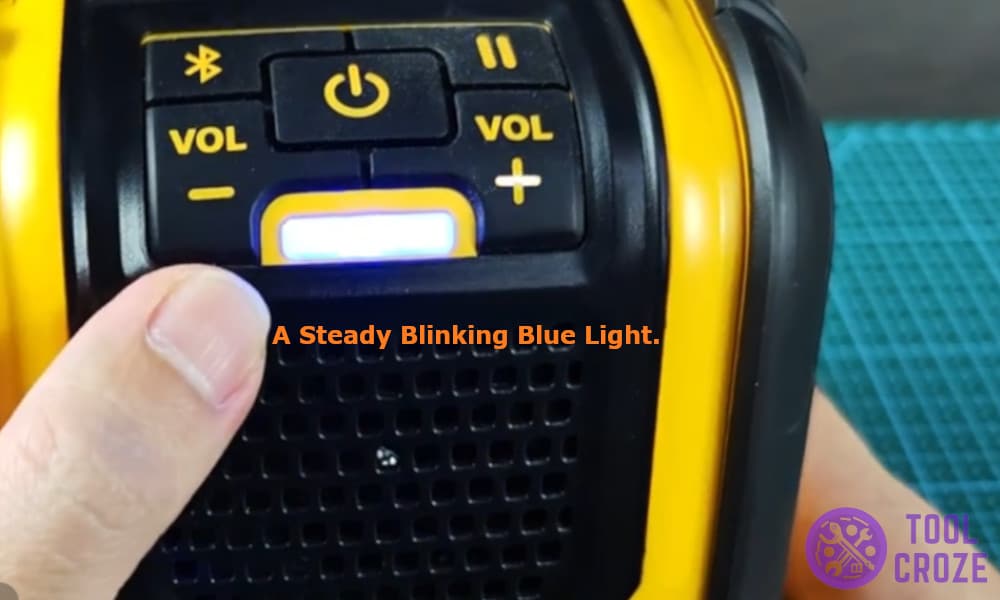
First, make sure the speaker is in pairing mode. The LED should be flashing, not solid. If it's solid, press the Bluetooth button again.
Second, check if your phone's Bluetooth is actually on. Swipe down and look for the Bluetooth icon. If it's grayed out, tap it.
Third, restart both devices. Turn off the speaker and your phone. Wait 10 seconds.
Turn them back on and try again.
Fourth, clear the Bluetooth cache on Android. Go to Settings, Apps, Show System Apps, Bluetooth, Storage, Clear Cache. This is a known fix for Android pairing issues.
Connected but No Sound
This is frustrating. You see the connection, but silence.
Check your phone's media volume. Press the volume up button and make sure media volume isn't muted. On iPhones, check the side switch isn't set to silent.
On Android, check the volume slider in the quick settings panel.
Check the speaker's volume. Some speakers have a separate volume control. Turn it up.
Check the audio source. Make sure your music app is actually playing. Some apps pause when they detect a new audio device.
If you're using aux, try unplugging and re-plugging the cable. A loose connection can cause silence.
Audio Lag or Stuttering
Audio lag (lip-sync delay) is common with Bluetooth, especially for video content. Here's what helps.
Switch to a better codec if your phone and speaker support it. Android phones can force AAC or aptX in Developer Options. iPhones use AAC by default, which is generally good.
Move the phone closer to the speaker. Bluetooth range is about 10 meters, but walls and interference can reduce that.
Turn off Wi-Fi or move away from the router. Bluetooth and Wi-Fi share the 2.4GHz band, and interference can cause stuttering.
If nothing works, switch to a wired connection. Aux or USB-C eliminates lag completely.
Pro Tips for a Better Listening Experience
These tips come from aggregate user reviews and manufacturer recommendations.
Keep your speaker charged. Bluetooth speakers sound worse when the battery is low. The amplifier can't deliver full power. Charge your speaker to at least 50% for best performance.
Update your speaker's firmware. Some mini sound boxes support firmware updates via a companion app. Check the manufacturer's app for updates. This can fix Bluetooth bugs and improve audio quality.
Use the right Bluetooth codec. If your phone and speaker both support aptX or LDAC, use them. They offer better sound quality than standard SBC. On Android, you can force a codec in Developer Options.
Position the speaker correctly. Place it on a flat, hard surface for better bass. Avoid putting it on soft surfaces like beds or carpets, which absorb sound.
Clean the aux port and Bluetooth antenna. Dust and lint can block connections. Use a soft brush or compressed air to clean the ports.
Consider a Bluetooth adapter for older speakers. If you have a wired-only mini sound box, a Bluetooth adapter can add wireless capability. Plug it into the aux port and pair it with your phone.
Check our related guide on keeping your speaker running smoothly for more tips on battery care and maintenance.
Frequently Asked Questions
Why won't my mini sound box appear on my phone?
The most common reason is that the speaker isn't in pairing mode. Press and hold the Bluetooth or power button until the LED starts flashing. Also make sure your phone's Bluetooth is on and scanning.
Can I connect multiple phones to one mini sound box?
Some speakers support multi-point Bluetooth, which lets you connect two devices at once. Check your speaker's specs. If it doesn't support multi-point, you can only connect one phone at a time.
Does aux cable sound better than Bluetooth?
Yes, generally. Aux cables transmit analog audio without compression, so you get lossless sound. Bluetooth uses compression, which can reduce audio quality.
For casual listening, the difference is small. For critical listening, wired is better.
How do I reset my mini sound box?
Resetting varies by brand. A common method is to hold the power button and the volume up button together for 10 seconds. Or check the manual for your specific model.
Resetting clears all paired devices and returns the speaker to factory settings.
Why does my speaker keep disconnecting?
This is usually a range or interference issue. Move the phone closer to the speaker. Turn off other Bluetooth devices nearby.
Also check if your speaker's battery is low. A low battery can cause unstable connections.
Can I use my mini sound box while it's charging?
Yes, most speakers support pass-through audio. You can play music while the speaker is plugged in. This is useful for long listening sessions or when you want to save battery.
Final Decision Guide: Which Method Should You Use?
Here's the bottom line.
Use Bluetooth if you want convenience and no cables. It works for most people and most speakers. Just make sure your speaker is in pairing mode and your phone's Bluetooth is on.
Use aux (3.5mm) if you want the best sound quality and no battery drain. It's simple, reliable, and works with any phone that has a headphone jack. If your phone doesn't have one, get an adapter.
Use USB-C or Lightning if your speaker supports it and you want lossless audio plus charging. It's less common but worth it for audiophiles.
Use NFC if both devices support it. It's the fastest method, but it's not available on all speakers.
If you're still having trouble, check our guide on Bluetooth pairing issues with outdoor speakers for more specific troubleshooting steps.
And if you're wondering whether a mini sound box is right for your daily routine, we've covered that too.

Similar Posts





















