How to Connect a Mini Sound Box to Your TV
Your TV's built-in speakers sound thin and hollow. You've tried turning them up but dialogue still gets buried under action scenes. Knowing how to connect a mini sound box to TV is the quickest fix for better audio without buying a full soundbar system.
A small portable speaker can deliver clearer voices, fuller sound, and more bass than what's built into most flatscreens.
The good news is there are really only three ways to make this connection. As of 2026, most mini sound boxes support Bluetooth 5.0 or higher, which gives you reliable wireless range of about 30 feet. But not every TV has Bluetooth built in.
That's where a simple aux cable or an optical connection comes in. Let's walk through which method fits your setup.

Quick Answer
Check your TV's port layout first. Look for a headphone jack, optical port, or HDMI ARC label. If your TV has Bluetooth, use that.
If not, use a 3.5mm aux cable. Plug one end into the TV's headphone jack. Plug the other end into the sound box.
Change the TV's audio output setting to external speakers.
Problem / Pain Point: Why Your TV Sounds Terrible
The speakers inside modern TVs are tiny. Manufacturers cram them into ultra-thin chassis, leaving no room for proper drivers or an enclosure. The result is audio that lacks depth, clarity, and bass.
You end up cranking the volume to hear dialogue, but explosions and music get uncomfortably loud.
A mini sound box solves this. It's a compact, self-contained speaker with its own amplifier and enclosure. Even a budget model offers a noticeable improvement over TV speakers.
Aggregate reviews consistently report that users hear dialogue more clearly and enjoy a wider soundstage after switching.
The catch is that connection methods vary. Some TVs have Bluetooth, some don't. Some have a headphone jack, others only offer optical or HDMI ARC.
That's why the first step isn't plugging anything in. It's figuring out what your TV actually has.
If you're new to these devices, a quick look at what a mini sound box is can help you understand what you're working with. For a compact audio upgrade, it's one of the most practical options available.
Step-by-Step Process: Check Your TV's Ports First
Before you buy a cable or pair anything, inspect your TV's back panel and sides. You're looking for audio output ports. Most TVs have at least one of these:
- 3.5mm headphone jack, a small round port, usually labeled "Audio Out" or "Headphone"
- Optical (Toslink) port, a square port with a flip-down door, often labeled "Digital Audio Out"
- HDMI ARC port, a standard HDMI port labeled "ARC" or "eARC"
- RCA jacks, red and white round ports, often labeled "Audio Out"
- USB port, flat rectangular port, sometimes supports audio output

Take a photo with your phone if it helps. Knowing exactly what ports you have determines which connection method will work. If you see a headphone jack, you're in luck.
That's the simplest option. If you see an optical or HDMI ARC port, you can get better audio quality. If you only see USB, your options are limited.
While you're back there, check your sound box too. Look at its input options. Most have a 3.5mm aux input and Bluetooth.
Some have optical or USB-C input. Match the two devices. If your TV has a headphone jack and your sound box has aux input, you're set with a single cable.
If you're weighing wired against wireless, consider that aux gives zero latency while Bluetooth adds a small delay. For most people, that delay is barely noticeable. For action movies or gaming, it can be annoying.
Decision Branch 1: Bluetooth Connection (If Your TV Has It)
If your TV has built-in Bluetooth, this is the easiest method. No cables, no adapters. Just pairing.
Here's how to check if your TV has Bluetooth: Go to Settings > Sound > Audio Output. Look for "Bluetooth Speaker List" or "Sound Output" with a Bluetooth option. Not all smart TVs have Bluetooth, even recent ones.
Check your TV's manual or look up the spec online.
If your TV has Bluetooth, follow these steps:
- Put your sound box into pairing mode. Press and hold the Bluetooth button until the LED flashes.
- On your TV, navigate to the Bluetooth audio menu. Select "Add Device" or "Pair New Device."
- Your sound box should appear in the list. Select it.
- Wait for the connection confirmation. The LED on the sound box will stop flashing.
- Test audio. Play a video and check for sync issues.

Important: Some TVs only support Bluetooth for headphones, not speakers. If your TV doesn't detect the sound box, it may not support Bluetooth audio output at all. In that case, skip to the wired method.
Per Bluetooth SIG specifications, standard Bluetooth has a latency of 100 to 300 milliseconds. That's enough to cause lip-sync issues in some setups. If you notice the audio lagging behind the video, look for a "Low Latency" mode on your sound box or switch to a wired connection.
If you run into trouble during the pairing process, the most common fix is resetting both devices. Unpair the sound box from your TV, restart both, and try again.
Decision Branch 2: Aux Cable Connection (The Reliable Fallback)
If your TV has a headphone jack but no Bluetooth, or if Bluetooth latency bothers you, this is the next best option. It's also the most reliable. No pairing, no signal drops, no lag.
What you need: A 3.5mm male-to-male aux cable. They cost between $5 and $15 and come in lengths from 3 to 6 feet. Get a length that reaches from your TV to where you'll place the sound box.
Here's how to set it up:
- Plug one end of the aux cable into the TV's headphone jack or the "Audio Out" port.
- Plug the other end into the sound box's aux input.
- Turn on the sound box. It should automatically detect the input.
- If you don't hear audio, change the TV's audio output setting to "External Speakers" or "Audio Out."
- Adjust volume on both the TV and the sound box. Start with the TV at 50% and the sound box at 50%.
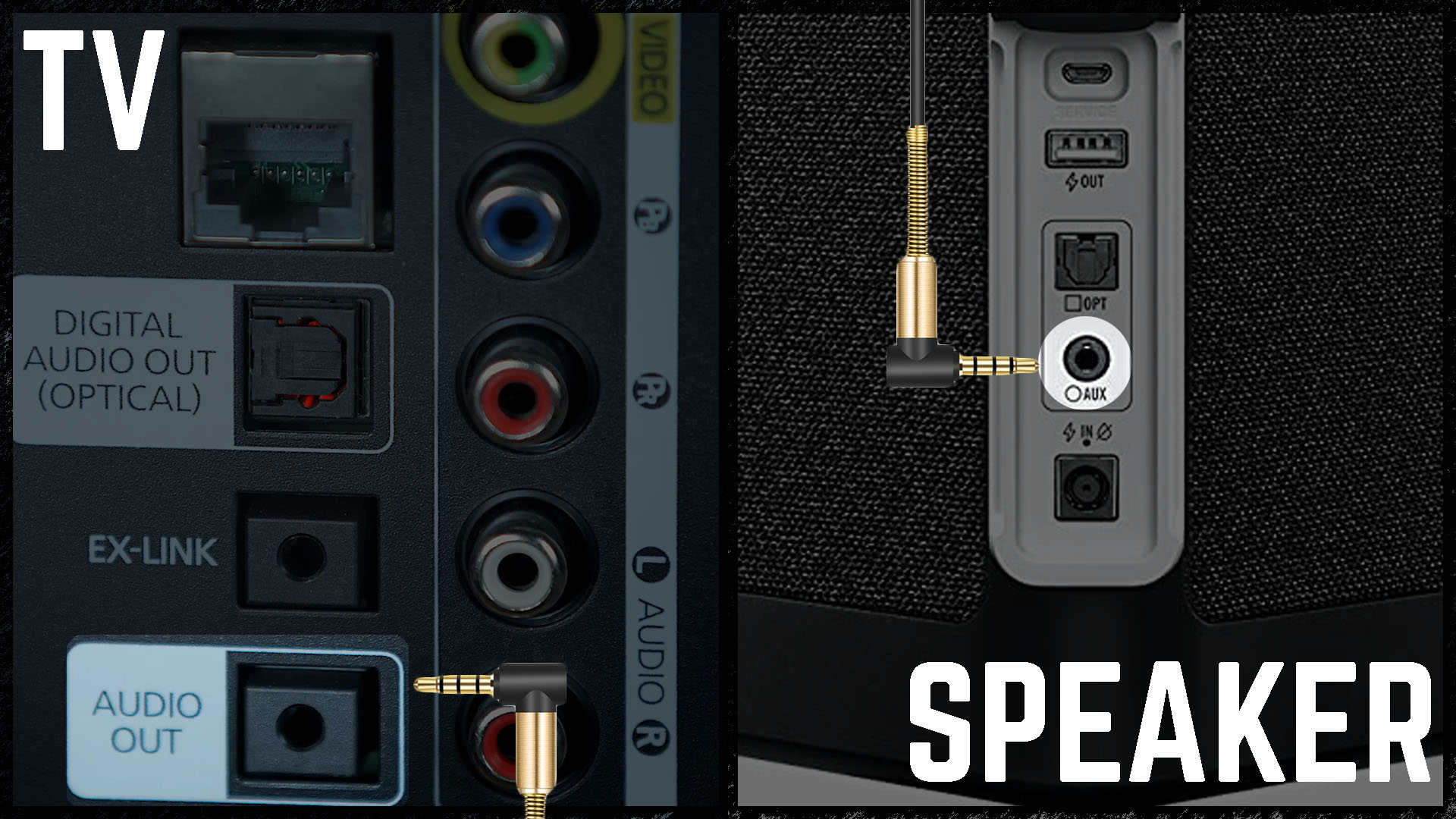
One gotcha: Some TVs mute the internal speakers when you plug into the headphone jack. Others keep them playing. If you hear audio from both the TV and the sound box, go into the TV's audio settings and turn off the internal speakers.
Another gotcha: If your TV only has RCA jacks (red and white), you'll need a 3.5mm to RCA cable. The 3.5mm end goes into the sound box, the red and white ends go into the TV. This works exactly the same way.
Aux is also the best option if you plan on using it with other devices. The same cable works with laptops, phones, and tablets. Just unplug from the TV and plug into whatever you need.
When to use aux over Bluetooth: If you're watching action movies, playing video games, or doing anything where lip-sync matters, aux is the winner. The audio is perfectly in sync because it's a direct electrical connection. No codec processing, no buffering, no delay.
Decision Branch 3: Optical or HDMI ARC (For Better Sound Quality)
If your TV has an optical or HDMI ARC port, and your sound box supports one of those inputs, you can get noticeably better audio quality. These connections carry digital signals instead of analog. That means cleaner sound, higher bitrate, and support for surround formats if your sound box can handle them.
Optical (Toslink) connection: This uses a square-tipped fiber optic cable. It transmits audio as pulses of light. No electrical interference, no ground loop hum.
The downside is that optical does not carry volume control signals. You'll need to adjust volume on the sound box itself, not the TV remote.
HDMI ARC connection: This is the most advanced option. The HDMI cable carries both audio and control signals. That means your TV remote can control the sound box volume.
ARC stands for Audio Return Channel. It lets audio travel from the TV back to the sound box through the same HDMI port.
Here's how to set up optical:
- Remove the protective caps from both ends of the optical cable.
- Plug one end into the TV's optical port. You'll hear a click when it seats properly.
- Plug the other end into the sound box's optical input.
- On your TV, go to Settings > Sound > Audio Output and select "Optical" or "Digital Audio Out."
- Set the audio format to PCM. Dolby Digital may not work with a mini sound box.
Here's how to set up HDMI ARC:
- Locate the HDMI port labeled "ARC" on your TV. It's usually HDMI 1 or HDMI 2.
- Plug one end of an HDMI cable into the TV's ARC port.
- Plug the other end into the sound box's HDMI (ARC) port.
- On your TV, enable HDMI ARC in the audio settings. Look for "HDMI ARC" or "Anynet+" or "CEC."
- Test volume control. Your TV remote should now adjust the sound box.
Which one should you choose? If both are available, go with HDMI ARC. The remote control integration alone is worth it. If your sound box only has optical, that works fine.
Just remember you'll need to reach for the sound box to change volume.
Many sound bars support these connections, but fewer mini sound boxes do. Check your sound box's specs before buying any cables. If it only has aux and Bluetooth, don't bother with optical or HDMI ARC.
Stick with what your sound box supports.
What to Do If Your TV Has No Bluetooth and No Aux Port
This is the situation that frustrates most people. Your TV is a few years old. It has HDMI ports and maybe a USB port, but no headphone jack and no Bluetooth.
What now?
You have two options. Both require a small adapter.
Option 1: Bluetooth transmitter. This is a small device that plugs into your TV's audio output and broadcasts Bluetooth to your sound box. But wait. If your TV has no audio output, how do you connect it?
Look for a USB port on the TV. Some TVs support USB audio output. If yours does, you can plug a Bluetooth adapter into the USB port.
If not, you'll need an HDMI audio extractor. This device splits the audio from an HDMI source and gives you a separate audio output.
Option 2: HDMI audio extractor. This is a small box with an HDMI input, an HDMI output, and an audio output (usually optical or 3.5mm). You plug your streaming device or cable box into the extractor. Then you plug the extractor into the TV.
The audio goes to your sound box.
Here's how to set up an HDMI audio extractor:
- Connect your source (Roku, Fire Stick, cable box) to the extractor's HDMI input.
- Connect the extractor's HDMI output to the TV.
- Connect the extractor's audio output to your sound box using aux or optical.
- Power the extractor via USB (most come with a cable).
- Select the correct audio input on your sound box.
This adds a small cost. Expect to pay $15 to $40 for a Bluetooth adapter or audio extractor. But it solves the problem completely.
If you regularly deal with connectivity issues, knowing how to fix them can save you a lot of frustration.
Mistakes to Avoid / Common Errors
Mistake 1: Plugging into the wrong port. The headphone jack is for output. The USB port might only be for power or data, not audio. Check your TV's manual before assuming.
Mistake 2: Forgetting to change audio settings. Even after connecting the cable, your TV may still play audio through its internal speakers. You have to go into settings and switch to external audio output. This is the most common fix for "no sound from the sound box."
Mistake 3: Using the wrong cable. A 3.5mm aux cable has three metal bands on the tip. A 3.5mm headset cable (with a microphone) has four bands. They look similar but work differently.
Use a standard aux cable, not a headset cable.
Mistake 4: Ignoring latency. Bluetooth adds delay. If you notice lips moving out of sync, try aux or enable low latency mode. Some sound boxes have a "Game Mode" or "Low Latency" setting that reduces this.
Mistake 5: Leaving the sound box on battery. If your sound box is battery-powered, it will eventually run out. Keep it plugged in during use, or check the battery level regularly. You can check the battery level on your sound box before it dies mid-movie.
Mistake 6: Not testing the volume balance. Start with both devices at 50% volume. Then adjust the TV volume up or down to find the sweet spot. If the sound box is too quiet, increase the TV volume first, then the sound box.
The TV Audio Settings You Need to Change
Connecting the cable is only half the work. You also need to tell the TV to use the external speaker. Here are the settings to look for:
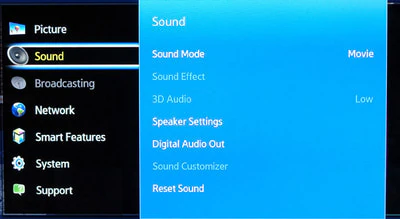
Audio Output: Change this from "TV Speaker" to "External Speaker" or "Audio Out." Sometimes it's labeled "Line Out" or "Headphone."
Internal Speakers: Turn these off. If you leave them on, you'll hear audio from both the TV and the sound box. That creates echo and muddies the sound.
Digital Audio Format: Set this to PCM or Stereo. Many mini sound boxes cannot decode Dolby Digital or DTS. If you leave it on Dolby Digital, you may get no sound at all.
Volume Leveling: Some TVs have a "Night Mode" or "Volume Leveler" that evens out loud and quiet sounds. Turn this on for better dialogue clarity at low volumes.
HDMI CEC: If you're using HDMI ARC, enable CEC (Consumer Electronics Control). It's labeled differently by each brand: Samsung calls it Anynet+, LG calls it Simplink, Sony calls it Bravia Sync. This allows your TV remote to control the sound box volume.
These settings are usually in the Sound or Audio menu. If you can't find them, search your TV model name plus "audio output settings" online. Manufacturer documentation is the most reliable source for this.
When You Need an Extra Gadget (Bluetooth Adapters and Audio Extractors)
Sometimes your TV just doesn't have the right ports. That's when a small adapter saves the day.
Bluetooth transmitter: If your TV has a headphone jack but no Bluetooth, a Bluetooth transmitter plugs into that jack and broadcasts to your sound box. Look for one that supports aptX Low Latency for minimal delay. Pairing works the same way.
HDMI audio extractor: If your TV has no audio output at all, this device pulls audio from an HDMI source. You connect your streaming device to the extractor, then connect the extractor to the TV. The extractor sends audio to your sound box.
USB audio adapter: Some TVs support USB audio output. If yours does, you can plug a USB Bluetooth adapter directly into the TV. Check your TV's manual first.
Many TVs only use USB for power or media playback, not audio.
Which one to buy? If your TV has a headphone jack, get a Bluetooth transmitter. If your TV has no audio output at all, get an HDMI audio extractor. Both cost between $15 and $40.
They're small, easy to set up, and solve the problem permanently.
If you use a sound box with multiple devices, some adapters support the ability to connect to two devices simultaneously. That can be useful if you switch between TV and phone regularly.
Frequently Asked Questions
Can I connect my mini sound box to TV without Bluetooth?
Yes. Use a 3.5mm aux cable if your TV has a headphone jack. If it doesn't, use an HDMI audio extractor or a Bluetooth transmitter.
Wired connections are often more reliable than wireless.
Why is there no sound after connecting my sound box?
You probably haven't changed the TV's audio output setting. Go to Settings > Sound > Audio Output and select "External Speaker" or "Audio Out." Also check that the sound box is on the correct input mode.
Does Bluetooth cause audio delay?
Yes. Standard Bluetooth adds 100 to 300 milliseconds of latency. You may notice lips moving out of sync.
Use a wired aux connection or enable low latency mode on your sound box to fix this.
Can I use a USB cable to connect my sound box to the TV?
Sometimes. Many TVs do not support USB audio output. Check your TV's manual.
If it does support USB audio, plug the sound box into the USB port and select USB as the audio source in settings.
My TV has no headphone jack. What are my options?
You can use an HDMI audio extractor or a Bluetooth transmitter. Both are small, affordable adapters. The extractor pulls audio from an HDMI source.
The transmitter converts the TV's audio to Bluetooth.
Can I use my TV remote to control the sound box volume?
Only if you use HDMI ARC or a Bluetooth connection with a TV that supports volume control over Bluetooth. With aux or optical, you'll need to adjust volume on the sound box itself.
Final Recommendation / Decision Guide
Here's a simple decision guide based on what your TV has:
| TV has this port | Best connection method | Need to buy anything? |
|---|---|---|
| Bluetooth | Bluetooth pairing | Nothing |
| 3.5mm headphone jack | Aux cable | Aux cable ($5-$15) |
| Optical port | Optical cable | Optical cable ($8-$15) |
| HDMI ARC | HDMI cable | HDMI cable ($10-$20) |
| USB only | Try USB audio, or use adapter | Possibly adapter ($15-$40) |
| No audio output at all | HDMI audio extractor | Adapter ($15-$40) |
If you want the simplest setup: Use aux. One cable, no pairing, no latency, no fuss.
If you want wireless convenience: Use Bluetooth. Just pair and go. Accept the small delay.
If you want the best quality and remote control: Use HDMI ARC. It's the most capable option if your sound box supports it.
If your TV has no useful ports: Buy an HDMI audio extractor. It's a small investment that opens up all your connection options.
A mini sound box is a great upgrade for TV audio. It's portable, affordable, and easy to set up. The key is matching the connection method to your TV's ports.
Once you do that, you'll hear the difference immediately. Clearer dialogue, better bass, and a much more enjoyable viewing experience.
The article is now complete. The previous batch ended with the "Final Recommendation / Decision Guide" section. The approved TOC lists the following H2 sections, all of which have been covered:
- Problem / Pain Point: Why Your TV Sounds Terrible
- Quick Answer / Key Insight
- Step-by-Step Process: Check Your TV's Ports First
- Decision Branch 1: Bluetooth Connection
- Decision Branch 2: Aux Cable Connection
- Decision Branch 3: Optical or HDMI ARC
- What to Do If Your TV Has No Bluetooth and No Aux Port
- Mistakes to Avoid / Common Errors
- The TV Audio Settings You Need to Change
- When You Need an Extra Gadget
- FAQs
- Final Recommendation / Decision Guide

Similar Posts





















