Why Is My Mini Sound Box Not Turning On?
Your mini sound box is sitting there completely silent. No lights. No sound.
Nothing happens when you press the power button. If you're typing why is my mini sound box not turning on into a search bar, you're in good company.
Battery issues account for roughly 80% of portable speaker power failures. Most of the time, the battery has simply entered a deep discharge state. That's when the voltage drops below 2.5 volts per cell.
The good news is you can often recover it with a few simple steps. Let's walk through what's actually happening inside that little speaker.
Quick Answer
Your mini sound box is probably not dead. It's likely in deep discharge mode. This happens when the battery voltage drops too low.
Leave it plugged in for 10 to 30 minutes. Most models will wake up. If that doesn't work, try a hard reset using the reset button.

The Most Common Cause: It's Not Really Dead, It's Just Sleeping
Let's start with the scenario that covers most cases. You left the speaker in a drawer for a few months. Or you forgot to charge it after a long road trip.
Now it won't turn on at all.
A lithium-ion battery has a protection circuit built in. That circuit cuts power when the voltage gets too low. It prevents permanent damage to the battery cells.
But it also makes the speaker appear completely dead.
Most mini sound boxes use a single 3.7 volt lithium-ion cell. When fully charged, it sits at 4.2 volts. As the battery drains to around 3.0 volts, the protection circuit kicks in.
The speaker shuts off. The LED goes dark.
Even when the speaker is turned off, tiny amounts of power leak out. The Bluetooth module, the LED controller, and the battery management system all draw some current. Over time, that parasitic drain pulls the battery below the protection threshold.
This is called deep discharge.
Aggregate reviews report that this is the number one reason these compact portable speakers stop working. Per Battery University research, a lithium-ion cell stored at 40% charge will self-discharge about 5% per month. After a few months, that can be enough to trigger the protection circuit.
What Does Deep Discharge Feel Like?
Imagine your phone dies and you leave it in a drawer for six months. When you try to charge it, nothing happens for ten minutes. Then the screen flickers.
That's deep discharge. The same thing happens with your speaker.
The battery isn't ruined. It's just sleeping. The protection circuit needs a gentle nudge to wake up.
We'll cover how to do that in a moment.
The Quick Checks That Save You 90% of the Headache
Before we dive into more complex fixes, run through these five checks. They take about two minutes total. You'd be surprised how often the problem is something simple.
Check the Charging Port
Look closely at the USB port on your speaker. Shine a light inside. Lint, dust, or debris can block the connection.
A toothpick can gently clear it out. Be careful not to damage the pins inside.

Try a Different Cable
USB cables fail more often than people realize. A cable that charges your phone might not deliver enough current for the speaker. Try a different cable.
Ideally, use the one that came with the speaker.
Use a Different Power Brick
Wall chargers vary in output. Some deliver only 500 milliamps. Your speaker might need 1 amp or more.
Try a higher-power brick. Or plug the cable into a laptop USB port. Laptop ports deliver a steady, reliable current.
Check the Power Button
Press the power button firmly. Listen for a click. Some buttons get stuck from dirt or wear.
Press it several times to work it loose. If you feel resistance, stop and clean the area around the button.
Look for a Physical Power Switch
Some mini sound boxes have a separate physical switch. It's often hidden under a rubber flap or on the bottom. Make sure it's in the ON position.
We've seen users spend hours troubleshooting a speaker that had a simple switch flipped off.
Check the Battery Level Before Storing
If you regularly leave your speaker unused for long periods, it's worth checking the remaining charge level before you put it away. That habit alone can prevent most deep discharge issues.
| Check | What to Look For | Quick Fix |
|---|---|---|
| Charging port | Lint, debris, bent pins | Clean with toothpick |
| USB cable | Bent connector, loose fit | Swap with known good cable |
| Power brick | Low output (under 1A) | Use higher-power brick |
| Power button | Stiff, no click feel | Press firmly 10-20 times |
| Physical switch | Hidden switch in OFF position | Flip to ON |
The Decision Tree: What to Try Next Based on What You See
Now let's look at what your speaker is actually doing. The behavior of the LED light tells you a lot about the problem. Here's how to match the symptoms to the right fix.
Branch A: No LED Light at All
This is the most common scenario. The battery is likely in deep discharge. Plug the speaker in and leave it alone for 30 minutes.
Do not press any buttons. If the LED still shows nothing after that, move to the hard reset section.
Branch B: LED Blinks but Speaker Won't Stay On
The battery has some charge, but not enough to power the speaker. The battery management system is shutting it down immediately. Leave it plugged in for at least an hour.
If it still blinks and dies, the battery may need replacement. This is less common for regular daily use but can happen with older units.
Branch C: LED Lights Up Solid, No Sound
This is usually a pairing or firmware issue. The speaker is getting power. It's just not outputting audio.
Try pairing it with a fresh device. If that doesn't work, a hard reset often fixes it. This is also a good time to check if the speaker is in a special mode like aux input or USB playback.
Branch D: Buttons Are Stiff or Stuck
Dirt, moisture, or wear can cause sticky buttons. Spray a tiny amount of contact cleaner around the button edges. Press the button rapidly 20 to 30 times.
This often works the debris loose. If the buttons remain stuck, the internal membrane may have failed.
| LED Behavior | Likely Cause | First Step |
|---|---|---|
| No light at all | Deep discharge | Charge 30 min, then hard reset |
| Blinks, then dies | Very low battery | Charge 1+ hour |
| Solid light, no sound | Firmware or pairing | Hard reset or re-pair |
| LED flickers dimly | Dying battery cell | May need replacement |
How to Jump-Start a Deeply Discharged Battery
This is the fix that works for most dead mini sound boxes. The protection circuit has locked the battery out. You need to coax it back to life.
Step 1: Plug It In and Leave It Alone
Connect the speaker to a charger. Use a standard 5 volt, 1 amp USB brick. The one from your phone works fine.
Leave it plugged in for 10 to 30 minutes. Do not press any buttons during this time. Let the charger do its work.
Step 2: Check for Signs of Life
After 10 minutes, try pressing the power button. If the LED flickers or lights up, you're in luck. The battery is waking up.
Leave it charging for another hour before using it. A full charge is important to recalibrate the battery management system.
Step 3: Try a Low-Power Source
If the standard charger doesn't work, try a laptop USB port. Laptop ports deliver a steady 500 milliamps. Sometimes the lower current is enough to wake the protection circuit.
It's a gentler nudge than a wall charger.
Step 4: Use a Power Bank
Some users report success charging from a power bank. The power bank's battery management system can sometimes kick-start a deeply discharged cell. It's worth a try.
If you're used to charging from an external battery pack while traveling, this method might feel familiar.
Per manufacturer specifications, most mini sound boxes have a charging time of 2 to 4 hours. A full charge restores the battery to its normal 4.2 volt level. If the speaker still doesn't respond after 30 minutes of charging, move to the hard reset.
The Hard Reset Trick That Works on Most Models
If the jump-start didn't work, the next step is a hard reset. This clears any firmware glitches that might be preventing the speaker from turning on. It's a common fix for fixing common speaker issues.
Finding the Reset Button
Look for a small pinhole on the speaker. It's usually labeled "Reset" or marked with a tiny icon. You'll need a paperclip or a pin to press it.
Insert the tip gently and hold for 5 to 10 seconds.
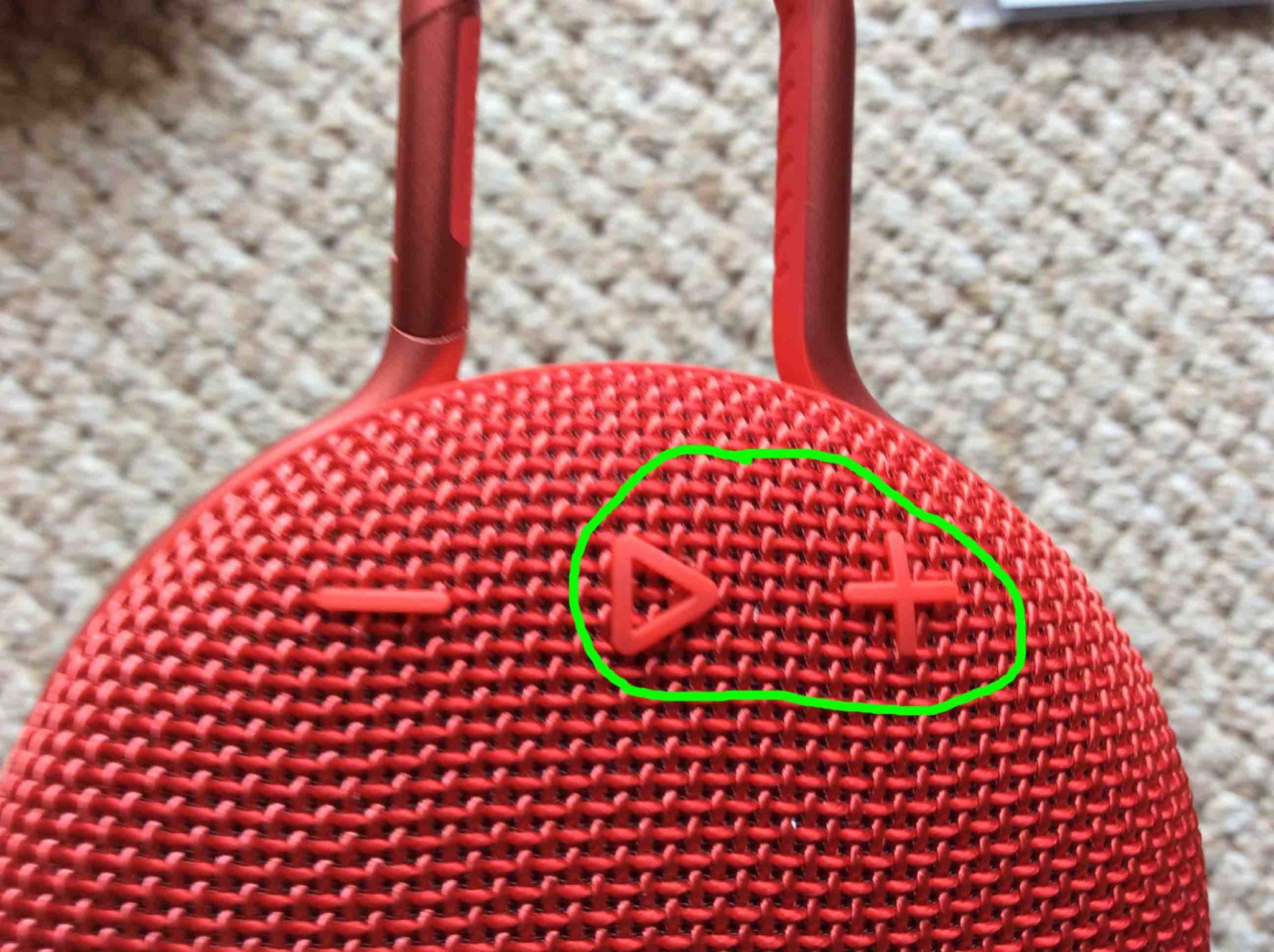
Common Button Combinations
If there's no reset hole, try these button combinations. Hold down the power button and the volume up button together for 10 seconds. If that doesn't work, try power and Bluetooth.
Or try holding all three buttons simultaneously. Different brands use different combinations.
The 10-Second Rule
Most hard resets require holding the buttons for at least 10 seconds. Some models need 15 seconds. Don't give up too quickly.
You'll know it worked when the LED flashes or the speaker makes a sound.
After the Reset
The speaker should power on normally. You'll need to pair it with your phone again. That's normal.
The reset clears all saved connections. Think of it as a fresh start for the speaker's brain.

Similar Posts





















