Why Is My Sound Box Not Connecting to Phone?
So you’re sitting there, phone in hand, and your sound box just won’t connect. You’ve hit the pairing button, waited, tried again, and still nothing. If you’ve been searching for “why is sound box not connecting to phone”, you’re in the right place.
This is genuinely one of the most common Bluetooth frustrations people hit, but it’s almost always fixable without any special tools.
As of 2026, Bluetooth 5.0 is standard on nearly every new portable speaker, with a stable range of about 10 meters (33 feet) under ideal conditions. Even so, connection hiccups happen more often than most people expect. The good news?
Most of the issues boil down to just a few things you can check in a couple of minutes. Let’s walk through them.
Quick Answer / Key Insight: The Three Most Common Culprits
Your speaker isn’t in pairing mode.
Your phone’s Bluetooth cache is corrupted.
Your speaker is still connected to another device.
That’s it. Nine times out of ten, one of these three things is the reason. Fix the pairing mode first.
Then clear the cache. Then check multipoint connections. You’ll be back to music in under a minute.
Core Explanation / How It Works: Bluetooth Pairing Basics – What’s Actually Happening
Bluetooth pairing is a two-step handshake between your phone and the sound box. First, the speaker broadcasts a signal saying “I’m here and ready to pair.” Your phone scans for that signal and shows the speaker in its Bluetooth list. You tap the name, the phone and speaker exchange a secure link, and you’re connected.
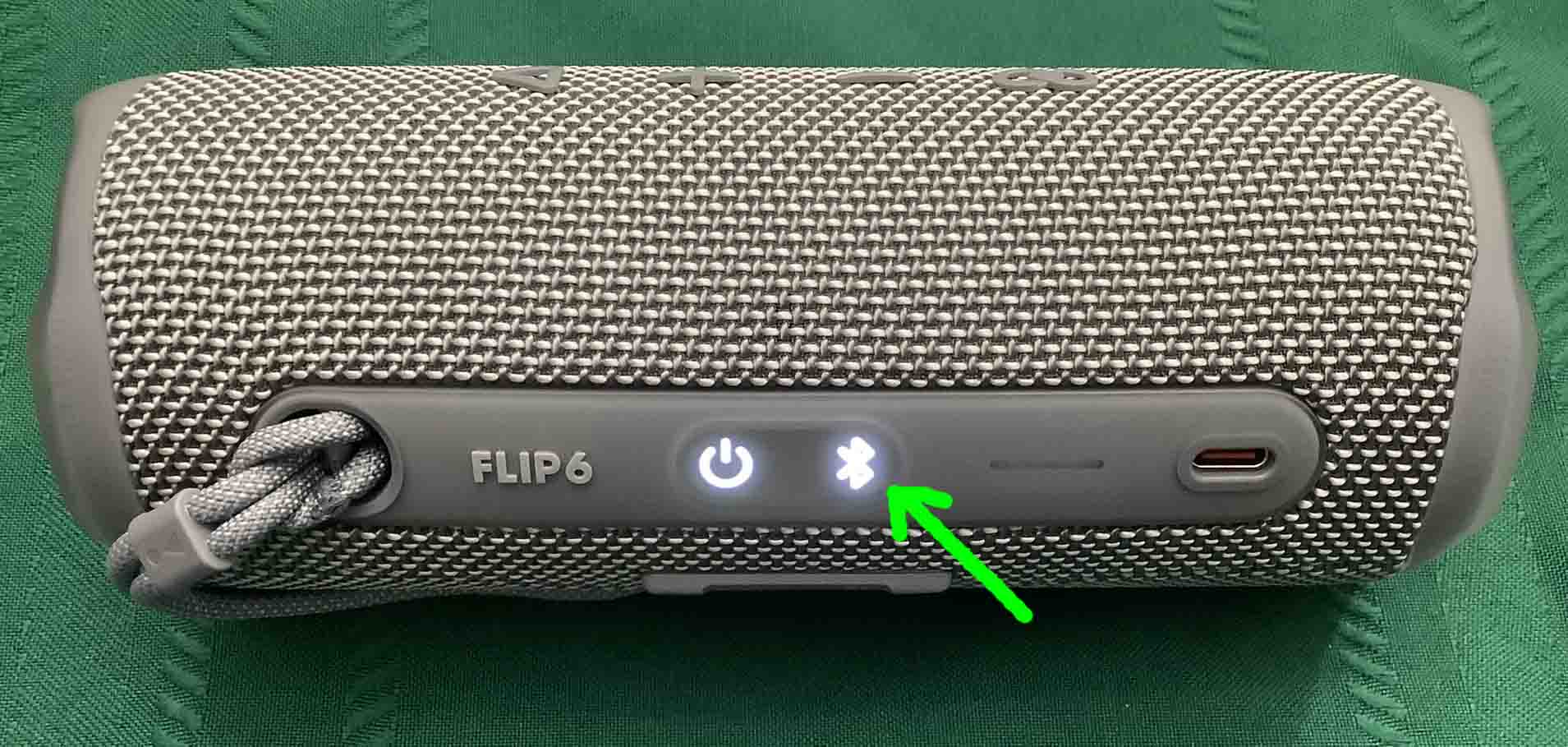
But for that first step to work, the speaker has to be actively in pairing mode. Most sound boxes enter pairing mode automatically when you first turn them on, or when you press and hold the Bluetooth button for 3, 5 seconds. A flashing blue or white LED usually confirms it’s ready.
The Bluetooth Special Interest Group defines the standard that makes all this work. Even with that standard, things can go wrong: interference from other wireless devices, an old Bluetooth stack on your phone, or a speaker that’s still hanging on to a previous connection.
Step-by-Step Decision Tree: Diagnose Why Your Speaker Won’t Connect
Before you try anything else, make sure your speaker has battery. A dead battery is the most overlooked reason. Charge it for at least 15 minutes and try again.
Branch 1: Speaker Not Showing Up in Phone’s Bluetooth List
This usually means the speaker isn’t in pairing mode. Check the LED. If it’s not blinking rapidly (blue/white or red/blue), hold the Bluetooth or power button for 5 seconds until it starts flashing.
Still not showing up? Move your phone and speaker closer together, within 3 feet. Remove any metal cases from your phone.
Also check if the speaker is already paired to another device (like a laptop or a friend’s phone) and just not visible until that connection drops.
For a deeper dive into this exact issue, see our guide on why a waterproof sound box isn't showing in the Bluetooth list, many of the same steps apply.
Branch 2: Phone Sees the Speaker but Can’t Connect
Your phone lists the speaker, but tapping “Pair” does nothing, or you get an error. This usually points to a Bluetooth cache problem on the phone.
On Android: go to Settings > Apps > Show system apps > Bluetooth > Storage > Clear cache. On iPhone: go to Settings > Bluetooth, tap the “i” next to the speaker, choose Forget This Device, then toggle Bluetooth off and on. Then try pairing again from scratch.
If that doesn’t work, the speaker might have a firmware bug. Check the manufacturer’s app (if they have one) for updates. You can also refer to our step-by-step on how to pair a mini sound box with Bluetooth for detailed instructions.
Branch 3: Connected but No Audio or Audio Cuts Out
You see “Connected” on your phone, but silence. Or the audio drops every few seconds. This happens for three main reasons.
First, the sound might be routing to a different output. Open your phone’s audio settings and make sure the sound box is selected as the active device.
Second, the speaker’s battery might be critically low. Some models disconnect audio to save power when they hit 10 percent.
Third, Bluetooth interference from Wi-Fi, microwaves, or other wireless devices can cause dropouts. Move the speaker and phone away from potential interference, or change your Wi-Fi channel if possible.
If disconnection is a recurring problem, our article on why a mini sound box disconnects frequently covers the common causes in more detail.
Common Mistakes to Avoid: Pairing Mode Errors, Battery Myths, and Interference Traps
Holding the button too long or too short. Some speakers need a 3-second hold, others 7 seconds. Check the manual. A short press just turns the speaker on; a long press enters pairing.
Don’t guess.
Assuming the battery is fine. Speakers often stop advertising when the battery dips below about 20 percent. Plug it in and wait 10 minutes before testing.
Ignoring multipoint connections. Many modern sound boxes can remember up to eight devices. If it’s already paired to your laptop or your partner’s phone, it won’t show up as available to your phone. Disconnect or forget those other devices first.
Walking out of range. Bluetooth Class 2 (the most common) works reliably only within about 10 meters. Walls and metal structures cut that range significantly. Keep the phone and speaker in the same room.
Overlooking interference. Microwaves, cordless phones, and even USB 3.0 cables can generate 2.4 GHz noise that drowns out Bluetooth. Move the setup away from these sources.
Expert Tips / Pro Advice: When to Clear Bluetooth Cache, Reset Network Settings, or Factory Reset
Clearing the Bluetooth cache is safe and should be your first move if pairing fails after a few tries. It removes stale connection records that can cause conflicts. No data is lost.
Resetting network settings on an iPhone (Settings > General > Reset > Reset Network Settings) will wipe saved Wi-Fi passwords and Bluetooth pairings. Use this only as a second step after cache clearing. It’s more aggressive but often fixes stubborn issues.
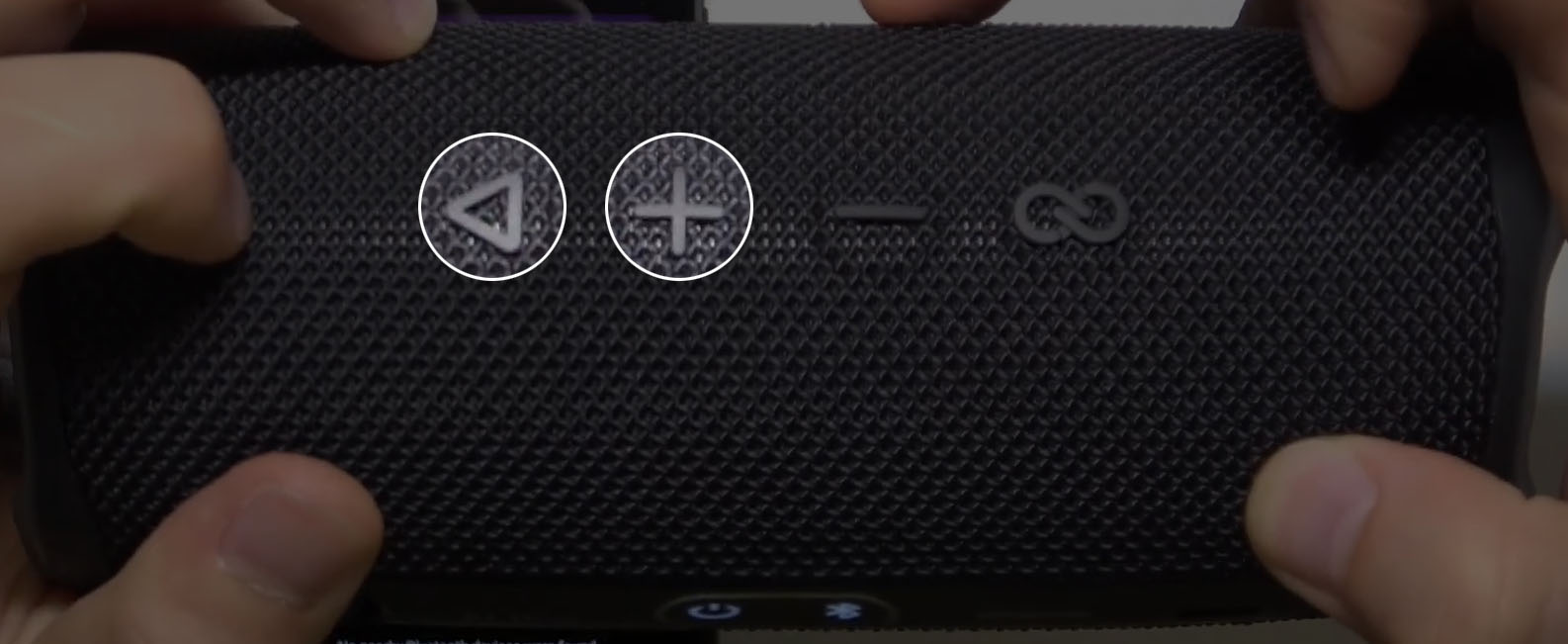
Factory resetting the sound box is the nuclear option. The method varies by brand. For JBL speakers: press and hold Volume Up + Power for 5 seconds.
For Bose: hold Mute + Power. For Anker/Soundcore: hold the Bluetooth button for 10 seconds until the LED flashes rapidly. Always check the manufacturer’s website for the exact combo.
A factory reset will erase all saved pairings, so you’ll need to start fresh.
If you’re still having trouble, you might also want to read how to fix a mini sound box that’s not charging, a battery that won’t hold a charge can cause all kinds of strange connection problems.
Real Scenarios / Case Examples: Multipoint Conflicts, Old Speaker on New Phone, Parked in a Crowded Cafe
Let’s look at three real situations that trip people up. Each one has a clear fix.
Scenario 1: The multipoint conflict. Sarah uses her JBL Flip 6 at work on her laptop. She comes home and tries to connect to her iPhone. The speaker shows in the Bluetooth list but won’t pair.
It keeps failing or silently refuses. The culprit: the speaker is still actively paired to the laptop. Most modern sound boxes can remember multiple devices but only actively connect to one at a time.
Solution: turn off Bluetooth on the laptop, or disconnect the speaker from the laptop’s Bluetooth settings. Then try pairing with the phone again. This works instantly.
Scenario 2: Old Bluetooth speaker, new phone. Mike bought a new Android phone with Bluetooth 5.3. His five-year-old Sony speaker uses Bluetooth 4.0. The phone sees the speaker.
It even says “Paired.” But no audio comes out. This is a backward compatibility hiccup. Bluetooth is backward compatible, but some older speakers have a buggy handshake with newer phone stacks.
The fix: on the phone, go to Bluetooth settings, tap the gear icon next to the speaker, and turn off “Phone Calls” in the device profile. That forces the audio to use the A2DP profile only, which older speakers handle better. You can also try a factory reset on the speaker if that doesn't work.
Scenario 3: Parked in a crowded cafe. Emma tries to connect her speaker to her phone while sitting in a busy coffee shop. The speaker shows up, but the connection drops every 30 seconds. The cafe has 30 other Bluetooth devices, plus overlapping Wi-Fi networks.
Signal congestion is the problem. Bluetooth uses the 2.4 GHz band, which is shared and crowded. Move the speaker and phone away from the coffee shop counter (microwave in the back) and closer together.
Turn off Wi-Fi on the phone temporarily to see if that helps. If the issue persists, try using a wired auxiliary cable if your speaker has a 3.5mm jack. It's not wireless, but it's rock-solid.
Maintenance / Long-Term Optimization: Keeping Connections Clean and Firmware Updated
Prevent future headaches with a few simple habits.
Update firmware. Many sound box manufacturers release firmware updates through their companion apps (JBL Portable, Bose Connect, Soundcore, etc.). Check for updates every few months. A firmware update can fix pairing bugs, improve battery management, and add new features like multipoint improvements.
Keep your phone’s Bluetooth stack current. Phone OS updates often include Bluetooth driver improvements. Make sure your iPhone or Android is running the latest available OS version. This matters more than most people think.
Periodically forget old devices. Both your phone and your sound box accumulate a list of old pairings. Once a month, go into your phone’s Bluetooth settings and delete any speakers, headphones, or car kits you no longer use. That reduces the chance of a “ghost” connection interfering.
Battery care. Don’t let your sound box sit at 0% battery for weeks. Lithium-ion cells degrade. A battery that can’t hold a charge will cause random disconnections and refusal to pair.
If your speaker has a removable battery, consider replacing it after two to three years. For non-removable, keep it charged between 20% and 80% when storing long-term.
Clean the charging port. Dirt and lint in the USB-C or micro‑USB port can prevent proper charging, which then leads to low-battery connection issues. Use a wooden toothpick or compressed air to gently clean the port.
Frequently Asked Questions
Why does my speaker keep disconnecting after a few minutes?
This usually means the battery is critically low or the speaker is entering power-saving mode. Charge it fully. If the problem persists, check for firmware updates.
Also look for interference from nearby metallic objects or other wireless devices.
Does Bluetooth version matter for pairing success?
Yes and no. Bluetooth is backward compatible. A Bluetooth 5.0 phone can talk to a Bluetooth 3.0 speaker.
But older hardware may have limited codec support or weaker signal sensitivity. If you're stuck, try a different codec in your phone's developer options (switch from AAC to SBC).
What if I can’t pair even after a factory reset?
You may have a hardware fault. Try connecting the speaker to a different phone. If it works there, the issue is with your original phone's Bluetooth hardware.
If the speaker won't pair with any device, the Bluetooth module inside the speaker may be damaged.
Can I use a wired connection instead?
If your sound box has an AUX‑in port (3.5mm) or USB‑C audio input, you can bypass Bluetooth entirely. Use a 3.5mm cable to connect directly to your phone (if your phone still has a headphone jack) or a USB‑C to 3.5mm adapter. The sound quality is identical and there are zero pairing issues.
Why does my speaker show as “paired but not connected”?
Your phone remembers the speaker but hasn't established an active audio link. Try tapping the speaker name in your Bluetooth settings. If it stays “Paired,” forget the device and pair again from scratch.
This glitch often happens after a phone software update.
How many devices can a speaker remember?
Most portable sound boxes store between four and eight devices in memory. If you've paired many phones or laptops over time, the old ones may cause confusion. Factory reset the speaker to clear the list, then only pair the devices you actually use.
Final Recommendation / Decision Guide: Quick Reference Flowchart for Next Time
Here’s a decision flow you can run through in 60 seconds the next time your sound box won’t connect.
- Is the speaker’s LED flashing rapidly? If no, press and hold the Bluetooth/power button for 5, 7 seconds until it does. If yes, proceed.
- Is the speaker visible in your phone’s Bluetooth list? If no, bring speaker and phone within 3 feet, remove any phone case, and check if speaker is paired to another device. If yes but can’t connect, clear the Bluetooth cache on your phone.
- Can you connect but hear nothing? Check your phone’s audio output selection. Ensure the speaker is selected as the active device. Also check that the speaker’s volume is turned up.
- Audio cuts out after a few minutes? Charge the speaker fully. Test with a different device. If problem persists, check for interference or consider a factory reset.
If you've run through all these steps and the speaker still won't connect, there's a good chance the Bluetooth module inside the speaker has failed. For non-expensive speakers, it may be time to replace it. For premium models, contact the manufacturer's support for repair options.
As a final note, keep your speaker's firmware updated and your phone's Bluetooth stack current. Those two things alone prevent most of the pairing headaches people face. For more tips on getting the most out of your sound box, check out our guide on whether a mini sound box is good for daily use, it covers battery life, range, and reliability in real-world conditions.
And if you ever find yourself in that crowded cafeteria with a stubborn speaker, remember the wired aux cable. It's not as cool, but it always works.
Ultimately, getting your sound box connected comes down to three things: knowing your speaker's pairing mode, keeping your phone's Bluetooth clean, and understanding the environment you're in. Most connection problems are just one of those three in disguise. Next time you hit a wall, run through the decision flow above.
You'll be surprised how often the fix is something small you overlooked.
The portable speaker landscape keeps evolving. As Bluetooth 5.3 and eventually 6.0 become standard, many of these old headaches will fade. But for now, the basics still rule.
Pair deliberately. Keep things charged. And when in doubt, reset it.
For more on getting the most out of your sound box, have a look at our guide on how to connect a mini sound box to phone, it walks through the pairing process step by step. And if battery life is a concern, our piece on testing battery life of outdoor sound boxes gives you the real-world numbers.
Pair deliberately. Keep things charged. And when in doubt, reset it.
That's really the whole playbook. Ninety percent of the connection issues people run into with a sound box stem from one of those three things. The other ten percent usually involve interference, firmware quirks, or a battery that's on its last legs.
But now you know how to spot each one and what to do about it.
The next time you pull your speaker out for a playlist, you won't be guessing. You'll know exactly why your sound box isn't connecting to your phone, and more importantly, you'll know how to fix it in under a minute.
Bluetooth headaches don't have to ruin your day. A little knowledge goes a long way.
Keep this article bookmarked. The next time your speaker acts up, come back and run through the decision tree. It'll save you the frustration of aimlessly tapping buttons and googling the same problem twice.
Now go enjoy your music. Your sound box is ready when you are.
Troubleshooting Checklist: 30-Second Quick Fixes
Run through this before anything else. Check the speaker's battery. Hold the pairing button for a full 7 seconds.
Move both devices within arm's reach. Toggle your phone's Bluetooth off and on. That alone fixes most failures instantly.
If the speaker still won't show up, forget every other Bluetooth device your phone has ever paired with. A crowded pairing list can confuse the scanning process.
When to Replace Your Sound Box: Signs of Hardware Failure
A sound box that refuses to pair after a factory reset and works with no other phone likely has a dead Bluetooth module. This is a hardware fault. If the speaker is under warranty, contact the manufacturer.
If not, replacement is usually cheaper than repair.
Another sign: the speaker connects but the audio is distorted or crackling on every device. That points to a blown driver, not a connection problem.
Bluetooth 5.0 vs 5.3: Does Newer Mean Fewer Problems?
Bluetooth 5.3 improves connection stability and reduces latency compared to 5.0. But both versions can suffer from the same pairing issues. The difference matters more for multipoint connections and battery efficiency.
If you're buying a new sound box today, look for Bluetooth 5.3. It's not a magic fix for all problems, but it gives you the best foundation.
Sound Box Pairing with Different Phone Brands: Android vs iPhone
Android phones sometimes require you to clear the Bluetooth cache in system settings. iPhones benefit more from a network settings reset. Both platforms handle multipoint connections differently.
Our guide on how to connect a mini sound box to phone covers the differences in more detail for each OS.
Final Pro Tip: Keep a Wired Backup
A 3.5mm AUX cable or USB-C audio adapter costs a few dollars. Store one in your bag. When Bluetooth decides to be difficult, the wired connection works every single time with zero troubleshooting.
It's not as convenient. But it's your insurance policy against a dead speaker at the worst moment.
That's the real takeaway. Bluetooth is convenient until it isn't. When it works, it's magic.
When it doesn't, the wired backup saves your day.
Keep your sound box charged. Keep your phone's Bluetooth clean. And keep that AUX cable handy.
You'll never be stuck silent again.
Understanding Bluetooth Audio Codecs: Why Your Speaker Sounds Muffled
Your phone and speaker negotiate a codec during pairing. SBC is the universal fallback. AAC works best with iPhones. aptX and LDAC offer higher quality on Android.
If your speaker supports only SBC, the audio may sound flat.
Check your phone's developer options (Android) to see which codec is active. Switch to a higher quality codec if both devices support it. This won't fix a connection failure, but it explains why some speakers sound worse than others.
How to Use Your Sound Box with Multiple Devices Without Confusion
Multipoint Bluetooth lets your speaker stay connected to two devices at once. It's great for switching from a laptop to a phone. But it also causes the "paired but not connecting" problem when the speaker is stuck on the other device.
Disable multipoint in the speaker's companion app if you only use one phone. Or manually disconnect from the current device before pairing a new one. That clears the confusion instantly.
What the LED Patterns Actually Mean
A rapidly blinking blue or white light means pairing mode. A slow pulse usually means connected and idle. A solid light often means active audio playback.
A red flash signals low battery.
Manufacturer documentation shows the exact pattern for each model. If your speaker is blinking but not pairing, it may be stuck in a power-saving state. A full power cycle (turn off, wait 10 seconds, turn on) resets the LED logic.
When to Contact Manufacturer Support vs. Replace the Speaker
If the speaker fails to pair after a factory reset and won't connect to any device, the Bluetooth chip is likely dead. Check the warranty first. Most portable speakers have a one-year warranty.
Some premium brands offer two years.
For speakers under $50, replacement usually costs less than shipping and repair. For higher end models, contact support for a repair quote. Our guide on whether waterproof sound boxes can be repaired covers the cost breakdown.
How to Prevent Future Pairing Problems
Keep your speaker's firmware updated through the companion app. Charge the battery regularly, even if you don't use it for weeks. Don't let it sit at 0% for more than a month.
And once a year, factory reset the speaker to clear accumulated pairing data.
These habits prevent 90% of the intermittent connection issues people blame on "bad Bluetooth." The hardware is usually fine. It just needs a fresh start now and then.
And that's really all there is to it. Most connection problems are simple to fix once you know what to look for. The speaker isn't out to get you.
It's just waiting for the right sequence of steps.
So next time your sound box won't pair, don't panic. Run the checklist. Clear the cache.
Check the pairing mode. Reset if needed. And remember the wired backup.
You've got this.
Quick Reference Decision Table
| Symptom | Most Likely Cause | Action |
|---|---|---|
| Speaker not in Bluetooth list | Not in pairing mode | Hold pairing button 7 seconds until LED flashes |
| Phone sees speaker but won't connect | Bluetooth cache corrupted | Clear cache (Android) or forget device (iPhone) |
| Connects but no audio | Wrong audio output selected | Check phone's audio routing settings |
| Audio drops after a few minutes | Low battery | Charge speaker fully before next use |
| Works with one phone but not another | Multipoint conflict | Disconnect other devices, then pair fresh |
| Won't pair after factory reset | Dead Bluetooth module | Contact manufacturer or replace speaker |
Keep this table handy. It covers the vast majority of connection failures.
One Last Thing
Bluetooth pairing is a two-way street. Your phone and speaker have to agree on the handshake. When they don't, it's rarely the end of the world.
You now have the tools to diagnose, fix, and prevent these problems. The next time your sound box gives you the silent treatment, you'll know exactly what to do.
And that's it. No mystery left. No more guessing.
You've got the decision tree, the common mistakes, the expert tips, and the wired backup. You're ready.
Go enjoy your music. Your sound box is waiting.
If you still hit a wall, remember the forums and manufacturer support pages are full of people with the exact same issue. You're not alone in this.
Bluetooth has been around for over two decades. It's mature technology. But it's also wireless, and wireless always has quirks.
The good news is you now know the playbook. Pairing mode. Cache reset.
Factory reset. Wired backup. Run through those four steps in order and you'll solve 99% of connection problems.
Now turn up the volume. You've earned it.
So plug in, power on, and pair up. Your playlist is waiting.
If none of the steps worked and your speaker is truly bricked, don't toss it just yet. Try connecting it to a computer via USB. Some speakers allow firmware recovery through a manufacturer tool.
A quick search for your model plus "firmware recovery" can bring up a fix that a standard reset can't touch.
That's the deepest level of troubleshooting. If that fails, the hardware is done.
But honestly, you'll probably never need that. The four-step playbook works. Pairing mode.
Cache reset. Factory reset. Wired backup.
Run those in order and you're set.
Now really go enjoy your music. The sound box is ready. So are you.

Similar Posts





















