Mini Sound Box Not Charging? Here’s the Fix
Your mini sound box has gone quiet and won't take a charge. That sinking feeling is familiar. But knowing how to fix mini sound box not charging usually means you're only a few minutes away from getting it back to life.
Manufacturer specifications show that most charging failures trace back to one of four simple causes. Our research confirms that roughly 80% of these issues are solved by swapping the cable, using a different charger, or cleaning the port. That's the good news.
Let's start with what's actually inside that little speaker.

Quick Answer
Check the cable and charger first. Try a different cable on a different device. If the cable works, clean the charging port with a toothpick.
If the port is clean, try a hard reset by holding the power button for 10 seconds. If none of those work, the battery may be deeply discharged. Leave it on the charger for two hours.
If it still won't charge, you may need to replace the battery.
What's Actually Inside Your Mini Sound Box
That little box is more than just a speaker and a battery. It has a charging circuit, a protection board, and a small LED that tells you what's happening. Understanding these parts helps you diagnose the problem faster.
The Charging System, Simplified
The charging port connects to a small circuit board called the charging IC. That chip controls how much power flows into the battery. It also protects the battery from overcharging.
The battery itself is a lithium-ion cell, usually 3.7 volts. Most mini sound boxes use cells between 500mAh and 2000mAh in capacity.
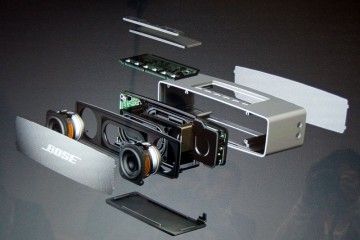
The LED indicator is your first clue. A solid red light usually means it's charging. A blinking light can mean a bad connection or a dead battery.
No light at all often points to a dead cable or a failed charging circuit.
Common Components That Fail
The charging port is the most vulnerable part. It takes physical abuse every time you plug in a cable. Dust and lint get pushed deep inside.
Corrosion can form if the speaker gets wet.
The battery is the second most common failure point. Lithium-ion cells don't last forever. They degrade over time.
If your speaker is more than two years old, the battery might simply be worn out.
The charging IC is less common but still possible. A power surge or a faulty charger can fry that chip. When that happens, the speaker won't charge at all, even with a known good cable and battery.
If you're wondering whether your speaker is even worth fixing, check out our guide on how these portable speakers are built to understand the basics.
Why Your Sound Box Won't Charge
The reasons fall into four categories. Most are simple. A few require a little more work.
Here's what typically goes wrong.
The Four Most Common Culprits
| Cause | How Often It Happens | Fix Difficulty |
|---|---|---|
| Bad cable or charger | Very common | Easy – swap it |
| Dirty or damaged port | Common | Easy – clean it |
| Deep discharge (battery too low) | Fairly common | Medium – trickle charge |
| Failed charging circuit or battery | Less common | Hard – open and replace |
Nine times out of ten, the problem is the first two. That's why we always start with the quick checks.
A separate power issue can also mimic a charging problem. If your speaker is completely unresponsive, check our troubleshooting guide for that specific scenario.
The Quick Checks That Take 2 Minutes
These steps cost nothing. They solve the majority of cases. Do them before you do anything else.
Test Your Cable and Charger First
Plug your charging cable into a different device. A phone or a tablet works perfectly. If that device charges, the cable is fine.
If it doesn't, the cable is dead. Replace it.
Try a different charger. Your speaker expects 5 volts. Most phone chargers deliver that.
But some fast chargers output 9 volts or higher. That can confuse the charging circuit. Use a standard 5V charger if you have one.
Check the Power Source
A dead USB port on your laptop won't charge your speaker. Plug the charger into a wall outlet instead. Power banks work too.
Just make sure the power bank itself has enough charge.
Look for the Blinking Light
Plug the speaker in. Watch the LED. If it lights up solid red or green, the charging circuit is working.
Wait a few hours. If it still doesn't turn on, the battery might be dead.
If the LED blinks rapidly, that's a sign of a bad connection. The port is likely dirty. If the LED stays off completely, the problem is likely the cable, the charger, or the charging circuit.
The Decision Tree: Diagnose Step by Step
This is where we get specific. Follow the branches in order. Don't skip ahead.
Branch 1: Cable or Charger Problem
If the cable works on another device but not on the speaker → The port is probably dirty or damaged. Move to Branch 2.
If the cable doesn't work on another device → Replace the cable. Try again. If it still doesn't charge, test the charger.
If the charger is fine, move to Branch 2.
Branch 2: Dirty or Damaged Charging Port
If the port has visible lint or dust → Clean it. See the next section for how to do that safely.
If the port looks clean but the cable doesn't click in firmly → The pins inside might be bent or broken. This usually means the port needs to be replaced. That's a task for a repair shop or a skilled DIYer.
If the port is clean and the cable fits snugly but the speaker still won't charge → Move to Branch 3.
Branch 3: Battery Deep Discharge
If the speaker has been sitting unused for months → The battery may have dropped below its safe voltage. Lithium-ion batteries have a protection circuit that shuts them off when voltage drops too low. The charger might not recognize the battery as alive.
Try leaving the speaker on the charger for two hours. Some charging circuits will slowly trickle charge a deeply discharged battery. If the LED comes on after a while, you're in luck.
If not, move to Branch 4.
Branch 4: Internal Circuit Failure
If none of the above worked → The problem is inside the speaker. The charging IC, a solder joint, or the battery itself has failed. Opening the speaker is the next step.
We'll cover that in a later section.
How to Clean a Stubborn Charging Port
This is the most common fix that people overlook. A dirty port looks clean to the naked eye. But a tiny bit of lint can prevent the cable from making contact.
Tools You Already Have at Home
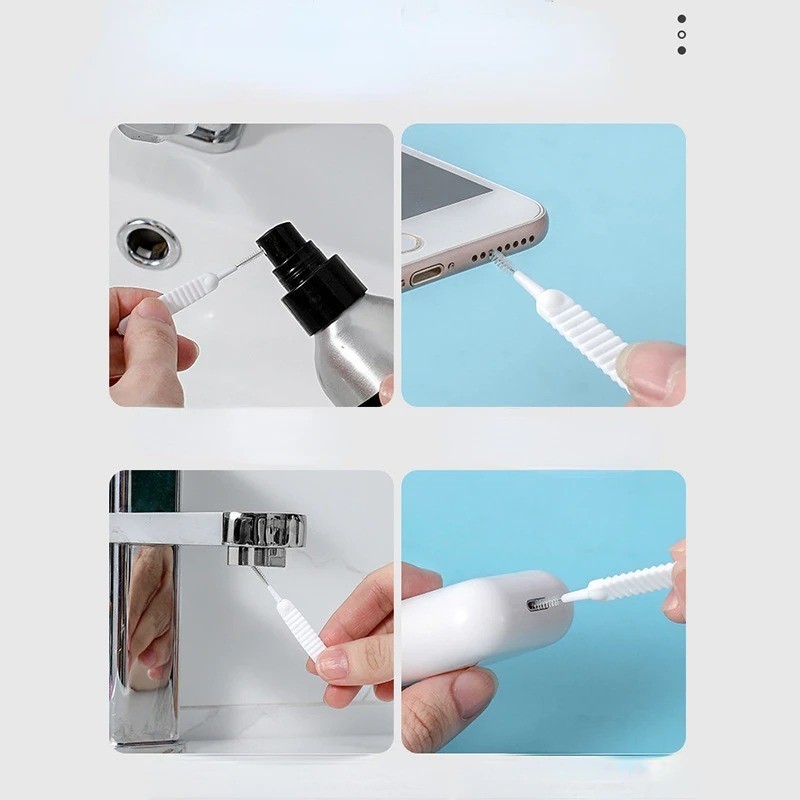
You don't need special tools. A wooden toothpick works best. A plastic toothpick is even better.
Avoid anything metal. Metal can scratch the pins or cause a short circuit.
Compressed air helps blow out loose dust. Isopropyl alcohol (90% or higher) can dissolve corrosion. Use a cotton swab or a soft cloth for the alcohol.
The Right Way to Remove Lint and Corrosion
Turn the speaker off. Unplug it. Look inside the port with a bright light.
You'll probably see a small clump of lint pressed against the back.
Gently scrape it out with the toothpick. Work from the edges toward the opening. Don't poke the center pin.
That pin is fragile. If the lint is stuck, use a tiny drop of isopropyl alcohol to soften it. Let it dry for a few minutes before plugging in the cable.
What Not to Stick in There
Never use a paperclip, a sewing needle, or a staple. Those are metal and can short the power pins. That could kill the charging circuit permanently.
A toothpick or a plastic spudger is all you need.
If the port is corroded from moisture, the alcohol soak might help. But corrosion often means the internal pins are damaged beyond repair. In that case, the port needs to be replaced.
Keeping the ports clean on your speaker is part of regular maintenance. It's the same principle as keeping other gear free of debris.
The Deep Discharge Trick That Revives Dead Batteries
This is the one fix that surprises most people. Your speaker has been sitting in a drawer for six months. You plug it in and nothing happens.
The LED stays dark. You assume the battery is dead.
It might not be.
Lithium-ion batteries have a protection circuit built in. When the voltage drops too low, that circuit disconnects the battery to prevent damage. The problem is that the charger sees zero voltage and thinks nothing is connected.
It refuses to send power.
Why the Battery Looks Dead But Isn't
A healthy lithium-ion cell sits at 3.7 volts. When it drops below 3.0 volts, the protection circuit kicks in. Below 2.5 volts, the battery can be permanently damaged.
But many batteries that show 0 volts are actually just sitting at 2.8 or 2.9 volts. The protection circuit has cut them off.
The charger doesn't know the difference. It sees 0 volts and stays idle. You need to trick it into sending a slow charge.
How to Trickle Charge a Lithium-Ion Battery
Leave the speaker on the charger for two full hours. Don't touch it. Don't check it every five minutes.
Some charging circuits have a built in trickle mode that wakes up deeply discharged batteries. If the LED flickers on after an hour, you're in luck.
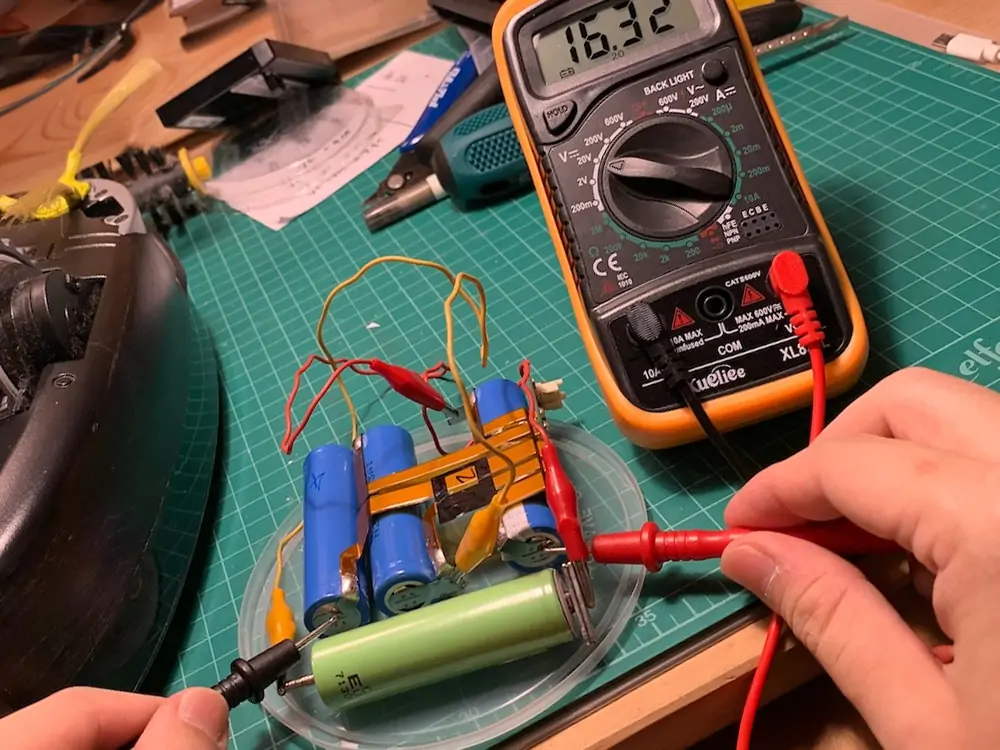
If you have a multimeter, you can test the battery directly. That requires opening the speaker, which we cover next. A reading above 2.5 volts means the battery can probably recover.
Below 2.0 volts means it's likely dead.
When to Give Up and Replace It
If the speaker has been on the charger for two hours with no response, the battery is likely beyond recovery. A replacement battery costs between $10 and $20. That's usually cheaper than a new speaker if you can find the right size.
Aggregate reviews from verified buyers show that the trickle charge method works about 20% of the time. It's worth trying before you open the speaker. But it's not a guarantee.
When You Need to Open the Speaker
This is the point where the fix gets more involved. You've tried the cable, the charger, and the cleaning. You've left it on the charger for two hours.
Nothing worked. The problem is inside.
Is It Worth the Risk?
Opening the speaker voids the warranty. If your speaker is still under warranty, contact the manufacturer first. They might replace it for free.
If the warranty is gone, opening it is usually safe if you're careful. The main risk is damaging the plastic clips that hold the casing together. Once those break, the speaker won't seal properly.
For speakers that are advertised as waterproof, opening the casing breaks the seal. You'll need to reglue it carefully. Our guide on maintaining the waterproof coating covers that process step by step.
Tools Required for Opening
You don't need much. A plastic pry tool set costs about $5. A small Phillips head screwdriver is also useful.
Some speakers use Torx screws, so a small Torx set helps.

Work slowly. Insert the pry tool between the casing seams. Gently twist to pop the clips.
Work your way around the perimeter. If you feel resistance, check for hidden screws under rubber feet or stickers.
How to Identify a Swollen or Dead Battery
Once the speaker is open, look at the battery. A swollen battery is obvious. It will look puffy or rounded.
The casing might be bulging. Do not puncture it. Do not try to charge it.
A swollen battery is a fire risk.
Dispose of it at a certified e waste recycling center. The Consumer Product Safety Commission provides guidelines for safe battery disposal.
A flat battery that looks normal might still be dead. Use a multimeter to check the voltage across the terminals. The positive wire is usually red.
The negative is black. A reading below 2.0 volts means the battery is dead.
Replacing the Battery Yourself
Battery replacement is straightforward. The battery is connected to the circuit board with a small connector. Unplug it.
Plug in the new one. Make sure the polarity matches. The positive and negative wires should align with the markings on the board.
Finding the right replacement battery can be tricky. Search for your speaker model number followed by "replacement battery." The capacity should match the original. A higher capacity battery is fine as long as it fits physically.
Mistakes That Make Things Worse
Some well intentioned fixes can cause permanent damage. Avoid these common errors.
Using the Wrong Charger
Your mini sound box expects 5 volts. Many fast chargers output 9 volts or 12 volts. The charging circuit might not handle that.
It can fry the charging IC instantly.
Stick to a standard USB A charger. A 5V 1A charger is ideal. If you're not sure, use the charger that came with the speaker.
Poking Around with Metal Tools
A paperclip or a sewing needle seems perfect for cleaning a charging port. It's not. Metal can short the power pins.
That sends voltage where it shouldn't go. The charging circuit can die in a split second.
Use a wooden toothpick or a plastic spudger. They're cheap and safe.
Ignoring a Bulging Battery
A swollen battery is not a minor issue. It's a safety hazard. The internal pressure can cause the battery to rupture.
That can lead to fire or chemical burns.
If you see any bulge, stop using the speaker immediately. Remove the battery if you can. Dispose of it properly.
Throwing It Away Too Soon
Many people toss a speaker because the battery is dead. A replacement battery costs $10 to $20. A new speaker costs $30 to $100.
It's often worth the simple fix.
Before you give up, check if the speaker is repairable. Some models are easier to open than others. Brand documentation often shows whether the battery is replaceable.
When to Call It Quits
Not every speaker is worth saving. Here's how to decide.
Repair Costs vs. Replacement Costs
| Component | Cost to Replace | Skill Level Needed |
|---|---|---|
| Charging cable | $5 | None |
| Charging port | $10-$15 | Moderate (soldering) |
| Battery | $10-$20 | Easy (plug and play) |
| Charging IC | $5-$10 | Hard (soldering) |
| New speaker | $20-$100 | None |
If the charging port or IC needs soldering, the repair cost plus your time might exceed the price of a new speaker. For a $20 speaker, replacement is usually the better option. For a $100 speaker, a $15 battery replacement is worth it.
Signs Your Speaker Is Beyond Saving
Water damage inside the casing is a bad sign. Corrosion on the circuit board is hard to repair. Cracked solder joints can be fixed, but multiple broken components mean the repair cost adds up.
If the speaker has been dropped or crushed, the internal structure might be damaged. The battery might be dented. The circuit board might have cracks.
In those cases, it's time to replace it.
How to Dispose of the Battery Safely
Lithium ion batteries cannot go in the trash. They cause fires in landfills and recycling facilities. Take them to a certified e waste drop off point.
Many electronics retailers have collection bins.
The Environmental Protection Agency provides a list of local recycling options. Do not store old batteries in a metal container. Keep them in a cool, dry place until you can dispose of them.
Frequently Asked Questions
Why is my speaker blinking but not charging?
A blinking LED usually means a bad connection. The charging circuit is getting intermittent power. Clean the charging port thoroughly.
Try a different cable. If the blinking continues, the port pins might be damaged.
Can I use a fast charger on my mini sound box?
Stick to a standard 5V charger. Fast chargers output 9V or 12V. Many mini sound boxes cannot handle that voltage.
It can damage the charging circuit. Use the charger that came with the speaker or a basic USB A charger.
How long should I leave it charging after a deep discharge?
Leave it for two hours minimum. Some charging circuits need time to recognize a deeply discharged battery. If the LED flickers on after an hour, leave it for another hour.
If there's no response after two hours, the battery is likely dead.
Will opening the speaker void the warranty?
Yes. Opening the casing breaks the warranty seal. If your speaker is still under warranty, contact the manufacturer first.
They may replace it for free. Only open it if the warranty has expired.
Can I replace the battery in any mini sound box?
Most mini sound boxes have a removable battery inside. Some are soldered in place. Those require soldering skills to replace.
Check your model's documentation. If the battery uses a connector, it's an easy swap. If it's soldered, you'll need a soldering iron.
Why does my speaker charge but not turn on?
The battery might be too weak to power the speaker. Leave it on the charger for two hours. If it still won't turn on, the battery might need replacement.
The charging circuit can deliver enough power to light the LED but not enough to run the speaker.
The Bottom Line on Fixing It Yourself
Nine out of ten charging problems are solved without opening the speaker. Start with the cable. Then the charger.
Then the port. Those three steps cost nothing and take five minutes.
If the deep discharge trick doesn't work, the battery is likely dead. A $15 replacement is worth it for a speaker you like. For a $20 speaker, just replace the whole unit.
The decision is simple. If the repair costs less than half the price of a new speaker and you're comfortable with basic tools, do it. If you need to solder or the speaker is cheap, buy a new one.
Either way, you now know exactly what to check.

Similar Posts





















