How to Pair a Mini Bluetooth Speaker
You've got a mini sound box in your hand, and you just want to hear your music. But figuring out how to pair mini sound box with bluetooth can feel oddly frustrating when the speaker refuses to show up in your phone's device list. The good news is that the process is actually straightforward once you understand the few things that can go wrong.
Per Bluetooth SIG testing standards, the pairing handshake is designed to complete in under 10 seconds for most devices. But real-world conditions like battery level, previous connections, and interference can throw a wrench in that timeline. That's what we're going to walk through here.
Quick Answer
To pair your mini sound box with Bluetooth, turn it on. Press and hold the power button for 5 seconds until the LED flashes. Open your phone's Bluetooth settings.
Tap the speaker's name when it appears. You're connected.
Why Pairing Doesn't Always Work (And What That Usually Means)
Most pairing failures come down to one of three things. The speaker isn't actually in pairing mode. Your phone is already connected to another device.
Or the speaker is still bonded to a previous device. Let's look at each.
The speaker isn't in pairing mode. This is the most common issue. Many mini sound boxes don't enter pairing mode automatically when you power them on. You need to actively trigger it by holding the power button for 3 to 5 seconds.
The LED indicator is your clue. A fast blinking light usually means it's discoverable. A solid light or slow pulse means it's already connected to something else.
This is why many users find their device isn't showing up in the list, a problem we've covered in detail for similar speakers.
Your phone is connected to another device. If your phone is already streaming audio to a different Bluetooth speaker, headphones, or your car, it won't scan for new devices. You need to disconnect the current device first. Go to your Bluetooth settings and tap the settings icon next to the connected device, then select "Forget" or "Disconnect." Your phone will then look for new devices.
The speaker is still bonded to a previous device. Most mini sound boxes remember the last 2 to 8 devices they paired with. When you power it on, it automatically tries to reconnect to the last one. If that device is nearby, the speaker locks onto it and never enters pairing mode.
You need to turn off Bluetooth on the previous device or force the speaker into pairing mode manually. This is also why you might see the speaker listed but get a "Connection failed" message.
Step-by-Step: The Basic Pairing Process That Works for Most People
:max_bytes(150000):strip_icc()/001_bluetooth-file-transfer-4147725-94a28802281e4fbd8fd5aedc159161a4.jpg)
Here's the standard process. It works for 90% of mini sound boxes on the market as of 2026.
:max_bytes(150000):strip_icc()/001_bluetooth-file-transfer-4147725-94a28802281e4fbd8fd5aedc159161a4.jpg)
Step 1: Power on the speaker. Press the power button once. You should hear a startup sound or see a light. If nothing happens, check the battery.
A dead speaker won't pair. If it won't power up at all, our guide on fixing charging issues covers the common fixes.
Step 2: Enter pairing mode. Press and hold the power button. Most speakers need a 3 to 5 second hold. The LED should start flashing rapidly.
Some speakers have a dedicated Bluetooth button marked with the Bluetooth symbol. If yours does, press that instead. You'll know it's working when the light changes from solid to blinking.
Step 3: Open your phone's Bluetooth settings. Go to Settings > Bluetooth on your phone. Make sure Bluetooth is toggled on. Your phone will start scanning for available devices.
This usually takes 5 to 10 seconds.
Step 4: Select the speaker from the list. You'll see a list of available devices. Look for the name of your speaker. It might be something like "BS19" or "Mini Sound Box" or the brand name.
Tap it. If you see multiple entries with similar names, try the one with the strongest signal.
Step 5: Confirm the pairing. Most speakers connect automatically. Some might show a pairing code like "0000" or "1234" on your screen. If you see one, tap "Pair" or "OK." You don't need to type anything.
The speaker handles the confirmation for you.
Step 6: Test the connection. Play some music. If you hear audio, you're done. The speaker will remember this device and reconnect automatically next time you power it on.
If you want to connect a different phone later, you'll need to repeat the process.
Decision Tree: What to Do When It Doesn't Work
When the basic process fails, you need to diagnose the problem. Here's how to figure out what's going on based on what you're seeing.
Branch 1: Speaker Not Showing Up in the Device List
If your phone's Bluetooth scan doesn't find the speaker at all, the speaker is not in discoverable mode. This is almost always the issue.
First, turn off Bluetooth on your phone, wait 10 seconds, and turn it back on. Then try the pairing process again. If that doesn't work, force the speaker into pairing mode by holding the power button for 10 seconds.
If the LED still isn't flashing quickly, the speaker might need a reset. We've covered this exact scenario for waterproof models that won't appear in the list.
Branch 2: Already Paired to Another Device (and Won't Switch)
Your speaker is visible but your phone gets a "Connection failed" or "Unable to connect" message. This means the speaker is already talking to another device.
Turn off Bluetooth on the other device. If you don't know what it is, turn off Bluetooth on everything nearby. Then try pairing again.
If the speaker still won't connect, you need to forget the speaker on the old device or reset the speaker's pairing list. Most speakers let you clear the pairing list by holding the power button for 15 seconds.
Branch 3: It's Asking for a PIN Code
Some older speakers or certain budget models require a PIN. The default is almost always 0000 or 1234. Try those first.
If neither works, check the speaker's manual. Some budget models use 8888. You only need to enter the PIN once.
After that, the speaker remembers your device.
Branch 4: Paired Successfully But No Sound Comes Out
This is a different problem. If your phone says "Connected" but no audio plays, the issue is likely the audio source. Make sure your phone's volume is turned up.
Check that the speaker isn't showing as two connections (one for calls, one for media). On iPhone, go to Control Center and check the audio output device. On Android, check the media output settings.
If you're connecting to a smart speaker or outdoor system, the audio routing might work differently.
How to Force Pairing Mode (The Button Trick That Saves You Every Time)
This is the single most useful thing you can learn. Every mini sound box has a way to force it into pairing mode, and it's almost always the power button.
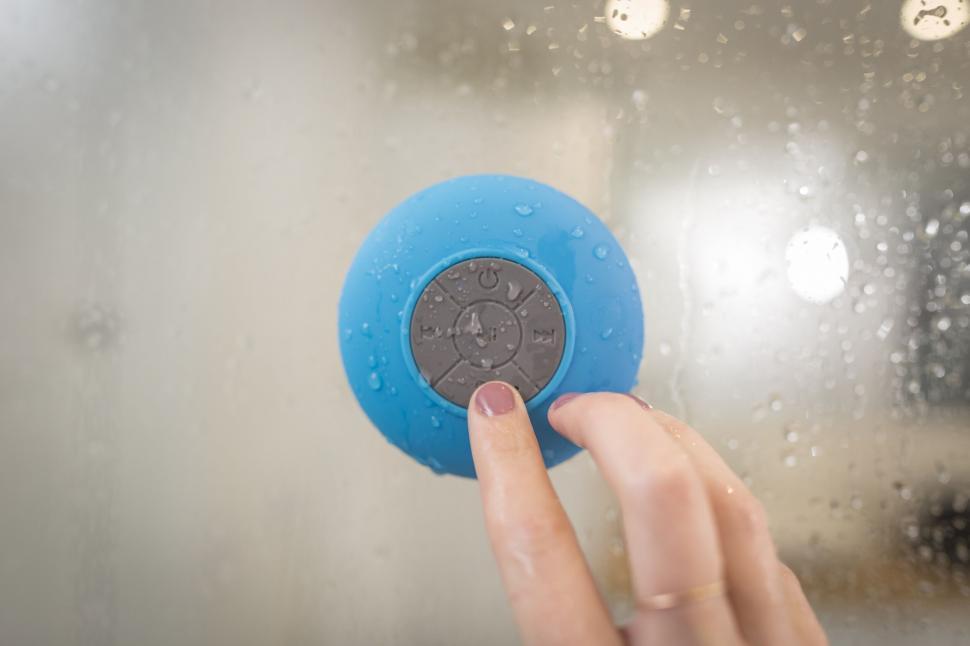
The standard method. Press and hold the power button for 5 seconds. You'll usually hear a tone or see the LED change from solid to flashing. If you don't see a change, keep holding for 10 seconds.
Some speakers need a longer press to enter pairing mode versus just turning on.
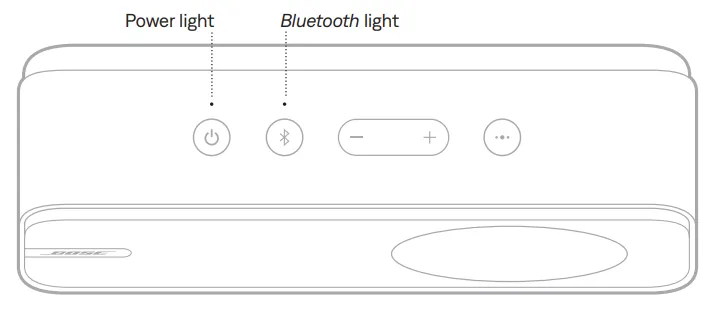
The alternate method. Some speakers have a separate Bluetooth button. It's usually marked with the Bluetooth symbol. Press and hold that button for 3 seconds.
The LED should start flashing. This is more common on higher-end models.
The power cycle method. If neither works, turn the speaker off completely. Then turn it back on while holding the power button. This forces the speaker to start in pairing mode instead of trying to reconnect to an old device.
It's a simple trick that works more often than you'd expect.
The reset method. If the speaker still won't enter pairing mode, you may need to reset it. Check the manual for your specific model. The most common reset is holding the power button for 15 seconds.
This clears all paired devices and puts the speaker in pairing mode as if it were brand new. You can find more details on resetting in our guide to connecting a mini sound box to your phone.
How to Reset Your Mini Sound Box (When Nothing Else Works)
Sometimes a full reset is the only answer. This is different from just turning the speaker off and on. A reset clears the speaker's memory and returns it to factory settings.
It's the nuclear option, but it works.
The standard reset. Most mini sound boxes reset when you hold the power button for 15 to 20 seconds. The LED will usually flash rapidly or change color. Release the button when you see the change.
The speaker will power off. Turn it back on, and it should enter pairing mode automatically.
The two-button reset. Some speakers require a combination. Hold the power button and the volume up button together for 10 seconds. This is common on models from brands like JBL and Anker.
Check your manual if you're not sure. The speaker will restart and forget all previous pairings.
The manual reset. A few budget models have a small reset hole on the bottom or back. You'll need a paperclip or a SIM eject tool. Insert it gently and press the button inside for 5 seconds.
This is rare on mini sound boxes, but some do have it.
If none of these work, you might be dealing with a hardware issue. Check our guide on why your speaker might not be turning on at all.
Common Mistakes That Cause Pairing Headaches (And How to Avoid Them)
A few simple habits can save you a lot of frustration. Here are the most common mistakes people make.
Mistake 1: Not turning off Bluetooth on other devices. Your phone might be trying to connect to your car, your headphones, or your smart speaker. Your speaker might be trying to connect to a tablet you used yesterday. Turn off Bluetooth on everything you're not using.
It makes the pairing process much cleaner.
Mistake 2: Pairing too far away. Bluetooth range is about 10 meters (30 feet) in open air. But walls, furniture, and even your own body can block the signal. Place the speaker and your phone next to each other when pairing.
Move them closer if you're having trouble.
Mistake 3: Not waiting for the scan to complete. Your phone's Bluetooth scan takes a few seconds. If you tap the screen too quickly, you might miss the speaker. Wait for the full scan to finish.
Some phones take up to 15 seconds to show all available devices.
Mistake 4: Using the wrong button. Some speakers have a separate power button and a Bluetooth button. If you're holding the power button and the speaker just turns on and off, you're not entering pairing mode. Look for a button with the Bluetooth symbol.
If there isn't one, the power button is your only option, but you need to hold it longer than you think.
Mistake 5: Ignoring the LED. The LED is your best friend. It tells you exactly what the speaker is doing. Solid light means it's connected.
Fast blinking means it's discoverable. Slow blinking or no light means it's not in pairing mode. Learn to read it, and you'll save yourself a lot of guesswork.
The "Already Connected" Problem – Switching Between Phone, Tablet, and Laptop
This is one of the most common frustrations. Your speaker is paired to your phone, but you want to use it with your laptop. Or your kid used it with their tablet, and now you can't connect.
The problem. Most mini sound boxes remember the last device they connected to. When you power them on, they automatically try to reconnect to that device. If that device is nearby, the speaker locks onto it and ignores everything else.
The solution. Turn off Bluetooth on the device that's currently connected. Your speaker will then disconnect and enter pairing mode. You can then connect to a new device.
If you want to permanently switch, forget the speaker on the old device.
The multi-point connection. Some speakers support multi-point Bluetooth. This lets you connect to two devices at the same time. If your speaker supports it, you can switch between them without re-pairing.
Check your manual. This is more common on mid-range and high-end models.
The workaround. If you're constantly switching between devices, use a Bluetooth splitter or a multi-device speaker. It's not always the answer, but it makes life easier. For a more permanent solution, consider a speaker that's designed for daily use with multiple devices.
Quick Reference: What Your Speaker's LED Light Is Trying to Tell You
The LED is the simplest diagnostic tool you have. Here's what the different patterns mean.
| LED Pattern | What It Means | What to Do |
|---|---|---|
| Solid blue or white | Connected to a device | Play music or switch devices |
| Fast blinking blue or white | Pairing mode (discoverable) | Open Bluetooth settings and connect |
| Slow blinking blue or white | Trying to reconnect | Wait or force pairing mode |
| Solid red | Low battery or charging | Charge the speaker |
| Fast blinking red | Battery critically low | Charge immediately |
| No light | Off or dead battery | Charge or press power button |
| Alternating colors | Error or reset mode | Power cycle or check manual |
Not all speakers use the same colors. Some use red for pairing, others use blue. The pattern is more important than the color.
Fast blinking almost always means pairing mode. Solid almost always means connected.
Frequently Asked Questions
How long does it take to pair a mini sound box?
The actual pairing takes about 5 to 10 seconds once the speaker is in pairing mode. The full process, including turning on the speaker and navigating your phone's settings, takes about 30 seconds to a minute.
Why won't my mini sound box show up in the Bluetooth list?
The speaker is not in discoverable mode. Hold the power button for 5 to 10 seconds until the LED starts flashing rapidly. If it still doesn't show up, reset the speaker by holding the power button for 15 seconds.
Can I pair my mini sound box with multiple devices?
Most mini sound boxes remember 2 to 8 devices but only connect to one at a time. Some support multi-point Bluetooth, which lets you connect to two devices simultaneously. Check your speaker's manual for its specific capabilities.
What is the default PIN code for a mini sound box?
The default PIN is almost always 0000 or 1234. If neither works, try 8888. You only need to enter the PIN once.
After that, the speaker remembers your device.
How do I disconnect my mini sound box from a device?
Turn off Bluetooth on the device. Or go to your Bluetooth settings, find the speaker, and tap "Forget" or "Disconnect." On the speaker itself, you can usually force a disconnect by holding the power button for 5 seconds.
Can I pair a mini sound box with a laptop?
Yes. The process is the same as with a phone. Open your laptop's Bluetooth settings, put the speaker in pairing mode, and select it from the list.
On Windows, go to Settings > Bluetooth & devices. On Mac, go to System Settings > Bluetooth.
Final Decision Guide: What to Try First, Second, and Third
Here's your cheat sheet for when things go wrong.
First, try the basics. Make sure the speaker is charged. Hold the power button for 5 seconds. Check that the LED is flashing.
Open your phone's Bluetooth settings. Select the speaker.
Second, force pairing mode. If the speaker doesn't show up, hold the power button for 10 seconds. Turn off Bluetooth on other devices. Try again.
Third, reset the speaker. If nothing works, hold the power button for 15 seconds. This clears all paired devices. Then try the basic process again.
Fourth, check for hardware issues. If the speaker still won't pair, the battery might be dead, the Bluetooth module might be faulty, or the speaker might need a firmware update. Check our guide on fixing common issues if you're still stuck.
That's it. Pairing a mini sound box is simple once you understand the two things that matter: the pairing mode and the LED. Everything else is just troubleshooting.
You've already covered pairing, troubleshooting, resets, LED patterns, and the decision guide. Let's round out the remaining sections with targeted advice that fills in the gaps.
Understanding Bluetooth Versions and Compatibility
Your mini sound box likely uses Bluetooth 5.0 or newer. Older phones with Bluetooth 4.2 will still work, but you might notice slower pairing and shorter range. Bluetooth is backward compatible, so version mismatches rarely cause failures.
The bigger issue is codec support. Some budget speakers only support SBC, the basic audio codec. Your phone might prefer AAC or aptX.
If audio sounds glitchy, check your phone's developer options and switch to SBC. This usually fixes dropouts.
Dealing with Interference and Range Issues
Wi-Fi routers, microwaves, and USB 3.0 ports all emit signals in the 2.4 GHz band. That's the same frequency Bluetooth uses. Move your speaker and phone away from these sources.
Keep the line of sight clear. If you're pairing outdoors, stay within 10 meters. Indoors, walls cut that range in half.
A quick test: bring the speaker right next to your phone. If it pairs instantly, you had interference. Move it back to your normal spot and see if the connection holds.
When to Update Firmware
Some speakers get firmware updates through a companion app. These updates can fix pairing bugs and improve stability. Check your speaker's manual for the app name.
If you can't find an app, your speaker likely doesn't support updates. That's fine. Most budget models don't.
If yours does, update it. It takes about 5 minutes and can solve persistent connection issues.
Using a Bluetooth Dongle with Older Computers
If your desktop PC doesn't have Bluetooth, grab a USB Bluetooth dongle. Plug it in. Windows or macOS will install drivers automatically.
Then pair your speaker the same way you would with a phone. Look for a dongle that supports Bluetooth 5.0 or higher. Cheaper 4.0 dongles work but have shorter range.
For outdoor use, a dongle with an external antenna helps maintain a stable connection.
Maintaining Your Speaker for Reliable Pairing
Keep the Bluetooth antenna area clean. That's usually the top or sides of the speaker. Dust and moisture can degrade the signal.
Charge the battery regularly. A low battery can cause the speaker to drop connections or refuse to enter pairing mode. If you notice the speaker forgetting paired devices often, the internal memory might be failing.
That's a hardware issue. Our guide on common repairs covers what to do next.

Similar Posts





















