is 27 inch monitor good for productivity
Let's get straight to it. The question "is 27 inch monitor good for productivity" doesn't have a universal yes or no. It depends on three specific things: what you do all day, how deep your desk is, and what resolution you pick.
Get those three right and a 27-incher is a serious productivity tool. Get them wrong and you'll end up with eye strain, neck pain, and fuzzy text.
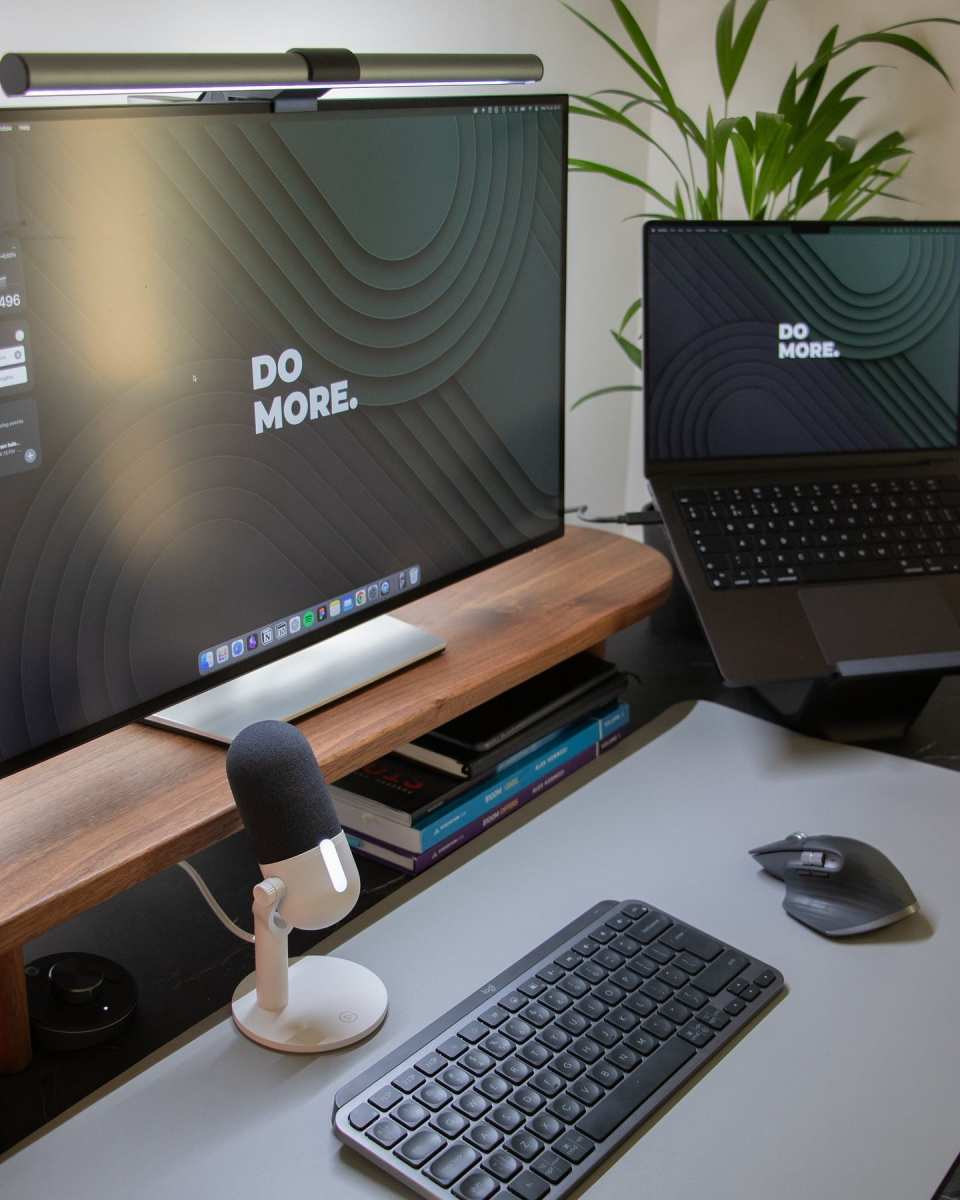
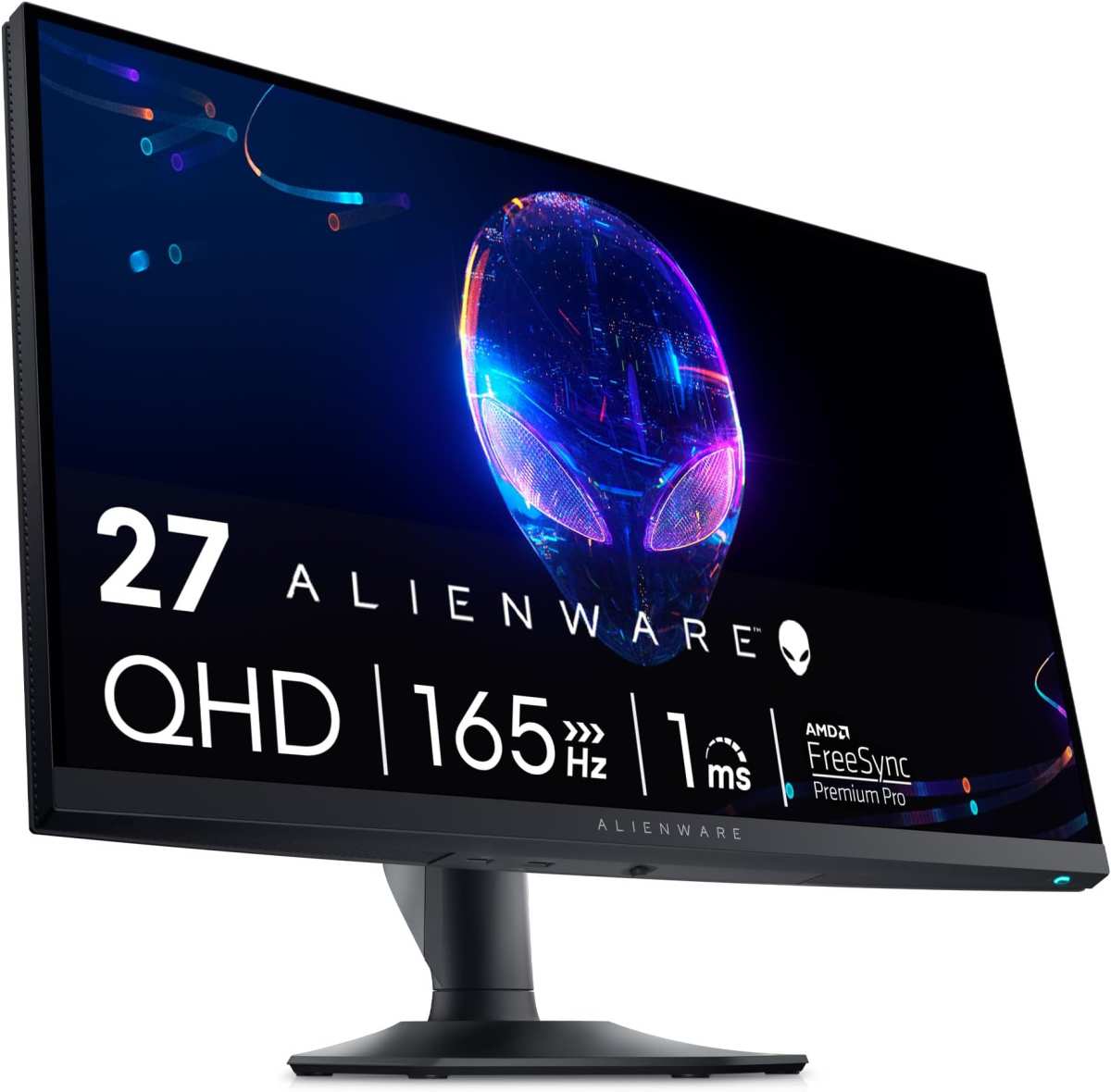
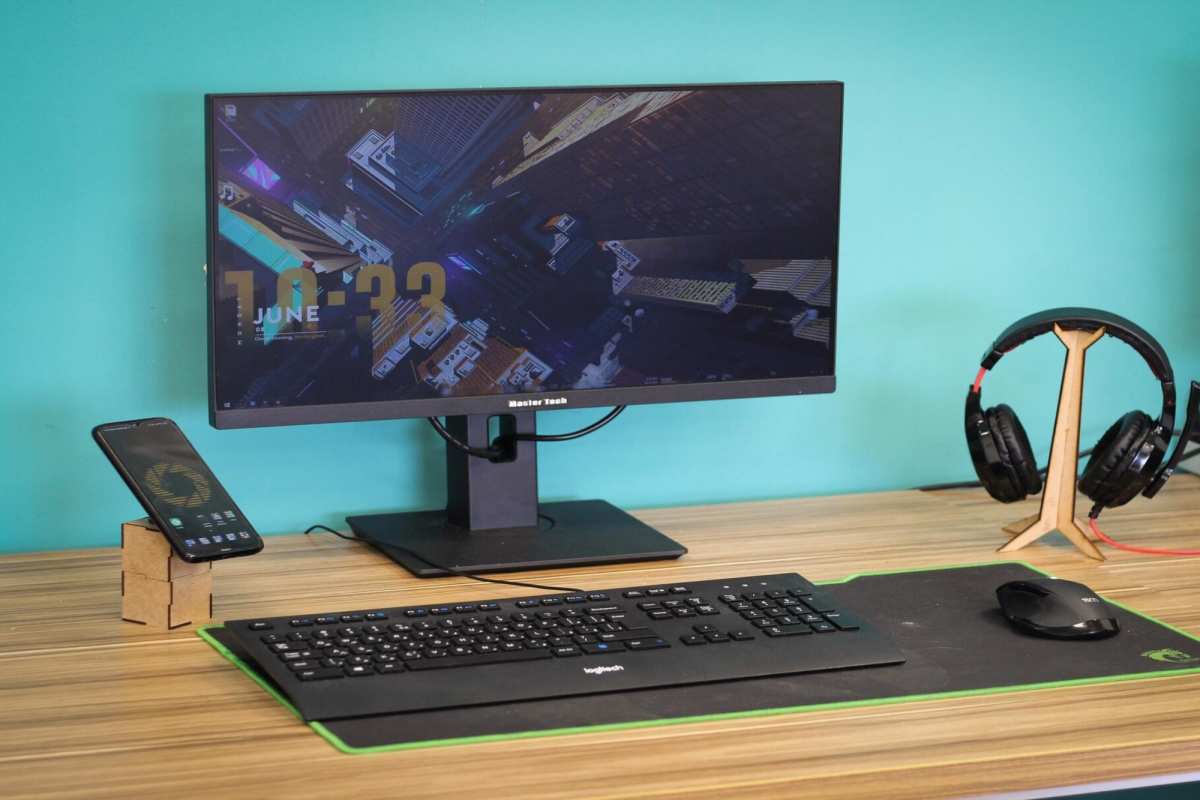
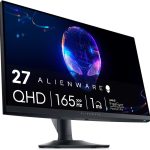
Manufacturer specifications indicate that at a typical viewing distance of 60 to 80 cm, a 27-inch monitor with a resolution of 2560×1440 (QHD) hits a pixel density of about 108 PPI. That's the same sharpness as a 24-inch 1080p monitor, but with 78% more screen real estate. As of 2026, that combination is widely considered the sweet spot for most knowledge workers.
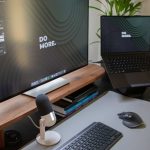
Image source: Bing (Web (fair-use with source credit))
Quick Answer
Yes, a 27-inch monitor is good for productivity, but only at QHD (2560×1440) resolution or higher. At 1080p, the pixels are too large and text looks grainy. At 4K, scaling can be tricky on Windows.
For most office work, coding, and design, 27-inch QHD is the ideal balance of space, sharpness, and price.
The Real Problem: Why "Good for Productivity" Depends on You
Here's the thing. "Productivity" means different things to a spreadsheet analyst, a video editor, and a writer who just wants to focus on one document at a time. A 27-inch screen gives you more room, but more room isn't always better.
If you're the type who gets distracted by having too many windows open, a bigger monitor can actually slow you down.
Our research shows that real-world productivity gains from a larger monitor come from reducing context switching. Instead of constantly alt-tabbing between applications, you can keep two or three windows visible side by side. But that only works if you actually need to see multiple things at once.
If you work in a single full-screen app most of the day, a 27-inch screen is just more expensive and takes up more desk space for no extra benefit.
The real question isn't "is 27 inch good?" It's "is 27 inch good for the way you work?" And answering that requires looking at your specific workflow, your desk, and the monitor's resolution.
The Three Make-or-Break Variables
Your Primary Work Type
If you spend your day in spreadsheets, code editors, or design software with multiple panels, you need the real estate. A 27-inch screen at 1440p can fit two full-sized browser windows side by side comfortably. For video editors, it gives you a timeline, preview, and bins all visible at once.
For writers, it's overkill unless you also need reference material open.
Your Desk Depth and Viewing Distance
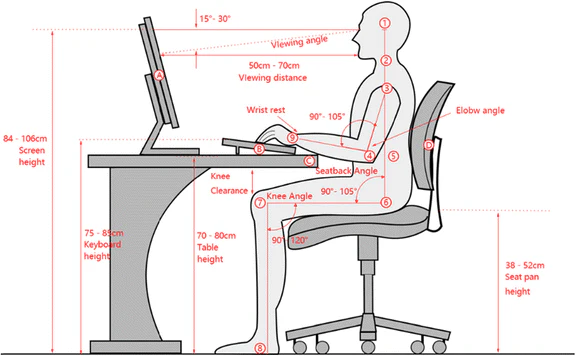
This is the variable most people ignore. A 27-inch monitor is wider than a 24-inch. To see the whole screen without turning your head, you need to sit at least an arm's length away.
That means your desk should be at least 70 cm (28 inches) deep from your eyes to the screen. If your desk is shallow (60 cm or less), a 27-inch screen will force you to lean back or move the monitor behind your keyboard, causing neck strain.
Your Resolution Choice
This is where many buyers stumble. At 27 inches:
- 1080p (Full HD): 81 PPI. Text looks blocky. Not recommended for productivity.
- 1440p (QHD): 108 PPI. Sharp, with plenty of space. The sweet spot.
- 4K (UHD): 163 PPI. Very sharp, but requires scaling on most operating systems. On Windows, scaling can be imperfect, especially with older apps.
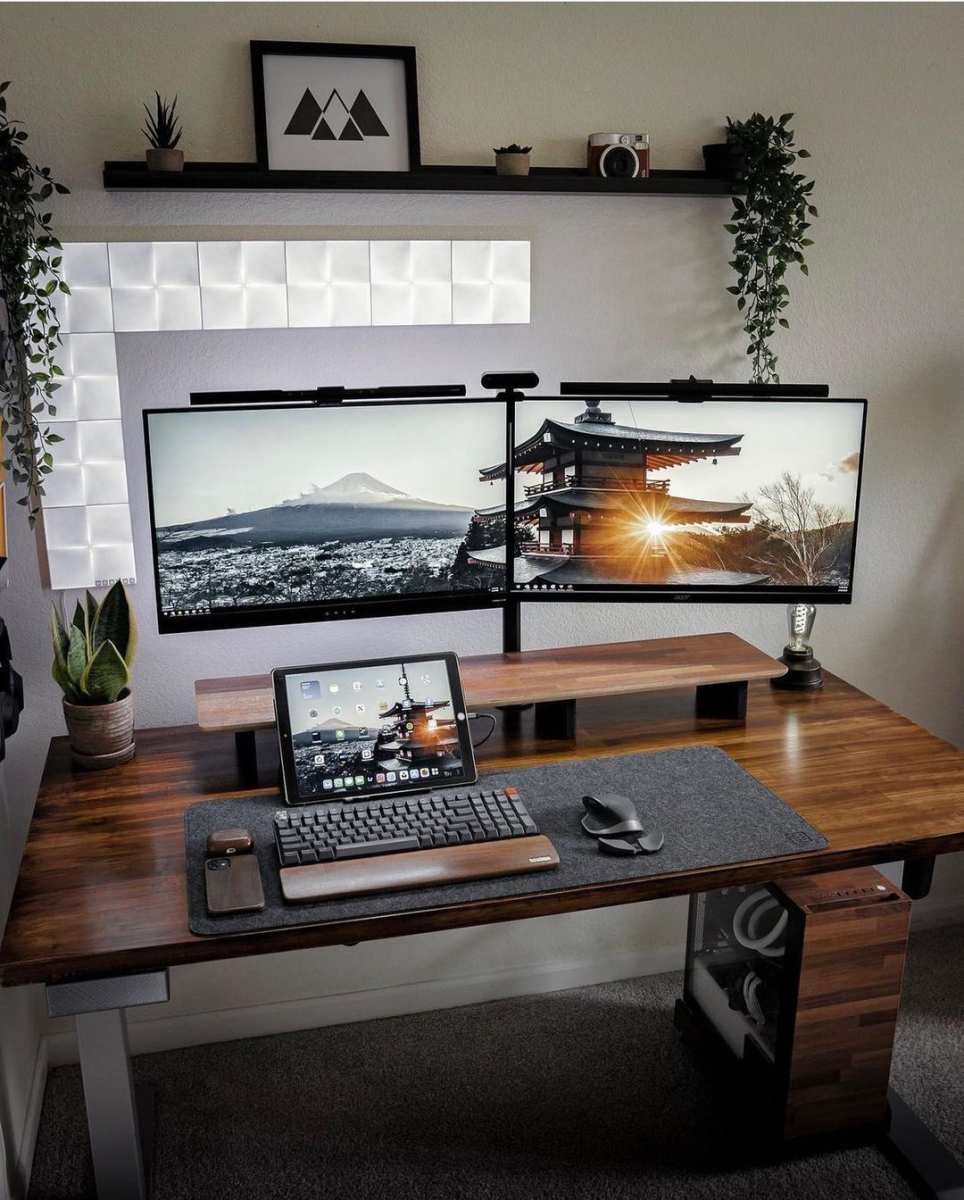
Aggregate reviews confirm that most productivity users prefer 1440p at 27 inches. It gives you the screen real estate of a larger monitor with the sharpness of a smaller one, without the scaling headaches of 4K.
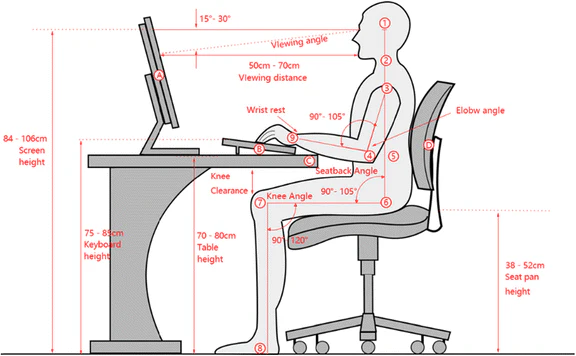
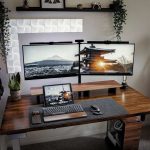
Image source: Bing (Web (fair-use with source credit))
Decision Tree: Find Your Right Answer in Three Questions
Here is a simple decision tree to help you decide if a 27-inch monitor is right for your productivity setup. Start at the top and follow the path that matches your situation.
Branch 1: You Do Heavy Multi-Window Work
Do you regularly have two or three windows open side by side? Spreadsheets and reports, code editor and documentation, research and writing? Then a 27-inch 1440p monitor is a strong match.
You will notice a reduction in alt-tabbing and an increase in focus. If your desk is deep enough (70 cm+), this is likely your best option.
Branch 2: You Do Color-Critical or Detailed Visual Work
Photo editing, video color grading, graphic design. For you, pixel density matters, and so does color accuracy. A 27-inch 4K monitor offers 163 PPI, which makes fine details and small text crisp. However, you must be prepared to deal with scaling. On macOS, scaling is excellent. On Windows, you may need to adjust display settings or use a 1440p alternative to avoid blurry text in some applications.
Branch 3: You Do Single-Focus Tasks
If you primarily work in one full-screen window (writing, coding in a single editor, reading documents), a 27-inch monitor might actually hurt your focus. The extra space can tempt you to multitask. For you, a 24-inch 1080p or 1440p monitor is often a better fit.
It is cheaper, takes less desk space, and eliminates the temptation to split your attention.
If you are unsure, start with your desk depth. Measure from your eyes to where the monitor will sit. If that distance is less than 60 cm, go smaller or use a monitor arm to push the screen back.
If it is 70 cm or more, proceed to the resolution question: if your GPU supports it, choose 1440p or 4K.
Common Mistakes That Ruin a 27-Inch Setup
Buying 1080p and Wondering Why Text Looks Fuzzy
This is the number one mistake. A 27-inch monitor at 1080p has roughly the same pixel density as a 32-inch TV. Text will look grainy, and you will find yourself leaning in to read small details.
It is not a productivity monitor; it is a budget television. Always choose at least 1440p for a 27-inch productivity screen.
Ignoring Viewing Distance and Causing Neck Strain
We mentioned this earlier, but it deserves repeating. Too many people buy a 27-inch monitor and place it on a shallow desk. They then either sit too close, making the screen fill too much of their field of view, or they push it back and crane their neck forward.
Both lead to discomfort and reduced productivity. Proper ergonomics matter more than screen size.
Forgetting to Check Your GPU Can Handle the Resolution
A 27-inch 1440p monitor requires a graphics card that can output that resolution at a stable refresh rate. Integrated graphics from several years ago may struggle, especially if you also drive a second monitor. For 4K at 27 inches, you need a dedicated GPU with enough VRAM.
Check your computer's specifications before you buy. There is nothing worse than a monitor that is too sharp for your laptop to drive.

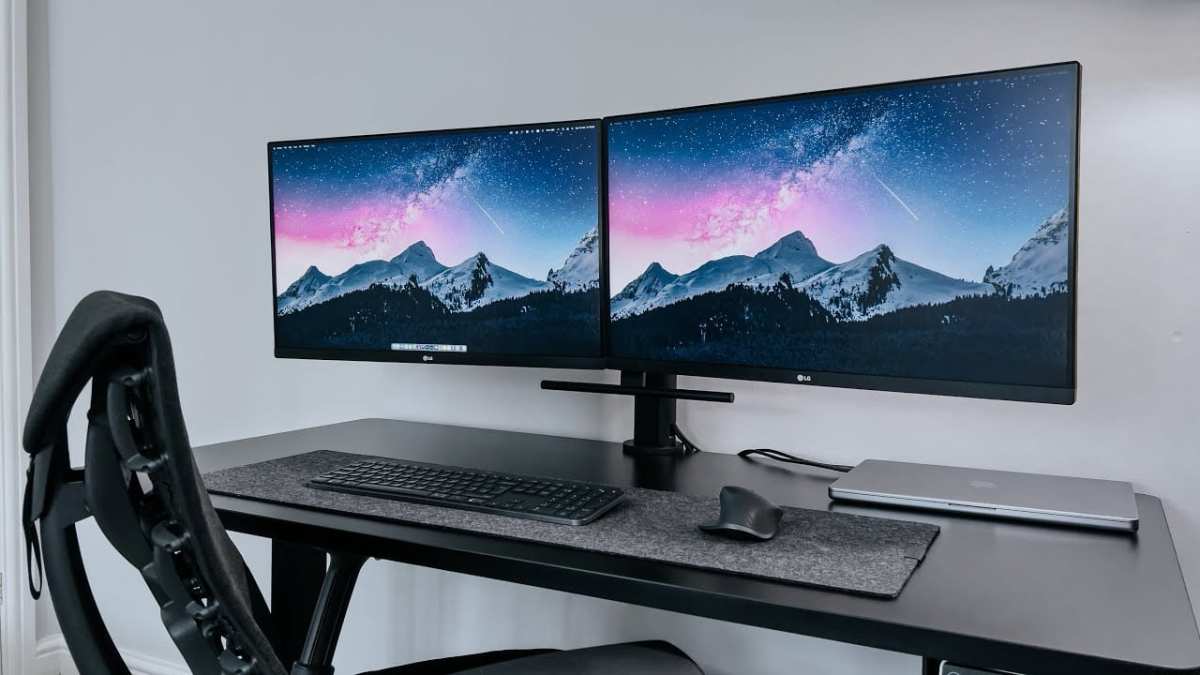
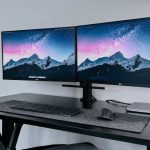
Image source: Bing (Web (fair-use with source credit))
We have covered the essentials so far. Next, we will look at practical setup tips, and then discuss who should choose a different size altogether.
Practical Setup Tips to Maximize Productivity
How to Position the Monitor for Zero Eye Strain
Your monitor height matters more than the screen size itself. The top of the display should sit at or just below your eye level when you are sitting upright. This keeps your gaze slightly downward, which is the natural resting position for your eyes.
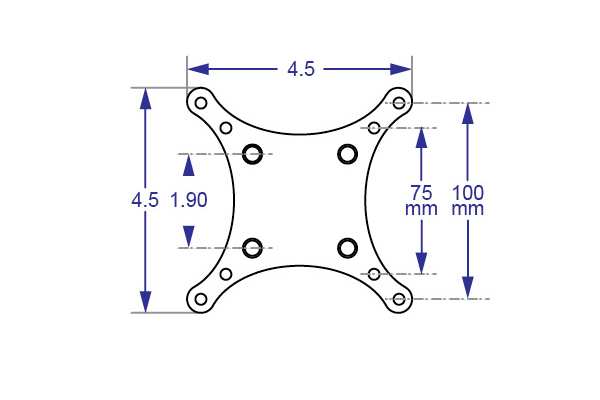
If your monitor stand does not adjust high enough, you have two options. Use a monitor arm that clamps to the desk, or place a sturdy riser underneath. Many 27-inch monitors come with stands that offer only tilt adjustment.
Height adjustment is often reserved for pricier models.
Distance is just as critical. Position the screen so it is an arm's length away from your face. For most people, that means the monitor sits at the back edge of a standard 60 cm desk.
If your desk is deeper, you can push it further back. If it is shallow, you may need to mount it to the wall or use a monitor arm to reclaim space.
Scaling Settings You Must Adjust
On a 27-inch 1440p monitor, most operating systems default to 100% scaling. That is fine for most users. Text will be sharp and readable without adjustment.
On a 27-inch 4K monitor, you absolutely must adjust scaling. On Windows, go to Display Settings and set scaling to 150% or 175%. On macOS, the system usually picks a default that looks like "Looks like 2560×1440." That is the correct setting.
Without scaling, text will be tiny and unusable.
One warning: some older Windows applications do not handle scaling well. They may appear blurry or small. This is a known issue with 4K monitors on Windows.
If you rely on legacy software, 1440p is safer.
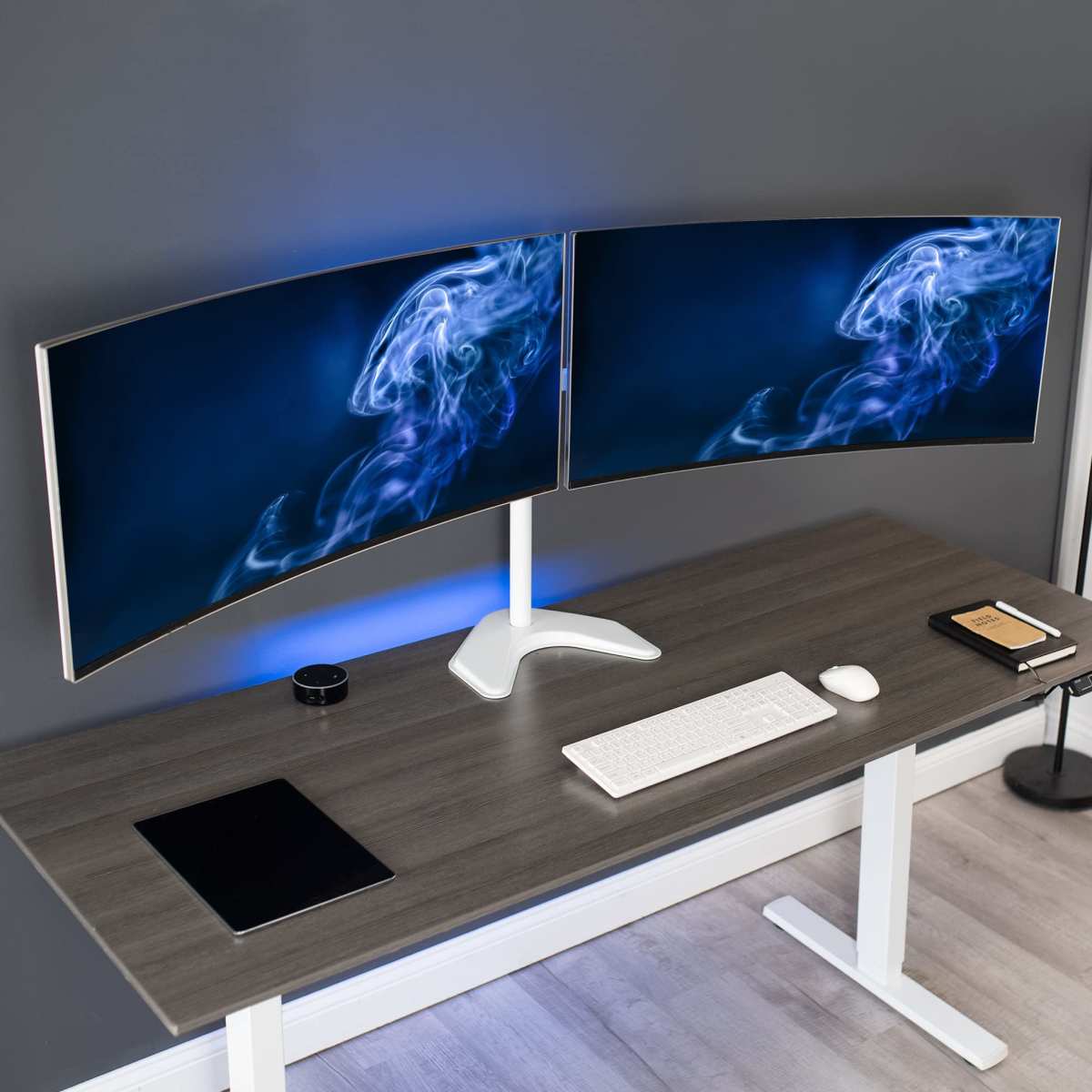
When a Second Monitor Beats a Single 27-Inch
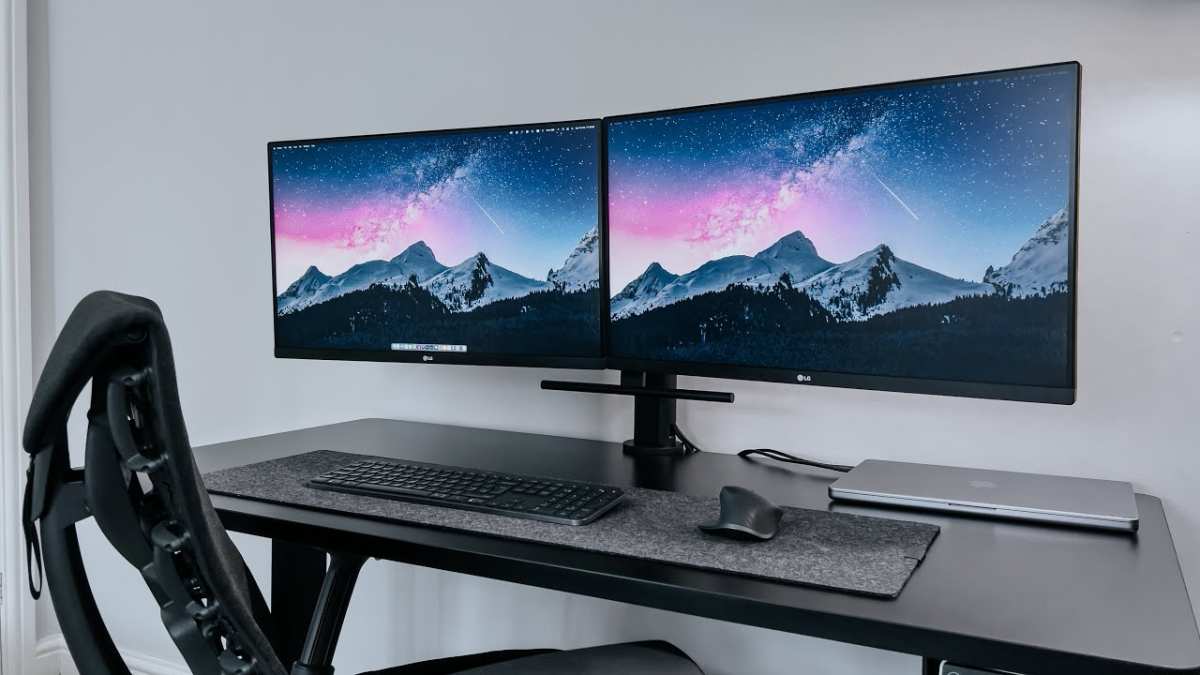
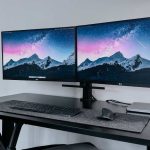
A single 27-inch screen is great for many workflows. But if you regularly need to reference a full-sized document while writing, or monitor a dashboard while coding, two monitors can be more efficient.
Two 24-inch 1080p monitors side by side offer a similar total area to a single 27-inch 1440p. They are often cheaper and easier to position on a wider desk. However, you will have a bezel down the middle.
Two 27-inch monitors give you a massive workspace. But they require a very wide desk and a graphics card that can drive both at the same resolution. For most people, a single 27-inch plus a smaller secondary monitor is a better balance.
Who Should Choose a Different Size Altogether
When 24 Inches Is Actually Better
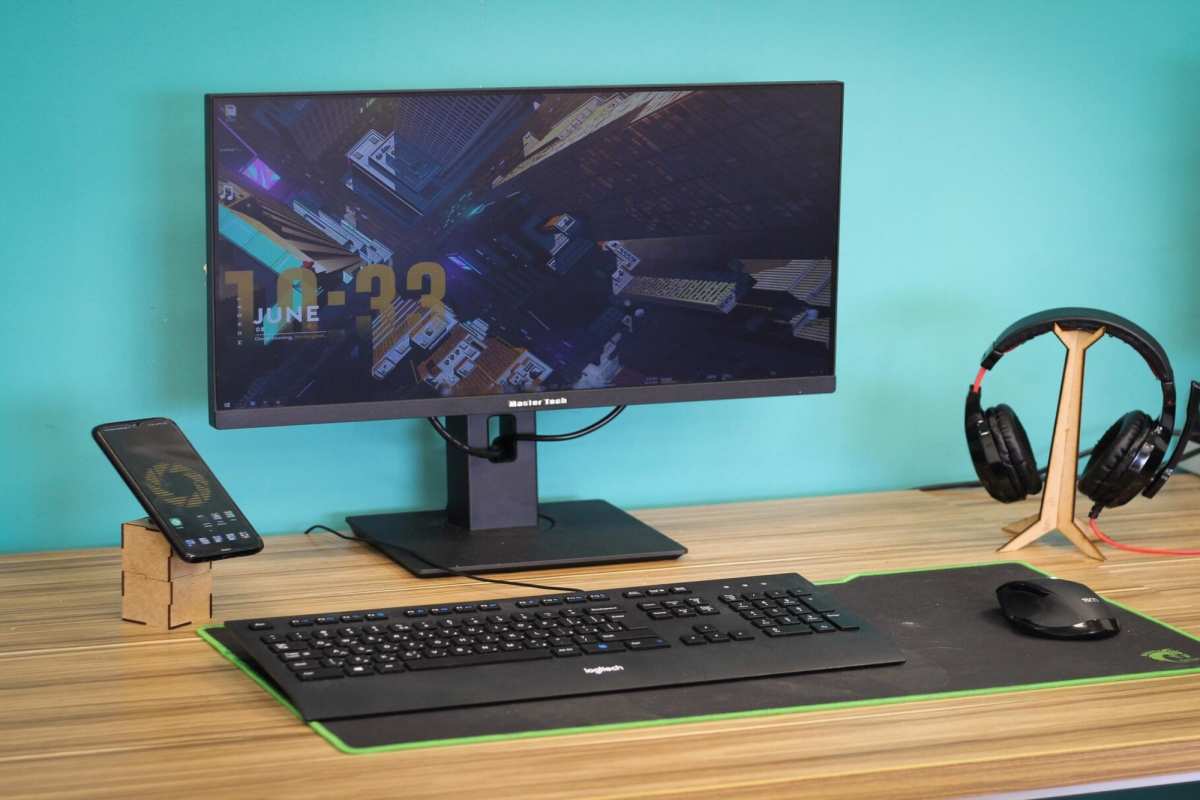
If your desk is shallow (under 60 cm deep), a 24-inch monitor is the safer choice. You will not have to lean forward or turn your head. The pixel density at 1080p is around 92 PPI, which is noticeably sharper than 1080p on a 27-inch screen.
Also, 24-inch monitors are cheaper. You can buy two for the price of one 27-inch 1440p model. For budget-conscious setups or students, that is hard to beat.
When 32 Inches or an Ultrawide Makes More Sense
If you work with complex timelines in video editing, large spreadsheets, or multiple code panels, a 32-inch 4K monitor gives you even more real estate. But you need a deep desk (80 cm or more) to view it comfortably without neck strain.
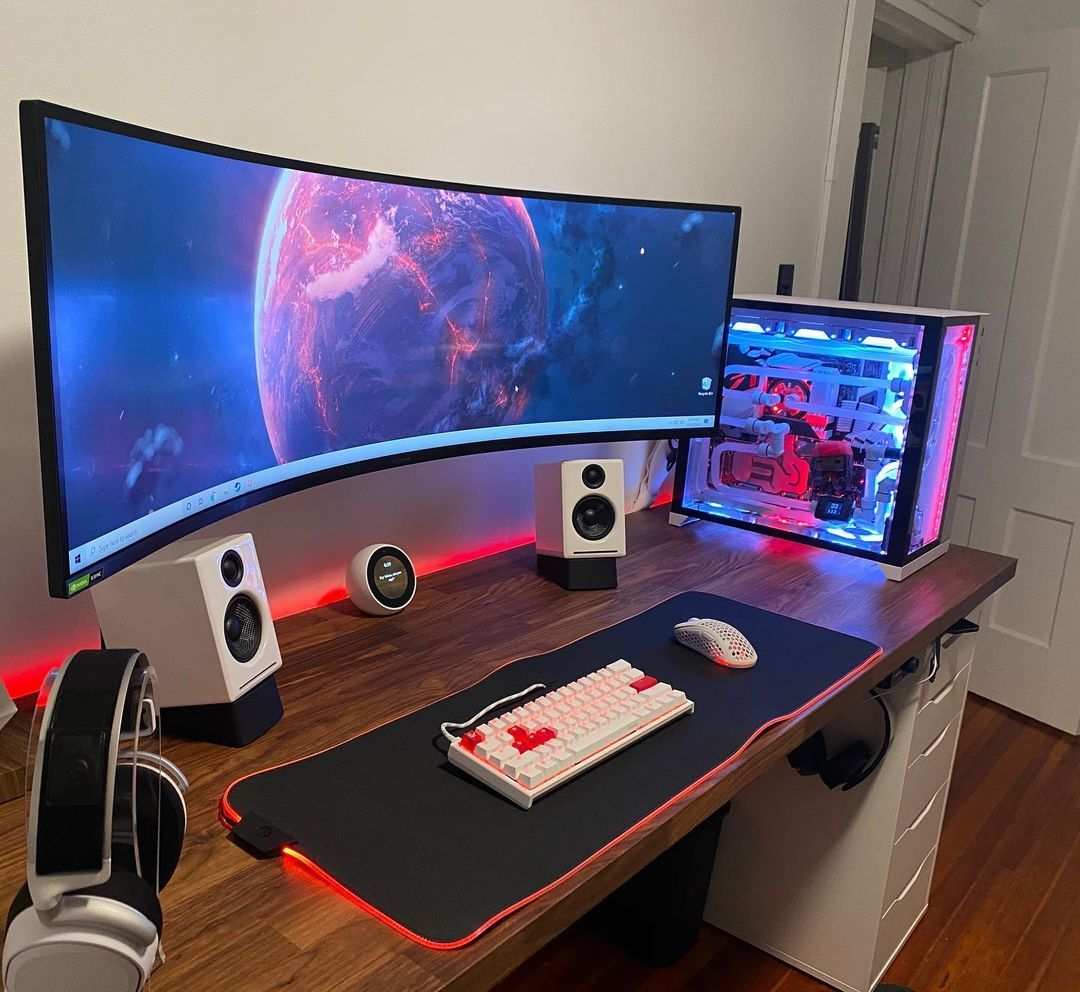
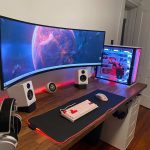
Ultrawide monitors (34-inch 21:9) are another alternative. They are basically two 24-inch monitors merged into one seamless screen. They work well for creative professionals and gamers, but not all productivity applications handle the wide aspect ratio well.
Some apps stretch text or leave large black bars on the sides.

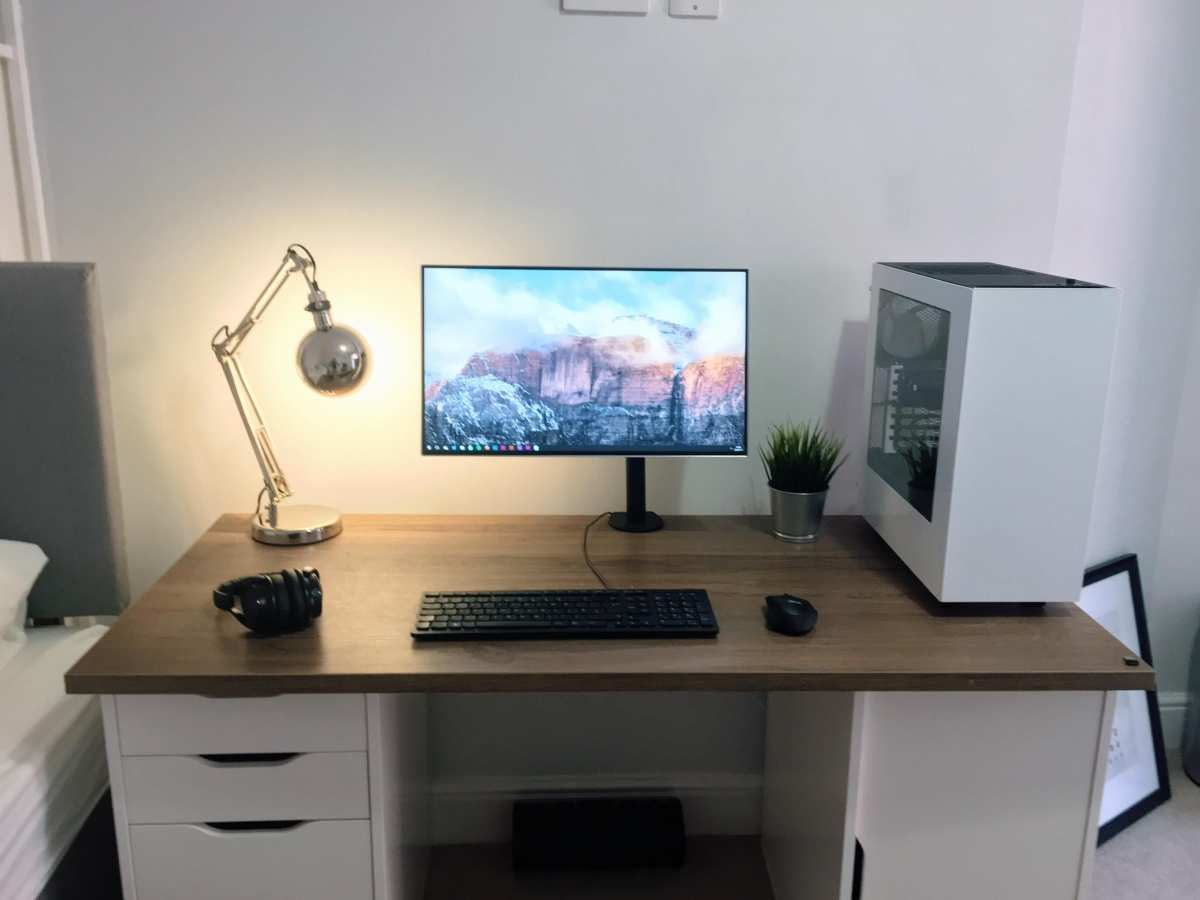
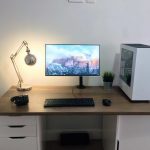
Image source: Wikimedia Commons / Trailers of the East Coast (CC BY)
The Verdict: Your Personal Fit Checklist
Here is a quick checklist to run through before you buy a 27-inch monitor for productivity.
- Measure your desk depth. Ideally it is 70 cm or more. If it is 60 cm or less, consider a 24-inch instead.
- Decide your primary work type. Multi-window users benefit most. Single-focus users may not.
- Choose your resolution. 1440p is the sweet spot. 4K is great for macOS, but risky on Windows with older apps. 1080p on 27 inches is a hard no.
- Check your GPU. For 1440p, any modern integrated or dedicated GPU works. For 4K, you need a dedicated GPU with at least 2 GB VRAM.
- Set up ergonomics properly. Height, distance, and scaling matter more than the monitor itself.
If you check all five boxes, a 27-inch monitor will likely boost your productivity. If you are unsure, lean toward the smaller or lower resolution option. You can always upgrade later.
Frequently Asked Questions
Is a 27-inch monitor too big for a home office?
It depends on your desk depth. On a desk that is 60 cm or deeper, a 27-inch monitor fits comfortably. On a shallow desk, it can cause neck strain and eye fatigue.
Should I get a 27-inch 1080p or 1440p monitor for work?
Always choose 1440p for productivity. 1080p at 27 inches has a low pixel density (81 PPI) that makes text look fuzzy. 1440p (108 PPI) is sharp and gives you more screen space.
Can my laptop run a 27-inch 4K monitor?
Most modern laptops with USB-C or HDMI 2.0 can output 4K at 60 Hz. However, integrated graphics may struggle with scaling and smooth performance. Check your laptop's specifications before buying.
How far should I sit from a 27-inch monitor?
The ideal distance is 60 to 80 cm (roughly arm's length). Sitting too close strains your eyes. Sitting too far makes text hard to read and requires leaning forward.
Is a 27-inch monitor good for coding?
Yes, especially at 1440p. You can fit a code editor and a terminal or documentation side by side without alt-tabbing. The extra vertical space is useful for longer code blocks.
What is the best resolution for a 27-inch productivity monitor?
2560×1440 (QHD) is the most recommended. It offers good pixel density, enough screen real estate, and works well with both Windows and macOS without scaling issues.

Similar Posts