How to Use ChatGPT Canvas
If you've ever found yourself stuck in a loop of copy-pasting between ChatGPT and a separate document, you're not alone. Learning how to use ChatGPT Canvas changes that workflow entirely by giving you a dedicated workspace where you can write, edit, and refine without losing your place in the conversation.
Canvas is OpenAI's side-by-side editing environment built directly into ChatGPT. As of 2026, it's available on ChatGPT Plus, Pro, Team, and Enterprise plans, and it supports both long-form writing and code editing with tools that go well beyond what the standard chat window offers. Let's walk through exactly how it works and when it's worth switching over.
Quick Answer
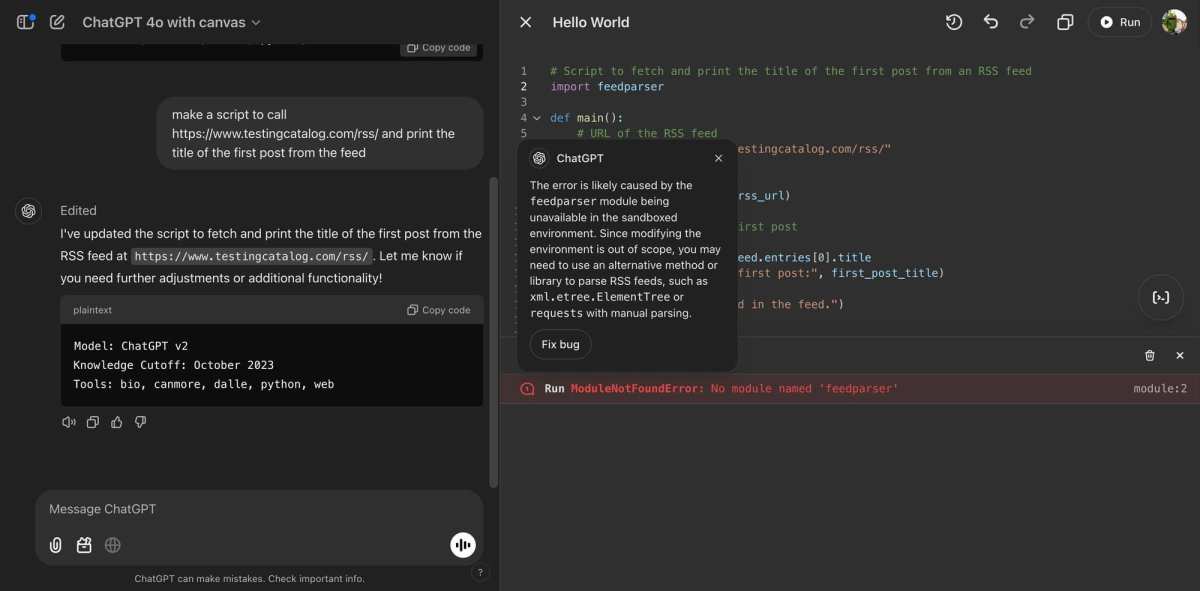
ChatGPT Canvas is a split-screen workspace inside ChatGPT for writing and coding. Open it by clicking the Canvas icon in the toolbar or selecting "Edit in Canvas" from the message menu. You can highlight text for inline suggestions, adjust tone and length with one click, and switch between writing and code modes.
It's included with ChatGPT Plus and higher tiers at no extra cost.
What ChatGPT Canvas Actually Is and Why It's Different
Canvas isn't a separate app or a premium add-on. It's a viewing mode inside ChatGPT that splits your screen into two zones: your conversation on one side and a persistent editing workspace on the other. Think of it like going from a text message thread to a shared Google Doc, except the AI is right there in the document with you.
The key difference from standard chat is persistence. In a normal ChatGPT conversation, your output scrolls up and away as the chat grows. Canvas keeps your work anchored in place.
You can highlight a paragraph, ask for a revision, and see the change applied inline without regenerating the entire response.
Canvas also gives you a set of editing tools that don't exist in the standard chat window. You can adjust the reading level, change the tone, shorten or lengthen text, and add comments to code blocks. These controls sit right above the workspace, so you're not typing out long prompts just to tweak a draft.
Here's a quick breakdown of what Canvas adds on top of standard chat:
| Feature | Standard Chat | Canvas |
|---|---|---|
| Persistent workspace | No | Yes |
| Inline text editing | No | Yes |
| Highlight-to-edit | No | Yes |
| Tone and length controls | No | Yes |
| Code review and suggestions | No | Yes |
| Version history | Limited | Yes |
| Pop-out window | No | Yes |
Canvas activates automatically for certain tasks, like when you ask ChatGPT to write a long document or generate code. You can also open it manually from the toolbar.
How to Open and Start Using Canvas
Getting into Canvas is straightforward once you know where to look. There are three main ways to open it, and the option you see depends on what you're doing at the moment.
Method 1: The toolbar button. Look at the top of the ChatGPT compose bar. You'll see a Canvas icon (it looks like a document or pen symbol). Click it, and your current conversation opens in the split-screen Canvas view.
Method 2: The message menu. Hover over any ChatGPT response and click the "…" menu. If the response is suitable for Canvas, you'll see an "Edit in Canvas" option. This is the fastest way to take an existing answer and start refining it.
Method 3: Automatic activation. ChatGPT will sometimes open Canvas on its own when it detects you're working on a long-form task. Writing an essay, drafting a report, or generating a script are common triggers.
Once Canvas is open, you'll see the workspace on the right and your chat history on the left. You can pop the workspace into its own window using the expand icon, which is handy if you're working on a large monitor and want the full screen for editing.
A few things to keep in mind. Canvas requires a paid plan. If you're on the free tier, you won't see the Canvas option at all.
You need ChatGPT Plus ($20/month), Pro ($200/month), Team ($25/user/month), or Enterprise. Also, the model you're using matters. Full Canvas functionality works best with GPT-4o and later models.
Older models may not support all the editing features.
Writing in Canvas: Editing, Formatting, and Style Controls
This is where Canvas really earns its keep for anyone who writes regularly. The writing tools sit right above the document, and they let you make targeted changes without retyping your prompt.
Here's what you can do with the writing controls:
- Adjust length. Make a section shorter or longer with a slider. This is useful when you need to hit a word count or tighten up a rambling paragraph.
- Change the reading level. Drop the complexity from a college reading level down to elementary, or push it up for a technical audience.
- Modify tone. Shift from formal to casual, persuasive to neutral, or any direction your project needs.
- Add comments. Drop notes into the text for yourself or a collaborator without breaking the flow of the document.
The highlight-to-edit feature is the real time-saver. Select any passage of text, and a small menu pops up with options like "Improve writing," "Fix spelling and grammar," or "Make more concise." You can also type a custom instruction for just that selection.
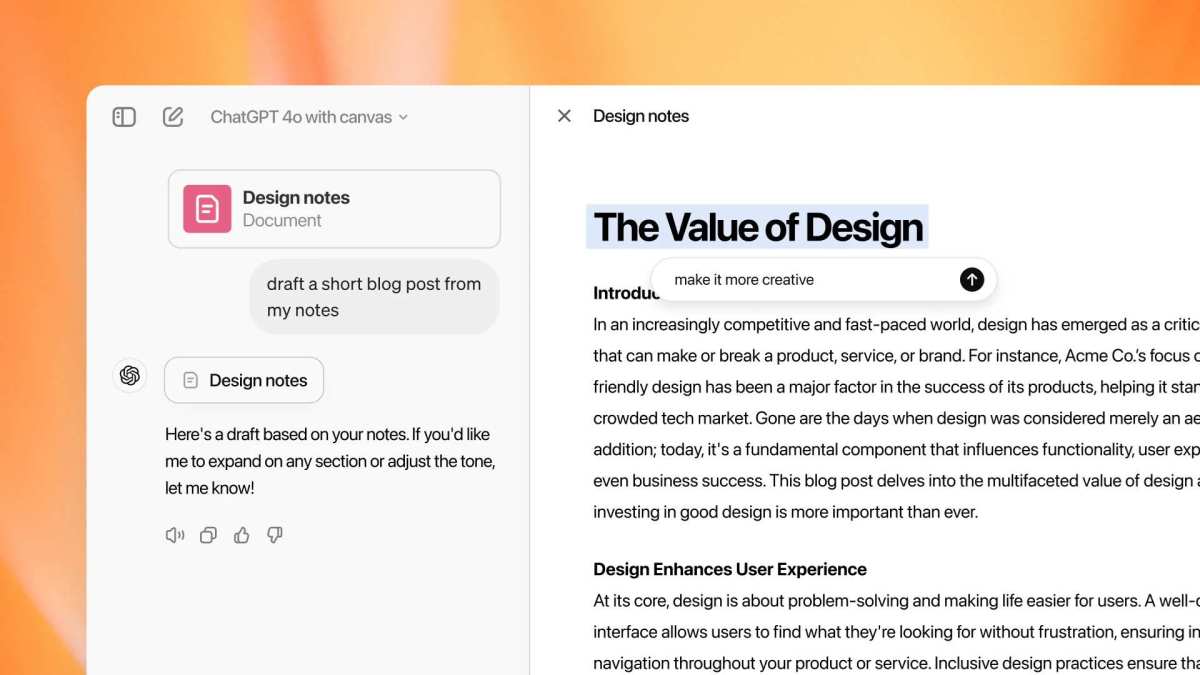
Let's say you've drafted a 500-word blog post introduction. You highlight the opening paragraph and select "Make more concise." Canvas rewrites just that section while leaving the rest untouched. No need to regenerate the whole article or copy anything into a separate editor.
The version history is another underrated feature. Every major edit gets tracked, so you can compare versions or roll back if a revision doesn't land right. It's not as robust as Git for code, but for writing drafts, it's more than enough.
One limitation worth noting: Canvas doesn't support real-time multi-user collaboration. It's a single-user workspace. If you need multiple people editing simultaneously, you'll still want a tool like Google Docs alongside Canvas.
Coding in Canvas: Suggestions, Review, and Debugging
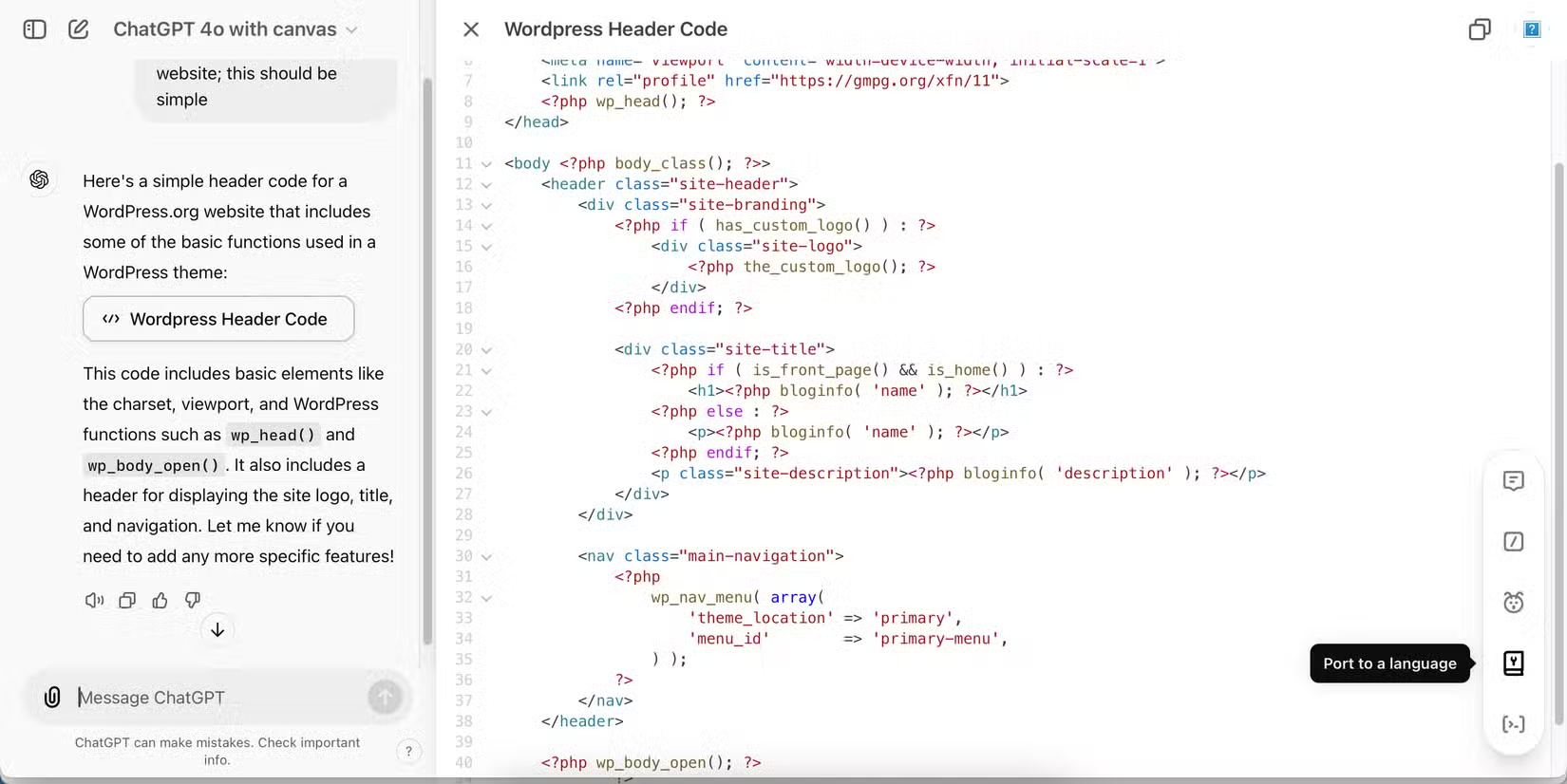
Canvas isn't just for writers. The code editor mode gives developers a surprisingly capable workspace for reviewing, debugging, and refactoring code without leaving ChatGPT.
When you open a code response in Canvas, the interface shifts. You get syntax highlighting, line numbers, and a set of code-specific tools that don't appear in writing mode. The AI can review your code, suggest fixes, add logging, or port the entire block to another language.
Here are the main code tools available in Canvas:
- Add comments. The AI annotates your code with explanatory comments, which is great for documentation or onboarding.
- Fix bugs. Highlight a problematic section and ask Canvas to find and resolve the issue.
- Add logging. Insert print statements or logging calls to help with debugging.
- Port to another language. Convert a Python script to JavaScript, or any supported language pair.
- Code review. Get a structured review with suggestions for readability, performance, and best practices.
The workflow feels a lot like having a junior developer sitting next to you. You paste in a function, ask for a review, and get back specific suggestions with explanations. It's not a full IDE, but for quick reviews and one-off scripts, it's remarkably efficient.
One thing to watch: Canvas doesn't execute code. You can review and edit, but you'll need to run the code in your own environment. This is by design.
OpenAI has kept Canvas as an editing and review tool, not a runtime environment.
The model you're using affects code quality. GPT-4o handles most tasks well, but for complex debugging or architecture questions, switching to o1 or o3 (available on Pro and Enterprise) gives noticeably better results. You can switch models directly from the Canvas toolbar without losing your workspace.
When Canvas Makes Sense vs. Standard ChatGPT Chat
Not every task needs Canvas. The standard chat window is still the better choice for quick questions, short answers, and back-and-forth conversations where you're exploring ideas rather than producing a finished product.
Here's a simple way to decide. If your task involves a single prompt and a short answer, stay in chat. If you're going to iterate on a document, refine a draft, or work through multiple revisions of code, Canvas is the right tool.
Use Canvas when you're:
- Writing anything longer than a few paragraphs
- Drafting code that needs review or debugging
- Working on a document that will go through multiple revisions
- Needing to compare versions of your work
- Adjusting tone, length, or reading level repeatedly
Stick with standard chat when you're:
- Asking quick factual questions
- Having a conversational brainstorming session
- Getting a short summary or explanation
- Testing prompts before moving them into Canvas
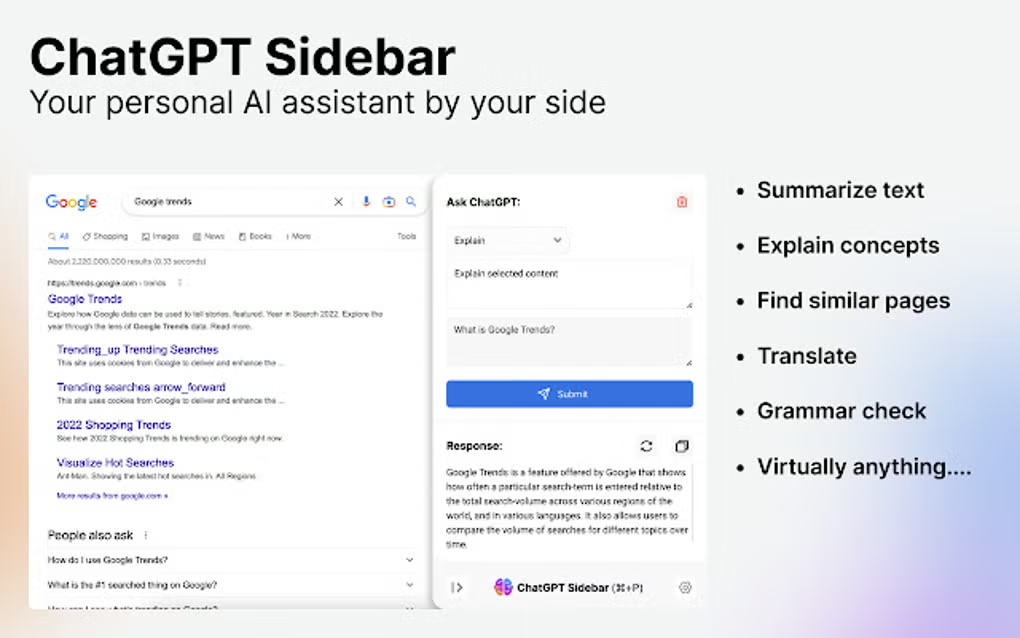
The transition between the two is seamless. You can start in chat, move to Canvas when the work gets serious, and jump back to chat if you need to ask a follow-up question. Your context carries over, so you're not starting from scratch.
A common mistake is trying to force every interaction into Canvas. If you're just asking ChatGPT to explain a concept or recommend a recipe, the split-screen workspace adds unnecessary complexity. Save it for the tasks where the editing tools actually earn their keep.
Step-by-Step Workflow: From First Prompt to Finished Output
Let's walk through a complete Canvas session from start to finish. This workflow applies whether you're writing an article or debugging code, with small adjustments depending on your task.
Step 1: Start with a clear prompt in standard chat
Don't open Canvas right away. Start in the standard chat window and give ChatGPT a detailed prompt. The better your initial prompt, the less editing you'll need later.
Include your target audience, desired tone, approximate length, and any specific requirements.
Step 2: Move the response to Canvas
Once ChatGPT generates the output, hover over the response and click the "…" menu. Select "Edit in Canvas." The output opens in the split-screen workspace, and you can start refining immediately.
Step 3: Use highlight-to-edit for targeted changes
Read through the draft and highlight sections that need work. Use the inline menu for quick fixes like "Make more concise" or "Improve clarity." For bigger changes, type a custom instruction in the chat panel on the left.
Step 4: Adjust global settings for tone and length
If the whole piece needs a shift, use the writing controls above the workspace. Adjust the reading level, tone, or length slider. These apply to the selected text or the entire document, depending on what's highlighted.
Step 5: Review versions before finalizing
Open the version history to compare your current draft against earlier iterations. If a revision went sideways, roll back to the previous version. This is especially helpful when you're several rounds deep into edits.
Step 6: Export or copy your finished work
Canvas doesn't have a one-click export button. You'll copy the finished text into your preferred editor or document tool. Formatting like bold and headers usually transfers cleanly into Google Docs or Word.
Code blocks paste well into any IDE.
Canvas on Desktop vs. Mobile: What Changes
Canvas works on both desktop and mobile, but the experience is significantly different across platforms. If most of your editing happens on a phone or tablet, you'll want to know where the gaps are.
Desktop (web and app): This is where Canvas shines. The split-screen layout uses the full width of your monitor, and the pop-out window gives you even more space. All writing and code tools are available, including the full version history and model selector.
The keyboard shortcuts work here too, which speeds up repetitive tasks.
Mobile (iOS and Android): Canvas is available in the ChatGPT mobile app, but it's stripped down. The split-screen view doesn't translate well to a small display, so you'll get a simplified version of the workspace. Some editing tools, like the tone and length sliders, may be harder to access or missing entirely.
Code editing on mobile is functional but cramped.
Platform comparison at a glance:
| Feature | Desktop Web/Desktop App | Mobile App |
|---|---|---|
| Full split-screen layout | Yes | Limited |
| All writing tools | Yes | Partial |
| Code editor with syntax highlighting | Yes | Yes, but limited |
| Version history | Yes | Limited |
| Pop-out window | Yes | No |
| Model selector | Yes | Yes |
| Keyboard shortcuts | Yes | No |
If you're planning a serious editing session, desktop is the way to go. Mobile Canvas works for quick fixes on the go, but anything more than light revisions is frustrating on a small screen.
One more thing: the desktop app (available for macOS and Windows) handles large documents better than the web version in some cases. Aggregate user reviews suggest fewer lag issues with files over 2,000 words when using the downloaded app rather than a browser tab.
Common Mistakes People Make with Canvas
Even experienced ChatGPT users hit snags with Canvas. Here are the most frequent issues and how to avoid them.
Trying to open Canvas on a free plan. Canvas requires a paid ChatGPT subscription. If you don't see the Canvas icon, check your plan first. Free tier users don't get access.
Switching models and losing context. If you switch from GPT-4o to o1 while working in Canvas, the workspace may reset or lose parts of your document. Save your work before changing models, or complete your edits on one model before switching.
Expecting real-time collaboration. Canvas is single-user only. You can't have two people editing the same document at the same time. If you need shared editing, export to Google Docs or Notion after your Canvas session.
Ignoring version history until it's too late. Some users don't realize version tracking exists until they've made an irreversible change. Get in the habit of checking version history before major rewrites. It saves a lot of frustration.
Using Canvas for tasks that don't need it. Quick questions, short answers, and casual conversations are better suited to standard chat. Canvas adds overhead that slows you down for simple tasks.
Not copying work out before closing. Canvas content is tied to your ChatGPT session. If the browser crashes or the app closes unexpectedly, you could lose unsaved edits. Copy important work to an external document regularly.
Assuming code execution is available. Canvas is an editor, not a runtime. You can review, edit, and get suggestions, but you'll never run code directly inside Canvas. Plan to test in your own environment.
How Canvas Compares to Other AI Writing and Coding Tools
Canvas occupies a specific niche. It's not a full replacement for dedicated writing or coding tools, but it fills a gap that neither chat interfaces nor traditional editors handle well.
Here's how it stacks up against the most common alternatives:
| Tool | Best For | Key Difference from Canvas |
|---|---|---|
| Standard ChatGPT chat | Short answers and conversations | No editing workspace or tools |
| Google Docs with AI add-ons | Collaborative writing | Real-time multi-user editing, no inline AI |
| Notion AI | Structured note-taking and docs | Database features, limited code support |
| Microsoft Copilot in Word | Office workflow integration | Deeper Microsoft 365 integration |
| Claude Artifacts | Side-by-side AI output viewing | Similar concept, different model behavior |
| Cursor IDE | Full AI-assisted coding | Complete IDE with file system access |
| GitHub Copilot | In-editor code suggestions | Works inside your existing IDE |
| Grammarly | Grammar and style checking | Writing-only, no code support, no generation |
Canvas sits in the middle ground. It's more capable than a chat window for producing finished work, but less powerful than a full IDE or a dedicated writing app with collaborative features.
The biggest advantage Canvas has is integration. You're already in ChatGPT, so there's no switching between tools. You can move from brainstorming in chat to drafting in Canvas to exporting for final polish, all within the same session.
Where Canvas falls short is collaboration and export. You can't share a live Canvas document with a teammate for simultaneous editing. And the lack of a proper export function means you're always copying and pasting into another tool for final formatting.
For developers specifically, Cursor or GitHub Copilot will handle larger codebases better because they understand your entire project structure. Canvas works on individual functions and scripts, not multi-file projects. If you're reviewing one function or debugging a single file, Canvas is great.
If you're refactoring a whole codebase, use a dedicated IDE.
Pricing and Who Gets Access
Canvas doesn't cost anything beyond your existing ChatGPT subscription. It's included as a standard feature on all paid tiers.
Here's the current pricing structure as of early 2026:
| Plan | Monthly Cost | Canvas Access | Best For |
|---|---|---|---|
| Free | $0 | No | Casual chat only |
| ChatGPT Plus | $20 | Yes | Individual power users |
| ChatGPT Pro | $200 | Yes | Heavy usage, priority access to models |
| ChatGPT Team | $25/user | Yes | Small teams and businesses |
| ChatGPT Enterprise | Custom pricing | Yes | Large organizations with admin controls |
ChatGPT Plus is the entry point for most people who want Canvas. At $20/month, you get full access to the workspace, all editing tools, and the ability to switch between GPT-4o and other available models.
The Pro plan unlocks o1, o3, and future reasoning models within Canvas. If you're doing complex code reviews or technical writing, those models make a noticeable difference in output quality.
Team and Enterprise plans add administrative controls, usage analytics, and compliance features. Enterprise customers get SOC 2 compliance and can configure admin policies around Canvas usage. This matters for organizations handling sensitive data.
One thing to watch: OpenAI has adjusted its pricing and feature availability multiple times since Canvas launched. What's accurate today could shift in a few months. Check the official OpenAI pricing page before making a decision if you're reading this well after publication.
Expert Tips for Getting the Most Out of Canvas
Start in standard chat, then move to Canvas. Your initial prompt shapes everything that follows. Get the foundation right before the split-screen editing begins.
Use the pop-out window on a second monitor. This gives your document full screen width. You lose nothing visually, and long passages are much easier to scan.
Set your model before you start heavy editing. Switching models mid-session can fragment your context. GPT-4o handles most tasks well, but o3 produces stronger code reviews if that's your primary focus.
Highlight specific sections rather than editing the whole document at once. Targeted changes keep the AI focused and produce cleaner revisions than broad instructions.
Real Workflows: Writers, Developers, and Teams Using Canvas
Writers use Canvas for drafting blog posts, reports, and proposals. The tone and length controls remove the need for endless back-and-forth prompts during revision rounds.
Developers paste in individual functions for review before committing. The inline comment and bug-fix tools catch issues fast without opening a full IDE.
Product managers draft specs and documentation in Canvas, then export to Notion or Confluence for team distribution. The single-user limitation means it replaces drafting time, not collaboration time.
Frequently Asked Questions
Can I use Canvas on the free plan?
No. Canvas requires a paid subscription. ChatGPT Plus or higher is the minimum.
Free tier users only get the standard chat interface.
Does Canvas support multiple users editing at the same time?
No. Canvas is a single-user workspace. You can't share a live session with another person for simultaneous editing.
What happens if I close the Canvas window?
Your work is tied to your ChatGPT session. Closing the window doesn't delete it, but a browser crash before the session saves could cause loss. Copy finished work to an external editor.
Can I export files directly from Canvas?
There's no built-in export button. You'll copy the text or code into your preferred editor. Formatting carries over well into Google Docs, Word, and most code editors.
Which model works best in Canvas?
GPT-4o handles most tasks smoothly. For complex debugging or technical writing, o3 and o1 produce noticeably better output. You can switch models from the toolbar.
Final Verdict: Should You Be Using Canvas?
Canvas earns its place for anyone producing longer-form content or working through multiple code revisions inside ChatGPT. The editing tools eliminate a category of repetitive prompts that slow down standard chat.
If you're on ChatGPT Plus or Pro and regularly write documents, draft content, or review scripts, Canvas will save real time. If you're a free-tier user or mostly asking short questions, it's not worth upgrading just for this feature. For power users already paying for ChatGPT, Canvas is one of the most practical upgrades OpenAI has shipped.

Similar Posts





















