ChatGPT Canvas vs Document
When you're staring at two writing tools inside the same AI platform, the chatgpt canvas vs document question stops being about features and starts about workflow. One tool wants to sit beside you while you rewrite. The other wants to hold your finished work.
Picking the wrong one costs you time, context, and sometimes the whole draft.
OpenAI's ChatGPT Plus runs $20 per month as of 2026, and both Canvas and Documents sit behind that paywall. The difference isn't price. It's how each tool handles your text, your context, and your creative process.
Let's break down exactly when each one earns its place in your workflow.
Quick Answer
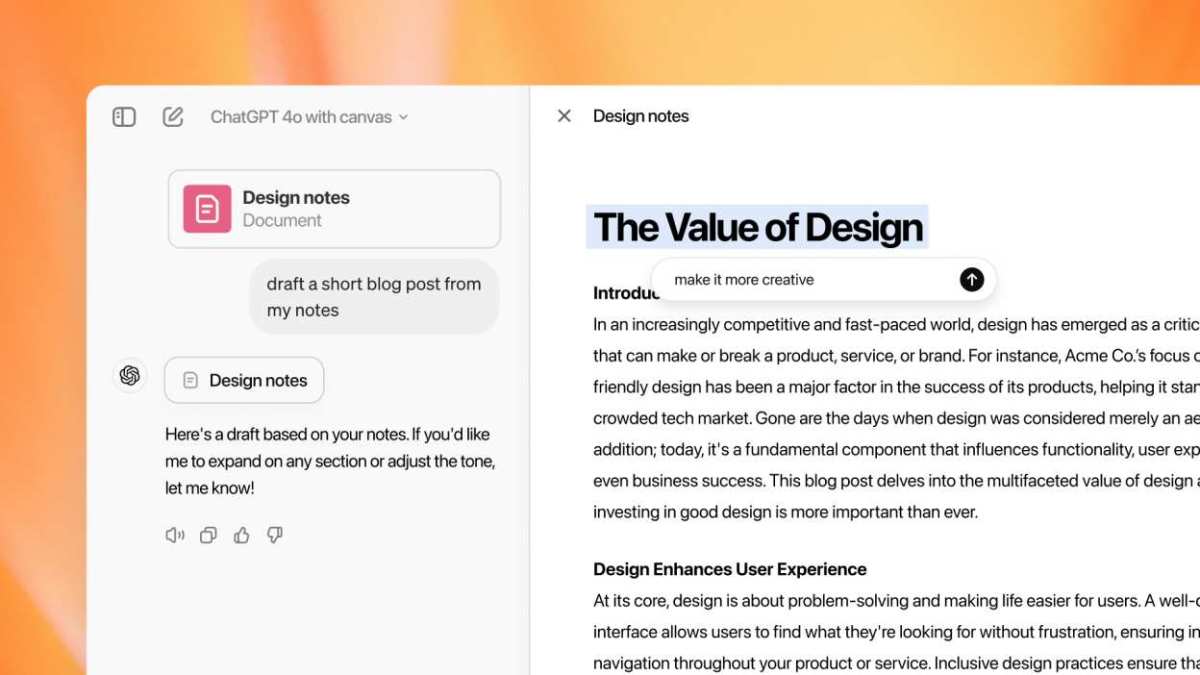
ChatGPT Canvas is a split-panel workspace for iterative editing. You highlight text, request changes, and refine in real time. ChatGPT Documents is a multi-page editor for structured, long-form writing.
Canvas wins for short, tight editing cycles. Documents wins for reports, guides, and anything over a few thousand words. Most power users switch between both depending on the task.
What ChatGPT Canvas Actually Is (and Why It Exists)
Canvas launched as OpenAI's answer to a specific frustration. You'd write something in ChatGPT, get a response, then need to tweak one paragraph. The old workflow meant re-pasting the whole text, explaining what changed, and hoping the AI remembered your tone.
Canvas kills that loop.
The interface splits your screen. Chat sits on one side. Your editable workspace sits on the other.
You highlight a sentence, ask for a revision, and the change appears right there. No re-pasting. No re-explaining.
The workspace holds your context.
Here's what makes Canvas structurally different from standard chat:
- Highlight-to-edit workflow, Select any chunk of text and request targeted changes without touching the rest.
- Inline suggestions, The AI offers rewrites, expansions, or critiques that you accept or reject.
- Code diff view, For programming tasks, Canvas shows exactly what changed line by line.
- Workspace memory, The conversation stays anchored to your document, so you lose less context between prompts.
Canvas isn't trying to be a word processor. It's trying to be the best possible editing companion. That distinction matters when you're deciding where to spend your time.
What ChatGPT Documents Does Differently
Documents took a different design path. Instead of a split panel, you get a left sidebar with page navigation and a main editing area that feels closer to Google Docs or Notion.
The structure here is built for length and organization. You create pages, add sections, and build something meant to be read later or handed off to someone else.
Documents handles these tasks better than Canvas ever could:
- Multi-page projects, Build a 10-page report without losing track of where you are.
- Section hierarchy, Headings, subsections, and numbered pages keep long work organized.
- Content reuse, Pull sections from old documents into new ones without starting over.
- Clean export, Output reads better when you're sharing with a team or publishing.
The tradeoff? Documents doesn't offer the same granular, highlight-and-edit precision that Canvas does. You're working at the document level, not the paragraph level.
That's fine for drafting. It gets tedious when you're polishing.
Side-by-Side Comparison: Where Each Tool Wins
The easiest way to think about this: Canvas is your workshop, Documents is your filing cabinet. Both store work. Only one lets you sand down the edges in real time.
Here's how they stack up across the factors that actually matter:
| Factor | ChatGPT Canvas | ChatGPT Documents |
|---|---|---|
| Best task type | Iterative editing and refinement | Long-form drafting and structuring |
| Interface layout | Split panel with chat + workspace | Left sidebar with page navigation |
| Editing precision | Highlight specific text for changes | Full-document or section-level edits |
| Code support | Strong with diff view | Limited |
| Page management | Minimal | Robust with sections and hierarchy |
| Context retention | Tied to workspace | Tied to conversation thread |
| Export flexibility | Basic | Better for sharing and publishing |
| Learning curve | Moderate, new interaction model | Low, feels familiar fast |
Neither tool is objectively better. They optimize for different phases of the writing process. Canvas dominates the messy middle where you're cutting, rewriting, and tightening.
Documents dominates the beginning where you're outlining and the end where you're formatting for delivery.
When to Use Canvas: The Iterative Editing Workflows
Canvas earns its keep when the work is circular. You write, you critique, you rewrite, you critique again. The tool removes the friction between those cycles.
Reach for Canvas when you're doing any of these:
- Polishing a cover letter, Highlight the opening line, ask for three variations, pick the best, move to the next paragraph.
- Debugging code, Paste a function, ask what's wrong, apply the fix, test again without leaving the workspace.
- Tightening a blog intro, Cut 30 words while keeping the hook. Canvas makes that surgical.
- Rewriting for tone, Shift from formal to conversational by selecting sections and requesting adjustments.
- Translating or localizing text, Work through a passage line by line without losing the surrounding context.
The common thread? You're not generating from scratch. You're refining something that already exists.
Canvas keeps your hands on the text while the AI handles suggestions.
One mistake people make: trying to write a 3,000-word report in Canvas. The workspace isn't built for that kind of sprawl. You'll hit context limits, lose track of sections, and end up frustrated.
Save Canvas for the work that benefits from close attention, not broad scope.
When to Use Documents: The Long-Form Writing Workflows
Documents takes over when the project outgrows a single screen. If your output needs sections, page numbers, or a structure someone else will navigate later, this is where you land.
Open Documents when you're tackling any of these:
- Building a standard operating procedure, Multiple sections, step sequences, and a table of contents that team members will reference.
- Compiling research notes, Pull findings from several conversations into one organized document you can search later.
- Writing a literature review, Lengthy synthesis that needs headings for each source or theme.
- Drafting a proposal, Structured format with an executive summary, scope, timeline, and budget section.
- Creating training materials, Multi-page guides that new hires will read in sequence, not in fragments.
The pattern here is scope. Documents handles breadth. Canvas handles depth.
When your project needs both, that's where the real power workflow kicks in.
Real Workflows: How Smart Users Combine Both Tools
The most efficient writers we've studied don't choose one tool. They move between both, using each for what it does best. The handoff happens naturally once you internalize the division of labor.
Here's a workflow that plays to each tool's strengths:

The Draft-and-Refine Pipeline
Start in Documents when you need structure. Generate your outline, populate each section with rough content, and get the skeleton right. Don't worry about polish yet.
Move to Canvas when the draft needs tightening. Pull individual sections into the workspace, highlight weak paragraphs, and iterate until the language lands. The split panel makes it easy to compare your original with the AI's suggestions.
Return to Documents for final assembly. Drop the polished sections back into the full document, check flow between pages, and export for review.
A few situations where this pipeline shines:
- Blog posts over 1,500 words, Outline in Documents, refine each section in Canvas, assemble in Documents.
- Technical documentation, Spec the structure first, then clarify individual procedures in the workspace.
- Report writing, Generate the backbone, polish each finding individually, compile the final version.
The key insight: don't fight the tool. When Canvas feels clunky for big-picture work, switch. When Documents feels sluggish for sentence-level editing, switch back.
The friction you feel is usually a signal that you're in the wrong workspace.
Common Mistakes People Make With Each Tool
Most errors come from using one tool for the other's job. Here's what we see repeatedly.
Canvas Mistakes
- Writing entire essays in Canvas, The workspace isn't designed for long output. You'll lose track of sections and hit context walls.
- Ignoring the highlight feature, If you're typing full instructions instead of selecting text and requesting edits, you're working harder than necessary.
- Starting fresh when you should refine, Canvas excels when there's existing text to improve. Blank-page syndrome hits harder here than in Documents.
Documents Mistakes
- Trying to do surgical edits, Requesting a rewrite of one awkward sentence in a 10-page document often produces inconsistent results. Use Canvas for that.
- Skipping the structure step, Jumping straight into content without organizing your sections first leads to rambling, repetitive output.
- Treating it like a chat log, Documents isn't a conversation. It's a deliverable. Write accordingly.
Workflow Mistakes
- Never switching tools, Loyalty to one workspace costs you time. The best results come from fluid movement between both.
- Over-explaining context, Both tools retain more context than you think. Trim your prompts and let the workspace do its job.
- Forgetting to export early, Long conversations sometimes lose earlier messages. Save your work before the thread gets deep.
Pricing, Access, and Feature Limitations
Both Canvas and Documents live behind the ChatGPT Plus paywall. As of 2026, that runs $20 per month. There's no separate charge for either workspace.
ChatGPT Pro subscribers at $200 per month get expanded access, which matters for heavy users who hit context limits during long sessions. The free tier currently offers limited access to basic ChatGPT functionality but excludes both workspace tools entirely.
A few limitations worth knowing about:
- Canvas works best with text under a few thousand words. Pushing past that degrades performance and context retention.
- Documents has no hard page limit in official specs, but aggregate reviews report slowdowns on very large documents exceeding 15,000 words.
- Code features in Canvas (diff viewing, syntax awareness) are more mature than anything currently offered in Documents.
- Collaboration remains limited in both. Neither tool offers real-time multi-user editing like Google Docs or Notion.
Enterprise plans offer additional admin controls and data handling options. If you're working with sensitive content, check OpenAI's current data retention policies before loading proprietary material into either workspace.
Pro Tips for Getting Maximum Value From Both
A few practical adjustments that separate casual users from power users:
- Use Canvas for comparison tasks, Paste two versions of a paragraph side by side and ask the AI to explain which works better and why. The highlight tool makes this fast.
- Structure Documents before generating, Create your headings first, then ask ChatGPT to fill each section. The output reads better than generating everything at once.
- Save prompt templates, If you find a refinement prompt that works well (like "make this more concise without losing technical accuracy"), keep it handy. Reuse beats reinventing.
- Export checkpoints, Before major revisions, export your current version. Both tools autosave, but having manual snapshots prevents heartbreak.
- Leverage code mode in Canvas for data work, Even non-programmers benefit. Ask for a table or formatted list, and Canvas often delivers cleaner output than standard chat.
The biggest productivity leap comes from treating these as complementary tools rather than competitors. Once that clicks, your writing speed and output quality both jump noticeably.
Frequently Asked Questions
Can I use Canvas and Documents in the same ChatGPT session?
Yes. Both tools are available within your ChatGPT Plus account. You can start a project in one and switch to the other.
Just be aware that each conversation thread carries its own context. Opening a new workspace means starting fresh on context within that specific workspace.
Which tool is better for academic writing?
Documents wins for the full paper because of its section structure and page management. But Canvas shines during the editing phase when you're refining individual arguments, tightening your literature review, or clarifying your methodology section. Use both in sequence.
Does Canvas work with code editing?
Yes. Canvas offers one of the best code editing experiences in any AI writing tool. The diff view shows exactly what changed.
You can accept or reject individual modifications. For programming tasks, Canvas is usually the better choice unless your codebase spans multiple files that need simultaneous reference.
Is there a word limit in either tool?
Official specs don't advertise hard limits for either tool. In practice, Canvas performs best with focused sections rather than massive documents. Documents handles longer output more gracefully, but aggregate reviews note diminishing returns past 10,000 to 15,000 words in a single session.
Can I export my work from both tools?
Yes. Documents offers cleaner export formatting for finished pieces. Canvas allows text capture, but the output sometimes needs cleanup before it's share-ready.
Plan on a quick formatting pass after exporting from either tool.
Which one should I try first?
Start with the tool that matches your immediate task. If you're tightening existing text, open Canvas. If you're drafting something new and lengthy, open Documents.
The learning curve for both is low. You'll develop a feel for when to switch within a few sessions.
Final Verdict: The Decision Framework
The choice between Canvas and Documents comes down to one question: what phase of the writing process are you in?
If you're drafting, outlining, or building something long that others will read, open Documents. The structure tools and page management make that work painless.
If you're refining, editing, or tightening existing text, open Canvas. The highlight-to-edit workflow and real-time suggestions cut your revision time dramatically.
For everyone doing serious writing work, the real answer is both. Start where the work demands, switch when the task changes, and stop treating either tool as a permanent home. The writers who get the most from ChatGPT's workspace features are the ones who move fluidly between them without hesitation.

Similar Posts





















