What Is ChatGPT Canvas
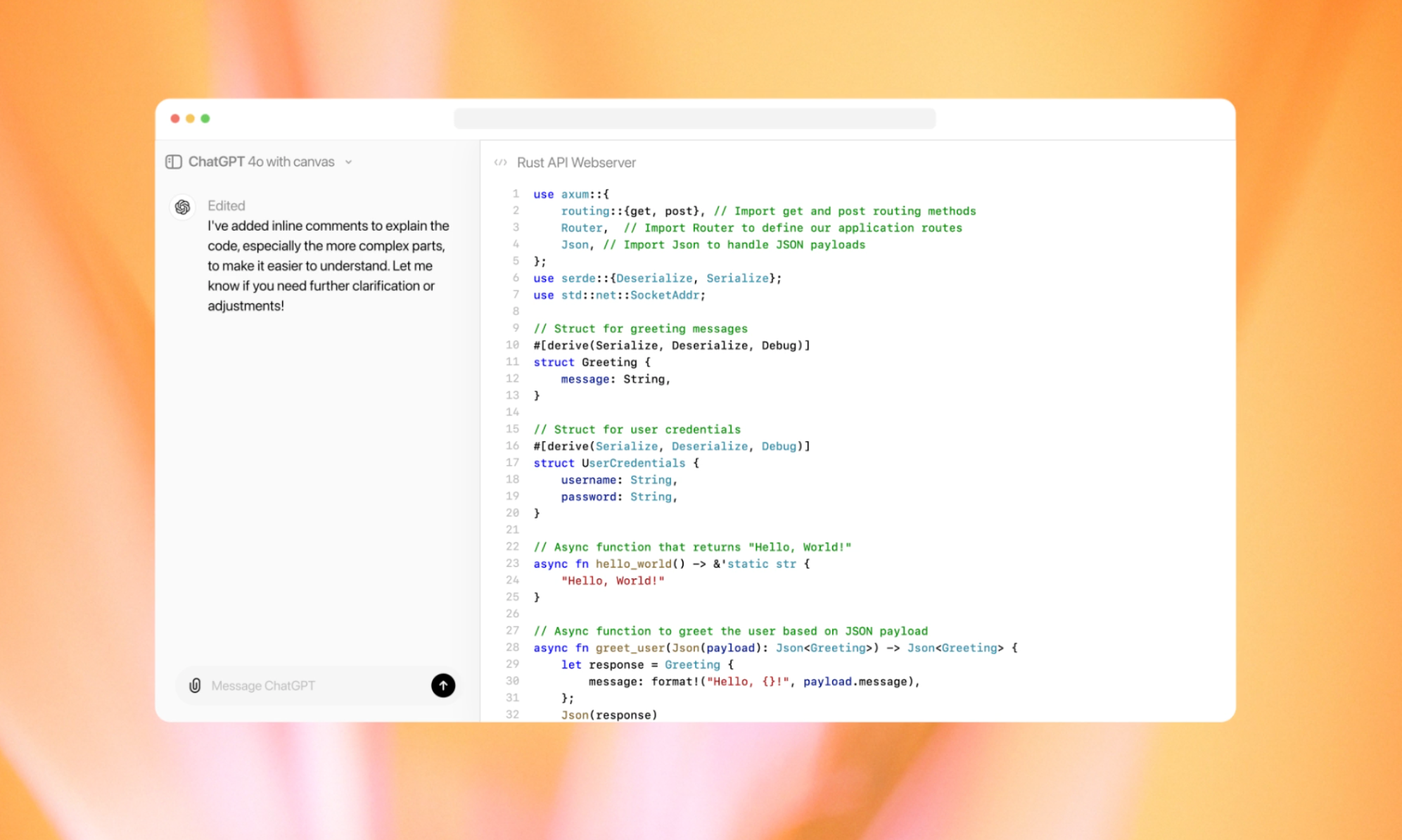
If you've opened ChatGPT lately and noticed a new panel sliding out to the side, you're probably wondering what is ChatGPT Canvas and whether it's worth your attention. It's not a separate product or a new subscription tier. It's a workspace mode built directly into ChatGPT that changes how you interact with long-form content and code.
Canvas gives you a persistent document that sits alongside your conversation instead of getting buried in the chat scroll. As of 2026, it's available to anyone with a ChatGPT Plus or Team subscription running on desktop web. Let's break down exactly how it works, where it falls short, and who actually benefits from using it. If you are exploring similar hardware setups, see our detailed guide on how to use chatgpt canvas.
Quick Answer
ChatGPT Canvas is a persistent workspace panel inside the ChatGPT interface. It lets you create and edit documents or code without losing them in the conversation scroll. You access it through a toggle icon on the desktop web version of ChatGPT.
It requires a ChatGPT Plus or Team subscription to use. Canvas supports real-time collaboration and version tracking for both text and code.
What ChatGPT Canvas Actually Is (And What It Isn't)
Canvas is not a standalone app. It's not a Google Docs competitor. It's not even a separate feature you download or install. Readers evaluating this setup should also consider chatgpt canvas vs document for comparative benchmarks.
Canvas is a display mode within ChatGPT that opens a side panel where your work lives as a persistent artifact.
An artifact is the official term OpenAI uses for the document or code file you create inside Canvas. Think of it as a living document that stays put while your conversation continues on the left side of the screen. You can edit it, ask ChatGPT to revise specific sections, and track changes over time.
Here's what makes it different from just typing in the normal chat box. In standard ChatGPT, your outputs scroll away as the conversation grows. You end up copying text into an external editor just to keep track of it.
Canvas solves that by keeping your work visible and editable in a dedicated space.
But Canvas is still in beta. That means features change, some things break without warning, and you shouldn't treat it as your only copy of important work. It's a convenience layer, not a replacement for proper document storage.
How ChatGPT Canvas Works Behind the Scenes
When you click the Canvas toggle icon in the desktop web interface, a panel opens on the right side of your screen. Your conversation stays on the left. The artifact lives on the right.
Both stay visible at the same time.
The artifact connects to the GPT-4o model by default. You can write text, generate code, or ask ChatGPT to produce something specific. Once the output appears in Canvas, you can highlight sections and ask for targeted revisions.
You don't need to regenerate the entire document just to fix one paragraph.
Canvas also tracks versions. When ChatGPT corrects a bug in your code, it logs that correction. You can open a version dropdown and restore an earlier state if something goes wrong.
This is genuinely useful for coding workflows where one bad edit can cascade into bigger problems.
The collaboration piece works by letting multiple users with Plus or Team accounts edit the same artifact simultaneously. Changes appear in real time. You don't need to share a link or export a file.
Everyone with access sees the same workspace.
One thing that trips people up: artifacts don't show up in your sidebar chat history the way normal conversations do. You access them through the Canvas icon. If you close the panel without understanding this, it can feel like your work vanished.
It didn't. It's just stored differently.
What You Can Do Inside Canvas: Features That Matter
Canvas packs a focused set of tools. You won't find the full formatting suite of a word processor. What you get is purpose-built for working with AI-generated content.
Text editing and writing assistance:
- Generate long-form content directly in the artifact
- Highlight specific passages and ask for tone adjustments (formal, casual, concise)
- Insert, delete, or rewrite sections without regenerating the whole document
- Track word count and document length as you work
Code generation and debugging:
- Write and test code snippets with syntax highlighting
- Track code corrections as ChatGPT fixes bugs
- Use version history to compare changes over time
- Export code to your local environment when you're ready
Collaboration and review:
- Multiple users edit the same artifact in real time
- Comment on documents and code sections
- Review suggested edits before accepting them
- See who made which changes during a session
Document management:
- Create separate artifacts for different projects
- Switch between text and code modes
- Export finished work to external tools
- Restore previous versions from the history dropdown

The inline editing is the standout feature. Instead of saying "rewrite the whole thing but make paragraph three shorter," you just highlight paragraph three and ask for a revision. That alone saves a ton of time and tokens.
What's Frustrating About Canvas: Real Limitations You Should Know
Canvas sounds great on paper. In practice, it has rough edges that can genuinely disrupt your workflow if you're not prepared.
Artifacts disappear from normal chat history.
This is the number one complaint in user feedback. Your artifact lives inside Canvas, not in your sidebar. If you don't know to look for the toggle icon, you'll think your work is gone.
It's not intuitive, and OpenAI hasn't done much to make this clearer.
Auto-save is inconsistent.
Some users report losing work after a browser refresh or session timeout. Canvas does maintain state across some sessions, but it's not reliable enough to trust as your only copy. Always export anything you care about.
Memory integration breaks down.
ChatGPT's memory feature doesn't carry over into Canvas the way you'd expect. Preferences you've set in normal conversations may not apply inside the artifact workspace. You might find yourself re-explaining context that ChatGPT already knows.
Code output looks right but isn't always correct.
Canvas generates code with proper syntax and clean formatting. That doesn't mean it runs correctly. Hallucinated functions, incorrect API calls, and logical errors still show up.
You need to test everything before using it in a project.
No rich text formatting.
Canvas is plain text and code. No headers, no tables, no bold or italic styling within the artifact itself. If you need formatted documents, you're exporting to another tool anyway.
Mobile support is limited or missing.
Canvas is designed for desktop web. Mobile browsers either don't show the panel properly or lack full functionality. If you work primarily on a phone or tablet, Canvas isn't ready for you.
Collaboration requires paid accounts on both ends.
Everyone collaborating on an artifact needs a ChatGPT Plus or Team subscription. You can't share Canvas access with someone on the free tier. That limits its usefulness for teams with mixed subscription levels.
Who Canvas Is Actually Built For
Canvas isn't for everyone. It shines in specific workflows and adds friction in others.
Software developers get the most value. The code editing, version tracking, and bug correction features map directly onto real development workflows. If you're prototyping, debugging, or writing scripts, Canvas keeps everything in one place.
Writers and content creators benefit from the long-form editing tools. Drafting articles, scripts, or reports inside Canvas means you're not constantly scrolling back through a chat thread to find your last draft.
Students and researchers working on essays or coding assignments can use Canvas to iterate on drafts without losing previous versions. The version history is particularly helpful when you need to backtrack after a bad edit.
Collaborative teams with paid ChatGPT accounts can use Canvas for lightweight real-time editing. It's not a full project management tool, but for quick co-editing sessions, it works.
If you're a casual user who asks ChatGPT quick questions and moves on, Canvas adds complexity without much benefit. Stick with the standard chat interface. Canvas rewards people who work on longer, iterative tasks where keeping context visible matters.
Canvas vs Standard ChatGPT vs Other AI Workspaces
Canvas doesn't exist in a vacuum. Understanding how it compares to both the regular ChatGPT interface and competing tools helps you decide when to open it and when to skip it.
Canvas vs Standard ChatGPT:
Standard ChatGPT works fine for short exchanges. You ask a question, get an answer, and move on. The moment you're iterating on a long document or debugging multi-step code, the scrolling conversation becomes a liability.
Canvas fixes that by keeping your work pinned. You trade the simplicity of a single chat thread for a split-screen workspace. If your task takes more than a few back-and-forth messages, Canvas usually wins.
Canvas vs Claude Artifacts:
Anthropic's Claude offers a comparable feature called Artifacts. Both create persistent workspaces for documents and code. Claude Artifacts tends to feel more polished in terms of visual presentation.
Canvas integrates more tightly with ChatGPT's broader ecosystem, including memory and custom GPTs.
The choice here often comes down to which AI assistant you prefer. If you're already in the OpenAI ecosystem, Canvas keeps you there.
Canvas vs Google Docs with AI:
Google Docs now includes AI writing assistance through Google Workspace features. That combination offers richer formatting, better sharing controls, and more mature collaboration tools. Canvas gives you stronger AI generation capabilities within the document itself.
You could use both, generating in Canvas and then moving to Google Docs for final formatting and team review.
Canvas vs Cursor IDE:
For serious coding work, Cursor IDE is purpose-built in a way that Canvas isn't. Cursor understands your entire codebase, not just the snippet in front of it. Canvas is better for quick scripts, prototypes, and standalone code generation.
When you're working on a full project with multiple files, Cursor is the stronger choice.
| Feature | ChatGPT Canvas | Standard ChatGPT | Claude Artifacts | Google Docs AI |
|---|---|---|---|---|
| Persistent workspace | Yes | No | Yes | Yes |
| Real-time collaboration | Yes | No | Limited | Yes |
| Version history | Yes | No | Yes | Yes (native) |
| Rich text formatting | No | No | No | Yes |
| Deep codebase integration | No | No | No | No |
| Requires paid subscription | Yes | No (basic) | Yes | Varies |
How to Use ChatGPT Canvas Step by Step
Getting into Canvas is straightforward. Using it effectively takes a little practice.
Step 1: Open Canvas on desktop web.
Navigate to chat.openai.com in your browser. Look for the toggle icon near the chat input area. Click it to open the Canvas panel on the right side of your screen.
Step 2: Create your first artifact.
Once Canvas opens, choose between text and code mode. Text mode is for writing tasks. Code mode activates syntax highlighting and debugging features.
Enter a prompt describing what you want to create.
Step 3: Edit inline.
After the artifact appears, highlight any section and use the prompt area to request specific revisions. You don't need to regenerate the entire document. Targeted edits save time and preserve the parts that already work.
Step 4: Track code corrections (coding workflows).
When debugging code, Canvas logs each fix it makes. Open the version dropdown to see previous states. If a correction introduces a new problem, restore the earlier version and try a different approach.
Step 5: Collaborate by inviting others.
Share access with team members who have Plus or Team accounts. They'll see the artifact in real time. Everyone can edit simultaneously and add comments to specific sections.
Step 6: Export your work.
When you're finished, export the artifact to your local environment or copy it into your preferred editor. Don't rely on Canvas as long-term storage. Treat it as a working space, not a filing cabinet.
When Canvas Makes Your Workflow Worse (And What to Use Instead)
Canvas isn't always the right tool. Sometimes it actively slows you down.
Skip Canvas when you need rich formatting. No headers, no tables, no bullet styling within the artifact itself. If your deliverable requires polished formatting, you're exporting to another tool anyway. Start there instead.
Skip Canvas for large multi-file coding projects. Canvas handles standalone scripts well. It doesn't understand your project structure or dependencies. For anything beyond a single file, use Cursor IDE, GitHub Copilot, or your regular development environment.
Skip Canvas when working on mobile. The experience on mobile browsers is inconsistent at best. If you're away from your desktop, stick with the standard chat interface and save Canvas for when you're back at your desk.
Skip Canvas for one-off questions. If you just need a quick answer or a short piece of text, opening Canvas adds steps you don't need. The standard chat interface handles brief exchanges without any friction.
Skip Canvas when memory continuity matters. If you rely on ChatGPT's memory feature to maintain context across sessions, be aware that Canvas doesn't integrate with it reliably. You may find yourself repeating information that ChatGPT already knows about your preferences and projects.
In each of these cases, the alternative is obvious. Canvas excels at focused, iterative work on individual documents and code snippets. Everything else belongs in a specialized tool.
Collaboration, Version History, and the Artifact System Explained

The collaboration features in Canvas are promising but come with caveats.
Real-time co-editing works when everyone involved has the right subscription. You can watch changes appear as your teammates type. The experience feels similar to basic Google Docs collaboration, without the maturity of a dedicated document platform.
The comment system lets you leave annotations on specific sections. This is useful for review sessions where you need feedback tied to exact passages. You can't resolve comments or track them in a centralized thread, so it works best for lightweight review rather than formal approval processes.
Version history is one of Canvas's strongest features for coding workflows. When ChatGPT fixes a bug or refactors your code, it logs that change. You can compare versions and roll back if something breaks.
This genuinely reduces the anxiety of letting an AI make structural changes to your work.
The artifact system itself has a quirk worth understanding. Artifacts are tied to your Canvas session, not to your general chat history. If you start a conversation in standard ChatGPT and then open Canvas, the artifact exists separately.
Closing the Canvas panel doesn't delete your work, but it does tuck it away where casual browsing won't find it.
Commercial use rights apply to Canvas output the same way they apply to standard ChatGPT output. OpenAI's terms state that you own what you create, subject to their content policies. If you're working on proprietary code or business documents, review OpenAI's data processing terms to understand how your inputs are handled.
What ChatGPT Canvas Costs and What You're Really Paying For
Canvas isn't available on the free tier. Access requires a paid subscription, and the pricing structure matters.
| Plan | Price (USD/month) | Canvas Access | Collaboration |
|---|---|---|---|
| ChatGPT Free | $0 | No | No |
| ChatGPT Plus | $20 | Yes | Limited |
| ChatGPT Team | $25/user | Yes | Full |
At $20 per month, ChatGPT Plus is the entry point. That subscription includes Canvas along with access to GPT-4o, faster response times, and priority feature access. If you're already paying for Plus, Canvas is included at no extra cost.
ChatGPT Team at $25 per user per month unlocks full collaboration features. Every team member gets Canvas access, and artifacts can be shared across the organization. For teams that want AI-assisted document editing without adding another tool to their stack, this can be cost-effective compared to standalone collaboration platforms.
Enterprise plans exist with custom pricing, enhanced security, and admin controls. These are relevant for organizations that need data governance policies applied to their AI-generated content.
What you're really paying for isn't Canvas itself. It's the broader ChatGPT Plus or Team subscription. Canvas is one feature among many.
Evaluate the overall package, not just this one panel. If Canvas is the only feature you'd use, the math is less compelling. If you're already benefiting from GPT-4o access, faster speeds, and other Plus features, Canvas is a useful bonus.

Practical Tips Most Users Miss
Small adjustments make Canvas feel significantly smoother.
Start with clear artifact names. When you create an artifact, give it a descriptive title right away. Default names like "Untitled Artifact" make it harder to find later, especially if you work across multiple sessions.
Use targeted prompts inside the artifact. Instead of "make this better," try "shorten this paragraph to two sentences" or "convert this to a bullet list." Specific instructions produce better results and fewer unwanted changes.
Export early and often. Don't wait until the end of a long session to save your work. Copy or export after every significant milestone. Beta features can behave unpredictably.
Check code outputs independently. Run every code snippet in your own environment before relying on it. Canvas generates clean-looking output, but logic errors slip through regularly.
What Happens to Your Work: Saving, Exporting, and Data Concerns
Canvas doesn't work like a traditional document editor. Your artifacts behave differently than files in Google Docs or Notepad.
Artifacts persist within Canvas sessions, but they're not guaranteed to survive indefinitely. OpenAI hasn't published specific data retention policies for Canvas content. Treat anything important as temporary until you export it.
For sensitive or confidential work, understand OpenAI's data processing terms before entering proprietary information into any ChatGPT feature. Enterprise plans offer additional controls, but standard Plus accounts operate under OpenAI's general terms.
Exporting is simple: copy the content or use the export function to download it. Once it's in your local environment, it's yours to manage.
Frequently Asked Questions
Does ChatGPT Canvas cost extra?
No. Canvas is included with ChatGPT Plus ($20/month) and Team ($25/user/month). There's no separate fee.
Can I use Canvas on mobile?
Mobile browser support is inconsistent. Canvas is designed for desktop web use. Stick to desktop for the full experience.
Do collaborators need paid accounts?
Yes. Everyone editing an artifact needs a ChatGPT Plus or Team subscription. Free-tier users can't access shared Canvas workspaces.
Is my Canvas content saved permanently?
Not reliably enough to trust as your only copy. Export important work to external storage.
Can I use Canvas for coding projects?
Yes, but primarily for standalone scripts and small tasks. Multi-file projects belong in a proper IDE like Cursor.
The Bottom Line: Should You Use ChatGPT Canvas?
Canvas earns its place for specific workflows. Writers iterating on long documents, developers debugging standalone scripts, and teams with paid ChatGPT accounts doing lightweight co-editing will find genuine value.
If you need rich formatting, deep codebase integration, or mobile access, Canvas isn't ready. Use it as a complement to your existing toolkit, not a replacement.
The key practical takeaway: export everything important, verify all code outputs independently, and don't rely on Canvas as your primary document storage. Do that, and it becomes a genuinely useful workspace layer inside ChatGPT.

Similar Posts





















