Iphone Xr Screen Replacement Not Working Causes And Fixes
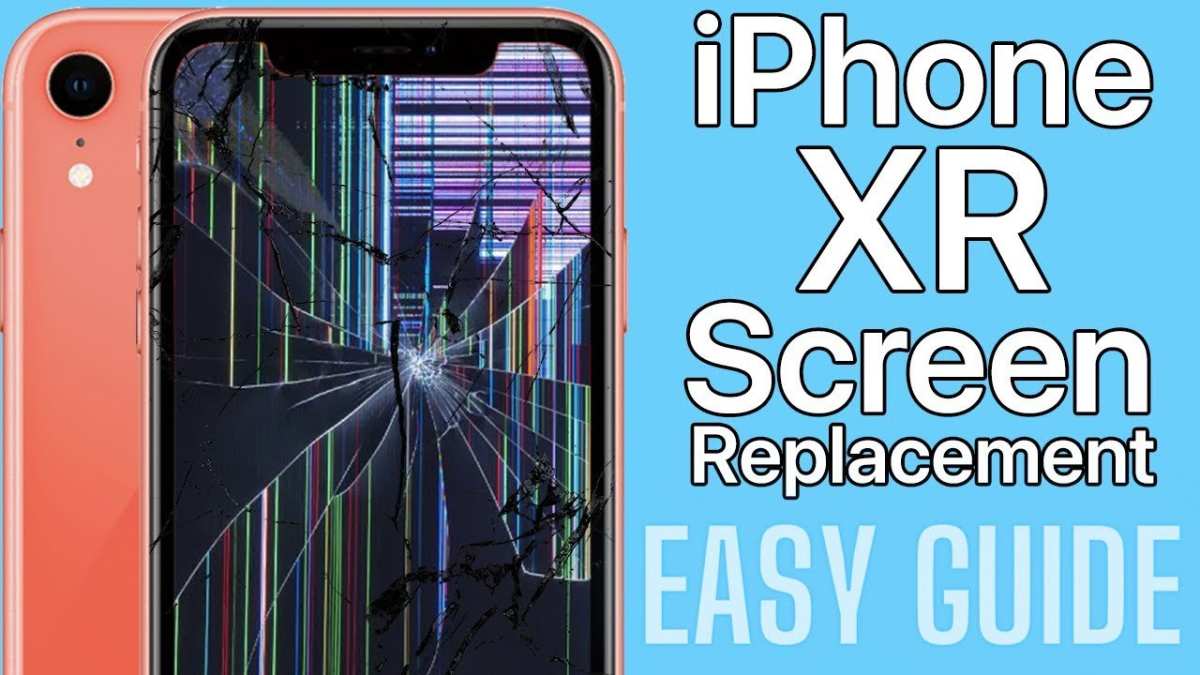

Why Is My iPhone XR Screen Replacement Not Working? Common Causes and Solutions
When you get your iPhone XR screen replaced, you expect everything to work perfectly afterward. But sometimes, even after a professional repair, your screen might still have issues. The screen might be unresponsive, display glitches, or not turn on at all. This situation can be frustrating and confusing. Let’s explore why your iPhone XR screen replacement might not be working as it should and what steps you can take to fix these problems.Understanding the Common Problems After a Screen Replacement
Knowing what kinds of issues can happen after replacing the screen helps in diagnosing your problem better. Here are some of the common problems users encounter after a screen replacement:- The touchscreen is unresponsive or laggy
- Display flickering or showing strange colors
- Part of the screen remains black or blank
- The Touch ID or Face ID stops working
- Random restarts or the device freezes
- Ghost touches where the screen reacts without being touched
Possible Reasons Why Your iPhone XR Screen Replacement Isn’t Working
Understanding the root causes helps in troubleshooting effectively. Here are some of the main reasons your repaired screen may not be functioning correctly:Faulty or Poor-Quality Replacement Parts
Quality matters a lot when replacing a screen. Some repair shops use low-quality screens to cut costs, which can lead to compatibility issues, poor touch response, or display problems. Always opt for quality parts from reputable suppliers.Incorrect Installation
If the screen isn’t installed properly, it can cause problems. For example, if the connectors aren’t plugged in tightly, or if the screen isn’t aligned correctly, touch and display functions might not work.Damaged Internal Components
Sometimes, the damage isn’t just on the surface. The repair process could accidentally harm internal parts, such as the flex cables, the display connectors, or the motherboard. This damage can prevent the screen from functioning properly.Software Issues or Conflicts
Occasionally, the problem isn’t hardware-related. Software glitches or outdated firmware can cause display and touch issues. Resetting or updating your iPhone’s software might resolve these problems.Water Damage or Corrosion
If your device has been exposed to water or moisture, corrosion can develop inside. This corrosion can disrupt the connection between the screen and internal components, leading to display issues even after replacement.How to Troubleshoot When Your iPhone XR Screen Replacement Isn’t Working
Before jumping into costly repairs, try these troubleshooting steps:Check the Screen Connections
– Power off your device. – Carefully open the device again (or have a professional do it). – Verify that all flex cables and connectors are securely plugged in. – Look for any signs of damage or corrosion on the connectors.Restart or Force Restart Your iPhone XR
– Sometimes, a simple restart can fix temporary glitches. – To force restart, press and quickly release the volume up button, then press and quickly release the volume down button, and finally press and hold the side button until the Apple logo appears.Update or Reset Your Software
– Ensure your iPhone XR runs the latest iOS version. – If problems persist, try resetting your device’s settings or performing a factory reset. Be sure to back up your data first.Test the Touch and Display
– Use your phone in different lighting conditions. – Check for dead zones or areas where the touch isn’t responsive. – See if the display flickers or shows strange colors.Inspect for Water Damage
– Check for the liquid contact indicator (LCI) inside your device. – Look for signs of corrosion or water residue.When to Seek Professional Help
If none of the troubleshooting steps resolve the issue, it’s time to contact a professional technician. They can perform detailed diagnostics to identify internal hardware damage or problems with the replacement parts. Sometimes, the repair might require replacing other internal components, such as the display controller or the motherboard.Preventing Future Problems with Screen Replacements
To minimize the chances of facing screen issues after repair:- Only get your screen replaced by qualified and experienced technicians.
- Choose repair shops that use high-quality parts and offer warranties.
- Avoid DIY repairs unless you have proper training and tools.
- Handle your device carefully to prevent physical or water damage.
- Keep your phone updated with the latest iOS software.
The Importance of Using Quality Replacement Parts
One of the biggest factors influencing the success of a screen replacement lies in the quality of the parts used. Lower-quality screens may be cheaper but often lead to more problems down the line. These issues include poor color accuracy, unresponsiveness, or even attempts to fix the same problem repeatedly. Opt for a repair shop that provides genuine, high-quality screens and offers a warranty on their work. Remember, a slightly higher cost upfront often results in better durability and fewer issues later.Choosing the Right Repair Shop for Your iPhone XR
Not all repair shops are equal. When your screen isn’t working properly after replacement, selecting a reputable technician becomes even more critical. Here are some tips:- Check online reviews and ratings.
- Ask about the parts they use—are they genuine or third-party?
- Inquire about warranty policies for both parts and labor.
- Ensure the shop has experience with iPhone XR repairs.
- Look for transparent pricing and diagnostic procedures.
When to Consider a Full Device Replacement
If your iPhone XR has multiple internal issues, or if repeated repairs are necessary, it might be more economical to consider replacing the device completely. Especially if the internal components are damaged or old, a new device can often be a better long-term investment. Getting your iPhone XR screen replaced is generally straightforward, but occasional issues may pop up afterward. These problems often result from poor-quality parts, improper installation, or internal damage. By understanding these causes, performing proper troubleshooting, and choosing reputable repair services, you can ensure your device functions seamlessly again. Remember that patience and careful handling go a long way in maintaining your iPhone’s health. If your screen replacement isn’t working as expected, don’t hesitate to seek professional help. They can diagnose and fix underlying issues that might not be apparent at first glance, giving your device a fresh start and extending its lifespan.Frequently Asked Questions
Why does my iPhone XR screen not respond after replacement?
If your iPhone XR screen isn’t responding following a replacement, the issue might be caused by incorrect installation or a loose connection. Double-check all internal connections, especially the display connector, to ensure they are properly secured. Additionally, inspect for any damage to the new screen or the internal components that could interfere with touch sensitivity.
Could software issues cause the replaced iPhone XR screen to malfunction?
Yes, software glitches or outdated firmware can sometimes cause display problems. Try restarting your device or performing a software update to see if that resolves the issue. If problems persist, a complete restore via iTunes might help, but ensure your data is backed up before proceeding.
Is it possible that the replacement screen is defective?
Absolutely. Sometimes, replacement screens may have manufacturing defects or compatibility issues, leading to malfunctions. If you suspect a faulty screen, consider testing with a different replacement part or consulting a professional technician to verify the quality of the display.
How can I ensure proper calibration of the new screen on my iPhone XR?
Proper calibration often requires software adjustments. After installation, go to Settings > Display & Brightness to tweak display settings, or perform a calibration through specialized apps. If calibration issues continue, resetting all settings or restoring your device might help recalibrate the display properly.
What steps should I take if my iPhone XR screen remains unresponsive after replacement?
First, re-examine all internal connections to confirm they’re properly attached. If everything appears correct, perform a forced restart to rule out temporary software issues. If the screen still doesn’t respond, consult a professional technician for further diagnostic and repair options, as the issue might be hardware-related beyond just the replacement process.
Final Thoughts
In conclusion, resolving issues with an “iPhone XR screen replacement not working” can be straightforward if you follow proper procedures. Double-check the compatibility of the replacement screen and ensure all connections are secure. Sometimes, a faulty component or improper installation causes the problem. If challenges persist, consulting a professional technician may save time and prevent further damage. Addressing these common issues helps restore your device’s functionality efficiently.
Similar Posts