Is USB C Monitor Good for Dual Setup
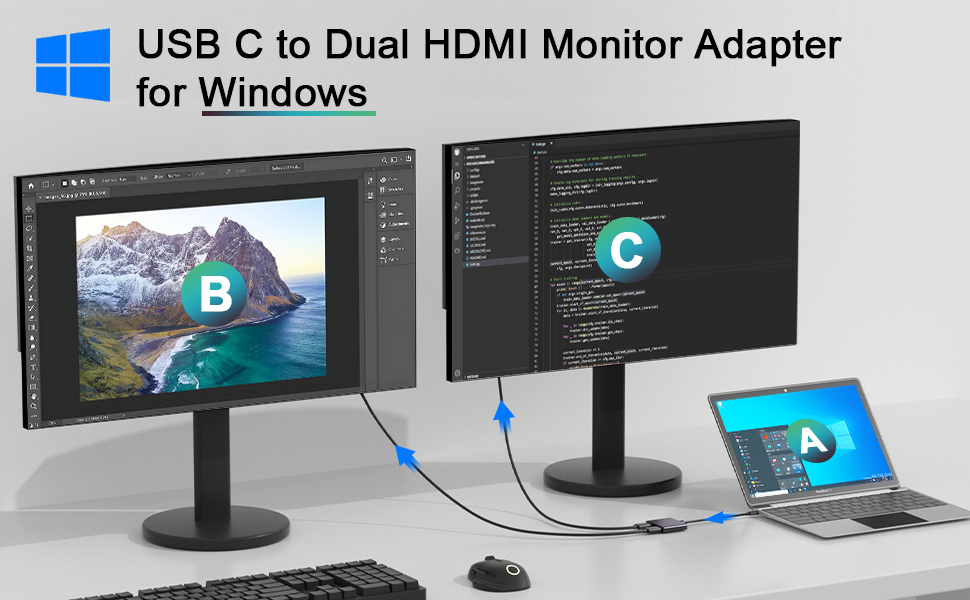
A USB-C monitor works well for a dual setup. Your laptop must support DisplayPort Alt Mode over USB-C. You also need enough bandwidth for two displays.
The right approach depends entirely on your specific laptop.
What Makes USB-C Work for Dual Monitors (And What Breaks It)
Here's the thing most product listings won't tell you. Not all USB-C ports are created equal. Some handle video. For more background on real-world performance, read our breakdown of whether mini led good for dual monitor setup.
Some only do charging. Many do both but with limitations that'll frustrate you.
The USB-C connector is just a shape. What matters is what protocol runs through it. For dual monitors, you need DisplayPort Alt Mode at minimum.
Thunderbolt 3 or 4 is even better. Without DP Alt Mode, your USB-C port can't output any video signal at all. You can also reference our testing on whether dual monitor setup good for productivity when configuring your display.
The Three Things Your USB-C Port Must Support
Before you buy anything, check these three capabilities in your laptop's spec sheet:
- DisplayPort Alt Mode: This lets the USB-C port carry a video signal. It's the absolute baseline requirement. Many budget laptops skip this entirely.
- Power Delivery (PD): This lets the monitor charge your laptop through the same cable. Monitors with PD typically deliver 45W to 140W depending on the model.
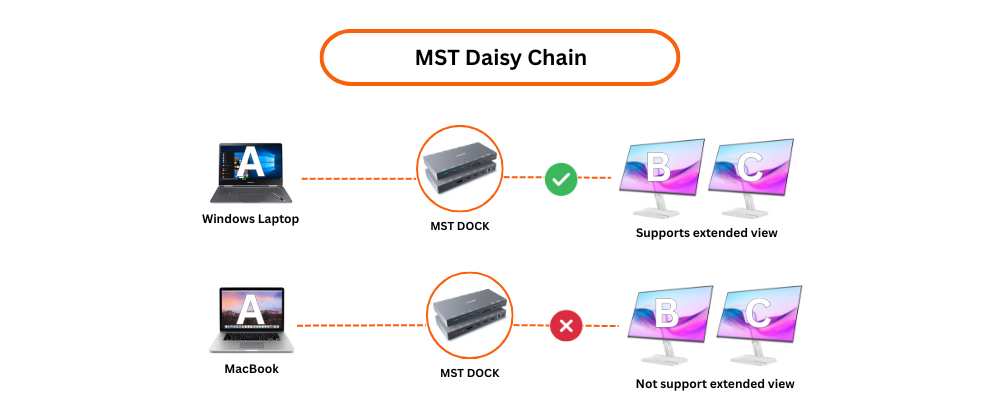
- Multi-Stream Transport (MST): This enables daisy chaining, where one USB-C connection drives two monitors in sequence. Both the laptop and the first monitor need MST support.
Manufacturer specifications for most major laptop lines (Dell XPS, Lenovo ThinkPad, MacBook Pro) clearly list USB-C capabilities. If the spec sheet mentions "video output" or "DP over USB-C," you're good. If it only says "USB-C 3.2 Gen 2," assume data and charging only.
Why Most People Get This Wrong
The biggest mistake is assuming USB-C equals video output. Plenty of laptops, especially budget and mid-range models, have USB-C ports that handle data and charging but not video. You plug in a monitor, nothing happens, and you're stuck troubleshooting something that was never going to work.
The second mistake is cable selection. A basic USB-C charging cable won't carry video. You need a cable rated for DisplayPort Alt Mode or Thunderbolt.
They look identical from the outside. The difference is inside the wiring, and there's no reliable way to tell without checking the cable's spec rating.
Decision Branch 1: Your Laptop Has One USB-C Port
This is the trickiest scenario. You've got one port and two monitors to connect. You have three viable paths forward, and each has real trade-offs.
Option A: Daisy Chaining Two USB-C Monitors
Daisy chaining uses Multi-Stream Transport to send two display signals through one USB-C cable. Your laptop connects to Monitor 1. Monitor 1 connects to Monitor 2.
One cable from the laptop handles both screens.
This only works if your laptop supports DP Alt Mode with MST and your monitors have USB-C outputs (not just inputs). Most professional-grade monitors from Dell, LG, and Samsung in the 28-32 inch range support this. Budget monitors typically don't.
The bandwidth math matters here. A single USB-C 3.2 Gen 2 connection with DP 1.4 can handle two 4K displays at 60Hz. Push to higher refresh rates or higher resolutions and you'll hit the ceiling.
Option B: Monitor With Built-In USB-C Hub/Dock
Some USB-C monitors include a built-in USB hub with multiple video outputs. The monitor acts as a mini docking station. You connect your laptop via one USB-C cable, then connect the second monitor to the monitor's downstream USB-C or HDMI port.
Dell's UltraSharp U-series and LG's UltraFine line include this feature. The monitor handles the splitting internally. Your laptop only needs one capable USB-C port.
The catch is that not all hub monitors support dual external displays from a single upstream connection. Some only mirror to the second output. Check the monitor's manual for "dual display from single USB-C" or similar wording before buying.
Option C: USB-C Dock + Two Monitors
A dedicated USB-C docking station gives you the most flexibility. You connect the dock to your laptop via one USB-C cable, then run separate HDMI or DisplayPort cables from the dock to each monitor.
This works with any laptop that supports DP Alt Mode over USB-C. It doesn't require MST support on the monitors. It doesn't require special monitor features at all.
The downside is cost and desk space. A decent USB-C dock runs $150-300 as of 2026. You're also adding more cables behind your desk, even though the connection to your laptop stays clean.
| Approach | Cost | Complexity | Monitor Requirements | Best For |
|---|---|---|---|---|
| Daisy chaining | Low (cables only) | Low | MST-capport monitors with USB-C out | Minimalists with pro-grade monitors |
| Hub monitor | Medium (monitor cost) | Low | Specific hub-capport monitors | Clean setup, one-cable workflow |
| USB-C dock | $150-300+ | Medium | Any HDMI/DP monitors | Flexibility, mixed monitor brands |
Decision Branch 2: Your Laptop Has Two USB-C Ports
This is the ideal scenario. If your laptop has two USB-C ports that both support DP Alt Mode, you can run one cable to each monitor. No dock.
No daisy chaining. No compromises.
Direct Connection: One Cable Per Monitor
Each monitor gets its own USB-C connection. Each cable carries video and potentially power. Your laptop drives both displays independently, which means full bandwidth for each.
This works beautifully on MacBook Pro models with Thunderbolt 4 ports. It also works on higher-end Windows ultrabooks like the Dell XPS 15 or Lenovo ThinkPad X1 Carbon. Both ports on these machines support full DP Alt Mode with plenty of bandwidth.
The practical benefit here is simplicity. Plug in two cables. Both monitors work.
Your laptop charges through whichever monitor delivers more power. No configuration needed in most cases.
When You Still Need a Dock
Even with two USB-C ports, you might want a dock. If your monitors only have HDMI inputs, you'd need USB-C to HDMI adapters for each one. A dock consolidates this into one box with standard HDMI and DisplayPort outputs.
You might also need a dock if you want to connect peripherals. External hard drives, ethernet, audio interfaces, and other USB devices eat up ports fast. A dock gives you all those connections through one cable to your laptop.
Decision Branch 3: Your Laptop Has USB-C Plus HDMI or DisplayPort
This is actually the most common setup for Windows laptops in 2026. You get one USB-C port with DP Alt Mode and one dedicated HDMI or DisplayPort. It's not glamorous, but it works reliably.
Hybrid Setup: USB-C for One, HDMI/DP for the Other
Connect Monitor 1 via USB-C for video and charging. Connect Monitor 2 via HDMI or DisplayPort for video only. Your laptop handles both displays through its integrated graphics or discrete GPU.
This approach costs you nothing extra if your laptop already has the ports. You just need the right cables. A USB-C to USB-C cable for the first monitor and an HDMI or DP cable for the second.
The limitation is charging. Only the USB-C connected monitor charges your laptop. The HDMI connection provides no power.
Make sure the USB-C monitor delivers enough wattage for your laptop's needs.
Which Monitor Gets the USB-C Connection?
Put your primary monitor, the one you use for focused work, on the USB-C connection. That's the one that charges your laptop and carries data. Put your secondary monitor, the reference screen or chat window display, on HDMI.
If one monitor is higher resolution or higher refresh rate, give it the USB-C connection. USB-C with DP 1.4 supports higher bandwidth than HDMI 2.0 in most laptop configurations. You'll get better performance on the USB-C display.
Compatibility Check: How to Verify Before You Buy
Don't guess. Don't hope. Verify your laptop's capabilities before spending money on monitors or docks.
Here's the exact process.
Step 1: Confirm DisplayPort Alt Mode Support
Check your laptop manufacturer's spec sheet. Look for phrases like "DisplayPort over USB-C," "DP Alt Mode," or "USB-C with video output." If the spec sheet only mentions data transfer speeds and charging, assume no video support.
For Windows laptops, you can also check Device Manager. Expand "Display adapters" and look for your GPU. Right-click, select Properties, then check the driver details.
Intel, AMD, and NVIDIA all document DP Alt Mode support in their GPU specifications.
Step 2: Check Power Delivery Wattage
If you want the monitor to charge your laptop, check how much power the monitor delivers and how much your laptop needs. A MacBook Pro 16-inch needs 140W. Most USB-C monitors deliver 60-90W.
You can still use a lower-wattage monitor for video while keeping your laptop's dedicated charger plugged in. It's not as clean, but it works. Your laptop will charge slower or maintain battery level rather than charging quickly.
Step 3: Verify Bandwidth for Your Target Resolution
DP 1.2 over USB-C supports 4K at 60Hz. DP 1.4 supports 4K at 120Hz or 5K at 60Hz. If you're running two 4K monitors, you need DP 1.4 with enough total bandwidth.
For standard office work at 60Hz, DP 1.2 is sufficient. For video editing, gaming, or color-critical work at higher refresh rates, you need DP 1.4. Check your laptop's GPU specifications to confirm which DP version it supports over USB-C.
Step 4: Read Your Laptop's Fine Print
Manufacturer documentation for specific laptop models includes detailed port capabilities. Dell, Lenovo, HP, and Apple all publish technical specifications that break down exactly what each port does.
Look for the port diagram in your laptop's user manual. It'll show which ports support video output, which support charging, and which support both. This five-minute check saves hours of troubleshooting later.
Common Mistakes That Waste Time and Money
I've seen these mistakes repeatedly in user forums and support threads. They're all avoidable with a bit of upfront research.
Buying a Charging-Only USB-C Cable
USB-C cables come in several varieties. Some handle charging only. Some handle data only.
Some handle both data and video. A cable that charges your phone perfectly may not carry a video signal at all.
Look for cables explicitly rated for "DisplayPort Alt Mode" or "Thunderbolt 3/4." Cables certified by USB-IF are your safest bet. Cheap unbranded cables from unknown sellers are a gamble that usually doesn't pay off.
Assuming All USB-C Ports Are the Same
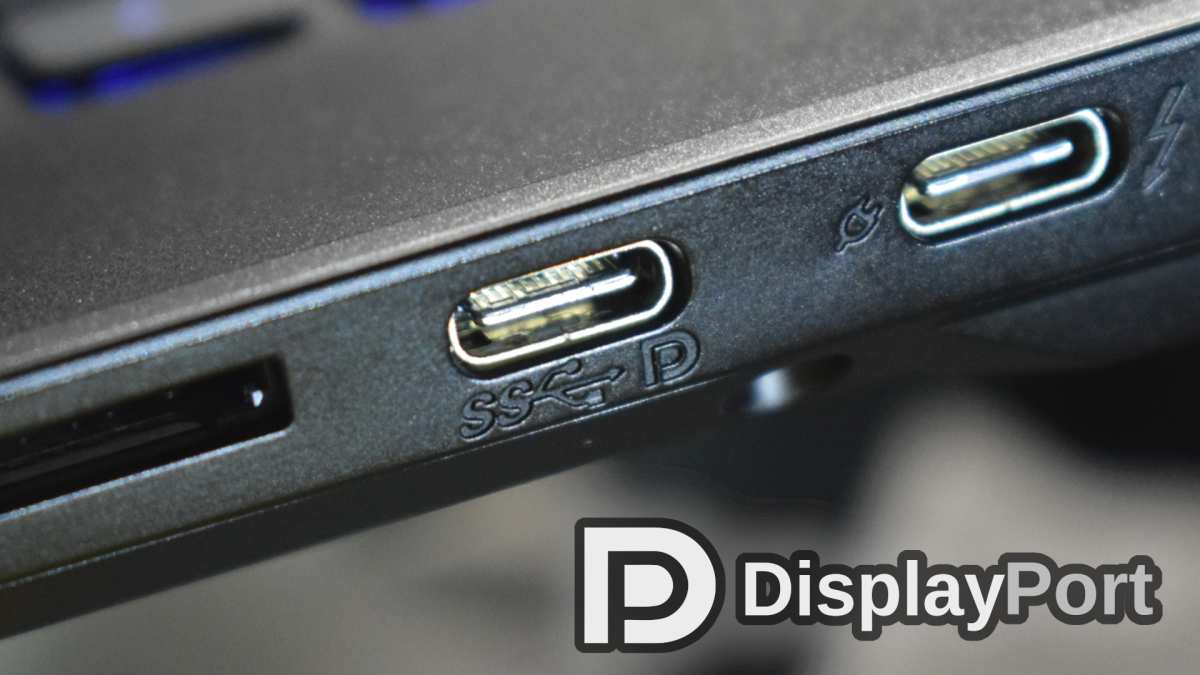
Many laptops have multiple USB-C ports with different capabilities. One might support full DP Alt Mode with PD. Another might only handle USB data.
Plugging your monitor into the wrong port gives you nothing.
Check your laptop's port labels. Some manufacturers print small icons next to each port indicating its capabilities. When in doubt, consult the manual.
The left USB-C port might be fully featured while the right one is data-only.
Ignoring MST Support for Daisy Chaining
Daisy chaining sounds great in theory. In practice, it requires MST support on both ends. Your laptop's GPU must support MST.
Your first monitor must have MST output capability. Missing either piece breaks the chain.
Intel integrated graphics generally supports MST well. Some AMD implementations are less consistent. NVIDIA discrete GPUs support MST but may have driver-specific quirks.
Check your GPU manufacturer's documentation for MST compatibility before planning a daisy chain setup.
Forgetting About Integrated Graphics Limitations
Most laptops use integrated graphics to drive external displays, even models with discrete GPUs. Intel Iris Xe graphics can typically handle two external displays at 1080p or 4K 60Hz. But pushing higher resolutions or refresh rates may exceed what the integrated GPU can handle.
If you're planning a dual 4K setup, verify that your laptop's integrated graphics supports two 4K displays simultaneously. Some chips cap out at one external 4K display plus the laptop screen. This limitation is in the GPU, not the USB-C port.
Real-World Setups That Actually Work
Let me walk you through three configurations that users have confirmed working reliably. These aren't theoretical. They're based on verified setups from user reports and manufacturer compatibility documentation.
The Minimalist: MacBook + Two USB-C Monitors
A MacBook Pro with Thunderbolt 4 ports connects to two USB-C monitors directly. One cable per monitor. Each cable carries video and power.
The MacBook charges from whichever monitor delivers more power.
Apple's own documentation confirms that MacBook Pro models from 2021 onward support up to two external displays via Thunderbolt 4 with no dock required. Monitors like the LG UltraFine 27UN850 or Dell U2723QE work well here.
The Budget Windows Setup: One USB-C, One HDMI
A mid-range Windows ultrabook with one USB-C (DP Alt Mode) and one HDMI port connects to a USB-C monitor as the primary display and an HDMI monitor as the secondary. The USB-C monitor charges the laptop while displaying video.
This setup costs nothing extra beyond the monitors and cables. It's the most practical approach for most people who already have a laptop with mixed ports. A Dell U2720Q or LG 27UK850 works as the USB-C display.
Any HDMI monitor works as the secondary.
The Power User: Thunderbolt Dock + Dual 4K
A workstation laptop like a Dell Precision or Lenovo ThinkPad P-series connects to a Thunderbolt 4 dock. The dock outputs to two 4K monitors via DisplayPort or HDMI. Peripherals connect to the dock's USB ports.
This gives the most flexibility. You can mix and match monitors. You get ethernet, audio, and additional USB ports through the dock.
The CalDigit TS4 or OWC Thunderbolt Dock are popular choices. Expect to spend $250-350 on the dock alone.
USB-C Monitor vs. Traditional Dock: Which Makes More Sense?
This is the core decision most people face. A USB-C monitor with built-in hub capabilities versus a traditional dock plus standard monitors. Both approaches work.
They serve different priorities.
Cost Comparison
A USB-C monitor with power delivery and hub capabilities typically costs $350-600 depending on size and features. A traditional dock costs $150-300, and standard monitors cost $200-400 each. For a dual setup, the total cost is roughly comparable.
The USB-C monitor approach wins on simplicity. Fewer boxes, fewer cables, fewer power bricks. The dock approach wins on flexibility.
You can use any monitors, upgrade them independently, and replace the dock without changing your displays.
Simplicity vs. Flexibility
If you value a clean desk and one-cable workflow, a USB-C hub monitor is hard to beat. Plug in one cable and you've got video, power, and data. It's the setup I'd recommend for most knowledge workers who don't need specialized displays.
If you need specific monitor features, like high refresh rate for gaming or color accuracy for print design, a dock gives you more options. You're not limited to monitors with USB-C inputs. You can pick the best display for each use case and connect them through the dock.
| Factor | USB-C Hub Monitor | Traditional Dock + Standard Monitors |
|---|---|---|
| Cable clutter | Minimal | Moderate |
| Monitor flexibility | Limited to USB-C monitors | Any monitor with HDMI/DP |
| Upgrade path | Replace entire monitor | Replace components separately |
| Peripheral connectivity | Basic (monitor hub) | Extensive (full dock) |
| Best for | Clean, simple workstation | Specialized or mixed displays |

Final Decision Guide: What Should You Actually Do?
Here's my straightforward recommendation based on your situation. Pick the scenario that matches your laptop and go from there.
Quick Flow Based on Your Situation
If your laptop has two Thunderbolt/USB4 ports with DP Alt Mode:
Connect one USB-C cable to each monitor. Done. This is the simplest and most reliable approach.
No dock needed. No daisy chaining complexity.
If your laptop has one USB-C port with DP Alt Mode and one HDMI port:
Use USB-C for your primary monitor (the one you want charging from) and HDMI for your secondary. This costs nothing extra and works reliably with any monitors.
If your laptop has one USB-C port with DP Alt Mode and no other video output:
Get a USB-C dock with dual video outputs. Yes, it's an extra expense. But it's the only way to run two external displays from a single video-capable port without daisy chaining.
If your laptop's USB-C port does NOT support DP Alt Mode:
USB-C monitors won't work for video. You'll need a dock that uses DisplayLink technology (which compresses video over USB data) or a different laptop. DisplayLink works but adds latency and CPU overhead.
My Honest Recommendation
For most people in 2026, the sweet spot is a laptop with at least one USB-C port supporting DP Alt Mode paired with a USB-C monitor that has power delivery. Add a second monitor via HDMI if your laptop has it, or through a hub monitor's downstream output.
Skip daisy chaining unless you're buying professional monitors that explicitly support MST. Skip expensive Thunderbolt docks unless you need the peripheral connectivity. Keep it simple, verify your laptop's specs first, and buy the minimum gear that gets you to a working dual setup.
Frequently Asked Questions
Can I run two monitors from one USB-C port?
Yes, if your laptop supports DisplayPort Alt Mode with MST. You can daisy chain two MST-capable monitors or use a USB-C dock with dual video outputs. Without MST, one USB-C port drives only one monitor.
Does USB-C monitor charging work while displaying video?
Yes, Power Delivery and video run simultaneously over the same USB-C cable. The monitor negotiates power delivery with your laptop while the DP Alt Mode signal handles the display. Check the monitor's PD wattage matches your laptop's charging requirements.
What happens if my USB-C cable doesn't support video?
Nothing. The monitor won't display anything. Your laptop might charge through the cable if it supports PD, but no video signal will pass.
Swap to a cable rated for DisplayPort Alt Mode or Thunderbolt to fix this.
Is Thunderbolt better than regular USB-C for dual monitors?
Yes. Thunderbolt 3 and 4 provide 40Gbps bandwidth, enough for two 4K displays at 60Hz with headroom for data. Standard USB-C with DP 1.4 can also handle dual 4K but with less bandwidth margin.
Thunderbolt docks also tend to offer more reliable multi-display support.
Can I use a USB-C monitor with HDMI-only monitors in a dual setup?
Absolutely. Connect the USB-C monitor via USB-C and the HDMI monitor via a separate HDMI port or through a dock. Your operating system handles mixed connections without issue.
The displays work independently regardless of the connection type.
Do I need a dock for a dual USB-C monitor setup?
Not necessarily. If your laptop has two USB-C ports with DP Alt Mode, connect each monitor directly. You only need a dock if your laptop has limited ports, if your monitors lack USB-C inputs, or if you need additional peripheral connectivity beyond what the monitors provide.

Similar Posts





















