Is Mini LED Good for Dual Monitor Setup
Is Mini LED good for dual monitor setup? The short answer is yes, but with some real trade-offs you'll want to understand before dropping the cash. Mini LED is a backlight technology for LCD monitors that uses thousands of tiny LED zones to control brightness locally, giving you deeper blacks and brighter highlights than standard LED monitors.
For dual setups, it can be excellent, especially if you work with HDR content or want punchy image quality across two screens. For more background on real-world performance, read our breakdown of whether mini led monitor good for gaming.
The catch is that Mini LED isn't automatically better for every dual monitor use case. Things like haloing artifacts, price, and how you match two panels matter a lot more when you're sitting in front of two screens for hours. As of 2026, Mini LED monitors range from around $300 for budget options to over $3,000 for professional reference displays, so let's break down whether it's the right call for your specific situation.

Quick Answer
Mini LED works well for dual monitor setups. It delivers strong HDR performance and high peak brightness. It avoids the burn-in risk of OLED.
The main downsides are haloing artifacts and higher cost. It's best for content creators and HDR-focused users. To see how this holds up against alternate models, explore whether usb c monitor good for dual setup.
What Mini LED Actually Is (And Isn't)
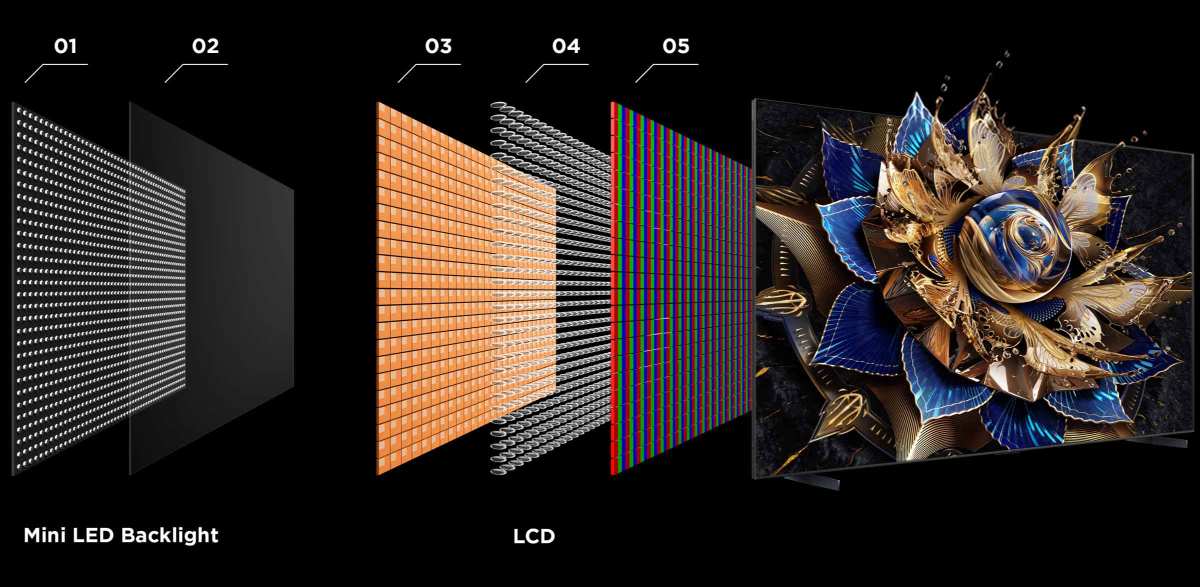
Mini LED is not a new panel type like IPS or VA. It's a backlight system used behind LCD panels. The "mini" part refers to the size of the individual LED diodes, which are smaller than traditional LED backlights.
This lets manufacturers pack hundreds or thousands of tiny LEDs behind the screen, grouped into dimming zones.
Each zone can dim or brighten independently. This is what gives Mini LED its contrast advantage over standard LED monitors, which typically use edge-lit or direct-lit backlights with few or no dimming zones. More zones mean better control over which parts of the screen are bright and which are dark.
Here's where it gets important for dual setups. When you're running two monitors side by side, inconsistencies between them become obvious fast. With Mini LED, you're getting a technology that can produce stunning HDR results, but also one where quality varies dramatically based on zone count and implementation.
A 96-zone Mini LED monitor will look very different from a 2,000-zone model.
The backlight difference that matters
Standard LED monitors either light the screen from the edge (edge-lit) or use a few large zones behind the panel (direct-lit). Mini LED uses thousands of small LEDs divided into local dimming zones. This is called Full Array Local Dimming, or FALD.
The practical difference shows up when you've got a bright object on a dark background. On a standard LED, the whole screen glows a bit. On Mini LED, just the zone behind that bright object lights up.
This is why HDR content looks so much better on Mini LED displays.
Mini LED vs standard LED: what changes for you
For a dual monitor setup, the jump from standard LED to Mini LED is noticeable. You get deeper blacks, brighter highlights, and better HDR performance. But you also get a monitor that's often thicker, heavier, and more expensive.
Standard LED monitors are thinner and lighter. They're easier to mount on monitor arms. They run cooler.
For office work, coding, or general productivity, a good standard IPS monitor might serve you just fine. Mini LED really shines when you need HDR, high contrast, or color-accurate work across both screens.
Mini LED vs OLED: The Real Dual Monitor Decision
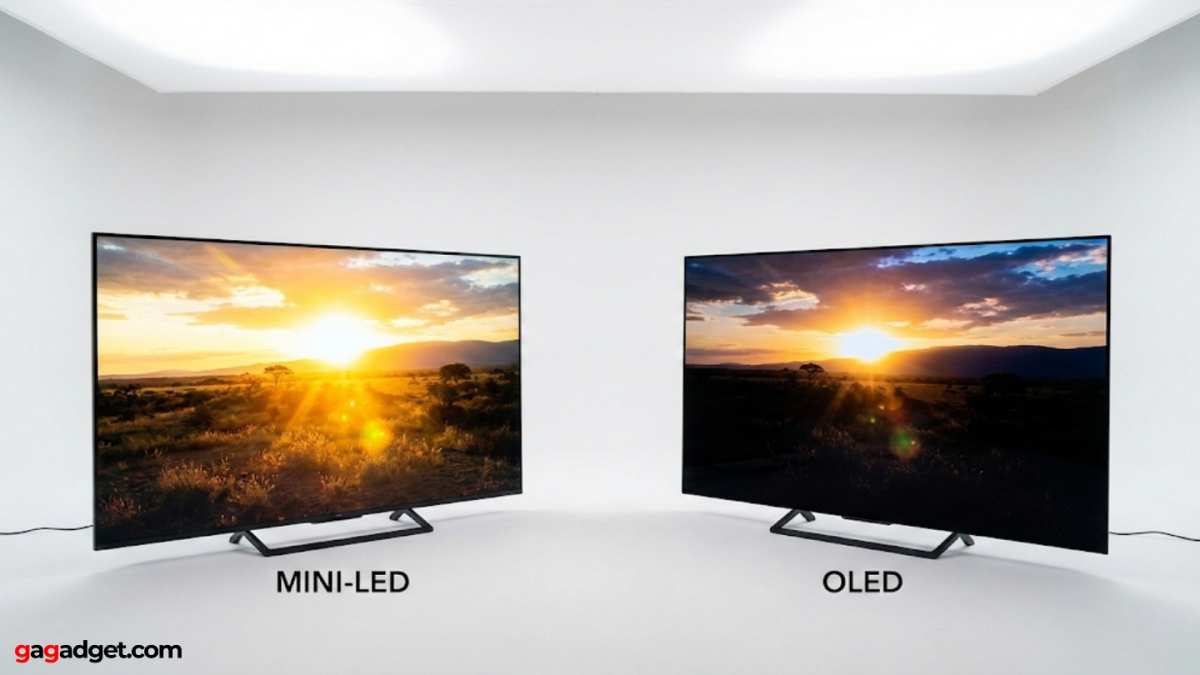
This is the comparison that actually matters for most people building a dual setup. Both Mini LED and OLED can deliver excellent image quality. They just get there in very different ways, with very different trade-offs.
OLED uses self-emitting pixels. Each pixel produces its own light and can turn off completely for perfect blacks. Mini LED still uses an LCD layer with a backlight, even if that backlight is very sophisticated.
This fundamental difference drives everything else.
Side-by-side comparison table
| Feature | Mini LED | OLED |
|---|---|---|
| Black levels | Very good (FALD dependent) | Perfect (per-pixel) |
| Peak brightness | 1,000 to 2,000+ nits | 600 to 1,000 nits typical |
| HDR performance | Excellent | Excellent |
| Haloing/blooming | Present (zone dependent) | None |
| Burn-in risk | None | Present (static elements) |
| Response time | 1 to 8ms GtG | Under 1ms typical |
| Thickness | Thicker chassis | Very thin possible |
| Price range | $300 to $3,000+ | $800 to $3,000+ |
| Best for dual setup | Mixed productivity and HDR | Dark room, gaming, media |
Where Mini LED wins
Mini LED pulls ahead in a few specific scenarios. If your workspace has a lot of ambient light, the higher peak brightness keeps images looking punchy. For HDR video editing or color grading, the brightness advantage is real.
You also don't have to worry about burn-in from static UI elements, taskbars, or window layouts that stay in the same place all day.
For dual monitor setups where one screen shows reference content and the other shows tools or timelines, Mini LED's burn-in immunity is a genuine advantage. You can leave the same layout for months without degrading the panel.
Where OLED wins
OLED dominates in dark room environments. Those perfect blacks make movies, games, and photo editing look incredible. Response times are faster, which matters for competitive gaming.
The panels can be thinner, which helps with desk aesthetics and monitor arm setups.
If you primarily work in controlled lighting or a darker room, OLED often delivers a more impressive image. The trade-off is burn-in risk and lower peak brightness in bright rooms. For a dual setup where both screens see heavy use with static elements, that burn-in concern is real over time.
When Mini LED Makes Sense for Two Screens
Not every dual monitor user needs Mini LED. Let's get specific about where it's actually worth the investment and where you'd be better served by alternatives.
HDR content creation and review
If you're editing HDR video, grading color for HDR delivery, or reviewing HDR photography, Mini LED is a strong choice. The high peak brightness lets you see what your content will look like on HDR displays. Having two Mini LED monitors means your reference display and your editing workspace both show accurate HDR.
This is one of the clearest wins for Mini LED in a dual setup. Standard LED can't hit the brightness levels needed for proper HDR work. OLED can do HDR but often at lower peak brightness.
Mini LED hits the sweet spot for professional HDR workflows.
Mixed-use productivity with media
A lot of dual monitor users split their time between productivity work and media consumption. Maybe you code on one screen and watch content on the other. Or you do data analysis on one and reference videos on the other.
Mini LED handles this mix well. The high brightness keeps text crisp and readable during work. When you switch to HDR content, the local dimming kicks in for better contrast.
You're not compromising as much as you would with a monitor optimized for only one use case.
Gaming with HDR priority
HDR gaming on Mini LED can look stunning. Games with bright highlights, explosions, and lighting effects really benefit from the high peak brightness. If you game on one screen while keeping Discord, guides, or streaming on the other, Mini LED gives you that visual pop without burn-in worries from static HUD elements.
The response time isn't quite as fast as OLED, but at 1ms to 4ms GtG on the better models, it's more than good enough for most gamers. Competitive esports players might still prefer OLED or a fast IPS panel, but for everyone else, Mini LED gaming is excellent.
Environments with lots of ambient light
If your workspace has big windows, bright overhead lighting, or you can't control the light easily, Mini LED's brightness advantage becomes practical, not just spec-sheet bragging. A monitor that can hit 1,000 nits or more stays visible and punchy even in bright conditions.
OLED struggles more in bright rooms because its peak brightness is lower. For dual setups in offices with lots of natural light, Mini LED often looks better in practice than it does on paper.
When Mini LED Isn't the Best Choice
Mini LED isn't the right call for every dual setup. Here's where you should probably look at alternatives.
Dark-room work and coding
If you work in a dim or dark room, especially doing coding or text-heavy work, Mini LED's haloing becomes more noticeable. Dark themes with bright text or cursors can show blooming around the bright elements. OLED's perfect blacks are much more pleasant in these conditions.
For developers who live in dark mode editors, OLED or even a good standard IPS with a dark room setup will look cleaner and cause less eye strain over long sessions.
Competitive gaming at all costs
If you're playing competitive titles where every millisecond matters, OLED's sub-0.1ms response time beats Mini LED. Some competitive gamers also prefer the slightly different motion clarity of OLED. Mini LED is fast enough for most people, but if you're chasing every advantage, OLED or a dedicated fast IPS gaming monitor might be better.
Budget-constrained setups
Mini LED costs more than standard LED. If you're building a dual monitor setup on a tight budget, two good standard IPS monitors will outperform one Mini LED monitor in most productivity tasks. You're often better off with two solid standard monitors than one Mini LED and one cheap panel.
For under $500 total, standard LED is the practical choice. Mini LED starts making more sense when you can spend $400 or more per monitor.
Text-heavy office work
If your work is mostly documents, spreadsheets, email, and web browsing, Mini LED's advantages don't matter much. You won't benefit from HDR or high contrast in these scenarios. A good standard IPS monitor with decent color accuracy and ergonomic adjustments will serve you better and cost less.
The local dimming can actually be a downside for text work. Blooming around bright text on dark backgrounds can make things look slightly soft or glowy. For pure office productivity, simpler is often better.
The Haloing Problem: What Dual Monitor Users Need to Know
Haloing, also called blooming, is the most common complaint about Mini LED monitors. It shows up as a glow or halo around bright objects on dark backgrounds. White text on a black screen, bright cursors, UI elements against dark content, these all trigger it.
The cause is simple. Each dimming zone covers a chunk of the screen. If a bright element sits in a zone that also has dark content, the whole zone lights up, creating a visible halo around the bright area.
More zones mean smaller zones, which means less visible haloing.
Why blooming is more noticeable on two screens
With a single monitor, you can sometimes ignore haloing because your focus is centered on one screen. With two monitors, your eyes move back and forth constantly. If one screen shows dark content with bright elements and the other shows something different, the haloing on the Mini LED screen becomes more obvious by comparison.
This is especially true if you pair a Mini LED with a standard LED or OLED monitor. The difference in how they handle dark scenes becomes immediately visible. Your brain picks up on the inconsistency fast.
Zone count matters more than you think
Mini LED monitors range from around 96 dimming zones to over 5,000. The zone count directly affects how much haloing you'll see. Budget Mini LED monitors with fewer zones can actually look worse than a good standard LED in dark scenes because the blooming is so obvious.
Here's a rough guide to what to expect:
- Under 200 zones: Noticeable haloing, best for bright content only
- 200 to 500 zones: Moderate haloing, good for mixed use
- 500 to 1,000 zones: Mild haloing, solid for most scenarios
- 1,000+ zones: Minimal haloing, excellent for dark content
- 2,000+ zones: Very subtle haloing, close to OLED territory
For a dual monitor setup where you'll notice differences between screens, aim for at least 500 zones per monitor. Anything less and the blooming might drive you crazy when you're bouncing your eyes between two screens showing different content.
Matching Two Mini LED Monitors: Calibration and Consistency
Running two monitors side by side means any differences between them become obvious. Color shifts, brightness differences, and contrast variations all stand out when you're moving windows between screens.
Color matching challenges
Even two identical Mini LED monitor models can look slightly different out of the box. Manufacturing variations mean each panel has its own color temperature, gamma curve, and brightness characteristics. This is true of any monitor type, but it matters more with Mini LED because the local dimming adds another variable.
If one monitor's dimming is more aggressive than the other, dark scenes will look different on each screen. This is annoying for general use and unacceptable for color-critical work.
Brightness uniformity across panels
Mini LED monitors can vary in peak brightness from unit to unit. If one screen hits 1,000 nits and the other only manages 800 nits, HDR content will look different on each display. For dual setups where you're comparing content across screens, this inconsistency is a real problem.
The fix is calibration. Using a colorimeter like the Calibrite ColorChecker Display or Datacolor SpyderX, you can profile each monitor individually and match them as closely as possible. Most operating systems support per-monitor color profiles, so you can load different settings for each screen.
Calibration workflow for dual setups
Calibrating two Mini LED monitors takes a bit of patience. Here's the basic process:
- Warm up both monitors for at least 30 minutes at normal brightness
- Reset both to factory defaults in the OSD menu
- Set the same picture mode on both (usually User or Custom)
- Run calibration software on each monitor individually with a colorimeter
- Save each profile and assign it to the correct monitor in your OS
- Compare both screens showing the same test images and fine-tune if needed
For Mini LED specifically, pay attention to the local dimming setting. Some monitors have multiple levels of local dimming. Make sure both are set to the same level before calibrating, or the black points and contrast will differ between screens.
Professional calibration can get expensive if you're paying someone to do it. Budget around $100 to $200 for a colorimeter if you want to do it yourself. It pays for itself if you're doing color-critical work.
Key Specs to Look For in Dual Mini LED Monitors
Shopping for Mini LED monitors for a dual setup means paying attention to a few specs that matter more than they might for a single screen.
Dimming zones and HDR certification
The VESA DisplayHDR certification gives you a rough idea of what you're getting. Here's what the tiers mean in practice:
- DisplayHDR 400: Entry-level HDR, minimal dimming zones, limited contrast improvement
- DisplayHDR 600: Mid-range, decent local dimming, noticeable HDR improvement
- DisplayHDR 1000: High-end, many zones, strong HDR with deep blacks and bright highlights
- DisplayHDR 1400: Premium, excellent HDR, very high peak brightness
For a dual setup, DisplayHDR 1000 or higher is worth the investment. DisplayHDR 400 and 600 don't offer enough improvement over standard LED to justify the Mini LED price premium.
Ergonomics and physical setup
Mini LED monitors tend to be thicker and heavier than standard LED or OLED. This matters for dual setups because you need a desk and mount solution that can handle the weight and depth.
Look for VESA mount compatibility (100x100mm is standard). Check the weight with and without the stand. If you're using monitor arms, make sure they're rated for the weight.
A fully loaded dual Mini LED setup can easily weigh 30 pounds or more.
Height adjustment, swivel, and pivot matter more with two screens. You want to be able to align both monitors precisely at eye level. Cheap stands with limited adjustment make this harder.
Connectivity and adaptive sync
For dual monitor setups, check what inputs each monitor has. DisplayPort 1.4 with DSC (Display Stream Compression) is common and supports high resolution and refresh rates. HDMI 2.1 is also useful, especially if you're connecting a gaming console or other devices.
Adaptive sync support (G-Sync or FreeSync) is worth having if you game on either screen. Make sure the monitor supports the same adaptive sync standard as your GPU. NVIDIA users want G-Sync Compatible at minimum.
AMD users want FreeSync support.
Pricing and Value: What You'll Actually Pay
Mini LED monitor prices have dropped significantly over the past couple of years, but they still cost more than standard LED alternatives. Here's what to expect as of 2026.
Current price tiers
| Category | Price Range | Zone Count | Best For |
|---|---|---|---|
| Budget Mini LED | $300 to $500 | 96 to 200 | Bright room productivity |
| Mid-range Mini LED | $500 to $900 | 200 to 500 | Mixed use, gaming |
| High-end Mini LED | $900 to $1,500 | 500 to 1,152 | Content creation, HDR work |
| Premium Mini LED | $1,500 to $3,000+ | 1,152 to 5,760+ | Professional reference |
For a dual setup, you're looking at double these numbers. Two mid-range Mini LED monitors will run you $1,000 to $1,800. Two high-end models can easily hit $3,000 or more.
Cost comparison with alternatives
Two good standard IPS monitors with decent color accuracy can be had for $400 to $800 total. Two OLED monitors typically start around $1,600 and go up from there. Mini LED sits in the middle, offering better HDR than standard LED without the burn-in risk of OLED.
The value proposition depends on your use case. If you need HDR and can't risk burn-in, Mini LED is the clear choice. If you don't need HDR at all, standard LED saves you money.
If you want the absolute best image quality and can manage burn-in risk, OLED might be worth considering.
Common Mistakes People Make with Dual Mini LED Setups
A lot of frustration with Mini LED dual setups comes down to avoidable mistakes. Here are the ones we see most often.
Ignoring zone count when buying. A budget Mini LED with 96 zones will show obvious haloing. For dual setups where you'll notice differences between screens, don't go below 500 zones if you can help it.
Mixing Mini LED with a different technology. Pairing a Mini LED monitor with an OLED or standard LED monitor creates obvious visual differences. The Mini LED screen will show haloing that the other screen doesn't. The color and brightness will look different.
If possible, use two identical Mini LED monitors.
Skipping calibration. Out of the box, even two identical Mini LED monitors can look noticeably different. A basic calibration with a colorimeter makes a huge difference in consistency between screens.
Using local dimming on all the time. Some Mini LED monitors have aggressive local dimming that causes brightness fluctuations as content changes. This is distracting during general productivity work. Use local dimming for HDR content and media, but consider turning it off or setting it to a lower level for office work.
Not checking monitor arm weight limits. Mini LED monitors are heavier than they look. A monitor arm rated for 15 pounds might not handle a 32-inch Mini LED that weighs 20 pounds with the stand removed. Check the specs before you buy your mounting solution.
Expecting OLED-level blacks. Mini LED is very good, but it's not OLED. If you're coming from OLED and expecting the same perfect blacks, you'll be disappointed. The haloing is real and it's visible in certain content.
Go in with realistic expectations.
Expert Tips for Getting the Most Out of Dual Mini LED
After looking at dozens of dual Mini LED setups and user reports, here are the tips that make the biggest difference.
Buy two identical monitors. This is the single best thing you can do. Same model, same firmware revision if possible. Matching two different Mini LED monitors, even from the same brand, is an exercise in frustration.
Invest in a good monitor arm. A dual monitor arm with individual adjustment for each screen lets you align both monitors perfectly. This reduces neck strain and makes the visual transition between screens smoother. Look for arms rated for at least 20 pounds per screen.
Calibrate both monitors to the same target. Use the same color temperature (6500K is standard), same gamma (2.2), and same brightness level for both screens. This minimizes the visual difference when you move content between displays.
Set local dimming consistently. If both monitors have local dimming, set them to the same level. Some monitors have a "low," "medium," and "high" setting. Pick one and use it on both screens.
Consider your room lighting. Mini LED performs best in rooms where you can control the light. Too much ambient light washes out the contrast advantage. Too little light makes haloing more noticeable.
Aim for moderate, diffused lighting.
Update firmware before setup. Some Mini LED monitors receive firmware updates that improve local dimming algorithms and fix bugs. Check the manufacturer's website and update both monitors before you calibrate and start using them.
Frequently Asked Questions
Is Mini LED better than OLED for dual monitors?
It depends on your use case. Mini LED wins for HDR brightness and burn-in safety. OLED wins for perfect blacks and response time.
For mixed productivity and HDR work, Mini LED is often the safer dual monitor choice.
How many dimming zones do I need for dual monitors?
Aim for at least 500 zones per monitor for a dual setup. Fewer zones mean more visible haloing, which becomes obvious when you're looking at two screens side by side. More zones give you cleaner dark scenes and less blooming.
Can I mix Mini LED with another monitor type?
You can, but it's not ideal. The visual differences between Mini LED and other technologies become obvious when they're side by side. If you must mix, calibrate both as closely as possible and accept that dark scenes will look different on each screen.
Does Mini LED work well for office work?
It works fine, but the advantages don't matter much for documents and email. The local dimming can actually cause minor distractions with dark themes. For pure office productivity, a good standard IPS monitor is often a better value.
Will two Mini LED monitors cause eye strain?
Not inherently. Mini LED monitors with flicker-free backlighting and low blue light modes are comfortable for extended use. The main concern is brightness, so set both monitors to a comfortable level and avoid maxing out the brightness in dark rooms.
How long do Mini LED monitors last?
Mini LED monitors use LCD panels with LED backlights, both of which are very durable. Expect 50,000 to 70,000 hours of use before noticeable degradation. That's roughly 10 to 15 years of typical daily use.
The LED backlight is rated to maintain brightness well over time, making Mini LED a solid long-term investment for a dual setup.
Final Verdict: Should You Go Mini LED for Your Dual Setup?
Mini LED is a strong choice for dual monitor setups if you need HDR performance, work in a bright room, or want to avoid burn-in risk. The technology has matured enough that the image quality is genuinely impressive, and prices have come down to where it's accessible for more budgets.
The key is being honest about what you actually need. If you're doing HDR content creation, gaming in a bright room, or running static UI elements all day, Mini LED makes a lot of sense. If you're coding in a dark room, on a tight budget, or chasing the absolute fastest response times, there are better options.
For most dual monitor users who want a balance of image quality, safety, and versatility, Mini LED hits a sweet spot that neither standard LED nor OLED quite matches. Just buy two identical models, calibrate them properly, and make sure you're getting enough dimming zones for your money. Do that and you'll have a dual setup that looks great and holds up well over time.

Similar Posts





















