Iphone 14 Screen Replacement Not Working Troubleshooting
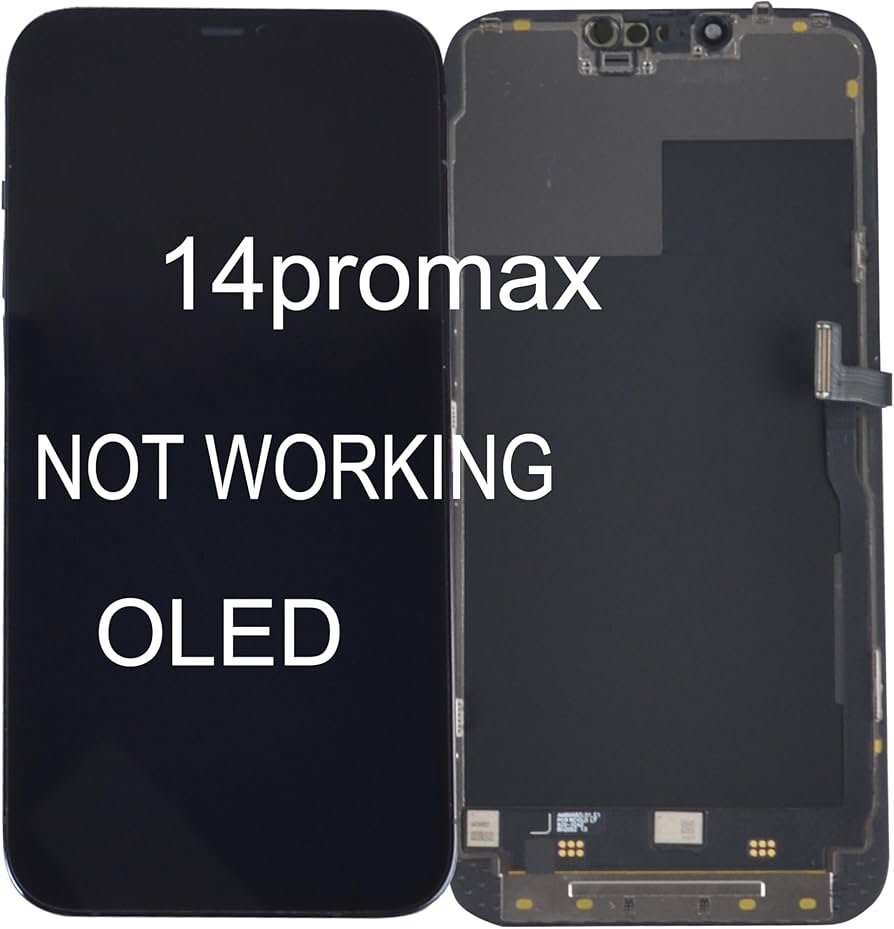

Understanding Why iPhone 14 Screen Replacement Might Not Be Working
When you get your iPhone 14 screen replaced, you expect everything to work perfectly. But sometimes, after the repair, the screen may not function as it should. You might notice issues like unresponsive touch, display problems, or connectivity errors. Don’t worry — these problems are common and often fixable. In this section, we’ll explore why your iPhone 14 screen replacement might not be working properly and what could be causing these issues.Common Reasons for Screen Repair Failures
Understanding why the replacement doesn’t work helps you figure out what to do next. Here are some of the most common causes:Poor Quality Replacement Parts
Many problems start with the quality of the parts used during the repair. Cheaper, non-original parts often do not match the specifications of the original screen, leading to issues such as:- Touch sensitivity problems
- Color inconsistencies
- Display flickering or dead pixels
Incorrect Installation
A common mistake is improper installation. If the screen isn’t fitted correctly — for example, if connectors aren’t properly attached or if the adhesive isn’t applied correctly — the display may not work well. This can cause temporary faults like flickering or complete failure.Damage During Repair
Even a small mistake during repair can lead to further issues:- Damaging connectors or circuits
- Breaking delicate parts like the flex cables
- Inadvertently cracking the screen during installation
Software or Firmware Issues
Sometimes, after a screen replacement, the phone’s software may not recognize the new hardware properly. This can lead to:- Touch not responding
- Display issues like color shifts or lines
- Unexpected restarts or freezing
Compatibility Problems
Not all screen replacements are compatible with the specific model of iPhone 14 you own. If the replacement part isn’t designed for your device, it might not work seamlessly.How to Diagnose if the Replacement Is Not Working Properly
Before jumping into solutions, it’s essential to determine the exact problem with your screen. Here are some simple steps:Test Touch Responsiveness
– Try using different apps or parts of the screen. – Check if the touch responds consistently or if there are dead zones. – Use the screen in a well-lit environment to ensure visibility.Inspect the Display Quality
– Look for flickering, lines, or color inconsistencies. – Observe if the screen displays any black spots or dead pixels. – Check the brightness levels and color accuracy.Check Physical Damage
– Examine the screen for cracks, scratches, or other physical damage. – Verify if the replacement was installed securely without gaps or loose connectors.Test External Connections and Updates
– Restart your iPhone to see if software glitches resolve. – Make sure your iPhone software is up-to-date. – Connect your device to iTunes or use Apple’s diagnostics tools if available.Possible Solutions to Fix Your Non-Working Screen
Once you’ve diagnosed the problem, here are some practical solutions:Reinstall the Screen Properly
If installation seems to be the issue, consider:- Using a professional repair service with experienced technicians
- Ensuring all connectors are securely attached
- Applying proper adhesive and sealing the device correctly
Replace Quality Parts
Your problem might lie with substandard parts. Opt for:- Original Apple screens
- High-quality third-party alternatives verified by reputable sources
- Parts with good user reviews and warranty
Update or Reset Your Device
Software glitches can sometimes cause hardware issues:- Perform a full backup of your device
- Update your iPhone to the latest iOS version
- Reset settings or perform a factory reset if necessary
Seek Professional Repair Help
If troubleshooting doesn’t work, visit a certified repair shop. Professionals can:- Run diagnostic tests
- Use specialized tools to fix hardware connections
- Identify hidden damages that aren’t visible to the naked eye
Preventing Future Screen Replacement Problems
Prevention is better than cure. Here’s what you can do to reduce the chances of facing similar problems:Choose Reputable Repair Services
– Look for authorized Apple repair providers. – Check reviews and ask for guarantees or warranties. – Avoid cheap DIY fixes that seem too good to be true.Use Quality Parts
– Always insist on original parts or reputable third-party alternatives. – Confirm with the technician about the parts they plan to use.Handle Your iPhone Carefully
– Use protective cases and screen guards. – Avoid dropping or exposing your device to extreme conditions. – Be cautious during repairs—avoid trying to fix the phone yourself if you’re inexperienced.Maintain Software Properly
– Keep your iPhone updated regularly. – Use official Apple support tools for troubleshooting. – Backup data to prevent loss during repairs or updates.When to Consider Replacing Your iPhone 14 Instead of Repairing
If your screen replacement repeatedly fails or if additional hardware problems appear, it might be time to consider replacing the device altogether. Signs include:- Repeated repair issues despite proper fixes
- Significant internal damage beyond the screen
- High repair costs compared to the value of the phone
- Performance issues unrelated to the screen
Frequently Asked Questions
Why is my iPhone 14 screen not responding after replacement?
There could be several reasons for this issue. The replacement screen might not be properly connected, or there might be a defect in the new display. Additionally, internal hardware components could be damaged during the replacement process. Ensure all connectors are securely attached and inspect the new screen for any visible defects. If the problem persists, visiting a professional technician may help identify hardware issues.
How can software issues cause problems with a newly replaced iPhone 14 screen?
Software glitches or outdated firmware can prevent the new screen from functioning correctly. Performing a force restart or updating your iPhone’s software might resolve display problems. If the device still doesn’t respond properly, restoring the phone to factory settings or contacting Apple support can help determine if software is the cause.
What steps should I take if my iPhone 14 screen calibration seems off after replacement?
Inaccurate calibration can cause touch sensitivity problems. Try recalibrating your screen by restarting the device or performing a factory reset. If calibration issues continue, the replacement screen may not be compatible or might require professional recalibration. Consulting with an authorized service provider ensures proper setup and calibration of the display.
Can environmental factors affect the functionality of a replaced iPhone 14 screen?
Yes, exposure to moisture, extreme temperatures, or dust can impact the performance of the new display. Ensure your device is used within recommended environmental conditions. If environmental damage is suspected, professionals can test the display for damage and suggest appropriate repairs or replacements.
Is it necessary to ensure compatibility when replacing the iPhone 14 screen?
Absolutely. Using a screen that is not specifically designed for the iPhone 14 can lead to issues such as poor touch response or display errors. Always opt for high-quality, compatible replacement parts from reputable suppliers or authorized service centers to ensure proper functionality after the replacement.
Final Thoughts
The conclusion emphasizes that many users face issues when their iPhone 14 screen replacement not working properly. Sometimes, incompatibility or improper installation causes the problem. Ensuring a certified technician handles the replacement minimizes these risks. If problems persist, seek professional advice to prevent further damage. Addressing these concerns promptly helps restore your device’s functionality efficiently.
Similar Posts