Iphone 13 Screen Replacement Not Working Troubleshooting
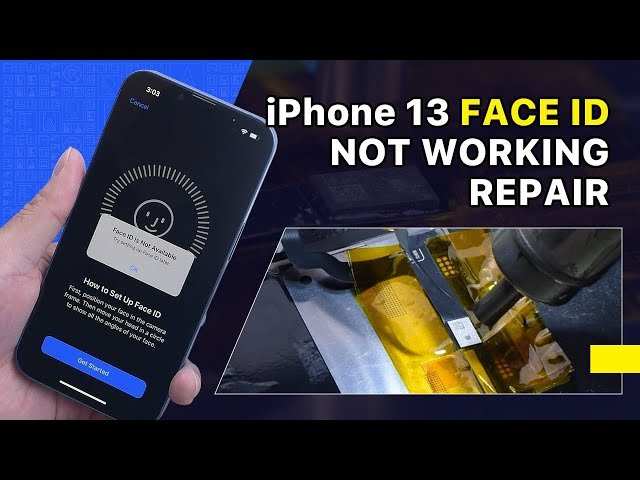

Understanding Why Your iPhone 13 Screen Replacement Might Not Be Working
When you replace the screen of your iPhone 13, you expect everything to function smoothly. But what happens if, after getting a new screen, your device doesn’t respond as it should? This situation frustrates many users and can leave you wondering what went wrong. There are several reasons why an iPhone 13 screen replacement might not work properly, and understanding these reasons can help you troubleshoot more effectively. In this section, we will explore the most common issues that cause screen replacements to fail or not work as expected. You’ll learn about the technical details behind these problems and what steps you can take to resolve them. Whether you tried to replace your screen yourself or used a professional service, knowing what to look out for can save you time, money, and frustration.Common Causes of iPhone 13 Screen Replacement Failures
Replacing an iPhone 13 screen can sometimes lead to unexpected problems. Here are the most frequent causes:- Incorrect Installation: If the screen isn’t mounted properly, touch sensitivity and display functions can be compromised.
- Damaged Internal Components: During replacement, internal parts like the flex cables or connectors might get damaged or disconnected.
- Faulty Replacement Screen: Not all replacement screens are the same quality. Using a low-quality or defective screen can lead to issues.
- Software Issues: Sometimes, the software may not recognize the new hardware, especially if the system requires an update or reset.
- Compatibility Problems: Certain third-party screens might not be fully compatible with your specific iPhone 13 model, causing malfunctions.
Steps to Diagnose the Problem
Before rushing into repairs, it’s crucial to identify what exactly isn’t working. Here are some steps to diagnose issues after a screen replacement:Check the Display
- Does the screen light up when you turn on your iPhone?
- Are there any strange lines, dead pixels, or discoloration?
- Does the touch respond uniformly across the screen?
Test Touch Sensitivity
- Try to open apps or navigate through menus.
- If the touch feels unresponsive or only works in certain areas, there might be a connection problem.
Check for Physical Damage
- Inspect the screen for cracks or visible damage.
- Look for gaps around the edges, which could mean the screen isn’t fitted properly.
Perform a Software Reset
- Restart your iPhone to clear temporary glitches.
- Update your iPhone to the latest iOS version to ensure compatibility with new hardware.
Potential Mechanical and Hardware Problems
Sometimes, the problem lies deeper than just the screen itself. Several hardware issues can interfere with proper screen function after replacement.Loose or Disconnected Flex Cables
The display and touch sensors connect to the mainboard via flex cables. If these cables aren’t properly secured during installation, your screen might not work correctly. Common signs include the screen being black, unresponsive, or flickering.Damaged Connectors
Even a tiny bent or broken connector can cause the display to malfunction. This damage can happen if tools slip during repair or if the connectors aren’t handled carefully.Problems with the Display Driver
The display driver manages how the screen functions. If it gets damaged or corrupted during the repair process, the display may not work as expected. Sometimes, software updates can fix this issue, but in other cases, the driver might need to be reinstalled or replaced.Impact of Water Damage or Physical Shock
If your phone experienced physical shocks or water exposure before the replacement, internal damage might limit the new screen from functioning properly. Signs include ghost images, flickering, or the screen not turning on at all.Why Using High-Quality Parts Matters
Using substandard parts for a screen replacement can lead to persistent problems. Low-quality screens or poorly manufactured flex cables may seem to work initially but tend to fail quickly. Here’s why quality matters:- Better Compatibility: Genuine or high-quality screens ensure seamless integration with your iPhone’s hardware.
- Enhanced Durability: Higher-quality parts resist damage and wear over time.
- Reliable Touch Response: Ensures that touch sensitivity remains consistent and accurate.
- Fewer Installation Issues: Premium parts are usually easier to install and less prone to defects.
Addressing Software-Related Screen Issues
Sometimes, your screen problems aren’t hardware-related but stem from software glitches. After a screen replacement, a software hiccup can make it seem like the screen isn’t working properly.Perform a Hard Reset
Hold the power button and volume down button simultaneously for ten seconds. This can solve temporary software glitches affecting display responsiveness.Update Your iOS
Keeping your device’s software current ensures compatibility with new hardware components and may fix display-related bugs.Reset All Settings
Navigate to Settings > General > Reset > Reset All Settings. This action won’t erase your data but resets system settings that might interfere with touch responses or display operation.Restore Your iPhone via iTunes
If issues persist, consider restoring your iPhone to factory settings. Backup your data first, then connect your device to a computer and use iTunes or Finder to perform the reset.When to Seek Professional Help
While some troubleshooting steps are easy to perform yourself, certain problems require professional attention:- If your screen remains unresponsive after all troubleshooting steps.
- When flex cables or internal connectors are visibly damaged or disconnected.
- If your device has internal damage from impacts or water exposure.
- When the replacement screen is defective or incompatible.
Tips for Ensuring a Successful Screen Replacement
To avoid issues after replacing your iPhone 13 screen, follow these tips:- Use authentic or high-quality replacement parts.
- Follow precise repair procedures, especially when handling internal connectors and flex cables.
- Work in a clean, dust-free environment to prevent debris from entering the device.
- If unsure, seek professional assistance from authorized repair centers.
- Back up your data before attempting any repairs, just in case something goes wrong.
Frequently Asked Questions
Why is my iPhone 13 screen not responding after a replacement?
If your iPhone 13 screen isn’t responding after a replacement, it could be due to improper installation or a faulty connection. Double-check that all cables and connectors are securely attached, and ensure no debris or damage is present on the connectors. Sometimes, software glitches can also cause touch responsiveness issues, so restarting your device or performing a soft reset might help resolve the problem.
Could a software issue be causing the new screen to not work properly?
Yes, software issues can interfere with the proper functioning of your new screen. Updating your iPhone’s software to the latest version can fix compatibility problems. If issues persist, performing a factory reset or restoring your device through iTunes might clear any software conflicts affecting the display performance.
What should I do if the display calibration seems off after a screen replacement?
If the display appears distorted or unresponsive to calibration, it could be due to incompatible replacement parts or calibration issues. Replacing the screen with genuine parts and ensuring proper calibration during installation can resolve this. Consulting a professional technician for accurate calibration or further inspection helps ensure optimal display performance.
Is it possible that the replacement screen itself is defective?
Absolutely. A defective or counterfeit replacement screen may cause touch sensitivity or display problems. Always choose high-quality, authentic parts from trusted sources. If you suspect the screen is faulty, replacing it with a verified component often restores proper function and prevents further issues.
Why does my iPhone 13 screen flicker or show lines after repair?
Flickering or lines on the screen typically indicate a loose connection, damaged display cable, or a faulty display unit. Rechecking all connections and ensuring they are properly secured can often solve the issue. If problems continue, replacing the display with a new, tested component usually resolves flickering or line display problems.
Final Thoughts
The issue of ‘iPhone 13 screen replacement not working’ can be frustrating for users. Often, improper installation or incompatible parts cause the problem. Ensuring the right tools and genuine components can make a difference. If challenges persist, consult a professional technician to avoid further damage. Troubleshooting thoroughly helps identify specific causes. In conclusion, addressing the ‘iPhone 13 screen replacement not working’ requires careful attention and proper techniques. Taking these steps prevents future issues and ensures your device functions correctly.
Similar Posts