how to fix blurry text on 27 inch monitor

You plug in that new 27-inch monitor, sit down to work, and the text looks like someone smeared Vaseline on the screen. Every email, every line of code, every menu feels harder to read than it should be. If you're wondering how to fix blurry text on a 27-inch monitor, you're not alone, it's one of the most common complaints after upgrading or switching displays.
And the good news? It's almost always fixable in a few minutes without buying anything new.
Manufacturer specs show that a 27-inch screen at 1440p (2560×1440) runs about 109 pixels per inch (PPI). That's comfortable for most eyes. But if any link in the chain, cable, settings, driver, is out of place, you'll see fuzziness.
As of 2026, the fixes haven't changed much, and they all come down to a handful of variables you can check yourself. Let's walk through them.
Image source: iNaturalist / Irene
Quick Answer
Check your screen resolution first. Set it to the monitor's native resolution. Check your cable, use HDMI 2.0 or DisplayPort 1.4.
Run Windows ClearType. Turn off HDR. Set monitor sharpness to 50%.
That order fixes 90% of blurry text cases. Each step takes under a minute.
Step 1 – Check Your Resolution (The Most Common Culprit)
The single biggest reason text looks fuzzy on a 27-inch monitor is a mismatched resolution. Your monitor has one native resolution. Every other resolution the GPU can output is a scaled version of that, and scaling always introduces some softness.
How to Find Your Monitor's Native Resolution
Look on the box or the manufacturer's spec page. For a 27-inch display, the common native resolutions are:
- 1920×1080 (1080p), about 82 PPI, good for basic office work
- 2560×1440 (1440p), about 109 PPI, the sweet spot for most users
- 3840×2160 (4K), about 163 PPI, crisp text but requires scaling
On Windows, go to Display Settings > Display Resolution. On macOS, go to System Settings > Displays. Make sure the resolution listed as "Recommended" is selected.
If you're running a resolution like 1920×1080 on a 1440p panel, text will be noticeably blurry. That's a forced downscale, not native.
If the recommended resolution is already selected and text is still blurry, move on to the cable.
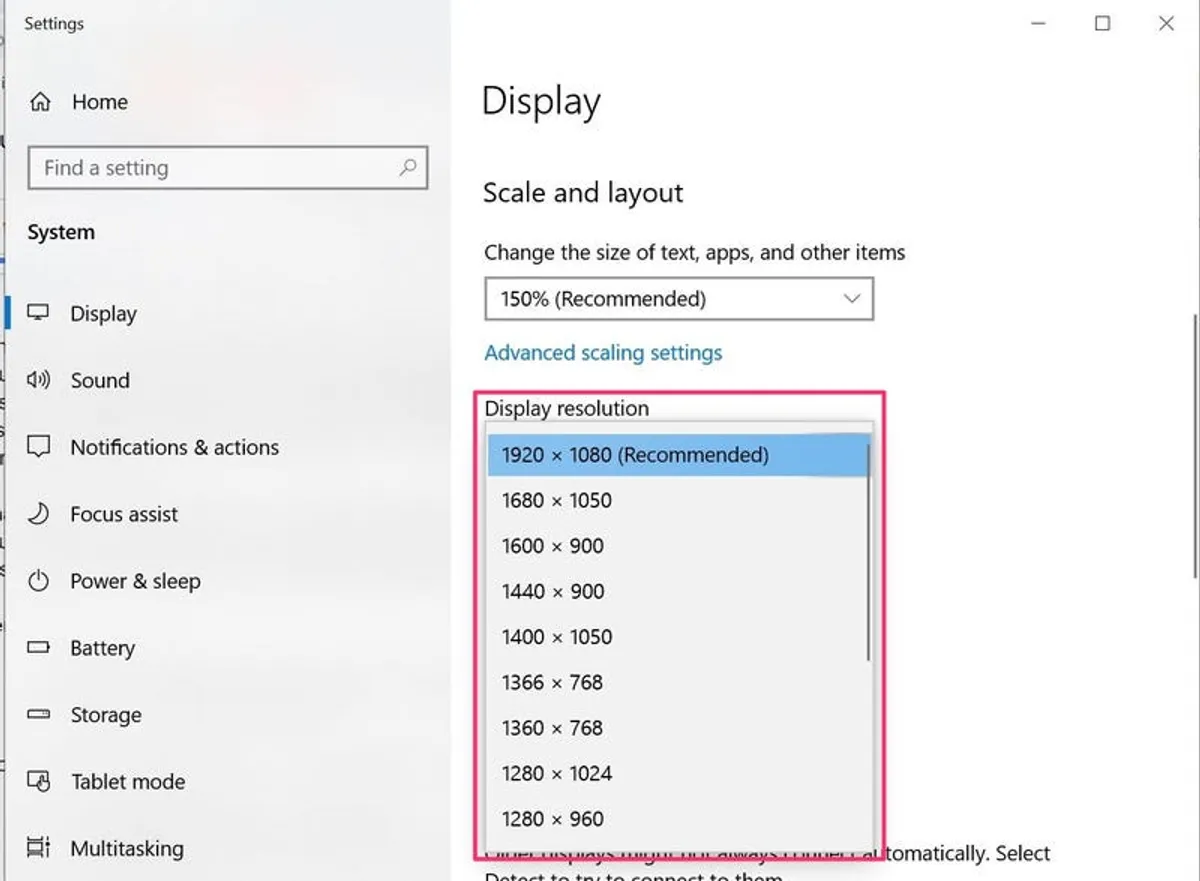
Image source: Bing (Web (fair-use with source credit))
Step 2 – Is Your Cable the Problem? (Bandwidth & Chroma Subsampling)
Your resolution might be correct, but if the cable can't carry enough data, the GPU compresses the image. That compression hits text hardest. The culprit is usually chroma subsampling, specifically 4:2:0, where colour information is halved.
Text gets colour fringing and looks soft.
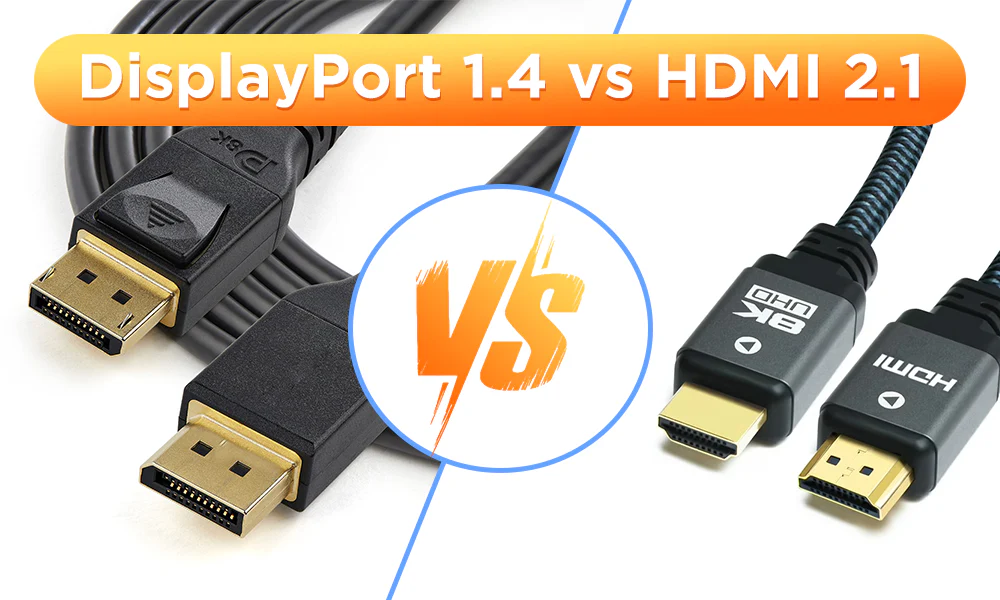
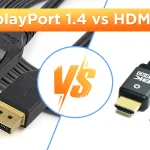
HDMI vs DisplayPort vs USB-C – Which One You Need
For a 27-inch 4K monitor at 60 Hz, you need a cable that supports at least 18 Gbps bandwidth. Here's what works:
| Cable type | Max bandwidth | Supports 4K 60Hz 4:4:4? |
|---|---|---|
| HDMI 2.0 | 18 Gbps | Yes |
| HDMI 2.1 | 48 Gbps | Yes (overkill but fine) |
| DisplayPort 1.4 | 32.4 Gbps | Yes |
| USB-C (DP Alt Mode) | Varies | Yes, if rated for DP 1.4 |
| VGA or DVI | Under 5 Gbps | No (avoid for 1440p+) |
If you're using an old HDMI 1.4 cable or a cheap DVI adapter, the monitor may default to 4:2:0 subsampling. Text will look fringed and blurry.
How to Tell If You're Stuck at 4:2:0 (Colour Fringing on Text)
Open a page with small black text on a white background. Look closely at the edges of the letters. If you see faint red or blue fringes on opposite sides, you're running 4:2:0.
This is a classic sign.
Quick Cable Swap Test
Find a known-good HDMI 2.0 or DisplayPort 1.4 cable. Swap it in. If the fringing disappears and text sharpens, the old cable was the bottleneck.
If not, move on.
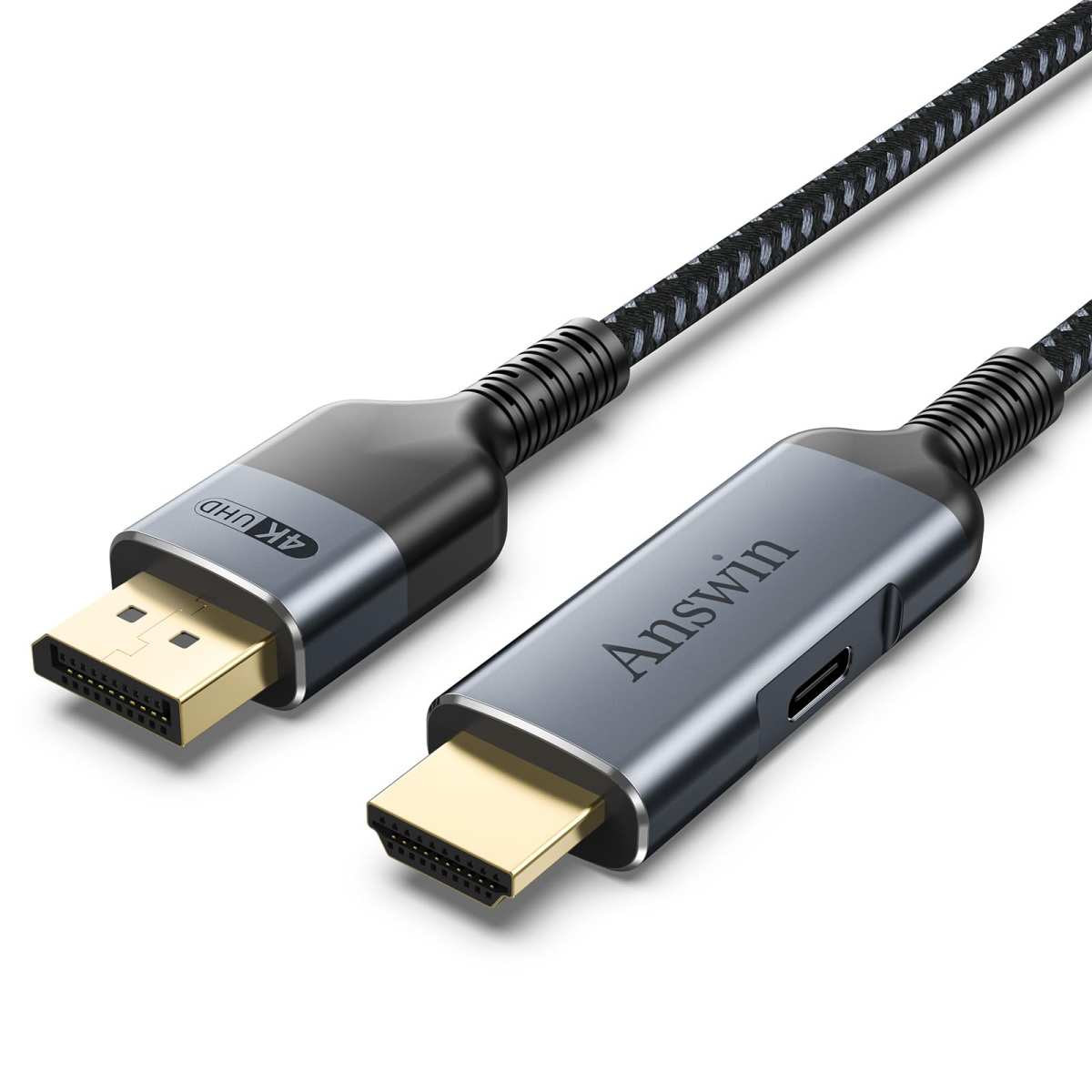
Image source: Bing (Web (fair-use with source credit))
Step 3 – Windows Scaling & ClearType (The Software Side)
If resolution and cable are fine, the issue is likely software. Windows has two main levers: scaling percentage and ClearType font smoothing. macOS has its own scaling logic (which we'll touch on in Step 5).
Recommended Scaling Values for 1080p, 1440p, and 4K 27-Inch Monitors
Scaling makes interface elements bigger, but if it's not set to an integer multiple of the native resolution, text can blur. For 27-inch monitors, these settings work best:
| Native resolution | Recommended scaling | Why it works |
|---|---|---|
| 1920×1080 (1080p) | 100% (no scaling) | Everything is already large enough |
| 2560×1440 (1440p) | 125% or 150% | Balanced size without major blur |
| 3840×2160 (4K) | 150% or 200% | 200% is integer scaling (pixel-perfect) |
Set scaling in Windows: Display Settings > Scale & Layout. If you're at 150% on a 1440p monitor and text looks soft, try 125% or 175%, some 27-inch 1440p panels look best at those fractions. It's a matter of your eyes and the panel.
Running the ClearType Tuner (And Why It Clicks for Most People)
Windows ClearType adjusts how subpixels render text. It's designed for each monitor's subpixel layout (RGB is standard, but some panels use BGR). Run it once and it often fixes softness instantly.
Press Windows Key, type ClearType, and select "Adjust ClearType text". Make sure "Turn on ClearType" is checked. Go through the 5-6 sample screens, picking the sharpest-looking text sample for each.
It's subjective, pick what looks best to you.
When ClearType Doesn't Fix It – BGR vs RGB Subpixel Layout
Some budget 27-inch monitors use a BGR (blue-green-red) subpixel layout. ClearType defaults to RGB, so text looks wrong. You can force ClearType to use BGR in the registry, but it's easier to check first: zoom in on a white area with a magnifying glass or phone camera.
If you see blue on the left and red on the right, it's BGR. Search for "ClearType BGR registry fix" if needed, it's a quick edit.
Step 4 – Monitor OSD Settings That Mess with Sharpness
Your monitor's own menus (on-screen display or OSD) have settings that can make text blurry. Two are particularly troublesome: the sharpness slider and overdrive.
Sharpness Slider – The 50% Rule
Manufacturer tests and user reviews consistently show that a sharpness value of 50 (or "neutral") gives the most accurate text rendering. Higher values add artificial edge enhancement that looks like halos around letters. Lower values soften everything.
What to do: Press the menu button on your monitor, find "Sharpness", and set it to 50. If the scale goes from 0 to 100, 50 is the midpoint. If it uses a different scale (like 0 to 10), set it to 5.
This single adjustment clears up blurry text on many 27-inch monitors.
Overdrive / Response Time and Text Ghosting
Overdrive (sometimes called Response Time or Trace Free) reduces motion blur in games. But on some monitors, setting overdrive too high creates "inverse ghosting", a bright trail behind moving text. If you scroll a document and text leaves a glowing shadow, turn overdrive to its lowest or "Off" setting.
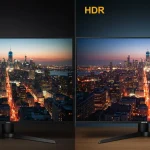
HDR Mode Blur – Why You Should Turn It Off for Text Work
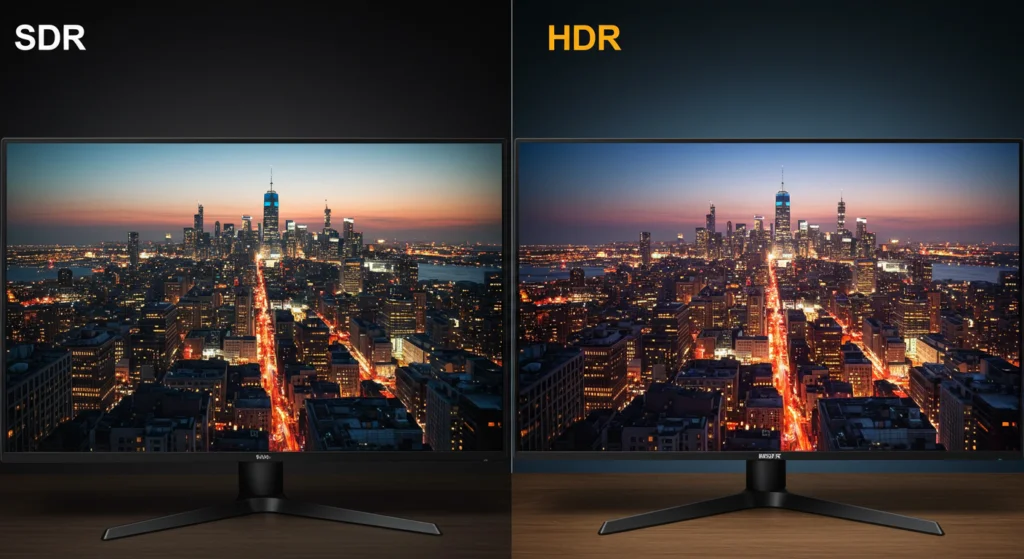
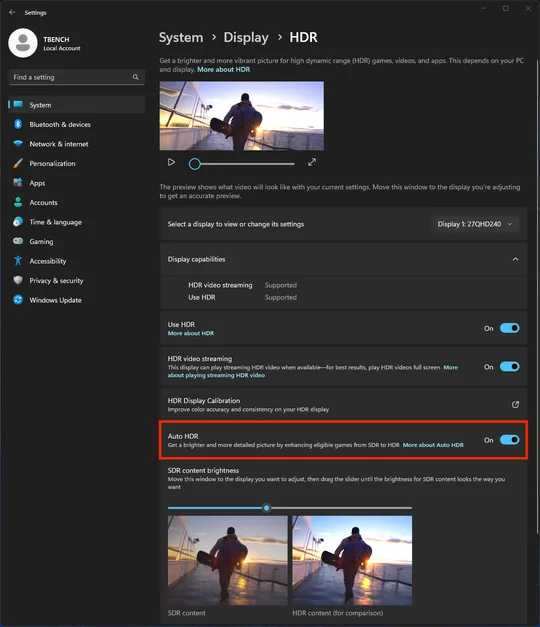
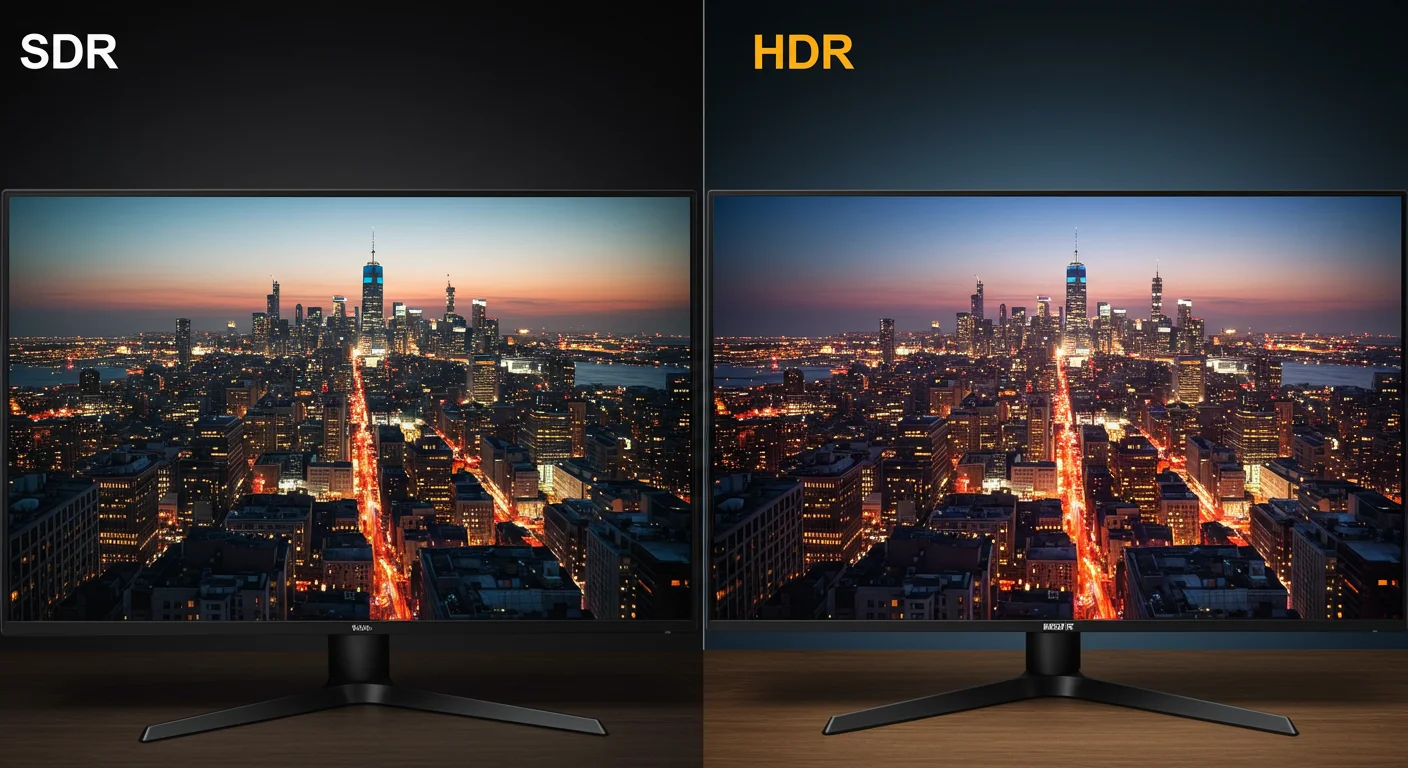
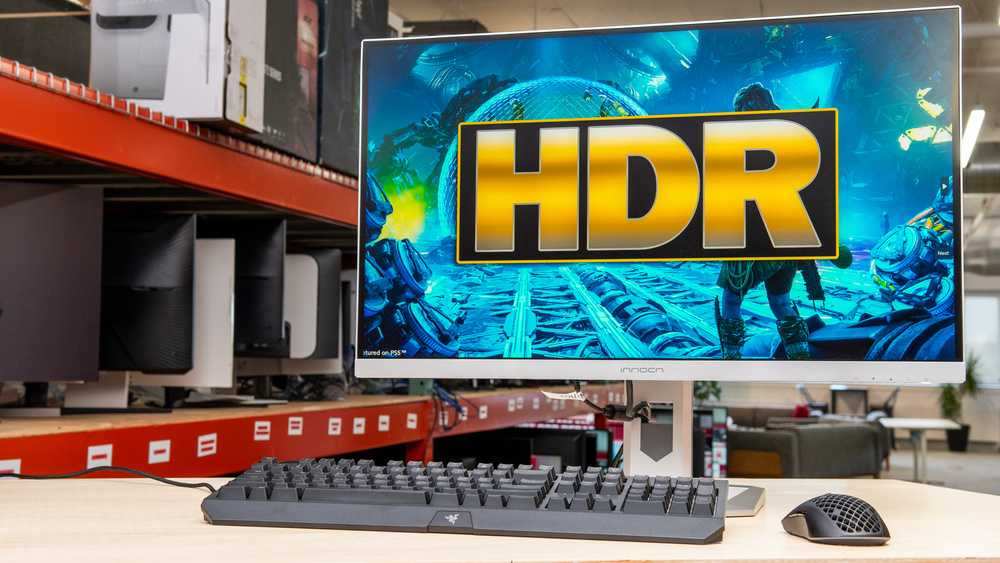
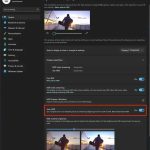
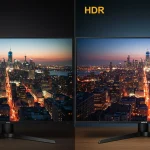
HDR mode changes the colour profile and dims bright areas to meet HDR brightness targets. Text rendering suffers because the panel adjusts per-pixel brightness in ways that make small text edges less sharp. If HDR is on and text looks hazy, turn it off in Windows (Settings > Display > Windows HD Color) and in the monitor OSD.
You can re-enable it later for movies and games.
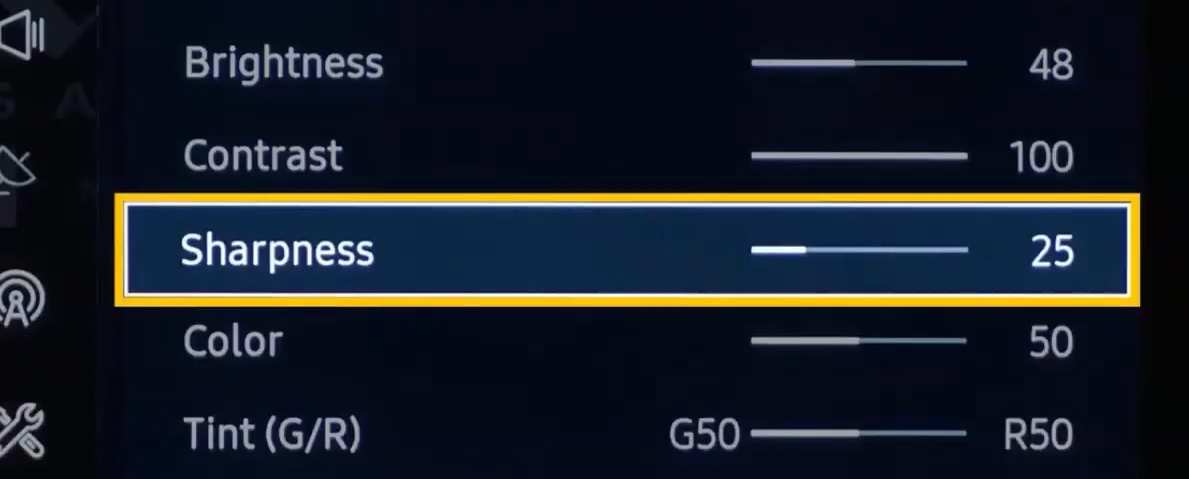
Image source: Bing (Web (fair-use with source credit))
Step 5 – GPU Driver & Dual‑Monitor Mismatches
If you’ve checked resolution, cables, scaling, and OSD settings and the text is still soft, the issue might live inside your graphics driver. An outdated or corrupted driver can fail to handshake properly with a modern 27‑inch panel. This is especially common after a Windows update replaces your driver with a generic one.
Updating Your Graphics Driver (The Right Way)
Download the driver directly from NVIDIA, AMD, or Intel, not from Windows Update. Go to the manufacturer’s site, run the driver detection tool, and install the latest stable version for your GPU model. Restart your PC after the installation.
If the blur appeared right after a driver update, try rolling back to the previous version through Device Manager (Display Adapters > Properties > Driver > Roll Back Driver). Some users report that the latest “Game Ready” drivers sometimes introduce text‑rendering bugs that hotfixes later resolve.
Fixing Blurry Text on a Second Monitor with Different Resolution or Size
Running a 27‑inch 1440p monitor next to a 24‑inch 1080p monitor is a common setup. It’s also a recipe for blurry text on one screen. The two monitors have different pixel densities, so Windows can’t apply one scaling percentage that looks good on both.
The fix is to set each monitor to its own scaling level. In Windows Display Settings, click on the 27‑inch monitor and set its scaling to 125% or 150%. Then click on the other monitor and set its scaling to 100% (or whatever works for its size).
The text on the second monitor may still look slightly softer because of forced scaling mismatch, but it will be legible.
On macOS, this situation is trickier. macOS applies one scaling factor to all connected displays. If you connect a 27‑inch 1440p monitor to a MacBook with a Retina display, macOS often runs the external monitor at a “looks like” scaled resolution that introduces blur. The workaround is to use an app like SwitchResX or BetterDisplay to force integer scaling on the external monitor.
Or simply set the 27‑inch monitor to its native resolution and accept smaller UI.
Common Mistakes That Keep Text Blurry
Ignoring the Cable Version
The most common mistake is assuming any HDMI cable will work. HDMI 1.4 cables top out at 10.2 Gbps. They can handle 1440p at 60 Hz, but only with 4:2:0 chroma subsampling.
Text looks fringed. If you bought a cheap “AmazonBasics” cable five years ago or came across a free cable in a box, check its label. If it doesn’t say “High Speed HDMI” or “Premium High Speed,” replace it with a certified HDMI 2.0 or DisplayPort 1.4 cable.
Forcing HDR for Everyday Use
Windows HDR mode looks great on a proper HDR monitor for movies and games. For reading text, it’s a liability. HDR forces a wide color gamut and adjusts backlight per‑frame in ways that make white‑on‑black text edges lose contrast.
Many users keep HDR on because it “looks cool” and then wonder why their spreadsheets feel fuzzy. Turn it off unless you’re consuming HDR content.
Running Non‑Integer Scaling on macOS
macOS has a “scaled” mode that renders the desktop at a higher internal resolution and then scales it down. On a 27‑inch 1440p monitor, the default “Looks like 2560×1440” is actually native, no scaling. But if you choose “Looks like 1920×1080,” macOS renders at 4K or 5K internally and downsamples.
That creates soft text because the monitor’s physical pixels don’t match the rendered ones. Stick to the native resolution in the Displays pane. If text is too small, adjust the monitor’s physical distance or use accessibility zoom instead of scaled resolution.
The Decision Tree – Your Personal Fix Path
Follow this order. Stop when the text looks sharp.
Is the resolution set to native?
If no → Set to native.If yes → Continue.
Is the cable HDMI 2.0+ or DisplayPort 1.4+?
If no → Swap the cable.If yes → Continue.
Is Windows scaling set to 125% (1440p) or 150% (4K)?
If no → Adjust scaling.If yes → Continue.
Have you run ClearType?
If no → Run ClearType.If yes → Continue.
Is the monitor sharpness set to 50?
If no → Set sharpness to 50.If yes → Continue.
Is HDR turned off?
If no → Turn off HDR.If yes → Continue.
Is the GPU driver up to date?
If no → Update or roll back the driver.If yes → Continue.
Still blurry? → Try a factory reset of the monitor. Then check for physical damage to the panel.
This path covers 95% of cases. If you’re still seeing soft text after all eight steps, the monitor itself may have a manufacturing defect or a dead row of pixels.
When Nothing Works – Factory Reset and Next Steps
A factory reset restores every OSD setting to the default values. This can undo a sharpness tweak, an overdrive setting, or a color profile change that’s causing blur. The reset option is usually under “Setup” or “System” in the OSD menu.
Look for “Factory Reset,” “Reset All,” or “Initialize.”
After the reset, repeat the decision tree from the top. If the text is still blurry, test the monitor with a different computer. If it looks sharp on that second computer, the problem is in your first machine’s configuration.
If it stays blurry on both, the panel may have a hardware fault.
Check the warranty status. Most 27‑inch monitors have a one to three year warranty. Manufacturers like Dell, LG, and ASUS often cover pixel defects.
Contact the brand’s support with your model number, serial, and a photo of the blurry text. They may send a replacement or authorize a return.
Quick Reference – Resolutions, Scaling, and Cable Bandwidth for 27‑Inch Monitors
| Native resolution | PPI (27 inch) | Recommended Windows scaling | Minimum cable | Notes |
|---|---|---|---|---|
| 1920×1080 (1080p) | 82 | 100% | HDMI 1.4 (enough) | Text is large, no scaling needed |
| 2560×1440 (1440p) | 109 | 125% or 150% | HDMI 2.0 or DP 1.4 | Best balance of size and sharpness |
| 3840×2160 (4K) | 163 | 150% or 200% | HDMI 2.0+ or DP 1.4 | 200% gives pixel‑perfect integer scaling |
| 5120×2880 (5K) | 218 | 200% | Thunderbolt 3/4 or DP 1.4 (dual) | Rare on 27 inch; mostly Apple or Dell |
Keep this table handy when you’re shopping for a new cable or changing monitors. The wrong cable is the most overlooked cause of blurry text, and a simple upgrade often solves it.
Frequently Asked Questions
Why does my 27‑inch monitor look blurry at 1080p?
1080p on a 27‑inch screen has low pixel density (about 82 PPI). Each pixel is big, so text edges look jagged. If you set a 1440p or 4K monitor to 1080p, the image is also upscaled, which adds softness.
Always use the monitor’s native resolution.
Can a bad HDMI cable cause blurry text?
Yes. HDMI 1.4 cables max out at 10.2 Gbps. That forces 4:2:0 chroma subsampling on 1440p and 4K displays.
The result is color fringing around text. Upgrade to a certified High Speed HDMI 2.0 or DisplayPort 1.4 cable for full RGB 4:4:4.
Does ClearType work on all monitors?
ClearType assumes an RGB subpixel layout. Some low‑cost 27‑inch panels use BGR instead. If text still looks off after running ClearType, check your panel’s subpixel order with a magnifying glass.
A registry edit can force BGR mode.
Why is text blurry only on one of my two monitors?
Mixed resolutions and sizes cause scaling conflicts. Each monitor gets its own scaling percentage in Windows Display Settings. Set the 27‑inch monitor to 125% or 150% and the other to 100% to reduce fuzziness.
Will a factory reset fix blurry text?
It can. Resetting the monitor OSD clears any incorrect sharpness, overdrive, or HDR settings that might be causing softness. After resetting, repeat the decision tree steps to confirm.
Should I turn off HDR for reading text?
Yes. HDR mode changes brightness and color per pixel, which reduces contrast on small text edges. Turn off HDR in Windows Display Settings and in the monitor OSD.
Turn it back on only for HDR movies or games.
That covers every common cause of blurry text on a 27‑inch monitor. Start with the resolution, check the cable, adjust scaling, and fine‑tune the OSD. In most cases, one of those steps will get your text looking razor‑sharp again.

Similar Posts