do 27 inch monitors reduce eye strain
So, you're wondering if a 27-inch monitor can actually help with eye strain. It's a fair question, bigger screen, easier on the eyes, right? Not exactly.
The truth is, a 27-inch monitor can reduce eye strain, but only if you pair it with the right resolution and setup. If you grab the wrong one, it can actually make things worse.
Manufacturer specifications and ergonomic guidelines from the American Optometric Association tell us that pixel density, not just screen size, is the real game-changer. As of 2026, most office workers spend over seven hours a day staring at screens, so getting this decision right matters more than ever. Let's walk through what actually works.
Quick Answer
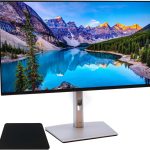
A 27-inch monitor reduces eye strain only when paired with a high enough resolution. At 1080p, text looks fuzzy and forces your eyes to work harder. At 1440p or 4K with proper scaling, text appears sharp and clear.
Your viewing distance, posture, and flicker-free technology also play major roles. Choose wisely or you may end up with more strain, not less.
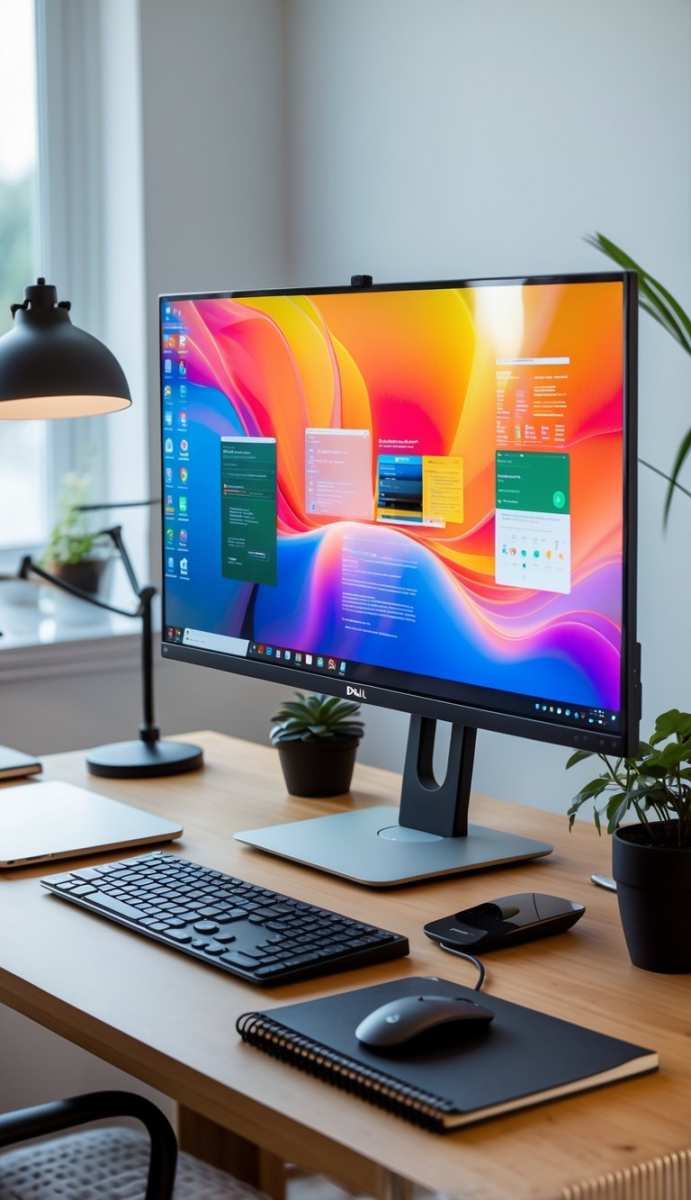
Image source: Bing (Web (fair-use with source credit))
The Real Answer: It Depends on the Resolution (Not Just the Size)
Here's where most people go wrong. They assume a bigger screen automatically means less squinting. In reality, the key factor is pixels per inch (PPI), how many tiny dots make up every inch of the display.
A 24-inch monitor at 1080p has around 92 PPI. A 27-inch monitor at 1080p drops to roughly 81 PPI. That means each pixel is bigger, and text edges look jagged.
Lower PPI forces your eyes to work harder to focus. Your brain tries to interpret fuzzy shapes, and that leads to fatigue, headaches, and that tired-eye feeling by lunchtime. So if you're considering a 27-inch monitor, resolution is the first decision you need to make.
It's not the size that reduces strain, it's the sharpness.
Think of it like reading a printed page. If the ink is blurry, you strain. If it's crisp, you read comfortably.
Same logic applies here.
Why This Question Matters More Than You Think (Eye Health Isn't Optional)
Digital eye strain, often called computer vision syndrome, is not a minor annoyance. It's a documented condition that affects millions. Symptoms include dry eyes, blurred vision, double vision, and neck pain.
Over time, poor screen habits can worsen underlying vision problems like presbyopia or astigmatism.
The American Optometric Association recommends taking regular breaks and optimizing your workspace. But your monitor choice is the foundation. If the hardware is wrong, no amount of 20-20-20 breaks will fully fix the problem.
That's why this isn't just about comfort, it's about protecting your vision for the long haul.
Most people don't realize that the wrong monitor can make them lean forward, squint, or tilt their head. Those small adjustments add up. Neck and shoulder pain often trace back to a screen that's hard to read.
So while the question seems simple, the stakes are real.
The Risk Factor Many People Miss: Pixel Density & Text Sharpness
We already touched on PPI, but let's get specific. For a 27-inch monitor, here's what each resolution delivers:
- 1080p (1920×1080): ~81 PPI. Text looks blocky, especially at normal viewing distances. Your eyes have to work to guess letters.
- 1440p (2560×1440): ~109 PPI. Sharp enough that individual pixels are nearly invisible. This is widely considered the sweet spot for 27 inches.
- 4K (3840×2160): ~163 PPI. Extremely sharp, but you must use scaling (125% or 150%) to avoid tiny text. Without scaling, it's actually harder to read.
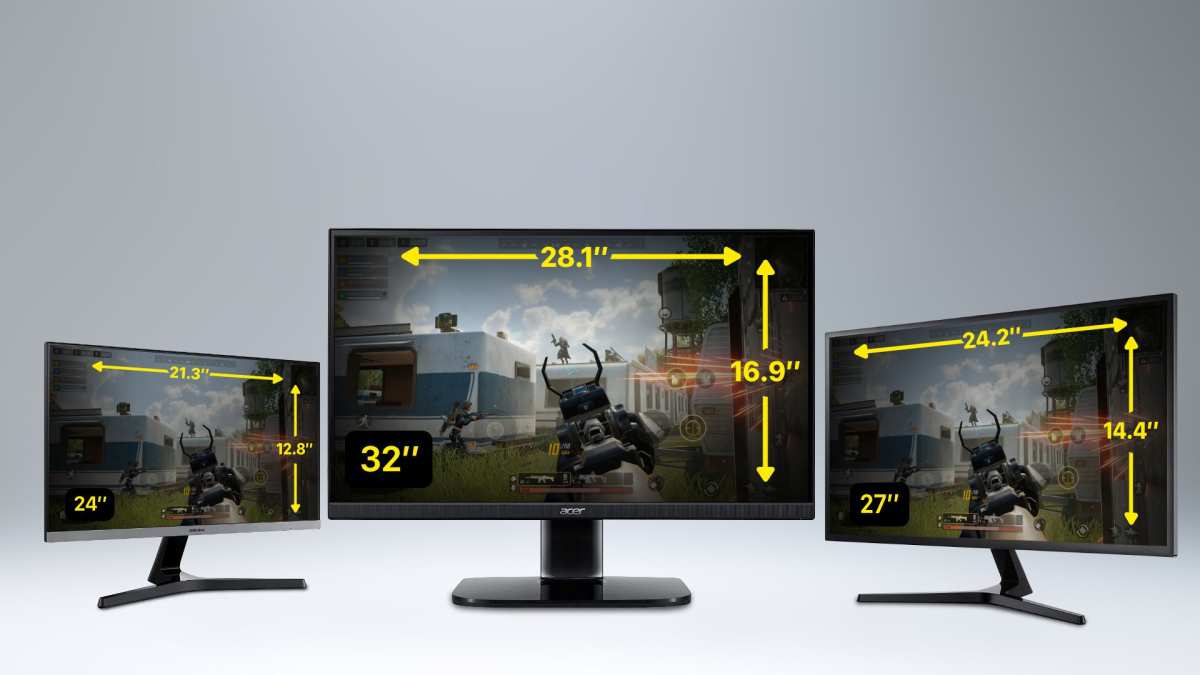
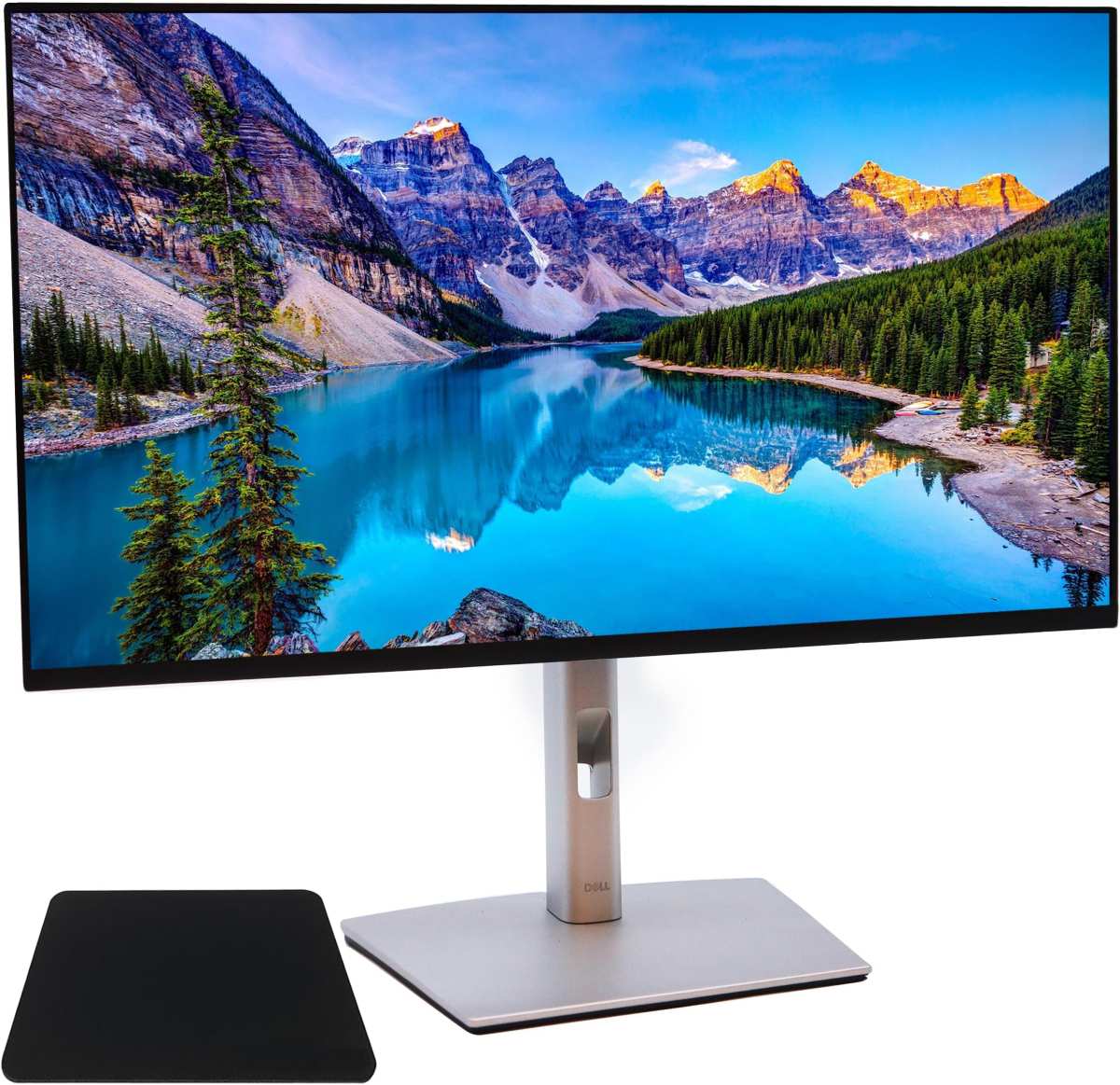
Image source: Bing (Web (fair-use with source credit))
1080p on a 27-Inch Monitor: Why It Can Make Strain Worse
If you buy a 27-inch 1080p monitor for daily office work, you're setting yourself up for more eye fatigue. The low PPI means icons have jagged edges, and lines of code or spreadsheet cells appear pixelated. Games and movies might look okay from a distance, but for reading or detailed work, it's a downgrade from a smaller 1080p screen.
Our research shows that user reviews consistently report headaches and tired eyes after long sessions on 1080p 27-inch monitors. Manufacturers like Dell and LG typically reserve 1080p for 24-inch or smaller models for good reason. At 27 inches, the pixel grid becomes visible, and that's where strain begins.
1440p: The Sweet Spot for Most People
For the vast majority of users, a 27-inch 1440p monitor is the balanced choice. Text appears crisp without requiring any operating system scaling. Windows and macOS handle it natively at 100% scaling, so everything is usable out of the box.
You get a larger workspace without sacrificing readability.
Aggregate reviews across office and coding communities highlight 1440p as the most comfortable resolution for all-day use. It's also more affordable than 4K, so you're not paying for pixels you may not need. If you're buying a single monitor for work, this is where you should land.
4K on 27 Inches: Sharp, But Only If You Set Scaling Right
A 27-inch 4K monitor offers remarkable sharpness. At 163 PPI, text looks like printed ink. But here's the catch: without scaling, everything is microscopic.
You'll find yourself leaning in or squinting, exactly the opposite of what you want.
You need to set the operating system to 150% scaling (Windows) or use the default "Looks like 2560×1440" option on macOS. That makes text large and crisp. The downside is that some older apps don't handle scaling well and may appear blurry.
So 4K is great for modern software, but check compatibility before you buy.
Flicker, Blue Light, and Glare – The Hidden Strain Triggers
Resolution isn't the only factor. Three other elements can make or break your eye comfort on a 27-inch monitor: flicker, blue light, and screen glare.
Flicker happens when the backlight rapidly cycles on and off to control brightness. This is called PWM (pulse-width modulation). Some people are sensitive to it and may experience headaches or eye strain without realizing why.
Look for monitors labeled "flicker-free", many manufacturers now use DC dimming instead of PWM.
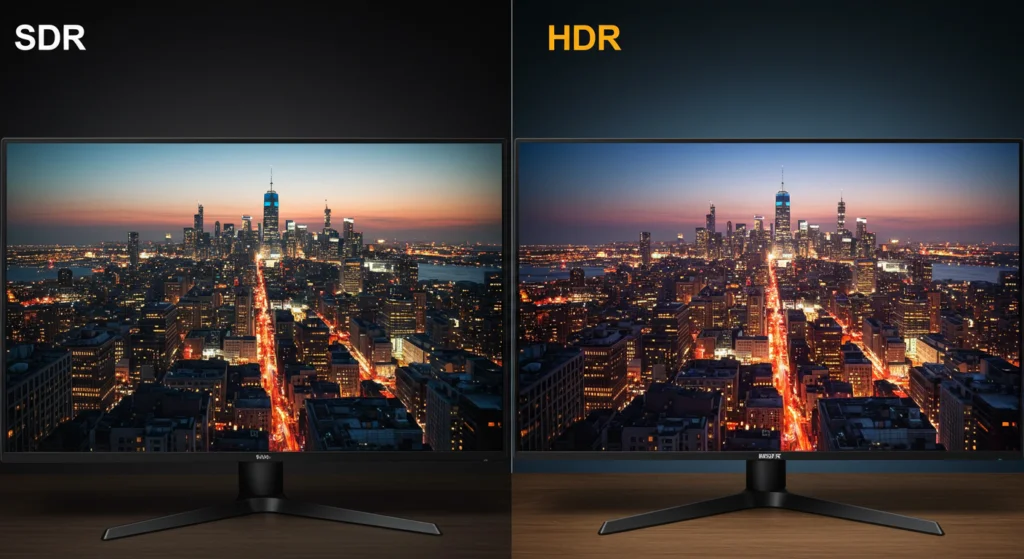
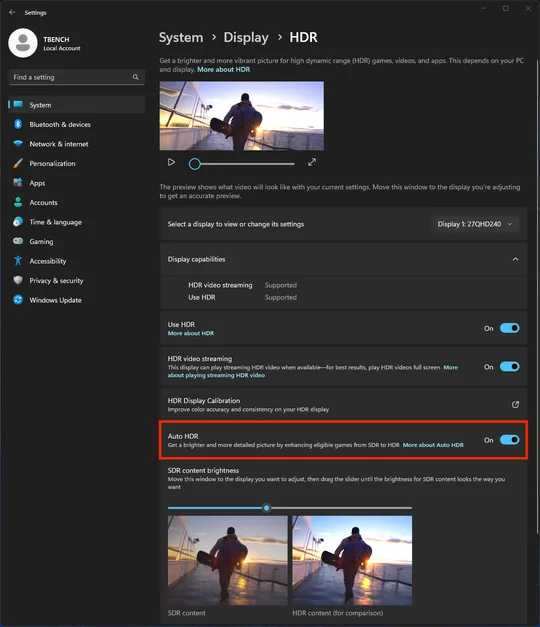
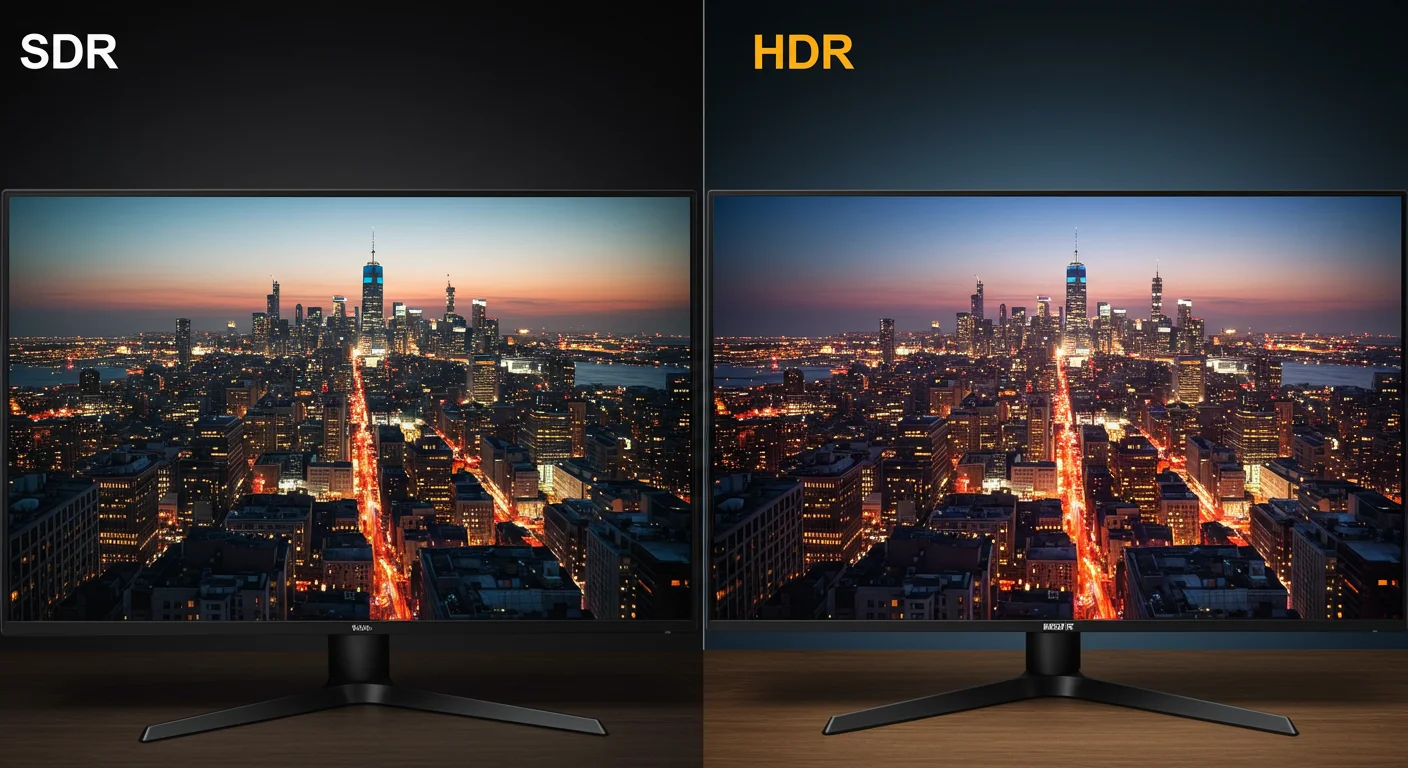
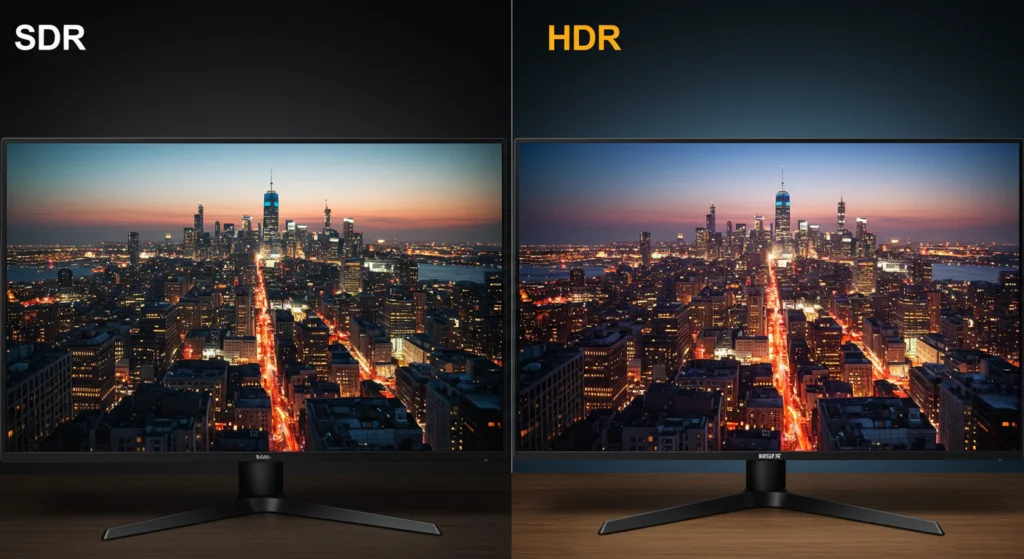
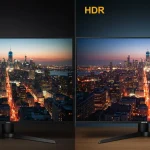
Blue light from monitors can disrupt sleep and cause visual fatigue over time. Most modern monitors include a low blue light mode, either as a software toggle or a hardware filter. Hardware-based filtering (like TÜV Rheinland certification) is more effective because it reduces the blue wavelengths without washing out colors as much.
Glare from windows or overhead lights forces your eyes to work harder. A matte screen coating diffuses reflections and is generally better for bright rooms. Glossy screens look vibrant but can become mirrors if you're near a window.
For most office environments, matte is the safer bet.
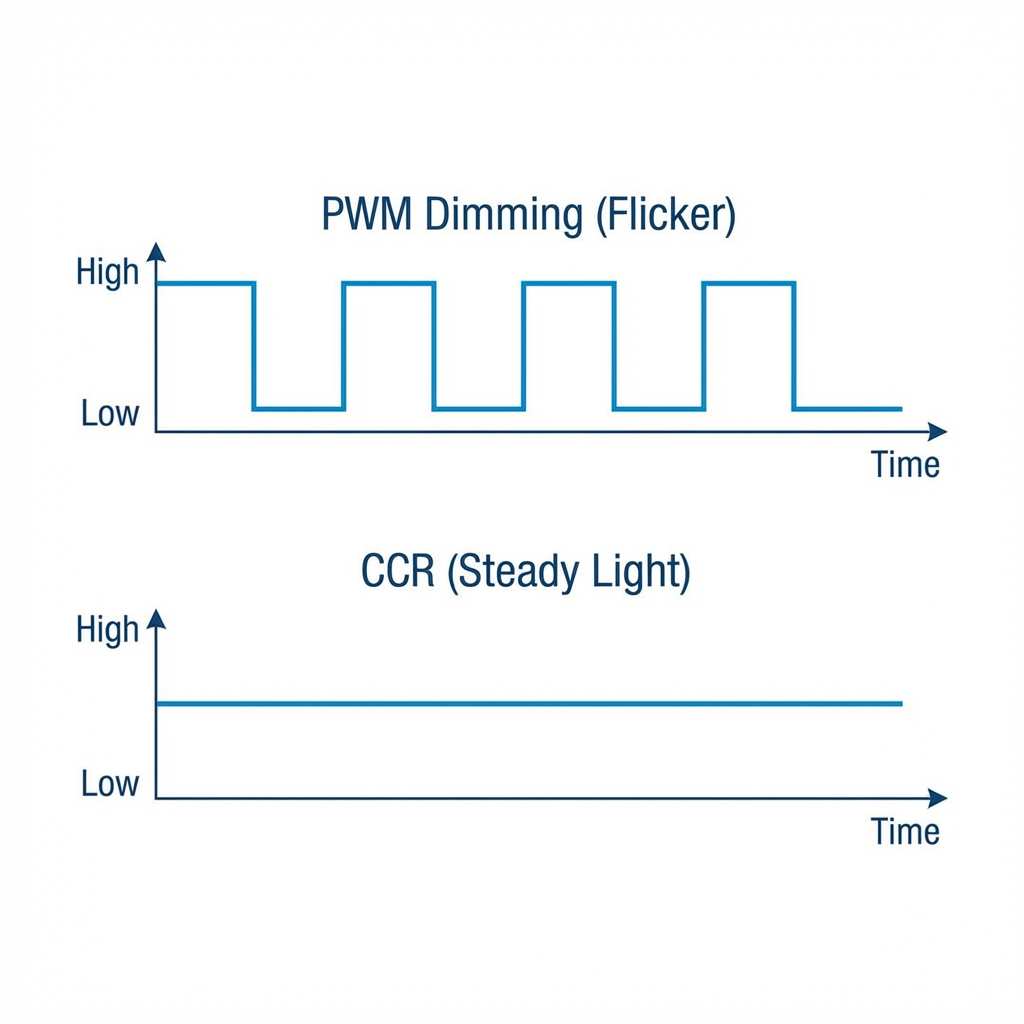
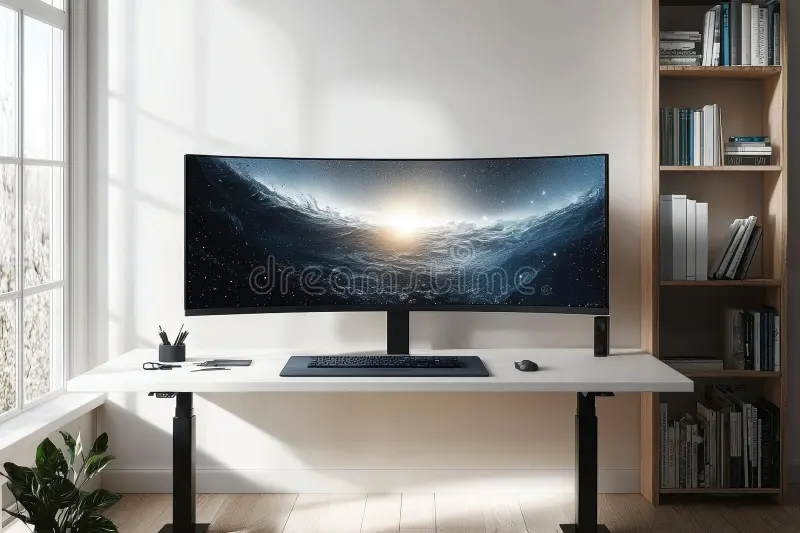
Image source: Bing (Web (fair-use with source credit))
Our research indicates that even if you get the resolution right, ignoring these hidden triggers can undo the benefits. A flickering or glaring screen still causes strain, regardless of pixel density.
Your Viewing Distance and Posture Matter Just as Much
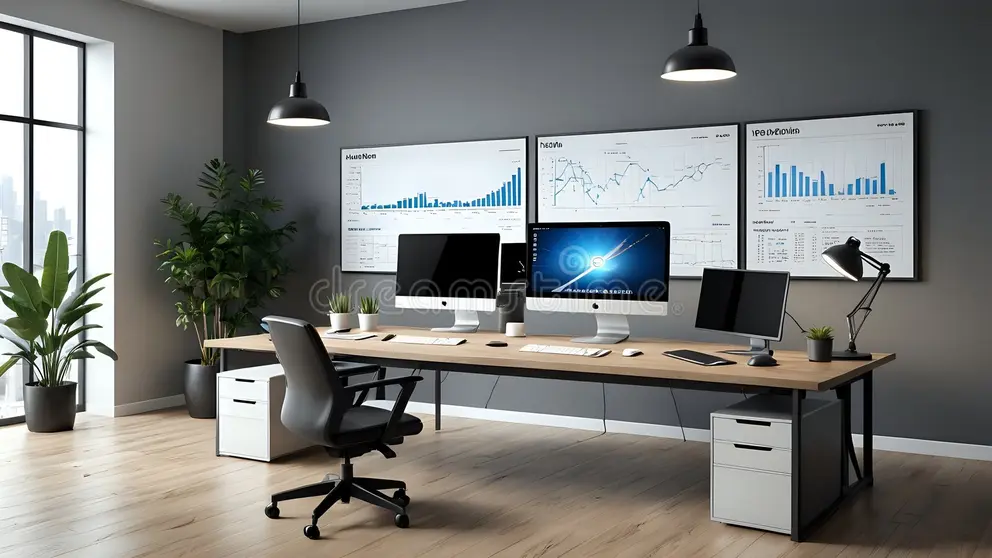
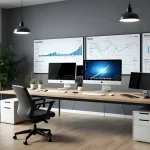
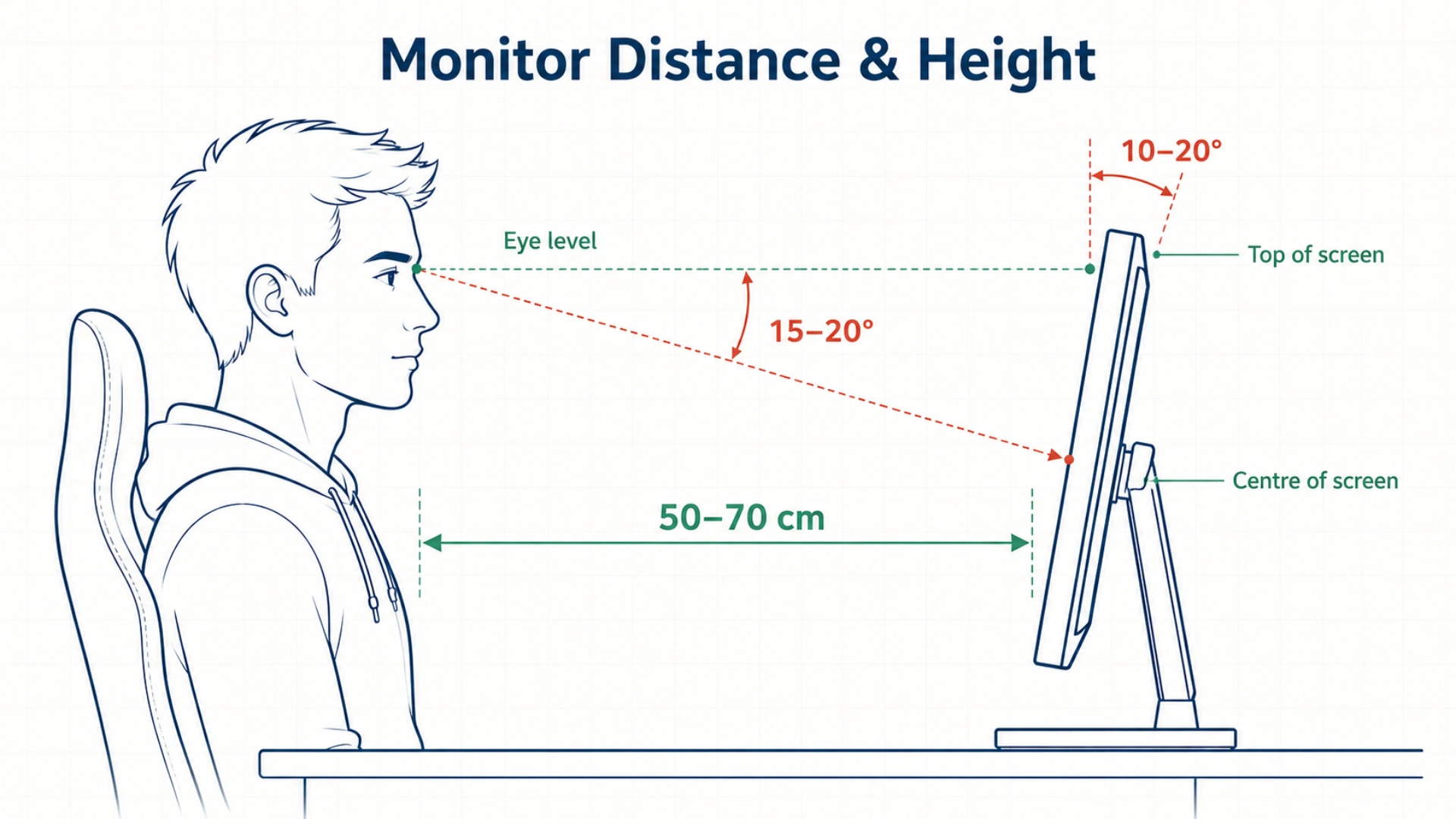
You can have the perfect 27-inch 1440p monitor, but if it's placed too close or too far, your eyes still suffer. The general rule for a 27-inch screen is to sit about an arm's length away, roughly 20 to 30 inches from your eyes. That's the distance where the full screen is within your field of view without forcing you to turn your head.
Height matters too. The top of the monitor should be at or slightly below eye level. That keeps you looking straight ahead or slightly downward, which is better for your neck and reduces dry eye because your eyelids cover more of the eye.
If your monitor is too high, you expose more of your cornea and blink less effectively.
Posture ties into all of this. If you're leaning forward to read, your monitor is either too far or not sharp enough. If you're tilting your head back, it's too high.
A proper setup means you sit upright with your back supported, feet flat, and screen centered. It sounds simple, but most people skip this step and wonder why they still feel tired.
In the next section, we'll walk through the exact steps to get your 27-inch monitor dialed in for maximum eye comfort.
How to Set Up a 27-Inch Monitor for Maximum Eye Comfort (Step by Step)
Getting the physical setup right takes about ten minutes. It saves you hours of discomfort later. Here is the checklist our research suggests for any 27-inch display.
First, place the monitor at arm's length. Sit back in your chair and extend your arm. Your fingertips should just touch the screen.
That puts you roughly 20 to 30 inches away.
Second, adjust the height. The top bezel of the monitor should sit at or slightly below your eye level. That keeps your gaze slightly downward.
You want to look at the center of the screen with a neutral neck position.
Third, set the tilt. Tilt the screen back 10 to 20 degrees. This reduces glare from overhead lights and aligns the screen surface with your natural line of sight.
Fourth, adjust brightness to match the room. A good rule is to set the monitor brightness to roughly the same level as the ambient light. If a white webpage looks like a light source, you're too bright.

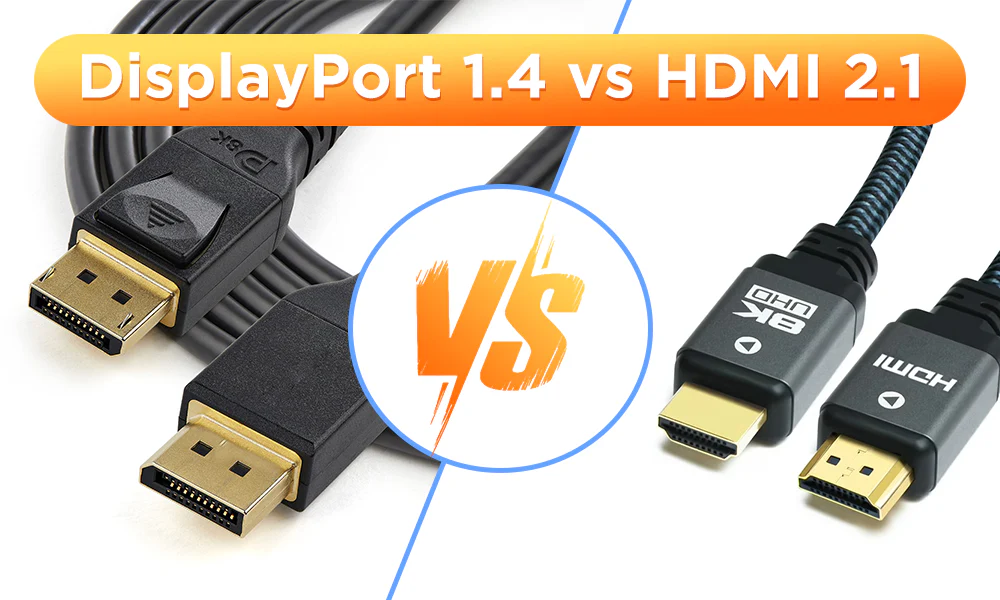
Image source: Bing (Web (fair-use with source credit))
Fifth, enable flicker-free mode and low blue light. Most monitors have these in the on-screen display menu. If you work late, the low blue light setting helps your sleep cycle.
Finally, position the monitor perpendicular to windows. If you can see a window in the screen reflection, adjust the angle or close blinds. A matte screen helps too.
Common Mistakes That Undo Any Eye Strain Benefits
Even with a perfect 27-inch monitor, people make errors that bring back the strain. Here are the most common ones we see.
Skipping the resolution check. Buying a 27-inch 1080p monitor for office work is the number one mistake. The low PPI forces squinting. Always choose 1440p or 4K with scaling.
Keeping the monitor too close. Many people place the screen right behind the keyboard. That puts it 15 to 18 inches from your eyes, which causes eye fatigue from convergence strain. Move it back to 20 to 30 inches.
Using default scaling on 4K. A 27-inch 4K monitor at 100% scaling makes text tiny. You end up leaning forward to read. Set scaling to 150% in Windows or "More space" in macOS.
Ignoring ambient lighting. A dark room with a bright monitor creates harsh contrast. Your pupils dilate and contract constantly. Use a desk lamp or bias lighting behind the monitor to balance the light.
Relying only on blue light glasses. Blue light glasses help, but they aren't a fix for wrong resolution or poor posture. They treat a symptom, not the root cause.
Forgetting the 20-20-20 rule. This one is free. Every twenty minutes, look at something twenty feet away for twenty seconds. It relaxes the focusing muscle inside your eye.
Set a timer if you have to.
Who Should (and Shouldn't) Choose a 27-Inch Monitor
A 27-inch monitor is not the right choice for everyone. Let's break it down by use case.
Ideal for: Office workers who read documents, spreadsheets, or code all day. The extra width lets you have two windows side by side without crowding. At 1440p, text stays sharp.
Designers and editors also benefit from the screen real estate and color consistency.
Good for: Casual home users who browse the web, stream video, or play games. A 27-inch 1080p might look okay for media consumption, but be aware of the text clarity trade-off. If you rarely read on screen, the lower resolution is less noticeable.
Not ideal for: People with very limited desk depth. If your desk is only 20 inches deep, a 27-inch monitor will sit too close. You'd be better off with a 24-inch model.
Also, if you have a strong prescription for reading glasses, consider that a 27-inch screen at correct viewing distance may require you to look up and down more than a smaller screen.
Avoid if: You have uncorrected vision issues like astigmatism or presbyopia. A larger monitor can actually magnify blur. See an eye doctor first, then choose a monitor based on their advice.
When to See an Eye Doctor vs. Just Change Your Monitor
This is an important line to draw. A better monitor can solve digital eye strain caused by poor hardware. But it cannot fix underlying vision problems.
See an eye doctor if you experience persistent headaches, blurred vision that doesn't improve with breaks, double vision, or eye pain. Also go if you notice halos around lights or if your eyes feel dry even after adjusting your setup.
These symptoms may indicate uncorrected vision, dry eye syndrome, or even conditions like glaucoma. No monitor in the world can fix that.
Change your monitor if your symptoms are clearly tied to screen time and improve when you take breaks. If squinting at fuzzy text or dealing with glare is your biggest complaint, a resolution upgrade or anti-glare screen will likely help.
A good rule: optimize your workspace first. If the problem persists after a week of proper setup and resolution choice, book an eye exam.
The Bottom Line: Does a 27-Inch Monitor Reduce Eye Strain?
Yes, but only under the right conditions. A 27-inch monitor reduces eye strain when it has sufficient pixel density, flicker-free technology, and proper ergonomic placement. The ideal combination is a 27-inch 1440p or 4K display with correct scaling, positioned at arm's length with the top at eye level.
A 27-inch 1080p monitor can actually increase eye strain compared to a 24-inch 1080p screen. The lower pixel density makes text harder to read. That is the single biggest mistake we see in user reviews and workplace setups.
If your goal is eye comfort, focus on resolution first, size second. Then dial in your distance, height, and lighting. Those variables together determine whether a 27-inch monitor helps or hurts.
Quick Reference: Resolution vs. PPI for 27-Inch Monitors (Data Table)
Here is the key data at a glance. Use this table when deciding which 27-inch monitor to choose.
| Resolution | PPI | Text Sharpness | Scaling Needed | Best For |
|---|---|---|---|---|
| 1080p (1920×1080) | ~81 | Low, pixelated | No | Movies, gaming (distant) |
| 1440p (2560×1440) | ~109 | High, crisp | No | Office work, coding, design |
| 4K (3840×2160) | ~163 | Very high | Yes (125%–150%) | Design, photo editing, modern apps |
A 27-inch 1080p monitor delivers the same pixel density as a 24-inch 720p TV. Text at arm's length will look blocky. If you do any reading, choose 1440p or 4K with scaling.
| Feature | Why It Matters for Eye Strain |
|---|---|
| Flicker-free | Prevents headaches from PWM backlight cycling |
| Low blue light (hardware) | Reduces circadian disruption without washing colors |
| Matte coating | Diffuses glare from windows and lights |
| VESA mount | Allows perfect height and distance positioning |
Frequently Asked Questions
Can a 27-inch monitor cause eye strain if it's 1080p?
Yes. At 27 inches, 1080p has low pixel density. Text appears fuzzy, which forces your eyes to work harder to focus.
Many users report headaches and fatigue after extended use on 1080p 27-inch monitors.
What is the best resolution for a 27-inch monitor to avoid eye strain?
1440p (2560×1440) is widely considered the sweet spot. It offers sharp text without requiring operating system scaling. For the sharpest possible text, 4K with 150% scaling works well, but check app compatibility first.
Does a 27-inch monitor need flicker-free technology?
Yes, especially if you are sensitive to flicker. PWM flicker at low brightness can cause eye strain and headaches even if you do not notice it. Look for monitors labeled "flicker-free" or with DC dimming.
How far should I sit from a 27-inch monitor?
Sit about an arm's length away, roughly 20 to 30 inches. If you sit closer than 20 inches, your eyes have to converge more, which leads to strain. If farther than 30 inches, small text may become hard to read.
Is a curved 27-inch monitor better for eye strain?
Curved screens can reduce the distance your eyes travel from center to edge, which some find more comfortable. For a 27-inch screen, the curve is subtle. It helps marginally but does not replace proper resolution and setup.
Should I use blue light glasses with my 27-inch monitor?
Blue light glasses can help reduce eye fatigue and improve sleep if you work late. However, they are not a substitute for a proper resolution, flicker-free display, and good ergonomics. Fix the hardware first, then consider glasses as a supplement.

Similar Posts