Are Budget Curved Gaming Monitors Worth It
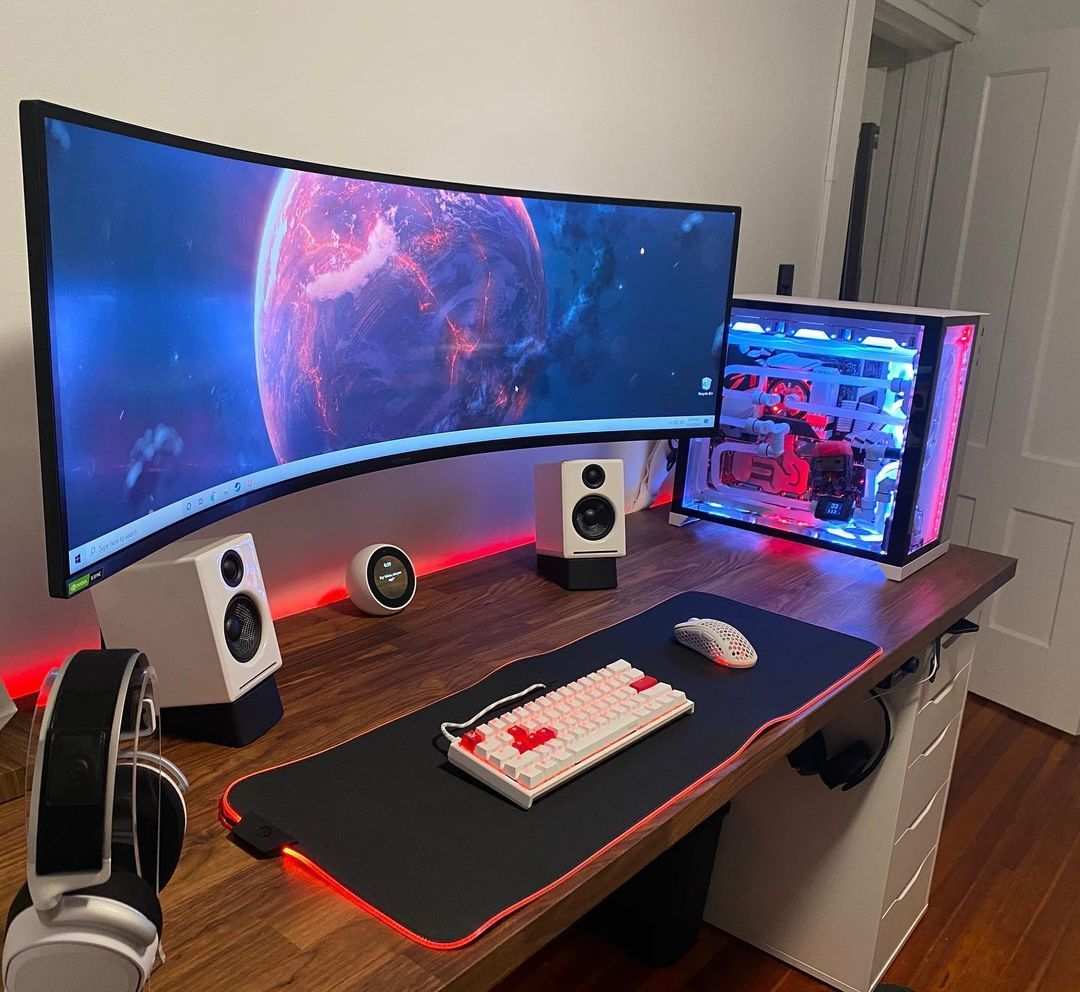
Are budget curved gaming monitors worth it? The short answer is yes, but only if you know what you're getting into. At the sub-$300 price point, curved monitors offer genuine immersion benefits, but they also come with trade-offs that flat monitors at the same price simply don't have. The real question isn't whether curved is better.
It's whether the specific compromises of a budget curved panel match what you actually need from your display.
Most budget curved monitors use VA panels, which means you're getting strong contrast and that wrap-around feel, but you're also dealing with slower response times and potential smearing that you won't find on a similarly priced flat IPS display. Per aggregate review data, the sweet spot for budget curved gaming sits in the $200 to $300 range, where you'll find 32-inch 1440p panels or 27-inch 1080p high-refresh options. Below $200, the compromises get harder to ignore.
Let's break down exactly what matters before you spend your money.
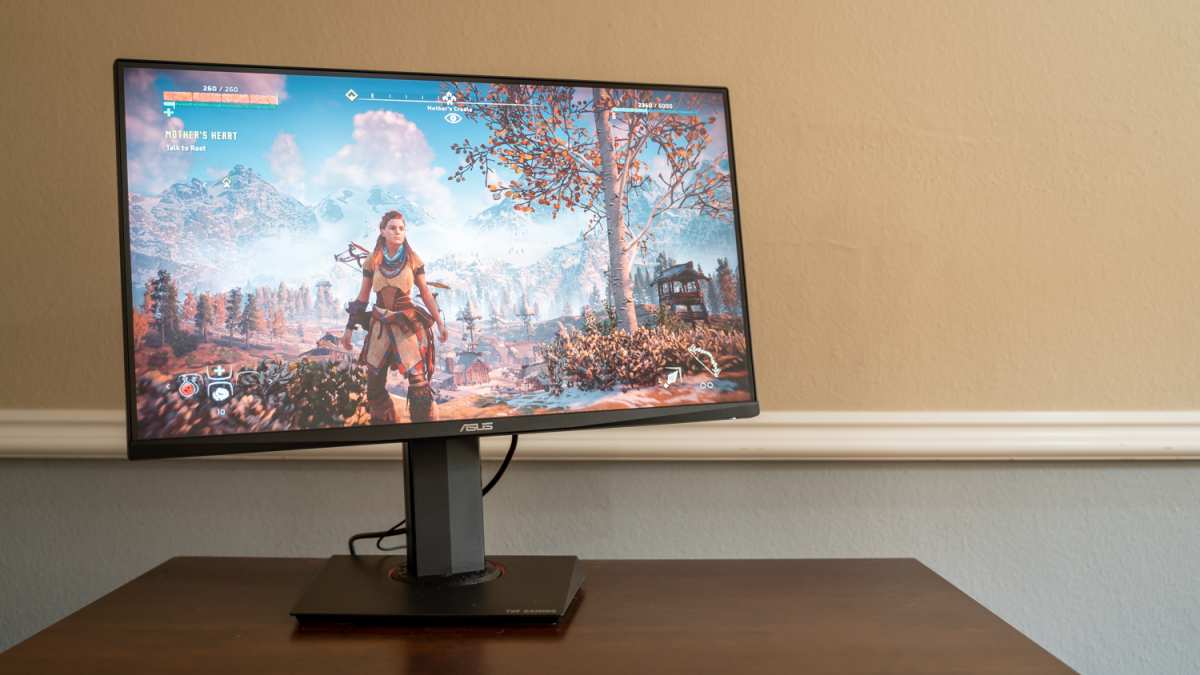
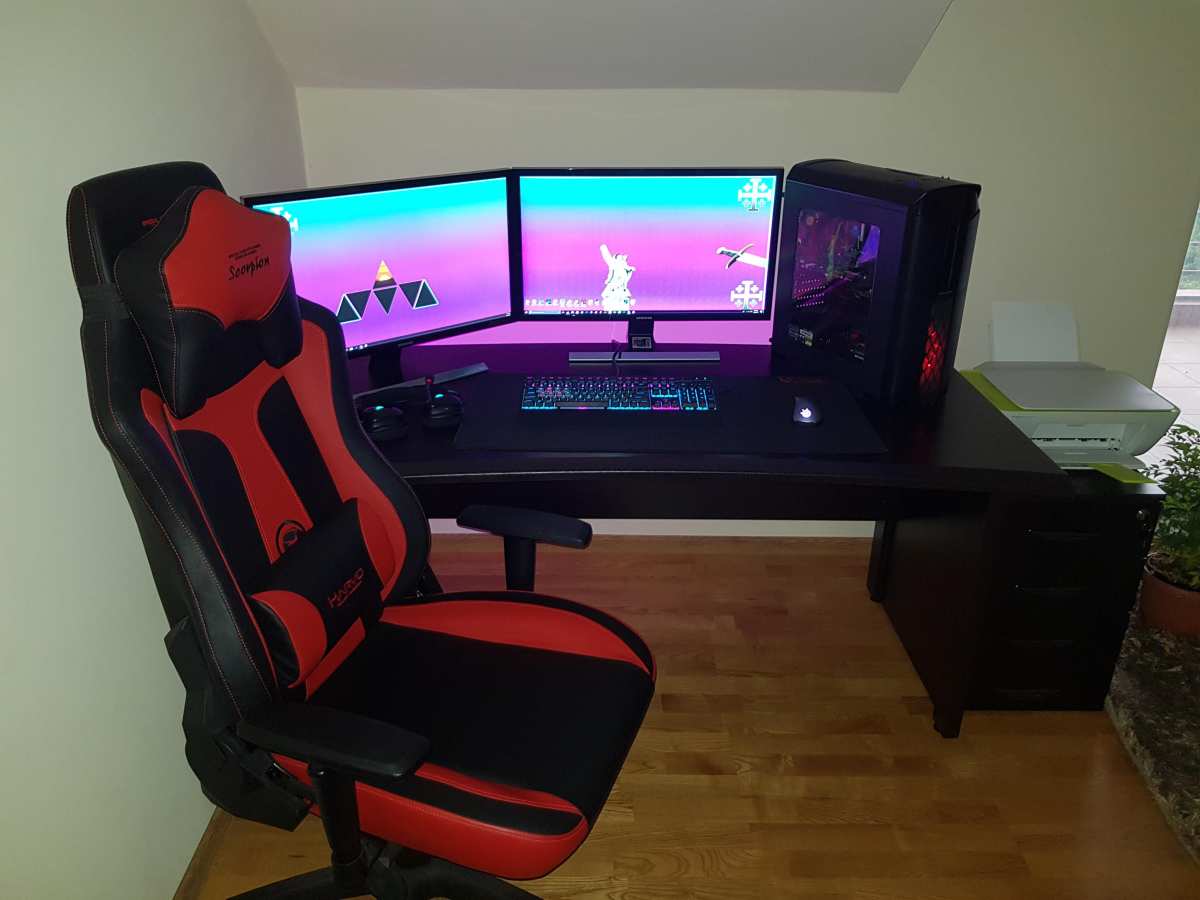
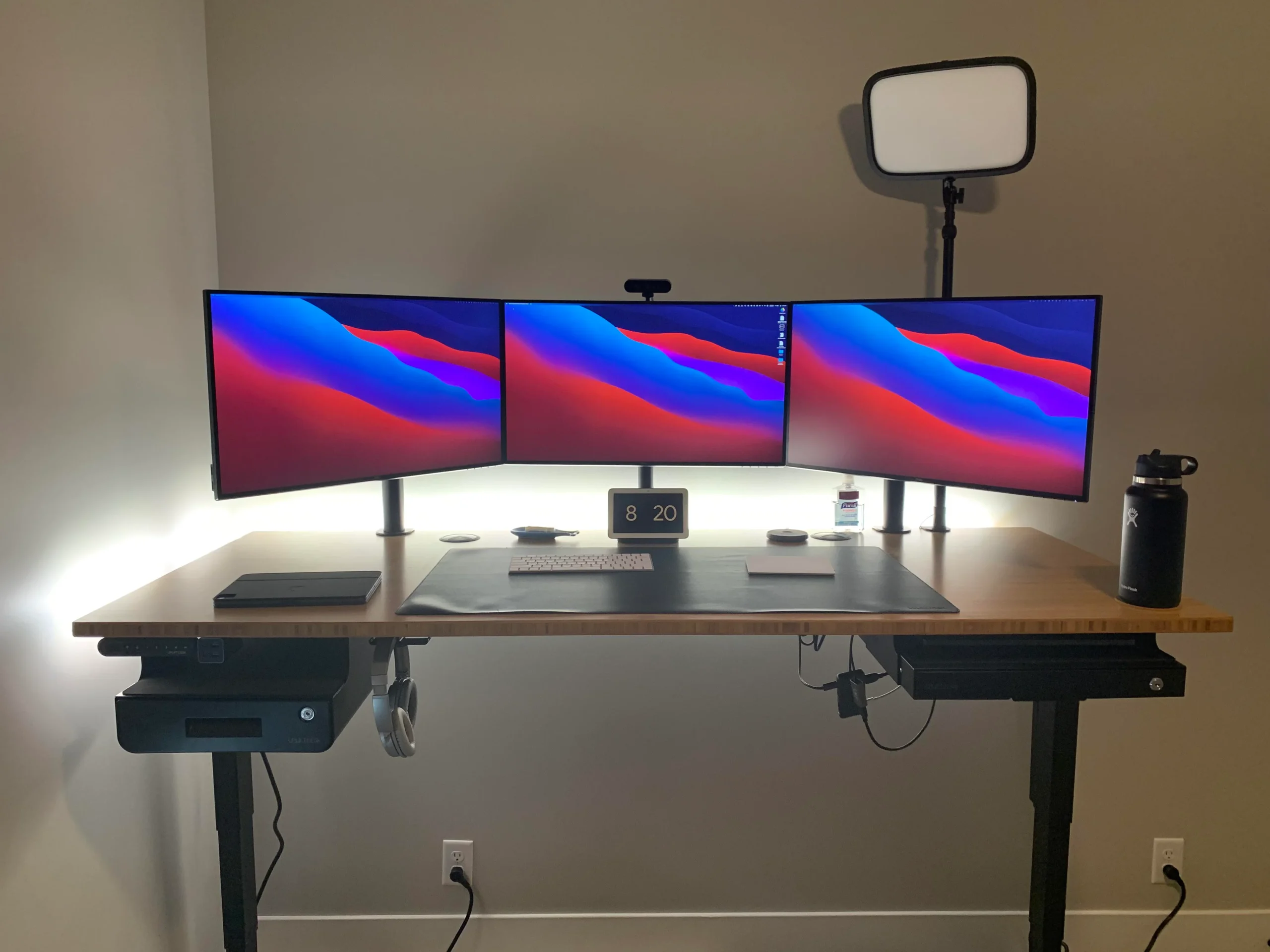
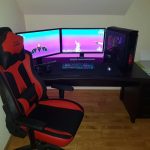
Image source: Bing (Web)
Quick Answer
Budget curved gaming monitors are worth it for immersive single-player gaming. They use VA panels with strong contrast and decent refresh rates. They fall short for competitive gaming due to slower response times.
At $200 to $300, they offer solid value for casual and story-driven gamers. Choose flat IPS if you prioritize motion clarity and color accuracy.
Why This Comparison Trips People Up
Here's where most buyers get confused. They see "curved" and assume it's automatically a premium feature. At the budget level, the curve itself isn't the selling point.
It's the underlying panel technology that determines whether you're getting a good deal or a disappointment.
The vast majority of budget curved gaming monitors ship with VA (Vertical Alignment) panels. That's not a coincidence. VA panels are cheaper to manufacture in curved configurations compared to IPS panels.
So when you're shopping for a $200 curved gaming monitor, you're almost certainly buying a VA panel whether the listing emphasizes it or not.
This matters because VA and IPS behave very differently in practice. VA gives you deep blacks and strong contrast ratios, often 3000:1 or higher. IPS gives you faster pixel response times and better color accuracy out of the box.
Neither is objectively better. They just serve different priorities.
The curve adds immersion, no question. But if the panel underneath can't keep up with fast motion, that curve won't save you in a competitive shooter. Understanding this distinction is the single most important thing before you buy.
What's Really Behind the Curve: Panel Types at Budget Price Points
The panel type determines 80% of your actual gaming experience. The curve is a secondary effect. Let's look at what you're actually getting at budget price points.
VA Panels: The Budget Curved Default
VA panels dominate the budget curved market for good reason. They offer excellent contrast ratios, typically around 3000:1 compared to IPS's 1000:1. That means deeper blacks and more visual depth in dark scenes.
For horror games, atmospheric RPGs, or cinematic single-player experiences, this is a genuine advantage.
The downside is response time. Manufacturer specs will claim "1ms MPRT" on the box. That's a marketing figure based on backlight strobing, not actual pixel transition speed.
Real GtG (Gray to Gray) response times on budget VA panels typically land between 5ms and 8ms. In practice, this means visible smearing during fast motion. Dark scenes with quick camera turns show noticeable trailing.
Aggregate review testing confirms this pattern across multiple budget curved models. The AOC CQ32G1, Samsung Odyssey G5 series, and Gigabyte G32QC all show measurable ghosting in dark transitions. It's not a defect.
It's a characteristic of VA technology at this price tier.
IPS Options: Less Common but Exist
True budget curved IPS monitors exist but are rare. The curve adds manufacturing cost, and IPS panels already cost more than VA. When you find one under $300, it's usually a smaller screen (27 inches) or a lesser-known brand.
The LG 27GN80-B and similar models occasionally dip into budget territory during sales. These offer faster real-world response times, typically 3ms to 5ms GtG, with better color accuracy. The trade-off is lower contrast ratio and potential IPS glow in dark scenes.
If you can find a curved IPS at your budget, it's generally the better all-around choice. The problem is availability. Most buyers won't have that option at their local retailer or preferred online store.
The Curvature Rating Doesn't Tell You Much
You'll see "1000R" or "1500R" in product listings. This number describes the radius of the curve in millimeters. A 1000R curve is tighter, matching the natural curvature of the human eye.
A 1800R curve is gentler.
At budget price points, the curvature rating has minimal impact on your experience. What matters more is screen size. A 27-inch curved monitor with 1500R curvature barely feels curved at normal viewing distances.
A 32-inch with 1000R creates a noticeably more immersive field of view.
The practical takeaway: don't pay extra for a specific R value. Focus on panel type, size, and resolution first. The curve is a nice bonus, not a primary decision factor.
Side-by-Side: Budget Curved vs. Budget Flat Gaming Monitors
Let's put the two options next to each other. This is where the decision gets clear.
| Factor | Budget Curved (VA) | Budget Flat (IPS) |
|---|---|---|
| Panel type | Almost always VA | Usually IPS |
| Response times | Slower real-world GtG | Faster, more consistent |
| Contrast ratio | Better (3000:1+) | Lower (1000:1) |
| Color accuracy | Decent, not great | Typically better out of box |
| Immersion factor | Higher | Lower |
| Competitive gaming suitability | Mediocre | Better |
| Price range | $150 to $300 | $150 to $280 |
| Best for | Single-player, cinematic games | Esports, fast-paced shooters |
The pattern is straightforward. If you play a lot of competitive shooters, MOBAs, or fast-paced games where motion clarity matters, a flat IPS at the same price will serve you better. If you play story-driven games, RPGs, simulators, or use your monitor for movies and media, the curved VA's contrast and immersion advantages become more noticeable.
Neither option is "bad." They just optimize for different things. The mistake is buying a curved VA expecting it to perform like a fast IPS. It won't.
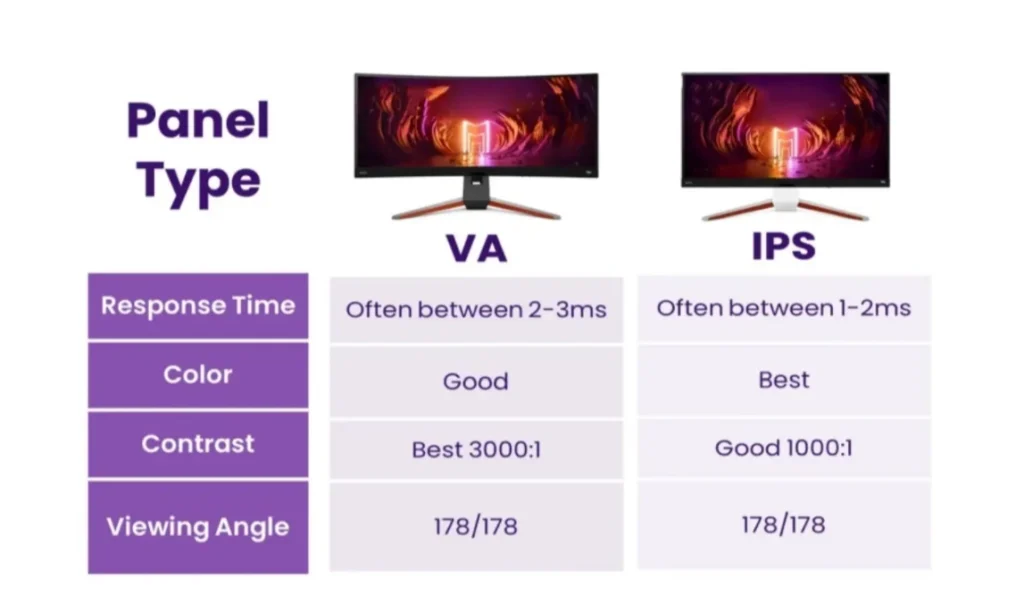
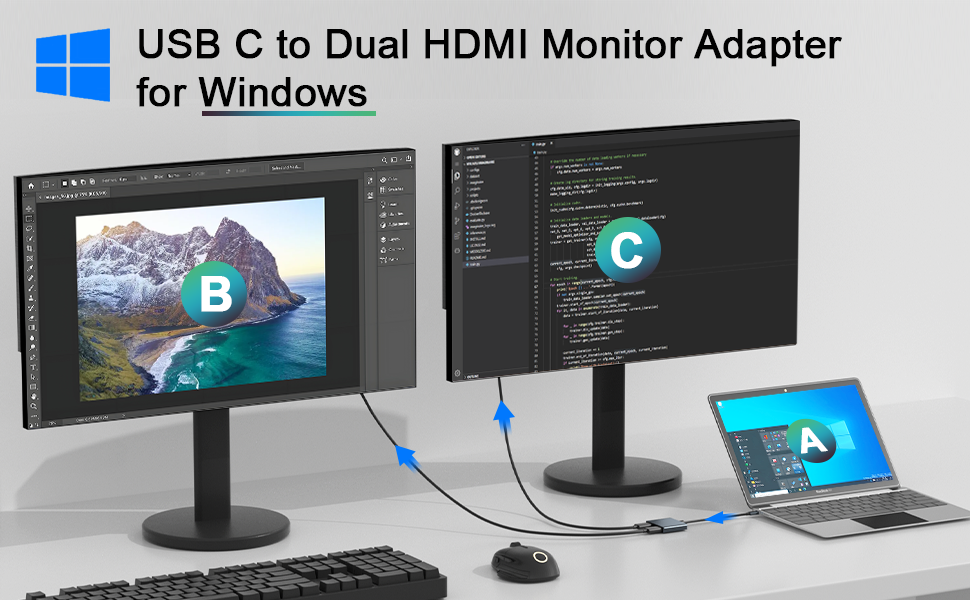
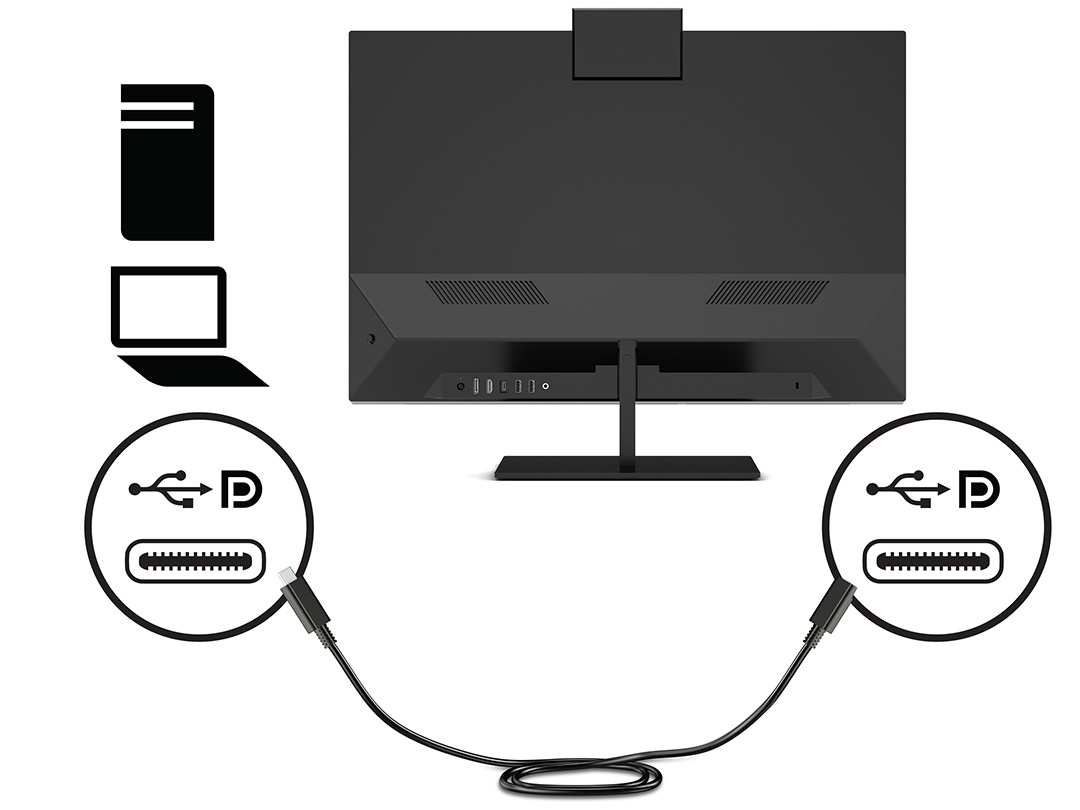
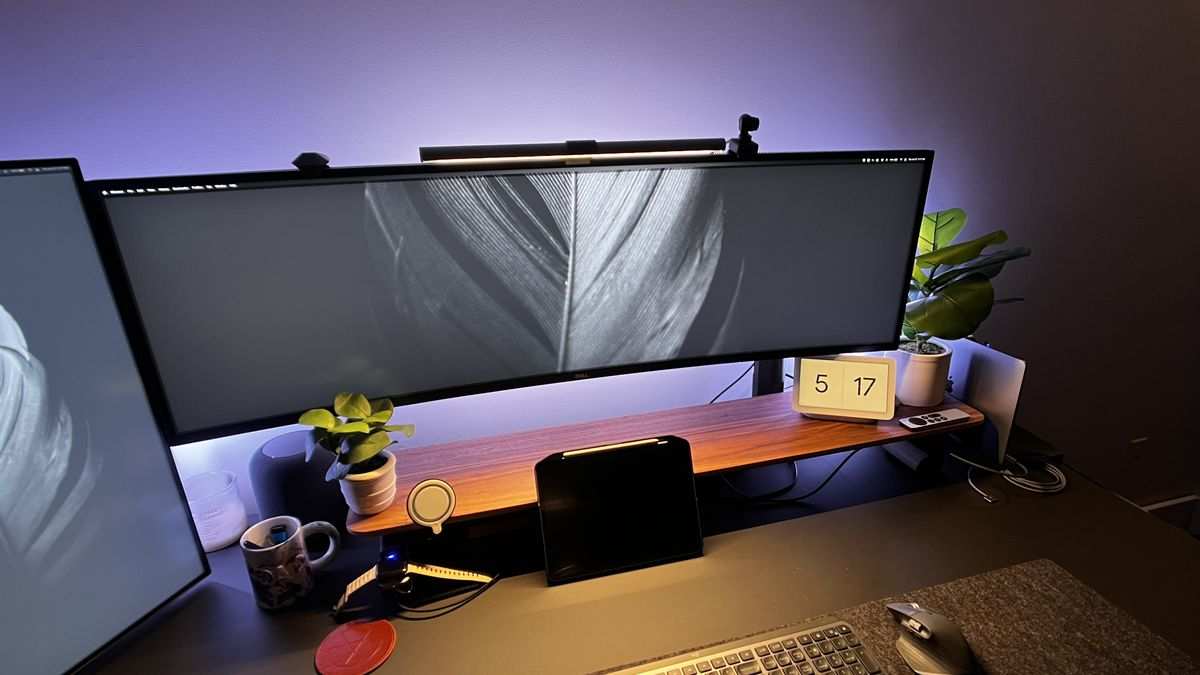
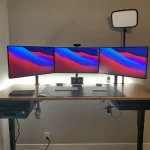
Image source: Bing (Web)
Who Should Actually Buy a Budget Curved Monitor
Let's get specific about who benefits most from this purchase.
Great Fit
- Single-player gamers who play story-driven titles, RPGs, or atmospheric games where visual depth matters more than split-second reaction times
- Racing and flight sim enthusiasts where the curve adds genuine peripheral immersion and the slower response times are less noticeable
- Console gamers on PS5 or Xbox Series X who want a 32-inch 4K or 1440p display for under $300
- Movie and media consumers who also game occasionally and want the cinematic feel of a curved screen
- Users in darker rooms where VA's superior contrast ratio makes a visible difference
Think Twice
- Competitive FPS players who need every millisecond of motion clarity
- Esports enthusiasts playing Valorant, CS2, or Apex at high level
- Color-critical creators who need accurate sRGB or DCI-P3 coverage for photo or video work
- Users who sit very close to a 27-inch screen where the curve creates visible geometric distortion
- Anyone buying under $180 where panel quality drops significantly across the board
The honest truth is that budget curved monitors occupy a specific niche. They're not the best at any one thing, but they're very good at creating an immersive experience for the right type of user. If that matches your use case, you'll be happy with the purchase.
If it doesn't, you'll notice the compromises immediately.
The Problems Nobody Warns You About
Budget curved monitors have real issues that product pages don't highlight. Here's what aggregate review data and user feedback consistently flag.
VA Smearing and Ghosting
This is the single biggest complaint. VA panels in budget curved monitors show visible trailing in dark scenes. Fast camera movements in games like Cyberpunk 2077 or Elden Ring produce noticeable smearing around dark objects against slightly lighter backgrounds.
It's not a defect. It's how VA pixel transitions work at this price tier. You can reduce it slightly by enabling overdrive settings in the monitor's OSD, but aggressive overdrive creates inverse ghosting (overshoot artifacts).
Finding the sweet spot takes patience, and even then, it won't match a budget IPS panel's motion clarity.
The Panel Lottery
Here's something that frustrates a lot of buyers. Two people buy the same monitor model. One gets a panel with minimal backlight bleed and decent color uniformity.
The other gets noticeable clouding in the corners and a slight color tint across the screen.
This is the "panel lottery," and it's real with budget monitors. Manufacturers source panels from multiple production batches. Quality control at this price point is less strict.
You might get a great unit. You might not. Return policies vary by brand, so check before you buy.
Fake HDR and Inflated Specs
You'll see "HDR10" and "HDR Ready" on boxes for monitors under $250. Don't be fooled. True HDR requires peak brightness of at least 600 nits and local dimming.
Budget curved monitors typically hit 250 to 350 nits with edge-lit backlights and no local dimming zones.
What you're getting is HDR signal compatibility. The monitor accepts an HDR signal and does its best to display it. The result often looks worse than SDR because the monitor can't produce the brightness range HDR content expects.
Stick with SDR for the best experience at this price point.
Aggressive Curves on Small Screens
A 27-inch monitor with 1000R curvature can feel disorienting at first. Straight lines appear bent. Text at the edges looks slightly distorted.
Most people adapt within a few days, but some never fully adjust.
If you're coming from a flat monitor, consider a gentler 1500R or 1800R curve at 27 inches. Save the aggressive 1000R curve for 32 inches and above, where it feels more natural at normal viewing distances.
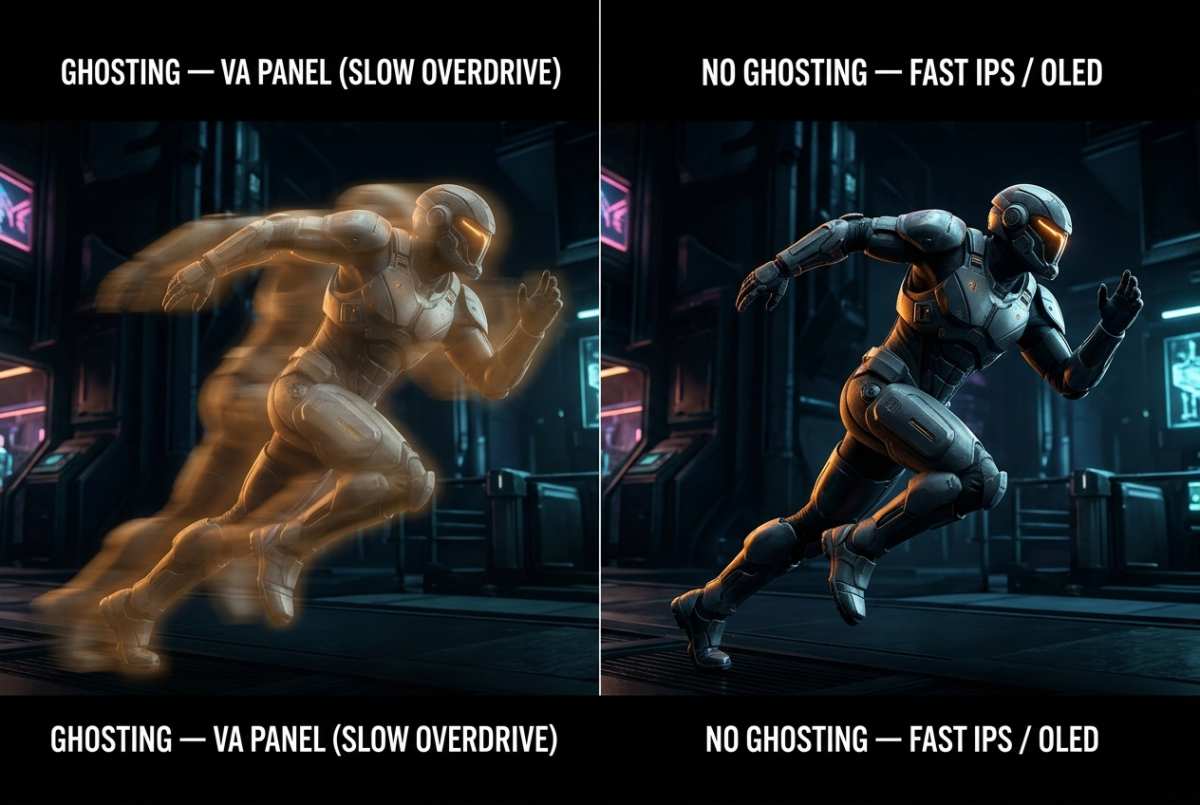
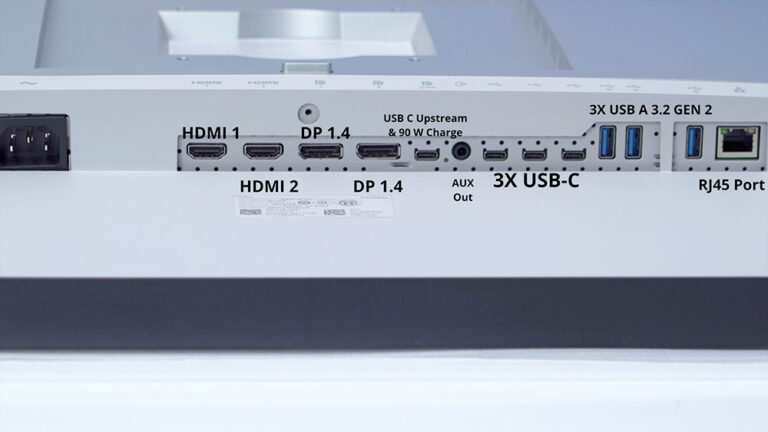
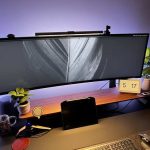
Image source: Bing (Web)
Best Budget Curved Monitors Worth Considering (2024–2025)
These models consistently perform well in independent testing and aggregate user reviews. Availability and pricing shift frequently, but these represent solid options as of early 2026.
Under 0
- AOC CQ27G2: 27-inch 1080p 144Hz VA panel with 1500R curve. Excellent value for casual gaming. Response time is typical VA, so expect some smearing, but the contrast and color are strong for the price.
- Samsung Odyssey G3 (LS27AG300N): 27-inch 1080p 144Hz flat VA, but worth mentioning as a budget alternative if you want Samsung's build quality without the curve premium. Often dips below $180.
- AOC C24G2ZE: 24-inch 1080p 144Hz VA with 1500R curve. Small screen, tight curve, but very affordable for a secondary setup or console gaming.
0 to 0
- Gigabyte G32QC A: 32-inch 1440p 165Hz VA with 1500R curve. This is the sweet spot for budget curved gaming. The larger screen makes the curve feel natural, and 1440p at 32 inches looks sharp. Response time is better than most budget VA panels.
- MSI G3212: 32-inch 1440p 170Hz VA with 1500R curve. Strong contender with good out-of-box color calibration and solid FreeSync Premium implementation. Often available around $250.
- Samsung Odyssey G5 (G55C, 32-inch): 32-inch 1440p 144Hz VA with 1000R curve. The tighter curve works well at this size. Samsung's Tizen-based OSD is polished, and build quality is above average for the price.
- Dell G3223Q: 32-inch 4K 60Hz IPS (flat, not curved). If you prioritize resolution and color accuracy over refresh rate and curve, this IPS option occasionally drops below $300 and offers a completely different experience.
The Gigabyte G32QC A and MSI G3212 stand out as the best overall value in this segment. They hit the right balance of size, resolution, refresh rate, and price. The Samsung G5 is a solid pick if you prefer a tighter curve and don't mind sacrificing a few Hz.
When You're Better Off With a Flat Monitor
-1100x1100h.jpg)
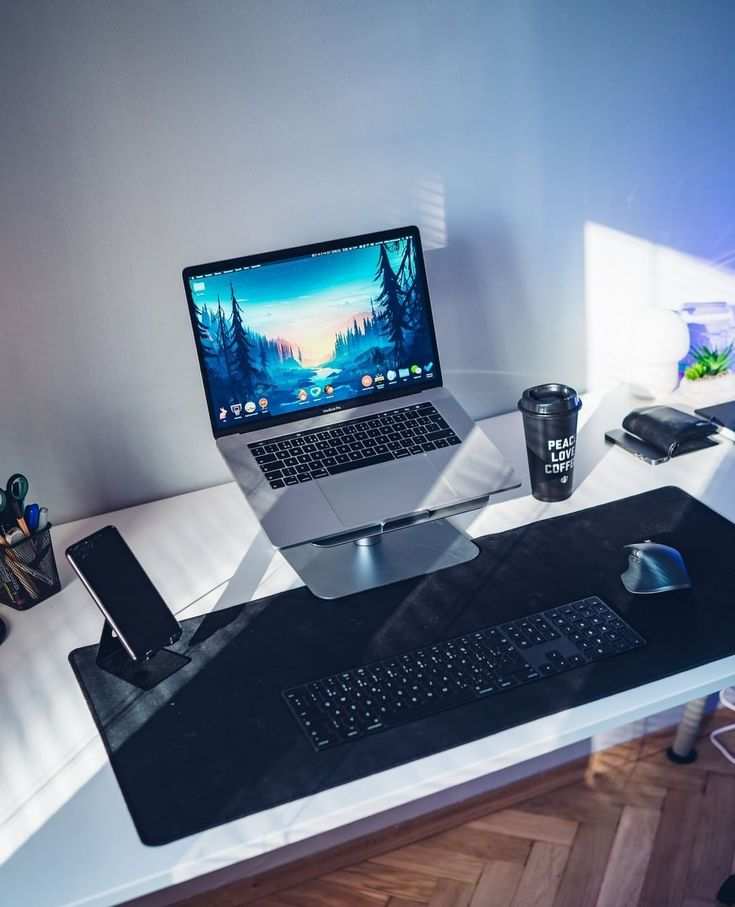
Image source: Bing (Web (fair-use with source credit))
Sometimes the curved route isn't the right call. Here's when a flat monitor makes more sense.
If you play competitive shooters seriously, a flat 27-inch 1080p or 1440p IPS at 144Hz or higher will give you noticeably better motion clarity. The difference between 5ms GtG and 8ms GtG is visible in fast-paced games. Models like the LG 27GL83A-B or ASUS VG259QM outperform any budget curved option in motion handling.
If color accuracy matters for your work, flat IPS panels offer better factory calibration and wider viewing angles. Budget curved VA panels shift color when viewed off-center, which is more noticeable on a curved surface.
If you're buying 27 inches or smaller, the curve adds minimal immersion. At that size, you're better off putting the money toward a better panel type or higher refresh rate. The curve's benefits really start at 32 inches and above.
If you're on a very tight budget, under $180, flat monitors offer more consistent quality. The curved options at that price point tend to have the most compromises in panel quality and build.
-1100x1100h.jpg)
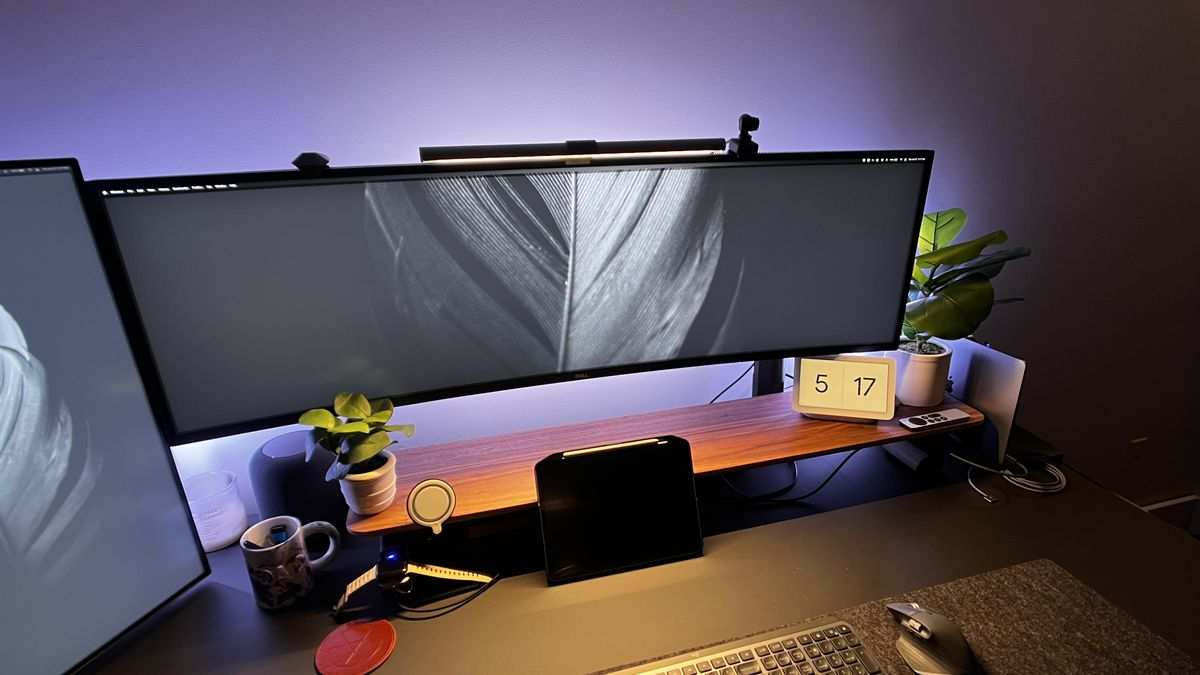
Image source: Bing (Web)
Expert Tips Before You Buy
A few practical things to check before you commit.
- Verify the panel type. Don't assume. Check the manufacturer's spec sheet or a trusted review site. Some listings emphasize "curved" without mentioning VA panel.
- Check the return policy. Dead pixel policies vary wildly. Some brands accept returns with as few as one bright pixel. Others require three or more. Know before you buy.
- Test the overdrive setting. Most budget curved monitors have an overdrive option in the OSD. Start at the medium setting and test for both smearing and overshoot. Find what looks best to your eyes.
- Consider your viewing distance. If you sit closer than 24 inches from a 32-inch curved monitor, the edges may feel distorted. Sit at least 30 inches back for the best experience.
- Disable HDR in Windows. Unless you're buying a monitor with DisplayHDR 600 or higher certification, HDR mode will look worse than SDR. Turn it off in Windows display settings.
- Update your GPU drivers. Adaptive sync compatibility improves with driver updates. Make sure you're running the latest version from AMD or NVIDIA before troubleshooting sync issues.
- Check VESA mount compatibility. Budget curved monitors often have limited stand adjustability. If you want height, swivel, or pivot adjustment, a VESA mount and a separate arm give you more flexibility.
Frequently Asked Questions
Is a curved monitor better for gaming than flat?
Curved monitors offer better immersion, especially at 32 inches and above. Flat monitors offer better motion clarity at the same price point. Neither is universally better.
It depends on what you play and what you prioritize.
Are budget curved monitors good for competitive gaming?
Mostly no. Budget curved monitors use VA panels with slower response times. Competitive gamers should choose a flat IPS monitor with faster GtG response times for better motion clarity in fast-paced games.
What size curved monitor is best for gaming?
32 inches is the sweet spot for budget curved gaming monitors. The curve feels natural at this size, and 1440p resolution looks sharp. At 27 inches, the curve is less noticeable and you're better off with a flat IPS.
Do budget curved monitors have HDR?
Most budget curved monitors support HDR signal input but lack the brightness and local dimming needed for true HDR. The result often looks worse than SDR. Stick with SDR for the best experience at this price point.
How do I reduce ghosting on a budget curved VA monitor?
Enable the overdrive setting in your monitor's OSD. Start at medium and test for both smearing and inverse ghosting. You can't eliminate VA smearing entirely, but the right overdrive setting minimizes it.
Can I use a curved monitor for work and productivity?
Yes, but the curve can cause slight geometric distortion with straight lines and text. For office work, photo editing, or design work, a flat monitor is generally more practical. Curved works fine for general productivity if you adapt to the curve.
Final Verdict: The Simple Decision Guide
Here's the bottom line.
Buy a budget curved gaming monitor if you play immersive single-player games, use your display for movies and media, or want a cinematic feel at 32 inches or above. The contrast and immersion are real benefits at this price point.
Buy a flat gaming monitor instead if you play competitive games, need color accuracy for creative work, or want the best motion clarity for your budget. Flat IPS panels at $200 to $300 outperform budget curved VA panels in response time and color consistency.
The curve itself isn't the deciding factor. The panel underneath is. Know what you're getting, match it to your use case, and you'll be happy with whichever direction you go.
Quick Answer
Budget curved gaming monitors are worth it for immersive single-player gaming. They use VA panels with strong contrast and decent refresh rates. They fall short for competitive gaming due to slower response times.
At $200 to $300, they offer solid value for casual and story-driven gamers. Choose flat IPS if you prioritize motion clarity and color accuracy.
Why This Comparison Trips People Up
Here's where most buyers get confused. They see "curved" and assume it's automatically a premium feature. At the budget level, the curve itself isn't the selling point.
It's the underlying panel technology that determines whether you're getting a good deal or a disappointment.
The vast majority of budget curved gaming monitors ship with VA (Vertical Alignment) panels. That's not a coincidence. VA panels are cheaper to manufacture in curved configurations compared to IPS panels.
So when you're shopping for a $200 curved gaming monitor, you're almost certainly buying a VA panel whether the listing emphasizes it or not.
This matters because VA and IPS behave very differently in practice. VA gives you deep blacks and strong contrast ratios, often 3000:1 or higher. IPS gives you faster pixel response times and better color accuracy out of the box.
Neither is objectively better. They just serve different priorities.
The curve adds immersion, no question. But if the panel underneath can't keep up with fast motion, that curve won't save you in a competitive shooter. Understanding this distinction is the single most important thing before you buy.
What's Really Behind the Curve: Panel Types at Budget Price Points
The panel type determines 80% of your actual gaming experience. The curve is a secondary effect. Let's look at what you're actually getting at budget price points.
VA Panels: The Budget Curved Default
VA panels dominate the budget curved market for good reason. They offer excellent contrast ratios, typically around 3000:1 compared to IPS's 1000:1. That means deeper blacks and more visual depth in dark scenes.
For horror games, atmospheric RPGs, or cinematic single-player experiences, this is a genuine advantage.
The downside is response time. Manufacturer specs will claim "1ms MPRT" on the box. That's a marketing figure based on backlight strobing, not actual pixel transition speed.
Real GtG (Gray to Gray) response times on budget VA panels typically land between 5ms and 8ms. In practice, this means visible smearing during fast motion. Dark scenes with quick camera turns show noticeable trailing.
Aggregate review testing confirms this pattern across multiple budget curved models. The AOC CQ32G1, Samsung Odyssey G5 series, and Gigabyte G32QC all show measurable ghosting in dark transitions. It's not a defect.
It's a characteristic of VA technology at this price tier.
IPS Options: Less Common but Exist
True budget curved IPS monitors exist but are rare. The curve adds manufacturing cost, and IPS panels already cost more than VA. When you find one under $300, it's usually a smaller screen (27 inches) or a lesser-known brand.
The LG 27GN80-B and similar models occasionally dip into budget territory during sales. These offer faster real-world response times, typically 3ms to 5ms GtG, with better color accuracy. The trade-off is lower contrast ratio and potential IPS glow in dark scenes.
If you can find a curved IPS at your budget, it's generally the better all-around choice. The problem is availability. Most buyers won't have that option at their local retailer or preferred online store.
The Curvature Rating Doesn't Tell You Much
You'll see "1000R" or "1500R" in product listings. This number describes the radius of the curve in millimeters. A 1000R curve is tighter, matching the natural curvature of the human eye.
A 1800R curve is gentler.
At budget price points, the curvature rating has minimal impact on your experience. What matters more is screen size. A 27-inch curved monitor with 1500R curvature barely feels curved at normal viewing distances.
A 32-inch with 1000R creates a noticeably more immersive field of view.
The practical takeaway: don't pay extra for a specific R value. Focus on panel type, size, and resolution first. The curve is a nice bonus, not a primary decision factor.
Side-by-Side: Budget Curved vs. Budget Flat Gaming Monitors
Let's put the two options next to each other. This is where the decision gets clear.
| Factor | Budget Curved (VA) | Budget Flat (IPS) |
|---|---|---|
| Panel type | Almost always VA | Usually IPS |
| Response times | Slower real-world GtG | Faster, more consistent |
| Contrast ratio | Better (3000:1+) | Lower (1000:1) |
| Color accuracy | Decent, not great | Typically better out of box |
| Immersion factor | Higher | Lower |
| Competitive gaming suitability | Mediocre | Better |
| Price range | $150 to $300 | $150 to $280 |
| Best for | Single-player, cinematic games | Esports, fast-paced shooters |
The pattern is straightforward. If you play a lot of competitive shooters, MOBAs, or fast-paced games where motion clarity matters, a flat IPS at the same price will serve you better. If you play story-driven games, RPGs, simulators, or use your monitor for movies and media, the curved VA's contrast and immersion advantages become more noticeable.
Neither option is "bad." They just optimize for different things. The mistake is buying a curved VA expecting it to perform like a fast IPS. It won't.
Image source: Bing (Web)
Who Should Actually Buy a Budget Curved Monitor
Let's get specific about who benefits most from this purchase.
Great Fit
- Single-player gamers who play story-driven titles, RPGs, or atmospheric games where visual depth matters more than split-second reaction times
- Racing and flight sim enthusiasts where the curve adds genuine peripheral immersion and the slower response times are less noticeable
- Console gamers on PS5 or Xbox Series X who want a 32-inch 4K or 1440p display for under $300
- Movie and media consumers who also game occasionally and want the cinematic feel of a curved screen
- Users in darker rooms where VA's superior contrast ratio makes a visible difference
Think Twice
- Competitive FPS players who need every millisecond of motion clarity
- Esports enthusiasts playing Valorant, CS2, or Apex at high level
- Color-critical creators who need accurate sRGB or DCI-P3 coverage for photo or video work
- Users who sit very close to a 27-inch screen where the curve creates visible geometric distortion
- Anyone buying under $180 where panel quality drops significantly across the board
The honest truth is that budget curved monitors occupy a specific niche. They're not the best at any one thing, but they're very good at creating an immersive experience for the right type of user. If that matches your use case, you'll be happy with the purchase.
If it doesn't, you'll notice the compromises immediately.
The Problems Nobody Warns You About
Budget curved monitors have real issues that product pages don't highlight. Here's what aggregate review data and user feedback consistently flag.
VA Smearing and Ghosting
This is the single biggest complaint. VA panels in budget curved monitors show visible trailing in dark scenes. Fast camera movements in games like Cyberpunk 2077 or Elden Ring produce noticeable smearing around dark objects against slightly lighter backgrounds.
It's not a defect. It's how VA pixel transitions work at this price tier. You can reduce it slightly by enabling overdrive settings in the monitor's OSD, but aggressive overdrive creates inverse ghosting (overshoot artifacts).
Finding the sweet spot takes patience, and even then, it won't match a budget IPS panel's motion clarity.
The Panel Lottery
Here's something that frustrates a lot of buyers. Two people buy the same monitor model. One gets a panel with minimal backlight bleed and decent color uniformity.
The other gets noticeable clouding in the corners and a slight color tint across the screen.
This is the "panel lottery," and it's real with budget monitors. Manufacturers source panels from multiple production batches. Quality control at this price point is less strict.
You might get a great unit. You might not. Return policies vary by brand, so check before you buy.
Fake HDR and Inflated Specs
You'll see "HDR10" and "HDR Ready" on boxes for monitors under $250. Don't be fooled. True HDR requires peak brightness of at least 600 nits and local dimming.
Budget curved monitors typically hit 250 to 350 nits with edge-lit backlights and no local dimming zones.
What you're getting is HDR signal compatibility. The monitor accepts an HDR signal and does its best to display it. The result often looks worse than SDR because the monitor can't produce the brightness range HDR content expects.
Stick with SDR for the best experience at this price point.
Aggressive Curves on Small Screens
A 27-inch monitor with 1000R curvature can feel disorienting at first. Straight lines appear bent. Text at the edges looks slightly distorted.
Most people adapt within a few days, but some never fully adjust.
If you're coming from a flat monitor, consider a gentler 1500R or 1800R curve at 27 inches. Save the aggressive 1000R curve for 32 inches and above, where it feels more natural at normal viewing distances.
Image source: Bing (Web)
Best Budget Curved Monitors Worth Considering (2024–2025)
These models consistently perform well in independent testing and aggregate user reviews. Availability and pricing shift frequently, but these represent solid options as of early 2026.
Under 0
- AOC CQ27G2: 27-inch 1080p 144Hz VA panel with 1500R curve. Excellent value for casual gaming. Response time is typical VA, so expect some smearing, but the contrast and color are strong for the price.
- Samsung Odyssey G3 (LS27AG300N): 27-inch 1080p 144Hz flat VA, but worth mentioning as a budget alternative if you want Samsung's build quality without the curve premium. Often dips below $180.
- AOC C24G2ZE: 24-inch 1080p 144Hz VA with 1500R curve. Small screen, tight curve, but very affordable for a secondary setup or console gaming.
0 to 0
- Gigabyte G32QC A: 32-inch 1440p 165Hz VA with 1500R curve. This is the sweet spot for budget curved gaming. The larger screen makes the curve feel natural, and 1440p at 32 inches looks sharp. Response time is better than most budget VA panels.
- MSI G3212: 32-inch 1440p 170Hz VA with 1500R curve. Strong contender with good out-of-box color calibration and solid FreeSync Premium implementation. Often available around $250.
- Samsung Odyssey G5 (G55C, 32-inch): 32-inch 1440p 144Hz VA with 1000R curve. The tighter curve works well at this size. Samsung's Tizen-based OSD is polished, and build quality is above average for the price.
- Dell G3223Q: 32-inch 4K 60Hz IPS (flat, not curved). If you prioritize resolution and color accuracy over refresh rate and curve, this IPS option occasionally drops below $300 and offers a completely different experience.
The Gigabyte G32QC A and MSI G3212 stand out as the best overall value in this segment. They hit the right balance of size, resolution, refresh rate, and price. The Samsung G5 is a solid pick if you prefer a tighter curve and don't mind sacrificing a few Hz.
When You're Better Off With a Flat Monitor
Sometimes the curved route isn't the right call. Here's when a flat monitor makes more sense.
If you play competitive shooters seriously, a flat 27-inch 1080p or 1440p IPS at 144Hz or higher will give you noticeably better motion clarity. The difference between 5ms GtG and 8ms GtG is visible in fast-paced games. Models like the LG 27GL83A-B or ASUS VG259QM outperform any budget curved option in motion handling.
If color accuracy matters for your work, flat IPS panels offer better factory calibration and wider viewing angles. Budget curved VA panels shift color when viewed off-center, which is more noticeable on a curved surface.
If you're buying 27 inches or smaller, the curve adds minimal immersion. At that size, you're better off putting the money toward a better panel type or higher refresh rate. The curve's benefits really start at 32 inches and above.
If you're on a very tight budget, under $180, flat monitors offer more consistent quality. The curved options at that price point tend to have the most compromises in panel quality and build.
-1100x1100h.jpg)
Image source: Bing (Web)
Expert Tips Before You Buy
A few practical things to check before you commit.
- Verify the panel type. Don't assume. Check the manufacturer's spec sheet or a trusted review site. Some listings emphasize "curved" without mentioning VA panel.
- Check the return policy. Dead pixel policies vary wildly. Some brands accept returns with as few as one bright pixel. Others require three or more. Know before you buy.
- Test the overdrive setting. Most budget curved monitors have an overdrive option in the OSD. Start at the medium setting and test for both smearing and overshoot. Find what looks best to your eyes.
- Consider your viewing distance. If you sit closer than 24 inches from a 32-inch curved monitor, the edges may feel distorted. Sit at least 30 inches back for the best experience.
- Disable HDR in Windows. Unless you're buying a monitor with DisplayHDR 600 or higher certification, HDR mode will look worse than SDR. Turn it off in Windows display settings.
- Update your GPU drivers. Adaptive sync compatibility improves with driver updates. Make sure you're running the latest version from AMD or NVIDIA before troubleshooting sync issues.
- Check VESA mount compatibility. Budget curved monitors often have limited stand adjustability. If you want height, swivel, or pivot adjustment, a VESA mount and a separate arm give you more flexibility.
Frequently Asked Questions
Is a curved monitor better for gaming than flat?
Curved monitors offer better immersion, especially at 32 inches and above. Flat monitors offer better motion clarity at the same price point. Neither is universally better.
It depends on what you play and what you prioritize.
Are budget curved monitors good for competitive gaming?
Mostly no. Budget curved monitors use VA panels with slower response times. Competitive gamers should choose a flat IPS monitor with faster GtG response times for better motion clarity in fast-paced games.
What size curved monitor is best for gaming?
32 inches is the sweet spot for budget curved gaming monitors. The curve feels natural at this size, and 1440p resolution looks sharp. At 27 inches, the curve is less noticeable and you're better off with a flat IPS.
Do budget curved monitors have HDR?
Most budget curved monitors support HDR signal input but lack the brightness and local dimming needed for true HDR. The result often looks worse than SDR. Stick with SDR for the best experience at this price point.
How do I reduce ghosting on a budget curved VA monitor?
Enable the overdrive setting in your monitor's OSD. Start at medium and test for both smearing and inverse ghosting. You can't eliminate VA smearing entirely, but the right overdrive setting minimizes it.
Can I use a curved monitor for work and productivity?
Yes, but the curve can cause slight geometric distortion with straight lines and text. For office work, photo editing, or design work, a flat monitor is generally more practical. Curved works fine for general productivity if you adapt to the curve.
Final Verdict: The Simple Decision Guide
Here's the bottom line.
Buy a budget curved gaming monitor if you play immersive single-player games, use your display for movies and media, or want a cinematic feel at 32 inches and above. The contrast and immersion are real benefits at this price point.
Buy a flat gaming monitor instead if you play competitive games, need color accuracy for creative work, or want the best motion clarity for your budget. Flat IPS panels at $200 to $300 outperform budget curved VA panels in response time and color consistency.
The curve itself isn't the deciding factor. The panel underneath is. Know what you're getting, match it to your use case, and you'll be happy with whichever direction you go.

Similar Posts