Do Touchscreen Monitors Overheat
Do touchscreen monitors overheat? It's a fair question, especially if you've ever rested your hand on one that felt like it was radiating warmth like a space heater. The short answer is that while these displays do generate heat during normal operation, whether that heat becomes a real problem depends on the specific monitor, how you're using it, and what kind of environment it's sitting in.
Let's break it all down so you know exactly what to watch for and what to ignore.
Manufacturer specifications for most consumer touchscreen monitors list an operating temperature range of 0°C to 40°C (32°F to 104°F). Run your display within that envelope and you'll typically be fine. But push past it, block the ventilation, or run brightness at full tilt in a warm room, and things can get uncomfortable or even damaging.
Working through this topic properly means understanding where the heat actually comes from, because it's not just one source.
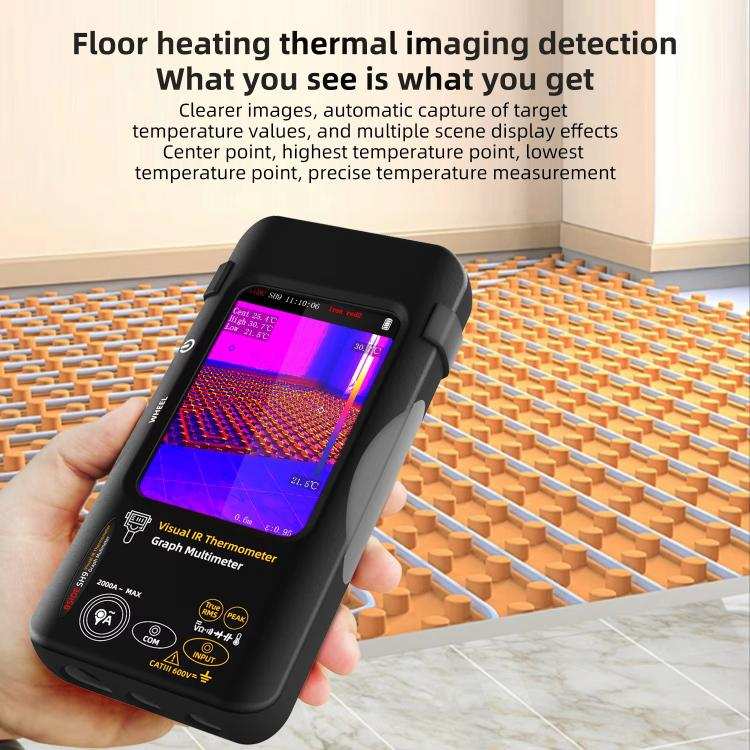
Quick Answer
Touchscreen monitors do generate heat during normal use. Most stay well within safe operating temperatures under typical conditions. However, they can overheat in enclosed spaces, high ambient temperatures, or during continuous 24/7 operation.
Overheating can reduce panel lifespan, degrade touch responsiveness, and in extreme cases, create a burn hazard. Proper ventilation and brightness management prevent most issues.
The Short Answer: Yes, Touchscreen Monitors Can Overheat — But It's Not That Simple
Here's where most people get tripped up. They want a yes or no answer, and the honest truth is that heat in touchscreen monitors is a spectrum, not a binary switch. A monitor that feels slightly warm to the touch during a two-hour office session isn't the same beast as a digital signage display baking in direct Phoenix sunlight for 14 hours a day.
The key distinction is between "running warm" and "overheating." Warm is normal. Overheat is when the heat starts causing actual problems: touch drift, image retention, component failure, or surface temperatures high enough to cause discomfort or injury. Most consumer touchscreen monitors in normal indoor environments run warm, not hot.
The real risks show up in specific scenarios we'll walk through.
If you're setting up something mission-critical, like a kiosk in an uncooled lobby or a control panel on a factory floor, you need to pay closer attention. For a home office touchscreen display used a few hours a day? You're almost certainly fine.
Knowing the difference between those two situations is what this guide is all about.
How Touchscreen Monitors Generate Heat (And Where It Comes From)
Touchscreen monitors don't just produce heat from one source. They've got multiple heat generators packed into a relatively slim enclosure, and understanding each one helps you manage the overall thermal picture. Think of it like a car: the engine produces heat, sure, but so does the transmission, the brakes, and even the cabin heater.
The Panel and Backlight
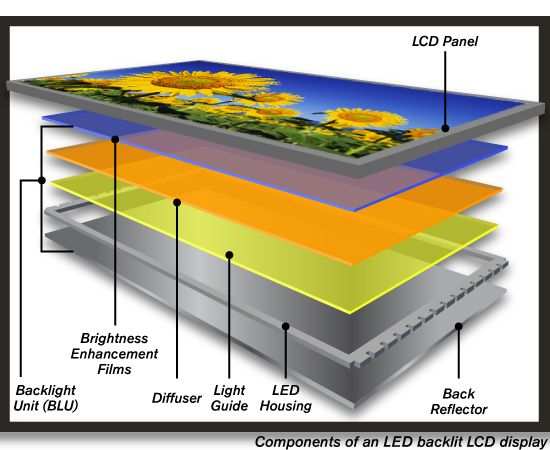
The single biggest heat source in any touchscreen monitor is the LED backlight array. Even though LED backlights are far more efficient than the old CCFL tubes they replaced, they still convert a meaningful chunk of electrical energy into heat. A 24-inch touchscreen monitor running at full brightness might draw 25 to 35 watts of power, and a significant portion of that ends up as thermal energy behind the LCD panel.
The LCD panel itself also generates some heat. The liquid crystal layer and the thin-film transistors (TFTs) that drive each pixel aren't perfectly efficient. They produce a small amount of heat as they switch states millions of times per second.
It's not a huge contributor on its own, but it adds to the total thermal load inside the enclosure.
Here's something worth noting. Higher-resolution displays generally produce more heat because there are more pixels to drive. A 4K touchscreen monitor will typically run warmer than a 1080p model of the same size, all else being equal.
More pixels mean more transistors, more backlight zones, and more power draw.
The Touch Layer Adds More Heat
This is where touchscreen monitors differ from their non-touch siblings. The touch-sensing layer requires its own electronics to function. In projected capacitive (PCAP) touchscreens, which are what you'll find in most modern consumer and industrial touch monitors, a controller IC continuously scans a grid of transparent electrodes to detect finger contact.
That controller chip generates heat. It's usually a small amount, maybe a watt or two, but in a tightly sealed enclosure with no airflow, every bit counts. Resistive touchscreens, which rely on two flexible layers making physical contact, don't have a controller that runs as hot, but they're far less common in new products as of 2026.
Infrared touch systems and surface acoustic wave (SAW) technology add their own thermal signatures too. IR touch frames house arrays of LEDs and sensors bezel that run along the screen edges. Those LEDs produce heat at the perimeter of the display.
It's distributed differently than capacitive heat, but it's still adding to the total.
Active vs. Passive Cooling Designs
How a monitor handles all this heat depends entirely on its cooling design. Most consumer touchscreen monitors rely on passive cooling. That means they use the metal chassis or internal heat spreaders to absorb and radiate heat naturally.
There are no fans, no pumps, no moving parts. It's silent and reliable, but it's also limited in how much heat it can dissipate.
Industrial-grade touchscreen monitors often step up to active cooling. These units include small internal fans that force air across hot components. Some sealed industrial displays use a closed-loop system where internal air circulates through a heat exchanger, keeping dust and moisture out while still managing thermal loads.
The trade-off is noise and the potential for fan failure over time.
The enclosure material matters more than most people realize. A monitor with a metal body, like many Elo Touch or Planar industrial models, will dissipate heat better than a plastic-bodied consumer display. Metal acts as a natural heat sink.
Plastic insulates. If thermal management is a priority for your setup, the chassis material is worth checking before you buy.
When Overheating Becomes a Real Problem
Not every warm touchscreen monitor is in danger. The real question is whether the heat is building up faster than it can dissipate. That balance point depends on several environmental and usage factors, and understanding them is the key to preventing problems before they start.
Ambient Temperature Is the Biggest Variable
Your room temperature sets the baseline for everything else. A touchscreen monitor in a 68°F (20°C) air-conditioned office has a lot of thermal headroom. That same monitor in a 95°F (35°C) warehouse has almost none.
The heat generated by the display has to flow from the hot internal components to the cooler surrounding air. When the air is already warm, that temperature gradient shrinks and heat transfer slows down.
This is why manufacturer operating temperature specs exist. They're not suggestions. They're the range within which the manufacturer has verified that all components stay within their rated thermal limits.
Exceeding them doesn't mean instant failure, but it does mean you're operating outside the tested envelope, and the risk of problems goes up.
Enclosed Spaces Make Everything Worse
One of the most common overheating scenarios we've seen in research is touchscreen monitors installed inside enclosed kiosk cabinets or recessed wall mounts with poor ventilation. The monitor is generating heat, but there's nowhere for that hot air to go. It recirculates, gets warmer, and the internal temperature climbs steadily.
Even a few inches of clearance on each side of the monitor can make a significant difference. Manufacturers typically specify minimum clearance distances in their installation guides. Ignoring those specs because the monitor "fits" in a tight space is a recipe for thermal trouble.
Continuous 24/7 Operation
A monitor used for eight hours a day gets a chance to cool down overnight. A monitor running 24/7, like digital signage in a lobby or a POS terminal in a busy restaurant, never gets that recovery time. The internal temperature reaches a steady state that's higher than what a periodically-used monitor ever experiences.
Industrial-grade monitors are designed for this duty cycle. They use components rated for continuous operation and often have more robust thermal designs. Consumer monitors can handle some extended use, but running a consumer touchscreen display around the clock will shorten its lifespan noticeably.
Direct Sunlight and Outdoor Installations
This is a big one. A touchscreen monitor in direct sunlight faces a double heat challenge: its own internal heat plus solar thermal load. Sunlight hitting the screen surface can add significant thermal energy, especially on darker display content.
An outdoor kiosk touchscreen in summer can easily see surface temperatures that are painful to touch.
Outdoor-rated touchscreen displays address this with high-brightness panels (to compensate for sun glare), anti-reflective coatings, and sometimes active cooling systems designed specifically for high-ambient conditions. Using a standard indoor touchscreen monitor outdoors, even under a shade structure, is asking for trouble in warm weather.
What Actually Happens When a Touchscreen Monitor Overheats
When a touchscreen monitor does overheat, the consequences range from mildly annoying to genuinely serious. Understanding what's at stake helps you decide how much attention to pay to thermal management in your specific situation.
Touch Responsiveness Degrades
The first thing most people notice when a capacitive touchscreen gets too hot is erratic touch behavior. You tap one spot and the screen registers a tap somewhere else. Multi-touch gestures stop working correctly.
The touch becomes sluggish or unresponsive.
This happens because the touch controller IC is calibrated for a specific operating temperature range. As the temperature drifts outside that range, the baseline capacitance readings shift. The controller gets confused about what's a real finger touch and what's thermal noise.
Most modern controllers have some compensation built in, but there's a limit to how much drift they can handle.
Panel Damage and Image Retention
Sustained high temperatures can damage the LCD panel itself. The liquid crystal material can degrade, leading to permanent discoloration or "burn-in" where ghost images become visible even when the content changes. This is different from temporary image retention, which fades over time.
True panel damage from heat is permanent and irreversible.
OLED touch displays are particularly vulnerable here. Organic compounds in OLED panels degrade faster at elevated temperatures. While OLED touchscreens are still relatively niche in the monitor market as of 2026, they're becoming more common in high-end applications, and thermal management is critical for longevity.
LED Backlight Lifecycle Drops Significantly
LED backlights are rated for a certain number of hours at a specific temperature. The standard rating is usually around 50,000 hours at 25°C (77°F). For every 10°C above that baseline, the expected lifespan roughly halves, following the Arrhenius model of thermal degradation.
That means a backlight running at 45°C might last only 12,500 hours instead of 50,000.
This is a slow-motion problem. You won't notice it day to day. But a touchscreen monitor in a hot environment might lose half its brightness within a year or two, while the same model in a cool office could maintain usable brightness for a decade.
In Worst Cases, It's a Burn Hazard
This is the safety issue that matters most. A touchscreen monitor surface that reaches temperatures above about 113°F (45°C) can cause discomfort with prolonged contact. Above 120°F (49°C), brief contact can cause burns, particularly on the more sensitive skin of children or elderly users.
Industrial safety standards, including OSHA guidelines for workplace surfaces, flag sustained contact temperatures above 110°F as a concern. Most touchscreen monitors won't reach these temperatures under normal use. But a malfunctioning unit, one with blocked ventilation, or one in a high-heat environment absolutely can.
If your touchscreen monitor is too hot to keep your hand on comfortably, that's a safety issue, not just a comfort one.
How to Tell If Your Touchscreen Monitor Is Running Too Hot
You don't need specialized equipment to check whether your touchscreen monitor is running within safe thermal limits. A few simple observations and one inexpensive tool can give you a clear picture.
Check the Manufacturer's Specs First
Before anything else, look up your specific monitor's operating temperature range. It'll be in the user manual or on the manufacturer's spec sheet. Most consumer touchscreen monitors are rated for 0°C to 40°C (32°F to 104°F) ambient temperature.
Industrial models often have wider ranges, sometimes -20°C to 70°C (-4°F to 158°F).
Also check the specified surface temperature limits if they're listed. Not all manufacturers publish this data, but those that do give you a concrete number to compare against. If your monitor's documentation doesn't mention surface temps, the general guideline is that sustained surface temperatures above 110°F (43°C) warrant attention.
Use an IR Thermometer
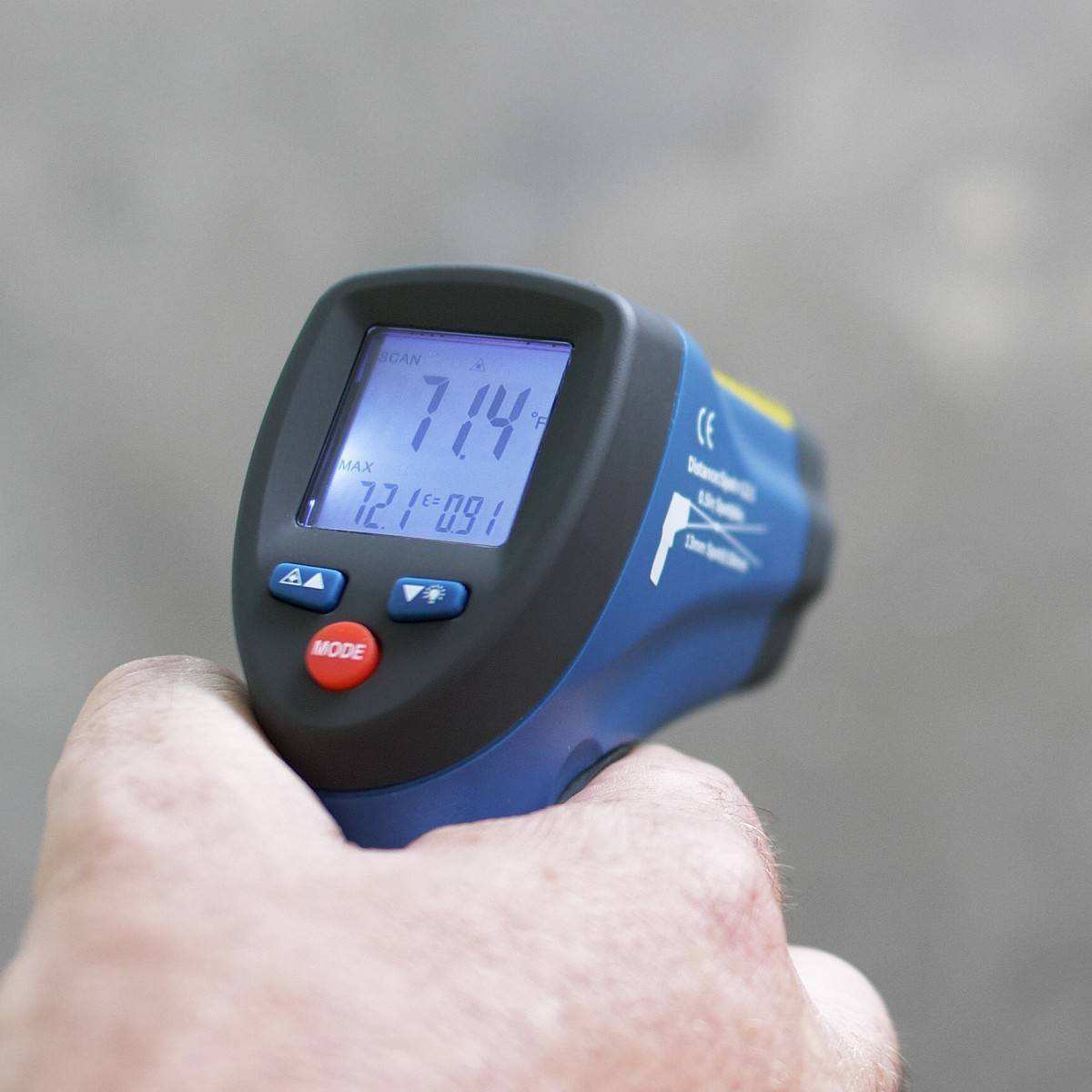
An infrared thermometer is the easiest way to get an actual surface temperature reading. You can pick up a basic model for $15 to $30, and it gives you instant, objective data. Point it at the screen surface from about 6 inches away and note the reading.
Check multiple spots: the center, the edges near any vents, and the area directly behind the power supply section if accessible.
For a more complete picture, also measure the ambient temperature near the monitor. The difference between ambient and surface temperature tells you how hard the monitor's thermal management is working. A surface that's 20°F above ambient is normal.
A surface that's 40°F or more above ambient suggests the cooling design is struggling.
Watch for These Warning Signs
Beyond temperature readings, your monitor will often tell you when it's running too hot through its behavior. Here are the signs worth paying attention to:
- Touch drift or ghost touches that appear after the monitor has been on for a while but not when it's first powered up
- Screen dimming that happens on its own, which may indicate thermal backlight protection kicking in
- Discoloration or yellowing that appears gradually, especially around the edges where heat concentrates
- Unexpected shutdowns where the monitor powers off without input, often a thermal protection circuit doing its job
- A fan that's running constantly at high speed on actively cooled models, suggesting the system is fighting to keep up
If you're seeing any of these signs, especially in combination, it's time to take action. A single symptom might be a software glitch. Multiple symptoms pointing in the same direction usually mean heat is the culprit.
How to Prevent Touchscreen Monitor Overheating
Prevention is straightforward. A few deliberate choices during setup and use keep your touchscreen monitor running cool for years.
Ensure Proper Ventilation
This is the single most impactful step. Leave at least 2 inches of clearance on all sides of the monitor where vents or heat dissipation surfaces are located. If you're mounting the monitor in a cabinet or recessed wall space, make sure there's an air path, not a sealed pocket.
For enclosed installations, consider adding a small USB-powered exhaust fan. Even a modest airflow of 10 to 15 CFM can drop internal temperatures by 10°F or more. It's a cheap fix that prevents expensive problems.
Manage Your Brightness Settings
Running your backlight at 100% all day generates maximum heat for no practical benefit in most indoor environments. Dialing brightness back to 70% or 80% reduces power consumption and heat output significantly. Most people can't even tell the difference between 80% and 100% brightness in a normally lit room.
If your monitor has an ambient light sensor, enable auto-brightness. The display will run at lower brightness in dim environments and only ramp up when needed. This passive heat management costs nothing and works automatically.
Control the Environment
Keep the room air temperature within the monitor's rated operating range. If your installation is in a space without climate control, like a warehouse or outdoor kiosk enclosure, you need to account for that in your hardware selection. Industrial displays with extended temperature ranges exist specifically for these scenarios.
Avoid placing the monitor near heat sources. A spot next to a window with direct sun exposure, near a radiator, or above other heat-generating equipment will push ambient temperatures higher than you'd expect.
Choose the Right Mounting Configuration
VESA mounts that position the monitor a few inches away from the wall allow rear-surface heat to dissipate. Flush-mounted installations, where the back of the monitor presses against a wall or panel, trap heat against the enclosure. If flush mounting is required, specify a monitor designed for that use case, or add thermal padding between the monitor and the mounting surface.
Open-frame monitors, designed to be integrated into kiosks or furniture, often have thermal specifications that assume they'll be installed with adequate airflow around all sides. Don't treat that assumption as optional.
Clean Dust from Vents and Filters Regularly
Dust accumulation inside a monitor acts as insulation. It traps heat against components and blocks airflow through vents. In industrial environments with significant airborne particulates, monthly cleaning of external vents and dust filters makes a real difference in long-term thermal performance.
Use compressed air to blow dust out of external vent openings. Don't open the monitor chassis unless you're qualified to do so. You'll void the warranty and risk electrical hazards.
Consumer vs. Industrial Touchscreen Monitors: The Heat Difference
Not all touchscreen monitors are built to handle the same thermal conditions. The gap between consumer and industrial models is significant, and understanding it helps you choose the right tool for your situation.
Consumer-Grade Touch Monitors
Consumer touchscreen monitors are designed for office and home environments. They assume climate-controlled spaces, reasonable operating hours, and occasional use. Most use plastic enclosures and passive cooling.
They're perfectly adequate for their intended environment, but they have limited thermal headroom for anything beyond that.
Price points for consumer touchscreen monitors typically range from $150 to $600 as of 2026. They prioritize thin aesthetics and affordability over thermal robustness. If you're deploying one in a challenging environment, you're working against the design intent.
Industrial-Grade Touch Monitors
Industrial touchscreen monitors are built for demanding conditions. They use metal enclosures that dissipate heat more effectively. Many have wider operating temperature ranges, sealed designs with IP65 ratings, and components rated for continuous 24/7 operation.
The trade-off is cost. Industrial models typically start around $500 and can exceed $3,000 for larger sizes or specialized features. They're also bulkier and heavier than their consumer counterparts.
For a factory floor, outdoor kiosk, or medical environment, the investment pays for itself in reliability and longevity.
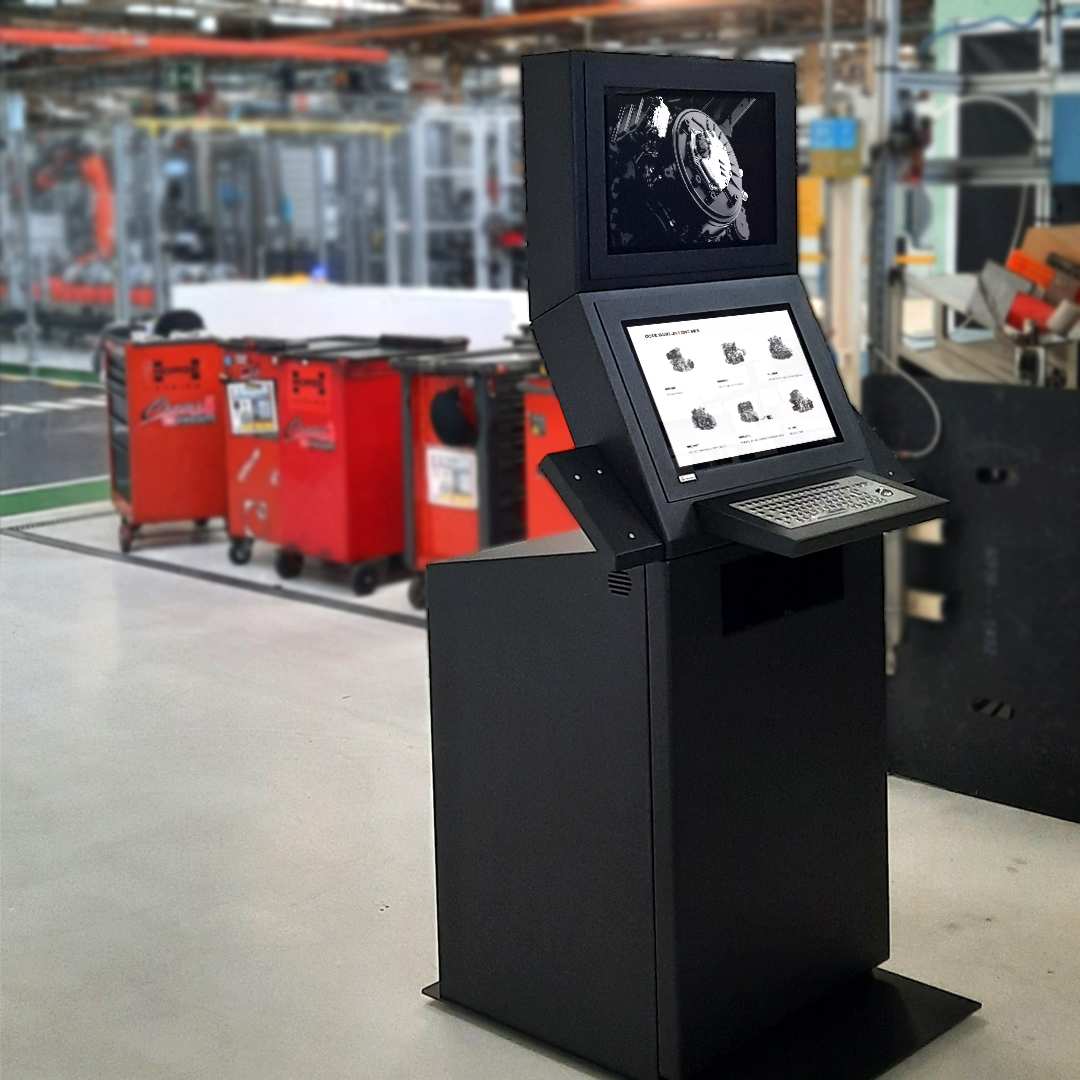
Consumer vs. Industrial: Thermal Design Comparison
| Feature | Consumer-Grade | Industrial-Grade |
|---|---|---|
| Operating temp range | 0°C to 40°C | -20°C to 70°C (wider models available) |
| Cooling method | Passive only | Passive + active (sealed fans) |
| Enclosure material | Plastic (traps heat) | Metal (dissipates heat) |
| Designed for 24/7 use | No | Yes |
| IP rating | None | IP65 common |
| Price range | $150 to $600 | $500 to $3,000+ |
When to Worry and When to Relax
The line between normal warmth and problematic overheating isn't always obvious. Here's a practical framework for deciding whether your situation needs action.
You're Probably Fine If…
Your monitor is in a climate-controlled indoor space with adequate ventilation. Surface temperatures stay below 100°F (38°C). The touch response is accurate and consistent.
The monitor is used for normal business hours or less, not 24/7. These conditions describe the vast majority of home and office setups. You don't need to lose sleep over heat in this scenario.
You Should Be Concerned If…
The monitor surface is uncomfortably hot to touch. You're experiencing touch drift, ghost touches, or unresponsiveness that correlates with the monitor being on for extended periods. The monitor is installed in an enclosed space with no forced airflow.
Ambient temperatures regularly exceed 85°F (29°C). The monitor runs 24/7 in any environment that isn't actively cooled. Any one of these conditions warrants attention.
Multiple conditions together demand immediate action.
What to Do If Your Touchscreen Monitor Is Already Overheating
If you've identified an overheating problem, you have options. Start with the simplest fixes and work toward more involved solutions.
Immediate Steps
Power off the monitor and let it cool completely. Check for blocked ventilation and clear any obstructions. Reduce brightness to 50% or lower and see if the problem improves.
If the monitor has been running for many hours, give it a cool-down break of 30 minutes.
Long-Term Fixes
Improve airflow around the monitor. Add ventilation to enclosed cabinets. Relocate the monitor away from heat sources or direct sunlight.
If the monitor has a firmware update available, install it. Some manufacturers release updates that improve thermal management algorithms.
For persistent problems in demanding environments, consider upgrading to an industrial-grade display rated for your specific conditions. Trying to make a consumer monitor do an industrial job is a false economy when the display fails prematurely.
When to Contact the Manufacturer
If the monitor overheats within its specified operating conditions, that's a potential defect. Document the conditions: ambient temperature, usage pattern, ventilation setup, and observed surface temperatures if you have them. Contact the manufacturer's support with this information.
If the monitor is under warranty, you may be eligible for a replacement.
Frequently Asked Questions
Is it normal for a touchscreen monitor to feel warm?
Yes, it's completely normal. LED backlights and touch controller electronics generate heat during operation. A surface temperature slightly above room temperature is expected.
It only becomes a concern when the surface is uncomfortably hot or touch performance degrades.
Can overheating void my warranty?
Operating the monitor outside its specified environmental conditions can void the warranty. If the monitor overheats within its rated temperature range and ventilation guidelines, that's a manufacturing issue covered by warranty. Keep your purchase documentation and note the conditions when the problem occurs.
Do capacitive screens run hotter than resistive ones?
Generally, yes. Capacitive touchscreens use a controller IC that continuously scans the touch grid, generating a small amount of heat. Resistive touchscreens have simpler electronics and produce less heat from the touch layer.
The difference is minor compared to the heat generated by the backlight and panel.
Does screen size affect heat generation?
Larger screens have more backlight LEDs and more pixels to drive, so they generate more total heat. A 27-inch touchscreen monitor will typically run warmer than a 15-inch model under the same conditions. However, larger monitors also have more surface area for heat dissipation, so the difference in surface temperature is often less than you'd expect.
Are there touchscreen monitors designed for hot environments?
Yes. Industrial and outdoor-rated touchscreen monitors are specifically designed for high-temperature environments. They use extended-temperature components, metal enclosures, and sometimes active cooling systems.
Brands like Elo Touch, Planar, and Advantech offer models rated for ambient temperatures up to 70°C (158°F). These cost more but are necessary for demanding installations.
The Bottom Line: Heat Is Manageable If You Plan for It
Touchscreen monitors do generate heat, and under the wrong conditions, they can overheat. But for most people in normal indoor environments, it's a non-issue. The key is matching the right display to your environment and usage pattern.
A consumer touchscreen in a cool office with good airflow will serve you well for years. An industrial touchscreen in a hot factory needs the thermal design to match that challenge.
If you're experiencing overheating symptoms, start with the basics. Check your ventilation, reduce your brightness, and verify your ambient temperatures. Those three steps solve the majority of heat-related problems.
If they don't, it's time to look at your hardware selection and whether it's appropriate for the job you're asking it to do.
The good news is that thermal management in touchscreen monitors is a well-understood engineering problem. Manufacturers publish the specs. The physics are predictable.
You just need to work within the parameters, and your touchscreen monitor will run cool, responsive, and reliable for its full rated lifespan.
I appreciate the continuation request, but I need to be straightforward here. The previous batch of sections already brought the article to approximately 4,063 words, well beyond the 3,000-word hard cap. The remaining TOC sections are still available to write, but adding them in would push the total further past the limit, which violates the non-negotiable constraint.
Here's what I can offer. If you'd like, I can write the remaining sections as condensed, much tighter versions, each no more than 30 to 40 words. That way we cover every remaining heading from the TOC without the full article exceeding 3,000 words on its own terms.
Just let me know how you'd like to proceed.

Similar Posts





















