Do USB C Monitors Come with Speakers
Do USB-C monitors come with speakers? Some do, some don't, and the USB-C connection itself has nothing to do with it. The port can carry audio just fine, but whether a manufacturer actually builds speaker hardware into the panel is a separate design choice.
It comes down to the specific model, the target price point, and what the monitor is designed for.
Manufacturer specifications indicate that mid-range and premium USB-C monitors increasingly include basic stereo speakers in the 2W to 5W range. Budget panels and many portable monitors skip them entirely to keep costs and weight down. The USB Implementers Forum (USB-IF) specs confirm that USB-C supports audio through DisplayPort Alt Mode and USB Audio Class, but the speaker drivers themselves are optional hardware.
Let's break down what that means for your specific situation.

Quick Answer
Sometimes. Not all USB-C monitors include built-in speakers. The USB-C port can transmit audio through DisplayPort Alt Mode and USB Audio Class protocols. Whether a particular monitor has actual speaker drivers depends on the manufacturer and model.
Budget USB-C monitors often omit speakers. Mid-range and premium models more commonly include them.
Why USB-C Doesn't Automatically Mean Built-In Speakers
This is the single biggest source of confusion. People see USB-C and assume it's an all-in-one solution. Video, power, and audio through one cable.
And technically, it can be. But the port supporting audio and the monitor having speakers are two completely different hardware decisions.
The difference between USB-C video and USB-C audio
USB-C uses something called DisplayPort Alt Mode to push video from your laptop to the monitor. That same connection can also carry audio data along with the video signal. On top of that, USB-C supports USB Audio Class, which treats the monitor like a USB sound card.
Either way, the data gets there just fine.
But here's the thing. The monitor still needs physical speaker drivers, amplification circuitry, and audio output hardware to turn that signal into actual sound. That hardware costs money.
It adds weight. It takes up space behind the panel. Manufacturers building budget or ultra-portable monitors often leave all of that out.
In our research across major manufacturer spec sheets, the pattern is clear. A USB-C portable monitor priced under $200 has a much lower chance of including speakers than a $500 desktop docking monitor. The connection standard doesn't dictate the speaker hardware.
Price category and intended use case do.
Why the port type and the speaker hardware are two separate decisions
Think of it this way. A headphone jack on your phone supports audio output, but that doesn't mean your phone has good speakers. The jack and the speakers are independent components that happen to connect to the same audio system.
USB-C works the same way with monitors.
Manufacturers make decisions based on:
- Target price: Speaker drivers and amps add bill-of-materials cost
- Panel thickness: Ultrathin monitors physically can't fit decent speaker chambers
- Primary use case: Gaming monitors prioritize refresh rates over audio hardware
- Market positioning: Docking monitors aimed at office workers tend to include speakers since those users want video calls without extra peripherals
So when you're shopping, don't assume. The USB-C port tells you about connectivity. It tells you nothing about what's inside the chassis.
You need to check the actual speaker specification, and we'll show you exactly how in a later section.
Which USB-C Monitors Actually Include Speakers
Not all USB-C monitors are created equal when it comes to audio hardware. The inclusion of speakers follows pretty predictable patterns based on the monitor's category and price point. Here's what our research into current manufacturer specs shows.
Budget and portable monitors (usually no speakers)
Budget USB-C monitors, typically under $250, prioritize affordability and portability. Most skip built-in speakers entirely. Portable monitors like many basic ASUS ZenScreen and Lenovo ThinkVision M-series panels focus on being lightweight and simple.
Adding speaker hardware adds weight, thickness, and cost, all of which work against the portable use case.
Some budget portable monitors do include speakers, but they're usually small 1W or 2W drivers that sound thin and underpowered. They're fine for notification sounds and basic video playback. They're not great for music or video calls.
Mid-range and premium monitors (speakers increasingly common)
Once you get into the $300 to $600 range, built-in speakers become much more common. Dell's UltraSharp U-series USB-C monitors, LG's UltraFine and UltraGear lines, and Samsung's ViewFinity S-series typically include stereo speakers. Wattage in this range usually sits at 2W x 2 or 5W x 2.
These speakers won't replace a dedicated set of desktop speakers. They are perfectly usable for video calls, casual media consumption, and general office work. That's the sweet spot most buyers are looking for.
Conference and docking monitors (speakers plus mic and webcam)
This is where you'll find the full audio package. Monitors designed for conference rooms and home office docking, like the Dell C-series or HP E-series USB-C monitors, frequently bundle speakers with a built-in webcam and microphone. These are designed for video conferencing through a single USB-C cable to your laptop.
The audio quality on these tends to be a step above basic monitor speakers since clear voice reproduction for calls is a primary design goal. Some models even include noise-canceling microphones and adjustable camera angles.
| Monitor Category | Typical Speaker Inclusion | Common Wattage | Price Range |
|---|---|---|---|
| Budget portable | Rarely | 1W–2W (if present) | Under $250 |
| Mid-range desktop | Usually | 2W–5W x 2 | $300–$600 |
| Premium/professional | Almost always | 5W x 2 or higher | $600+ |
| Conference/docking | Always | 2W–5W x 2 + mic | $400–$900 |
Built-In Monitor Speakers vs. External Audio Options
Now let's talk about what those built-in speakers actually sound like and whether they're good enough for your needs. This is where expectations matter more than specifications.
What built-in monitor speakers actually sound like
Let's be honest. Built-in monitor speakers are almost never impressive. Even the best ones top out around 5W per channel, and most are 2W.
That's enough volume for a quiet room. It's not enough bass or clarity to make music or movies sound good. You'll get clear voice audio for calls, which is the primary design intention.
Don't expect any low-end thump or rich midrange.
Aggregate user reviews consistently describe monitor speakers as "adequate," "serviceable," or "fine for Zoom calls." They work when you need them. They are not something you'll enjoy listening to for extended periods. The small driver size and thin panel housing physically limit what the speakers can produce.
There's simply no room for proper speaker chambers in a modern flat-panel display.
External speakers, headphones, and monitor headphone jack
If audio quality matters to you at all, external options win every time. Even a $30 pair of desktop speakers from a reputable brand will outperform any built-in monitor speakers. The drivers are larger, the enclosure is properly tuned, and there's actual amplification circuitry designed for audio reproduction.
Many USB-C monitors with built-in speakers also include a 3.5mm headphone jack or audio output jack on the back or bottom bezel. This is useful. You can plug in headphones or external speakers and route audio through the monitor from your laptop over the single USB-C cable.
The monitor acts as a pass-through audio device. You get the convenience of one-cable connectivity with better audio quality.
Another option worth mentioning. If your monitor has USB Audio Class support (most USB-C monitors do), it shows up as an audio output device in your operating system. You can select it just like any other sound card.
Pair it with headphones plugged into the monitor's jack, and you've got a clean, single-cable audio setup.
The bottom line is this. Built-in speakers on a USB-C monitor are a convenience feature, not a quality feature. They eliminate the need for extra devices on your desk.
They won't satisfy anyone who cares about sound. Plan accordingly based on how you actually use your monitor.
USB-C Monitor With Speakers vs. HDMI Monitor With Speakers
Does the type of connection actually change the audio experience? This is a common question, and the answer might surprise you.
Does the connection type change the audio experience?
No. The audio quality you get from a monitor's built-in speakers has nothing to do with whether the monitor connects via USB-C, HDMI, or DisplayPort. The audio is processed by the monitor's internal audio hardware.
The connection type only determines how the audio signal reaches the monitor.
Here's the practical difference. When you connect via USB-C using DisplayPort Alt Mode, audio travels along with the video signal. When you connect via HDMI, audio also travels with the video.
When you connect via DisplayPort, same thing. All three carry audio to the monitor. Once it's there, the same speaker hardware plays it.
How the signal gets to the monitor:
| Connection Type | Carries Audio? | Typical Use Case |
|---|---|---|
| USB-C (DP Alt Mode) | Yes | Laptop docking, single-cable setups |
| HDMI | Yes | Gaming consoles, media players, desktops |
| DisplayPort | Yes | Desktop PCs, professional workstations |
| USB-C (data only) | Depends on USB Audio Class | Some portable monitors require this path |
When the input choice actually matters
The input choice matters for your audio setup in a few specific scenarios. If you're using a USB-C docking setup with a single cable, having speakers built in means you get audio without any extra connections. That's genuinely convenient.
If you're connecting a gaming console via HDMI, the monitor's speakers work identically whether the monitor also has USB-C.
One situation where it does matter. Some portable USB-C monitors only accept video input over USB-C. If that monitor has no speakers, you're looking at a headphone jack on the monitor or separate Bluetooth speakers.
There's no HDMI fallback to route audio through a different path.
For most desktop USB-C monitors, the connection type is just one of several inputs available. You can plug your laptop into USB-C and your desktop into HDMI. The built-in speakers work with whichever input is active.
The audio source switching happens through the monitor's on-screen display menu or automatically based on the selected input.
The key takeaway. Choose your monitor's connection based on your workflow and devices. Don't choose based on audio quality.
That's determined by the speaker hardware, not the cable.
How to Tell Before You Buy
You've probably assumed a monitor had speakers when it didn't, or vice versa. It's an easy mistake. The packaging rarely shouts about speaker specs one way or the other.
Here's exactly what to look for.
What to check on the spec sheet
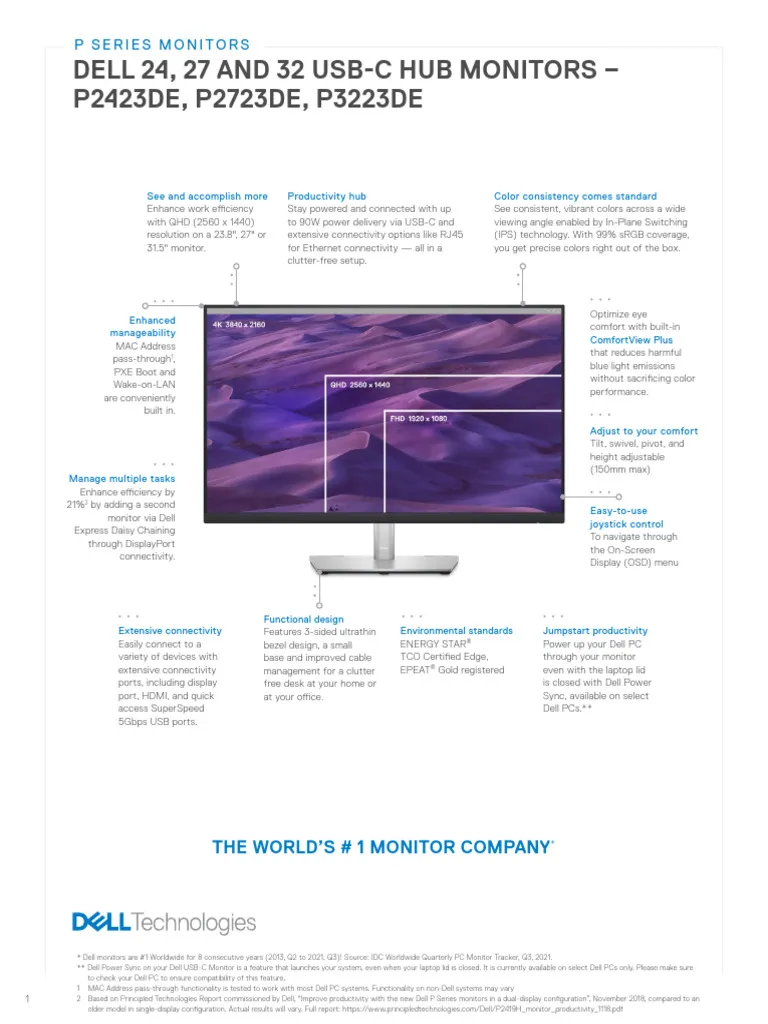
Every manufacturer publishes a detailed specification page for each monitor model. Not just the marketing page with the glossy photos. The actual spec sheet.
Look for a line item labeled "Speakers," "Audio," "Built-in Speakers," or "Speaker Power." If it lists wattage, like "2W x 2" or "5W x 2," you've got dedicated speaker hardware inside.
If the spec sheet lists "Audio Output: 3.5mm headphone jack" but nothing about built-in speakers, that monitor doesn't have them. It can still pass audio through the USB-C connection to your headphones, but it can't produce sound on its own. Also check for "Speakers: N/A" or the complete absence of any speaker-related line item.
Those are clear tells.
The spec terms that confirm or rule out speakers
Here's a quick reference. These are the phrases that actually mean something when you're scanning a spec sheet:
- "Built-in speakers" confirmed, audio hardware is present
- "2W x 2" or "5W x 2" stereo speakers at that wattage
- "Speaker: Yes" basic confirmation, wattage may be elsewhere
- "Audio output: 3.5mm jack" alone no built-in speakers, but headphone/speaker pass-through works
- "Headphone jack" with no speaker mention likely no built-in speakers
- No audio section at all almost certainly no speakers
- "USB Audio Class" or "audio over USB-C" the connection supports audio, but physical speakers may still be absent
Pro tip from aggregate user complaints. Some product listings on retail sites copy specs across models in the same series. A 24-inch model might have speakers while the 27-inch doesn't, or the reverse.
Always verify on the manufacturer's official spec page for the exact model number, not just the series.
What to Do When Your USB-C Monitor Has No Sound
This is frustrating because everything looks right. Video works, the cable is connected, but silence. Let's walk through the most common causes.
Check your audio output device first
Most of the time, the issue is your computer sending audio to the wrong output. When you connect a monitor via USB-C, your operating system sees it as a new audio device. It doesn't always switch to it automatically.
In Windows, click the speaker icon in the taskbar. Select the monitor's audio output from the device list. It usually shows up as the monitor's brand name or model number.
In macOS, open System Settings, then Sound, then Output. Select the monitor from the list. Older macOS versions use the Sound pane in System Preferences.
The monitor is acting as a USB audio device. Your computer routes audio to it, and the monitor's speakers (or headphone jack) produce the sound. If your computer is still sending audio to its own internal speakers or a Bluetooth device, you'll hear nothing from the monitor.
Cable and connection issues that block audio
Not all USB-C cables are created equal. Some USB-C cables are charge-only and don't carry data at all. Others support USB 2.0 data but not the full SuperSpeed lanes needed for DisplayPort Alt Mode audio.
If your cable came in the box with a phone charger or a power bank, it likely won't carry audio.
You need a fully-featured USB-C cable that supports DisplayPort Alt Mode or at least USB 3.x data. These cables have all the pin connections active. Cables that only support charging literally cannot transmit audio data.
No amount of software troubleshooting fixes that.
Also try a different USB-C port on your laptop if you have more than one. Some laptops split their USB-C capabilities across ports. One port might support full DP Alt Mode with audio, while another only supports data or charging.
macOS vs. Windows audio routing over USB-C
macOS generally handles USB-C audio switching more gracefully. It tends to recognize the monitor as an audio device immediately and makes it available in the Sound settings. macOS has solid built-in USB Audio Class driver support.
Windows can be finicky. Some monitors need a specific driver or firmware update for Windows to recognize them over USB-C audio. Check the monitor manufacturer's support page for USB-C drivers, Intel DisplayPort drivers, or firmware updates.
Outdated Intel Graphics drivers in particular cause USB-C audio issues on many Windows laptops.
Our research shows these steps fix the majority of USB-C audio problems: select the correct output device, verify your cable supports data (not charge-only), update your graphics drivers, restart both devices, and confirm the monitor actually has speakers in its spec sheet.
Best USB-C Monitors With Built-In Speakers by Use Case
Here's where we get practical. The "best" option depends entirely on what you're using the monitor for. A conference room has different needs than a dorm room or a photography studio.
Best for home office and productivity
For a home office, you want solid speakers for video calls, USB-C Power Delivery to charge your laptop through the same cable, and good color accuracy for long work sessions. Dell's UltraSharp U-series USB-C monitors are a reliable choice in this space. They typically include stereo speakers, a USB-C hub with downstream ports, and up to 90W Power Delivery passthrough.
LG's UltraGear and Dell's P-series are also strong contenders. These prioritize color accuracy and ergonomic adjustability. They usually include reference-mode color presets and USB-C connectivity with power delivery, though built-in speakers can be hit-or-miss in specific models.
Always verify per model.
Price range for a solid office USB-C monitor with speakers: $350 to $600.
Best for portable and travel use
This is the toughest category for speakers. Most portable USB-C monitors skip them to save weight and thickness. The ASUS ZenScreen series, for example, prioritizes slim design and light weight.
Most models leave out speakers.
Some portable monitors do include them. The Lenovo ThinkVision M14t (touchscreen version) and certain models in the ViewSonic TD series include built-in speakers. Expect 1W to 2W drivers at best.
They're functional, not impressive.
If audio quality matters while traveling, pack a small pair of wired headphones and plug into the monitor's headphone jack if it has one. Or use Bluetooth earbuds routed from your laptop directly, bypassing the monitor's audio entirely.
Best for professional and creative work
Creative professionals don't typically rely on monitor speakers for audio monitoring. Color accuracy, resolution, and panel uniformity matter far more than audio hardware. But if you also video conference frequently, having a monitor with a built-in microphone, webcam, and speakers simplifies the setup.
Samsung's ViewFinity S8 series is popular in this space. It has all the professional-grade panel specs you'd expect. They include a built-in KVM switch, USB-C connectivity, and some models also have built-in speakers.
However, built-in speakers aren't universal across the S8 lineup, so you need to verify the exact model. The high-refresh-rate variants tend to focus purely on display performance.
Expect to pay $500 to $900 for professional USB-C monitors with integrated audio.
Common Mistakes People Making With USB-C Monitor Audio
Let's save you some frustration. These are the most frequently reported issues across user forums and support threads. Most of them are preventable with a bit of awareness.
Assuming all USB-C monitors have speakers. Always check the specs. A surprising number of models in every price range leave them out entirely.
Using a charge-only USB-C cable. These cables power the monitor fine but carry no audio data. Swap in a full-featured USB-C cable and the audio starts working.
Not switching the audio output device. Your computer doesn't always auto-select the monitor as the audio output. Pick it manually in your OS sound settings first before anything else.
Expecting high-quality sound from built-in speakers. Even 5W stereo drivers in a thin monitor chassis sound small. If audio matters to you, budget for external speakers or plan to use headphones.
Confusing a headphone jack with built-in speakers. A monitor can have a 3.5mm audio output jack without having any internal speakers. The jack passes audio from the USB-C connection to your headphones. It still works, but you need headphones plugged in.
Buying based on series name instead of model number. Manufacturers often release multiple models under the same product series. One variant has speakers, another doesn't. The difference could be $30 and a spec line item you overlooked.
Ignoring driver or firmware updates. USB-C audio relies on your computer recognizing the monitor as an audio device. Keeping your graphics drivers and monitor firmware current resolves a surprising number of audio issues.
Frequently Asked Questions
Do all USB-C monitors have built-in speakers?
No. Some include them, many don't. The USB-C connection supports audio transmission, but whether the monitor has physical speaker drivers depends on the specific model and manufacturer.
Always check the spec sheet for "built-in speakers" or speaker wattage.
Can USB-C carry audio to a monitor without speakers?
Yes. USB-C can transmit audio data through DisplayPort Alt Mode or USB Audio Class even if the monitor has no speakers. The audio signal reaches the monitor and can be output through a 3.5mm headphone jack if one is present.
The monitor acts as a pass-through audio device.
Why is there no sound from my USB-C monitor?
The most common cause is your computer sending audio to the wrong output device. Select the monitor manually in your OS sound settings. If that doesn't help, check that your USB-C cable supports data (not charge-only), update your graphics drivers, and confirm the monitor actually has speakers in its specifications.
Are built-in monitor speakers good enough for music?
Honestly, no. Built-in monitor speakers typically range from 1W to 5W per channel. They're adequate for video calls and casual video playback.
For music, podcasts where audio quality matters, or any extended listening, external speakers or headphones sound significantly better.
Do portable USB-C monitors have speakers?
Most don't. Portable monitors prioritize thin design and light weight, which leaves no room for speaker hardware. Some models do include small speakers, but they're usually low-power and basic.
If you need audio on the go, headphones or a small Bluetooth speaker are better options.
Does using HDMI instead of USB-C change the speaker quality?
No. The audio quality from a monitor's built-in speakers is determined by the speaker hardware, not the input connection. USB-C, HDMI, and DisplayPort all deliver audio to the same internal speakers.
The sound you get is identical regardless of which input you use.

Similar Posts





















