Can a 4K Monitor Run at 1080p
So can a 4K monitor run at 1080p? Yes, absolutely. Any 4K monitor with an HDMI or DisplayPort input can accept a 1080p signal and display it.
The real question is whether it'll look good once you do it, and that depends on a few things most people don't think about until they're staring at a blurry desktop wondering what went wrong.
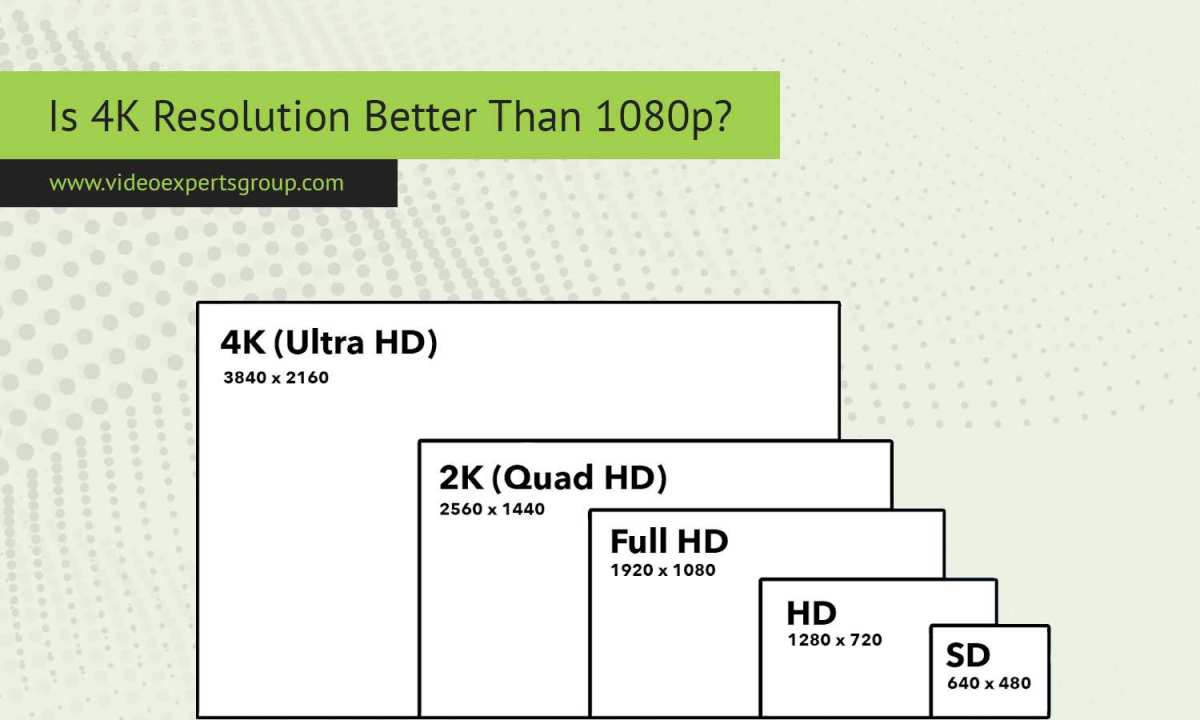
A 4K panel has exactly four times the pixels of 1080p (8.3 million vs. 2.1 million), which means the math behind scaling the image isn't always clean. Whether you're gaming, working, or just trying to make text readable, the way your setup handles that downscale makes all the difference. Let's walk through it step by step.
The Quick Answer Most People Miss
Yes, a 4K monitor can run at 1080p without any special hardware.
Every modern 4K display accepts 1080p input through HDMI or DisplayPort.
The image won't look as sharp as native 4K, though. How blurry it gets depends on the scaling method your setup uses.
If your GPU handles the scaling, results are usually better. If the monitor does it, expect a softer image.
Why 1080p on a 4K Screen Doesn't Always Look Right
Here's where most people get caught off guard. You'd think dropping to a lower resolution on a higher-res screen would just work cleanly. Sometimes it does.
Often it doesn't.
The integer scaling problem
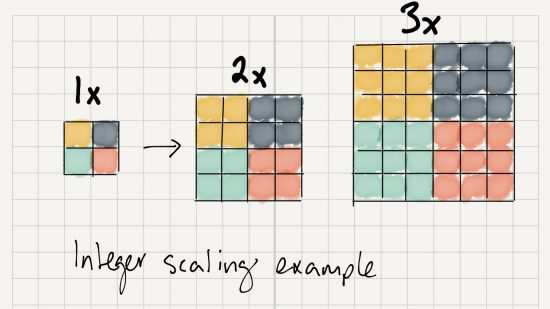
A 4K panel (3840×2160) is exactly double 1080p (1920×1080) in both horizontal and vertical pixels. That's a perfect 2:1 ratio. In theory, each 1080p pixel should map to exactly four 4K pixels.
That's called integer scaling, or pixel doubling, and it produces a crisp, sharp image.
The problem is that most monitors and GPUs don't use integer scaling by default. They use interpolation, which blends and smooths pixels to fill the screen. That interpolation is what makes everything look soft and slightly out of focus.
Think of it like stretching a small photo to fit a large frame. If you just blow it up with no smart processing, it gets fuzzy. That's essentially what's happening here.
When it actually looks fine
There are situations where 1080p on a 4K monitor looks perfectly acceptable:
- Larger screen sizes (32" and up), At normal viewing distances, the softness is less noticeable because individual pixels are harder to distinguish.
- Gaming at a distance, If you're sitting a few feet back, the blur from interpolation is far less distracting than it looks up close.
- Integer scaling enabled, Some GPUs and monitors support true pixel doubling, which keeps the image sharp. More on that later.
- Video content, Movies and YouTube videos at 1080p often look fine because they already have natural softness built in from compression and production.
The takeaway is that context matters. A 27" 4K monitor at arm's length will show every scaling artifact. A 43" 4K display across the room won't.
How Your Setup Changes the Outcome
Not all 1080p-on-4K setups are equal. The hardware chain between your GPU and your panel determines image quality more than most people realize.
GPU vs. monitor scaling — who's doing the work?
This is the single biggest factor in image quality. When you set your output to 1080p on a 4K display, something has to upscale that signal to fill all 8.3 million pixels. Either your GPU does it or the monitor's internal scaler does it.
GPU scaling is almost always better. Modern NVIDIA and AMD GPUs have dedicated scaling hardware that produces cleaner results than the cheap scalar chips built into most monitors. Monitor scaling tends to add softness and sometimes a frame or two of input lag.
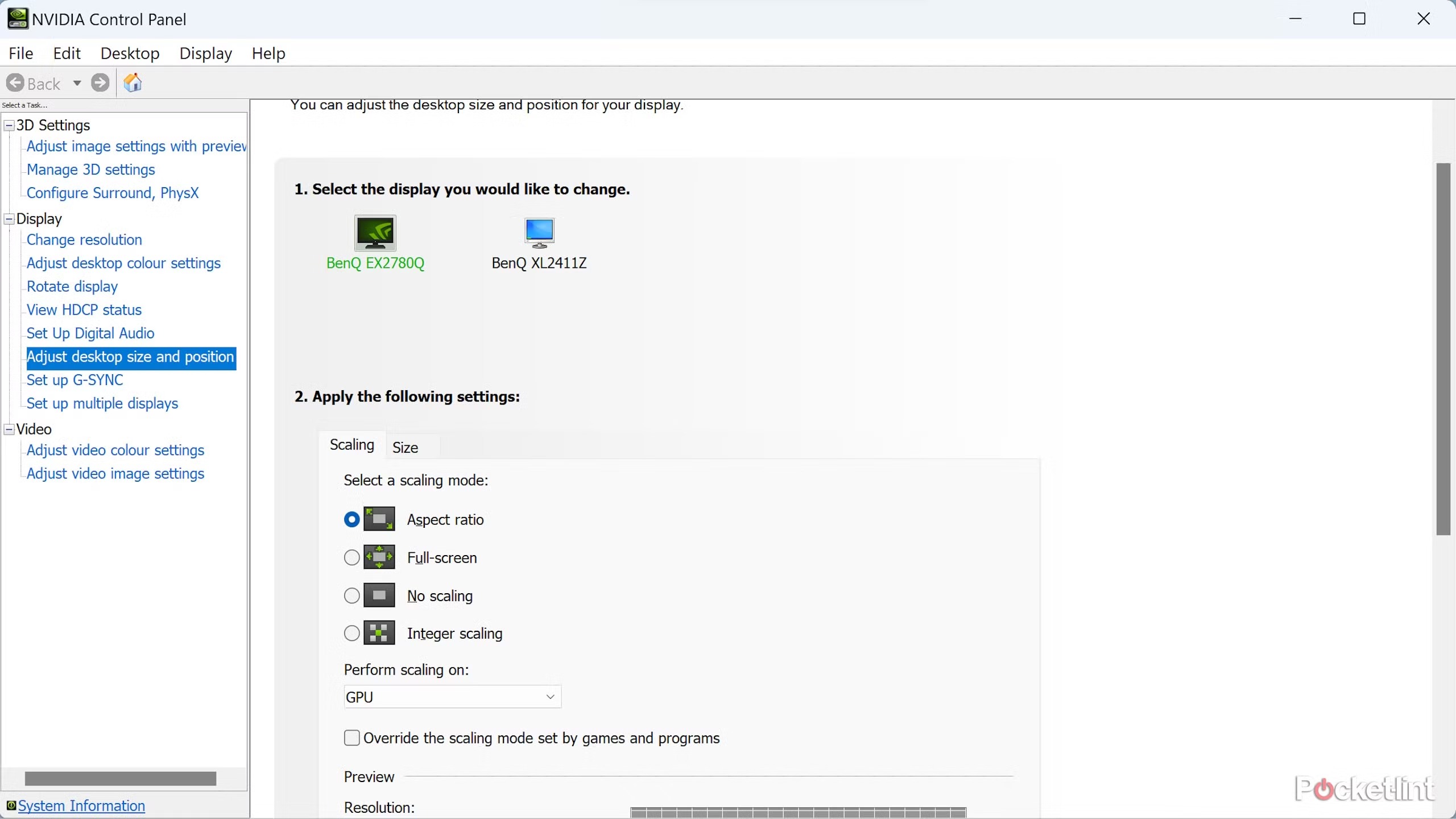
You can control this in your GPU driver settings. NVIDIA calls it "Adjust desktop size and position." AMD calls it "GPU Scaling" in Radeon Software. In both cases, you want the GPU handling the upscaling, not the display.
Cable and port limitations that block 1080p
This one catches people off guard. 1080p isn't blocked by bandwidth, it's universally supported across HDMI and DisplayPort versions. The real issue is that older cables or ports might limit your refresh rate or color format at 1080p.
For example, an older HDMI 1.4 port will output 1080p just fine, but it might cap you at 60Hz where your monitor could do 144Hz. Or it might force chroma subsampling, which makes text look fringed. Always check that your cable and port support the refresh rate you want at the resolution you're running.
What your operating system controls
Windows, macOS, and Linux all handle display scaling differently. Windows lets you set any supported resolution through Display Settings or the GPU control panel. macOS is pickier, it often requires holding the Option button while clicking "Scaled" to see all available resolutions, or using a utility like SwitchResX.
Both operating systems also have their own UI scaling separate from resolution. Windows lets you scale text and interface elements to 150% or 200% at native 4K. That's actually the recommended approach for most people, it keeps the sharp 4K image while making everything readable.
Dropping to 1080p should be a fallback, not a first choice.
Step-by-Step: How to Run 1080p on a 4K Monitor the Right Way
If you've decided 1080p is what you need, here's how to set it up so it looks as good as possible.
Check your hardware first
Before changing any settings, confirm your GPU can actually output 1080p and that your cable supports the refresh rate you want. Almost every GPU made in the last decade supports 1080p. The cable is the more common bottleneck.
Set the resolution in Windows
- Right-click your desktop and select Display settings.
- Scroll to Display resolution and open the dropdown.
- Select 1920 × 1080.
- Click Keep changes if the image looks right, or wait 15 seconds for it to revert.
If 1080p doesn't appear in the list, update your GPU drivers. If it still doesn't show, you may need to create a custom resolution in your GPU control panel.
Configure GPU scaling (NVIDIA)
- Open NVIDIA Control Panel (right-click desktop).
- Go to Display → Adjust desktop size and position.
- Under Scaling, select GPU under "Perform scaling on."
- Choose Aspect ratio or Full-screen depending on your preference.
- Check Override the scaling mode set by games and programs if you want this to apply everywhere.
Configure GPU scaling (AMD)
- Open AMD Radeon Software.
- Go to Settings (gear icon) → Display.
- Toggle GPU Scaling to On.
- Set Scaling Mode to Preserve aspect ratio or Full panel.
Adjust your monitor's OSD settings
Open your monitor's on-screen display menu. Look for settings labeled "Aspect Ratio," "Scaling," or "Input Scaling." Set it to "1:1" or "Aspect" rather than "Full" or "Wide." This prevents the monitor from applying its own additional scaling on top of what your GPU already did.
Test and compare
Open a webpage with small text. Look at the edges of letters. If they look soft and slightly blurred, your monitor is probably doing the scaling.
If they look blocky but sharp, your GPU is handling it with integer-like scaling. Neither is perfect, but GPU scaling is the better starting point.
Does Your Use Case Make Sense for This?
Running 1080p on a 4K monitor isn't always a compromise. Sometimes it's the right call for what you're trying to do.
Gaming — when dropping to 1080p is worth it
If your GPU can't push 4K at acceptable frame rates, dropping to 1080p is a practical move. You'll get higher FPS and smoother gameplay. The tradeoff is image softness, but in fast-paced games, you'll notice the extra frames more than the slightly blurry textures.
Esports players do this routinely. Running 1080p on a 27" 4K panel at 240Hz gives you competitive frame rates. The softness is a fair trade for responsiveness.
Productivity — bigger text, less eye strain
Some people run 1080p on a 4K monitor specifically because they want larger UI elements without dealing with OS-level scaling. It's a blunt solution. Everything gets bigger, but you lose the sharpness that made you buy a 4K display in the first place.
A better approach for most people is keeping the monitor at native 4K and using Windows display scaling set to 150%. You get big, readable text and everything stays crisp.
Console gaming — PS5 and Xbox output options
Both the PlayStation 5 and Xbox Series X let you output at 1080p even when connected to a 4K display. This is useful if you prefer performance modes that target higher frame rates at lower resolutions. The console handles the upscaling, and results are generally decent since console games are designed with upscaling in mind.
When you should just buy a 1080p monitor instead
If you're consistently running 1080p and have no plans to use the 4K resolution, a native 1080p monitor will look sharper. No scaling means no blur. A 27" 1080p IPS panel at native resolution will always look crisper than the same panel running a 1080p signal upscaled on a 4K screen.
This matters most for text-heavy work. Code, documents, spreadsheets, they all benefit from pixel-perfect rendering. If 1080p is your permanent resolution, save yourself the confusion and get a native panel.
The Mistakes That Make 1080p on 4K Look Terrible
Most bad experiences come down to a few avoidable errors. Here are the ones we see most often.
Letting the monitor handle scaling instead of the GPU. This is the number one culprit. Monitor scalar chips are cheap and fast, they're designed to fill the screen, not to produce a clean image. Always set scaling to GPU-side in your driver settings.
Using a low-quality or outdated HDMI cable. An old HDMI cable might still carry 1080p, but it could force chroma subsampling or limit your refresh rate. If text looks fringed or colors seem off, swap the cable before you blame the monitor.
Running 1080p at 1:1 pixel mapping on a large panel. Some people set their monitor to 1:1 mode expecting a sharp image. Instead they get a tiny 1080p window surrounded by black borders in the middle of a 32" screen. That's technically correct, but it's almost never what anyone actually wants.
Forgetting to check refresh rate after switching resolution. Windows sometimes defaults to 60Hz when you change resolution. If your monitor supports 144Hz or higher, go back into Display Settings and confirm you're still running at the correct refresh rate.
Assuming all 4K panels behave the same. A 27" 4K screen at 163 PPI will show scaling artifacts much more obviously than a 32" 4K at 138 PPI. Panel size and viewing distance change the experience dramatically.
What It Actually Looks Like: Real Scenarios Tested
Let's get specific about what you can expect in common setups.
27" 4K at 1080p — the blurry sweet spot problem
This is the most common configuration and the one that generates the most complaints. At 27 inches, a native 4K panel packs pixels densely enough that the individual pixels are invisible at normal viewing distance. When you drop to 1080p, each logical pixel now covers four physical pixels.
Without integer scaling, the interpolation softens everything.
Text looks slightly out of focus. Fine details in images lose their edge. It's not unwatchable, but once you've seen native 4K on the same panel, the difference is obvious.
Aggregate user feedback from monitor communities consistently reports this as the most noticeable case of scaling softness.
32" 4K at 1080p — more forgiving at desk distance
At 32 inches, the pixel density drops to around 138 PPI at 4K. When you run 1080p, the physical pixels are larger and the interpolation artifacts are less pronounced. From a normal desk viewing distance of 24 to 30 inches, the image looks softer than native 4K but far less bothersome than on a 27" panel.
This size is a reasonable compromise if you want a large display for gaming at 1080p but still plan to use 4K for movies or photo work occasionally.
Integer scaling for retro gaming — the secret weapon
Here's where 1080p on 4K actually shines. If you enable integer scaling in your GPU driver, each 1080p pixel maps to exactly four 4K pixels with no blending or smoothing. The result is a pixel-perfect image that looks exactly like a high-quality 1080p display.
NVIDIA added integer scaling support in 2019. AMD has supported it through their drivers as well. Not every game or application benefits from this, but for retro gaming, pixel art, and emulators, it's the best way to run a lower resolution on a 4K panel.
1080p on 4K vs. Native 1080p Monitor: Is There a Winner?
This is the comparison that actually matters if you're deciding between using your 4K monitor at 1080p or buying a dedicated 1080p display.
| Factor | 4K at 1080p | Native 1080p |
|---|---|---|
| Sharpness | Soft without integer scaling | Pixel-perfect |
| Text clarity | Noticeably blurry at 27" | Crisp at any size |
| Gaming performance | Higher FPS, softer image | Higher FPS, sharp image |
| Flexibility | Can switch to 4K anytime | Stuck at 1080p |
| Price | Already owned (if you have the monitor) | $100–$250 for a decent panel |
| Best for | Gaming, video, temporary use | Productivity, text work, permanent setup |
The verdict is straightforward. If you're doing text-heavy work, a native 1080p monitor will look better. If you're gaming and already own the 4K display, running 1080p is a free performance boost.
The flexibility of being able to switch back to 4K when you want it is a real advantage.
GPU Scaling vs. Display Scaling: Which Looks Better?
We touched on this earlier, but it deserves a direct comparison because it's the single biggest lever you have for image quality.
| GPU Scaling | Display Scaling | |
|---|---|---|
| Image quality | Better interpolation, sharper | Softer, more blur |
| Input lag | Negligible | Can add 1 frame or more |
| Control | NVIDIA/AMD driver settings | Monitor OSD |
| Integer scaling support | Yes (driver-dependent) | Rarely supported |
| Best for | Most users | Laptops with limited driver options |
GPU scaling wins in almost every scenario. The only case where display scaling makes sense is when you're using a laptop or device that doesn't expose GPU scaling options. Even then, it's a compromise.
Frequently Asked Questions
Does running 1080p on a 4K monitor cause input lag?
It can, but only if the monitor's internal scaler is handling the upscaling. GPU-added scaling adds negligible latency. Monitor scaling can add a frame or two, which matters in competitive gaming.
Will 1080p on a 4K monitor look blurry?
Yes, in most cases it will look softer than native 4K. How noticeable it is depends on panel size, viewing distance, and whether integer scaling is enabled. At 27 inches and closer, it's very noticeable for text.
At 32 inches and beyond, it's less obvious.
Can I use integer scaling for all games?
You can enable it globally in your GPU driver, but it only produces clean results when the output resolution divides evenly into the panel's native resolution. 1080p to 4K works perfectly because it's exactly 2:1. Other resolutions like 1440p to 4K won't benefit from integer scaling.
Is it better to use 150% Windows scaling at 4K or drop to 1080p?
For productivity, 150% scaling at native 4K is almost always better. You keep the sharpness of the 4K panel while getting larger UI elements. Dropping to 1080p sacrifices sharpness for size, which defeats the purpose of having a 4K display.
Does HDMI 2.0 support 1080p at high refresh rates?
Yes. HDMI 2.0 supports 1080p up to 240Hz. You don't need HDMI 2.1 for high-refresh 1080p.
Even HDMI 1.4 can handle 1080p at 144Hz, though some implementations cap at 120Hz.
The Bottom Line: Should You Run 1080p on Your 4K Monitor?
It depends on what you need. If you're gaming and your GPU can't keep up at 4K, dropping to 1080p is a practical move. Just make sure your GPU is handling the scaling, not the monitor.
If you're doing office work or reading text, keep the panel at native 4K and use Windows scaling to make things bigger. You'll get the best of both worlds.
The flexibility is there. You can switch resolutions in seconds. Try both approaches, see what looks right to your eyes at your viewing distance, and stick with what works.
There's no single right answer, but now you know what's actually happening when you make the switch.
The Bottom Line: Should You Run 1080p on Your 4K Monitor?
It depends entirely on what you're doing and what you're willing to sacrifice. If you're GPU-limited and need higher frame rates for gaming, dropping to 1080p is one of the easiest performance boosts available. Just enable GPU-side scaling, accept the softer image, and enjoy the extra frames.
If you're primarily doing productivity work, reading text, or editing documents, keep your panel at native 4K and use OS-level scaling. You spent the money for that resolution, don't throw it away unnecessarily. The flexibility of a 4K monitor is that you can switch between resolutions in seconds when the situation calls for it.
There's no permanent commitment here. Try both approaches on your own hardware, at your own viewing distance, with your own eyes. That's the only test that actually matters.

Similar Posts





















