Is USB C Monitor Good for Designers
Is a USB-C Monitor Good for Designers? A Practical Breakdown
Is a USB-C monitor good for designers? The short answer is yes, but with real caveats that most product pages won't tell you. If you're a creative professional choosing a display, the connection type matters less than what's behind it, and that's where a lot of people get tripped up.
USB-C with DisplayPort Alt Mode can absolutely drive a high-resolution, color-accurate display. The USB Implementers Forum confirms that Alt Mode supports 4K at 60Hz over a single cable. But not every USB-C port or monitor delivers the same performance, and that gap is exactly what we're going to walk through.
Quick Answer
USB-C monitors work well for most designers. The connection supports 4K resolution and color-accurate panels. You get video, data, and charging through one cable.
However, specs vary wildly between models. Always check the panel type, color gamut, and power delivery rating before buying.
How USB-C Actually Works for Displays (The Stuff Most Reviews Skip)
Here's where things get interesting. USB-C isn't just one thing. The connector shape tells you nothing about what the port can actually do.
That's the first thing to wrap your head around.
A USB-C port on your laptop might support DisplayPort Alt Mode, which is what carries video signal to your monitor. It might also support Thunderbolt 3 or 4, which tunnels DisplayPort data alongside PCIe data at much higher speeds. Or it might only support USB data and charging with no video at all.
The key distinction is this. DisplayPort Alt Mode uses the USB-C connector to carry a native DisplayPort signal. Thunderbolt 3 and 4 use a different protocol entirely but also happen to carry DisplayPort video.
Both work for monitors. They're not the same thing under the hood.
Manufacturer specifications indicate that Thunderbolt 4 provides 40 Gbps of bandwidth. USB 3.2 Gen 2 over USB-C tops out at 10 Gbps. That bandwidth difference matters when you're pushing high resolutions, high refresh rates, and multiple displays through a single connection.
For design work specifically, here's what you need to know. The video signal quality itself is identical whether it's coming through DisplayPort Alt Mode or Thunderbolt, assuming the same resolution and refresh rate. The color data doesn't get compressed differently.
What changes is what else you can do simultaneously, like daisy-chaining a second monitor or running high-speed peripherals through the same cable.
USB-C vs Thunderbolt vs HDMI vs DisplayPort: What Designers Need to Know
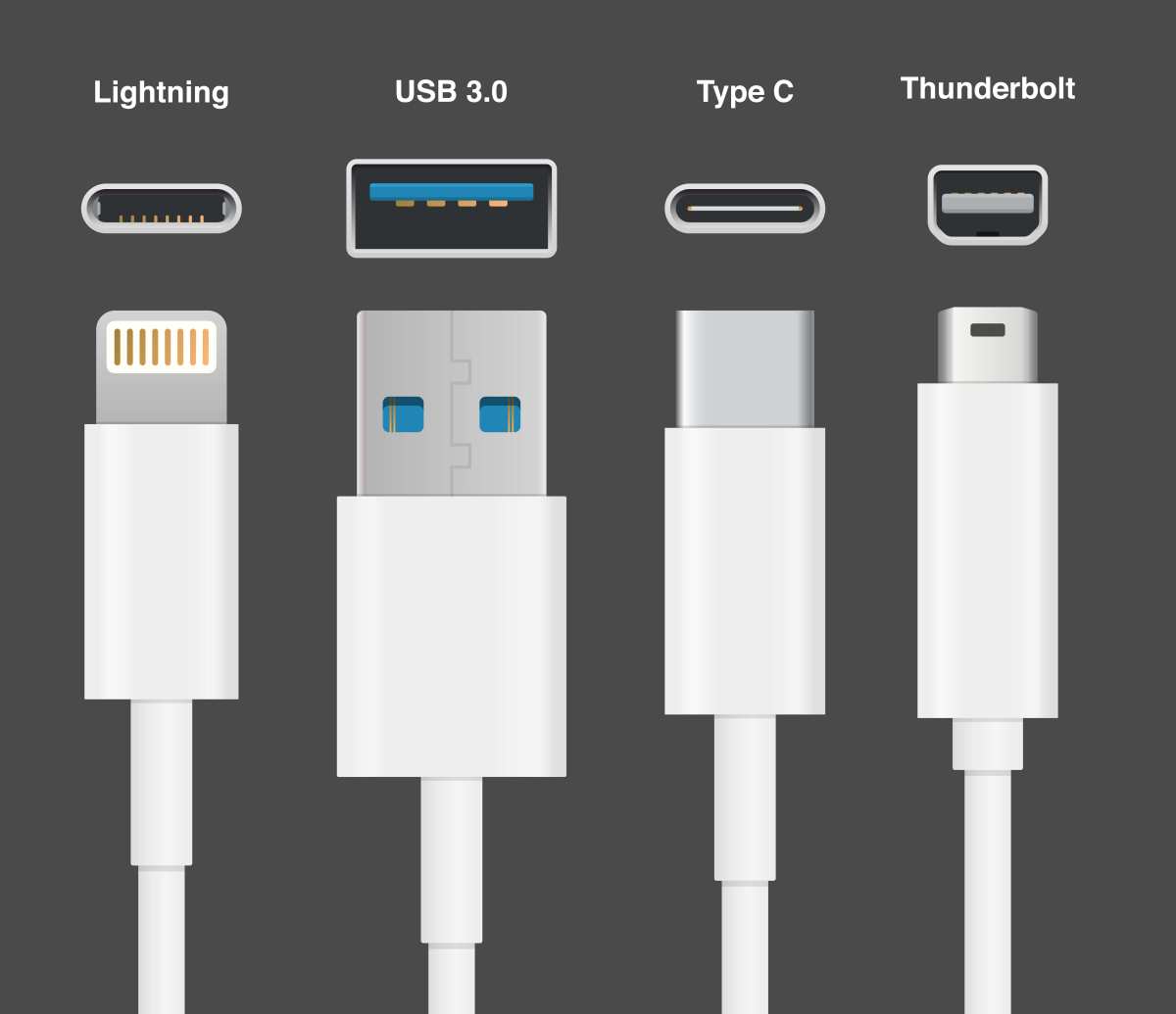
Let's break down each connection type in plain terms. This is the comparison that actually matters when you're spending real money on a display.
USB-C (DisplayPort Alt Mode)
This is the most common setup you'll encounter in 2026. Your laptop's USB-C port outputs a DisplayPort signal through the cable. The monitor receives it natively.
- Supports 4K at 60Hz over a single cable
- Carries USB data and power delivery simultaneously
- Works with most modern laptops out of the box
- Bandwidth depends on the USB generation (10 Gbps to 40 Gbps)
Thunderbolt 4
Thunderbolt 4 is the premium tier. It guarantees 40 Gbps bandwidth, supports daisy-chaining two 4K displays, and provides at least 15W of power to connected devices.
- Guaranteed 40 Gbps bandwidth
- Supports dual 4K daisy-chaining
- Best for multi-monitor creative workstations
- Requires Thunderbolt-capable laptop and monitor
HDMI 2.1
HDMI 2.1 handles 4K at 120Hz and even 8K at 60Hz. It's common on monitors but less common as a laptop input. You'll often need a USB-C to HDMI adapter.
- Supports 4K at 120Hz
- No power delivery to your laptop
- No USB data passthrough
- Widely available on monitors and TVs
DisplayPort 1.4 / 2.0
DisplayPort remains the gold standard for PC monitors. It supports high refresh rates and adaptive sync. Most designer-focused monitors still include a full-size DisplayPort input.
- Supports 4K at 60Hz (1.4) or 8K at 60Hz (2.0)
- No power delivery
- Best for desktop workstations with dedicated GPUs
- Requires adapter from USB-C laptop
Side-by-Side Comparison
| Feature | USB-C (DP Alt Mode) | Thunderbolt 4 | HDMI 2.1 | DisplayPort 1.4 |
|---|---|---|---|---|
| Max Resolution | 4K@60Hz (typical) | Dual 4K@60Hz | 4K@120Hz / 8K@60Hz | 4K@60Hz |
| Power Delivery | Up to 100W | 15W (device) / up to 100W (host charging varies) | None | None |
| Daisy-Chaining | Rare | Yes (dual 4K) | No | Yes (with MST) |
| USB Data Passthrough | Yes | Yes | No | No |
| Cable Length (full bandwidth) | Up to 2m passive | Up to 2m passive | Up to 5m | Up to 3m |
| Adapter Required (from USB-C laptop) | No | No (if TB4 port) | Yes | Yes |
The takeaway here is straightforward. If your laptop has a Thunderbolt 4 port and you're buying a matching Thunderbolt monitor, you'll get the most capability. If your laptop only has standard USB-C with DisplayPort Alt Mode, a USB-C monitor is the simplest path and will serve you well for single-display setups.
What Specs Actually Matter for Design Work (Beyond the USB-C Label)
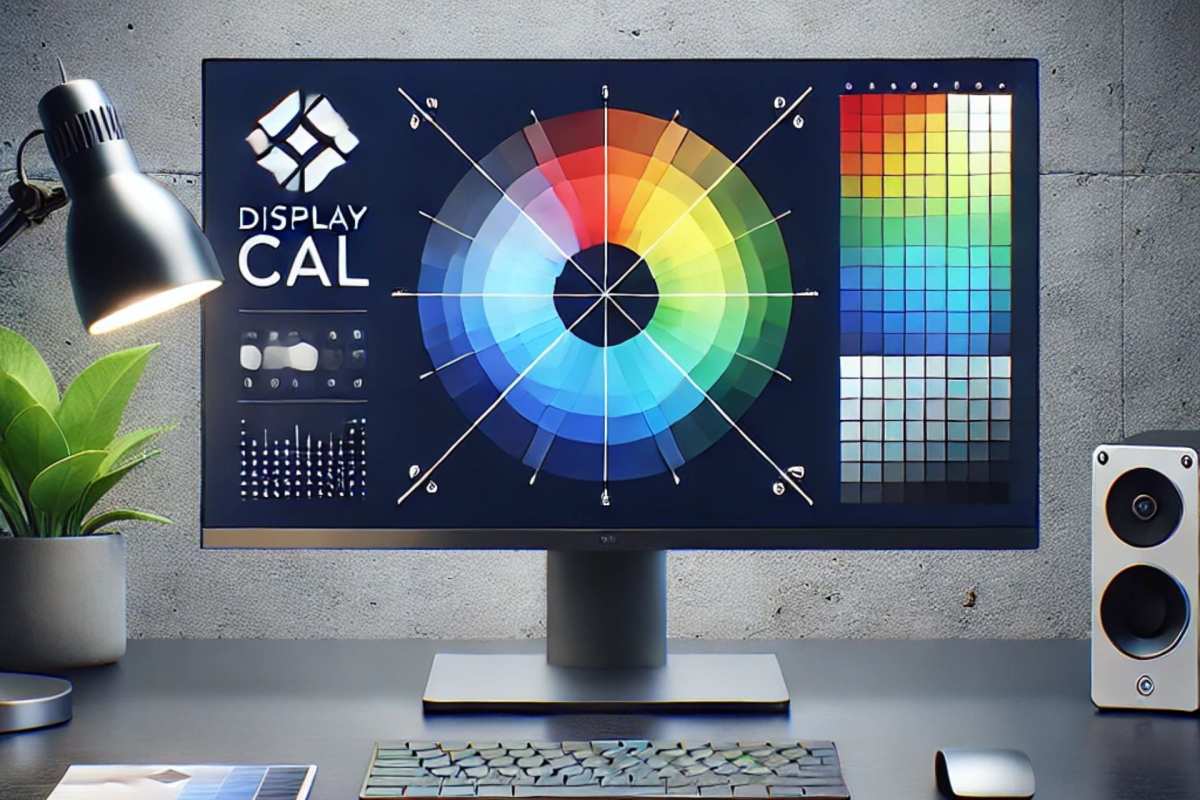
This is where most buying advice falls apart. People fixate on the USB-C connection and forget that the panel behind it is what actually determines whether the monitor is good for design. The connection is just the highway.
The panel is the destination.
Color Gamut Coverage
Color gamut defines how many colors a monitor can display. For design work, you're typically targeting one of these standards.
- sRGB: The baseline for web and digital design. Look for 100% coverage.
- DCI-P3: The standard for digital cinema and increasingly for Apple's display ecosystem. Aim for 95% or higher.
- Adobe RGB: Important for print design and photography. Look for 95% or higher.
A monitor that covers 100% sRGB but only 70% DCI-P3 will look fine for web design but will fall short for video work or motion graphics targeting modern displays.
Color Accuracy (Delta E)
Delta E measures how closely the monitor reproduces the intended color. Lower is better.
- Delta E < 2: Excellent. Color differences are imperceptible to the human eye. This is what you want for professional color work.
- Delta E 2-4: Good. Minor differences visible on close inspection. Acceptable for general design work.
- Delta E > 4: Noticeable color shifts. Not suitable for color-critical work.
Many USB-C monitors ship with factory calibration at Delta E < 2. Some don't. Always check the spec sheet or independent reviews.
Panel Technology
The panel type affects viewing angles, contrast, and color consistency.
- IPS (In-Plane Switching): Best all-around for designers. Excellent color accuracy and wide viewing angles. Most common in USB-C monitors aimed at creatives.
- OLED: Perfect blacks, infinite contrast, outstanding color. Still rare and expensive in USB-C monitor form factor as of 2026. Worth the premium if your work involves dark UI design or video grading.
- VA (Vertical Alignment): Better contrast than IPS but slower response times and more color shift at angles. Decent for general use, less ideal for color-critical work.
Resolution and Pixel Density
Resolution determines how much screen real estate you have and how sharp text and images appear.
- 4K UHD (3840 x 2160): The sweet spot for a 27-inch designer monitor. Gives you 163 PPI, which is sharp enough that pixels are invisible at normal viewing distance.
- 5K (5120 x 2880): Found on Apple Studio Display and a few others. 218 PPI. Ideal for macOS, which scales UI elements cleanly at 2x resolution.
- QHD (2560 x 1440): Acceptable at 27 inches but noticeably less sharp than 4K. Fine for secondary displays or budget setups.
Power Delivery Wattage
This is the spec that gets overlooked until your laptop dies during a deadline. USB-C monitors can charge your laptop through the same cable that carries video. The wattage varies significantly.
- 60W: Enough for most ultrabooks and MacBooks up to 14 inches. May not keep up with heavy workloads on power-hungry machines.
- 85W-90W: Handles 15-inch and 16-inch laptops comfortably, including MacBook Pro models under sustained load.
- 100W: The maximum under current USB-C PD 3.0 spec. Sufficient for virtually any laptop. USB PD 3.1 extends this to 240W but monitors supporting it are still rare as of 2026.
Aggregate reviews indicate that many USB-C monitors advertise high power delivery but deliver less under sustained load. Check verified buyer feedback for real-world charging performance.
Best USB-C Monitors for Different Types of Designers
Let's get practical. Not every designer needs the same thing, and the "best" USB-C monitor depends entirely on what you create and what you prioritize.
For Graphic Designers and Brand Designers
You need accurate sRGB and Adobe RGB coverage, consistent color across the panel, and a resolution that lets you see print layouts clearly.
Look for a 27-inch 4K IPS panel with 100% sRGB and at least 95% Adobe RGB. Delta E < 2 out of the box. Power delivery of 65W or higher so your laptop stays charged through a full workday.
Dell's UltraSharp U2723QE and BenQ's PD2705U are solid options in this category. Both hit the color specs, offer USB-C with 65W or more PD, and include built-in USB hubs that turn your monitor into a docking station.
For Video Editors and Colorists
You need wide gamut coverage (DCI-P3), HDR support, and ideally a panel that can be hardware-calibrated. Resolution matters but so does contrast ratio.
A 32-inch 4K IPS or OLED panel with 98% DCI-P3 and DisplayHDR 600 or better is the target. Thunderbolt connectivity is preferable here because you may want to daisy-chain a secondary reference display or high-speed storage.
ASUS ProArt PA329CRV and LG's UltraFine 32UN880-B are worth researching. Both target the video production market with factory calibration and wide gamut coverage over USB-C.
For UI/UX Designers
You need sharp text rendering, accurate sRGB for web work, and enough screen space to have your design tool, browser, and reference materials visible simultaneously.
A 27-inch 4K IPS panel with 100% sRGB is more than sufficient. Color accuracy matters less than resolution and ergonomics here. Make sure the monitor has adjustable height, tilt, and pivot.
You'll be sitting in front of it for hours.
Dell's S2722QC and LG 27UK850-W hit this sweet spot at a reasonable price point. Both deliver 4K over USB-C with power delivery and solid sRGB coverage.
For Photographers
You need wide gamut (Adobe RGB and DCI-P3), hardware calibration support, and a panel with uniform brightness across the screen.
A 27-inch or 32-inch 4K display with 99% Adobe RGB and hardware LUT support is ideal. BenQ's SW272U is purpose-built for photography with a built-in calibration sensor and 99% Adobe RGB coverage over USB-C.
For Freelancers and Mobile Designers
Portability matters as much as image quality. You need a monitor that travels well, connects quickly, and works from a coffee shop or co-working space.
Portable USB-C monitors like the ASUS ZenScreen MB16ACV or Lenovo ThinkVision M14t give you a second screen that runs off a single USB-C cable. They're not color-grading reference displays, but they're excellent for extending your workspace on the go.
Quick Comparison Table
| Designer Type | Key Specs to Prioritize | Ideal Size | Connection Priority |
|---|---|---|---|
| Graphic/Brand Design | 100% sRGB, 95%+ Adobe RGB, Delta E < 2 | 27" 4K | USB-C with 65W+ PD |
| Video Editing/Color | 98% DCI-P3, HDR600+, hardware calibration | 32" 4K | Thunderbolt 4 preferred |
| UI/UX Design | 100% sRGB, sharp text, ergonomic stand | 27" 4K | USB-C with 60W+ PD |
| Photography | 99% Adobe RGB, hardware LUT, uniformity | 27" 4K | USB-C or Thunderbolt |
| Mobile/Freelance | Portable, lightweight, plug-and-play | 14-16" FHD/QHD | USB-C single cable |
When a USB-C Monitor Makes Sense (And When It Doesn't)
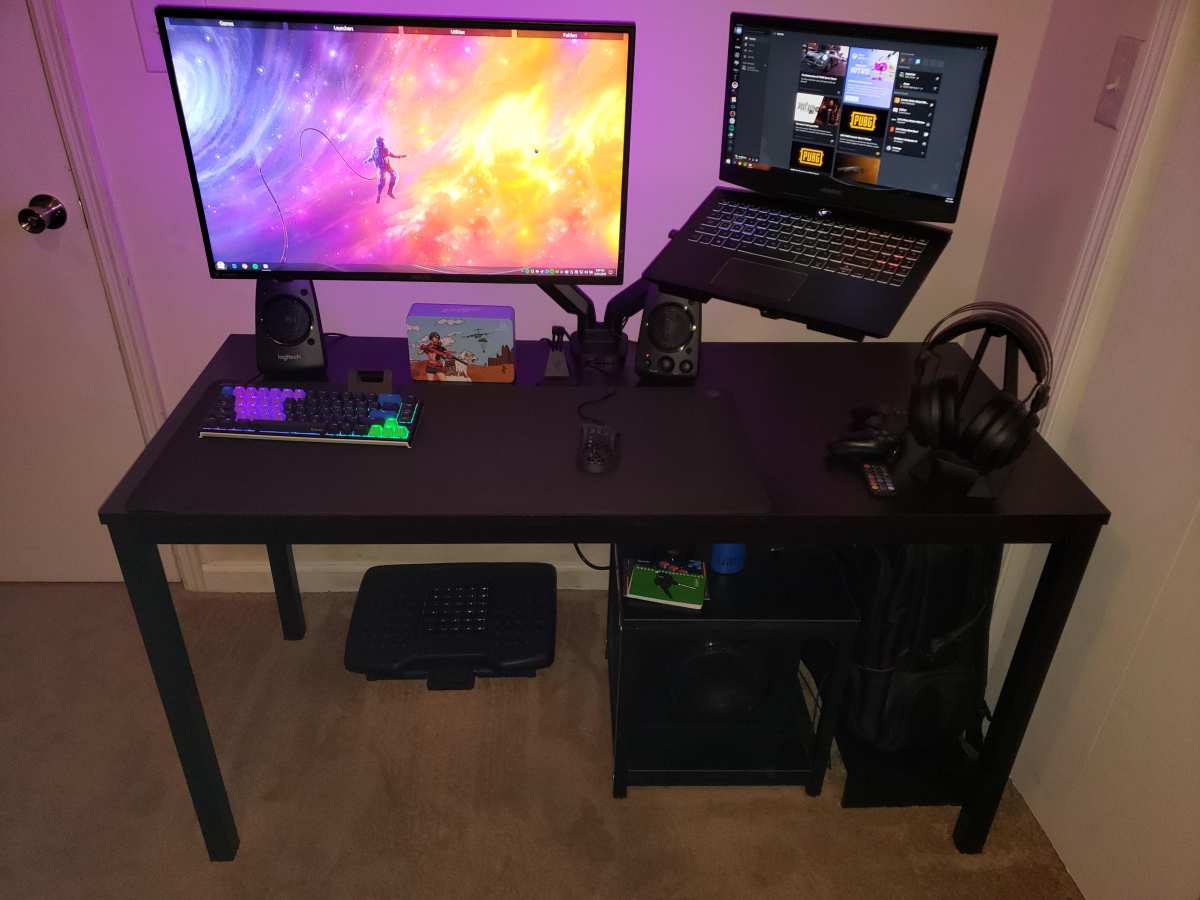
Let's cut through the marketing and talk about real situations where a USB-C monitor is the right call, and situations where you'd be better off with something else.
USB-C Monitors Are Worth It When…
You value a clean, minimal desk setup. One cable from your laptop to the monitor handles video, data, and charging. That's it.
No dock, no power brick, no tangle of wires behind your desk.
You work from multiple locations. Freelancers and hybrid workers who move between home, office, and co-working spaces benefit hugely from plug-and-play simplicity. Walk in, plug in one cable, and you're working.
Walk out, unplug one cable, and you're gone.
You use a modern laptop with Thunderbolt 4 or USB-C with DisplayPort Alt Mode. Most laptops released since 2022 support at least one of these. If yours does, a USB-C monitor is the path of least resistance.
You want a single-cable docking solution. Many USB-C monitors include built-in USB hubs. Your keyboard, mouse, external drive, and even ethernet can connect through the monitor.
Your laptop only sees one cable.
USB-C Monitors Are Not the Best Choice When…
You need dual external displays without a dock. Most standard USB-C Alt Mode ports can drive one external monitor natively. Driving two usually requires Thunderbolt with daisy-chaining or a separate docking station.
You're on a tight budget for a color-accurate display. USB-C monitors with professional-grade panels cost more than their HDMI or DisplayPort equivalents. If you already have a dock and don't need the single-cable benefit, you'll get better specs per dollar with a traditional connection.
You need high refresh rates for motion design or animation work. Many USB-C monitors cap at 60Hz. If you need 120Hz or higher for smooth motion preview, look for monitors with native DisplayPort or HDMI 2.1 inputs.
You're on a desktop PC without USB-C video output. If your desktop GPU only has DisplayPort and HDMI outputs, you'll need an adapter to use a USB-C monitor. At that point, you're adding complexity rather than reducing it.
Common Mistakes Designers Make With USB-C Displays
These are the pitfalls we see come up again and again in user reviews and forum discussions. Avoiding them will save you money and frustration.
Assuming All USB-C Ports Support Video
This is the number one mistake. Many laptops have multiple USB-C ports, and not all of them support DisplayPort Alt Mode or Thunderbolt. Check your laptop's manual or spec sheet.
Look for the lightning bolt icon (Thunderbolt) or the "D" shaped DisplayPort icon next to the port.
Plugging your monitor into a data-only USB-C port will give you nothing. No signal, no charging, no error message. Just a blank screen and confusion.
Buying a USB-C Monitor Without Checking the Panel Specs
The USB-C label tells you nothing about image quality. Plenty of USB-C monitors ship with mediocre panels that cover only 70-80% of sRGB. That's fine for office work.
It's not fine for design.
Always check the color gamut coverage, Delta E rating, and panel type independently of the connection. A $300 USB-C monitor and a $900 USB-C monitor might both have USB-C inputs, but the panels behind them are worlds apart.
Using a Cheap or Incorrect USB-C Cable
Not all USB-C cables are created equal. A cable that only supports USB 2.0 data and 15W charging will not carry a video signal. You need a cable that supports either Thunderbolt 3/4 or USB 3.1/3.2 with DisplayPort Alt Mode.
Look for cables certified by USB-IF. For 4K at 60Hz, a passive USB-C 3.1 Gen 2 cable up to 2 meters works. For longer runs or Thunderbolt 4 speeds, you may need an active cable.
Ignoring Power Delivery Wattage
A monitor that advertises "USB-C charging" might only deliver 15W. That's enough to trickle-charge a tablet but nowhere near enough to keep a 16-inch MacBook Pro charged under load. Check the PD wattage rating and match it to your laptop's power requirements.
Forgetting to Calibrate
Factory calibration is a starting point, not a guarantee. Panel characteristics shift over time. If you're doing color-critical work, invest in a hardware calibrator like a Calibrite Display Plus or X-Rite i1Display Pro and calibrate monthly.
Real Scenarios: Who Should Buy What
Let's put this all together with three common designer profiles.
Scenario 1: The Freelance Graphic Designer
You work from home three days a week and from a co-working space two days a week. You use a MacBook Air or similar ultrabook. You need one external display that's easy to connect and disconnect.
A 27-inch 4K USB-C monitor with 65W or higher power delivery is your sweet spot. You get a single cable for video and charging, excellent resolution for layout work, and plug-and-play portability. Budget around $350-500 for a solid option.
Scenario 2: The Video Editor in a Studio
You work at a fixed desk with a MacBook Pro or Windows workstation. You need a large, color-accurate display with wide gamut coverage. You also run external SSDs and a second reference monitor.
A 32-inch Thunderbolt 4 monitor is worth the investment here. You can daisy-chain your second display and high-speed storage through a single connection. Look for 98% DCI-P3 coverage and DisplayHDR 600 or better.
Budget $800-1,500 for professional-grade options.
Scenario 3: The UI/UX Designer on a Budget
You're a student or early-career designer. You need a decent external monitor for Figma, Sketch, or Adobe XD work. Color accuracy matters but you don't need reference-grade precision.
A 27-inch 4K USB-C monitor with 100% sRGB and 60W PD will serve you well. You can find capable options in the $250-350 range. Prioritize resolution and ergonomics over wide gamut coverage.
Setup Tips to Get the Most From a USB-C Monitor
Getting the monitor connected is step one. Getting it working optimally takes a few more steps.
Cable Selection
Use the cable that came with your monitor if it supports the full spec. If you need a replacement, buy a certified cable rated for your monitor's bandwidth requirements. For 4K at 60Hz over USB-C, a USB 3.1 Gen 2 cable is the minimum.
For Thunderbolt 4, use a Thunderbolt 4 certified cable.
Display Calibration
Start with the monitor's factory calibration profile. Then use a hardware calibrator to create a custom ICC profile for your specific unit. macOS users can assign the profile in System Settings under Displays. Windows users do this in Color Management settings.
Power Delivery Verification
After connecting, check that your laptop is actually charging at the expected rate. macOS shows this in System Information under Power. Windows users can use tools like BatteryInfoView to monitor charge wattage. If charging is slower than expected, try a different cable or check for a firmware update on the monitor.
Firmware Updates
Monitor firmware updates can fix compatibility issues, improve power delivery behavior, and even improve color accuracy. Check the manufacturer's support page periodically. Some monitors update via USB-C, others require a USB-A cable or a separate utility.
macOS-Specific Considerations
macOS handles USB-C displays well overall, but there are quirks. True Tone and Night Shift can interfere with color-critical work. Turn these off on your external display.
Also, macOS doesn't support MST (Multi-Stream Transport) for daisy-chaining. If you need dual external displays on a Mac, you'll need Thunderbolt daisy-chaining or separate connections.
Frequently Asked Questions
Can a USB-C monitor charge my laptop while displaying video?
Yes, if both the monitor and laptop support USB-C Power Delivery. The monitor sends power to the laptop through the same cable that carries video. The wattage varies by monitor, from 15W on basic models to 100W on premium displays.
Is USB-C good enough for 4K design work?
Absolutely. USB-C with DisplayPort Alt Mode supports 4K at 60Hz, which is sufficient for virtually all design work. The video signal is identical in quality to a native DisplayPort connection at the same resolution and refresh rate.
Do I need Thunderbolt for a USB-C monitor?
No. Thunderbolt is not required for a single USB-C monitor. DisplayPort Alt Mode over standard USB-C handles 4K at 60Hz without Thunderbolt.
Thunderbolt becomes important when you need to daisy-chain multiple displays or run high-speed peripherals alongside your monitor.
Will a USB-C monitor work with my Windows laptop?
In most cases, yes. If your Windows laptop has a USB-C port with DisplayPort Alt Mode or Thunderbolt, it will work with a USB-C monitor. Check your laptop's specifications to confirm video output support on the USB-C port.
Is a USB-C monitor good for photo editing?
It can be, but only if the panel itself meets photo editing standards. Look for 99% or higher Adobe RGB coverage, Delta E less than 2, and hardware calibration support. The USB-C connection is just the delivery method.
The panel quality is what determines whether it's suitable for photo work.
Can I connect two USB-C monitors to one laptop?
It depends on your laptop's capabilities. Most standard USB-C ports support one external display natively. To run two USB-C monitors without a dock, you need Thunderbolt 4 with daisy-chain support, or a USB-C docking station with dual display outputs.
Final Verdict: The Decision Guide
Here's the bottom line. USB-C monitors are a strong choice for most designers in 2026. The convenience of a single cable for video, data, and charging is real and meaningful.
The technology has matured to the point where you're not sacrificing image quality by choosing USB-C over traditional connections.
But the USB-C label alone doesn't make a monitor good for design work. The panel quality, color accuracy, and power delivery specs are what matter. A well-chosen USB-C monitor will serve you beautifully for years.
A poorly chosen one will leave you frustrated with washed-out colors and a slowly draining laptop battery.
If you're buying today, prioritize the panel specs first and the connection type second. Make sure the power delivery matches your laptop's needs. Buy a proper cable.
Calibrate the display. Do those things, and a USB-C monitor will be one of the best upgrades you make to your creative workspace.

Similar Posts





















