Are USB C Monitors Future Proof
USB-C monitors are future-proof for most people, but only if the standard matches your laptop's port. Thunderbolt 4 and USB4 offer the most headroom through 2026 and beyond. Basic USB-C with DisplayPort Alt Mode works today but may limit you later.
The cable and port spec matter more than the monitor label.
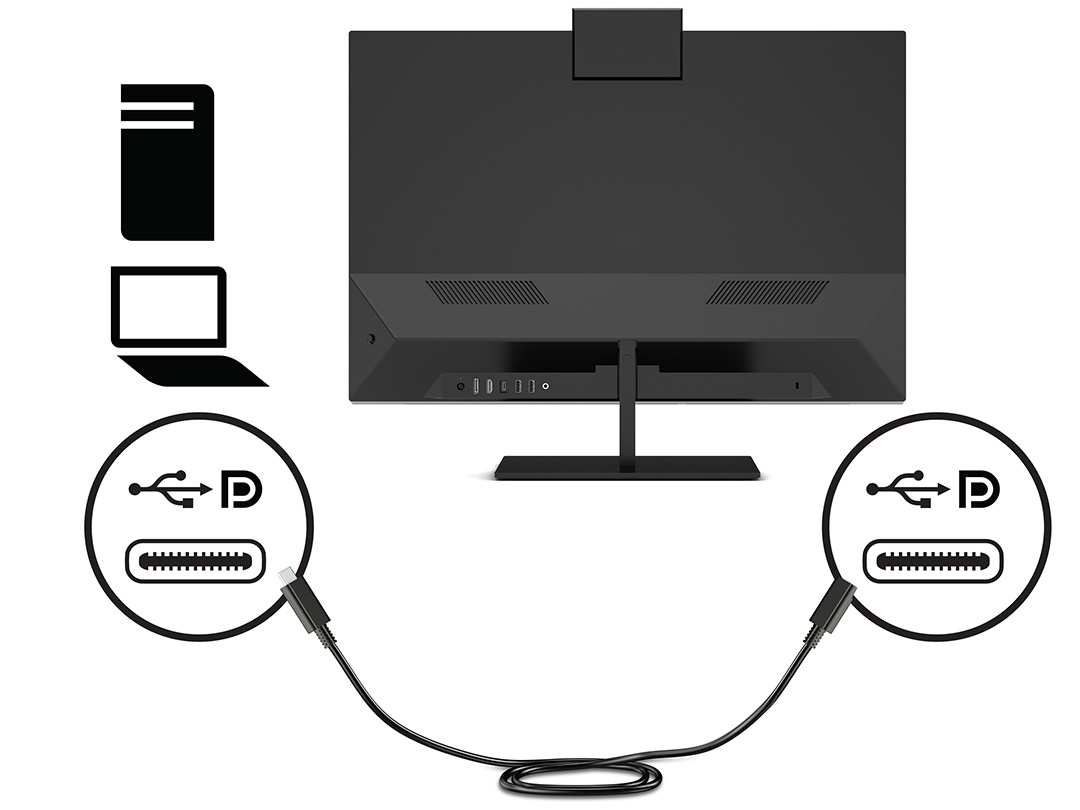
You've probably seen "USB-C monitor" on every spec sheet and assumed it means the same thing across the board. It doesn't. The label tells you the physical connector, not what that port can actually do.
Two monitors with identical USB-C ports can behave completely differently once you plug them in.
So, are USB-C monitors future-proof? The honest answer is: it depends on which flavor of USB-C you're buying and which laptop you're pairing it with. Let's break down what actually matters before you spend your money.
Why "USB-C Monitor" Doesn't Tell You the Whole Story
Here's the thing that trips everyone up. USB-C is just a connector shape. It's the oval port that finally replaced all those old rectangular and micro USB plugs.
But what that port supports underneath varies wildly.
A USB-C port on your laptop might support Thunderbolt 4 at 40 Gbps. It might support USB4 at the same speed. It might only handle USB 3.2 data with DisplayPort 1.4 Alt Mode.
Or it might only do data and charging with no video at all.
The same confusion applies to monitors. Manufacturers slap "USB-C" on the box and call it a day. But that monitor might only deliver 1080p over USB-C while its HDMI port handles 4K.
Some USB-C monitors charge your laptop at 15 watts. Others push 96 watts or more.
The USB Implementers Forum (USB-IF) has certified multiple generations of USB-C standards, and they're not backward-compatible in the way most people assume. A Thunderbolt 4 monitor connected to a basic USB-C port won't give you Thunderbolt benefits. It'll fall back to whatever your weakest link supports.
This is why the "future-proof" question can't get a simple yes or no. We need to look at the three actual standards that determine whether your setup has legs.
The Three Standards That Actually Determine Future-Proofing
USB-C With DisplayPort Alt Mode
This is the most common and most affordable option. DisplayPort Alt Mode lets a USB-C port carry a native DisplayPort signal alongside USB data and power delivery. It's been around since 2014 and works with most modern laptops.
The version of DisplayPort matters enormously. DisplayPort 1.4 supports 4K at 60 Hz with HDR. DisplayPort 2.1, which started appearing in newer hardware around 2025, pushes 4K at 240 Hz or even 8K at 60 Hz.
Most budget and mid-range USB-C monitors use DP 1.4 Alt Mode. That's fine for office work and media consumption today. But if you're buying a monitor expecting to use it through 2028 or beyond, DP 1.4 starts feeling tight, especially for high-refresh or high-resolution displays.
The good news: DP Alt Mode works with a huge range of laptops. You don't need Thunderbolt. If your laptop has a USB-C port with DP Alt Mode support, you're in business.
Thunderbolt 4 and Thunderbolt 5
Thunderbolt 4, finalized by Intel and Apple together, guarantees 40 Gbps bandwidth, support for at least one 4K display, and 15 watts of power delivery to connected peripherals. It also supports daisy-chaining, so you can connect two monitors through a single port on your laptop.
Thunderbolt 5, announced in late 2023 and shipping in production hardware by 2025, doubles that to 80 Gbps bidirectional bandwidth and up to 120 Gbps in asymmetric mode for display-heavy workloads. That's enough for dual 4K at 144 Hz or a single 8K display without breaking a sweat.
The catch: Thunderbolt monitors cost more. And they only deliver their full benefits when your laptop also has Thunderbolt. Plug a Thunderbolt 4 monitor into a USB4 port, and you'll get reduced functionality depending on what that USB4 implementation supports.
For future-proofing, Thunderbolt 4 is the sweet spot in 2026. Thunderbolt 5 is the premium play if you want maximum headroom and don't mind paying for it.
USB4 and USB4 Version 2.0
USB4 is the middle ground. Based on Thunderbolt 3's protocol, it supports up to 20 Gbps in its original version and up to 40 Gbps in USB4 v2. It also supports DisplayPort tunneling and power delivery.
The problem is inconsistency. USB4 doesn't mandate the same guarantees that Thunderbolt 4 does. One laptop's USB4 port might support DP 2.1.
Another might cap out at DP 1.4. You have to check your specific laptop's specs.
USB4 Version 2.0, finalized in 2024, pushes bandwidth to 80 Gbps and adds support for DisplayPort 2.1. This is where USB4 starts to genuinely compete with Thunderbolt for future-proofing. But hardware supporting USB4 v2 didn't become widely available until 2025, and adoption is still rolling out.
Here's a quick comparison to make this concrete:
| Standard | Max Bandwidth | Max Display Support (Typical) | Power Delivery to Laptop | Daisy-Chaining | Availability (2026) |
|---|---|---|---|---|---|
| USB-C DP 1.4 Alt Mode | 32.4 Gbps (DP 1.4) | 4K at 60 Hz | Up to 100 W (PD 3.1) | No | Widespread |
| USB4 (v1) | 20–40 Gbps | 4K at 60 Hz | Up to 100 W | Limited | Common in mid-range laptops |
| USB4 v2 | 80 Gbps | 4K at 240 Hz / 8K at 60 Hz | Up to 100 W+ | Yes (with MST) | Growing, newer devices |
| Thunderbolt 4 | 40 Gbps | 4K at 60 Hz (dual via daisy-chain) | 15 W to peripherals, charges host via PD | Yes | Standard on premium laptops |
| Thunderbolt 5 | 80–120 Gbps | Dual 4K at 144 Hz / 8K | Up to 100 W+ to host, 15 W to peripherals | Yes | New, premium hardware only |
How to Check What Your Laptop Actually Supports
Before you buy any USB-C monitor, you need to know exactly what your laptop's USB-C port can do. This takes about two minutes and saves you from expensive mistakes.
Step 1: Find your laptop's exact model number. It's usually on a sticker underneath the laptop or in the system settings. On Mac, click the Apple icon and select "About This PC." On Windows, go to Settings, then System, then About.
Step 2: Look up the official spec sheet. Go to the manufacturer's product page for your exact model. Don't rely on retailer listings. They often lump all ports together under "USB-C" without specifying capabilities.
Step 3: Look for these specific terms in the port description:
- "Thunderbolt 4" or "Thunderbolt 3" means you get full Thunderbolt benefits
- "USB4" means high bandwidth but check the version
- "DisplayPort Alt Mode" or "DP Alt Mode" means video over USB-C
- "Power Delivery" or "PD" means the port can charge your laptop
- "USB 3.2 Gen 2" alone means data only, no video
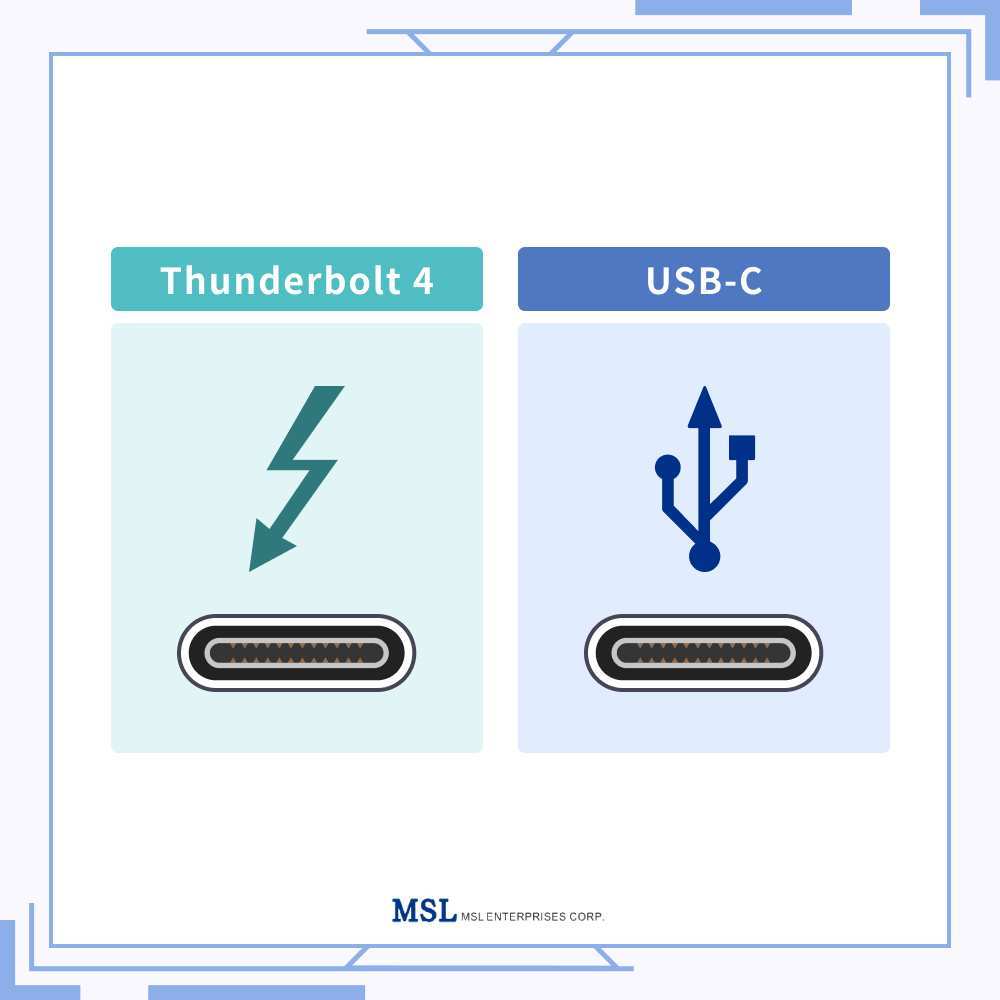
Step 4: Check the port symbol next to the physical port on your laptop. A lightning bolt icon means Thunderbolt. A "D" shape with a "P" inside means DisplayPort. A USB trident symbol alone means data only.
No symbol at all means you definitely need to check the manual.
Step 5: Verify your cable. Even with a perfect laptop and monitor, a cheap USB-C cable can bottleneck everything. Look for cables certified for your standard. Thunderbolt 4 cables are marked with a lightning bolt and "4." USB4 v2 cables should be labeled accordingly.
A generic USB-C charging cable might only support USB 2.0 speeds and no video at all.
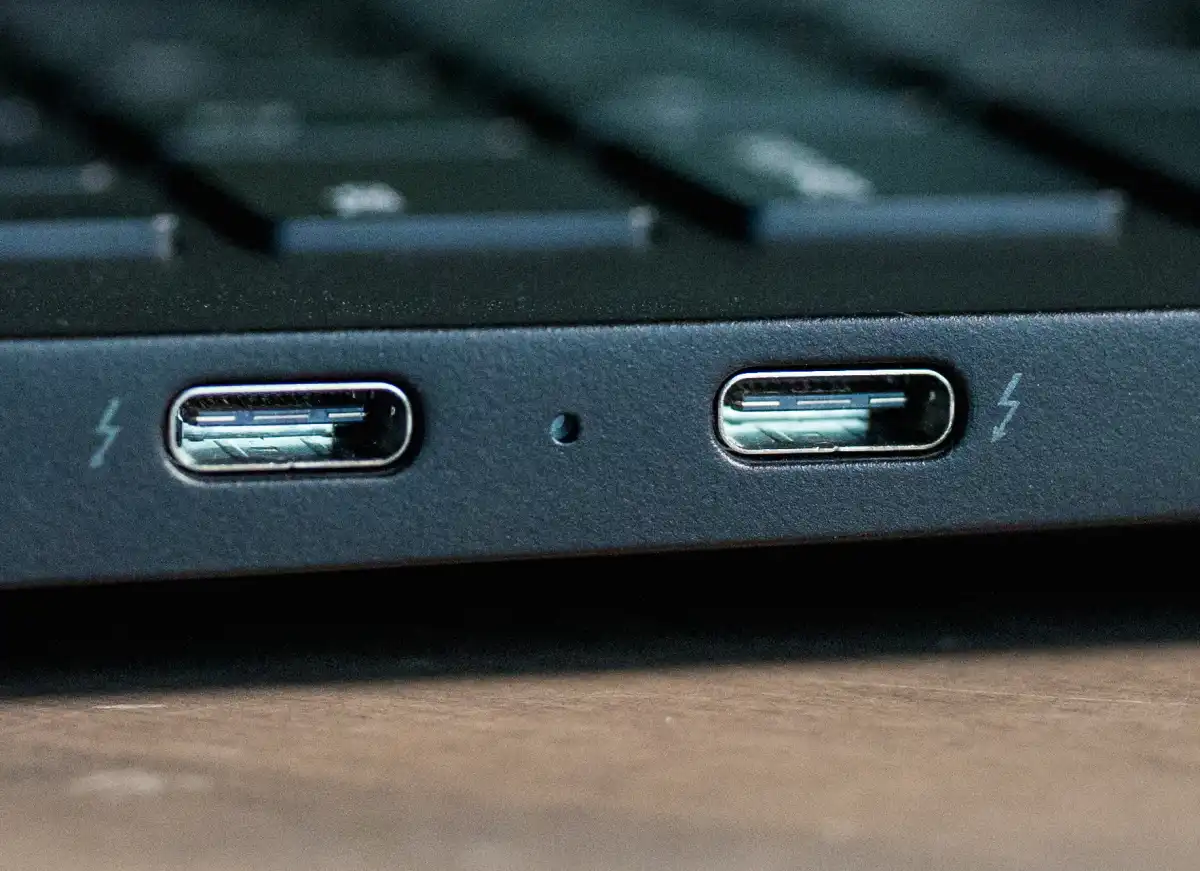
If you're on a Mac, every MacBook Pro and MacBook Air with a USB-C port since 2018 supports Thunderbolt 3 or later. Apple doesn't use basic USB-C without Thunderbolt on its portables. Mac minis and Mac Studios also include Thunderbolt ports.
This makes monitor pairing straightforward for Mac users.
Windows and Chromebook users have more variation. Business laptops from Lenovo, Dell, and HP often include Thunderbolt 4. Budget models frequently skip it entirely.
Some AMD-based laptops support USB4 but not Thunderbolt until recent generations.
Decision Tree: Which USB-C Monitor Standard Fits Your Setup?
This is where we get practical. Your laptop's port determines which monitor standard makes sense. Buying the wrong tier means either overspending or underperforming.
Branch 1: You Have a Thunderbolt 4 Laptop (Most MacBooks, Premium Windows)
You're in the best position. A Thunderbolt 4 monitor gives you full bandwidth, daisy-chaining, and guaranteed display support. You can also use a USB4 v2 monitor and get excellent performance, though you won't get Thunderbolt-specific daisy-chain guarantees.
If you want maximum future-proofing and your budget allows it, a Thunderbolt 5 monitor works too. It'll operate at reduced speeds on your Thunderbolt 4 laptop today but unlock full potential when you upgrade to a Thunderbolt 5 machine later.
Best choice: Thunderbolt 4 monitor now, Thunderbolt 5 if you want to invest for the next laptop.
Branch 2: You Have USB4 But Not Thunderbolt
You need to check whether your USB4 port supports DisplayPort 1.4 or DP 2.1. Most 2024 and 2025 USB4 implementations support DP 1.4. Some newer ones support DP 2.1.
A USB4 v2 monitor pairs well here if your laptop also supports USB4 v2. If your laptop is USB4 v1 only, a Thunderbolt 4 monitor will still work but at reduced bandwidth. You won't get the full Thunderbolt experience, but you'll get a functional single-cable setup.
Best choice: USB4 monitor matching your version, or Thunderbolt 4 as a fallback that'll still deliver solid performance.
Branch 3: You Have Basic USB-C With DP Alt Mode Only
This is common on budget and mid-range laptops. You can absolutely use a USB-C monitor, but you're limited to whatever DP version your port supports. Most likely DP 1.4, which handles 4K at 60 Hz just fine.
Don't buy a Thunderbolt 4 or Thunderbolt 5 monitor for this setup. You'll pay a premium for capabilities your laptop can't use. A standard USB-C DP Alt Mode monitor at the right price point serves you better.
Best choice: USB-C DP Alt Mode monitor with DP 1.4. Skip the Thunderbolt tax.
Branch 4: You're Not Sure What Your Port Supports
Follow the steps in the previous section. Look up your exact laptop model. Check the spec sheet.
Find the port symbol.
If you genuinely can't find the information, assume the lowest tier. Buy a standard USB-C DP Alt Mode monitor from a retailer with a good return policy. Test it.
If it works at your expected resolution and refresh rate, you're set. If not, return it and adjust.
Best choice: Start with a mid-range USB-C DP Alt Mode monitor. Upgrade later once you know your port's full capabilities.
One more thing about cables. The cable that ships with your monitor matters. Most reputable manufacturers include a cable matched to the monitor's capabilities.
But some budget monitors ship with USB-C cables that only handle USB 3.2 Gen 1 speeds and DP 1.2. That limits you to 4K at 30 Hz, which feels sluggish on a desktop.
If your monitor supports 4K at 60 Hz over USB-C and you're only getting 30 Hz, the cable is almost always the culprit. Swap it for a certified cable rated for your standard and the problem disappears.
What Future-Proofing Actually Looks Like in 2026 and Beyond
Bandwidth Headroom
Bandwidth is the single biggest factor in whether your USB-C monitor setup stays relevant. More bandwidth means higher resolutions, higher refresh rates, and more data for peripherals through a single cable.
Thunderbolt 4 at 40 Gbps handles 4K at 60 Hz comfortably with room for USB data and charging. Thunderbolt 5 at 80 to 120 Gbps accommodates dual 4K at 144 Hz or 8K at 60 Hz with significant headroom to spare.
USB4 v2 closes the gap with its 80 Gbps ceiling. Original USB4 at 20 to 40 Gbps works for single 4K at 60 Hz but leaves less breathing room for future demands.
Power Delivery Ceiling
Most USB-C monitors with power delivery offer 60 to 96 watts. That charges a MacBook Pro or a Windows ultrabook without hesitation.
Before 2024, many USB-C monitors capped at 45 or 60 watts. That slowed charging on power-hungry laptops. Manufacturer specs now show 90 to 100 watts as a common standard on mid-range and premium USB-C monitors throughout 2025 and 2026.
Check the monitor's PD rating before buying. If your laptop needs 90 watts for full-speed charging and your monitor only delivers 65, the laptop will charge slowly under heavy use. You'll also see battery drain during demanding tasks.
This remains a genuine frustration in verified user feedback on budget USB-C monitors.
Daisy-Chaining and Multi-Monitor Setups
Daisy-chaining lets you connect two monitors through one laptop port. The laptop connects to the first monitor, and the first monitor connects to the second. One cable on your laptop, two screens on your desk.
This requires Thunderbolt or DisplayPort Multi-Stream Transport support. Not all USB-C monitors include daisy-chain capability. Many budget models only accept input and lack a second video output port.
Manufacturer product pages increasingly list daisy-chaining support for mid-range and premium USB-C monitors in 2026. If your workflow benefits from dual monitors, this feature alone justifies a higher upfront cost.
Resolution and Refresh Rate Support
Resolution and refresh rate needs vary by user. Office workers are comfortable at 4K and 60 Hz. Video editors and gamers want 120 Hz or higher.
High refresh rates demand more bandwidth.
DisplayPort 1.4 tops out at 4K and 120 Hz with Display Stream Compression, or 4K and 60 Hz without. DisplayPort 2.1 pushes 4K at 240 Hz or 8K at 60 Hz. Thunderbolt 5 handles these demands, while Thunderbolt 4 meets the needs of most single 4K users.
Computer monitor reviews in 2025 and 2026 frequently note 4K at 60 Hz as the standard for USB-C productivity panels. Higher refresh rates appear primarily on Thunderbolt and USB4 v2 models.
| User Type | Recommended Standard | Resolution and Refresh | Future-Proofing Level |
|---|---|---|---|
| Office and productivity | USB-C DP 1.4 or Thunderbolt 4 | 4K at 60 Hz | Good for 4–5 years |
| Content creation | Thunderbolt 4 or USB4 v2 | 4K at 60–120 Hz | Good for 5–7 years |
| Gaming (AAA titles) | Thunderbolt 5 or USB4 v2 | 4K at 120+ Hz | Best available |
| Photography and design | Thunderbolt 4 | 4K at 60 Hz with 10-bit color | Good for 5+ years |
| Dual-monitor workflow | Thunderbolt 4 or 5 | Dual 4K at 60 Hz | Excellent with daisy-chain |
Common Mistakes People Make When Buying USB-C Monitors
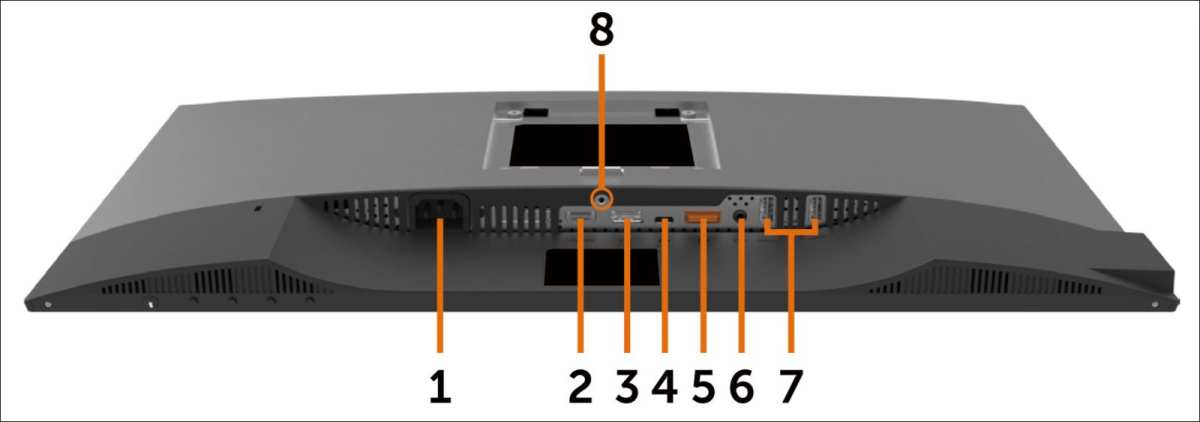
Expecting every USB-C port to carry video remains the widespread mistake. Many USB-C ports on budget laptops and desktops handle data and charging only. Plugging a USB-C monitor into such a port gives you nothing.
Always confirm DisplayPort Alt Mode or Thunderbolt support in your laptop's spec sheet.
Assuming the included cable performs adequately is another trap. Budget monitors sometimes ship with cables limited to USB 3.2 Gen 1 or DP 1.2. This often caps your resolution at 4K and 30 Hz, which feels sluggish instantly.
Swapping in a certified Thunderbolt 4 or USB4 cable usually unlocks the full resolution and refresh rate immediately.
Buying a Thunderbolt monitor for a basic USB-C laptop wastes money. The monitor will function in fallback mode, but you won't benefit from Thunderbolt speeds, daisy-chaining, or guaranteed video standards. Match the monitor tier to your port, not to an aspirational spec sheet.
Ignoring the power delivery rating leads to slow charging or battery drain under heavy workloads. A monitor rated at 45 watts cannot sustain a laptop that draws 95 watts under load. Compare the monitor's PD output to your laptop's power adapter before purchase.
Many buyer complaints trace directly to this oversight.
Real-World Scenarios: Who Should Buy What
The MacBook Pro User Who Wants a Clean Desk
If you own a MacBook Pro from 2019 or later, you have Thunderbolt 3 or 4. A Thunderbolt 4 monitor gives you single-cable docking, 4K at 60 Hz, and charging up to 96 watts. Daisy-chaining works for dual-monitor setups.
This is the straightforward, premium experience that justifies the simplicity of one cable on your desk.
The Hybrid Worker With a Mid-Range Windows Laptop
Your laptop likely includes USB4 or DP Alt Mode but not Thunderbolt. A USB-C DP Alt Mode monitor with 60 to 90 watts of power delivery suits you perfectly. You'll get 4K at 60 Hz, charging, and USB hub functionality without paying a Thunderbolt premium.
Research your laptop's exact port specification before committing.
The Content Creator Who Needs Color Accuracy and Bandwidth
Video editors and photographers benefit from 10-bit color and sustained high bandwidth. Look for a thunderbolt monitor supporting DP 1.4 with DSC or DP 2.1. Factory calibration with a low Delta E rating provides accurate colors out of the box.
Professional users in this category should prioritize panel specifications alongside port selection.
The Budget-Conscious Student
A standard USB-C DP Alt Mode monitor at 1080p or 1440p, priced between $200 and $300, covers note-taking, streaming, and light coursework without strain. Confirm that your laptop supports DP Alt Mode. If USB-C video is absent, you'll rely on the HDMI port that most budget monitors include as a fallback.
USB-C Monitor vs HDMI vs DisplayPort: Which Connection Wins Long-Term?
HDMI 2.1 supports 4K at 120 Hz and 8K at 60 Hz. DisplayPort 2.1 reaches 4K at 240 Hz and 8K at 60 Hz. These dedicated video standards deliver maximum raw bandwidth for a single monitor.
USB-C, when backed by Thunderbolt or USB4, combines video, data, and charging in one cable. It also adapts to DP and HDMI standards via Alt Mode and tunneling. For single-cable convenience-and_cleanup and future headroom, USB-C backed by Thunderbolt 4 or USB4 v2 stands as the most practical all-in-one endpoint in 2026.
Dedicated HDMI and DisplayPort remain essential as fallback ports on any monitor.
| Use Case | Best Port Choice | Why |
|---|---|---|
| Single-cable laptop docking | Thunderbolt 4 or USB4 v2 via USB-C | Charging, video, and data in one cable |
| Desktop PC with dedicated GPU | DisplayPort 2.1 or HDMI 2.1 | Direct video with maximum refresh rates |
| Connecting a game console | HDMI 2.1 | Native console output, widespread TV support |
| Docking with dual monitors | Thunderbolt 4 via USB-C | Daisy-chain eliminates cable clutter |
| Connecting older devices | HDMI or DisplayPort | No adapter needed for legacy hardware |
What to Look for When Buying a USB-C Monitor Today
Start by matching the monitor's USB-C standard to your laptop's port. If your laptop has Thunderbolt 4, buy a Thunderbolt 4 or USB4 v2 monitor. If your laptop has only DP Alt Mode, a standard USB-C DP Alt Mode monitor is the right value.
Prioritize power delivery that matches your laptop's charging needs. A monitor delivering 90 watts charges a 14-inch MacBook Pro at full speed. A monitor delivering 60 watts may struggle to charge a 16-inch MacBook Pro under load.
A 100-watt PD 3.1 port provides extra headroom for future laptops.
Look for a DisplayPort version that matches your resolution goals. DP 1.4 handles 4K at 120 Hz with DSC. DP 2.1 supports 4K at 240 Hz and 8K content.
If you plan to own the monitor for four or more years, DP 2.1 through Thunderbolt 5 or USB4 v2 offers more long-term headroom.
Don't ignore the USB hub. Many USB-C monitors include USB-A ports, Ethernet, and even SD card readers. Check the port's generation.
USB 3.2 Gen 2 (10 Gbps) remains fast for external drives. USB 3.2 Gen 1 (5 Gbps) feels slow in 2026 and beyond.
Finally, check for firmware update support. Some USB-C monitors receive firmware updates that improve compatibility with new laptops. This is rare in budget models increasingly, but it's increasingly common from professional lines.
A monitor that can receive updates is more likely to stay compatible with future devices.
Frequently Asked Questions
Are all USB-C monitors compatible with all USB-C laptops?
No. A USB-C monitor's compatibility depends on the specific standard both devices support. A Thunderbolt 4 monitor works best with a Thunderbolt 4 laptop.
A basic DP Alt Mode monitor may not deliver full functionality on a Thunderbolt 5 laptop. Always match the standard.
Can I use a USB-C monitor with a laptop that only has HDMI?
Yes, with a USB-C to HDMI adapter or cable. However, this only works if your laptop's USB-C port supports video output. USB-C ports that handle data and charging only cannot output video through any adapter.
Does USB-C Thunderbolt affect monitor image quality?
No. The connection standard does not directly affect image quality. Panel technology and calibration determine image quality.
A Thunderbolt connection provides more bandwidth for higher resolutions and refresh rates but does not alter the panel's inherent image output.
How many watts should a USB-C monitor provide for charging?
65 to 90 watts meets the needs of most ultrabooks and 14-inch laptops. A 100-watt USB-C PD 3.1 option better serves power-hungry 16-inch laptops and professional workstations. Match the PD rating to your laptop's power adapter.
Is Thunderbolt 5 worth it for a monitor in 2026?
For most users, Thunderbolt 4 offers enough bandwidth and features. Thunderbolt 5 suits professionals who plan to upgrade their laptop soon or need 8K and high-refresh 4K displays. The premium over Thunderbolt 4 limits its appeal today.
Do USB-C monitors work with phones and tablets?
Some do. Samsung Galaxy phones and recent iPads support video output through USB-C. You'll get a desktop interface or screen mirroring depending on the device.
This is a bonus feature, not a consistent standard across all USB-C mobile devices.
Final Verdict: Should You Buy a USB-C Monitor Now?
Yes, with one condition. Match the monitor's USB-C standard to your laptop's actual port capability.
If you own a Thunderbolt 4 laptop, a Thunderbolt 4 monitor is a smart buy in 2026. You'll get full performance today and solid compatibility through 2028 or beyond. Thunderbolt 5 makes sense if you're planning a laptop upgrade soon and want maximum headroom.
If you own a USB4 laptop, a USB4 v2 monitor gives you the best balance of performance and value. You'll have enough bandwidth for 4K at high refresh rates and plenty of room for future devices.
If your laptop only supports basic DP Alt Mode, don't overspend. A standard USB-C DP Alt Mode monitor with adequate power delivery serves you well. You'll upgrade the monitor when your laptop catches up.
The USB-C connector itself is future-proof. The standard behind it is what matters. Check your port, check the specs, and buy accordingly.

Similar Posts





















