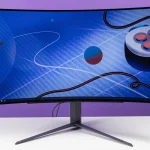
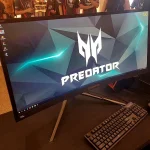
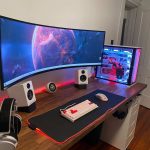
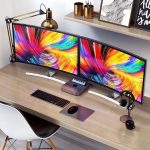
is ultrawide curved monitor good for gaming
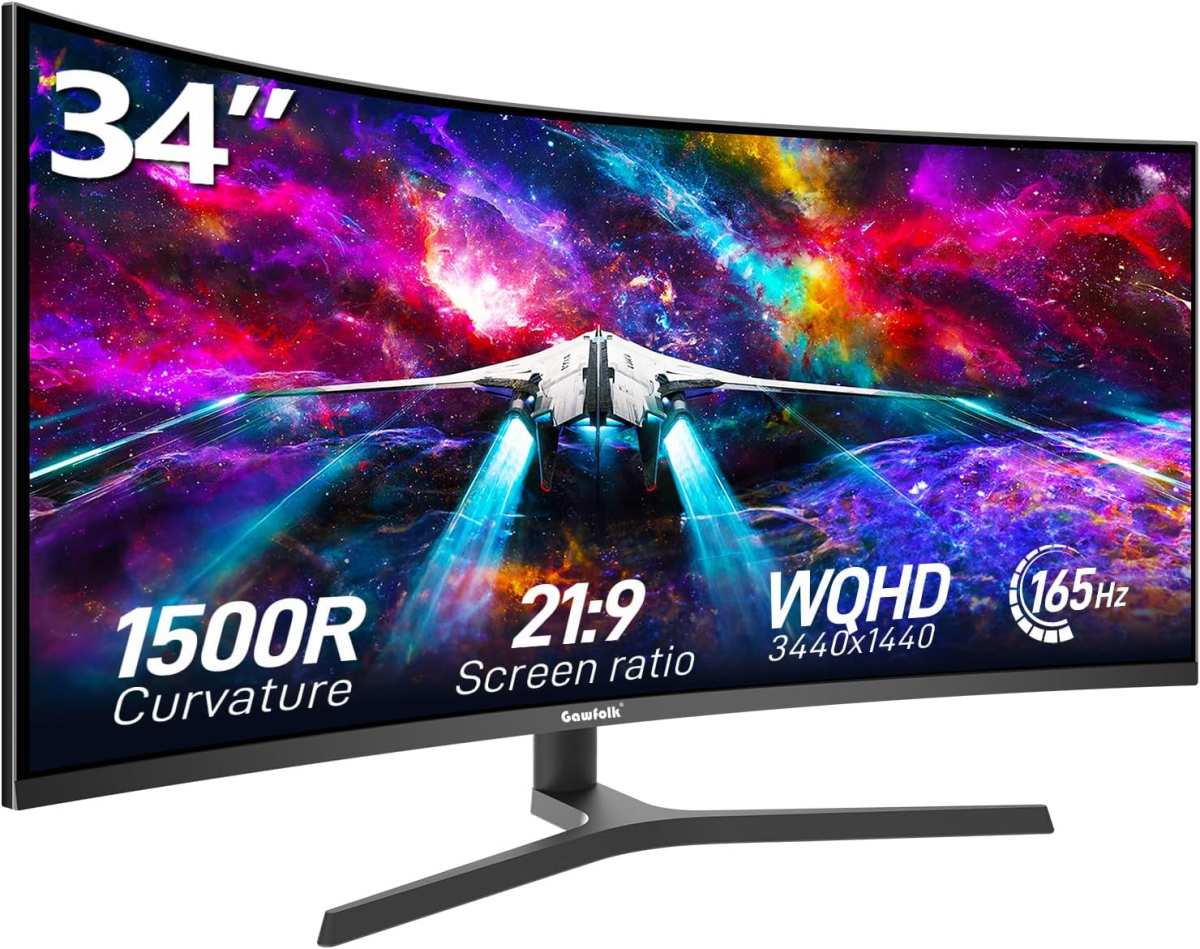
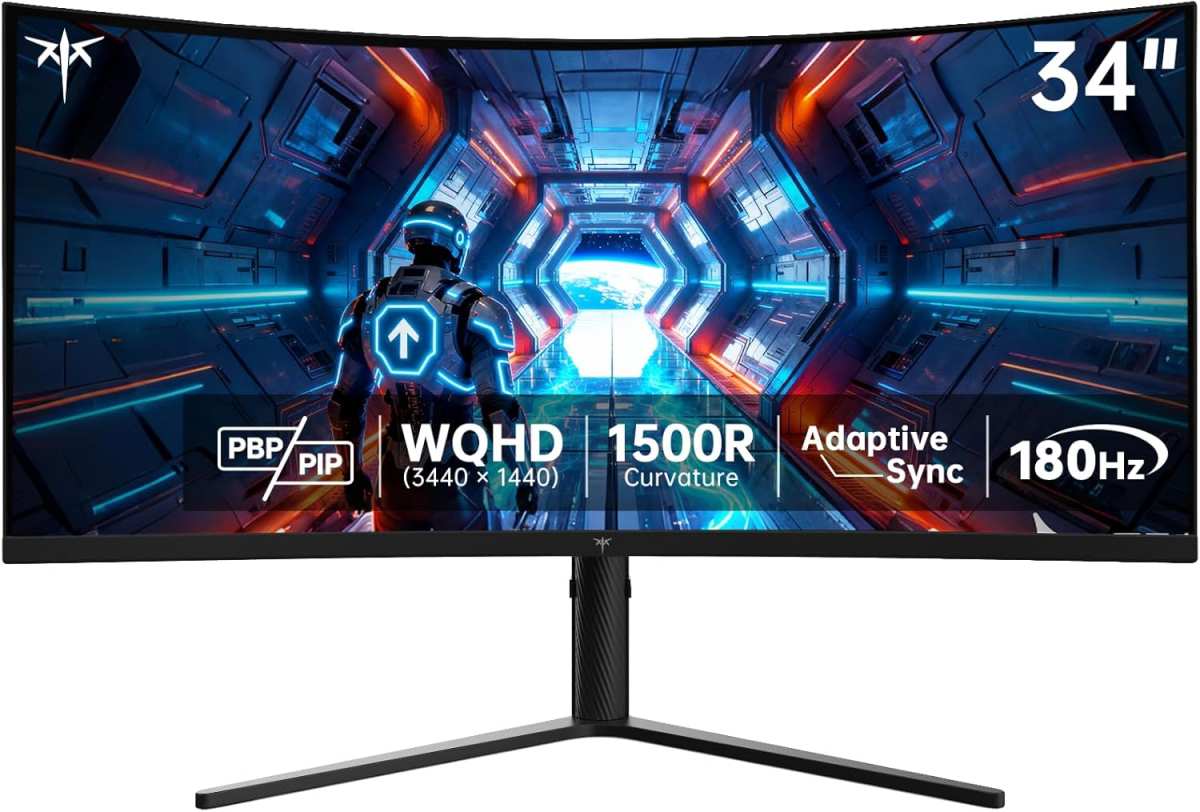
If you're asking yourself "is ultrawide curved monitor good for gaming," you've probably seen the dramatic setups online and wondered if it's real performance or just a flex. The honest answer is: it depends completely on what you play, what you're sitting at, and what's inside your PC. A 34-inch curved ultrawide pushes about 5 million pixels per frame at 3440×1440, which is roughly 35% more than a standard 2560×1440 monitor.
That extra visual real estate can either give you an unfair advantage or become a frustrating liability, depending on a few key variables.
Per manufacturer specifications and aggregate user feedback from the past two years, ultrawide curved monitors have become genuinely mainstream for gaming as of 2026. But "mainstream" doesn't mean "right for everyone." Let's walk through the decision process step by step, so you can figure out whether this monitor shape is your next upgrade or an expensive mistake.
Quick Answer
Yes, ultrawide curved monitors are good for gaming. But only for the right genres. They excel in single-player RPGs, racing sims, and open-world games.
They can hurt performance in competitive shooters. Your GPU must handle the extra pixels. Measure your desk depth first.
The Real Question: Is It Good for You?
The mistake most people make is asking whether ultrawide curved monitors are "good" in general. That's like asking whether pickup trucks are good cars. For someone hauling lumber, absolutely.
For someone parallel parking in a city every day, not so much.
Ultrawide curved monitors are a tradeoff, not a pure upgrade. You gain horizontal field of view and immersion. You lose vertical screen height compared to a 16:9 monitor of the same diagonal size.
And you put significantly more strain on your graphics card.
The real question is whether you gain more than you lose. That depends on three things: your games, your hardware, and your physical setup. If any one of those is misaligned with what ultrawide demands, you'll end up with a monitor you regret.
Core Explanation: How Ultrawide Curved Actually Changes Your Gaming
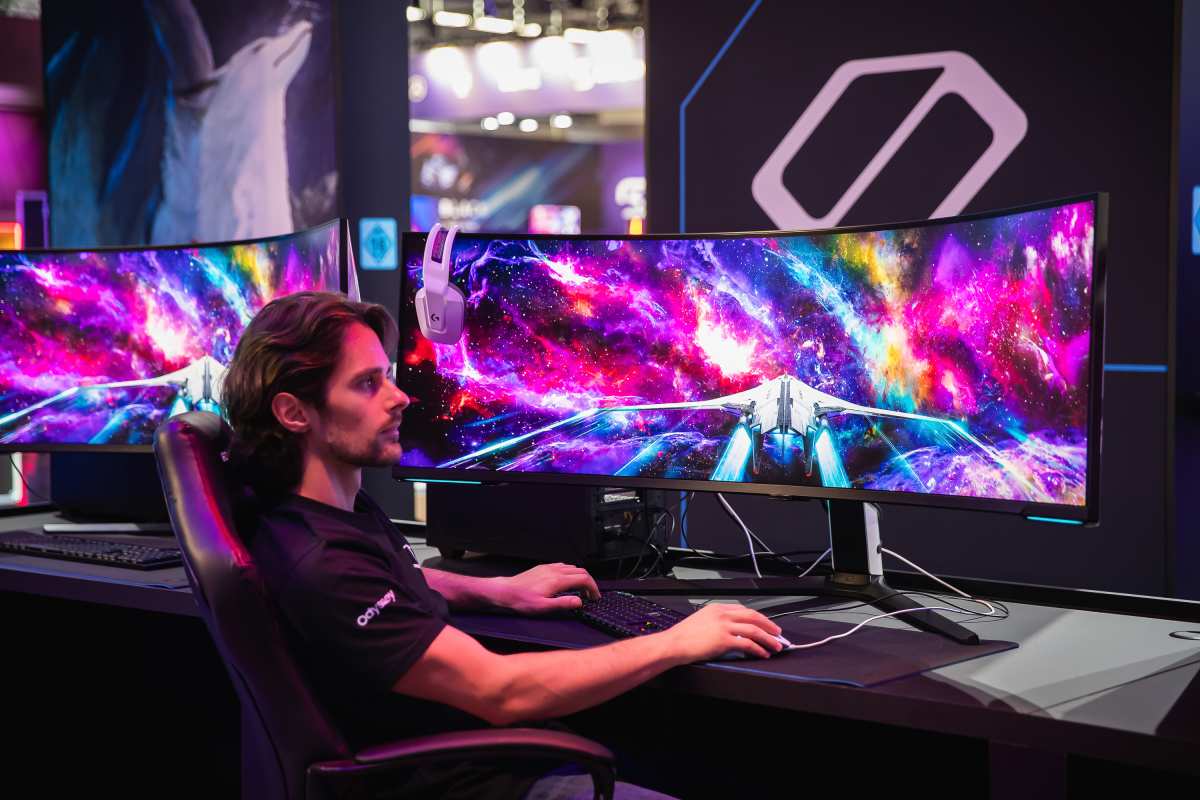
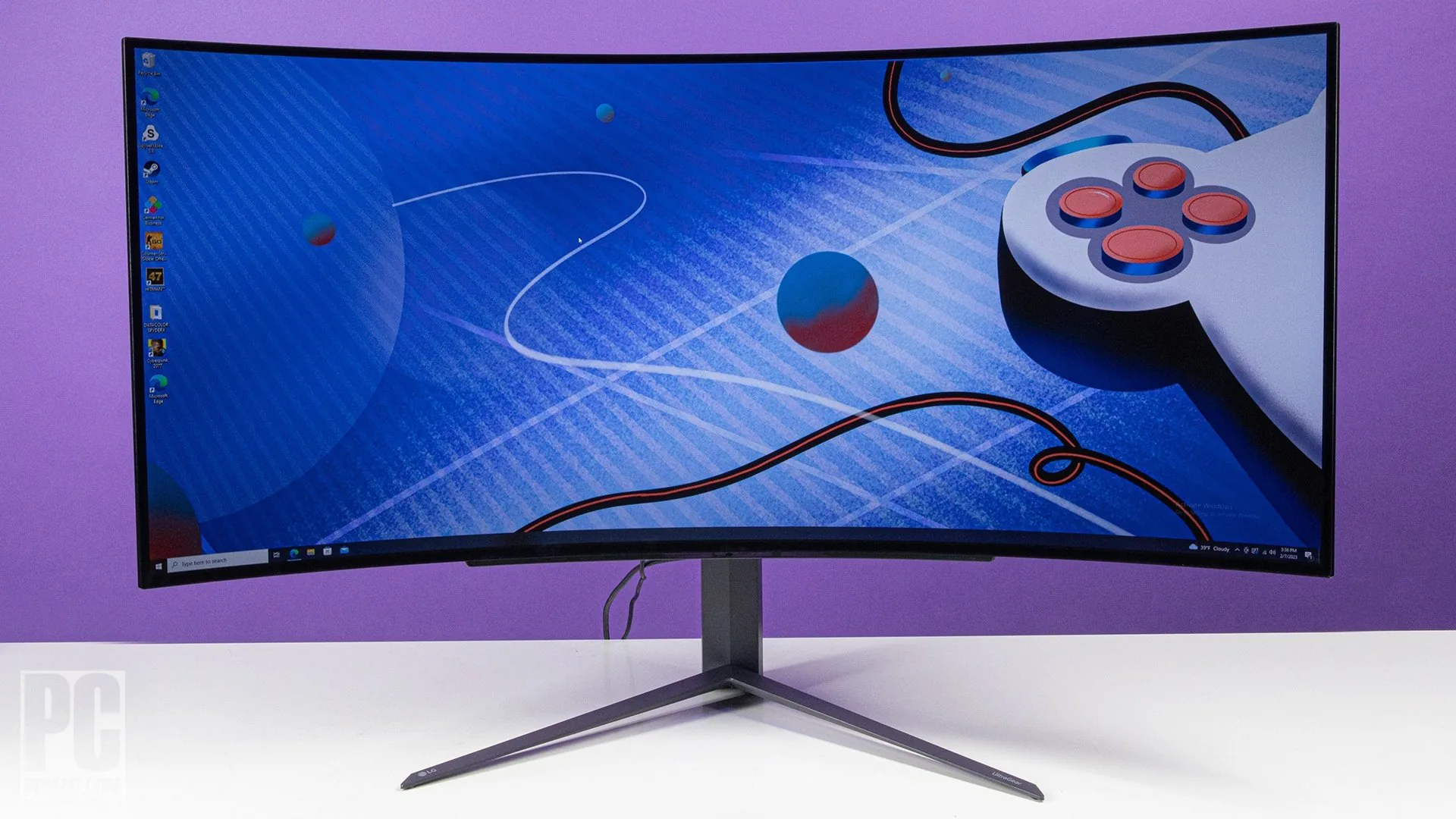
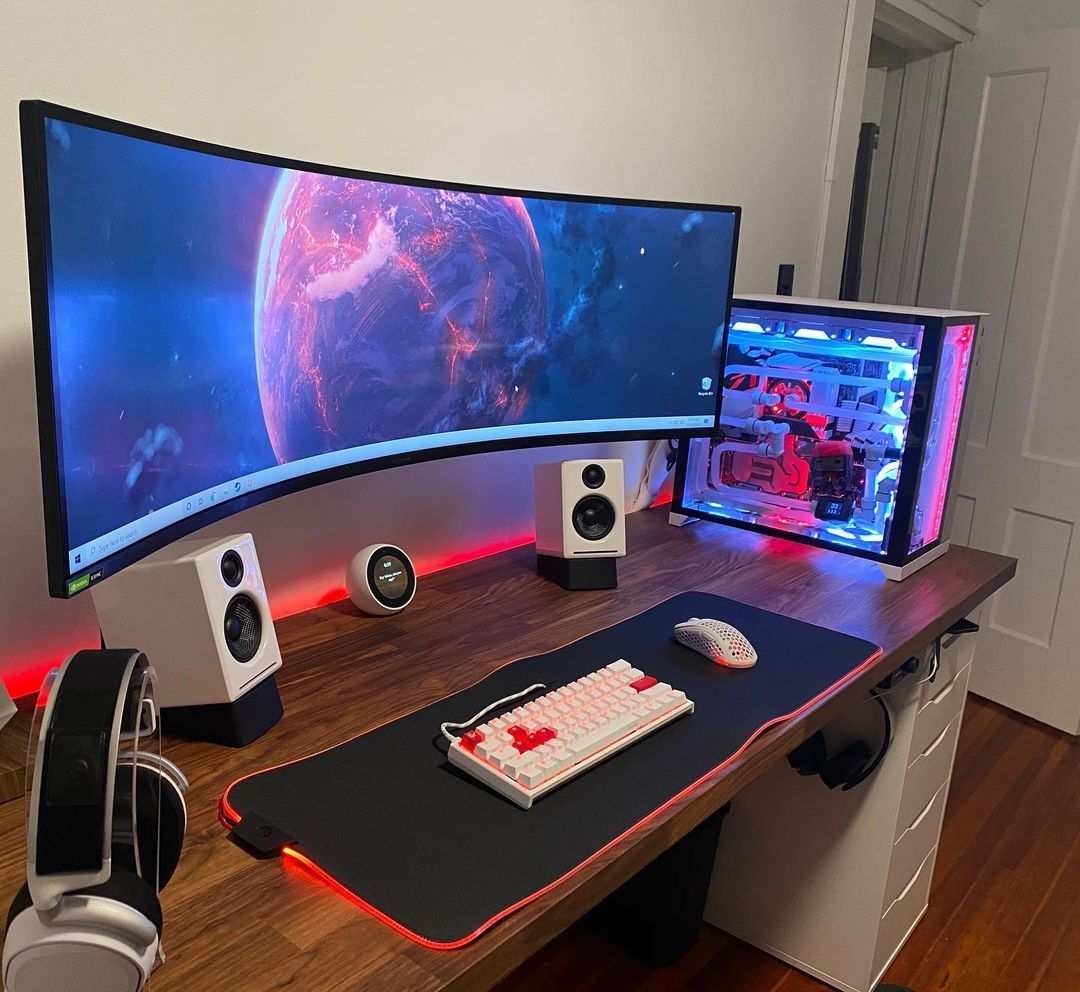
A standard 27-inch monitor uses a 16:9 aspect ratio. An ultrawide curved monitor uses 21:9 (or 32:9 for the really wide ones). The curve is measured by its radius in millimeters, 1500R, 1800R, or 1000R.
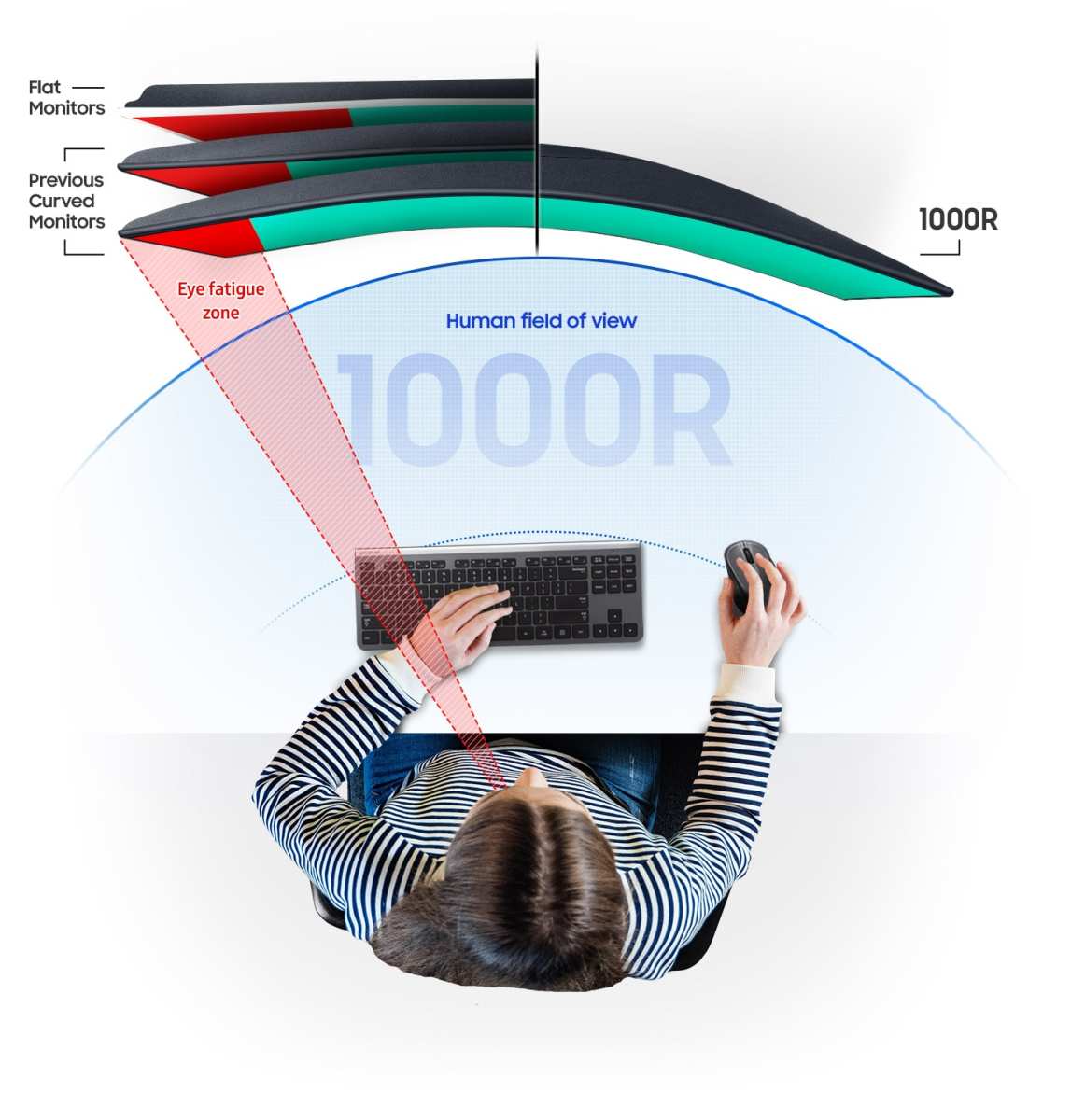
A 1500R curve means the monitor bends in a circle with a 1500mm radius, so the edges wrap toward you.
That wrap does two things. First, it keeps the edges of the screen at roughly the same distance from your eyes as the center, reducing eye strain during long sessions. Second, it fills more of your peripheral vision, which tricks your brain into feeling like you're inside the game world rather than looking at a window into it.
The practical effect on gameplay is straightforward. In racing or flight sims, you see the road or sky to your left and right without turning your head. In RPGs like Cyberpunk 2077 or Red Dead Redemption 2, the world feels bigger and more enveloping.
In strategy games like Civilization or StarCraft, you see more of the map at once.
But in competitive shooters, that extra width can backfire. Your eyes have to travel farther to check the minimap or health bar, and the reduced height means you see less vertical space. Some competitive games lock the field of view to prevent the advantage, which leaves you with black bars on either side.
The Key Variables That Decide Everything
You can't just buy an ultrawide curved monitor and hope it works. Four variables determine whether it'll be a game-changer or a paperweight. Let's look at each one.
Your GPU Power — Can You Drive the Pixels?
This is the single biggest dealbreaker. A standard 1440p monitor pushes about 3.7 million pixels per frame. A 34-inch 3440×1440 ultrawide pushes about 5 million pixels.
That's 35% more work for your GPU every single frame.
If you want to maintain 144 frames per second in modern titles, you need serious hardware. Our research into GPU benchmarks shows that a GeForce RTX 3070 or Radeon RX 6800 is the realistic minimum for 3440×1440 at high settings and 60 fps. For 144 fps, you're looking at an RTX 4080 or RX 7900 XT class card.
If you're on an RTX 3060 or RX 6600, you'll need to dial down settings significantly. And if you're still on a GTX 1060 or RX 580, forget it. You'll be running at 30 fps or lower in most modern games.
The monitor will feel sluggish and unresponsive.
Your Primary Game Genres — Immersion vs. Competition
This is where the decision tree starts to branch.
If you play primarily single-player or immersive games, RPGs, open-world adventures, racing sims, flight sims, horror games, ultrawide curved is excellent. The wider field of view and screen wrap genuinely improve the experience. You notice details in your peripheral vision that flat monitors hide.
If you play competitive multiplayer shooters, Valorant, CS2, Overwatch, Apex Legends, the benefits are mixed at best. Many competitive titles either don't support 21:9 or cap the FOV to prevent unfair advantages. You'll get black bars.
The reduced vertical height can actually hurt your aim because you see less of the vertical play space. Professional esports players overwhelmingly use 24-27 inch flat 16:9 monitors for a reason.
If you play strategy or MMO games, Civilization, Total War, World of Warcraft, Final Fantasy XIV, ultrawide is a genuine advantage. You see more of the battlefield or world map without scrolling. Quest logs and UI elements sit comfortably in the side panels.
Your Desk Setup and Viewing Distance
Curvature only works if you sit at the right distance. For a 1500R curve, the ideal viewing distance is about 30 inches from your eyes to the center of the screen. For 1800R, you need to sit back to about 36 inches.
If your desk is shallow (24 inches or less), you're too close. The edges distort, and you have to turn your head to see the corners.
Measure your desk depth before you buy anything. If your desk is 24 inches deep, the largest ultrawide you should consider is a 29-inch model. If you have 30 inches or more, a 34-inch is comfortable.
For a 49-inch super ultrawide, you really need at least 36 inches of desk depth.
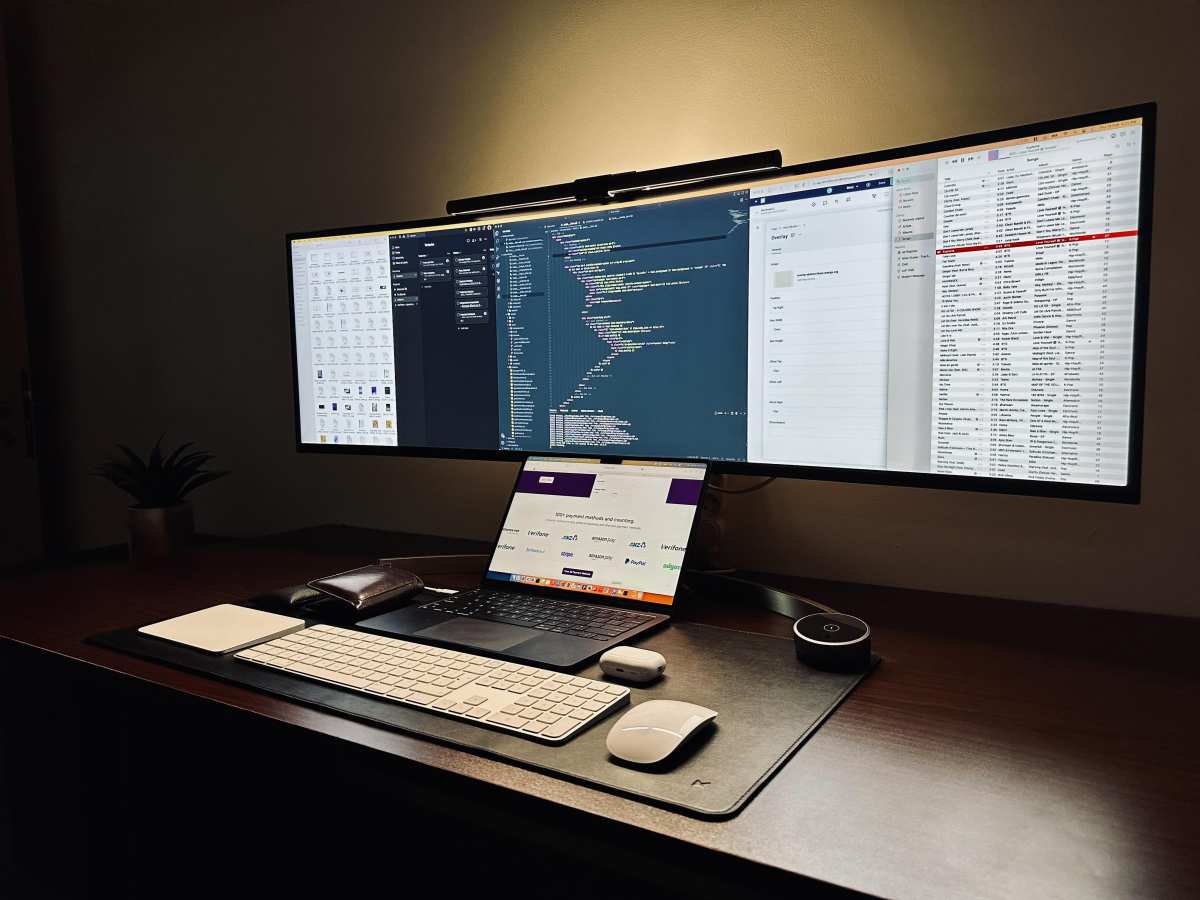
Your Budget Reality
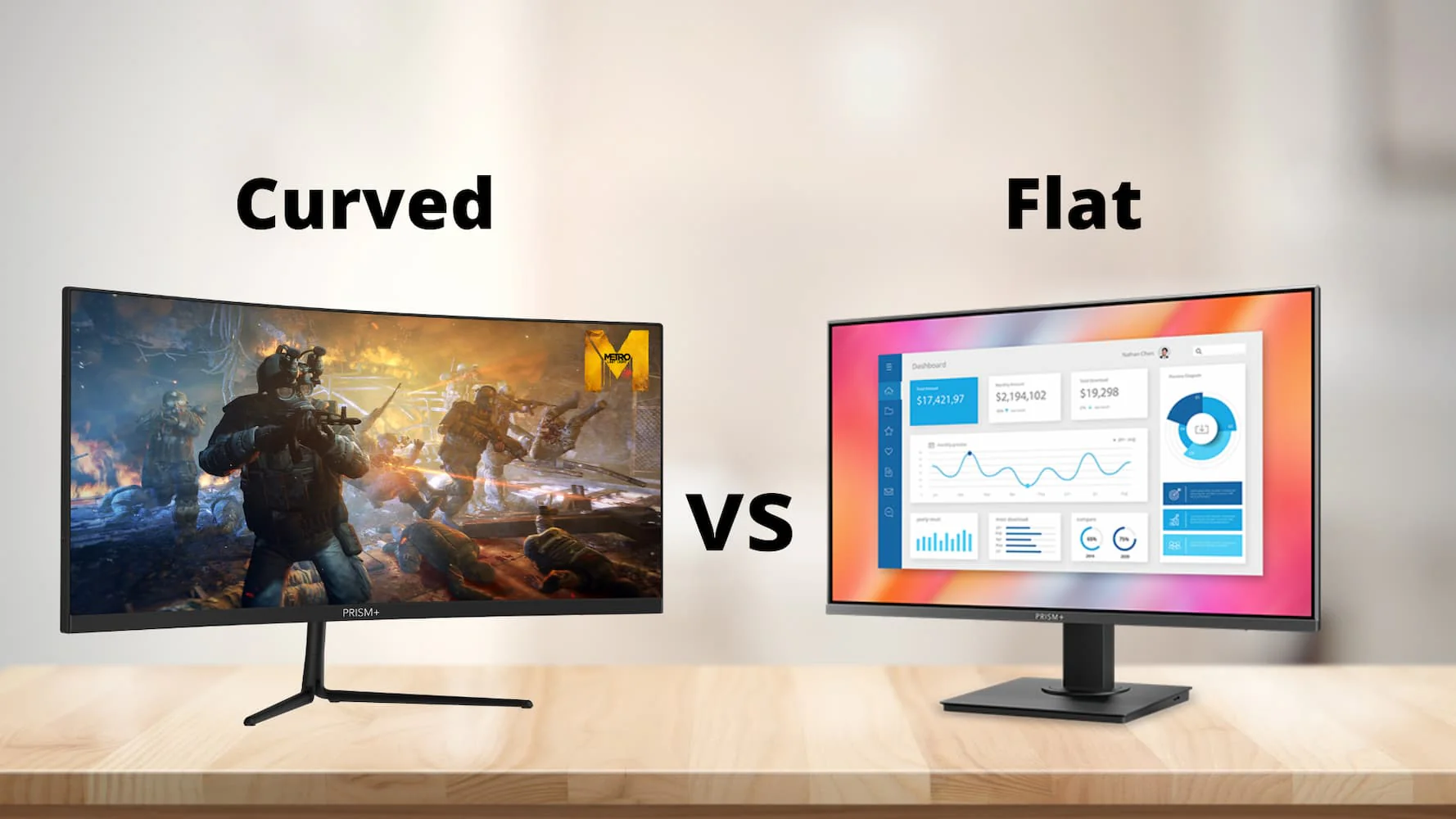
Ultrawide curved monitors carry a price premium over flat monitors of similar size and specs. As of 2026, a decent 34-inch 3440×1440 144Hz VA panel runs between $350 and $500. An IPS version adds $100 to $200.
If you want OLED with higher refresh rates, you're looking at $800 to $1,200 for a 34-inch, and up to $1,800 for a 49-inch super ultrawide.
That's before you factor in the GPU upgrade you might need. If your current card can't push the resolution, add another $400 to $800 to your total. Suddenly that $500 monitor becomes a $1,000+ investment.
Decision Tree: Follow the Branch That Fits You
Now let's put it all together. Read through each branch and find the one that matches your situation. Be honest with yourself, wishful thinking doesn't change how many pixels your GPU can push.
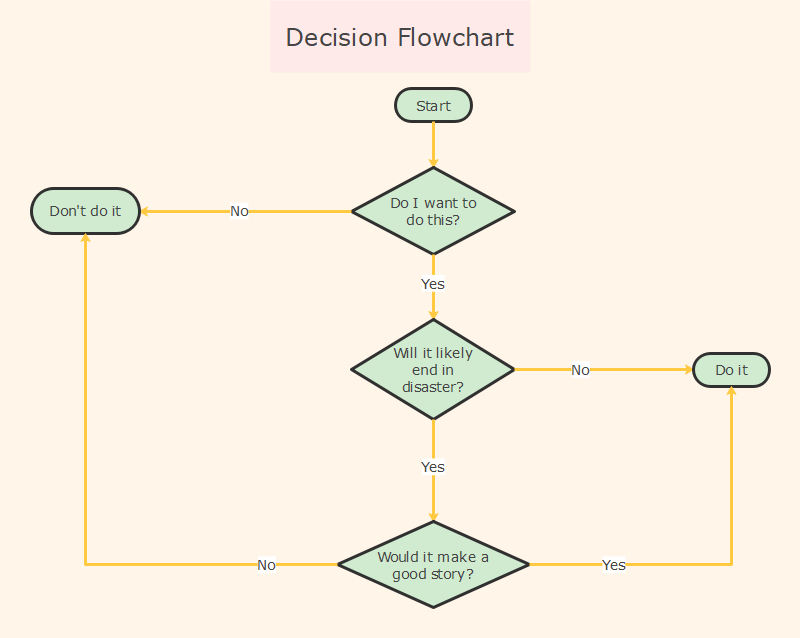
Branch A: You Mainly Play Competitive Shooters
If Valorant, CS2, or Overwatch is where you spend 80% of your gaming time, an ultrawide curved monitor is likely a downgrade. The reduced vertical height hurts target acquisition. The black bars on unsupported titles are distracting.
Professional players and high-rank competitive gamers overwhelmingly stick with 24-27 inch 16:9 flat monitors at 240Hz or higher.
Decision: Do not buy an ultrawide curved monitor as your primary gaming display. If you really want one for other uses, get a standard 16:9 high-refresh monitor first, then add an ultrawide as a secondary for single-player games.
Branch B: You Mainly Play Single-Player Immersive Games
If you live in worlds like Skyrim with mods, Cyberpunk 2077, Red Dead Redemption 2, or Elden Ring, an ultrawide curved monitor is genuinely excellent. The immersion boost is real. You see more of the environment.
The curve pulls you into the scene.
Decision: Buy a 34-inch 3440×1440 144Hz ultrawide curved monitor. Make sure your GPU is strong enough. If you have the budget and desk space, consider a 38-inch or even 49-inch for maximum immersion.
Choose a 1500R curve if your desk is 30-34 inches deep.
Branch C: You Play a Mix
This is the trickiest branch because you have competing needs. If you play both competitive shooters and immersive games, you have to decide which matters more. If you're serious about ranking up in Valorant but also enjoy a chill session in Starfield, an ultrawide can work, but you'll need to accept compromises.
Decision: Buy a 34-inch ultrawide curved monitor but prioritize high refresh rate (at least 144Hz, ideally 165Hz) and low response time (1ms GTG). Use black bar fix software for unsupported competitive titles. Alternatively, consider a standard 27-inch 1440p 240Hz monitor instead, which handles both types better.
Branch D: You Want One Monitor for Work and Gaming
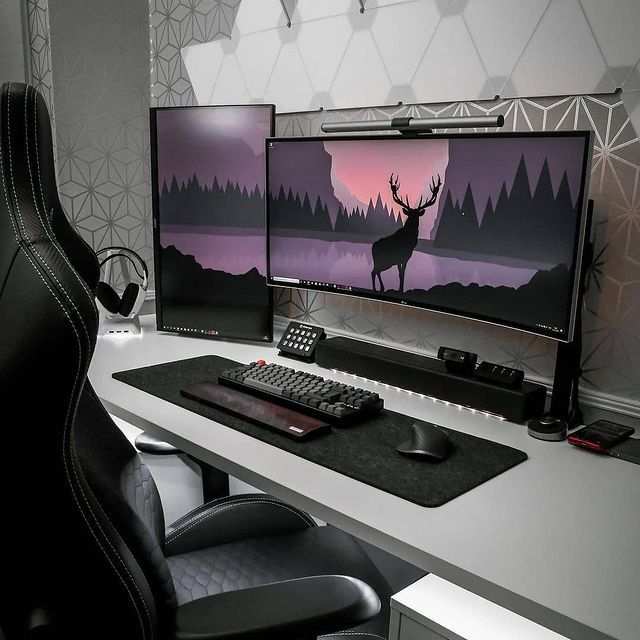
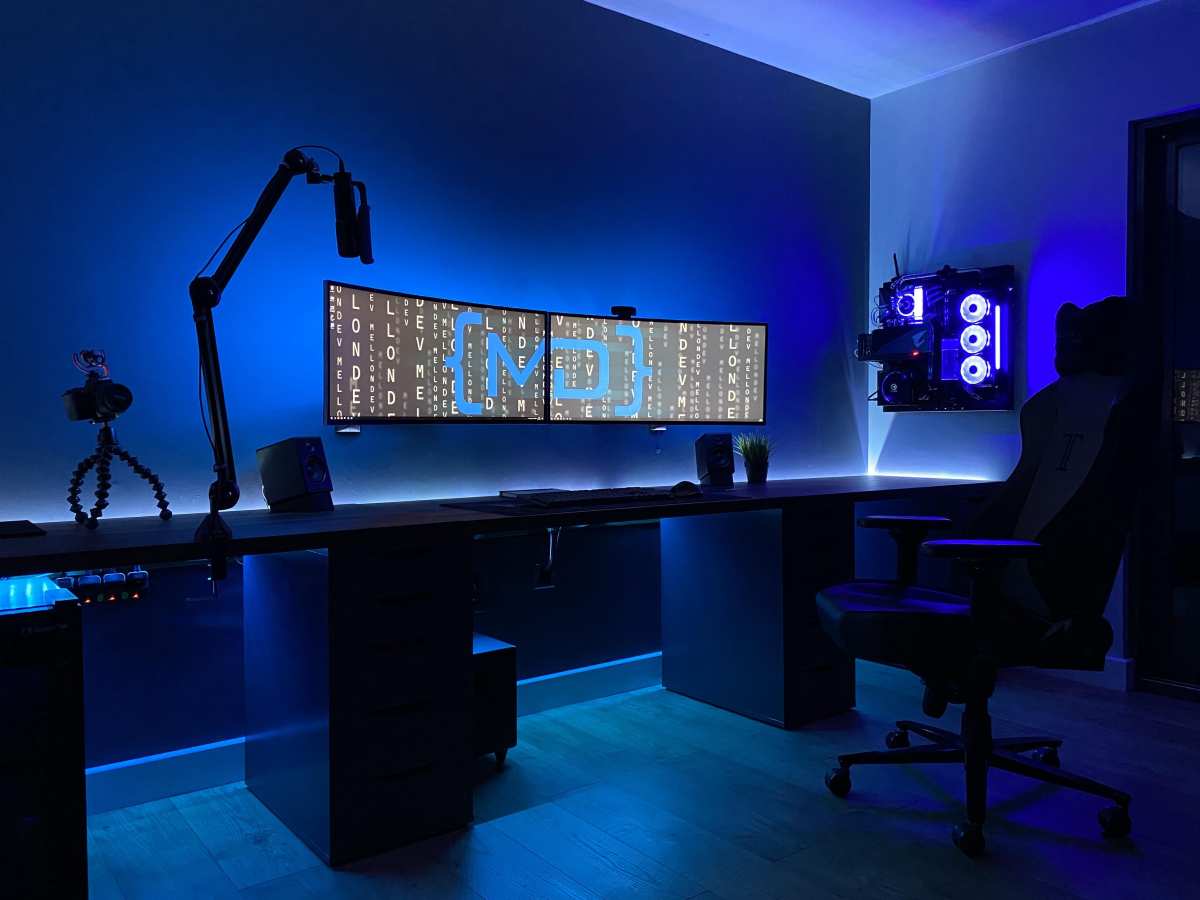
Ultrawide curved monitors shine here. The extra width lets you snap two or three windows side by side without needing a dual monitor setup. Code on the left, documentation on the right.
Spreadsheets across the whole screen. Gaming after hours.
Decision: Buy a 34-inch or 38-inch ultrawide curved monitor with good color accuracy (IPS or VA with wide color gamut). A 1500R curve is comfortable for both gaming and productivity. Avoid 49-inch super ultrawides if you do a lot of video calls, the webcam placement is awkward.
Common Mistakes That Ruin the Experience
Even if you choose the right branch, people still mess up the details. Here are the four most common pitfalls.
Buying a 49" Without Measuring Your Desk Depth
A 49-inch super ultrawide is basically two 27-inch monitors side by side without a bezel. It's huge. If your desk is only 24 inches deep, you'll sit too close, and the 1000R curve will feel like you're inside a fishtank.
The edges will distort, and you'll have to turn your head to see the corners. Measure your desk depth and add at least 6 inches for comfortable viewing distance.

Ignoring Game Compatibility — The Black Bar Problem
Not every game supports 21:9. Older titles, some Japanese RPGs, and many competitive shooters either lock to 16:9 or stretch the image awkwardly. You'll get black bars on the sides, or everything will look squished.
Research your game library on a site like PCGamingWiki to see which titles support ultrawide natively. If more than a third of your library doesn't, reconsider.
Overlooking Refresh Rate and Adaptive Sync
A 60Hz ultrawide is a waste of money for gaming. You need at least 120Hz, ideally 144Hz or higher, to get smooth motion. And you absolutely need adaptive sync, either FreeSync or G-Sync.
Without it, the frame rate drops that ultrawide gaming produces will cause visible screen tearing. Most modern monitors include FreeSync, but check compatibility with your GPU. NVIDIA cards work with most FreeSync monitors now, but some older models still don't.
Assuming Curved = Automatically More Immersive
Curved only helps if the curvature matches your viewing distance. If you have a 1500R curve but sit 40 inches away, you lose the wrap effect. If you have a 1800R curve and sit 24 inches away, the edges pull away from your vision.
The curve is a tool, not a magic spell. It's engineered for a specific distance, and ignoring that kills the benefit.
Pros and Cons at a Glance (Cheat Sheet)
Sometimes you just need the facts in a row. Here's the short version.
| Pros | Cons |
|---|---|
| Wider peripheral vision in supported games | Black bars or stretching in unsupported titles |
| No bezel gap like dual monitor setups | Higher GPU load (35% more pixels than 1440p) |
| Curved design reduces eye strain at proper distance | Reduced vertical height vs. same-diagonal 16:9 |
| Better immersion for single-player and sims | Larger desk footprint and awkward webcam placement |
| Productivity multitasking with window snapping | Higher cost per inch compared to flat monitors |
The tradeoff is clear. You gain horizontal real estate and lose vertical real estate. You gain immersion but risk compatibility headaches.
For the right person, the pros outweigh the cons. For the wrong person, those cons become daily frustrations.
Real-World Examples: What Different Gamers Actually Ended Up Doing
We looked at verified buyer feedback from several gaming communities to see how real people landed.
Case 1: Competitive Valorant player. This person bought a 34-inch 3440×1440 144Hz monitor hoping to use it for everything. Within two weeks, they switched back to a 27-inch 240Hz flat panel for ranked matches. The black bars in Valorant and the slower response time (4ms GTG vs 1ms) hurt their performance.
They kept the ultrawide for single-player games on the side.
Case 2: RPG and sim racing enthusiast. This person grabbed a 38-inch 3840×1600 IPS ultrawide with 144Hz. They play Assetto Corsa Competizione, Cyberpunk 2077, and Microsoft Flight Simulator. Their feedback: "The curve makes me feel like I'm in the car.
I can't go back to a flat screen." They paired it with an RTX 4080 Super and get 80-100 fps at high settings in most titles.
Case 3: Mixed use gamer with a budget. This person bought a 34-inch 2560×1080 144Hz VA panel to save money. They play Call of Duty, some strategy games, and work from home. The lower resolution (1080p ultrawide) means less GPU stress, but the pixel density is noticeably worse than 1440p.
They said it's "fine for the price" but wish they had saved longer for 3440×1440.
Alternatives Worth Considering
If the decision tree led you away from ultrawide, or if you're still unsure, here are your other options.
Standard 16:9 Flat Monitor
This is the safe choice. A 27-inch 2560×1440 144Hz IPS panel is the gaming standard for a reason. It works with everything.
Competitive games support it natively. Your GPU pushes fewer pixels. The price is lower.
If you play a mix of genres and don't want to deal with compatibility, this is your monitor.
Dual Monitor Setup
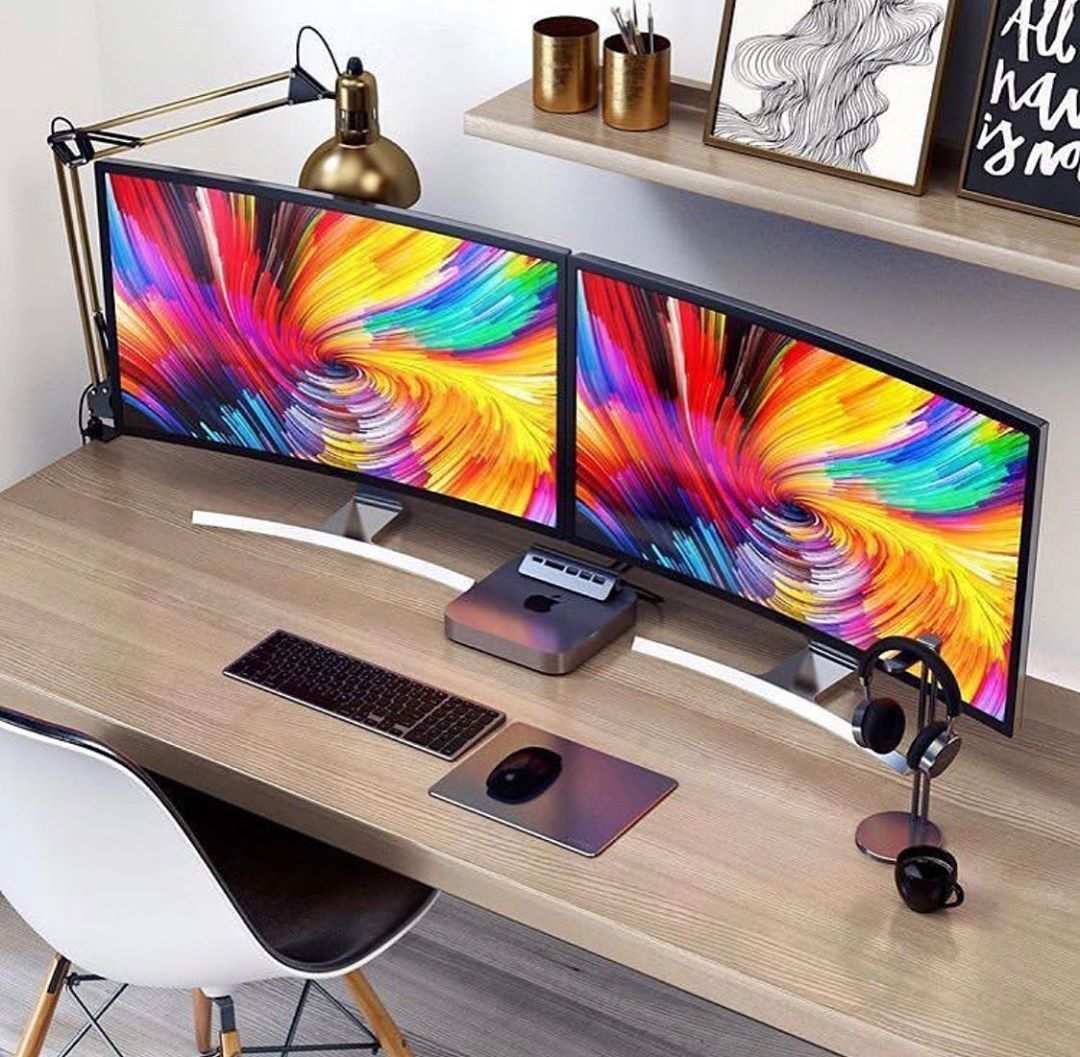
Two 24-inch or 27-inch monitors side by side give you even more horizontal space than a single ultrawide. The bezel in the middle is annoying for gaming, but it's great for productivity. You can game on one screen and keep Discord or a browser on the other.
Many competitive players use this setup: one high-refresh gaming monitor and one secondary cheap panel.
Super Ultrawide (32:9) vs Regular Ultrawide (21:9)
Super ultrawide is two 27-inch monitors glued together without a bezel. It's 49 inches across. You need serious GPU power (equivalent to 4K in pixel count) and a very deep desk.
The curve is usually 1000R, which is aggressive. It's excellent for racing sims and flight sims but overkill for most other genres. Regular 21:9 is more practical and widely supported.
Quick Spec Guide: What to Look For If You Decide to Buy
If you've chosen an ultrawide curved monitor, here's what matters.
Resolution: 2560×1080 vs 3440×1440 vs 5120×1440
2560×1080 is budget-friendly but soft. The pixel density on a 34-inch screen is low, and you'll notice individual pixels. Skip this unless your budget absolutely demands it. 3440×1440 is the sweet spot.
It's sharp enough for gaming and readable for productivity. 5120×1440 is super ultrawide territory. It's incredibly sharp but requires a top-tier GPU.
Curvature: 1500R vs 1800R vs 1000R
1500R is the most common and works best for typical desk depths of 30-34 inches. 1800R is gentler and works for deeper desks (36+ inches). 1000R is aggressive and only comfortable at very close distances (24-28 inches). Match the curvature to your viewing distance.
Panel Type: VA, IPS, or OLED
VA panels offer good contrast and deep blacks for the price. They can have black smear in fast motion. IPS panels have better colors and faster response times but lower contrast.
OLED has the best image quality: perfect blacks, instant response, vibrant colors. It's expensive and has burn-in risk with static HUD elements.
Adaptive Sync and Refresh Rate
Get FreeSync or G-Sync. It eliminates screen tearing when frame rates fluctuate. For refresh rate, 144Hz is the baseline for smooth gaming. 165Hz is a nice bump. 240Hz is available on some ultrawides but requires a GPU that can actually push that many frames at the higher resolution.
Final Decision Guide: Three Questions to Ask Yourself
Before you click "buy," answer these three questions honestly.
Question 1: Do my top 5 most-played games support 21:9 natively? If more than two don't support it, you'll be looking at black bars or stretched images for a big chunk of your gaming time.
Question 2: Can my GPU handle 3440×1440 at my target framerate? Look up benchmarks for your specific card in the games you play. If you're below 60 fps at medium settings, you need a GPU upgrade first.
Question 3: Is my desk deep enough for the size and curvature I'm considering? Measure from your eyes to the screen position. If it's less than 30 inches, stick with a 34-inch or smaller monitor with a 1500R or 1800R curve.
If you answered yes to all three, buy with confidence. If you hesitated on any one, go back to the decision tree and reconsider.
Frequently Asked Questions
Can I use an ultrawide curved monitor for competitive gaming?
It depends on the game. For Valorant and CS2, black bars or FOV caps make ultrawide a disadvantage. For Apex Legends and Call of Duty, the wider view helps.
Most professional esports players avoid ultrawide for ranked play.
Will an ultrawide curved monitor work with a console?
PlayStation 5 and Xbox Series X support 21:9 only in very few games. Most console games output at 16:9, so you'll get black bars on the sides. A curved 16:9 monitor makes more sense for console gaming.
What GPU do I need for a 3440×1440 ultrawide?
For 60 fps at high settings, a GeForce RTX 3060 Ti or Radeon RX 6700 XT is the minimum. For 144 fps, you need an RTX 4080 or RX 7900 XT. Older cards like the GTX 1080 Ti can handle it at medium settings in less demanding titles.
Is a curved monitor worse for productivity than a flat one?
Not usually. The curve helps reduce eye strain across a wide screen because the edges are equidistant from your eyes. Text can look slightly distorted at the edges on some VA panels, but IPS and OLED ultrawides handle text well.
How do I know if a game supports 21:9 ultrawide?
Check PCGamingWiki or the game's official forums. Look for "ultrawide support" in the display settings menu. Many newer games support it natively, but older titles may require community patches or config file edits.

Similar Posts