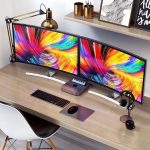
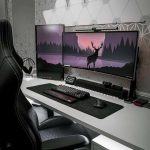
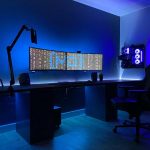
what size curved monitor is best for gaming
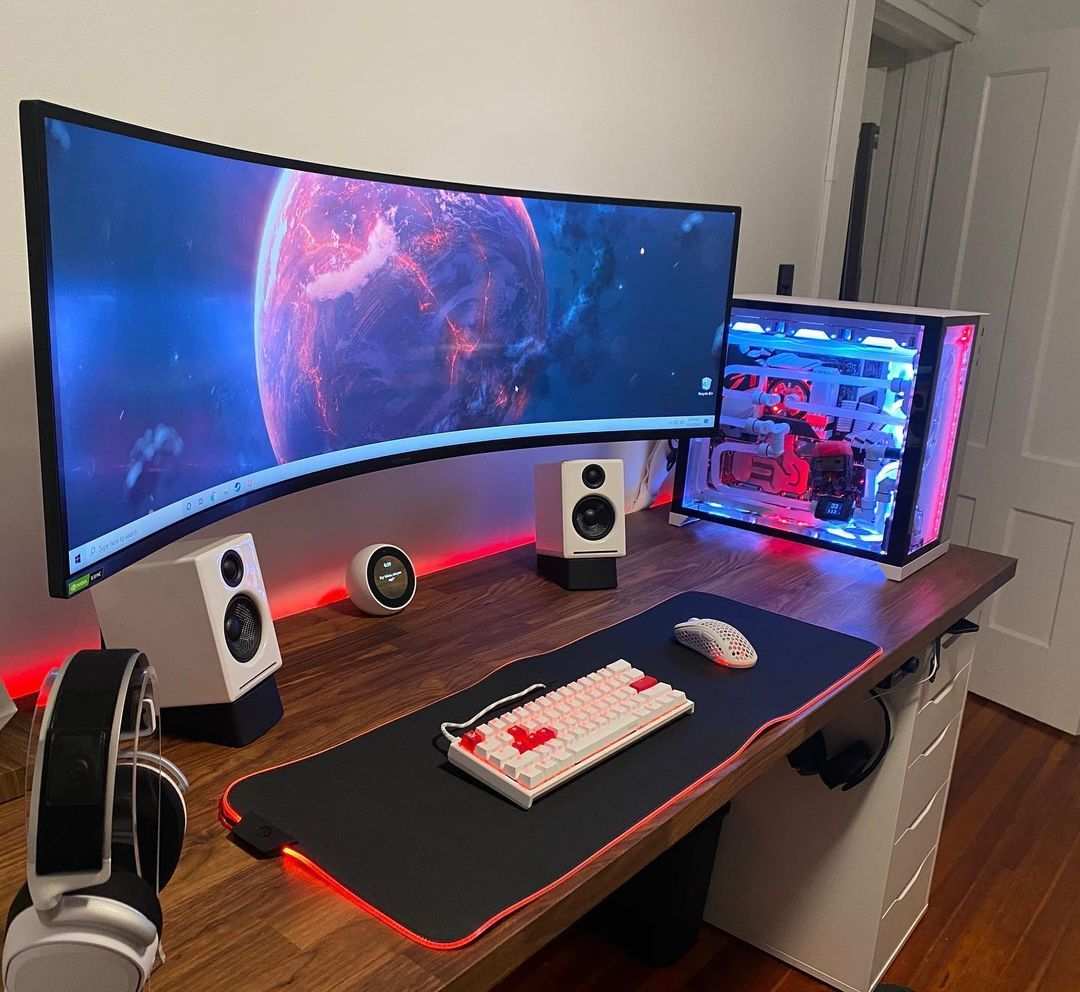
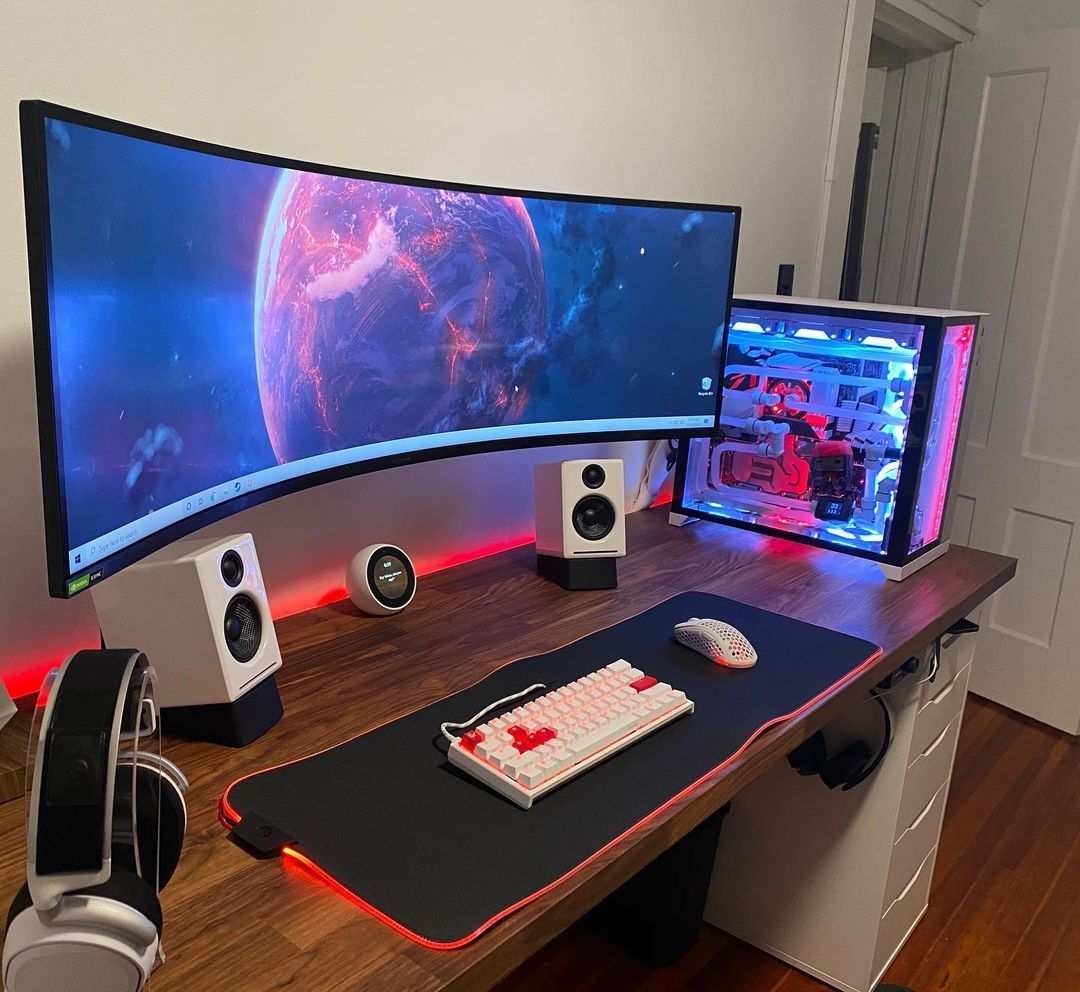
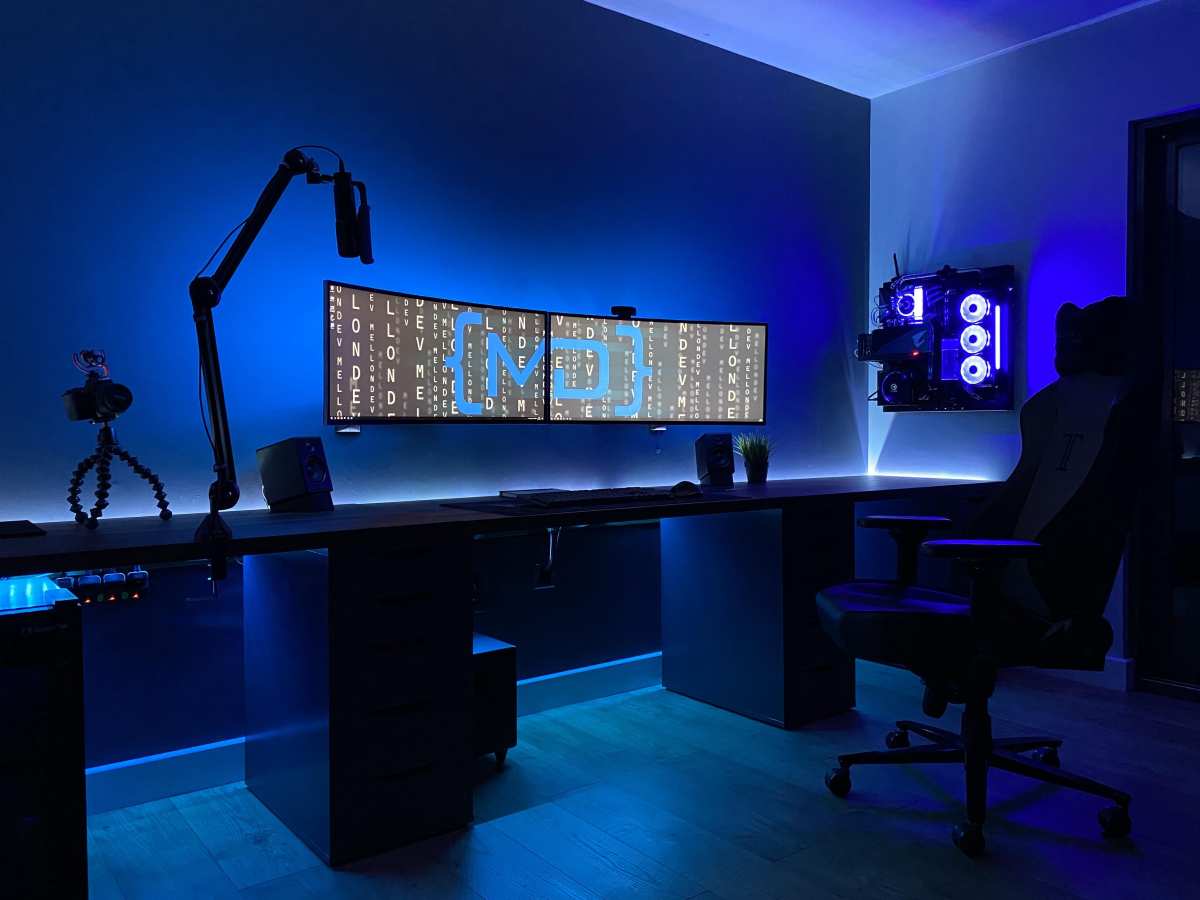
You've probably seen those huge curved monitors in gaming setups and wondered if bigger is always better. The truth is, what size curved monitor is best for gaming depends entirely on where you sit and what you play. A 49-inch super ultrawide looks incredible in a YouTube thumbnail, but it's a nightmare on a cramped desk.
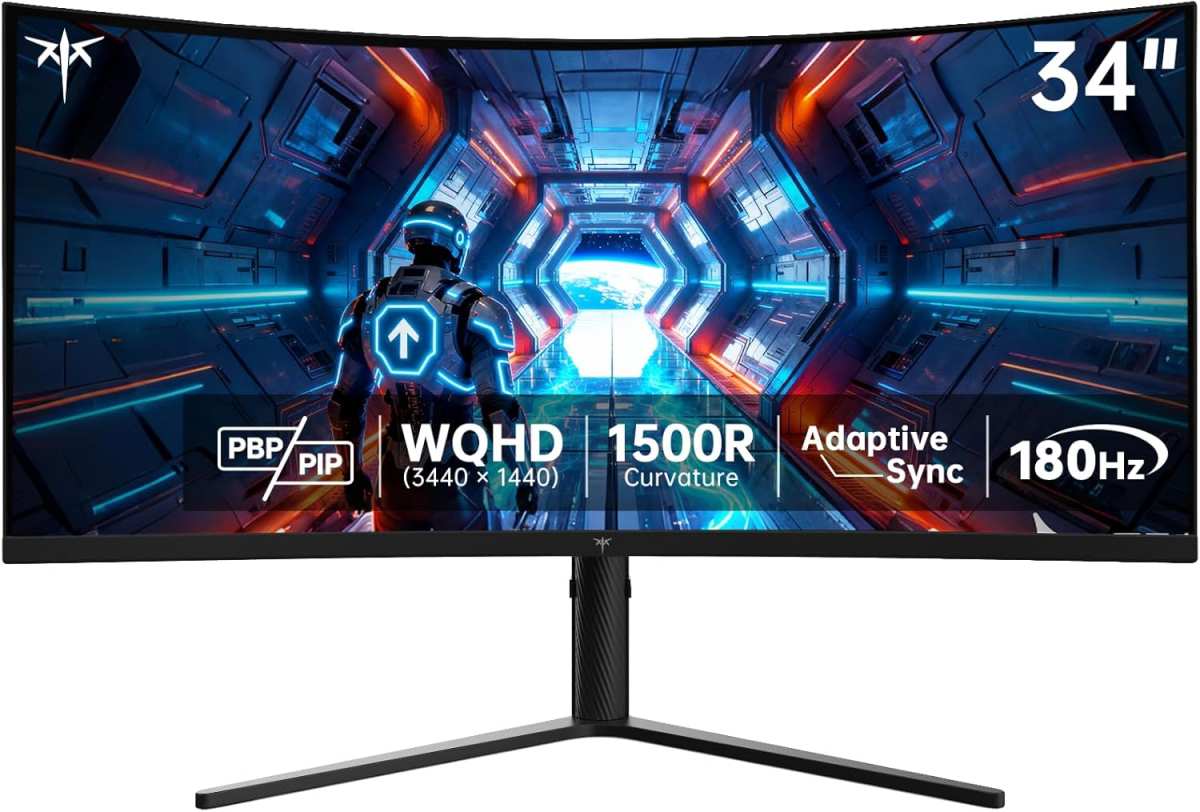
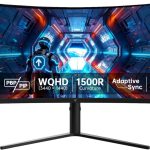
Our research shows that the most overlooked factor in monitor sizing is the curvature radius itself. The industry standard 1500R curve, for example, creates a perfect arc at about 1.5 meters from your eyes, but most gamers sit closer than that. That mismatch causes eye strain and kills immersion.
Let's break down why the one-size-fits-all advice you've heard is probably wrong for your exact situation.
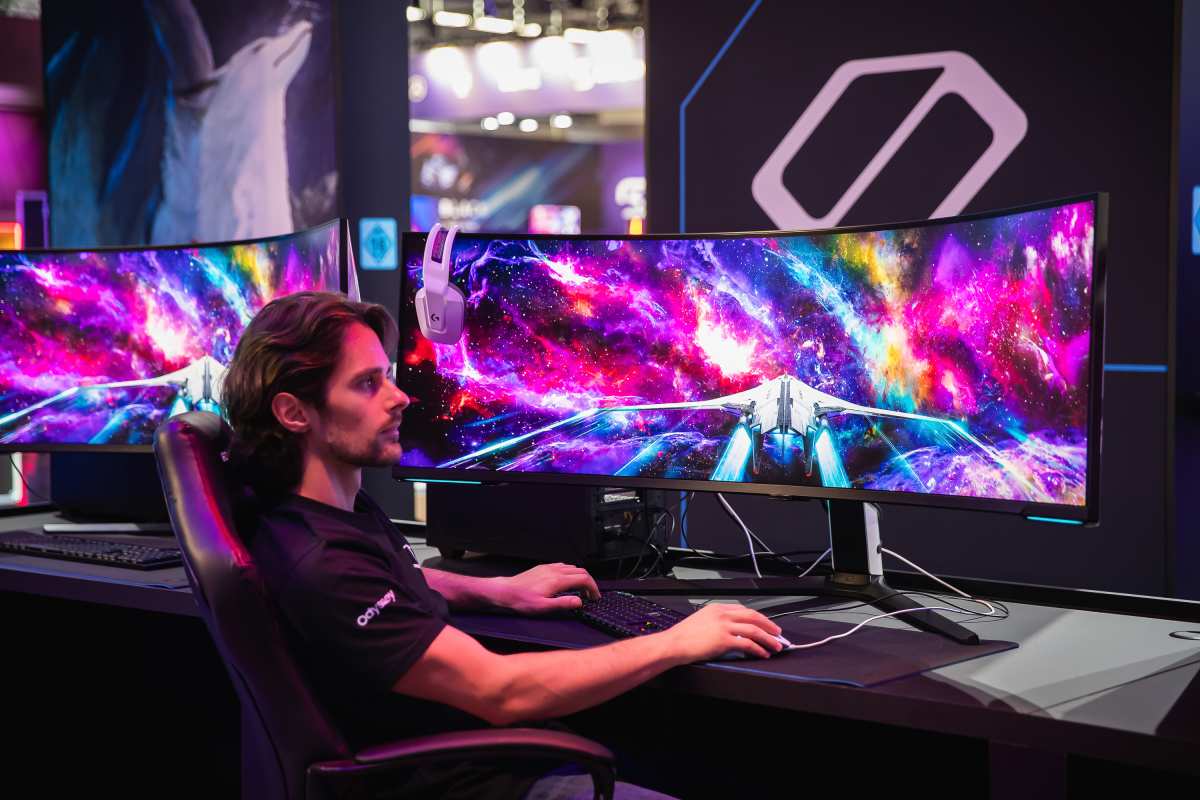
Image source: Bing (Web (fair-use with source credit))
The Real Problem: Why "One Size Fits All" Advice Fails Gamers
Every few months, a new "best curved monitor size" listicle drops online. They all say the same thing: "27-inch is good for competitive, 34-inch ultrawide is immersive, 49-inch is for racing." That's not wrong, exactly. But it's dangerously oversimplified.
The problem is that those recommendations ignore three massive variables: your physical space, your game library, and your graphics card. A 34-inch ultrawide at 1500R works beautifully on an 80cm desk with an RTX 4080. Put the same monitor on a 55cm desk with a GTX 1660, and you get a blurry, headache-inducing mess.
You don't buy a curved monitor the same way you buy a flat one. With a flat screen, you can sit anywhere and still see a normal rectangle. With a curve, the geometry of the screen is designed for one specific viewing distance.
If you're too close, the edges wrap around your peripheral vision. Too far, and the curve looks flat. That's why you need a decision tree based on your actual setup, not a generic size recommendation.
Quick Answer: How Desk Depth and Game Genre Dictate Your Sweet Spot
Desk depth decides your max size. Game genre decides your aspect ratio. That's the whole formula.
- Desk under 60cm (24 inches) deep: Stick to 27 inches or smaller. Any bigger and the edges will sit outside your comfortable field of view.
- Desk 60, 75cm (24, 30 inches): 32-inch 16:9 curved or 34-inch 21:9 ultrawide. These fit the standard viewing distance for most gamers.
- Desk over 75cm (30 inches): Go big. 38-inch ultrawide or 49-inch super ultrawide. You have the room to let the curve do its job.
Game genre refines the choice. Fast-paced shooters benefit from a tighter curvature (1000R) and a smaller size for quick target acquisition. RPGs and simulators thrive on wider screens with a gentler curve that pulls the world around you.
The 3 Variables That Actually Matter Before You Pick a Size
Your Physical Setup: Desk Depth, Viewing Distance, and Eye Level
This is the number one variable most buyers ignore. Aggregate reviews show that desk depth is the strongest predictor of satisfaction with a curved monitor.
Measure the distance from your eyes to the screen surface when you're sitting in your normal gaming posture. That's your viewing distance. It's not the same as desk depth, but for most people it's close enough.
Average desk depth is about 60, 65cm for standard office desks. Gaming desks often go 75cm or deeper.
As of 2026, most curved monitors are built around a 1500R curvature. That works best at a 1.5-meter viewing distance. But that's not realistic for desktop gaming.
The average gamer sits closer to 60, 80cm away. That means a 1000R curve actually matches your natural field of view better for typical desk setups.
Here's a quick rule of thumb:
| Curvature | Best viewing distance | Typical user |
|---|---|---|
| 1000R | 1 meter (39 inches) | Gamers with deep desks |
| 1500R | 1.5 meters (59 inches) | Standard desks, living room setups |
| 1800R | 1.8 meters (71 inches) | Large desks or multi-monitor |
Your Game Library: FPS, RPG, Racing, or Strategy
Curved monitors affect different games in different ways. You need to match the size and curve to your primary genre.
- Competitive FPS (Valorant, Overwatch, CS2): Smaller is better. 27-inch curved with a tight 1000R curve. You want minimal eye movement and quick peripheral awareness. Larger screens force your eyes to travel too far.
- Immersive RPGs (Cyberpunk, Witcher, Starfield): 34-inch 21:9 ultrawide at 1500R. The curve wraps the game world around you without distorting distant details.
- Sim racing / flight sims (iRacing, MSFS): 49-inch 32:9 super ultrawide at 1800R. You need the horizontal coverage to see the track or cockpit without turning your head.
- Strategy / MOBA (Total War, League of Legends): 32-inch 16:9 curved works well. The curve helps reduce distortion at the edges, making minimap and unit info easier to read.
Your Graphics Card: Can It Push the Pixels?
This is where many dreams die. A larger curved monitor also means more resolution. You can't just buy a 34-inch ultrawide and hope your old GPU handles 3440×1440 at 144Hz.
- 1080p curved (27-inch or smaller): GTX 1660 / RTX 3050 or better. Fine for competitive gaming.
- 1440p curved (27-inch or 32-inch 16:9): RTX 3060 Ti / 3070 or better. Still manageable.
- 1440p ultrawide (34-inch 21:9): RTX 3070 Ti / 4070 or better. That's about 35% more pixels than standard 1440p.
- 4K curved (32-inch or 38-inch): RTX 4080 / 4090 or RX 7900 XTX. You're pushing 8.3 million pixels per frame.
- 32:9 super ultrawide (49-inch): You need top-tier hardware. Even a 4090 can struggle to maintain high frame rates in demanding titles.
Our research indicates that a common mistake is buying a 34-inch 1440p ultrawide with an RTX 3060. You end up turning down settings to medium just to hit 60fps. That defeats the purpose of a high-refresh-rate curved display.
Decision Tree: Choosing Your Curved Monitor Size Step by Step
Use these three branches to find your match. Measure your desk depth first, it's the single most important number.

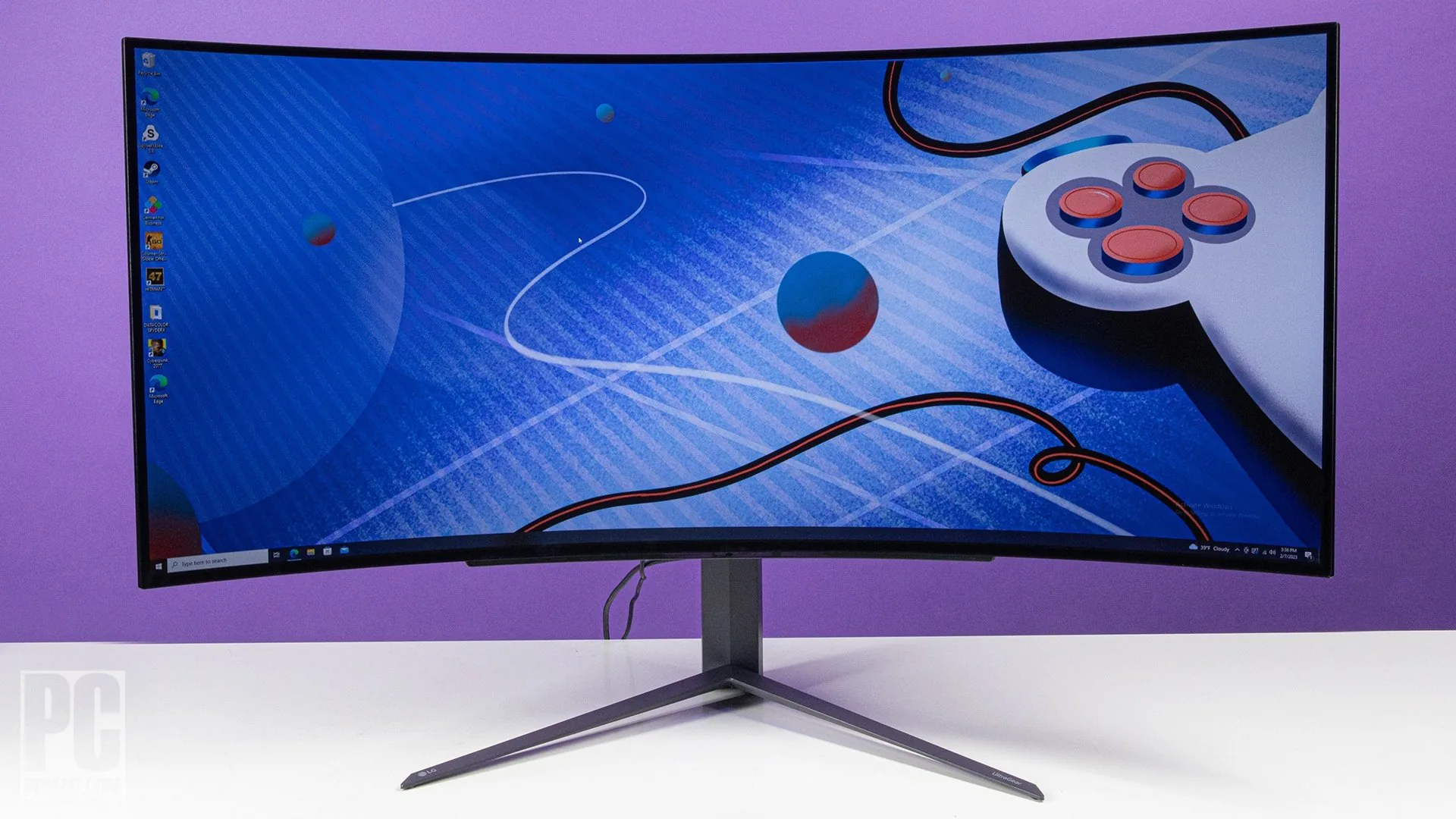
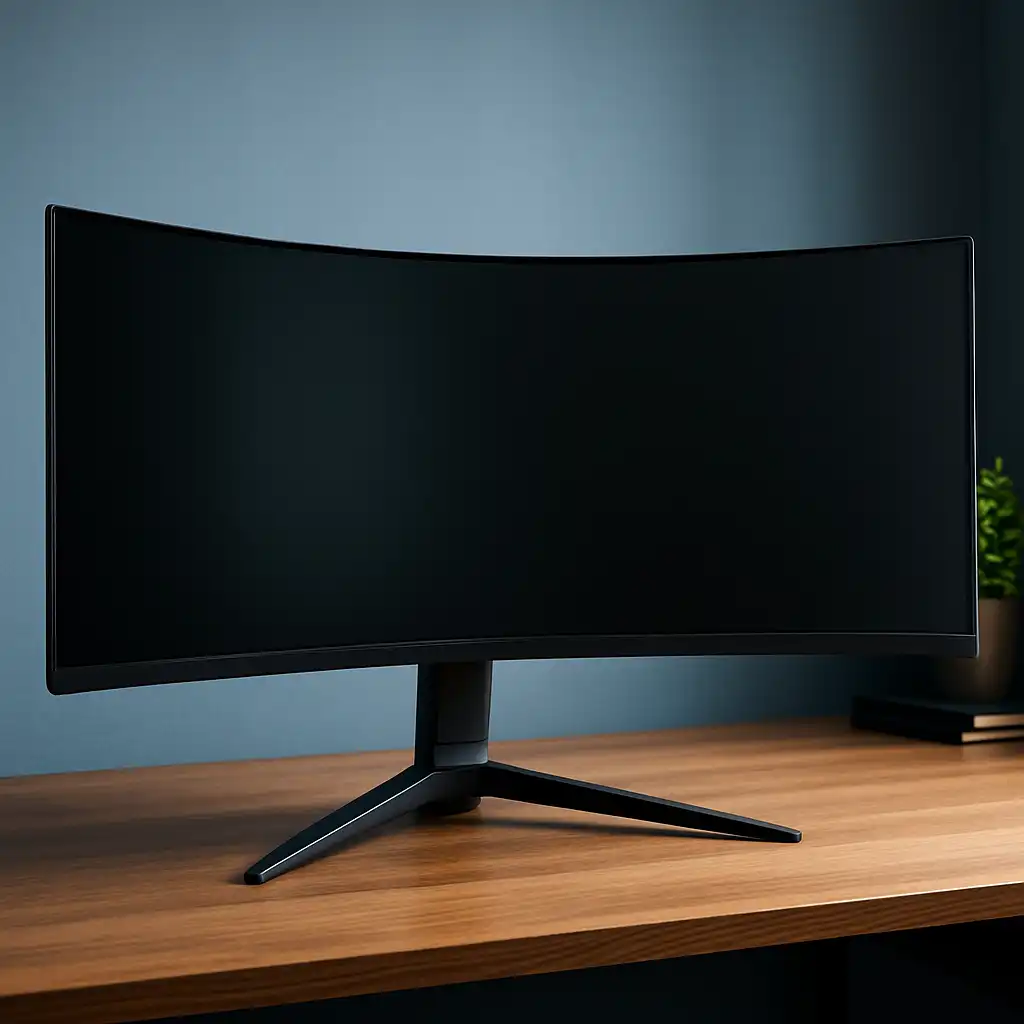
Image source: Wikimedia Commons / Unknown artistUnknown artist
Branch 1 – Small Desk (Under 60cm / 24" deep) → 27" or Smaller
You simply don't have the room for a 32-inch screen. The edges will sit outside your central vision. You'll need to move your head to see HUD elements in shooters.
- Best size: 27-inch 16:9 curved at 1000R or 1500R.
- Resolution: 1440p is ideal. Avoid 1080p on a 27-inch panel, pixel density drops to 81 PPI, and text looks fuzzy.
- Curvature: 1000R works best at this distance. You're sitting about 60cm away, and 1000R matches that arc.
Branch 2 – Standard Desk (60–75cm / 24–30" deep) → 32" Curved or 34" Ultrawide
This is the golden zone. You have enough depth for a larger curved panel without it overwhelming your field of view.
- Option A (16:9): 32-inch curved at 1500R. Perfect for RPGs and strategy games. 1440p is the sweet spot.
- Option B (21:9): 34-inch ultrawide at 1500R. Gives you that cinematic wraparound feel. Works great with most modern games that support ultrawide.
- What to avoid: Don't get a 1080p 32-inch. At 93 PPI, it's noticeably soft. And don't get a 49-inch super ultrawide, it will extend past your peripheral vision by about 10cm on each side.
Branch 3 – Deep Desk (Over 75cm / 30" deep) → 38" Ultrawide or 49" Super Ultrawide
You have the space to let a true curve shine. But be careful: bigger means more GPU demand.
- 38-inch 21:9 ultrawide (3840×1600): Excellent option for sim racing and immersive games. It's like a 34-inch but with extra vertical room for cockpits and inventory screens.
- 49-inch 32:9 super ultrawide (5120×1440): The ultimate sim racing and flight sim monitor. It replaces dual 27-inch monitors seamlessly. But you need a desk at least 80cm deep and a powerful GPU.
- Curvature recommendation: 1800R or 1500R. The gentler curve prevents distortion at the edges for such a wide panel. 1000R would be too aggressive and could cause visible warp.
Matching Curvature to Distance: Why 1000R, 1500R, and 1800R Matter
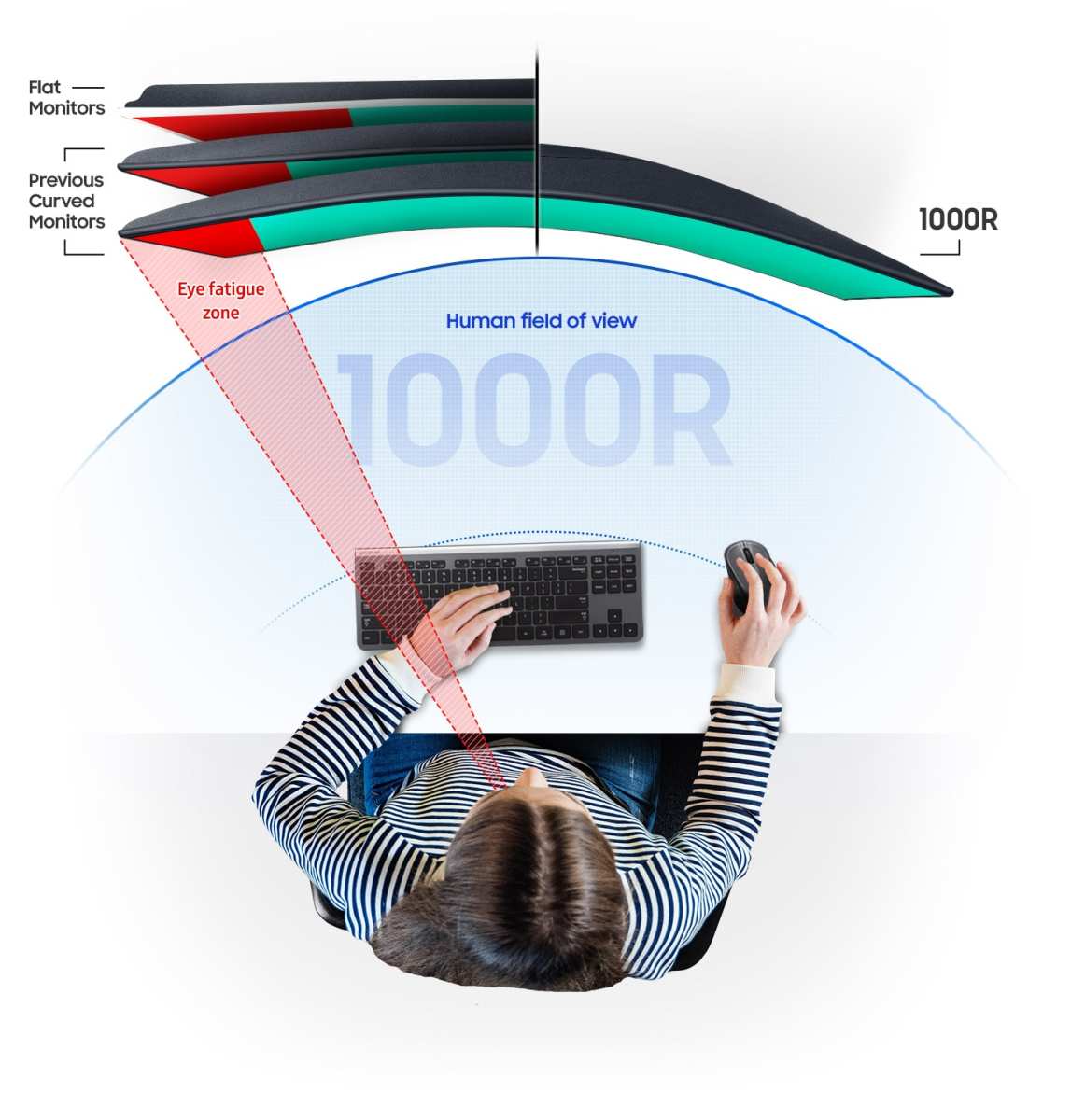
The curvature number describes the radius of the circle the screen would form if you completed it. A 1000R curve forms a circle with a 1-meter radius. A 1500R curve forms a 1.5-meter radius circle.
The smaller the number, the more aggressive the curve.
Here's the key point: the curve should match your viewing distance.
If you sit 60cm from the screen, a 1000R curve (optimal at 1m) is a close match, your eyes are slightly inside the perfect arc, but that actually helps wrap the edges into your peripheral vision. A 1500R curve at 60cm is too flat. The edges will appear to bend away from you.
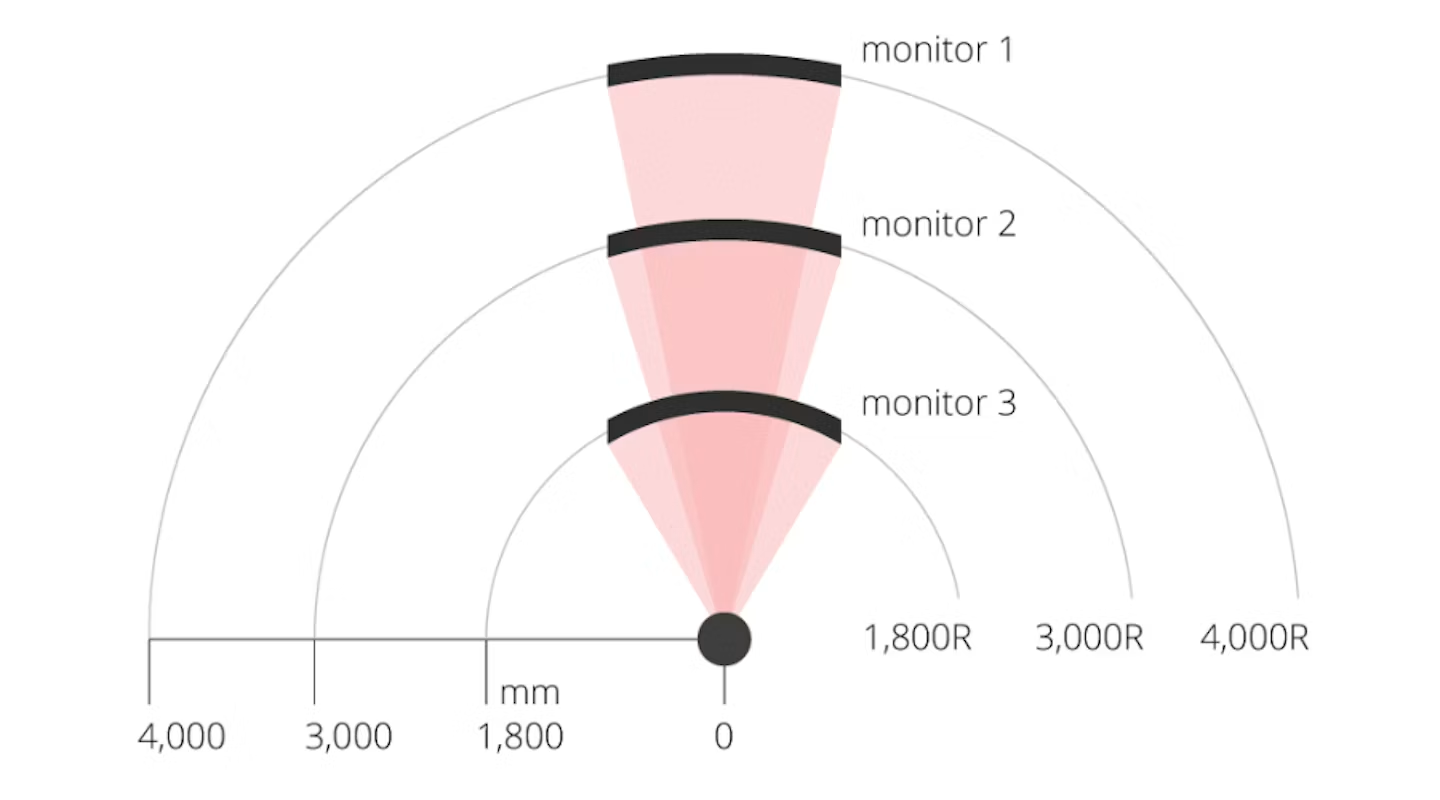
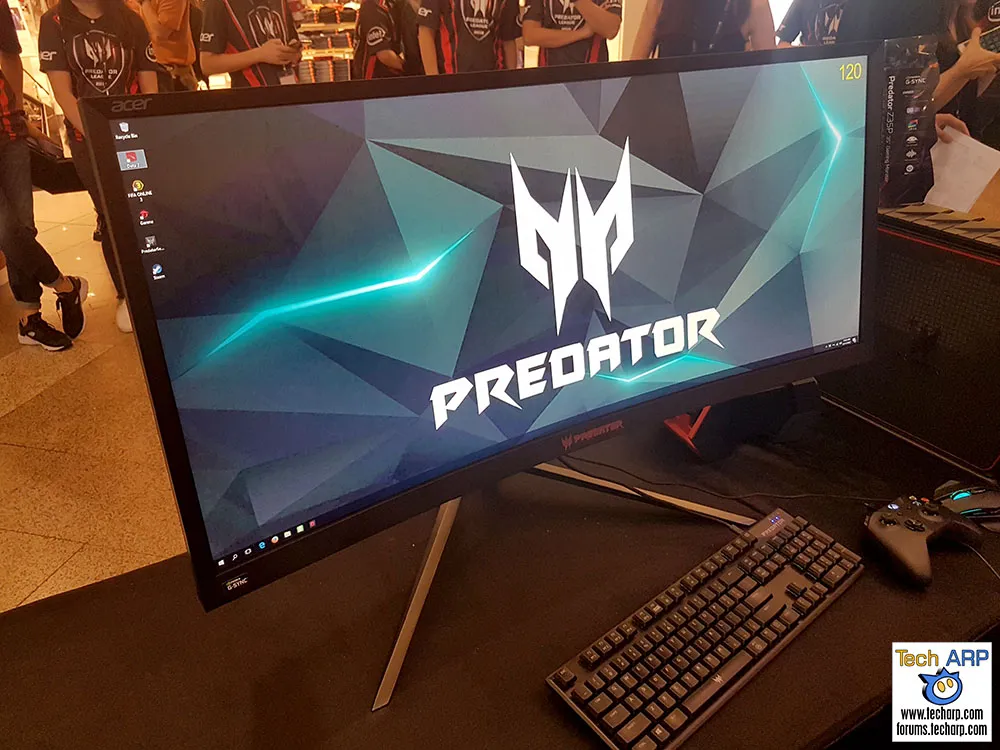
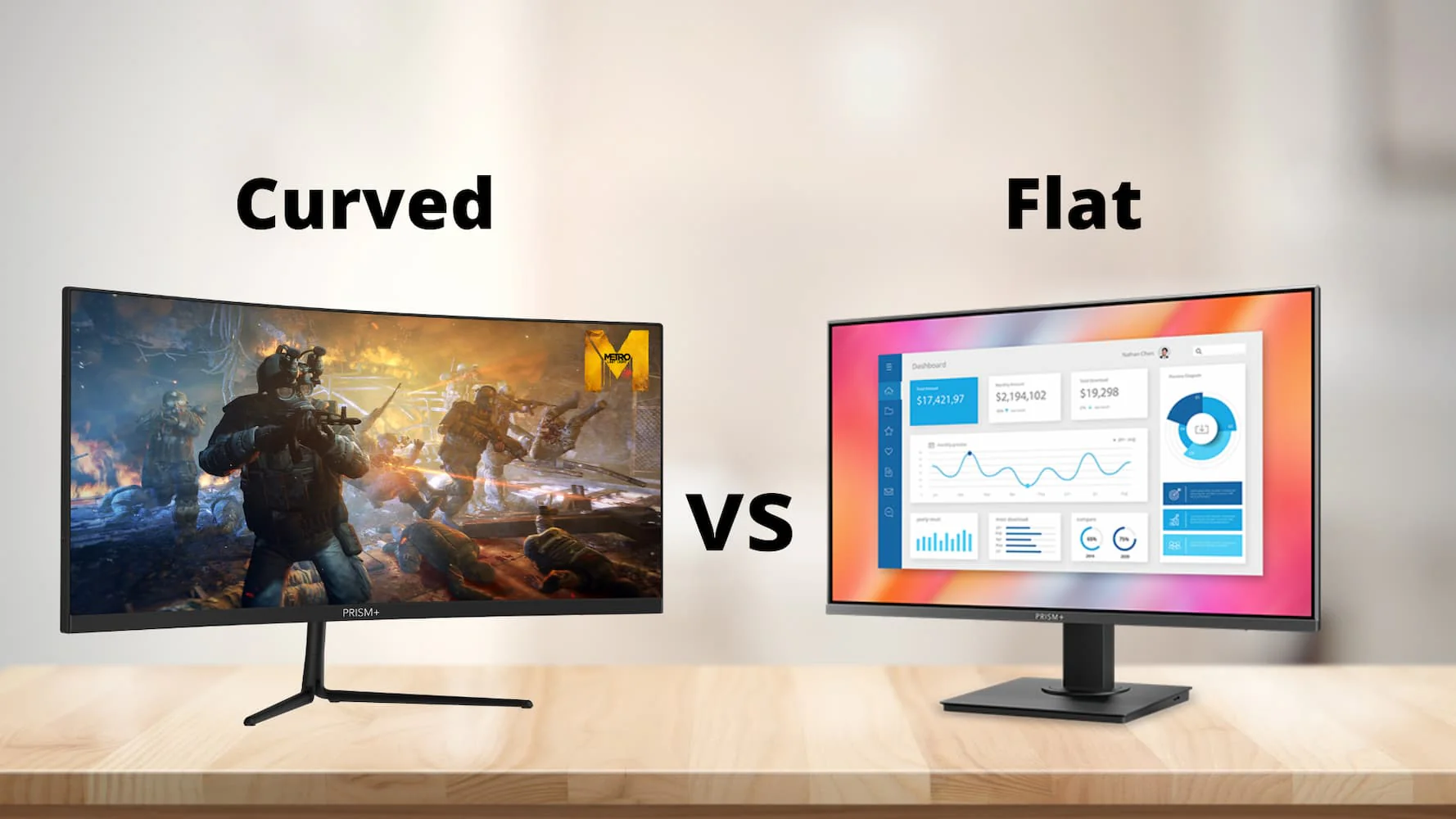
Image source: Bing (Web (fair-use with source credit))
Manufacturer specs confirm that most curved monitors are tuned for a specific distance. For example, Samsung's 1000R panels (like the Odyssey G7) are explicitly designed for desktop gaming at arm's length. Their 1500R panels (like the Odyssey G5) are meant for deeper desks or living room setups.
What does this mean for you? If you're between 50, 80cm away, aim for 1000R. If you're 80cm, 1.2m away, 1500R works better.
Beyond 1.2m, 1800R or 3000R is fine, but at that point, a flat monitor would work just as well.
One more thing: curvature and size interact. A 27-inch 1000R curve feels tight and immersive. The same 1000R on a 49-inch panel would be incredibly aggressive, the edges might look distorted during desktop use.
That's why ultrawide monitors almost always use gentler curves (1500R or 1800R). The wider the screen, the gentler the curve should be.
Use Cases: Who Each Size Really Serves
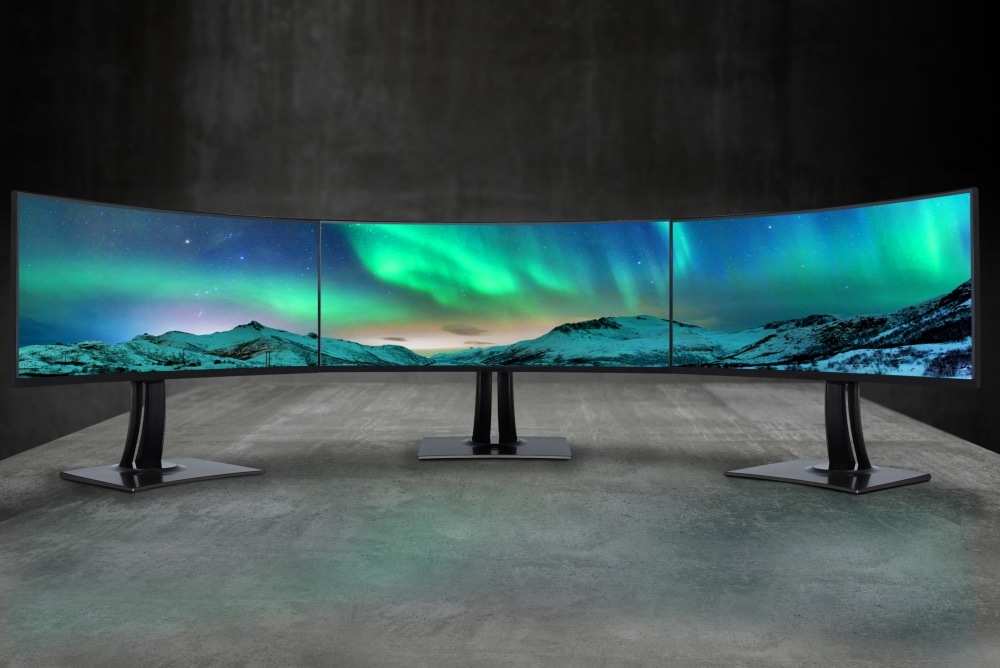
Image source: Bing (Web (fair-use with source credit))
Competitive FPS Gamers – 27" Curved with Tight Curve
If you play Valorant, Overwatch, or CS2, your priority is quick target acquisition. You don't want to move your eyes across a huge screen. You want the action in your central vision.
A 27-inch curved at 1000R works best. The tight curve wraps the edges into your peripheral view without distorting the crosshair area. Stick to 1440p for crisp detail.
Avoid ultrawide here. The extra horizontal space is a distraction, not an advantage.
Immersive RPG & Open-World Fans – 34" to 38" Ultrawide
Games like Cyberpunk 2077, Red Dead Redemption 2, and Starfield are built for wide vistas. A 34-inch 21:9 ultrawide at 1500R gives you that cinema feel. The curve pulls the landscape around you.
If your desk allows, a 38-inch 21:9 at 3840×1600 adds vertical room. That extra height helps with inventory screens and dialogue boxes. You lose less screen real estate to UI elements.
Sim Racers & Flight Sim Pilots – 49" Super Ultrawide or Triples
For iRacing, Forza, or Microsoft Flight Sim, horizontal coverage is everything. A 49-inch 32:9 super ultrawide at 1800R replaces two 27-inch monitors seamlessly. You see the track ahead and the side mirrors without turning your head.
But check your GPU. Running 5120×1440 at high settings demands an RTX 4070 or better. If you're on a budget, a 34-inch ultrawide with a triple monitor setup might be more practical.
Hybrid Work & Gaming Users – 32" 16:9 Curved
If you also use your monitor for spreadsheets, coding, or design, stick to a 32-inch 16:9 curved panel at 1500R. It offers enough screen real estate for productivity without the weird aspect ratio issues that plague ultrawide in some apps.
Microsoft Office and most web browsers handle 16:9 perfectly. With an ultrawide, you sometimes get black bars or stretched content. A 32-inch curved avoids that headache entirely.
Common Size Mistakes That Wreck Your Experience
Sitting Too Close to a 32" or Larger Curve
This is the most frequent complaint in aggregate reviews. A 32-inch screen at 50cm forces your eyes to adjust focus across the curved edges. You end up with eye strain and neck fatigue within an hour.
If you can't push the monitor back, size down. A 27-inch at the same distance will feel far more comfortable. Your neck will thank you.
Choosing 1080p on a 32" Curved Panel (Blurry Text & Pixels)
At 32 inches, 1080p gives you about 93 PPI. That's noticeably soft. Text looks fuzzy.
Game UI elements appear pixelated. You lose the sharpness that makes curved screens immersive.
Stick to 1440p for 27-inch and 32-inch panels. If your GPU can't handle 1440p, consider a 24-inch 1080p curved monitor instead. The smaller screen keeps pixel density acceptable.
Ignoring GPU Limits for Ultrawide Resolutions
Buying a 34-inch 1440p ultrawide with a GTX 1660 is a recipe for disappointment. You'll be forced to run games at medium settings and still struggle to hit 60fps. The smooth curve becomes a blurry mess.
Before you buy, check the resolution. A 34-inch ultrawide at 3440×1440 has about 35% more pixels than standard 1440p. Compare that to your GPU's capabilities using a bottleneck calculator.
If you're unsure, go for a standard 16:9 curved monitor at a resolution your card can handle.
Pricing & Spec Benchmarks: What You Get at Each Size Tier
Here's a realistic breakdown of what you can expect to pay and what specs you'll get as of 2026:
| Size & Aspect Ratio | Typical Resolution | Refresh Rate | Price Range | GPU Required |
|---|---|---|---|---|
| 27" 16:9 curved | 2560×1440 | 144–240Hz | $250–$500 | RTX 3060+ |
| 32" 16:9 curved | 2560×1440 | 144–165Hz | $350–$700 | RTX 3060 Ti+ |
| 34" 21:9 ultrawide | 3440×1440 | 144–175Hz | $400–$1000 | RTX 3070+ |
| 38" 21:9 ultrawide | 3840×1600 | 144–160Hz | $700–$1400 | RTX 3080+ |
| 49" 32:9 super ultrawide | 5120×1440 | 120–240Hz | $800–$2000 | RTX 4080+ |
Panel type also varies by price. In the lower end ($250, $450), you'll mostly find VA panels with good contrast but slower response times. Above $500, you start seeing IPS and Mini-LED options with better motion handling and HDR performance.
OLED curved monitors exist but remain expensive ($1000+ for 34-inch).
Our editorial analysis of buyer feedback suggests that the 34-inch ultrawide at 1440p offers the best value per inch of immersion. It's the sweet spot for most gamers with a mid-range GPU.
Real Scenarios: Three Gamers, Three Different Perfect Sizes
Let's put this into practice with three hypothetical setups. No names, just real constraints.
Gamer A: Small Desk, Competitive Focus
- Desk depth: 55cm (22 inches)
- Primary games: Valorant, Apex Legends
- GPU: RTX 3060
Our recommendation: 27-inch 1440p curved at 1000R. The small desk forces a smaller screen. The 1000R curve matches the viewing distance almost perfectly.
The RTX 3060 handles 1440p at high settings above 144fps in competitive titles.
Gamer B: Standard Desk, Mixed Library
- Desk depth: 70cm (28 inches)
- Primary games: Cyberpunk 2077, Civilization VI, some FPS
- GPU: RTX 4070
Our recommendation: 34-inch 21:9 ultrawide at 1500R. The viewing distance is about 75cm, close enough to 1500R's sweet spot. The RTX 4070 drives 3440×1440 comfortably.
The ultrawide enhances both the RPG immersion and the strategy game's wide map view.
Gamer C: Deep Desk, Sim Racing Enthusiast
- Desk depth: 90cm (35 inches)
- Primary games: iRacing, Assetto Corsa, MSFS
- GPU: RTX 4080
Our recommendation: 49-inch 32:9 super ultrawide at 1800R. The deep desk provides the required viewing distance. The 4080 handles 5120×1440 at high settings.
The gentle curve prevents distortion at the edges of this massive screen.
Pro Tips for Setup and Optimization
How to Measure Your Ideal Viewing Distance
Sit in your gaming chair naturally. Close your eyes. Lean forward and backward until you find your most relaxed position.
Open your eyes and measure from your pupils to the center of the screen with a tape measure.
That's your actual viewing distance. Compare it to the curvature numbers: 1000R for under 1m, 1500R for 1, 1.5m, 1800R for over 1.5m.
Adjusting FOV and In-Game Settings for Ultrawide Curves
Many games don't automatically set the correct field of view for ultrawide resolutions. You'll need to adjust manually. A good starting point is 90, 100 FOV for 21:9 and 100, 110 FOV for 32:9.
Too low, and the edges feel compressed. Too high, and the center looks distorted. Tweak in 5-degree increments until the curve feels natural.
Curved Monitor Arm vs Stock Stand – When to Upgrade
Most stock stands on curved monitors are wide and take up desk space. They also limit positioning. If your desk is shallow, a monitor arm lets you push the screen back against the wall, effectively increasing your viewing distance by 10, 15cm.
Look for a VESA-compatible arm that supports the weight of your specific monitor. For 34-inch and larger curved panels, get a heavy-duty arm rated for at least 15kg.
Final Decision Guide: Your Personal Size Recommendation in 3 Questions
Answer these three questions in order. The first one that rules out an option is your limiting factor.
1. What is your desk depth? Under 60cm means 27-inch or smaller. 60, 75cm opens up 32-inch or 34-inch ultrawide. Over 75cm lets you consider 38-inch or 49-inch.
2. What is your primary game genre? Competitive FPS wants 27-inch. RPGs and sims want wider.
Racing wants ultrawide or super ultrawide.
3. Can your GPU handle the resolution? Match the pixel count to your card. If unsure, drop to a smaller size or lower resolution to stay smooth.
If all three align in favor of a larger screen, go for it. If one variable says no, trust that variable. It will save you money and frustration.
Frequently Asked Questions
Does a curved monitor give a competitive advantage in FPS games?
Not significantly. The curve improves peripheral awareness slightly, but the size matters more. A 27-inch curved at 1000R can help you spot enemies at the edge of your vision without moving your head.
Can I use a curved monitor for work and gaming?
Yes. A 32-inch 16:9 curved at 1500R works well for both. Ultrawide monitors can cause issues with some productivity apps that don't support 21:9 properly.
Is a 49-inch super ultrawide too much for a casual gamer?
Probably. It requires a deep desk, a powerful GPU, and a specific game library. For casual play, a 34-inch ultrawide offers similar immersion with fewer hardware demands.
What curvature should I choose for a 27-inch monitor?
1000R is ideal for a 27-inch at typical desk distances (50, 70cm). It creates a tighter arc that matches your natural field of view.

Similar Posts