How to Use Curved Gaming Monitor with Ps5
So you've got a curved gaming monitor and a PS5, and you want them to actually work together properly. It's not always as simple as plugging in an HDMI cable and hoping for the best. There are a few settings, specs, and compatibility quirks that can make or break the experience.
The good news is that once you understand what the PS5 supports and what your specific monitor can handle, the setup process is pretty straightforward. Let's walk through it step by step so you're not left staring at a black screen or stuck at 60Hz.
Quick Answer
Connect your PS5 to the curved monitor using an HDMI 2.1 cable. Set the monitor to its highest refresh rate input in the on-screen display menu. On the PS5, go to Settings, then Screen and Video, and configure resolution, HDR, and 120Hz output based on your monitor's specs.
Enable VRR if your monitor supports it through HDMI.
Why Your PS5 and Curved Monitor Might Not Work Together Out of the Box
Here's the thing most people don't realize until they're already frustrated. The PS5 doesn't automatically detect and optimize for every monitor you plug into it. It outputs a signal based on what it thinks the display can handle, and sometimes it guesses wrong.
Curved monitors add another layer of complexity. They come in a wide range of resolutions, refresh rates, and panel types. A 32-inch 4K 120Hz VA panel behaves very differently from a 27-inch 1440p 165Hz IPS display.
The curve itself doesn't cause issues, but the specs behind that curve absolutely matter.
The most common scenario we see in our research: someone buys a curved monitor, hooks up the PS5, and gets a picture. But they're stuck at 60Hz, HDR looks terrible, or VRR isn't working. The monitor is capable of more.
The PS5 just isn't configured to use it.
Another frequent issue is HDMI version mismatch. Many curved monitors ship with HDMI 2.0 ports even when the panel supports high refresh rates. Those high speeds only work through DisplayPort, which the PS5 doesn't have.
So you're limited by the HDMI bandwidth whether you realize it or not.
Understanding the Core Compatibility Issues
Before touching any settings, you need to understand what the PS5 can actually output and what your monitor can actually accept. This is where most of the confusion lives.
PS5 Video Output Capabilities
The PlayStation 5 supports the following video output modes through its HDMI 2.1 port:
| Resolution | Max Refresh Rate | HDR | VRR |
|---|---|---|---|
| 4K (2160p) | 120Hz | Yes | Yes |
| 1440p | 120Hz | Yes | Yes |
| 1080p | 120Hz | Yes | Yes |
The PS5 added native 1440p support in September 2022 through a system software update. Before that, 1440p monitors would only receive a 1080p signal upscaled or a 4K signal downscaled, depending on the monitor.
VRR support on PS5 works within an approximate range of 48Hz to 120Hz. This means games that drop below 48fps won't benefit from variable refresh rate. Sony has been expanding this range through firmware updates as of 2026.
The PS5 does not support ultrawide resolutions (21:9 or 32:9). If you plug in an ultrawide curved monitor, you'll get a 16:9 image with black bars on the sides. Some monitors have a "console mode" that stretches or crops, but that's a monitor-side workaround, not PS5 support.
What Curved Monitors Actually Bring to the Table
The curve rating tells you how aggressively the panel bends. A 1000R curve matches the curvature of the human eye and feels very pronounced at desk distance. A 1800R curve is much subtler.
Neither rating affects PS5 compatibility directly, but it does affect how immersive the experience feels at close range.
What actually matters for PS5 use are these specs:
- Panel type: VA panels offer deeper blacks and higher contrast, which helps with HDR. IPS panels have better color accuracy and viewing angles. OLED curved monitors deliver the best HDR but cost significantly more.
- HDMI version: HDMI 2.1 (48Gbps) is required for 4K 120Hz. HDMI 2.0 (18Gbps) maxes out at 4K 60Hz or 1440p 60Hz.
- VRR support over HDMI: Some monitors only support FreeSync or G-Sync through DisplayPort. PS5 uses HDMI-based VRR, so you need a monitor that supports adaptive sync through HDMI.
- HDR certification: DisplayHDR 400 is entry-level and won't look dramatically different from SDR. DisplayHDR 600 is a noticeable step up. DisplayHDR 1000 or higher is where HDR genuinely impresses.
Where HDMI 2.1, VRR, and Resolution Limits Collide
This is the part that trips people up. A monitor might advertise 4K 120Hz on the box but only achieve it through DisplayPort. The HDMI port might be 2.0, which caps you at 4K 60Hz.
Manufacturer specifications confirm that you need to check the HDMI version specifically, not just the maximum resolution and refresh rate. Some monitors have one HDMI 2.1 port and one HDMI 2.0 port. Plug into the wrong one and you're limited.
VRR over HDMI is another minefield. A monitor might support FreeSync Premium but only through DisplayPort. The PS5's HDMI-based VRR implementation requires the monitor to support adaptive sync on its HDMI input.
Check your monitor's manual for "HDMI VRR" or "VRR over HDMI" specifically.
Step-by-Step Setup Workflow
Now let's get everything configured properly. Follow these steps in order, and don't skip ahead.
Step 1: Check Your Monitor's Exact Specs First
Before you even turn on the PS5, look up your specific monitor model's specifications. You need to know:
- Maximum resolution and refresh rate over HDMI (not DisplayPort)
- Whether HDMI 2.1 is supported and which port it's on
- Whether VRR works through HDMI
- HDR capabilities and certification level
This information is usually in the manual or on the manufacturer's product page. Don't rely on the retail listing alone. Those specs are sometimes vague or misleading.
Step 2: Connect and Verify Signal Detection
Use the HDMI cable that came with the PS5. It's a certified Ultra High Speed HDMI cable capable of 48Gbps. If you're using a different cable, make sure it's certified for HDMI 2.1.
Connect the PS5 to the correct HDMI port on your monitor. If your monitor has multiple ports, use the one labeled HDMI 2.1 or the one specified in the manual for highest bandwidth.
Power on the monitor first, then the PS5. The monitor should detect the input and display the PS5 boot screen. If you get no signal, try a different cable or port.
Step 3: Configure PS5 Video Output Settings
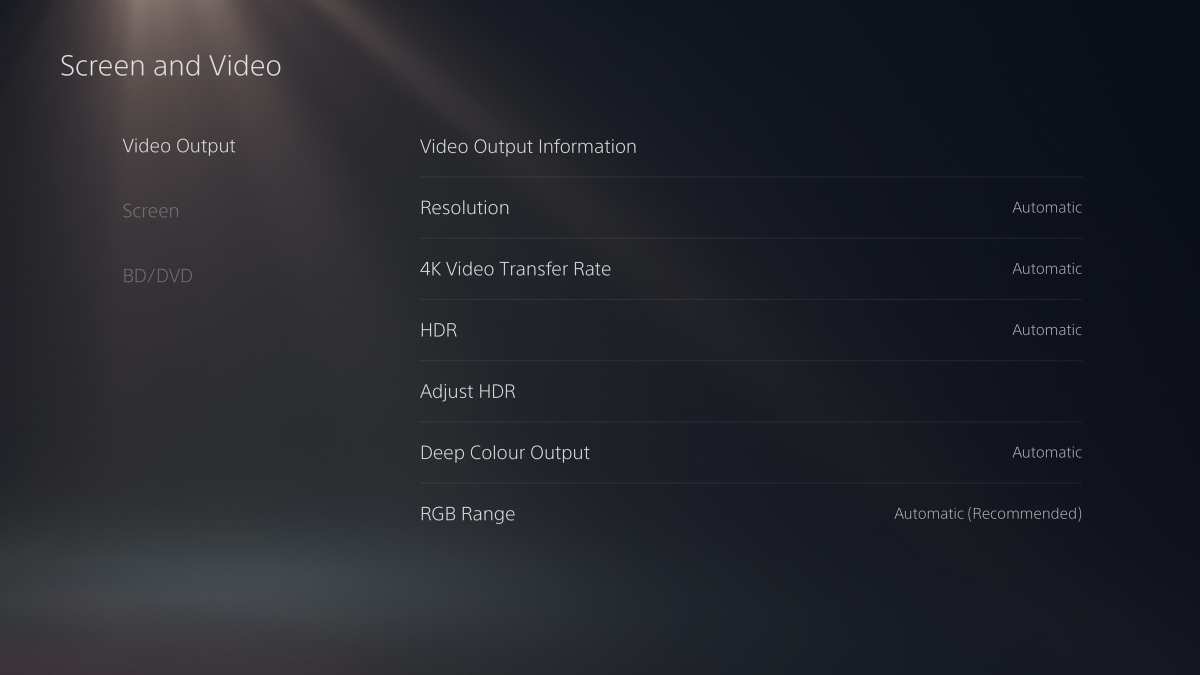
Navigate to Settings > Screen and Video > Video Output on your PS5. Here's what to set:
- Resolution: Set to Automatic. The PS5 will detect your monitor's native resolution. If you have a 1440p monitor, it should show 2560×1440 as the detected resolution.
- HDR: Set to On When Supported. This enables HDR for compatible games while keeping the SDR interface looking correct.
- VRR: Set to Automatic if your monitor supports it. If you experience flickering, turn it off and check your monitor's HDMI VRR compatibility.
- 120Hz Output: Set to Automatic. This allows games to run at 120fps if they support it.
- 4K Transfer Rate: Set to Automatic or -1/-2 if you experience signal issues at 4K 120Hz.
Step 4: Enable 120Hz, HDR, and VRR (If Supported)
After the basic settings are configured, go to Settings > Screen and Video > Video Output Information. This screen shows you what the PS5 is actually outputting right now.
Check that the refresh rate matches your monitor's capability. If you have a 120Hz or 144Hz monitor but the PS5 shows 60Hz, something is limiting the signal. Common causes include:
- Using an HDMI 2.0 port on the monitor
- Using a cable that doesn't support HDMI 2.1 bandwidth
- The monitor's HDMI input set to a limited mode in its OSD
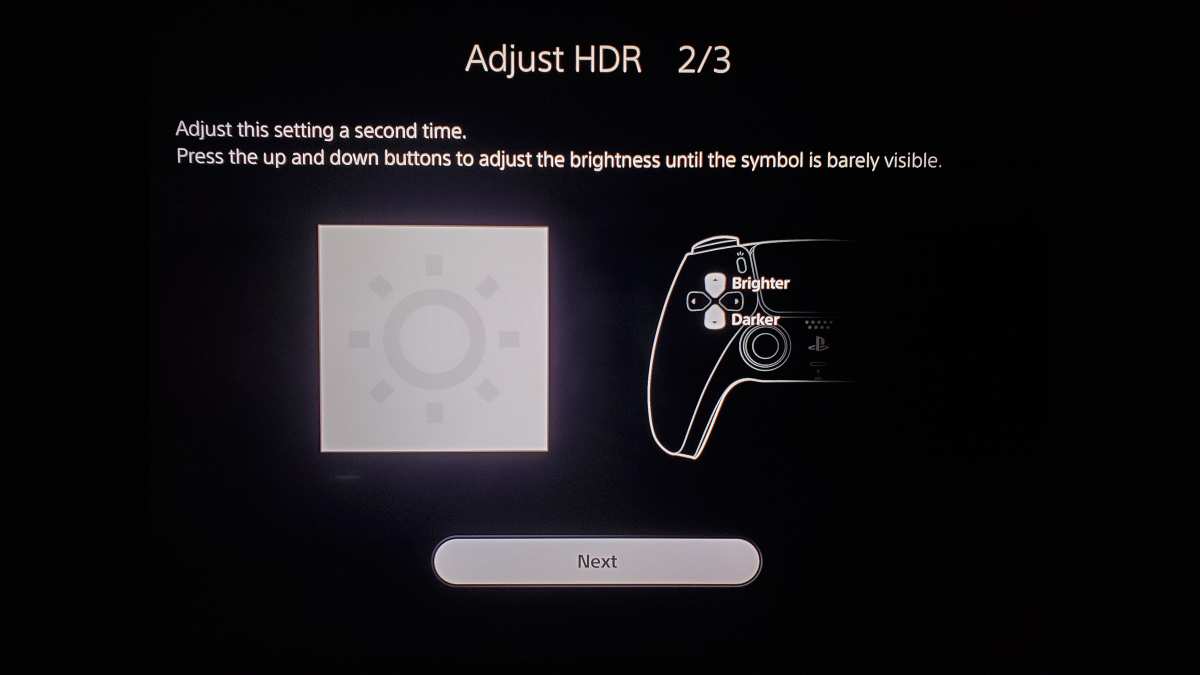
For HDR, go to Settings > Screen and Video > HDR and follow the on-screen calibration. Adjust the maximum luminance slider until the logo barely disappears. Set the black level to where you can just see the shadow detail.
Step 5: Adjust Your Monitor's On-Screen Display Settings
This is where most people leave performance on the table. Your monitor's OSD has settings that need to be correct for PS5 use:
- Game Mode: Enable this. It reduces input lag by bypassing unnecessary image processing.
- Refresh Rate: Make sure it's set to the maximum available. Some monitors default to 60Hz.
- Adaptive Sync / FreeSync: Enable this if you want VRR to work.
- HDMI Ultra HD / Enhanced Format: Some monitors require you to enable an "enhanced" or "HDMI 2.1" mode in the OSD to unlock full bandwidth.
- Response Time: Set to the fastest option that doesn't cause inverse ghosting. "Fast" is usually better than "Fastest."
- Local Dimming: Enable for better HDR contrast, if available.
Step 6: Test with Real PS5 Games
Settings menus only tell you so much. Load up a game that supports 120fps, like Spider-Man: Miles Morales or Ratchet & Clank: Rift Apart, and switch to Performance Mode in the game's settings. You should see noticeably smoother motion compared to 60fps.
For HDR testing, load a game with strong HDR implementation like Horizon Forbidden West or Demon's Souls. Look for bright highlights that pop against dark shadows. If everything looks washed out, revisit the HDR calibration settings.
Decision Tree: What Settings to Use Based on Your Monitor
Not every curved monitor is created equal. Here's how to configure your PS5 based on what you actually own.
If You Have a 4K 120Hz Curved Monitor with Full HDMI 2.1
This is the ideal scenario. Set your PS5 resolution to Automatic, enable 120Hz output, turn on VRR, and enable HDR. You should get 4K at up to 120fps with variable refresh rate and HDR in supported games.
Make sure your monitor's HDMI port is set to its enhanced or 2.1 mode in the OSD. Some monitors default to a limited HDMI mode to save power or reduce heat.
If You Have a 1440p Curved Monitor
The PS5 supports 1440p output natively as of the September 2022 firmware update. Set resolution to Automatic and the PS5 should detect 2560×1440. Enable 120Hz output and VRR if supported.
If the PS5 doesn't show 1440p as an option, your monitor might not be reporting that resolution correctly through its EDID. In that case, you can try forcing 1080p and letting the monitor upscale, or try a different HDMI cable.
If You Have a 1080p High-Refresh Curved Monitor
These monitors often support 144Hz or 240Hz through DisplayPort but only 60Hz or 120Hz through HDMI. Check your monitor's HDMI specifications carefully.
If your monitor supports 120Hz over HDMI, enable it in the PS5 settings. If it's limited to 60Hz over HDMI, you're capped there regardless of what the box says. The PS5 won't output above what the HDMI connection allows.
If You Have an Ultrawide Curved Monitor (21:9 or 32:9)
The PS5 does not support ultrawide resolutions. You'll get a 16:9 image with black bars on the left and right sides. This is normal and expected.
Some ultrawide monitors have a "stretch" or "fill" mode that expands the 16:9 image to fill the screen. This crops the top and bottom of the image and isn't ideal, but it's an option if the black bars bother you.
VRR and HDR should still work on the 16:9 image area. The refresh rate will be limited to whatever the monitor supports at 16:9 resolution through its HDMI input.
If Your Monitor Has HDMI 2.0 Instead of HDMI 2.1
You're limited to 4K 60Hz or 1440p 60Hz maximum. The PS5 will still output HDR at these resolutions, but you won't get 120Hz or the full bandwidth for 4K 120Hz HDR.
VRR may still work at 60Hz, depending on your monitor's capabilities. Check whether your monitor supports FreeSync or HDMI VRR at its native resolution.
Common Problems and How to Fix Them
Even with everything configured correctly, issues can pop up. Here are the most common ones and what to do about them.
No Signal or Black Screen After Connection
Try these fixes in order:
- Make sure the monitor is set to the correct HDMI input
- Try a different certified Ultra High Speed HDMI cable
- Power cycle both the monitor and PS5
- Boot the PS5 in safe mode by holding the power button for 7 seconds, then select "Change Video Output"
- Try connecting to a different display to verify the PS5 is outputting a signal
120Hz Option Not Showing Up on PS5
This usually means the HDMI connection can't support the bandwidth. Check that you're using the HDMI 2.1 port on your monitor. Verify your cable is certified for 48Gbps.
Some monitors require you to enable "HDMI 2.1" or "Enhanced Mode" in the OSD before 120Hz becomes available.
HDR Looks Washed Out or Too Dark
Run the PS5 HDR calibration tool under Settings > Screen and Video > HDR. Adjust the max luminance slider until the sun logo barely disappears against the white background. Set the black level so the shadow detail is just visible.
If HDR still looks bad, your monitor's HDR implementation might be the issue. Monitors with DisplayHDR 400 or no local dimming often produce underwhelming HDR. In that case, you might prefer leaving HDR off and using SDR instead.
VRR Causing Flickering or Blackouts
VRR flickering is a known issue on some monitors, especially at low frame rates. The PS5's VRR range starts around 48Hz. If a game drops below that, some monitors flicker or lose signal temporarily.
Try disabling VRR in the PS5 settings if you experience this. Alternatively, some monitors have a "VRR range" setting in their OSD that you can adjust. Check whether your monitor's firmware has been updated to address VRR compatibility.
Ultrawide Resolution Not Available
This is expected behavior. The PS5 doesn't support 21:9 or 32:9 resolutions. You'll see a 16:9 image with black bars.
There's no setting on the PS5 to change this.
Colors Look Off or Washed Out
Check the RGB range setting on both devices. The PS5 outputs Limited RGB range by default for video content and Full range for games. Your monitor might be set to the opposite expectation.
On the PS5, go to Settings > Screen and Video > Video Output > RGB Range and set it to Automatic. On your monitor, look for a setting called "HDMI Black Level," "RGB Range," or "Dynamic Range" and match it to the PS5's output.
Curved vs. Flat Monitor for PS5: Does the Curve Actually Matter?
The curve itself doesn't change how the PS5 outputs its signal. Resolution, refresh rate, and HDR work identically whether the panel is flat or curved. What changes is your perception of the image.
Curved monitors wrap the edges of the screen toward your eyes. At typical desk viewing distances, around 2 to 3 feet, this creates a more sense of depth. Peripheral vision picks up the edges more naturally.
It's a subtle effect, but aggregate user reviews consistently report higher immersion ratings for curved displays in single-player games.
The tradeoff is geometry distortion. Straight lines near the edges of the screen appear slightly curved. This matters more for productivity work than gaming, but it's worth knowing about.
Competitive players sometimes prefer flat panels for this reason.
For PS5 specifically, the curve pairs well with story-driven titles. Games like God of War Ragnarök and The Last of Us Part II feel more enveloping on a curved display. Fast-paced shooters don't benefit as much, and some players notice the curve adds slight input perception differences.
Best Curved Monitors for PS5 by Use Case
Best for Immersive Single-Player Gaming
Look for a 32-inch 4K curved VA or OLED panel with DisplayHDR 600 or higher. The Samsung Odyssey Neo G8 and similar models offer mini-LED backlighting with deep blacks. These pair perfectly with PS5's HDR output for cinematic games.
Best for Competitive High-Refresh Gaming
A 27-inch 1440p 165Hz IPS curved monitor hits the sweet spot. Models like the Gigabyte G27Q or MSI Optix series offer low response times and full HDMI VRR support. The PS5 won't push 165fps, but 120Hz with VRR feels noticeably smoother than 60Hz.
Best Budget Pick
The AOC CQ32G2SE or similar 1080p 144Hz VA curved monitors deliver solid performance under $300. You sacrifice resolution and HDR quality, but the high refresh rate and low input lag make competitive games feel responsive.
Best 1440p Pick
The Dell S2722DGM offers excellent contrast and color accuracy at 1440p. It supports FreeSync over HDMI, which translates to VRR compatibility with the PS5. It's a strong middle-ground option for players who want sharpness without demanding full HDMI 2.1 bandwidth.
Pro Tips Most Guides Skip
Monitor Firmware Updates Are Non-Negotiable
Several curved monitors required firmware updates to properly support PS5 features. Samsung, Gigabyte, and MSI have all released updates addressing HDMI 2.1 handshake issues and VRR compatibility. Check your manufacturer's support page before troubleshooting endlessly.
The "Enhanced Format" Toggle Is Usually the Culprit
When 120Hz or 4K HDR doesn't work, the answer is often buried in the monitor's OSD. Look for settings labeled "HDMI Enhanced Mode," "HDMI 2.1 Format," or "Ultra HD Deep Color." Enabling this unlocks the full bandwidth on the HDMI port.
RGB Limited vs. Full Range Matching
Mismatched RGB range causes crushed blacks or washed-out grays. The PS5 defaults to Limited range for video. If your monitor expects Full range, the image looks wrong.
Match both devices to the same setting, or leave both on Auto if available.
Game Mode vs. HDR Mode Conflicts
Some monitors disable certain processing features when Game Mode is active. This can include local dimming, which hurts HDR performance. If HDR looks flat, check whether Game Mode is interfering with your monitor's HDR processing.
Try the monitor's "HDR Game" preset if one exists.
Frequently Asked Questions
Can I use an ultrawide curved monitor with PS5?
Yes, but the PS5 outputs a 16:9 signal. You'll see black bars on the sides of an ultrawide panel. Some monitors can stretch the image, but this crops the top and bottom.
There's no native ultrawide support from Sony as of 2026.
Why won't my PS5 show 120Hz on my 144Hz monitor?
The PS5 caps at 120Hz output. If your monitor's HDMI port doesn't support the bandwidth needed for your resolution at 120Hz, the option won't appear. Check your monitor's HDMI version and use the correct port.
Do I need HDMI 2.1 for HDR on PS5?
No. HDR works over HDMI 2.0 at 4K 60Hz. You only need HDMI 2.1 for 4K 120Hz or higher bandwidth combinations.
HDR10 is supported across both HDMI versions.
Does the curve rating affect gaming performance?
No. The curve rating (1000R, 1500R, etc.) is purely about the physical bend of the panel. It affects viewing comfort and immersion but has zero impact on input lag, refresh rate, or resolution.
Can I use VRR and HDR at the same time?
Yes, on monitors that support both features simultaneously. Some budget monitors disable local dimming when VRR is active, which can affect HDR quality. Check your monitor's specifications for any feature conflicts.
Final Verdict: Is a Curved Monitor Worth It for PS5?
A curved gaming monitor is absolutely worth using with a PS5, as long as you pick the right one for your needs. The setup process takes about 15 minutes once you know your monitor's specs and which settings to adjust.
For immersive single-player gaming, a curved 4K HDR panel transforms the experience. For competitive play, a 1440p or 1080p high-refresh curved monitor with low input lag gives you a responsive edge. Just make sure your monitor has HDMI 2.1 if you want 4K 120Hz, and verify VRR support over HDMI before relying on it.
The curve itself is a personal preference. It won't make you a better gamer or give you faster reaction times. But if you enjoy feeling pulled into the game world, a curved panel does that better than any flat screen at the same size and viewing distance.
Costs and Pricing Overview
Curved gaming monitors for PS5 use span a wide price range. Budget 1080p 144Hz VA panels start around $200 to $300. Mid-range 1440p 165Hz IPS models typically run $350 to $500.
Premium 4K 120Hz HDR monitors with HDMI 2.1 start around $600 and climb past $1,000 for OLED or mini-LED options.
The sweet spot for most PS5 owners in our research sits in the $400 to $600 range. You get 1440p or 4K resolution, a high refresh rate, decent HDR, and full HDMI 2.1 support without paying flagship prices.
Long-Term Optimization Tips
Keep your monitor's firmware updated. Manufacturers regularly release fixes for HDMI handshake issues and VRR compatibility. Revisit your PS5 HDR calibration every few months if you notice changes in image quality.
Game patches and system updates can shift how HDR renders.
Clean your screen with a microfiber cloth and distilled water only. Curved panels sometimes have coatings that are more sensitive to harsh cleaners than flat screens. Avoid compressed air on the panel surface.
When to Consider Professional Help
If you've tried every troubleshooting step and still get no signal, the issue might be a hardware defect. Contact your monitor manufacturer's support team before assuming the PS5 is at fault. Sony's PlayStation Support can also walk you through safe mode diagnostics if the console itself isn't outputting video correctly.

Similar Posts





















