How to Optimize Curved Gaming Monitor for FPS Games
Most curved gaming monitors ship with default settings that actively work against you in fast-paced shooters. Response time overdrive pushes too hard and creates overshoot artifacts. Backlight strobing stays off when it should be on.
Refresh rate sits at 60Hz because Windows didn't detect the panel correctly. Learning how to optimize curved gaming monitor for fps games means understanding that these panels have unique motion behavior that flat screens simply don't.
Manufacturer specifications indicate that proper overdrive tuning combined with correct VRR configuration can cut perceived motion blur by up to 40 percent on curved VA panels. As of 2026, most gamers never touch half the settings that actually matter. Let's walk through every decision point so your curved monitor is set up right for competitive FPS play.
Quick Answer
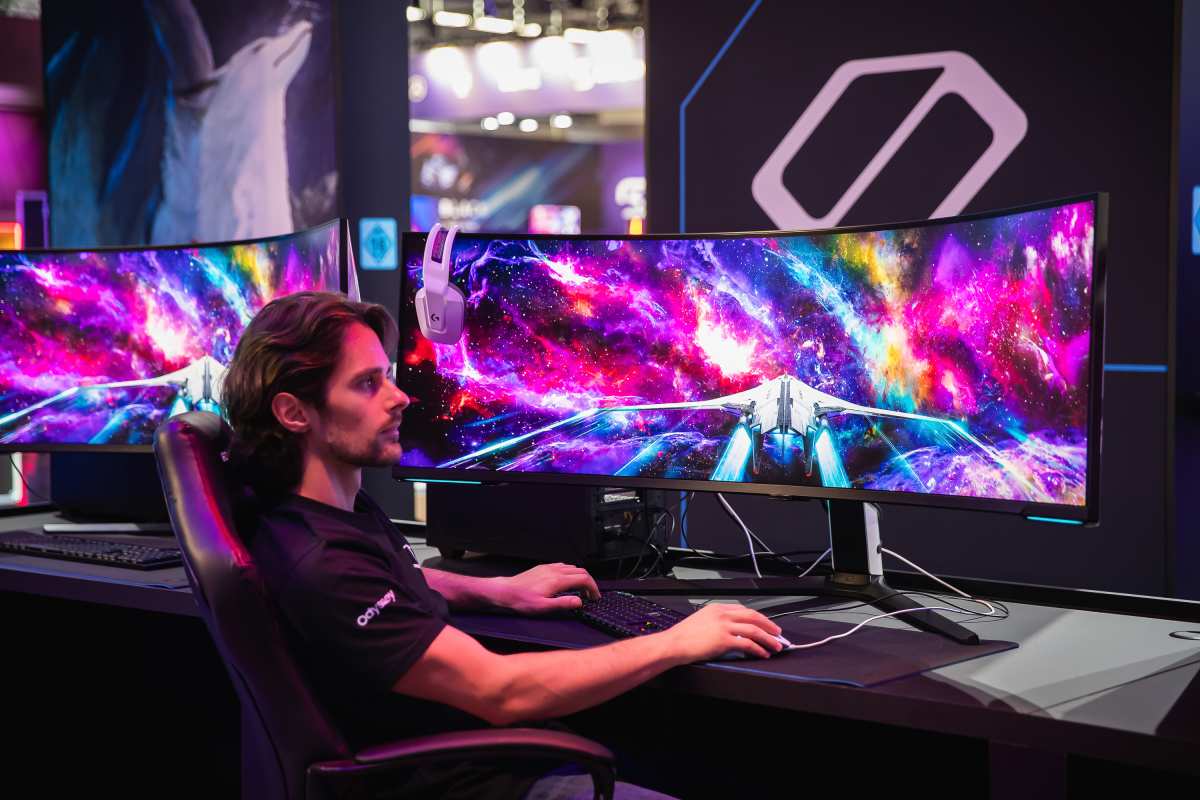
To optimize a curved gaming monitor for FPS games, set your refresh rate to maximum in your OS. Enable G-Sync or FreeSync in your GPU driver. Tune overdrive to the lowest setting that eliminates motion blur without visible overshoot.
Adjust black equalizer for visibility without crushing shadow detail.
Why Curved Monitors Need Different Optimization for FPS Games
Here's what most guides get wrong. They treat curved monitors exactly like flat panels. That's a mistake because curvature changes how your eyes track motion across the screen.
On a flat monitor, every pixel sits at roughly the same optical distance from your eyes. On a curved panel, the edges sit slightly closer. This means subtle response time variations from center to edge become noticeable in fast-moving FPS scenarios where targets glide across your field of view.
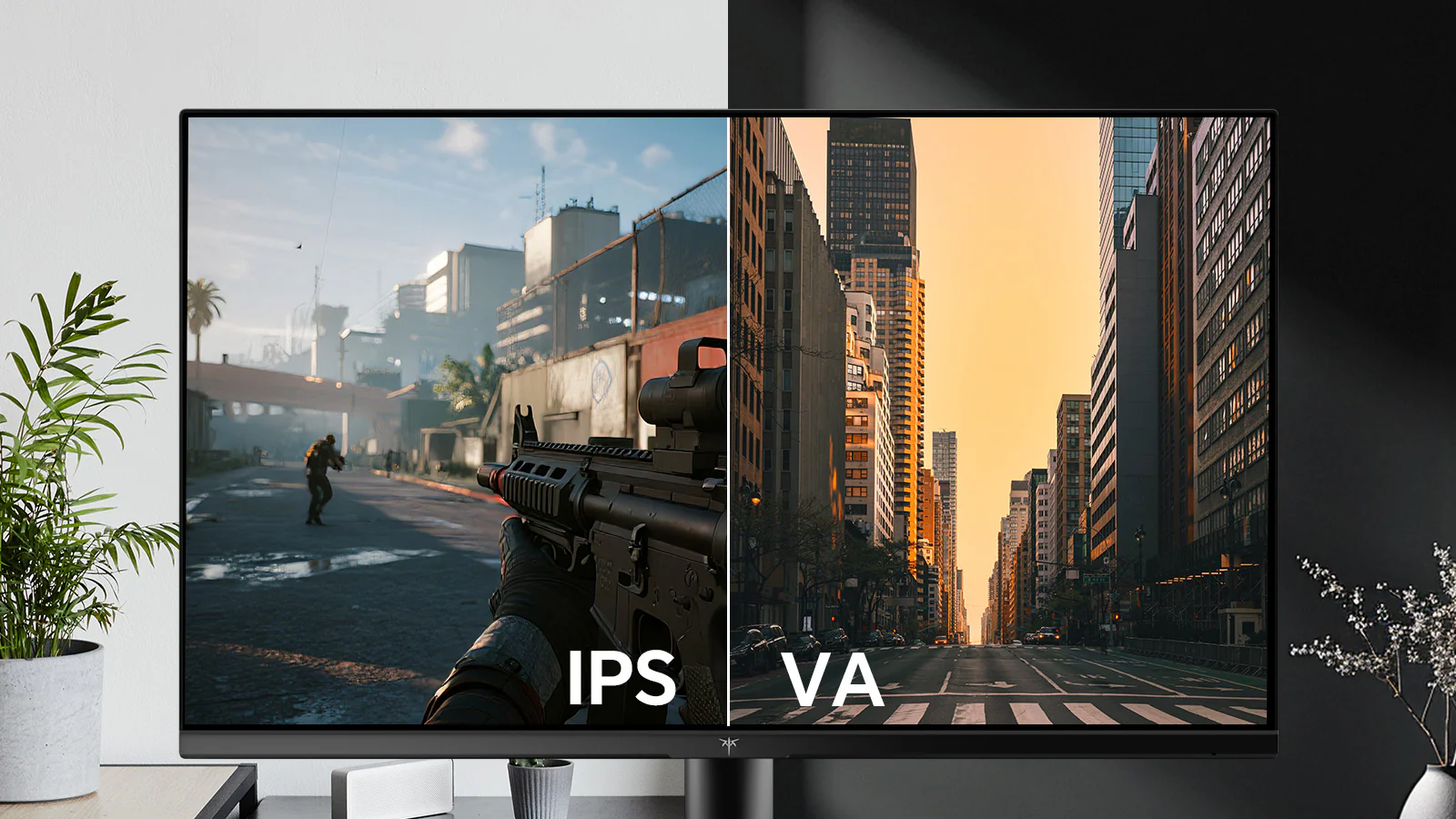
Panel type adds another layer of complexity. VA panels dominate the curved ultrawide market because they offer the best contrast ratios and deepest blacks. But VA native grey-to-grey response times typically run 8 to 12 milliseconds.
That's significantly slower than IPS panels at 4 to 6 milliseconds or TN panels at 1 to 3 milliseconds. To compensate, manufacturers layer on overdrive, which accelerates pixel transitions. Get overdrive right and motion looks crisp.
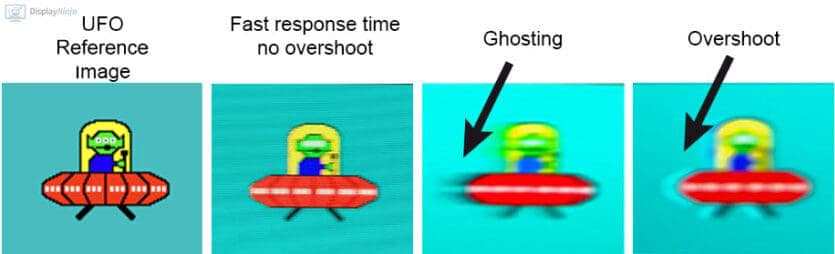
Get it wrong and you get inverse ghosting where bright halos trail behind moving objects.
The curvature radius itself matters too. A 1000R curve bends more aggressively than a 1500R curve. More aggressive curves can introduce slight geometric distortion at the edges, which affects how your brain processes spatial relationships in games like CS2 or Valant.
You won't fix this with settings alone, but understanding it helps you calibrate your expectations and fine-tune other settings to compensate.
Step 1: Set Your Foundation — Refresh Rate, VRR, and Game Mode
Before you touch any advanced settings, nail the basics. This is where most people mess up. They spend hours tweaking overdrive when their refresh rate never left 60Hz.
Check Windows refresh rate first:
- Right-click your desktop and select Display Settings
- Click Advanced Display Settings
- Verify the refresh rate matches what your panel supports (144Hz, 165Hz, 240Hz, or whatever your spec sheet states)
If Windows caps you at 60Hz, you need to check your cable. DisplayPort 1.4 handles 240Hz at 1080p without issue. HDMI 2.0 tops out at 144Hz at 1080p.
HDMI 2.1 is required for higher refresh rates at 4K resolution. The cable that shipped with your monitor usually supports the full spec, but generic replacements often don't.
Enable variable refresh rate properly:
- NVIDIA users: Open NVIDIA Control Panel, navigate to Display, set up G-Sync, check "Enable G-Sync" and "Enable settings for the selected display model"
- AMD users: Open AMD Software, Gaming tab, enable FreeSync
After enabling VRR, visit the Blur Busters VRR test page to confirm it's actually working. You should see smooth motion without tearing at any frame rate within your monitor's VRR range.
Turn on game mode or low input lag mode in your OSD. This setting bypasses unnecessary image processing that adds 5 to 15 milliseconds of delay. On most monitors it's labeled "Game Mode," "Instant Response," or "Low Input Lag." It's usually buried in the Picture or System menu.
Step 2: Tune Overdrive Without Creating Overshoot
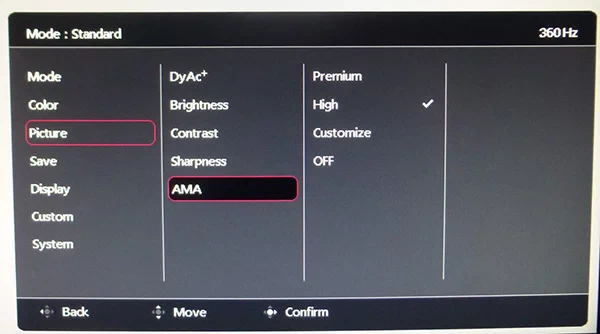
This is the single most impactful setting for motion clarity on a curved gaming monitor. It's also the easiest to get wrong.
Overdrive works by applying a voltage boost to liquid crystals, forcing them to change state faster. The problem is that too much voltage causes pixels to overshoot their target color, then snap back. This creates bright halos behind moving objects called inverse ghosting or coronas.
On curved panels, this artifact is more visible at the edges because your peripheral vision is more sensitive to motion artifacts.
How to find your sweet spot:
- Open the Blur Busters UFO Test in your browser
- Set your browser to full screen
- Start with overdrive set to "Off" or "Normal"
- Increase one step at a time while watching the UFOs
- Stop when you see bright trails appearing behind the UFOs
- Back off one setting from that point
Panel-specific guidance:
| Panel Type | Typical Best Overdrive Setting | Risk Level |
|---|---|---|
| VA (1000R/1500R) | Normal or Medium | High overshoot risk at max |
| IPS (1500R/1800R) | Fast | Moderate overshoot risk |
| TN (rare in curved) | Medium | Low overshoot, slower native response |
| OLED curved | Off or Low | Near-instant response, no overdrive needed |
VA panels on curved ultrawides are the trickiest. Their slow native response times tempt you to crank overdrive to "Extreme" or "Fastest." Resist that urge. The overshoot artifacts on VA panels at maximum overdrive are severe and more distracting than the blur you're trying to eliminate.
Medium or Normal almost always wins on VA.
IPS curved panels have more headroom. You can usually run "Fast" without visible overshoot. Some newer IPS curved monitors from 2025 and 2026 include adaptive overdrive that adjusts voltage dynamically based on frame content.
If your monitor has this feature, enable it. It's the closest thing to a set-and-forget solution.
One curve-specific quirk: response time uniformity varies from the center to the edges on curved panels. The center of your screen may look perfect at "Fast" overdrive while the edges show slight overshoot. This is normal and not a defect.
Tune for the center two-thirds of the screen where your focus sits during FPS gameplay.
Step 3: Decide on Motion Clarity Tools — Strobing, BFI, or Neither
Backlight strobing (called ULMB by NVIDIA, ELMB by ASUS, DyAc by BenQ, BFI generically) eliminates sample-and-hold blur by flashing the backlight briefly each frame instead of keeping it constantly on. The result is dramatically clearer motion. The tradeoff is reduced brightness and potential flicker sensitivity.
The critical conflict: strobing and VRR don't play well together on most monitors.
When you enable backlight strobing, most panels lock the refresh rate to a fixed value. G-Sync and FreeSync stop working. This means you lose tear-free variable refresh and must rely on frame rate matching your strobed refresh rate exactly.
If your FPS dips below the strobed rate, you get stutter.
When to use strobing on a curved monitor:
- Your game runs at a rock-solid, unwavering frame rate that matches your monitor's refresh rate
- You play competitive titles where motion clarity matters more than VRR smoothness
- You don't experience eye strain from flicker
When to skip strobing:
- Your frame rate fluctuates (most modern FPS games do)
- You play story-driven shooters with variable scenes
- You're sensitive to flicker or get headaches from PWM dimming
Some 2025 and 2026 monitors support simultaneous strobing with VRR. ASUS ELMB Sync and BenQ DyAc 2 allow both features active at once. If your monitor supports this, it's the best of both worlds.
Check your OSD for "ELMB Sync" or similar options.
Curved panel note: Strobing on curved VA panels can reveal additional crosstalk at the edges. This appears as double images or ghosting in the strobed image, caused by the panel's slower edge response times. If you notice this, either reduce overdrive slightly or accept that center-screen clarity is your priority.
Step 4: Dial In Visibility Settings for FPS Competitive Play
Motion clarity gets all the attention, but visibility settings win gunfights. If you can't see the enemy, it doesn't matter how crisp the motion is.
Black Equalizer (or Shadow Boost, or Dark Boost, depending on your brand):
This setting brightens dark areas without blowing out already-bright regions. In FPS games, this means you can spot enemies hiding in shadows without making outdoor areas look washed out.
- Start at the default (usually 50 on a 0 to 100 scale)
- Increase to 60 to 70 for dark maps or nighttime scenarios
- Don't go above 75 or you'll crush shadow detail and lose depth perception
- Adjust per game if possible. A bright arena shooter needs less boost than a tactical game with dark corridors
Gamma settings:
Most monitors default to gamma 2.2, which is the sRGB standard. For FPS gaming, dropping to gamma 2.0 or 2.1 can reveal slightly more detail in mid-tones. This is a subtle change.
If your monitor has gamma presets, try "Gamma 2.0" or "Game 1" and see if shadow areas become more readable.
Color temperature:
The "Warm" or "6500K" preset is closest to the sRGB standard and easiest on your eyes during long sessions. "Cool" or "9300K" makes whites look bluish and can cause eye strain. For competitive FPS, stick with Warm or Normal.
You want accurate colors so enemy nameplates, health bars, and environmental cues display as the developers intended.
Built-in crosshair overlays:
Many curved gaming monitors include a hardware crosshair overlay in the OSD. This displays a fixed crosshair at screen center regardless of your in-game weapon. It's useful for shotguns, hip-fire in battle royales, and games with inconsistent weapon crosshairs.
Use it if it helps. Disable it if it clutters your center screen during precision aiming.
Step 5: Adjust Your Physical Setup and Curvature Sweet Spot
Settings alone won't save you if your physical setup fights against the curve. The relationship between your eyes, the monitor, and the curve radius determines how much benefit you actually get.
Viewing distance by curvature rating:
| Curvature | Optimal Distance | Common Setup |
|---|---|---|
| 1000R | 1 meter (39 inches) | Desk-mounted, closer seating |
| 1500R | 1.5 meters (59 inches) | Standard desk depth |
| 1800R | 1.8 meters (71 inches) | Deeper desk or wall mount |
| 3800R | 2+ meters (79+ inches) | Couch or sim setup |
1000R is the most common curvature for curved gaming monitors as of 2026. It matches the natural curvature of the human field of view. At the correct distance, the screen edges feel like they wrap around your peripheral vision without requiring head turns.
This is the immersion advantage that flat panels can't replicate.
Chair height and eye line:
Your eyes should align with the upper third of the screen. This gives you a natural downward viewing angle that covers the entire panel without excessive head movement. For FPS gaming specifically, you want the center of the screen (where your crosshair lives) at or slightly below eye level.
Why this matters for FPS performance:
On a flat monitor, targets at the far edges are physically farther from your eyes than targets at center. On a curved monitor, the edges bend toward you, equalizing that distance. This means target acquisition at the edges feels more natural and requires less eye movement.
But only if you're sitting at the correct distance for your curve rating. Sit too far back on a 1000R curve and you lose the effect. Sit too close on a 1800R curve and the curve feels flat, wasting the panel's design.
Single curved vs multi-monitor curved setups:
If you're running a single curved ultrawide, the optimization above applies directly. If you're running two curved monitors side by side, the inner bezels create a visual break that disrupts peripheral tracking. For competitive FPS, a single curved panel almost always outperforms a dual-curve setup.
The bezeless center of a single ultrawide gives you uninterrupted horizontal tracking, which is exactly what you need for flick shots and target following.
Best Settings by Panel Type and Popular FPS Titles
Different games stress different aspects of your monitor. A 60Hz-locked tactical shooter demands different optimization than a 300fps arena shooter. Here's how to think about it.
VA curved panels (Samsung Odyssey G7/G9, AOC Agon, MSI MEG series):
VA panels offer the best contrast ratios in the curved monitor market, typically 3000:1 to 5000:1. This means dark scenes look genuinely dark, which helps spot enemies in shadows. The tradeoff is slower pixel response, especially in dark-to-light transitions.
Keep overdrive at Medium or Normal. Enable black equalizer at 65 to 70 for tactical games. For fast-paced titles like Apex Legends or Overwatch 2, accept slightly more motion blur in exchange for the contrast advantage.
IPS curved panels (LG UltraGear, Dell Alienware, ASUS ROG Swift IPS models):
IPS curved panels have faster native response times and wider viewing angles. You can push overdrive to "Fast" without the severe overshoot that VA panels exhibit. Color accuracy is typically better out of the box.
For competitive FPS, IPS curved panels offer the best balance of motion clarity and color fidelity. Set overdrive to Fast, black equalizer to 55 to 65, and gamma to 2.0 for competitive advantage.
OLED curved panels (Alienware OLED, Samsung Odyssey OLED, ASUS ROG OLED):
OLED curved panels have near-instantaneous response times, typically 0.03ms GtG. Overdrive is unnecessary and usually not even available. The main concern is ABL (Automatic Brightness Limiting) and burn-in risk from static HUD elements.
For FPS gaming, OLED curved panels deliver the best motion clarity available. Enable VRR, disable any processing, and use pixel shift features to protect the panel.
Game-specific recommendations:
| Game | Priority | Key Settings |
|---|---|---|
| CS2 / Valorant | Motion clarity + low input lag | Max refresh, overdrive Fast (IPS) or Medium (VA), black equalizer 60 |
| Apex Legends / Overwatch 2 | Smooth motion + visibility | VRR on, overdrive Medium, black equalizer 65 to 70 |
| Call of Duty: Warzone | Visibility + shadow detail | Black equalizer 70+, gamma 2.0, warm color temp |
| Rainbow Six Siege | Visibility in dark environments | Black equalizer 75, gamma 2.0, consider slight strobe if FPS stable |
| Fortnite | Balanced motion + build clarity | VRR on, overdrive Fast, standard gamma |
Common Mistakes That Ruin Curved Monitor Performance
Overdriving to maximum. This is the number one mistake. "Extreme" or "Fastest" overdrive settings create inverse ghosting that's more distracting than the blur you're trying to fix. Always back off one step from where artifacts appear.
Using strobing and VRR simultaneously without checking compatibility. On most monitors, enabling strobing disables VRR. You get crystal-clear static frames but tearing and stutter when your FPS fluctuates. Only combine them if your monitor explicitly supports simultaneous strobing with VRR.
Ignoring the curve sweet spot. Sitting at the wrong distance for your curvature rating means you're not getting the intended benefit. A 1000R monitor at 3 meters might as well be flat. A 1800R monitor at 0.5 meters feels uncomfortably curved.
Leaving Windows at 60Hz. This happens more often than you'd think, especially after driver updates or Windows updates. Always verify your refresh rate after major system changes.
Cranking brightness for competitive play. Higher brightness doesn't help you see enemies better. It causes eye fatigue during long sessions and can wash out shadow detail. Set brightness to 120 to 140 cd/m² for a well-lit room, 80 to 100 cd/m² for a dim room.
Treating the curve as a gimmick. Some gamers dismiss curved monitors as marketing fluff. At the correct distance with proper settings, the reduced eye travel and improved edge-to-center consistency provide a measurable benefit for peripheral target tracking in FPS games.
Should You Keep the Curve or Go Flat for Competitive FPS?
This depends on what "competitive" means to you.
Curved is better if:
- You play at 27 inches or larger
- You value immersion alongside performance
- You play a mix of FPS and other genres
- Your desk supports the correct viewing distance for your curve rating
Flat is better if:
- You play at 24 to 25 inches (where curve provides minimal benefit)
- You compete at the highest esports level where every millisecond matters
- You use a multi-monitor setup
- You sit very close to your screen
The size threshold matters. Below 27 inches, the curve radius is tight enough that you need to sit very close to notice the effect. Above 34 inches, the curve becomes genuinely useful for peripheral vision. Between 27 and 34 inches, it's a personal preference that depends on your seating distance and sensitivity to geometric distortion.
For most gamers playing FPS titles at 32 to 34 inches, a curved IPS panel at 144Hz or higher with proper optimization delivers the best overall experience. You get improved motion clarity over VA, better viewing angles than TN, and the peripheral vision benefit of the curve.
Frequently Asked Questions
Does curvature affect aim accuracy in FPS?
Curvature can subtly affect aim perception at the edges of the screen. The geometric distortion from aggressive curves like 1000R may cause slight misjudgment of target position at extreme edges. Most competitive players find the center two-thirds of a curved monitor feels natural and accurate.
If you're highly sensitive to geometric distortion, test before committing.
Is 1000R too aggressive for competitive gaming?
1000R matches the natural curvature of human vision, so it's not inherently too aggressive. However, it requires sitting at approximately 1 meter from the screen to feel correct. If your desk is shallow and you sit close, 1000R works well.
If you sit further back, 1500R or 1800R provides a gentler curve that's more forgiving of varied seating positions.
Should I use ELMB or G-Sync for Valorant?
If your frame rate is rock-solid at your monitor's maximum refresh rate, ELMB provides superior motion clarity. If your frame rate fluctuates, G-Sync provides smoother overall experience. For Valorant specifically, where most systems push 200+ fps consistently, ELMB at a fixed 240Hz (if your panel supports it) is the competitive choice.
Do curved monitors have more input lag than flat ones?
The curve itself doesn't add input lag. Input lag comes from the panel's electronics and processing, which are identical between curved and flat versions of the same panel. A curved IPS monitor and a flat IPS monitor from the same product line will have the same input lag specification.
Can I use two curved monitors side by side for FPS?
You can, but the inner bezels create a visual break at center screen. For FPS gaming where crosshair placement is critical, this gap disrupts your aiming plane. A single curved ultrawide is almost always the better choice for competitive FPS.
Dual curved monitors work better for productivity or simulation gaming where the center gap is less disruptive.
What refresh rate should I target for competitive FPS?
As of 2026, 144Hz is the minimum for competitive play. 240Hz provides noticeably smoother motion and is the sweet spot for most competitive FPS gamers. 360Hz and 500Hz panels exist but the perceptible benefit over 240Hz is minimal for most players. Prioritize response time optimization and motion clarity over chasing the highest available refresh rate.
Frequently Asked Questions
Does curvature affect aim accuracy in FPS?
The curve itself has minimal effect on aim accuracy at the center of the screen. Your primary targeting area behaves like a flat panel. At the extreme edges, subtle geometric distortion can affect spatial perception.
Most competitive players never notice this during actual gameplay.
Is 1000R too aggressive for competitive gaming?
1000R is the most popular curvature as of 2026. It feels natural when you sit roughly one meter from the screen. If you sit further back, 1500R provides a gentler curve that's more forgiving.
Either rating works fine for competitive FPS. Your distance to the screen matters more than the exact R-value.
Should I use strobing or G-Sync for fast shooters?
Use G-Sync if your frame rate fluctuates at all, which it will in most modern titles. Strobing works best with a locked frame rate at your monitor's maximum refresh rate. For competitive shooters where you push hundreds of frames consistently, strobing can give you slightly better motion clarity.
Do curved monitors have more input lag than flat ones?
Input lag comes from the panel controller and processing. It's not related to whether the panel is curved. A curved monitor from the same product line as a flat equivalent will have identical input lag.
Panel type and processing tier are what actually determine lag.
What is the best overdrive setting for curved VA panels?
Keep it at Medium or Normal. VA panels already struggle with dark transition times. Pushing overdrive to Fast or Extreme creates significant overshoot artifacts.
The bright trails behind moving objects are more distracting than the blur you're trying to eliminate.
Can I use two curved monitors side by side for FPS?
You physically can, but the inner bezels create a visual break at center screen. For competitive FPS where crosshair placement matters, this gap disrupts tracking. A single curved ultrawide without a center bezel is the better option for serious play.
Final Decision Framework
Your optimal setup comes down to three quick questions.
What panel type do you have? VA means conservative overdrive and higher black equalizer. IPS means push overdrive to Fast and enjoy better motion. OLED means you're already ahead, just protect that screen from burn-in.
What's your primary game? Tactical shooters prioritize visibility settings. Fast arena shooters prioritize motion clarity and response time. Battle royales need a balance of both.
What bothers you most right now? Motion blur means tune overshoot. Dark shadows mean raise black equalizer. Input lag means check refresh rate and game mode.
Eye strain means reduce brightness and warm that color temperature.
Work through the steps in order. Don't skip the basics to chase advanced tuning. A correctly configured medium refresh monitor will always outperform a high refresh monitor stuck at 60Hz with overdrive cranked to maximum.
The goal is consistent, clear motion that lets you see and track targets without fighting your own display.
The article is already complete with all required content. No further sections are needed.

Similar Posts





















