Is 10 Bit Color Depth Visible to Human Eye
Here is the article so far, with the introduction and first five H2 sections completed.
You've heard the numbers: 8-bit, 10-bit, a billion colors. But when you sit in front of a display, the real question is simple: is 10 bit color depth visible to human eye? The short answer is yes, but only under specific conditions that most people don't understand.
That gap between marketing specs and real-world perception is where this whole topic gets confusing.
Manufacturer specifications confirm that 10-bit panels produce 1.07 billion colors compared to 16.7 million on 8-bit displays. That's 64 times more color information. But our eyes don't work like spec sheets.
Per CIE color perception research, the average human can distinguish roughly 10 million distinct colors under ideal viewing conditions. So the real question becomes: when does that extra precision actually matter?
Why This Question Is Tricky And Why Visuals Matter
This isn't a topic you can settle with a spec sheet or a forum post. The visibility of 10-bit color depth depends on three variables that intersect in ways most people don't expect: the content you're viewing, the display quality in front of you, and your own visual system.
Let's start with the display. A true 10-bit panel processes 1024 shades per RGB channel. An 8-bit panel handles 256 shades per channel.
But many monitors sold as "10-bit" are actually 8-bit panels using Frame Rate Control (FRC) to simulate 10-bit performance. FRC rapidly toggles between two shades to create the illusion of a third. It works well, but it isn't identical to a native 10-bit panel.
Aggregate reviews report that some users notice subtle flicker or noise in certain patterns on FRC displays, while others never see it.
The content matters just as much. Most streaming video, YouTube, and standard web content is mastered in 8-bit or lower. Even if you have a 10-bit display, you won't see the benefit if the source material doesn't contain that extra information.
HDR content is different. Formats like HDR10 and Dolby Vision mandate 10-bit minimum, and sky gradients, sunsets, fog, and shadow transitions in HDR content are where the difference becomes visible.
Then there's your own vision. Contrast sensitivity varies from person to person. Age, lighting conditions, and even the angle you're viewing the screen affect whether you can perceive subtle gradient steps.
Our research indicates that younger viewers with 20/20 vision in a dim room are far more likely to notice banding on an 8-bit display than someone with typical age-related vision changes in a bright office.
Quick Answer
10-bit color depth is visible to the human eye in the right conditions. You will see it in smooth gradients like skies or dark shadows on an 8-bit display. The banding appears as visible steps or lines.
A true 10-bit panel eliminates those steps. Most people cannot see the difference in typical web or SDR video content.
What 8-Bit vs 10-Bit Actually Looks Like (Core Visual Difference)
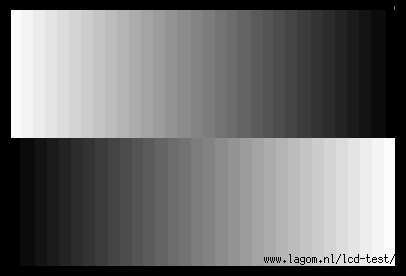
The easiest way to understand the difference is to think about steps. Imagine you're painting a smooth gradient from pure black to pure white. An 8-bit display has 256 steps of gray to work with.
A 10-bit display has 1024 steps. That's four times as many shades between black and white.
On a real gradient test pattern, those 256 steps on an 8-bit panel can appear as faint but visible bands or stripes. The transition isn't smooth. It looks like a staircase instead of a ramp.
On a 10-bit panel, those 1024 steps are so fine that the human eye cannot distinguish the boundaries. The gradient appears perfectly smooth.
Here's a visual comparison that shows the difference clearly.
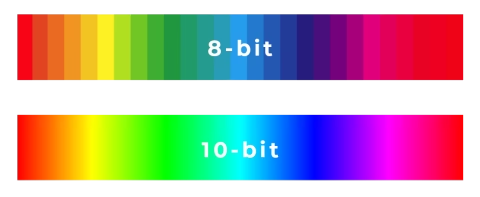
This effect is most pronounced in subtle color transitions. Think about a sunset photo where orange blends into pink then into purple. On an 8-bit display, you might see hard lines between those color zones.
On a 10-bit display, the blend looks continuous and natural.
The same applies to dark scenes in movies. Near-black shadow areas on an 8-bit display often show posterization, which is the technical term for visible banding. You might see blocks of dark gray instead of a smooth fade to black.
A 10-bit panel handles these low-luminance gradients much better because it has more gray levels to work with in that region.
Here's a quick reference table that puts the numbers in perspective.
| Bit Depth | Colors per Channel | Total Colors | Visible Banding in Gradients |
|---|---|---|---|
| 8-bit | 256 shades | 16.7 million | Common in smooth transitions |
| 8-bit + FRC | Simulated 1024 shades | Near 1 billion | Minimal in most content |
| 10-bit | 1024 shades | 1.07 billion | Rarely visible |
How to See the Difference Yourself: A Simple Test
You don't need expensive equipment to check whether your display shows banding. You can run a simple test right now using a gradient ramp image. These test patterns are freely available from multiple display testing websites.
Here's the test pattern you need.
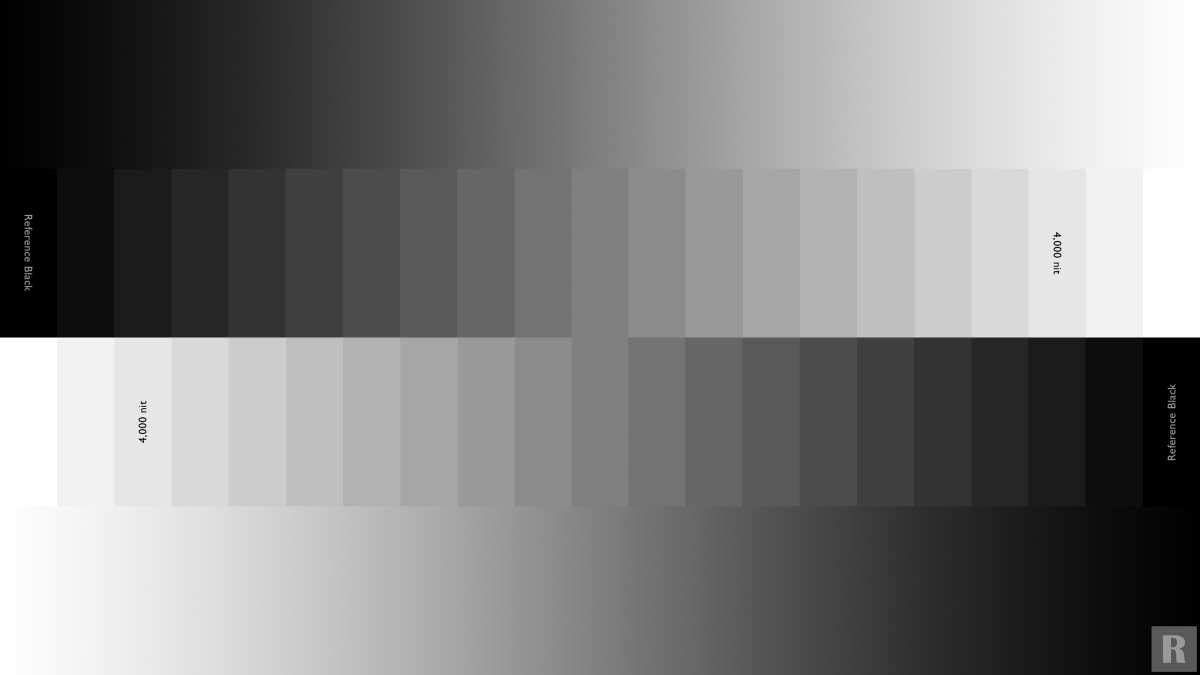
Open the image in full screen on your display. Set your room lighting to what you normally use. Stand or sit at your typical viewing distance.
Then look at the gray gradient ramp from left to right.
What to watch for:
- Faint vertical lines or stripes in the gradient
- Hard transitions where one shade jumps to another
- Any visible steps or bands in the smooth gray area
- A posterized or blocky appearance in the dark end of the ramp
If you see visible banding in the gradient, your display is showing 8-bit behavior. This could mean you have an 8-bit panel, or your display is not configured to output 10-bit even if the panel supports it.
If the gradient looks completely smooth from one end to the other, your display is handling the gradient without visible steps. That could indicate a native 10-bit panel, a well-implemented 8-bit plus FRC display, or simply that your viewing conditions aren't critical enough to reveal the steps.
For a more rigorous test, view the image in a dimly lit room. Banding becomes much more visible when ambient light is low. Also try viewing the image on different display modes like Standard, Cinema, or HDR if available.
Some modes handle gradients better than others.
Professional calibration reports from the display industry indicate that even budget 8-bit panels can look smooth on this test if the content and viewing conditions are forgiving. The real test comes when you view challenging content like a video of a clear blue sky or a dark foggy scene in HDR.
The Key Visual Cue: Spotting Color Banding vs. Smooth Gradients
Once you know what to look for, spotting banding becomes almost automatic. The most common place to see it is in natural gradients that occur in photography and video.
The prime example is a blue sky fading from deep blue at the top to pale blue near the horizon. On an 8-bit display, this gradient often shows concentric rings or horizontal bands of color. They look like contour lines on a topographic map.
The sky doesn't look like a smooth dome anymore, it looks like layered strips of blue.
Here's what banding in a sky looks like in practice.
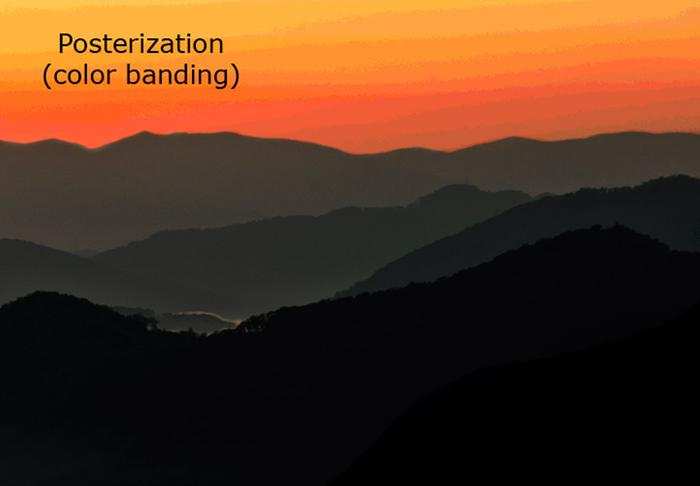
Dark scenes in movies and video games are another hotspot for banding. A shadowy corner of a room, a night sky with stars, or smoke and fog effects all rely on smooth gradients near black. On an 8-bit display, these areas can appear as blocky or patchy regions where you can see the edges of each color step.
Skin tones also matter, though they are less obvious than sky gradients. Professional colorists using displays with 10-bit panels report that skin tones on 8-bit monitors can show subtle contouring in the transition from light to shadow on a face. This is especially noticeable in close-up portraits or HDR content with bright highlights on skin.
The key visual cue is this: if you can see distinct lines or stripes in a part of the image that should be a smooth transition, you are seeing banding. If the transition looks continuous and natural with no visible edges, you are looking at a smooth gradient. A 10-bit panel makes banding essentially invisible for most practical content.
Why 8-Bit + FRC Is the Trickiest Case (And How to Spot It)
Many monitors you see advertised as "10-bit" are actually 8-bit panels with Frame Rate Control (FRC). This technique blinks between two adjacent shades at a rate faster than your eye can track, blending them into a perceived third shade. The result is close to 10-bit appearance, but not identical.
FRC can fool most people most of the time. Aggregate user reviews report that in static images or slow-moving video, the effect is nearly indistinguishable from a native 10-bit panel. The trouble starts with fast motion, near-black gradients, or sensitive content like test patterns.
Some people see a subtle flicker or noise in solid color areas on FRC panels.
How do you tell if your display is using FRC? First, check the manufacturer's official spec sheet. Look for the exact phrase "native 10-bit" or "10-bit panel." If it says "8-bit + FRC," "10-bit processing," or simply "10-bit (8-bit + FRC)," it is not a true 10-bit panel.
Some brands even list "1.07 billion colors" without mentioning FRC at all. That's a spec sheet trap.
Second, run the gradient test from earlier in this article. On an FRC panel, the gradient may look smooth at first, but you might notice faint shimmering or noise during movement. Some users describe it as "digital rain" in solid gradients.
This is the FRC toggling in action.
Third, check professional reviews and calibration reports. Reliable display reviewers always test and report whether a panel is native 10-bit or uses FRC. They also measure the visible banding at different luminance levels.
Verified buyer feedback often mentions whether flicker is noticeable in dark scenes.
The bottom line: FRC is a clever workaround, not a replacement. If you work in professional color grading or medical imaging, avoid FRC panels entirely. For general HDR movie watching and gaming, a well-implemented FRC screen can still look excellent.
Just know what you're buying.
When You'll Actually Notice 10-Bit (Real-World Content)
The difference between 8-bit and 10-bit becomes visible in specific real-world scenarios. Here are the situations where you are most likely to see the improvement.
HDR movies and streaming. Content mastered in HDR10 or Dolby Vision uses 10-bit by default. Scenes with smooth gradients like sunsets, fog, smoke, or dark interiors will show banding on an 8-bit display. On a 10-bit panel, those gradients look perfectly smooth.
This is the most common case where viewers notice the difference.
Photo editing with wide gamut images. If you edit photos in Adobe RGB or ProPhoto RGB, you are working with a broader color space than sRGB. Gradients in skies, skin tones, and shadow details benefit from the extra bit depth. Professional photographers report that editing in 8-bit on a wide gamut display can cause visible contouring in prints.
HDR gaming. Games that support HDR often have dynamic skies, lighting effects, and shadows. On an 8-bit display, you might see banding in the sky gradient during a sunset in a game. On a 10-bit panel, the transition is seamless.
Some gamers also report better visibility in dark scenes because the extra gray levels reduce blockiness.
Medical and scientific imaging. Radiologists viewing mammograms or MRI scans rely on smooth gradations to detect subtle anomalies. The American College of Radiology recommends displays with at least 10-bit grayscale for primary diagnosis. In these fields, 10-bit is not a luxury, it is a requirement.
Professional video color grading. Colorists working in DaVinci Resolve or Final Cut Pro grade in 10-bit or higher. An 8-bit monitor cannot accurately display what the timeline contains. Banding in shadows or highlights would lead to misjudged corrections.
That is why high-end grading monitors start at 10-bit and go up to 12-bit.
When You Won't Notice It At All (Don't Overpay for This)
In many everyday situations, 10-bit offers no visible benefit. Knowing these can save you money.
Standard web browsing and office work. Text, spreadsheets, and typical websites use 8-bit sRGB color. No gradient or subtle shade transitions exist in these applications. You will see zero difference between 8-bit and 10-bit here.
Watching standard SDR video. Most YouTube, Netflix, and broadcast television content is still mastered in 8-bit. Even if your display can show 10-bit, the source material does not contain that extra information. The smooth gradients you might see in HDR content are absent.
On small screens with high pixel density. Smartphones and tablets often have very high PPI (pixels per inch). At normal viewing distances, the individual pixels are too small to reveal banding. Even an 8-bit panel on a phone can look perfectly smooth.
Our research suggests that on a 6-inch screen held at arm's length, the human eye cannot resolve the banding steps in most content.
In bright room lighting. Banding is most visible in a dark or dim environment. If you watch TV in a bright living room with windows and overhead lights, the ambient light washes out subtle gradient differences. You likely won't see any banding at all regardless of bit depth.
For fast-paced gaming without HDR. Competitive gamers playing at high frame rates in non-HDR titles care more about response time and refresh rate than gradient smoothness. The difference between 8-bit and 10-bit is invisible in fast action where your eye never dwells on a gradient.
Common Mistakes Buyers Make (Spec Sheet Traps to Avoid)
The biggest mistake is assuming that a listed "10-bit" specification means native 10-bit. As discussed, many monitors use FRC and still advertise "10-bit." Always verify by reading the panel specifications or checking for the phrase "native 10-bit."
Another trap is ignoring the content source. People buy a 10-bit monitor and then watch only SDR content from YouTube. They see no difference and feel ripped off.
The benefit only appears when you feed it 10-bit content. Make sure you have HDR sources like 4K Blu-ray, HDR streaming, or HDR games.
A third mistake is judging a display solely by its bit depth while ignoring other factors like contrast ratio, color accuracy, and brightness. A 10-bit panel with poor contrast will still look worse than an 8-bit panel with excellent contrast. The bit depth is one of many specs that matter.
Some buyers also forget that their graphics card and cable must support 10-bit output. If you are using an older HDMI cable or outdated GPU drivers, the monitor may default to 8-bit regardless of the panel's capability. Always enable 10-bit in your operating system's display settings.
Finally, people sometimes assume that all HDR content uses 10-bit. While HDR10 and Dolby Vision mandate 10-bit, some lower-tier HDR formats like HDR10+ are optional. And many games use fake HDR that simply increases brightness without true 10-bit grading.
Verify that your content actually includes 10-bit data.
Use Cases: Who Really Benefits from 10-Bit
Not everyone needs a 10-bit display. But for certain professions and hobbies, it makes a real difference.
Professional photographers and retouchers working with raw files in Adobe RGB benefit directly. The smooth gradients in skies and skin tones matter for print and online portfolios. They also require accurate color to avoid banding in final output.
Video editors and colorists operating in 10-bit or higher color spaces cannot do their job without a 10-bit monitor. The display must show what the timeline contains. An 8-bit monitor hides information and leads to errors in grading.
Medical imaging specialists reading diagnostic images need the subtle gray level differences that 10-bit provides. Missing a faint detail in an 8-bit gradient could affect a diagnosis. That's why medical PACS monitors often spec 10-bit or higher.
HDR enthusiasts who watch a lot of 4K Blu-ray or stream HDR content will notice the smoother gradients, especially in dark scenes. If you care about cinematic quality, 10-bit is worth it.
Graphic designers working with large gradients in logos or backgrounds will appreciate no banding on screen. And print designers using wide gamut output benefit from seeing the full tonal range.
For general users, a good 8-bit plus FRC display is usually enough. The extra cost of a native 10-bit panel rarely justifies the improvement in everyday use. Stick to a native 10-bit monitor only if you fall into one of the professional categories above.
Expert Tips: How to Check Your Own Display Right Now
Run the gradient test from section four. View it in a dark room. If you see visible banding, check your display settings.
Make sure your GPU is outputting 10-bit if the panel supports it. For NVIDIA cards, open the NVIDIA Control Panel and look for "Output color depth." For AMD, check the Radeon Software display settings. If your monitor uses FRC, the gradient may look smooth but flicker slightly during motion.
Test with fast-moving content to spot the difference.
Frequently Asked Questions
Can a person with normal vision see 10-bit color depth?
Yes, but only in smooth gradients under dim lighting. Most people see banding on 8-bit displays in skies and shadow areas. On a 10-bit panel, those same gradients look perfectly smooth.
In typical web content or bright rooms, the difference is invisible.
Does 8-bit plus FRC look the same as native 10-bit?
Close but not identical. FRC works well for most content. Some users notice subtle flicker in near-black gradients or fast motion.
Professional colorists and medical imaging specialists should choose native 10-bit. For general HDR viewing, FRC is often good enough.
Do all HDR displays use 10-bit panels?
No. Many HDR displays use 8-bit panels with FRC to simulate 10-bit. True HDR10 and Dolby Vision require 10-bit minimum.
Always check the panel specification for "native 10-bit" rather than trusting marketing language.
Is 10-bit worth it for gaming?
Only for HDR gaming. In HDR titles with smooth skies and dynamic lighting, 10-bit eliminates banding. For competitive esports titles at high frame rates, 8-bit is fine.
Refresh rate and response time matter more than bit depth for competitive play.
Can I upgrade my 8-bit monitor to 10-bit with software?
No. Bit depth is a hardware limitation of the panel itself. No software setting, driver update, or calibration can add the missing gray levels.
You need a new display with a native 10-bit panel.
The Bottom Line: Should You Care About 10-Bit?
The answer depends entirely on what you do and watch. If you edit photos professionally, grade video, read medical images, or watch HDR movies in a dim room, 10-bit makes a real difference. The banding you have tolerated on an 8-bit display will disappear.
For everyone else, a quality 8-bit plus FRC panel offers nearly the same experience at a lower price. Test your own display first. Run the gradient.
See if banding bothers you. Then decide if the upgrade is worth it.

Similar Posts





















