Iphone Screen Replacement Touch Not Working Causes And Fixes
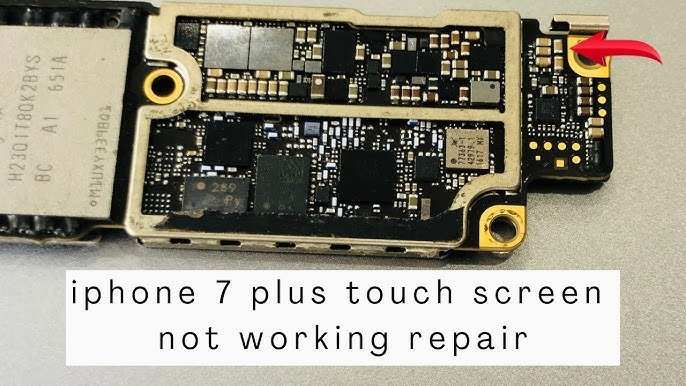
If your iPhone screen replacement touch not working, try a simple restart or reset to fix minor glitches. **This often resolves touch sensitivity issues without further repairs.** Sometimes, the problem stems from improper installation or a faulty replacement component.
If the touch still doesn’t respond, check for software updates or contact a technician. Addressing these quick steps can save you time and prevent unnecessary frustration.

Understanding iPhone Screen Replacement and Why Touch Not Working Can Be a Problem
When your iPhone’s screen gets damaged or starts acting up, you might think it’s a simple fix. Maybe you accidentally dropped it, or the screen cracked after hitting a hard surface. If you decide to replace the screen, chances are you want your phone to work just like it did before. However, a common issue that pops up after a screen replacement is that the touch function isn’t working. This problem can be frustrating, especially since touch responsiveness is what makes your iPhone useful in daily life.
In this section, we will explore why this happens, what it means for your device, and how to approach fixing it. Whether you’re considering a DIY repair or planning to visit a professional, understanding the underlying reasons behind this issue is key to making the right decision.
Why Does the Touch Screen Stop Working After Replacement?
A variety of reasons can cause the touch feature to malfunction after you replace your iPhone screen. Let’s look into the most common causes:
- Connection Problems: The most frequent reason for touch not working is a loose or improperly connected flex cable. During the replacement process, delicate connectors might not be seated correctly, leading to unresponsive touch.
- Damaged Digitizer: The digitizer is the component responsible for detecting touch inputs. If it’s damaged or faulty, the screen won’t respond to touch even if it looks fine physically.
- Compatibility Issues: Using a non-original or incompatible replacement screen can cause touch problems. Not all third-party screens match the original digitizer quality or specifications.
- Software Glitches: Occasionally, software errors or bugs after a screen replacement can interfere with touch functionality. A simple restart or software update may resolve this issue.
- Moisture or Water Damage: If water or moisture seeps into the phone during or after the repair, it can cause corrosion or short circuits that affect touch responsiveness.
- Faulty Repair Parts: Sometimes, the replacement parts themselves are defective or damaged, leading to touch issues.
Understanding these causes helps in diagnosing whether the problem stems from the replacement process or other external factors. Next, let’s delve into how to identify which of these reasons could be affecting your device.
How to Identify the Cause of Touch Not Working After Screen Replacement
Figuring out why your iPhone’s touch isn’t responding involves a systematic approach. Here’s how to do it:
- Check the Physical Connection: Carefully open your device and ensure that all flex cables are connected securely. Sometimes, a simple disconnection during assembly causes the issue.
- Test with Original Parts: If possible, replace the screen with an original Apple part to see if the problem persists. This helps identify if the new screen is compatible and functional.
- Observe for Water or Moisture: Look for signs of moisture inside the device, such as fogging or corrosion around connectors.
- Perform a Restart or Soft Reset: Sometimes, a soft reset can fix minor software glitches interfering with touch responsiveness.
- Update Software: Make sure your iPhone is running the latest version of iOS, as updates often fix bugs that cause hardware issues.
- Run Diagnostics: Use built-in diagnostics or professional tools to test the digitizer and related components.
By following these steps, you can narrow down whether the problem is mechanical, hardware-related, or software-based. Now, if you find that the digitizer is damaged or incompatible, what options do you have? Let’s explore what repair options are available.
Repair Options for iPhone Touch Issues Post-Screen Replacement
Once you understand the root cause, you can decide on the best course of action. Here are the most common solutions:
Professional Repair Services
Many users opt to go to authorized iPhone repair technicians who have the right tools and genuine parts. These technicians are trained to handle delicate repairs and ensure that the digitizer and connector are correctly installed. Since they use original parts, the likelihood of encountering touch issues afterward is minimal.
DIY Repair
If you’re comfortable opening your iPhone and have experience with small electronics, a DIY repair can save money. Here are tips if you choose this route:
- Use high-quality replacement screens that are compatible with your iPhone model.
- Follow detailed tutorials and videos specific to your device model.
- Work in a clean, static-free environment to avoid further damage.
- Handle components carefully, especially flex cables and connectors.
Remember that DIY repairs carry the risk of making the problem worse if not done correctly.
Replacing Faulty Parts
Sometimes, only the digitizer or the flex cables need replacement. Replacing these individual parts can be more affordable than full-screen replacements and can resolve touch issues if the original digitizer is damaged.
Preventing Touch Issues During Future Screen Replacements
Preventing these problems is better than dealing with them later. Here are some tips to avoid touch problems after your next screen replacement:
- Choose quality parts: Always opt for original or high-quality third-party replacement screens that match Apple’s standards.
- Use proper tools: Invest in a good-quality repair toolkit designed for iPhones to avoid damaging internal components.
- Follow a detailed guide: Use step-by-step tutorials specific to your iPhone model to ensure correct assembly.
- Work in a clean environment: Dust, static, or moisture can cause problems during repairs. Clean your workspace before starting.
- Test before sealing: After installing the new screen, test the touch functionality thoroughly before sealing your device completely.
Following these precautions helps ensure your replacement process is smooth and your iPhone’s touch responsiveness remains intact.
What to Do If Touch Still Isn’t Working After Replacement
If you’ve already replaced the screen, checked connections, and tested software updates but still face touch issues, consider these next steps:
- Revisit the repair process: Double-check all connections and assembly steps to ensure nothing was missed.
- Use diagnostic tools: Use third-party diagnostic apps or Apple’s built-in diagnostics to identify hardware faults.
- Consult a professional: When in doubt, visiting an authorized repair center gives you an expert assessment and proper resolution.
- Consider a full motherboard check: Sometimes, underlying damage to the mainboard causes touch failure, which might need more extensive repairs.
Addressing persistent touch problems requires patience, careful troubleshooting, and sometimes professional help.
Summary
Replacing an iPhone screen can sometimes lead to touch responsiveness problems due to connection issues, incompatible parts, or hardware damage. To fix this, check the connections, use quality parts, and consider professional repair services if needed. Proper handling during the repair process greatly reduces the chance of future touch problems, and diagnosing issues early can save you time and money.
Maintaining your iPhone’s touchscreen functionality involves paying close attention during repairs and choosing quality parts. If issues do arise afterward, stay calm and methodically troubleshoot the problem to find the best solution. Whether you proceed with DIY repairs or professional services, understanding the common causes and fixes will ensure your iPhone stays responsive and functional.
Remember, careful handling and the right parts matter most in keeping your device working just like new. Taking the time to properly replace your screen now can prevent frustrating issues with touch down the line.
Frequently Asked Questions
What could cause the touch feature to stop functioning after a screen replacement?
Several factors can lead to the touch screen not working properly following a replacement. Improper installation, such as misaligned connectors or damaged flex cables, can prevent the touch functionality from working correctly. Additionally, using incompatible parts or low-quality screens may result in poor touch response. Environmental factors like moisture or dust inside the device can also interfere with the touch sensors. Ensuring the replacement is performed carefully by a skilled technician helps prevent these issues.
How can I troubleshoot touch screen problems after replacing my iPhone screen?
Start by restarting your device to see if the issue resolves. Check if the screen is properly connected — sometimes, loose connectors cause touch failure. Clean the screen and the surrounding area to eliminate dust or debris that could interfere with touch sensitivity. If the problem persists, test the device in safe mode or reset settings to identify potential software conflicts. If these steps do not resolve the issue, consulting a professional technician is recommended to inspect hardware connections and components.
Is it possible for a newly replaced screen to have defective touch functionality?
Yes, a new replacement screen can sometimes be defective or have manufacturing flaws that impact touch performance. Quality control issues during manufacturing or shipping can result in faulty screens. If you notice unresponsive areas or inconsistent touch behavior after a screen replacement, the screen itself might be defective. In such cases, replacing the screen with a higher-quality, certified part often restores proper touch functionality.
What steps should I take if my iPhone’s touch stops working after replacing the screen?
Immediately ensure all connectors are securely attached. If the connectors are properly connected, restart your device to clear any temporary glitches. Check for software updates that might fix known touch issues. If problems persist, restore your device to factory settings after backing up data, as software conflicts can sometimes cause touch failures. As a last resort, visit a repair professional to examine the hardware, especially if the touch problem appears to be hardware-related.
Can software updates affect the touch responsiveness after a screen replacement?
Yes, software updates can sometimes improve or, in rare cases, temporarily affect touch responsiveness. Updating your device can fix bugs or software conflicts that might cause unresponsive touch screens. However, if the issue began immediately after a screen replacement, hardware problems are more likely to be the cause. In such cases, updating software might not resolve the problem, and contacting a technician to inspect the hardware remains the best course of action.
Final Thoughts
In summary, ‘iphone screen replacement touch not working’ can be caused by connection issues, software glitches, or improper installation. Troubleshoot by restarting your device or checking for software updates. If problems persist, visit a professional technician for a precise diagnosis. Addressing these steps promptly ensures your iPhone functions perfectly again.

Similar Posts