How To Unsync Photos From Iphone? A Step-By-Step Guide
If you’re looking to unsync photos from your iPhone, the process is straightforward. To start, you can simply disable iCloud Photos in your settings, which will stop your photos from syncing across devices. Alternatively, if you want to manage your photo library directly, you can connect your iPhone to a computer and use software like iTunes or Finder to selectively unsync photos. This way, you can free up space on your device without losing any precious memories stored in the cloud. Now, let’s dive deeper into the steps you need to follow to unsync those photos effectively and ensure your iPhone remains clutter-free, aligning with your preferences.

“`html
How to Unsync Photos from iPhone?
If you’re looking to unsync photos from your iPhone, you’re not alone. Many people find their photo library cluttered with images they don’t need or want. Unsyncing helps in managing storage and keeping your library clean. Below, we will discuss various methods to achieve this, ensuring that your iPhone photo experience is tailored to your preferences.
Understanding Photo Syncing
Before diving into the methods to unsync photos, it’s essential to understand what syncing means. Syncing allows your photos to be updated across devices, like your iPad, Mac, or even iCloud. When you sync, changes made on one device reflect on others.
Unsyncing is the process of disconnecting your photo library from syncing services. This can help free up space on your device and allow you more control over which photos are stored where.
Methods to Unsync Photos
There are several effective ways to unsync photos from your iPhone. Below, we will explore these methods in detail.
1. Unsyncing via iCloud
If you use iCloud to manage your photos, follow these steps to unsync them:
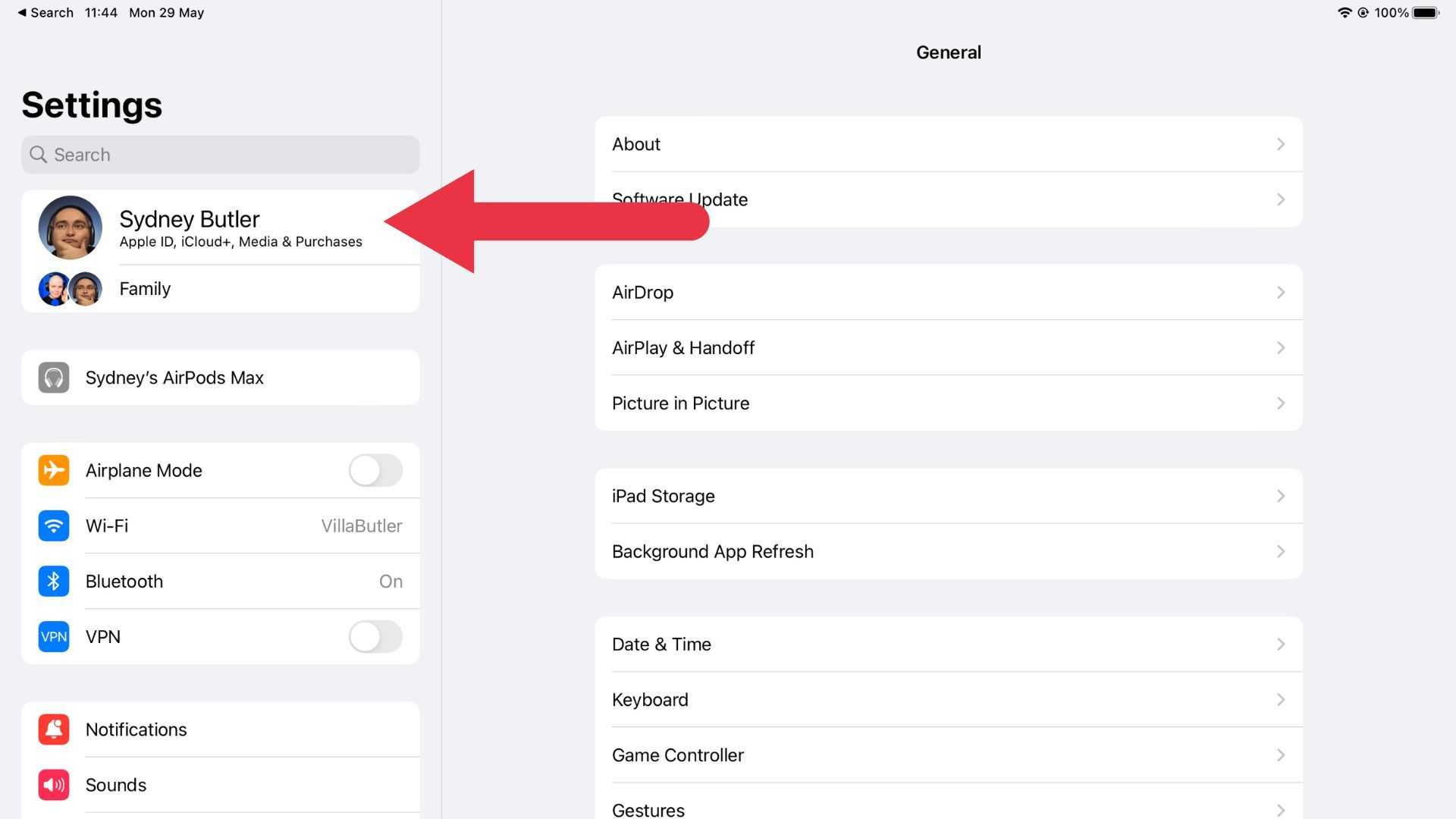
- Open your iPhone and go to the Settings app.
- Tap on your name at the top of the screen.
- Select ‘iCloud’, and then tap on ‘Photos’.
- Toggle off ‘iCloud Photos’.
This action stops your device from syncing photos with iCloud. Your existing photos will remain on your iPhone, but any new uploads will no longer sync to the cloud.
2. Unsyncing from iTunes
If you sync your photos using iTunes, you can unsync them by following these steps:
- Connect your iPhone to your computer and open iTunes.
- Select your device icon in iTunes.
- Navigate to the ‘Photos’ tab.
- Uncheck the box next to ‘Sync Photos’.
Doing this will stop iTunes from syncing any new photos from your computer to your iPhone.
3. Using Third-party Apps
Several third-party apps can help manage your photo library. Some of these apps allow you to unsync photos efficiently. Here are a couple of popular options:
- Google Photos: This app lets you back up photos and free up space on your iPhone.
- Dropbox: Another great app that helps in photo management and unsyncing.
These applications can be helpful if you want to store your photos without them taking up space on your iPhone.
How to Manage Your Photo Library
Once you’ve unsynced your photos, managing your library effectively is crucial. Here are some tips for keeping your photo library organized:
1. Regular Deletion
It’s a good practice to regularly delete unnecessary photos. Go through your library every month and remove pictures you won’t need.
2. Utilize Albums
Creating albums helps organize your photos into manageable groups. You can make albums for events, trips, or themes to find photos quickly.
3. Use Shared Albums
If you want to share photos with friends or family, consider using shared albums. This allows you to share specific photos without cluttering your main library.
Keeping Photos Safe
After unsyncing your photos, it’s essential to ensure they are safe. Here’s how you can protect your images:
1. Back up Regularly
Always back up your photos to a secure location. Use iCloud, an external hard drive, or a third-party service to keep your images safe.
2. Transfer to Computer
You can also transfer photos from your iPhone to your computer. This process ensures you have a copy of your photos while freeing up space on your device.
Benefits of Unsyncing Photos
Unsyncing your photos offers several advantages:
- Free Up Storage: Unsyncing reduces the amount of storage used on your device.
- Improved Organization: You can manage your photos more effectively without automatic syncing.
- Selective Sharing: Control which photos are shared and with whom.
By unsyncing, you take charge of your photo library, ensuring it meets your needs.
Common Issues When Unsyncing Photos
When unsyncing, you might experience some challenges. Here are a few common issues:
1. Missing Photos
Sometimes, you may find that photos you thought were saved are missing after unsyncing. Always double-check your backup before making changes.
2. Syncing Issues Across Devices
If you have multiple Apple devices, unsyncing photos on one device may affect the others. Always review the settings on all devices to ensure consistency.
3. Storage Conflicts
Sometimes, storage space can still be an issue. If you delete photos but still find storage limitations, consider checking other apps consuming storage.
FAQs About Unsyncing Photos
While we won’t delve into the FAQs here, it’s worth noting that many users have similar concerns when it comes to unsyncing photos. Common inquiries often revolve around storage management, how to restore unsynced photos, and best practices for using iCloud or other services.
In summary, unsyncing photos from your iPhone can help you better manage your photo library while creating space on your device. Make sure to regularly check your backups and organize your photos as needed to maintain an efficient library. By following the methods outlined above, you’ll enjoy a streamlined and organized photo experience.
How To Stop Sharing Photos Between iPhone And iPad, Mac, Or iPhone
Frequently Asked Questions
How can I stop my photos from syncing with iCloud?
To stop your photos from syncing with iCloud, go to the Settings app on your iPhone. Tap your name at the top, then select ‘iCloud.’ Next, tap on ‘Photos’ and toggle off the ‘iCloud Photos’ option. This will prevent your photos from uploading to iCloud and syncing across your devices.
Is it possible to remove synced photos from my iPhone without deleting them from my computer?
Yes, you can remove synced photos from your iPhone without deleting them from your computer by using iTunes or Finder. Connect your iPhone to your computer, open iTunes or Finder, select your device, and navigate to the ‘Photos’ tab. Uncheck the option to sync photos, then click ‘Apply’ or ‘Sync.’ This action will remove the synced photos from your iPhone while keeping the originals on your computer.
What steps should I follow to manage photo syncing settings on my iPhone?
To manage photo syncing settings on your iPhone, open the Settings app and scroll down to ‘Photos.’ Here, you can choose various options, such as enabling or disabling ‘iCloud Photos’ and ‘My Photo Stream.’ Adjust these settings according to your preferences to control how your photos sync across devices.
Can I selectively sync photos from my computer to my iPhone?
Yes, you can selectively sync photos from your computer to your iPhone using iTunes or Finder. After connecting your device, select the ‘Photos’ tab. From there, you can choose which albums or folders to sync by selecting specific options rather than syncing all the photos at once. This allows you to control which images appear on your iPhone.
What should I do if I’m experiencing issues with photo syncing?
If you experience issues with photo syncing, first check your internet connection. If the connection is stable, try restarting your iPhone and the device you use for syncing. Make sure you have the latest version of iOS and iTunes or Finder. If problems persist, consider resetting your photo settings by toggling ‘iCloud Photos’ off and back on again.
Final Thoughts
To unsync photos from your iPhone, start by opening the Settings app and selecting your Apple ID. Navigate to “iCloud” and tap on “Photos.” Here, disable “iCloud Photos” to stop syncing your images with iCloud.
Next, if you use iTunes or Finder, connect your iPhone to your computer. Select your device, go to the “Photos” tab, and uncheck “Sync Photos.” This action will unsync photos from your iPhone.
In summary, knowing how to unsync photos from iPhone? Follow these steps to manage what images stay on your device without disrupting your other files.

Similar Posts