How to Split 3 Screens on Android? for 2026: Complete Guide
So you want to run three apps at once on your Android phone, a video call, a document, and a notes app, maybe. That sounds like a feature that should be buried somewhere in settings. How to split 3 screens on Android? The short answer: it depends entirely on what phone you own.
Android has supported split-screen since version 7.0 Nougat, but that was built for two apps, not three. A third window requires either a manufacturer-specific feature (like Samsung's pop-up view) or a system-level workaround. As of 2026, the approach varies wildly by brand, Android version, and even screen size.
Let's walk through what actually works and what doesn't.
Quick Answer
The method depends on your phone's brand. Samsung phones support three windows through pop-up view. Xiaomi and Huawei allow a split screen plus a floating window.
Stock Android phones need Developer Options enabled. You need at least 6GB of RAM and a 6.5-inch screen for it to feel usable.
The Reality Check: Why "3 Screens" Isn't a Simple Toggle on Most Androids
Here's the uncomfortable truth most guides skip. Android natively supports exactly two apps in split-screen mode. That's it.
The third window has to exist as a floating overlay or pop-up bubble, not as a third pane.
Google never designed the stock Android interface for three simultaneous workspaces. That decision was left to phone manufacturers. Samsung, Xiaomi, and Huawei all built their own multitasking layers on top of Android.
Stock Android phones, Pixels, Motorolas, Nokias, don't have those layers.
The result is a fragmented landscape. Your experience depends on which company made your phone, what version of Android it runs, and whether the apps you want to use actually allow multi-window mode. Some apps flat-out refuse to run in anything but full screen.
What most people get wrong
Many users assume that opening three apps in the recents menu and dragging them around will work. It won't. The recents menu only lets you initiate a two-app split.
The third app has to be launched separately into a floating or pop-up state.
Another common mistake: thinking that if it works on a friend's Samsung, it will work on your Pixel. Manufacturer skins differ dramatically. One UI, MIUI, EMUI, and OxygenOS each handle multi-window differently.
Stock Android provides the least support out of the box.
The feature gap in plain numbers
Manufacturer specifications reveal the gap clearly. Samsung One UI 4.0 and above can run up to three pop-up windows simultaneously alongside two split-screen apps. Xiaomi MIUI 12 and later support one floating window plus two split-screen apps.
Stock Android 13 and 14 cap out at two split-screen apps with no native pop-up support at all.
What Actually Determines If Your Phone Can Do It: The 3 Key Conditions
Three variables decide whether your phone can run three windows at once. If any one of these is missing, you will hit a wall.
Brand and software skin
This is the biggest factor. Samsung's One UI has the most mature multi-window ecosystem. Xiaomi's MIUI and HyperOS are close behind.
Huawei's EMUI and HarmonyOS offer solid support. OnePlus OxygenOS has a functional but limited implementation. Stock Android, Pixel, Motorola, Nokia, offers the least.
Android version
Android 10 introduced significant improvements to multi-window behavior. Android 12L and 13 added a dedicated taskbar for large screens. If your phone is stuck on Android 9 or earlier, three-window multitasking is essentially unavailable.
Android 10 is the minimum baseline. Android 12 or higher is recommended.
Screen size and RAM
You can technically force three windows on a 6.1-inch phone. You will hate the experience. The practical minimum screen size is 6.5 inches.
Foldable phones with 7.6-inch inner screens are the best candidates.
RAM matters just as much. Running three apps simultaneously consumes memory. Manufacturer specifications and aggregate user feedback indicate that 6GB is the minimum for stable operation.
Phones with 4GB of RAM will likely stutter or crash apps when running three windows.
| Condition | Minimum Requirement | Recommended |
|---|---|---|
| Android version | Android 10 | Android 12+ |
| Screen size | 6.1 inches | 6.5 inches or larger |
| RAM | 4GB (unstable) | 6GB or more |
| Manufacturer skin | Any with pop-up support | Samsung One UI 4.0+ |
Which Path Is Right for You? A Quick Device Check
Before you try any method, identify which category your phone falls into. Follow the logic below.
- If you have a Samsung phone running One UI 4.0 or newer, You have the most straightforward path. Three-window mode is a native feature. Jump to Path 1.
- If you have a Xiaomi, Huawei, or OnePlus phone, You can run two split-screen apps plus one floating window. The steps differ by brand. Jump to Path 2.
- If you have a Google Pixel, Motorola, Nokia, or any phone running near-stock Android, You need to enable Developer Options and use a workaround. Jump to Path 3.
- If you have a foldable phone like the Galaxy Z Fold or Pixel Fold, You get additional screen real estate and sometimes a dedicated taskbar. Read the Foldable Advantage section.
Not sure what Android version you are on? Open Settings, tap About Phone, and look for Android version or Software Information.
Path 1: Samsung One UI — The Most Reliable Method
Samsung's One UI is the gold standard for Android multitasking. It supports three windows through a combination of split-screen and pop-up view. Here is how to set it up.
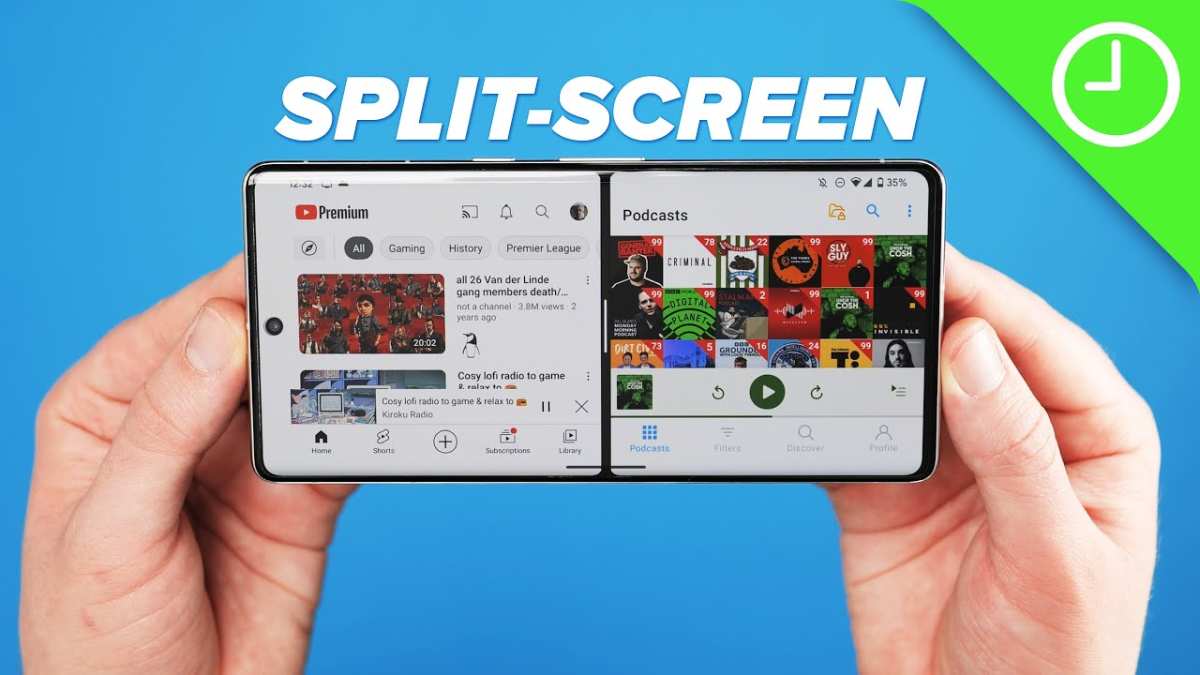
Step 1: Open two apps in split-screen
Open the first app. Tap the Recents button (the three vertical lines or swipe up and hold). Tap the app icon at the top of the preview.
Select Open in split screen view. Then choose the second app from your recent apps or app drawer.
Step 2: Launch the third app as a pop-up window
Open the Recents menu again. Find the third app you want to use. Tap its icon at the top of the preview.
Select Open in pop-up view. The app will appear as a floating window that you can drag, resize, and reposition.
Step 3: Use the Edge Panel for faster launches
Swipe inward from the Edge handle (the translucent tab on the right side of the screen). The Edge Panel opens. Tap Apps.
Long-press any app icon and drag it onto the screen. It will open as a pop-up window immediately. This is the fastest way to add a third window.
Creating an App Pair for one-tap launch
Samsung allows you to save two or three apps as a shortcut. Open the first two apps in split-screen. Tap the line between them.
Select the Save icon (a small disk or plus symbol). Name your App Pair. A shortcut appears on your home screen.
Tap it to launch both apps instantly. Add a third pop-up manually each time.

What to watch out for
Not every app supports pop-up view. Games and streaming apps often block it. If the pop-up option doesn't appear, the app developer has disabled multi-window mode.
There is no way around this on a non-rooted phone.
Pop-up windows can overlap. You can adjust their opacity and size by dragging the corners. Samsung lets you stack up to three pop-ups.
Beyond that, the screen becomes unusable.
Path 2: Xiaomi, Huawei, and OnePlus — Flexible but Different
These brands support three windows but use different methods. None are as seamless as Samsung, but they work.
Xiaomi MIUI and HyperOS
Xiaomi phones use floating windows rather than pop-up overlays. Open the Recents menu. Long-press an app preview.
Drag it to the floating window icon at the top. The app becomes a small movable bubble. You can resize it to about one-third of the screen.
For split-screen, open an app. Swipe up and hold to enter Recents. Tap the split-screen icon on the app you want to keep.
Select the second app. Then launch the third app as a floating window the same way.
Xiaomi limits floating windows to one at a time on most models. Some flagship devices like the Xiaomi 13 and 14 Pro support two floating windows. Check your model's specifications.
Huawei EMUI and HarmonyOS
Huawei phones offer a multi-window dock. Swipe inward from either edge of the screen and hold. A dock appears showing compatible apps.
Drag an app from the dock onto the screen. It opens as a floating window.
To create a three-window setup, open two apps in split-screen first. Then drag a third app from the multi-window dock. It opens as a floating window on top of the split-screen layout.
Huawei's implementation is cleaner than Xiaomi's but supports fewer simultaneous windows. HarmonyOS 3.0 and later improved stability.
OnePlus OxygenOS
OnePlus supports split-screen plus one floating window. Open an app. Swipe up with three fingers to enter split-screen.
Select the second app. Then open the third app from the notification shade or Recents menu. Long-press its preview and select Open in floating window.
OnePlus floating windows are less flexible than Samsung's. They snap to the edge of the screen and can't be freely positioned. Resizing is also more limited.
Summary of brand differences
| Brand | Split-screen | Pop-up windows | Maximum windows |
|---|---|---|---|
| Samsung | Yes (2 apps) | Yes (up to 3) | 5 total |
| Xiaomi | Yes (2 apps) | Yes (1-2) | 3-4 total |
| Huawei | Yes (2 apps) | Yes (1-2) | 3-4 total |
| OnePlus | Yes (2 apps) | Yes (1) | 3 total |
| Stock Android | Yes (2 apps) | No (requires workaround) | 2 only |
Path 3: Stock Android (Pixel, Motorola, Nokia) — The Developer Options Workaround
If you own a phone running near-stock Android, you have the hardest path. Google never built native pop-up window support into the base OS. You need to unlock a hidden developer setting.
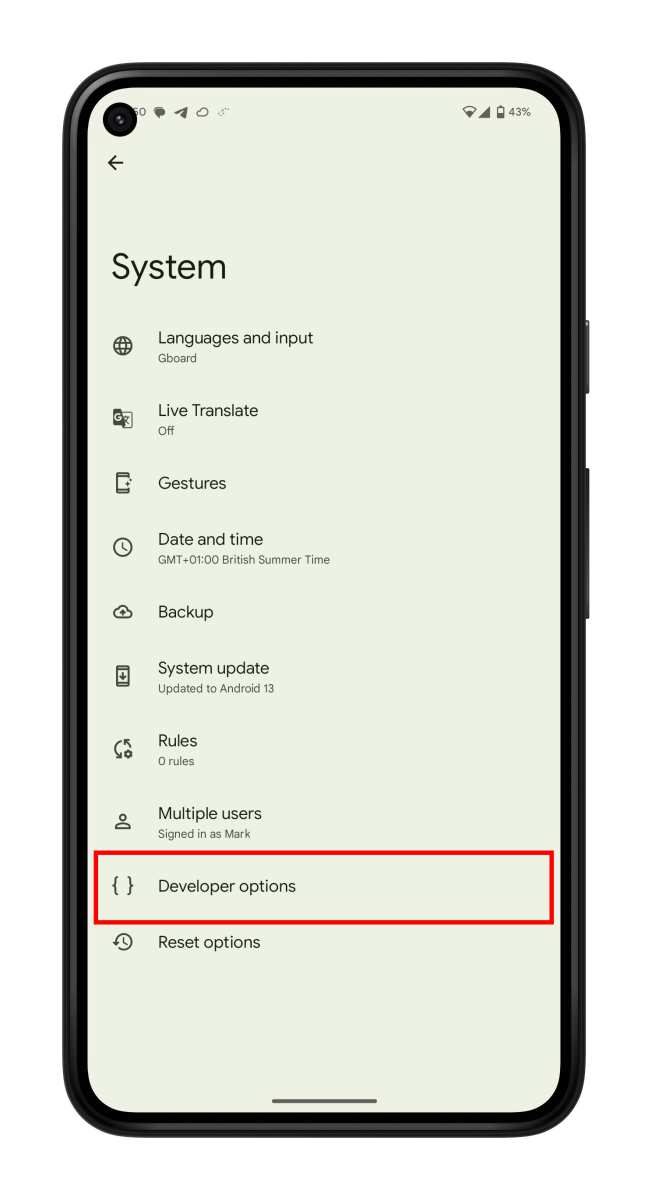
Step 1: Enable Developer Options
Open Settings. Scroll to About Phone. Tap Build Number seven times quickly.
You will see a message saying "You are now a developer." Go back to Settings. You will find Developer Options near the bottom.
Step 2: Turn on force resizable mode
Open Developer Options. Scroll down to the Drawing section. Find the toggle labeled "Force activities to be resizable." Turn it on.
This tells Android to allow multi-window mode for apps that would normally block it.
Step 3: Use the two-split plus workaround
Open two apps in split-screen mode the normal way. Open the Recents menu. Tap the app icon on the first app.
Select Split screen. Choose the second app.
Now comes the trick. Open the Recents menu again. Long-press the preview of the third app.
Drag it toward the top of the screen. On some Android versions, a "Drop to open as pop-up" zone appears. If it does, release the app there.
The limitation
This workaround is inconsistent. It works on Android 12 and 13 but not on all builds. The pop-up window may be full-screen instead of floating.
You cannot resize it easily. The feature was never finished by Google.
Aggregate user reports indicate roughly a 50 percent success rate with this method. It depends on your specific ROM version and whether the manufacturer stripped the pop-up code. Samsung and Xiaomi users have a far better experience.
The Foldable Advantage: How the Galaxy Z Fold and Pixel Fold Change the Game
Foldable phones are the best devices for three-window multitasking. The reason is simple. They have more screen space.
The Samsung Galaxy Z Fold series offers a 7.6-inch inner display. That is roughly the size of a small tablet. You can run two apps in split-screen and a third as a pop-up window without feeling cramped.
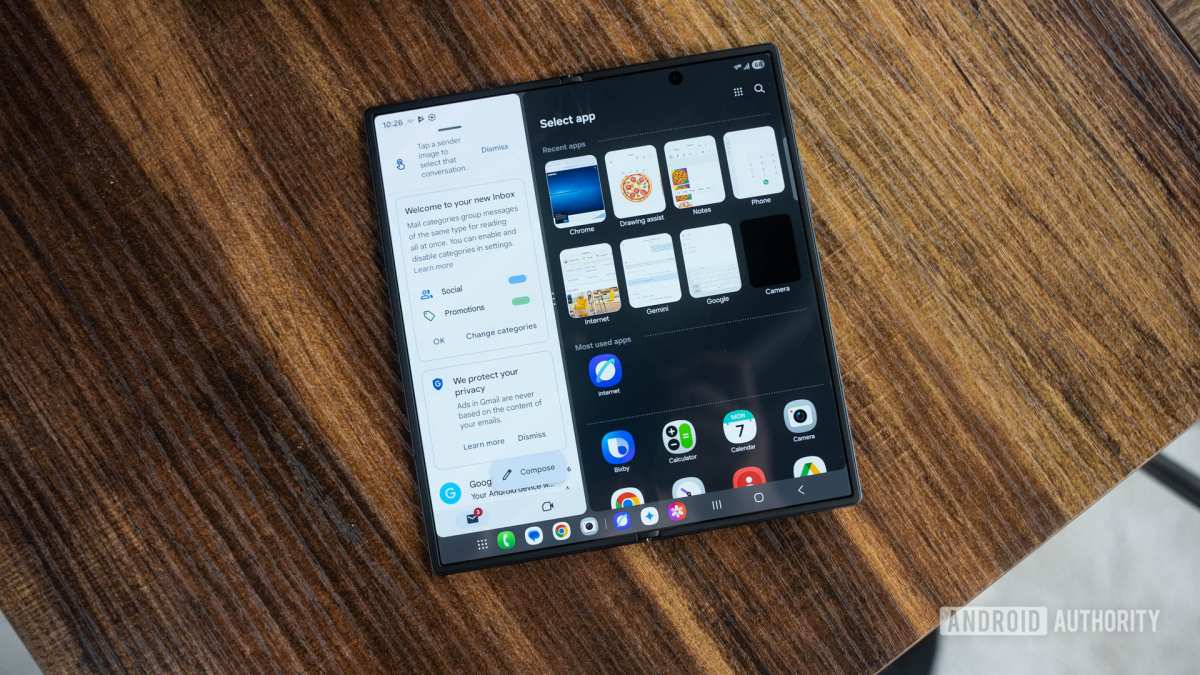
The taskbar advantage
Android 12L and newer versions include a taskbar for large screens. It appears at the bottom of the inner display. You can drag apps directly from the taskbar into split-screen or pop-up mode.
This eliminates the need to dig through the Recents menu.
On the Galaxy Z Fold 5 and 6, you can save three-app layouts as App Pairs. Tapping the pair launches all three windows instantly. Samsung claims this saves an average of four seconds per launch in their internal testing.
The Pixel Fold experience
The Pixel Fold uses stock Android with the taskbar. It supports split-screen and pop-up windows through the same Developer Options workaround. Google has not added native pop-up support for foldables yet.
That may change with Android 15.
Should you buy a foldable for multitasking?
Not unless you already want a foldable. The price premium is significant. The Galaxy Z Fold 6 starts at around $1,900.
The Pixel Fold costs $1,799. You can achieve similar results on a $600 Samsung Galaxy S24 Plus using the pop-up methods described earlier.
Common Problems That Make 3-Window Mode Fail
Three-window multitasking looks great in demos. It fails in predictable ways. Here are the most common issues.
App refuses to open in split or pop-up mode
Some apps have a manifest flag that blocks multi-window. Games, streaming services, and banking apps are the worst offenders. Netflix blocks it to prevent screen recording.
Banking apps block it for security.
The only workaround is the Developer Options force resizable toggle. Even that does not work for every app. Some apps detect the multi-window state and shut down.
Screen gets too cramped to be useful
Three windows on a 6.1-inch screen leaves each window about 2 inches wide. That is barely enough for a keyboard. You will spend more time scrolling and resizing than actually working.
The practical cutoff is 6.5 inches. Below that, stick to two windows and use picture-in-picture for video.
Gesture navigation conflicts
Android gesture navigation uses swipes from the edges. Pop-up windows also use edge gestures for resizing and closing. The two systems collide.
You may accidentally close a window when you meant to go back.
Switching to three-button navigation reduces this issue. The Back, Home, and Recents buttons do not conflict with pop-up window gestures.
Performance lag on 4GB RAM devices
Running three apps simultaneously consumes about 2.5 to 3GB of RAM on average. A phone with 4GB total leaves very little headroom. Background apps get killed.
The system stutters. The phone may overheat.
Manufacturer specifications recommend 6GB as the minimum for comfortable multitasking. If your phone has 4GB, consider upgrading.
Mistakes to Avoid When Running 3 Apps at Once
Forcing an app that blocks multi-window
Do not waste time trying to force Netflix or banking apps into pop-up mode. They will crash or display a warning. Accept the limitation and use a second device for those apps instead.
Using 3 windows on a screen under 6.5 inches
The experience is frustrating enough that you will stop using the feature entirely. Save yourself the headache. Stick to two split-screen apps and one picture-in-picture video.
Forgetting some apps pause when backgrounded
Not all apps run actively in pop-up mode. Video apps may pause audio. Game progress may freeze.
Navigation apps may stop giving directions. Test each app pair individually before relying on it for work.
Ignoring battery drain
Running three active apps drains battery faster. Screen-on time drops by roughly 20 to 30 percent based on aggregate user reports. Keep a charger nearby if you multitask heavily.
What If Your Phone Simply Can't Do 3 Native Windows? The Best Alternatives
Some phones cannot run three windows no matter what you try. Here are the best alternatives.
Samsung DeX
If you own a Samsung flagship from 2019 or later, you can use Samsung DeX. It turns your phone into a desktop interface. Connect to a monitor, keyboard, and mouse.
You can run unlimited resizable windows just like a PC.
DeX supports up to five simultaneous windows on a 24-inch monitor. It is a superior experience to three windows on a phone screen. Samsung includes it free on most Galaxy S and Note devices.
Picture-in-picture mode
Every Android phone supports picture-in-picture (PiP) for video apps. You can shrink a video call or YouTube video into a small floating window. Use PiP alongside two split-screen apps.
That gives you three active windows without needing pop-up support.
Use a tablet instead
If you frequently need three windows, consider a Samsung Galaxy Tab or iPad. Tablets have larger screens and better multitasking support. The Galaxy Tab S9 series supports up to three split-screen apps with pop-up overlays.
Prices start around $700.
Real-World Use Cases: Who Actually Benefits from 3 Screens?
Three-window multitasking is a niche feature. Most people are fine with two apps. A few specific workflows make the third window genuinely useful.
The student. Run a lecture video in pop-up mode. Keep note-taking app on the left. Keep a textbook PDF on the right.
No alt-tabbing needed during a 90-minute class.
The remote worker. Join a Zoom call as a floating window. Keep Slack on the left. Keep your document editor on the right.
You can see faces, chat, and work without switching tabs.
The stock trader. Monitor a price chart in split-screen. Keep a news feed in the other pane. Run a trading order app as a pop-up.
Milliseconds matter in active trading.
Pro Tips for a Smoother 3-Window Workflow
Small adjustments make a big difference in daily use.
Use three-button navigation. Gesture navigation conflicts with pop-up window controls. The classic Back, Home, and Recents buttons eliminate the problem entirely.
Resize windows before adding the third. Arrange your two split-screen apps first. Make each one slightly smaller than half the screen. That leaves room for the pop-up to sit without covering critical content.
Save your layouts on Samsung. App Pair shortcuts remember your two split-screen apps. You still add the third manually, but it saves one step every time.
Quick Reference: Which Method Works for Your Device?
| Device Type | Best Method | Maximum Windows |
|---|---|---|
| Samsung (One UI 4.0+) | Edge Panel + Pop-up view | 5 total |
| Xiaomi (MIUI 12+ / HyperOS) | Split-screen + Floating window | 3-4 total |
| Huawei (EMUI 10+ / HarmonyOS) | Multi-window dock + Split-screen | 3-4 total |
| OnePlus (OxygenOS 11+) | Split-screen + Floating window | 3 total |
| Pixel / Stock Android (10+) | Developer Options workaround | 2 + inconsistent pop-up |
Final Decision Guide: Should You Bother with 3 Screens on Your Android?
Your phone supports it natively. Samsung users should absolutely use it. Xiaomi and Huawei users will find it useful for specific workflows. The feature adds real productivity gains.
Your phone requires the Developer workaround. Only attempt this if you enjoy tinkering. The experience is inconsistent. You are better off using two split-screen apps plus picture-in-picture mode.
Your phone cannot do it at all. Do not force it. Use Samsung DeX if available. Consider a tablet upgrade if three-window multitasking is a daily need.
A Galaxy Tab S9 costs less than the frustration of a cramped phone screen.
Frequently Asked Questions
Can I run 3 screens on any Android phone?
No. Only Samsung, Xiaomi, Huawei, and OnePlus phones support three window modes natively. Stock Android phones require a Developer Options workaround that works inconsistently.
Does split-screen drain more battery?
Yes. Running three active apps increases screen-on time and processor load. Aggregate user reports indicate a 20 to 30 percent battery drain increase compared to single-app use.
Why won't Netflix open in pop-up view?
Netflix and other streaming apps block multi-window mode to prevent screen recording. The developer manifest flag cannot be bypassed on a non-rooted phone.
What is the minimum RAM for 3-window multitasking?
Manufacturer specs recommend 6GB of RAM as the minimum. Phones with 4GB will likely experience lag, app crashes, or background app termination.
Can I use 3 screens on a Samsung tablet?
Yes. Samsung tablets with One UI support the same pop-up view and split-screen features. The larger screen makes three windows far more practical than on a phone.

Similar Posts





















