Guide to Does Android Have Floating Windows? 2026
Does Android have floating windows? The short answer is yes, but only if you have the right phone and the right Android version. Android itself supports floating windows through something called freeform mode, but most manufacturers hide it, rename it, or remove it entirely.
As of 2026, Android runs on over 70 percent of smartphones worldwide, yet the floating window experience varies wildly. Samsung calls it "pop-up view." Xiaomi calls it "floating windows." Stock Android on a Pixel phone doesn't offer it at all out of the box. Let's walk through what you actually have and how to use it.
Quick Answer
Does Android have floating windows? Yes, but it depends on your phone manufacturer and Android version. Samsung, Xiaomi, OPPO, and vivo all include floating window support in their custom software.
Stock Android no longer includes freeform windows after Android 11. You can check your Settings to find out.
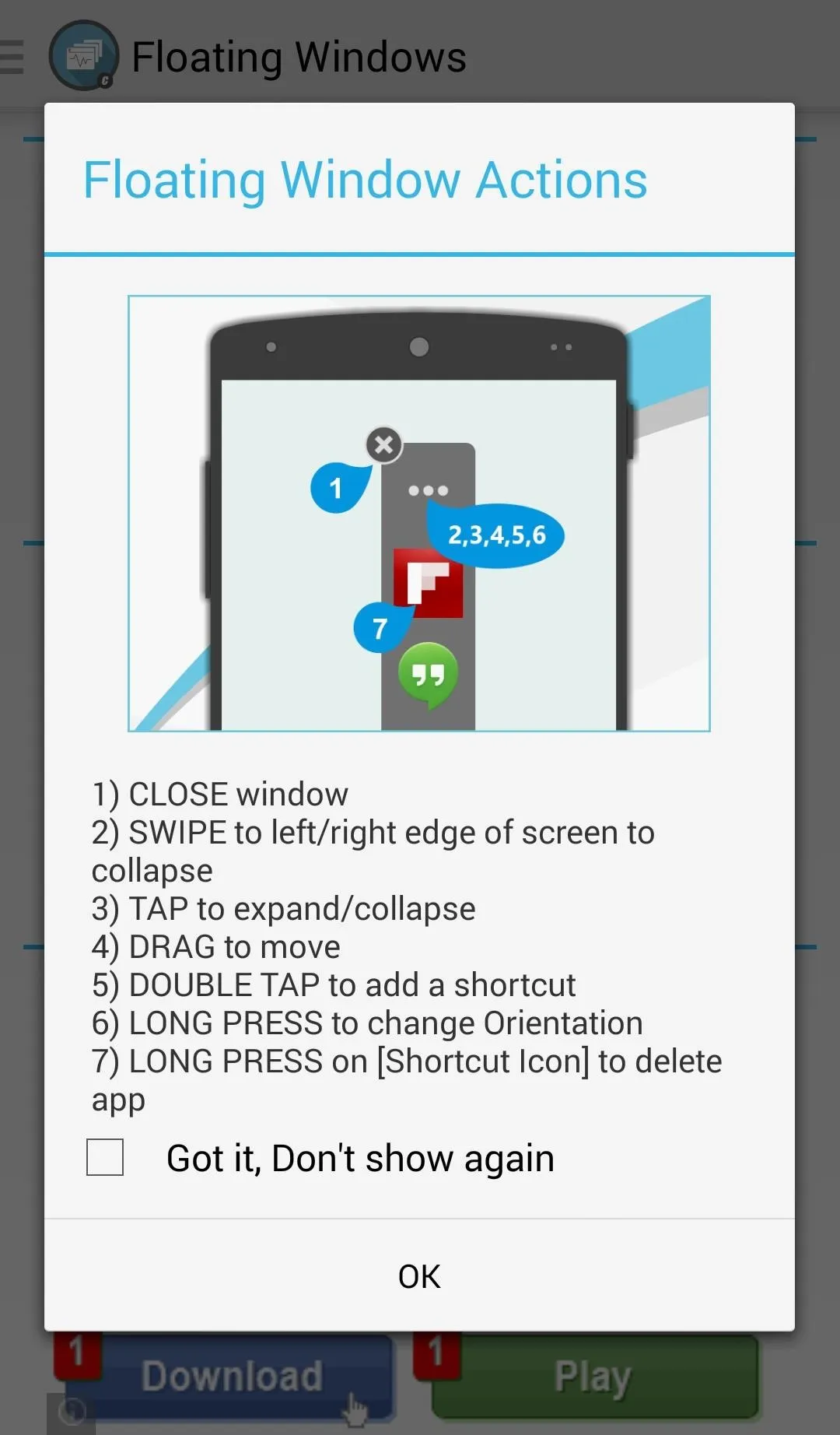
How Floating Windows Actually Differ Across Android
Here is the key fact: Android the operating system technically supports floating windows. Google built a feature called "freeform mode" into Android itself. But Google never enabled it by default on phones.
It was a developer tool, hidden inside the Developer Options menu.
After Android 11, Google removed freeform mode from stock Android entirely. That means a Pixel phone running Android 14 or Android 15 will not have a floating window toggle anywhere in Settings.
The situation changes when a manufacturer builds their own version of Android. Samsung's One UI includes a fully working pop-up view system. Xiaomi's HyperOS includes floating windows as a core multitasking feature.
OPPO's ColorOS and vivo's Funtouch OS both offer the same. Each one works differently.
How each major OEM handles it
| Manufacturer | Feature name | Ease of use | Max windows |
|---|---|---|---|
| Samsung | Pop-up view | Very easy | 5 |
| Xiaomi | Floating windows | Easy | 2 to 4 |
| OPPO / Realme | Floating window | Moderate | Up to 3 |
| vivo | Small window | Moderate | Up to 3 |
| Stock (Pixel) | Not available | N/A | N/A |
Stock Android users can still get floating windows through third-party apps. We will cover those later.
Step 1: Check Your Android Version and OEM Skin
You need two pieces of information before we go further: your Android version and your phone manufacturer.
Here is how to check both.
- Open Settings on your phone.
- Scroll down to About phone (sometimes "About device").
- Look for Android version. Write down the number. Android 12 or higher is best for floating windows.
- Look for Build number or Software information. This tells you the skin. You might see "One UI 6.0," "HyperOS 1.0," "ColorOS 14," or "Stock Android."
What your skin tells you
| Skin | Floating window support | Requires setup |
|---|---|---|
| One UI 5.0 or newer | Yes | No |
| HyperOS / MIUI 14+ | Yes | No |
| ColorOS 13 or newer | Yes | Sometimes |
| Funtouch OS 14+ | Yes | Sometimes |
| Stock / Pixel | No (native) | Third-party app |
| Android Go | No | Not supported |
If you have a Samsung, Xiaomi, OPPO, Realme, vivo, or OnePlus phone running Android 12 or later, you almost certainly have floating windows ready to use.
Step 2: Enable Floating Windows on Samsung One UI
Samsung calls it "pop-up view," and it is the most polished floating window system on Android. Here is how to use it.
Method 1: From the Recent Apps screen
- Open the app you want to float.
- Tap the Recent Apps button (three vertical lines or a swipe up gesture).
- Tap the app's icon at the top of the preview card.
- Select Open in pop-up view.
The app will shrink into a small resizable window on top of whatever else you have open.
Method 2: From the Edge Panel
- Swipe inward from the edge of the screen to open the Edge panel.
- Find the app you want.
- Drag it onto the center of the screen. It will appear as a floating window.
Method 3: Using a gesture
In One UI 6.0 and newer, you can also use a three-finger swipe down gesture to snap an app into pop-up view. You need to enable this in Settings > Advanced features > Labs.
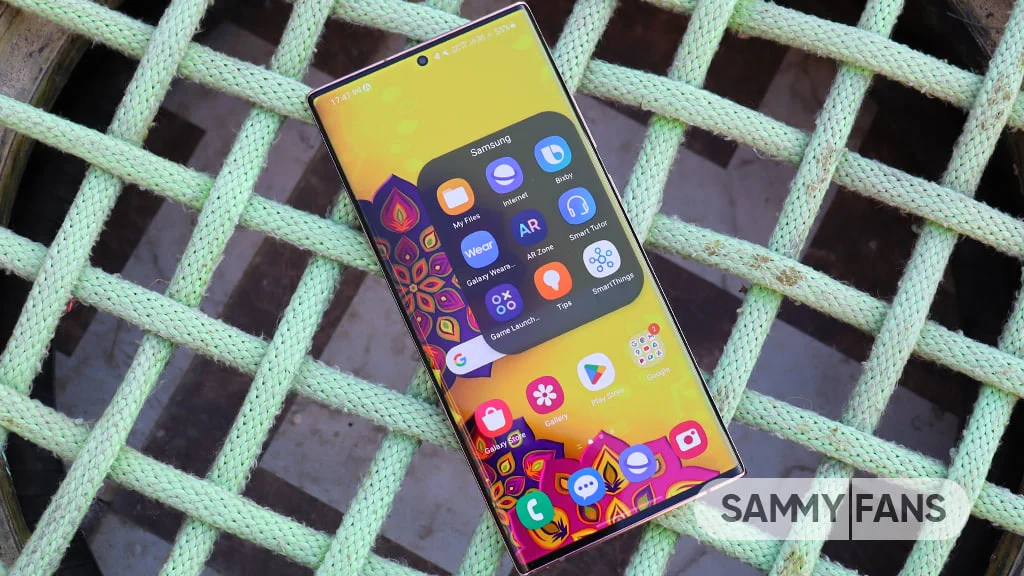
Samsung allows up to five pop-up windows at once. You can resize them by dragging the corners, move them anywhere on the screen, and minimize them to a floating bubble.
Step 3: Enable Floating Windows on Xiaomi HyperOS / MIUI
Xiaomi has supported floating windows since MIUI 12, and the feature continues in HyperOS. The process is slightly different depending on your MIUI or HyperOS version.
For MIUI 12, 13, and 14
- Open the Recent Apps screen.
- Long press the app card you want to float.
- Tap the Floating window button (it looks like a small rectangle with an arrow).
The app will shrink into a floating window. You can resize it and move it around. Xiaomi typically supports up to two floating windows simultaneously on most devices.
For HyperOS 1.0 and newer
- Open Settings > Special features > Floating windows.
- Toggle on floating windows for the apps you want to allow.
- Go to Recent Apps, long press the app card, and select Floating window.
Xiaomi adds a few extra tricks. You can minimize a floating window into a small side bubble. Tap the bubble to reopen the window.
You can also drag the window to the top edge of the screen to trigger a quick close.
A note on compatibility
Not every app works in floating window mode on Xiaomi phones. Games, banking apps, and some streaming services intentionally block it. You will see a message saying "App does not support floating window" if that happens.
If you run into that, you can force it by enabling floating windows for that app in Settings > Special features > Floating windows > Manage apps. This does not always work, but it is worth trying.
Step 4: Enable Floating Windows on OPPO / Realme / vivo
OPPO and its sibling brands Realme and OnePlus (under ColorOS) all include floating windows. The feature works similarly across these devices, though the exact settings label changes slightly between versions.
For OPPO ColorOS 13 and 14
- Open Settings > Special features > Floating windows.
- Toggle on floating windows for the apps you want to allow.
- Go to Recent Apps. Long press an app card.
- Select Floating window from the menu.
You can also use a three-finger swipe down gesture on supported ColorOS versions. This snaps the current app into a floating window instantly.
For Realme UI 4.0 and 5.0
Realme uses a nearly identical system to OPPO. The steps are the same.
- Go to Settings > Special features > Floating windows.
- Enable the feature for specific apps.
- From Recent Apps, long press and choose Floating window.
Realme supports up to three floating windows at once. You can resize them by dragging the bottom right corner. You can also minimize them into a small bubble that sits on the edge of the screen.
For vivo Funtouch OS 14 and 15
vivo calls it "Small window" instead of floating window. The steps are slightly different.
- Open Settings > System navigation > Small window.
- Enable it for apps you want.
- Open an app and swipe up from the bottom but stop halfway. The app will shrink into a small window.
vivo allows you to drag the small window anywhere on screen. You can also tap the window to expand it back to full screen. The maximum is three small windows at once.
For OnePlus OxygenOS 13 and 14
OnePlus runs a near-stock version of ColorOS now. The floating window feature is present but not always obvious.
- Open Settings > Special features > Floating windows.
- Choose apps that can float.
- Go to Recent Apps. Tap the three dots or the app icon above the preview.
- Select Floating window.
OnePlus limits floating windows to two at a time. The performance is smooth on newer OnePlus 12 and 12R devices.
Step 5: What to Do If You're on Stock Android or Pixel
This is the tough part. If you own a Google Pixel, a Motorola, a Sony Xperia, or a Nokia phone, you do not have native floating windows. Stock Android dropped freeform mode after Android 11.
Google has not brought it back.
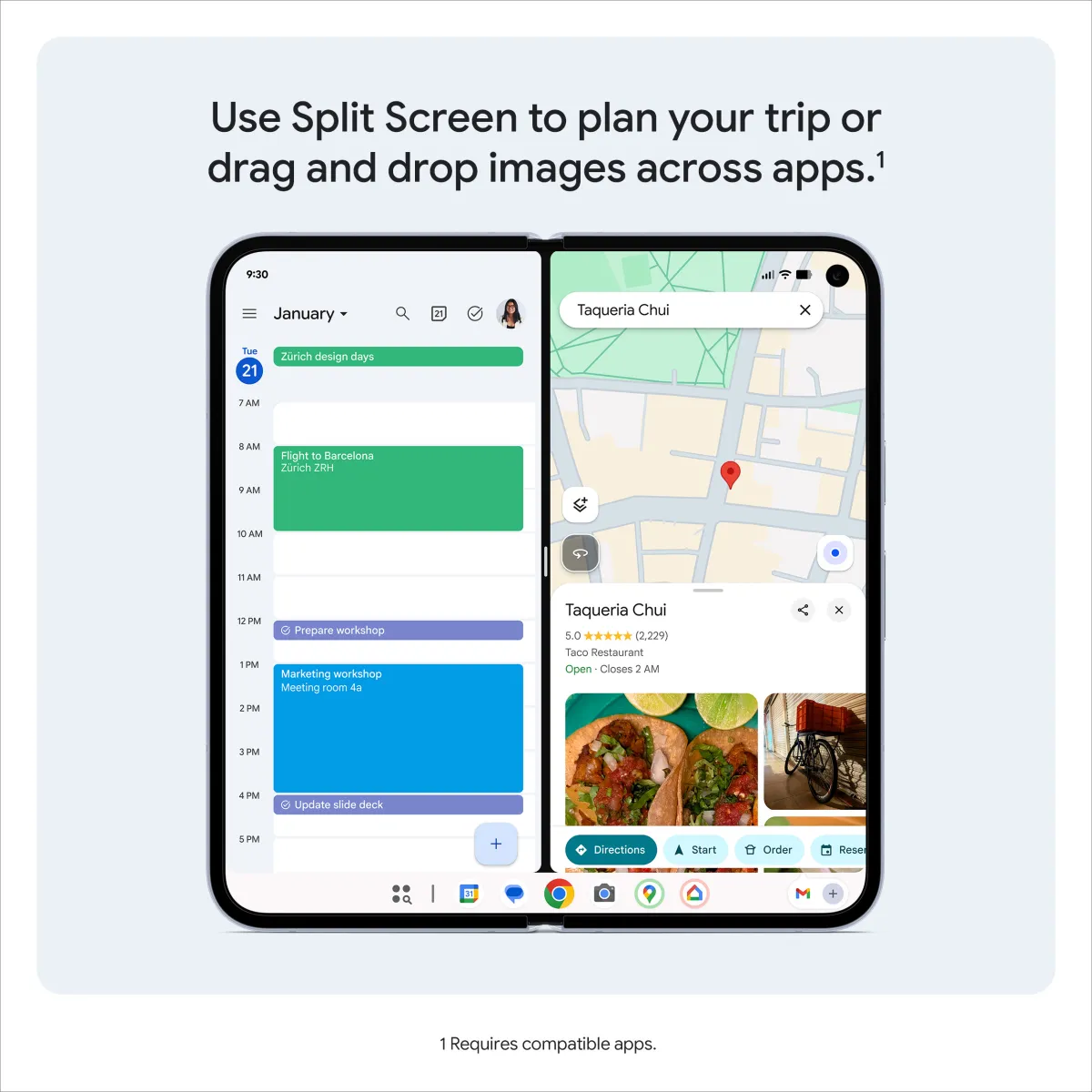
That does not mean you are stuck. You have two main options.
Option 1: Use Picture-in-Picture (PiP)
PiP is a limited form of floating window. It works for video apps like YouTube, Netflix, and Google Maps. You can also use it for video calls on Google Meet or Zoom.
- Start playing a video or a call.
- Press the Home button or swipe up.
- The video will shrink into a small floating window.
PiP is not a true floating window. You cannot resize it much. You cannot use it for non-video apps.
But it is free and built into every Android phone running Android 8.0 or newer.
Option 2: Use third-party floating window apps
Several apps on the Google Play Store add floating window support to stock Android. Aggregate user reviews indicate mixed results, but a few apps stand out.
- Floating Apps, A long standing option with support for basic apps like a calculator, notepad, and browser. The pro version unlocks more features.
- Taskbar, A lightweight app designed for multitasking on tablets. It adds a floating bar with app shortcuts.
- Floating Bubble, Minimal and free. It adds a floating bubble that opens apps in small windows.
Be aware of limits. Third-party floating apps require overlay permission. Android 14 and 15 have tightened overlay restrictions.
Some apps will crash or refuse to open in a floating window. You will also see a persistent notification that the overlay service is running.
Option 3: Enable Developer Options and force freeform windows
This is a long shot, but it works on some older stock Android devices running Android 10 or 11.
- Open Settings > About phone.
- Tap Build number seven times to enable Developer Options.
- Go to Settings > System > Developer options.
- Scroll to Force activities to be resizable and toggle it on.
- Open Recent Apps. Tap the app icon above the preview. Select Freeform window.
If the option is missing, your Android version does not support it. This method stopped working on most devices after Android 12.
Step 6: Test App Compatibility and Adjust Overlay Permissions
Not every app respects floating windows. Some apps deliberately block the feature. Others crash or display incorrectly.
Which apps work best
| App category | Example apps | Floating support |
|---|---|---|
| Messaging | WhatsApp, Telegram, Signal | Good |
| Productivity | Google Keep, Notion, Todoist | Good |
| Video | YouTube, Netflix, Prime Video | Uses PiP, not floating |
| Banking | Chase, Bank of America, PayPal | Blocked |
| Gaming | PUBG, Genshin Impact, Call of Duty | Blocked |
| Social | Instagram, Twitter (X), Reddit | Mixed |
Banking and gaming apps block floating windows for security reasons. You cannot force them. Video apps switch to PiP automatically.
Social media apps usually work but may resize poorly.
How to check overlay permissions
If a third-party floating app is not working, the overlay permission might be off.
- Open Settings > Apps > Special app access > Display over other apps.
- Find the floating app in the list.
- Toggle permission to Allow.
Some manufacturers hide this setting. On Samsung, it is under Settings > Apps > Three dots > Special access > Overlay permissions.
When Floating Windows Won't Work – Common Problems and Fixes
Problem: The app does not appear in the floating window menu
OEMs allow floating windows only for apps they have whitelisted. If an app is missing from the list, you cannot use it.
Fix: On Samsung and Xiaomi, go to the floating window settings and manually add the app. On OPPO and vivo, check the special features menu for a manage apps section.
Problem: The floating window crashes or freezes
This usually happens with older phones or apps that use too much memory.
Fix: Close other floating windows. Lower the resolution of the floating window if your OEM allows it. Restart the phone.
Problem: The floating window disappears after closing an app
Samsung and Xiaomi keep floating windows alive even after you close the full app. OPPO and vivo sometimes close them.
Fix: On OPPO, lock the floating window by tapping the pin icon on the edge of the window. This prevents accidental closure.
Problem: Gesture conflicts
Using full screen gestures (swipe up to go home) can conflict with floating window controls. You might accidentally close the window.
Fix: Switch to three-button navigation. Go to Settings > System navigation > Three button navigation. This gives you a dedicated Recent Apps button that does not interfere.
Floating Windows vs. Split-Screen vs. Picture-in-Picture – Which Should You Use?
These three multitasking features serve different purposes. Picking the right one depends on what you are doing.

When to use floating windows
Floating windows are best for apps you need to see but do not need to interact with fully. Examples include a calculator open while you fill out a form, a chat app open while you watch a video, or a timer running while you browse.
Floating windows work best on phones with screens larger than 6.5 inches. On smaller screens, they feel cramped.
When to use split-screen
Split-screen is better for apps you need to use equally. Examples include copying text from a browser into a notes app, comparing two documents side by side, or following a recipe while watching a cooking video.
Split-screen works on every Android phone running Android 7.0 or newer. It does not require OEM support.
When to use Picture-in-Picture
PiP is optimized for video. You use it when you want to watch a video or take a video call while doing something else. It uses less battery than a full floating window.
PiP is the only multitasking mode available on stock Android phones. It is also the only mode that works with DRM protected video content.
Quick comparison table
| Feature | Floating window | Split-screen | Picture-in-Picture |
|---|---|---|---|
| Available on stock Android | No (native) | Yes | Yes |
| App compatibility | Limited | Wide | Video only |
| Resizable | Yes | Yes | Limited |
| Number of apps | 2 to 5 | 2 | 1 |
| Best for | Quick glances | Equal use | Passive watching |
Our recommendation is simple. Use floating windows for quick glance apps. Use split-screen for active multitasking.
Use PiP for video. Pick the right tool for each job.
Who Actually Needs Floating Windows? Real-World Use Cases
Floating windows shine in specific situations. If you frequently copy text between apps, floating windows save you from constant switching. Students often use them to keep a calculator or dictionary open while reading.
Remote workers find floating windows useful for chat apps during video calls. You can keep Slack or Teams visible while your main screen shows a presentation. Gamers use floating guides or walkthroughs without leaving their game.
The feature matters most for people with larger phones. On a 6.7 inch display, a floating window takes up about a third of the screen. That leaves enough room for the main app underneath.
On smaller phones, the window feels cramped and hard to use.
Third-Party Floating App Alternatives (If Your Phone Doesn't Have Native Support)
If you own a stock Android phone, third-party apps are your only option. The most popular choice is Floating Apps. It includes a built in browser, notepad, calculator, and file manager that all run in floating windows.
Taskbar is another solid option. It is designed for tablets but works on phones too. It adds a floating bar at the edge of the screen.
Tap an app icon and it opens in a floating window.
Both apps require overlay permission. Go to Settings > Apps > Special app access > Display over other apps and toggle the app on. Performance depends on your phone.
On newer mid range devices, third-party floating windows run smoothly. On older phones with 4GB of RAM or less, expect lag.
FAQs About Android Floating Windows
Can I use floating windows on a Google Pixel?
No, not natively. Google removed freeform mode after Android 11. You can use third-party apps like Floating Apps or Taskbar.
They work but may feel less polished than OEM versions.
How many floating windows can I have open at once?
Samsung allows up to five. Xiaomi and OPPO allow two to four. Most phones default to one or two.
Opening too many windows drains battery and slows performance.
Do floating windows drain battery faster?
Yes. Each floating window uses extra CPU and GPU resources. One floating window uses about 10 to 15 percent more battery per hour than a single app.
Two or more windows double that impact.
Can I force any app into a floating window?
Not always. Banking apps, games, and streaming services deliberately block floating windows for security and DRM reasons. Samsung and Xiaomi allow you to force some apps, but results vary.
Decision Guide: Does Your Phone Support Floating Windows?
Here is the final test. Open your phone. Do you have a Samsung, Xiaomi, OPPO, Realme, vivo, or OnePlus phone?
If yes, you almost certainly have floating windows. Open the Recent Apps screen and look for the option.
If you have a Pixel, Motorola, Nokia, or Sony phone, you do not have native support. Your choice is third-party apps or split-screen. Split-screen is built into every Android phone and works well for most multitasking needs.
For the best experience, use Samsung or Xiaomi phones. Their floating window systems are the most mature and stable. For occasional use, any mid range phone with Android 12 or newer will work fine.
If you never multitask, you are not missing much.

Similar Posts





















