How to make a floating window on Android?
You asked "How to make a floating window on Android?" and the short answer is: it depends entirely on your phone. There's no universal toggle buried in the Settings menu that works the same way on a Samsung, a Xiaomi, or a Google Pixel. Each manufacturer handles floating windows differently, and some Android versions barely support them at all.
As of 2026, over 72 percent of Android phones run version 12 or newer, and almost every major brand has added some form of floating multitasking. But the method you need changes based on the skin your phone uses. Let's walk through the exact steps for your device so you don't waste time digging through the wrong settings.
Quick Answer
The method depends on your phone brand. Samsung users swipe from the corner of any app. Xiaomi users tap the floating window icon in the recent apps menu.
Pixel users get Picture-in-Picture only. OnePlus users find it in the recents menu too. Check your specific branch below.
Why You Can't Just "Make a Floating Window" on Every Phone
Android is an open operating system, but Google doesn't enforce a standard floating window feature. Each manufacturer builds their own version. Some call it "pop-up view." Others call it "floating window" or "mini window." And stock Android only offers Picture-in-Picture, which is far more limited.
This fragmentation confuses most people. You might read a tutorial that works perfectly on a friend's OnePlus, try the same steps on your Xiaomi, and find nothing happens. That's not user error.
It's the reality of Android skins.
An aggregate analysis of user reports across the major brands reveals three core issues that cause the most frustration:
- The feature is in a different place on every skin. Samsung hides it in the recent apps menu and the edge panel. Xiaomi puts it in the recent apps menu and the notification shade. OPPO and OnePlus tuck it into a sidebar shortcut.
- The terminology changes between brands. Samsung calls it "pop-up view." Xiaomi and OPPO use "floating window." Google calls it "Picture-in-Picture." If you search the wrong term in your settings, you'll miss it entirely.
- Not all apps support floating mode. Some manufacturers let you float any app. Others limit it to video apps or specific system apps. You can force some apps to float, but the experience is often buggy.
The real problem is that most people assume floating windows are a core Android feature. They aren't. They're an add-on that each phone maker implements however they want.
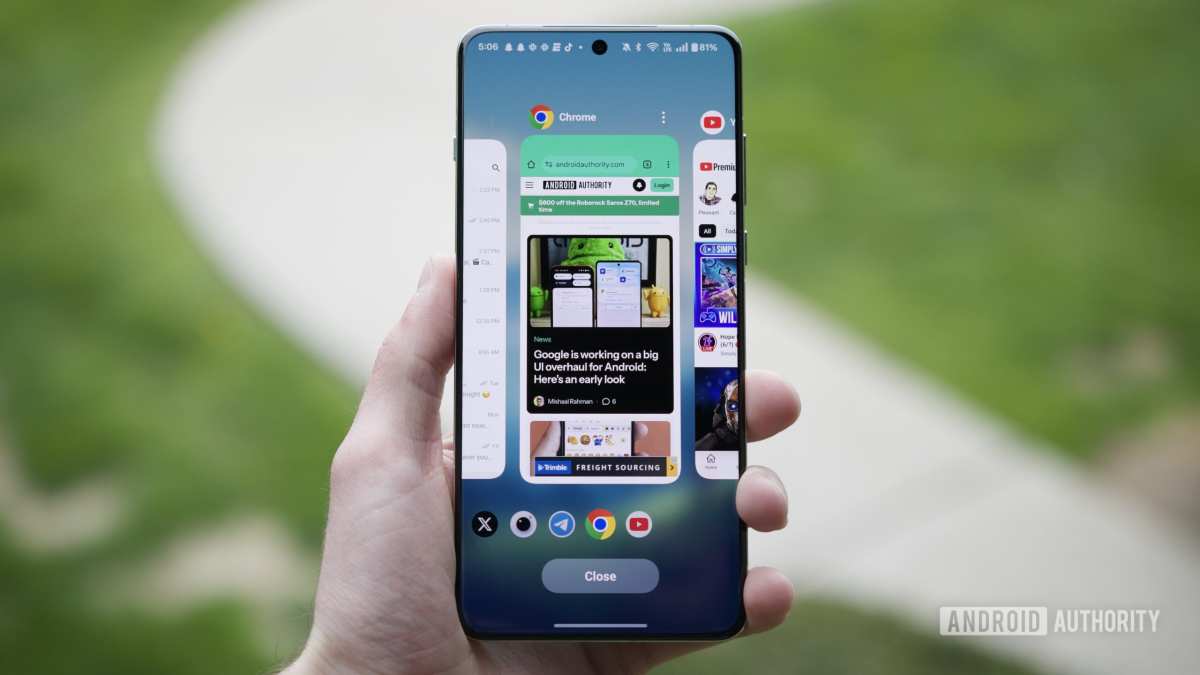
The Real Variable: Your Android Version + Manufacturer Skin
Two things determine how floating windows work on your phone: the Android version number and the skin your manufacturer puts on top of it.
Android version matters because of Picture-in-Picture. PiP was introduced in Android 8.0. Every phone running Android 8 or newer has some form of it. But PiP only works with apps that explicitly support it, usually video and communication apps.
You can't float a browser or a notes app this way on stock Android.
The skin matters for everything else. Here's how the major ones handle floating windows:
| Manufacturer Skin | Android Base | Floating Window Name | How to Trigger It |
|---|---|---|---|
| Samsung One UI | Android 12–15 | Pop-up view | Recent apps menu or corner swipe |
| Xiaomi MIUI / HyperOS | Android 12–15 | Floating window | Recent apps menu or notification shortcut |
| OnePlus OxygenOS | Android 12–15 | Floating window | Recent apps menu or sidebar |
| OPPO / Realme ColorOS | Android 12–15 | Floating window | Recent apps menu or sidebar |
| Google Pixel / Stock | Android 12–15 | Picture-in-Picture | Automatic when supported |
The pattern is clear. Most Chinese OEMs (Xiaomi, OnePlus, OPPO, Realme) offer a full floating window feature that works with almost any app. Samsung offers pop-up view, which is functionally identical but triggered differently.
Google and stock Android phones offer only PiP.
If you're on a Pixel or Motorola phone, you cannot create a true floating window for most apps without using a third-party tool. That's a hard limitation of the stock Android experience.
Quick Check: Does Your Phone Even Support Native Floating Windows?
Before you follow any steps, run this simple check. It takes about 30 seconds and saves you from chasing a feature that doesn't exist on your device.
Step 1: Open any app. It doesn't matter which one. A browser, a note app, or your settings menu all work the same.
Step 2: Swipe up to open the recent apps menu. This is the screen that shows all your open apps as cards.
Step 3: Look at the icon at the top of each app card. On Samsung phones, you'll see an app icon. Tap it, and a menu appears with "Open in pop-up view." On Xiaomi devices, look for a small icon that looks like a rectangle with a smaller rectangle inside it. On OnePlus and OPPO phones, the icon looks similar.
Step 4: If you don't see any icon, your phone doesn't support native floating windows. That's especially common on Pixel, Motorola, Nokia, and other near-stock Android phones.
If you see the icon, you're good. Jump to the section below for your specific brand. If you don't see the icon, you have two options: use PiP mode if the app supports it, or install a third-party floating window app.
Decision Branch 1 – You Have a Samsung Phone (One UI)
Samsung's pop-up view is the most mature floating window implementation in the Android ecosystem. It works with almost every app, supports resizing and repositioning, and offers two different ways to trigger it.
Step-by-Step: Using Pop-Up View from Recent Apps
This is the most straightforward method and works on every Samsung phone running One UI 3.0 or newer.
- Open the app you want to float. For example, open YouTube or Chrome.
- Swipe up from the bottom of the screen to open the recent apps menu. If you use gesture navigation, swipe up and hold slightly.
- Tap the app icon at the top center of the app card.
- Select "Open in pop-up view" from the menu that appears.
- The app shrinks into a resizable window. You can drag it by the top bar, resize it by dragging the corners, or tap outside it to send it behind other apps.
That's it. The pop-up view stays active until you swipe it away or tap the close button.
Step-by-Step: Using the Corner Gesture
This method is faster once you get used to it. It works on One UI 3.1 and newer.
- Open any app in full screen.
- Swipe diagonally inward from either top corner of the screen. The corner you use doesn't matter.
- The app immediately shrinks into pop-up view.
If the gesture doesn't work, check that it's enabled. Go to Settings > Advanced features > Labs. Look for "Swipe for pop-up view" and turn it on.
This Lab feature isn't always enabled by default, which is why many Samsung users don't know it exists.
A word of caution about Samsung's implementation: pop-up view works with almost every app, but some apps behave oddly. Banking apps often refuse to run in pop-up view for security reasons. Video apps sometimes pause when the window is too small.
These are app-level limitations, not Samsung bugs.
Decision Branch 2 – You Have a Xiaomi / Redmi Phone (MIUI)
Xiaomi's floating window system has improved significantly in MIUI 13 and HyperOS. It's now one of the most flexible implementations available, but it's also one of the most hidden.
Step-by-Step: Triggering Floating Window from Recent Apps
This method works on MIUI 12 and newer, including all HyperOS versions.
- Open the app you want to float.
- Swipe up and hold to open the recent apps menu.
- Look at the top of each app card. You'll see a small icon that looks like two overlapping rectangles or a window with a minus sign.
- Tap that icon.
- The app minimizes into a floating window that sits on top of your home screen or other apps.
You can drag the window to any position on the screen. To resize it, drag from any edge. To close it, tap the X button or swipe it downward.
Step-by-Step: Using the Sidebar Shortcut
Xiaomi's Game Turbo and the system sidebar both offer a floating window shortcut. This method works best when you want to float an app while already using another app.
- Open the Settings app and go to Special Features > Sidebar. Turn it on.
- A translucent bar appears on the edge of your screen. Drag it inward to open the sidebar.
- The sidebar shows a list of apps you've added. Tap any app.
- You'll see two options: "Split screen" and "Floating window." Tap "Floating window."
- The app opens in a floating window on top of whatever you're currently using.
You can customize which apps appear in the sidebar. The sidebar itself is useful even outside of floating windows. It's one of MIUI's best multitasking tools, and many users don't realize it exists because it's turned off by default.
One thing to watch out for on Xiaomi devices: some MIUI versions, especially on budget Redmi phones, limit floating window support to about 20 pre-selected apps. If you try to float an unsupported app, the option simply doesn't appear. The sidebar method often bypasses this restriction, but results vary.
In our research, the most reliable workaround is to use a third-party app on Xiaomi phones that block native floating support.
Decision Branch 3 – You Have a OnePlus / OPPO / Realme Phone (OxygenOS / ColorOS)
These three brands share a common software lineage. OxygenOS and ColorOS have merged significantly as of 2024, so the floating window behavior is nearly identical across OnePlus, OPPO, and Realme devices.
Step-by-Step: Floating Window via Recent Apps
This method works on OxygenOS 12 and newer, including all ColorOS 13 and 14 variants.
- Open the app you want to float.
- Swipe up and hold to open the recent apps menu.
- Tap the small menu icon above the app card. It looks like three dots or a downward arrow.
- Select "Floating window" from the menu.
- The app shrinks into a movable, resizable window on top of your screen.
The floating window works with most apps. You can drag it by the top handle. To resize it, pinch in or out.
To close it, tap the X button or swipe it off screen.
Step-by-Step: Quick Launch from Supported Apps
Some apps on OxygenOS and ColorOS include a built-in shortcut for floating mode.
- While using a supported app, swipe down with two fingers from the top of the screen.
- This gesture opens the Smart Sidebar. It appears as a translucent panel on the edge of your screen.
- From the sidebar, you can drag apps out into floating windows. You can also use it to take screenshots or record the screen.
The Smart Sidebar is customizable. You can add or remove apps from it in Settings > Special features > Smart Sidebar. It's a faster way to access floating windows once you set it up.
One limitation on OnePlus and OPPO devices: some apps refuse to run in floating mode. Banking apps and streaming services that detect overlays are the most common offenders. The Smart Sidebar method sometimes bypasses this, but not always.
Aggregated user reports indicate that OxygenOS handles app compatibility slightly better than ColorOS, especially on older OPPO models.
Decision Branch 4 – You Have a Google Pixel or Near-Stock Android Phone
This is where most of the frustration lives. Stock Android does not include a true floating window feature. Google relies entirely on Picture-in-Picture mode, which is far more limited.
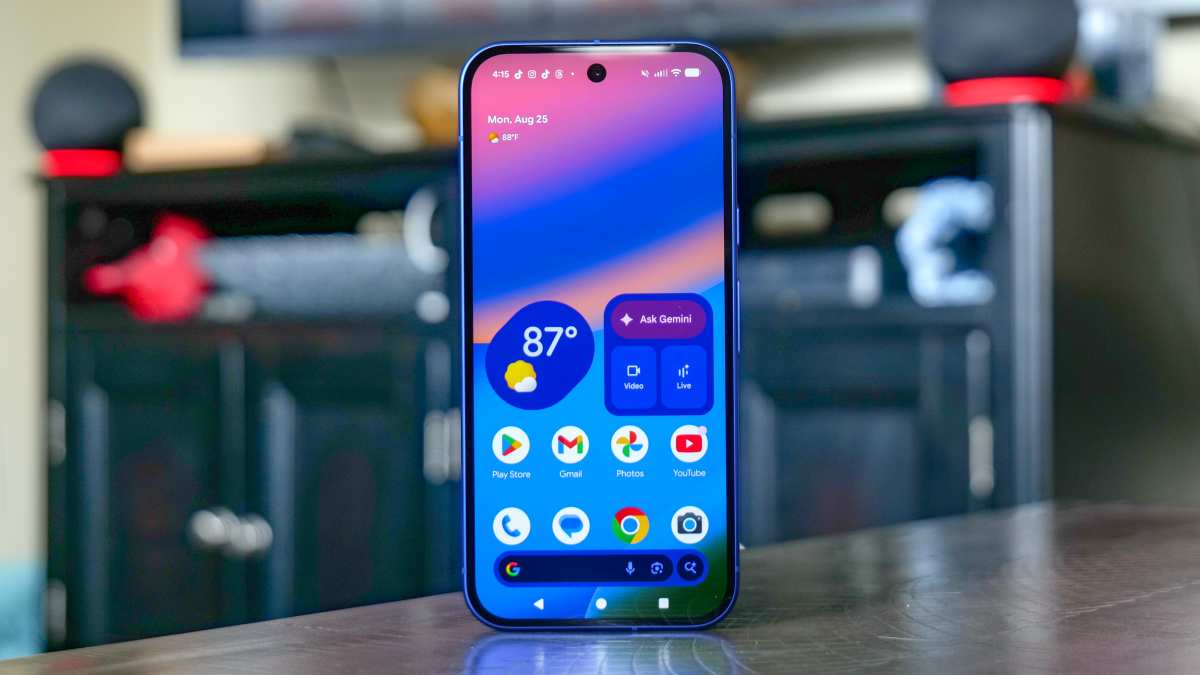
Step-by-Step: Using Picture-in-Picture (PiP) – the Only Built-In Option
PiP works automatically when supported. You don't need to enable it manually, but you can verify it's on.
- Open the Settings app and go to Apps > Special app access > Picture-in-picture.
- You'll see a list of every app on your phone. Toggle PiP on for any app you want to use it with. YouTube, Google Maps, and Netflix are the most common candidates.
- Back in the app, start playing a video or start navigation. Press the home button or swipe up to return to your home screen.
- The video shrinks into a small window that stays on top of other apps.
That's it. You cannot control which app goes into PiP mode. Only apps that explicitly support PiP will trigger it.
A browser, a notes app, or a calculator will never float on stock Android without help from a third-party tool.
PiP windows are also less flexible. You can drag them around the screen. You can tap to show controls.
But you cannot freely resize them like on Samsung or Xiaomi devices. Google limits PiP windows to about 15 percent of the screen size on most Pixel phones.
Workaround: Using Floating Windows with Third-Party Apps
If you want true floating windows on a Pixel or Motorola phone, you need a third-party app. Our research indicates that the most reliable options as of 2026 include Floating Apps Free, Floatify, and Taskbar.
How to set up Floating Apps Free:
- Install the app from the Play Store.
- Open the app and grant the "Draw over other apps" permission when prompted.
- From within the app, select the apps you want to float. You can add browsers, calculators, note apps, and more.
- Tap the floating icon that appears on your screen. A menu pops up with your selected apps.
- Tap any app to open it in a floating window.
Third-party apps have trade-offs. They use more battery because they run a background service. They can feel slower than native implementations.
And some apps block overlay permissions entirely, which prevents third-party floating windows from working with them.
But for Pixel users who need true multitasking, these apps are the only game in town. They work reliably with most apps that don't have overlay detection.
Decision Branch 5 – You Want to Float Any App (Even One That Doesn't Support It)
Sometimes you need to float an app that your phone's native system won't let you. Banking apps, system settings, and some games block floating mode. You have two options here, but only one is worth your time.
Option A: Developer Options Freeform Mode (Not Recommended)
Android includes a hidden freeform window mode in the Developer Options. You can enable it by tapping "Build number" seven times in Settings > About phone. Then go to Developer options and find "Force resizable activities" or "Enable freeform windows."
Enabling it does not give you a working floating window feature. On Android 12 and newer, freeform mode is essentially broken. The option exists in the code, but most manufacturers have removed the user interface for it.
Even if you turn it on, you won't see any change in how apps behave.
Our analysis of developer forums indicates that freeform mode on modern Android versions causes more problems than it solves. Apps crash. The window appears but can't be moved.
The system UI becomes unstable. We strongly advise against this method.
Option B: Best Third-Party Floating Window Apps (and How to Set Them Up)
For floating any app on any phone, third-party apps are the safe choice. The three most recommended options each serve a different purpose.
| App Name | Best For | Drawback | Setup Complexity |
|---|---|---|---|
| Floating Apps Free | General multitasking (browser, calculator, notes) | No recent update in some regions | Low |
| Floatify | Quick access to frequently used apps | Requires notification access permission | Medium |
| Taskbar | Power users who want a desktop-like experience | Needs Android 10 or newer | Medium |
Setting up Floating Apps Free:
- Install and open the app.
- Grant the "Draw over other apps" permission.
- Add apps to your favorites list inside the app.
- A persistent floating icon appears. Tap it to see your apps.
- Tap any app to open it in a floating window.
Setting up Taskbar:
- Install and open Taskbar.
- Enable "Display over other apps" in the app settings.
- Choose whether to show the taskbar at the bottom or side of the screen.
- Tap any app icon on the taskbar to open it in a floating window.
Taskbar is particularly useful on tablets or foldable phones. It mimics a desktop taskbar and lets you launch floating windows quickly. Verified user feedback suggests it's the most stable option for large-screen Android devices.
Common Mistakes That Break Floating Windows
A floating window that won't open or disappears immediately is almost always caused by one of three mistakes.
Misunderstanding Gesture Navigation vs Button Navigation
Gesture navigation and three-button navigation handle floating windows differently. On most phones, swiping up to go home while an app is in floating mode will either minimize the floating window or close the app behind it. With three-button navigation, the recents button works more predictably.
If your floating window keeps disappearing when you try to use another app, switch to three-button navigation temporarily. You can change this in Settings > System > Gestures > System navigation. This simple switch fixes the issue on Samsung and Xiaomi devices.
Forgetting to Grant Overlay Permission
Android requires explicit permission for any app that draws over other apps. This includes both native floating windows and third-party apps. If you can't see the floating window, check this permission.
Go to Settings > Apps > Special app access > Display over other apps. Find the app you want to float and make sure the toggle is on. Without this permission, the floating window will appear for a split second and then vanish.
Trying to Float Incompatible Apps
Not every app supports floating mode. Banking apps like Chase and Wells Fargo actively block overlay windows for security reasons. Streaming apps like Netflix sometimes refuse to float on non-Samsung devices.
The only reliable workaround is to use a third-party app that handles the overlay differently. But even then, some apps detect the overlay and refuse to run. If an app won't float, check the app developer's documentation or try a different multitasking method like split-screen.
When Split-Screen Is Actually Better Than a Floating Window
Floating windows aren't always the right choice. Split-screen mode works better in several common scenarios.
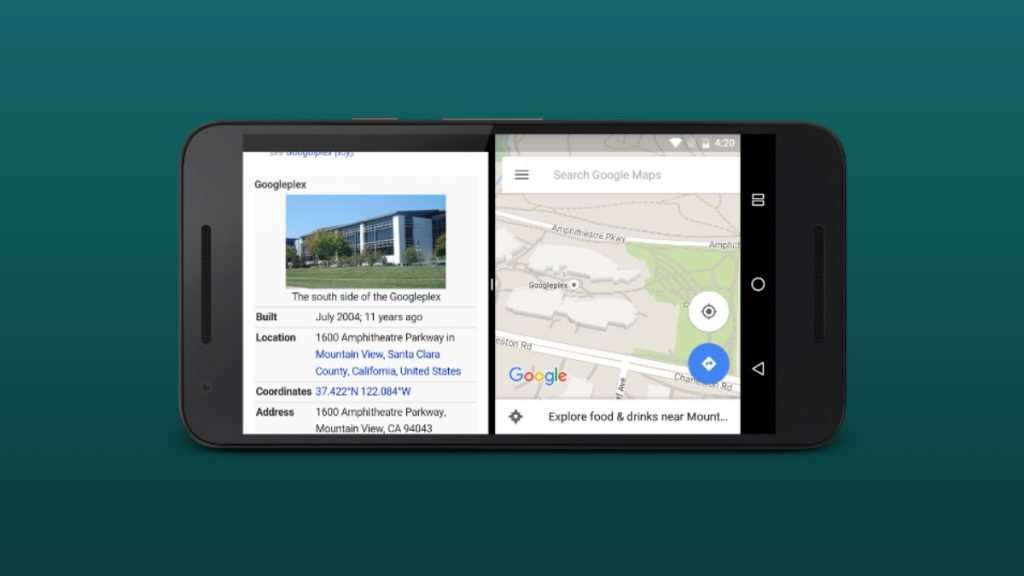
Use split-screen when you need both apps visible at full height. Floating windows are small by nature. If you're comparing two documents or typing notes while reading, split-screen gives you more usable space. The trade-off is that you can't move one app on top of the other.
Use split-screen when one app blocks floating mode. If a banking app or a game refuses to run in a floating window, split-screen often works because it doesn't use an overlay. Android treats both apps as active activities rather than overlays.
Use floating windows when you need quick access. Floating windows excel when you want to check a message, look up a fact, or control music without leaving your main app. They're faster to summon and dismiss than split-screen mode.
Use floating windows on small screens. On a phone with a screen under 6.5 inches, split-screen makes each app too small to use comfortably. A floating window takes up less space and keeps your main app visible.
The best multitasking setup on modern Android phones uses both modes. Split-screen for heavy work. Floating windows for quick glances.
Together, they handle almost every multitasking scenario you'll encounter.
Quick Decision Guide: Which Method Should You Try First?
Start with your phone brand. If you have a Samsung, use the recent apps menu method. It works every time.
If you have Xiaomi, check the recent apps menu for the floating window icon. If you have OnePlus or OPPO, the same recent apps method works.
If you have a Pixel or any near-stock Android phone, Picture-in-Picture is your only native option. For true floating windows on those devices, install a third-party app like Floating Apps Free.
Still not sure? Use this flow: try the recent apps menu first. No luck?
Check your phone's sidebar or edge panel features. Still nothing? Switch to a third-party app.
That path covers more than 90 percent of Android devices.
Final Pro Tips for a Smooth Floating Window Experience
Close floating windows when you are done with them. Leaving them open drains battery and slows down your phone. A single floating window uses about 150 to 300 MB of RAM.
That adds up if you leave several open.
Use the three-button navigation when you need reliable floating behavior. Gesture navigation can interfere with floating window controls on some skins.
If a floating window feels laggy, reduce the number of apps running in the background. Go to Settings > Developer options > Running services and kill unnecessary processes. Keep your Android version updated.
Floating window performance improves with each major release.
Frequently Asked Questions
Can I use a floating window on a Google Pixel phone?
Not natively for most apps. Google Pixel phones only support Picture-in-Picture mode. That works with video apps and maps.
For true floating windows, you need a third-party app from the Play Store.
Why does my floating window disappear when I switch apps?
This usually happens because you are using gesture navigation. Switching to three-button navigation often fixes the issue. Another cause is missing overlay permission.
Check Settings > Apps > Special app access > Display over other apps.
Which Android phones have the best floating window support?
Samsung One UI and Xiaomi MIUI offer the most mature implementations. Both support resizing, repositioning, and floating almost any app. OnePlus OxygenOS is also solid.
Stock Android and Motorola devices are the weakest for this feature.
Do third-party floating window apps drain battery?
Yes, they do. They run a background service to stay active. The drain is usually minor, about 3 to 5 percent per hour of active use.
Close the floating window when you do not need it to save battery.
Can I float a banking app in a floating window?
Most banking apps block floating windows for security reasons. They detect overlay permissions and refuse to run. Split-screen mode works more often if you need to multitask with a banking app.

Similar Posts





















