How Do I Activate Split Screen?
"How do I activate split screen?" If you have ever tried to keep a video playing while you reply to a text, or wanted to compare two documents without constantly switching apps, you already know why this feature matters. Split screen lets you run two apps at once on the same display. It is a built-in multitasking tool on most modern smartphones and tablets.
As of 2026, split screen support varies widely by device. Android introduced the feature with version 7.0 (Nougat) back in 2016. Apple only offers true split screen on iPads, not iPhones.
Understanding which platform you are using is the first step toward getting it to work.
Quick Answer
Open your recent apps. Tap the app icon at the top of the card. Select "Split screen" from the menu.
Choose a second app from your recent apps or app drawer. The two apps will appear side by side.
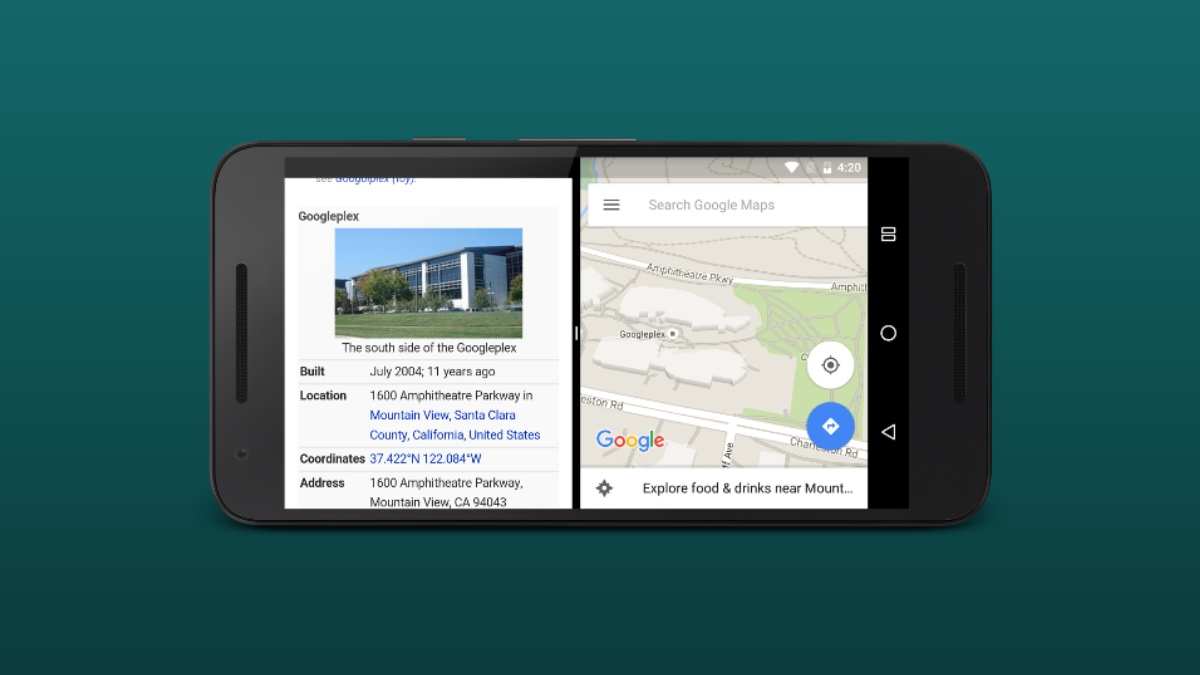
That method works on most Android phones. On iPad, you drag a second app from the Dock onto the screen. On iPhone, there is no native split screen.
We will cover each platform in detail below.
Before You Start – Does Your Device Even Support Split Screen?
Not every phone or tablet supports split screen. The feature has hardware and software requirements. Here is what you need to check before you try.
Android devices. Split screen arrived with Android 7.0 in 2016. If your phone runs anything older than that, you are out of luck. In practice, almost every Android phone sold in the last five years supports it.
But some manufacturers disable it on cheaper models or on certain custom skins. Samsung, OnePlus, Xiaomi, Oppo, and Google Pixel all support it. Some budget phones from brands like TCL or Nokia may restrict it.
iPads. Every iPad from 2015 onward supports Split View. That includes iPad Pro, iPad Air, iPad mini, and standard iPad models. You need iOS 9 or later, and iPadOS 13 or later is recommended.
iPhones. This is where most confusion lives. iPhones do not have a native split screen mode. Apple has never added it. Some apps offer picture-in-picture video, but you cannot run two full apps side by side on an iPhone.
If you own an iPhone and want split screen, your only option is a third-party app with limited functionality.
Chromebooks. Chrome OS supports split screen using the same method as Windows. Click and hold the maximize button on a window, then choose a side. Or drag the window to the left or right edge.
Windows and Mac. Both desktop operating systems have had split screen for years. Windows calls it Snap Assist. Mac calls it Split View.
These work with any modern laptop or desktop.
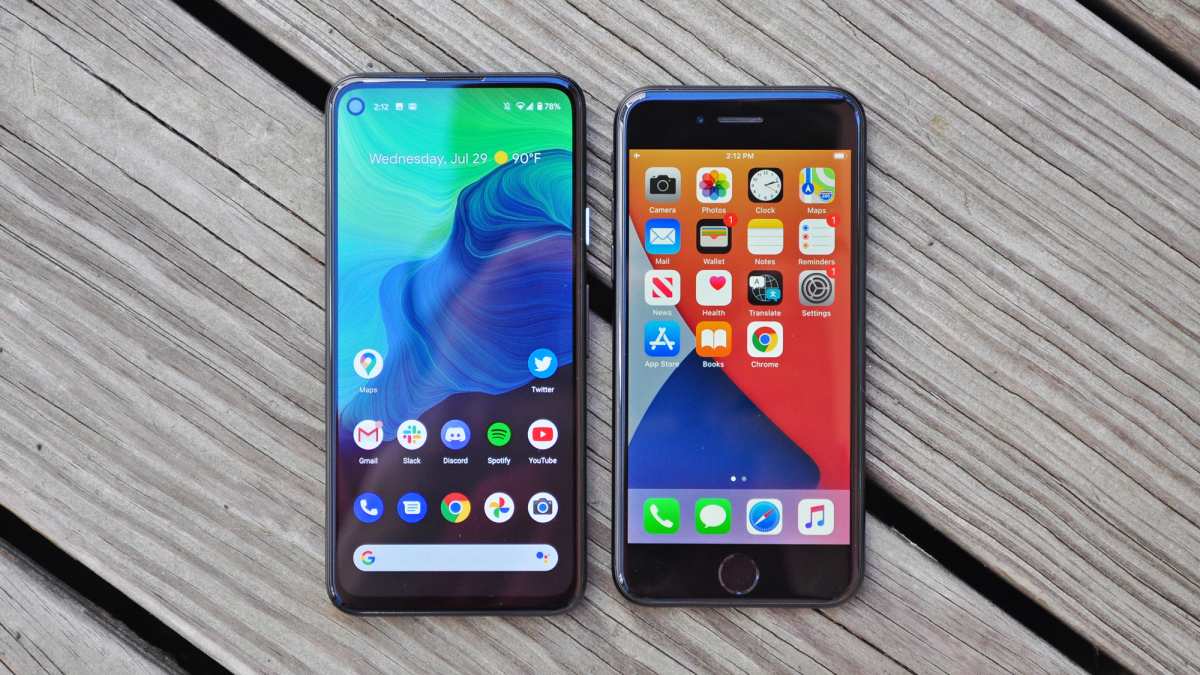
The fastest way to check your device. Open your settings and search for "split screen" or "multitasking". If you see an option for it, you are good to go.
If not, your device likely does not support it.
The Decision Tree: Choose Your Path Based on Your Device
Split screen works differently on every device. The steps change based on your operating system, your manufacturer, and sometimes even your Android version. Use this decision tree to find your exact path.
Branch 1: You Have a Samsung Phone (One UI)
Samsung phones use One UI, which has its own split screen method. You have two ways to activate it.
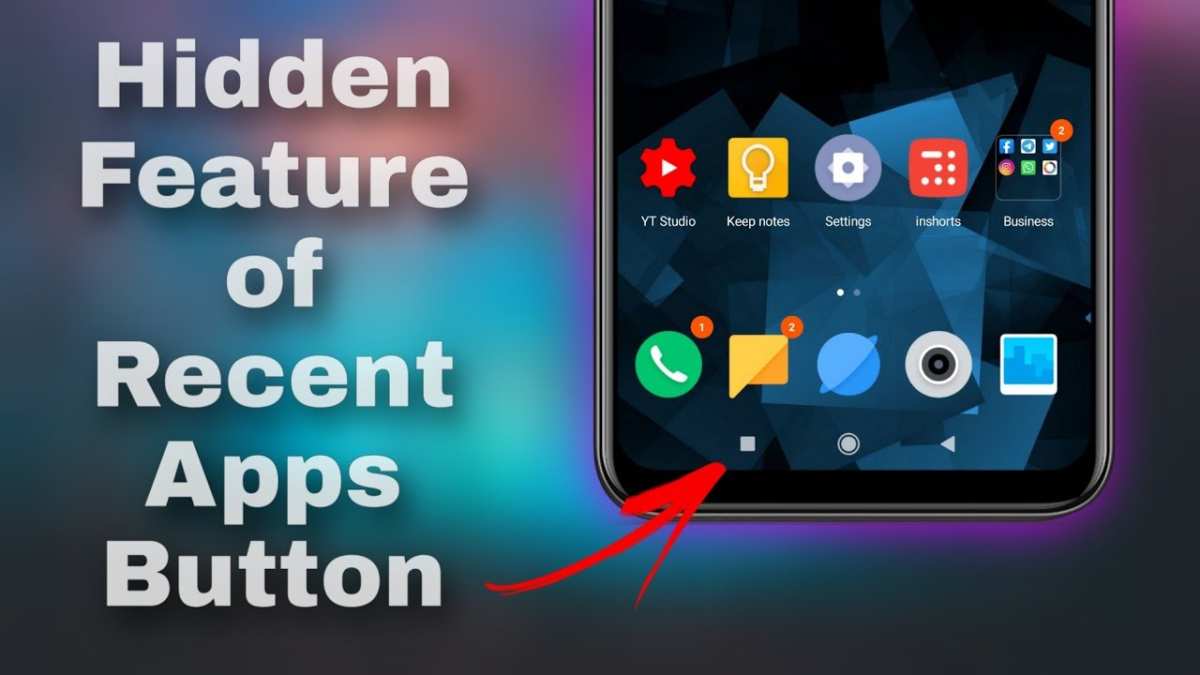
Method A, Recent apps button. Tap the recent apps button (the three vertical lines or the square icon). Find the app you want to keep open. Tap the app icon at the top of its card.
Select "Open in split screen view". Then choose your second app from the list below.
Method B, Drag from the corner. Open the first app. Swipe inward from the top right corner with two fingers. The app shrinks to half the screen.
Then pick your second app from the recent apps drawer.
Samsung also lets you save app pairs. More on that in the Pro Tips section.
Branch 2: You Have a Stock Android Phone (Pixel, Motorola, Nokia)
Stock Android uses a clean method. It works on Pixel phones, Motorola devices, Nokia phones, and others that run near-stock Android.
Open your recent apps screen. Swipe up from the bottom and hold, or tap the recent apps button. Find the app card you want in split screen.
Tap the app icon at the top of the card. Select "Split screen" from the menu. The app will move to the top half of your screen.
Then choose a second app from your recent apps or app drawer.
On Android 12 and later, the icon menu changed slightly. Instead of "Split screen", some devices say "Split top" or "Split left". The meaning is the same.
Branch 3: You Have a Xiaomi, OnePlus, Oppo, or Huawei Phone
These manufacturers use custom Android skins. The method varies but follows a similar pattern.
Xiaomi (MIUI). Open recent apps. Long-press the app card. Drag it to the top of the screen where it says "Drop here for split screen".
Then select your second app.
OnePlus (OxygenOS). Open recent apps. Tap the three-dot menu on the app card. Select "Split screen".
Then choose the second app.
Oppo (ColorOS). Open recent apps. Tap the app icon. Select "Split screen".
Or use the three-finger swipe gesture (swipe up with three fingers while in an app).
Huawei (EMUI). Open recent apps. Tap the app icon. Select "Split screen".
You can also knock on the screen with your knuckle and draw a horizontal line. That triggers split screen on many Huawei phones.
Branch 4: You Have an iPad (iPadOS)
iPad split screen works differently from Android. You use gestures and the Dock.
Open your first app. Swipe up from the bottom edge to reveal the Dock. Find the second app on the Dock.
Touch and hold its icon, then drag it up onto the screen. Drop it on the left or right edge. The app will snap into place.
If you see a floating window instead of a true split, you have activated Slide Over, not Split View. To fix this, drag the floating window down and toward the edge. You should see it snap side by side.
Another method. Open the first app. Tap the three-dot menu at the top center of the screen.
Select "Split View" from the dropdown. The app will shift to one side. Then choose your second app from the Home screen or Dock.
Branch 5: You Have an iPhone (Limited or No Native Split Screen)
As noted earlier, iPhones do not support native split screen. The only workaround is a third-party app called Split Screen Manager or similar tools. These apps let you run two browser windows side by side.
They do not support other apps. For most users, the best approach is to accept that split screen is not available on iPhone and use picture-in-picture for video instead.
Step-by-Step: How to Activate Split Screen on Each Branch
Now that you know which branch you are on, here is the exact step sequence for each major device. Follow only the steps for your device.
Samsung (One UI) step by step
- Open the first app you want to use.
- Tap the recent apps button (bottom left of the screen).
- Find the app card for your first app.
- Tap the app icon at the top of the card.
- Select "Open in split screen view".
- The app shrinks to the top half.
- From the bottom half, tap the second app you want.
- Drag the divider line up or down to adjust the size of each window.
Stock Android (Pixel, Motorola, Nokia) step by step
- Open the first app.
- Open recent apps (swipe up and hold, or tap the recent apps button).
- Find the app card.
- Tap the app icon at the top of the card.
- Select "Split screen".
- The app moves to the top half.
- Swipe through your recent apps or open the app drawer.
- Tap the second app to open it in the bottom half.
iPad (iPadOS) step by step
- Open the first app.
- Swipe up from the bottom edge to open the Dock.
- Touch and hold the icon of the second app on the Dock.
- Drag the icon toward the left or right edge of the screen.
- Let go when you see the app snap into place.
- Drag the center divider to resize each window.
Chromebook step by step
- Open the first app or window.
- Click and hold the maximize button (the square between minimize and close).
- Drag the window to the left or right half. It should snap into place.
- Click the second window from the thumbnails that appear on the other side.
Windows (Snap Assist) step by step
- Click the title bar of the first window.
- Drag it to the left or right edge of your screen.
- Release when you see a translucent outline.
- Click the second window from the remaining thumbnails.
Mac (Split View) step by step
- Hover over the green full-screen button in the top left corner of a window.
- Select "Tile Window to Left of Screen" or "Tile Window to Right of Screen".
- Click the second window on the opposite side.
Common Problems That Kill Split Screen (and How to Fix Them)
Split screen does not always work on the first try. Here are the most common issues and what to do about them.
Problem: The split screen option does not appear.
This usually means your device does not support split screen for the app you are using. Some apps lock into full screen mode. Games and video streaming apps are the worst offenders.
Try a different app like Settings or Notes to test if the feature works at all. If the option appears for those apps, the problem is the specific app, not your device.
Problem: Gesture navigation conflicts with split screen.
On many modern Android phones, gesture navigation replaces the old three-button layout. Swiping up to go home can interfere with the split screen gesture. The fix is simple.
Switch back to three-button navigation in your settings. Go to Settings > System > Gestures > System navigation. Select "3-button navigation".
Then try split screen again. You can switch back to gestures after you learn the method.
Problem: iPad Split View turns into Slide Over.
This happens when you drag the app to the center of the screen instead of the edge. Slide Over keeps the second app floating on top. Drag the floating app top down and toward the edge.
It should snap into Split View. Alternatively, tap the three-dot menu on the floating app and select "Split View".
Problem: The second app does not open.
Some apps are simply not compatible with split screen. Android maintains a blacklist of apps that block split screen. Google Chrome usually works.
YouTube does not work in split screen on most devices unless you have a premium subscription. Instagram and TikTok also block split screen. You cannot force these apps to work without using developer options.
Problem: The screen feels too cramped.
Split screen works best on devices with screens 6 inches or larger. On smaller phones, the text becomes tiny and buttons are hard to tap. Try using the divider to give more space to one app.
Or use the feature only in landscape mode, where both apps get a wider view.
Problem: Split screen broke after an operating system update.
Android 12 changed how split screen works on some devices. The app icon menu rearranged. The gesture for split screen changed on some skins.
If split screen stopped working after an update, search for "split screen" in your settings. The option may have moved to a different menu. On Samsung, it is under Advanced features > Labs or Multitasking options.
On Pixel, it is under Gestures.
The App Trap – Why Some Apps Won't Play Nice
Not every app lets you use split screen. This is the single biggest frustration people run into.
Games are the worst offenders. Most mobile games lock into full screen mode. They refuse to share the display. Call of Duty Mobile, Genshin Impact, and PUBG all block split screen.
The reason is performance. Games need every bit of GPU power. Running a second app would cause lag.
Streaming apps play favorites. YouTube only works in split screen if you have YouTube Premium. Without it, the video pauses the moment you leave the app. Netflix works in split screen on tablets but not on most phones.
Disney Plus blocks split screen entirely. Hulu allows it on iPads but not on iPhones.
Social media apps are inconsistent. Instagram blocks split screen on both Android and iOS. TikTok does the same. Facebook Messenger works in a floating bubble but not in true split screen.
Twitter works on some devices but not others. The split screen behavior depends on how the developer configured the app.
How to find out if an app supports split screen. Open the app. Then try the split screen method for your device. If the option does not appear, the app does not support it.
You cannot force it without using developer options.
The developer options trick. On Android, you can force split screen for any app. Go to Settings > About phone. Tap "Build number" seven times to enable Developer options.
Go to Settings > System > Developer options. Scroll to "Force activities to be resizable". Toggle it on.
This forces all apps into split screen mode. The catch is that some apps will crash or behave strangely. Use this only for apps you trust.
What to do instead. If a key app does not support split screen, use picture-in-picture mode for video. Or switch to a different app. For example, use VLC instead of Netflix for local video files.
Use NewPipe instead of YouTube for background playback.
Pro Tips: Gestures, App Pairs, and Hidden Shortcuts
Once you have basic split screen working, you can speed things up. These tips come from manufacturer documentation and power user forums.
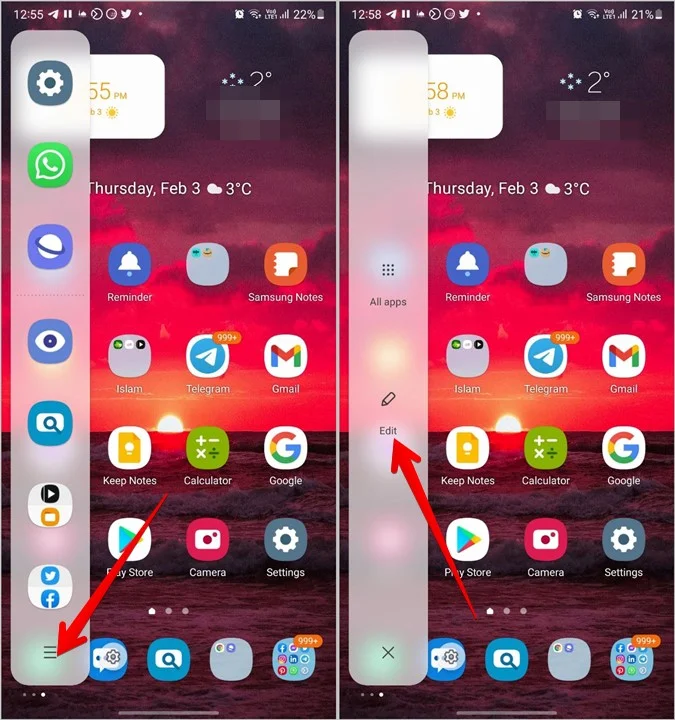
App pairs (Samsung and OnePlus). You can save two apps as a permanent pair. Open both apps in split screen. Tap the three-dot menu on one of the app windows.
Select "Save as app pair" or "Create app pair". A new icon appears on your home screen or in your edge panel. Tap it once to launch both apps in split screen instantly.
This saves about five seconds each time.
Three-finger swipe (Xiaomi and Huawei). On Xiaomi devices, swipe up with three fingers to trigger split screen. On Huawei devices, knock the screen with your knuckle and draw a horizontal line. These gestures skip the recent apps menu entirely.
Recent apps long press (stock Android). On Android 12 and later, you can long press the recent apps button instead of tapping it. This immediately splits the current app to the top half.
iPad three-finger drag. On iPadOS, you can drag content between split screen apps. Select text or an image with three fingers. Pinch to copy.
Switch to the other app. Spread three fingers to paste. This works in most Apple apps and many third-party apps.
Resize without precision. You do not need to drag the divider to a specific spot. Drag it to about where you want it and let go. The system snaps to the nearest useful ratio.
Common ratios are 50/50, 60/40, and 70/30.
Use landscape mode for better results. Split screen works best when your phone is sideways. Each app gets a wider view. Portrait mode makes both apps tall and narrow.
On many phones, split screen only works in portrait mode. Check your device settings to see which orientation is supported.
Mistakes Most People Make (and How to Avoid Them)
These errors are common enough that they have their own support threads on manufacturer forums.
Mistake 1: Swiping up instead of tapping. On gesture navigation, swiping up closes the app. It does not open the recent apps menu. You need to swipe up and hold.
Pause for a moment at the midpoint. The recent apps screen appears when you feel a vibration.
Mistake 2: Dragging the app into the wrong area. On iPad, dragging an app to the center of the screen activates Slide Over. You must drag it to the left or right edge. Look for a vertical line that appears when you are in the right spot.
Mistake 3: Forgetting to check app compatibility. Users try split screen with YouTube or Instagram. It does not work. They assume their phone is broken.
The app is the problem, not your device.
Mistake 4: Using split screen on a small screen. Phones under 6 inches give a poor experience. Text becomes tiny. Buttons overlap.
You end up zooming in and out constantly. Consider using a tablet or a Chromebook instead.
Mistake 5: Leaving split screen on accidentally. Some users activate split screen and cannot figure out how to exit. Drag the divider all the way to the top or bottom of the screen. The app you dragged away closes.
The remaining app returns to full screen.
Mistake 6: Expecting iPhone support. This is the most common question in support forums. iPhones do not have split screen. Accepting this saves a lot of frustration.
When Split Screen Isn't the Answer – Alternatives Worth Trying
Split screen is not always the best multitasking tool. Sometimes another approach works better.
Picture-in-picture (PiP) mode. PiP shrinks a video into a small floating window. You can place it anywhere on the screen. This works well when you want to watch a video while using another app.
YouTube Premium, Netflix, and most video calling apps support PiP. Android and iOS both support it natively.
Floating windows. Samsung, Xiaomi, and OnePlus phones offer pop-up view. The second app opens as a small floating window. You can move it, resize it, or close it.
This is better than split screen when you only need the second app for a quick reference.
Slide Over (iPad). Slide Over keeps the second app floating on top of the first. You can slide it off the screen and bring it back with a swipe. This is useful for quick replies or checking notifications without committing to a full split.
Desktop mode (Samsung DeX and Motorola Ready For). These modes turn your phone into a desktop-like interface. You can resize windows freely and have more than two apps on screen at once. Connect your phone to a monitor or use DeX on the phone screen itself.
Quick switching. Sometimes it is faster to just switch between apps. Double-tap the recent apps button to jump between your last two apps. This takes less than a second.
For simple tasks like replying to a text while watching a video, quick switching beats split screen.
When to use each method. Use split screen for active comparison tasks like reading two documents. Use PiP for passive video watching. Use floating windows for quick reference.
Use quick switching for simple back-and-forth tasks.
Still Stuck? A Quick Troubleshooting Checklist
Try these fixes in order. One of them will solve your problem.
Check 1: Restart your device. A simple reboot clears temporary glitches. Many split screen issues disappear after a restart.
Check 2: Verify your OS version. Go to Settings > About phone > Software information. You need Android 7.0 or later. For iPad, you need iOS 9 or later.
For iPhone, no version supports split screen.
Check 3: Test with a known working app. Open Settings or Files. Try split screen with those. If it works, the issue is your specific app.
Check 4: Switch to three-button navigation. Go to Settings > System > Gestures > System navigation. Select "3-button navigation". Try split screen again.
Check 5: Enable developer options for stubborn apps. Only do this if you are comfortable with developer settings. Go to Settings > About phone > Tap "Build number" seven times. Go to Developer options > Toggle "Force activities to be resizable".
Check 6: Check for manufacturer restrictions. Some budget phones disable split screen. Search your settings for "split screen" or "multitasking". If you find nothing, your phone may not support it.
Check 7: Update your apps and system. Open the Play Store or App Store. Check for app updates. Then check for system updates in Settings > Software update.
If nothing works, accept the limitation. Some devices simply do not support split screen. In that case, use picture-in-picture or floating windows as alternatives.

Similar Posts





















