Why Is My YouTube Not Floating?
It happens every time. You're watching a YouTube video, maybe a tutorial or a podcast clip, and you need to switch over to your messages or check a recipe. You swipe up or tap the home button, expecting the video to shrink down into that handy little floating window.
Instead, the audio cuts out. The screen goes dark. The video just stops.
This exact frustration is what brings you here asking "Why is my YouTube not floating?" As of 2026, Picture-in-Picture (PiP) mode has been available on smartphones for several years, but it still fails for a surprising number of people. The answer usually comes down to three things: your account type, your device, and which app or browser you're using. Let's walk through each one so you can get that floating window back.
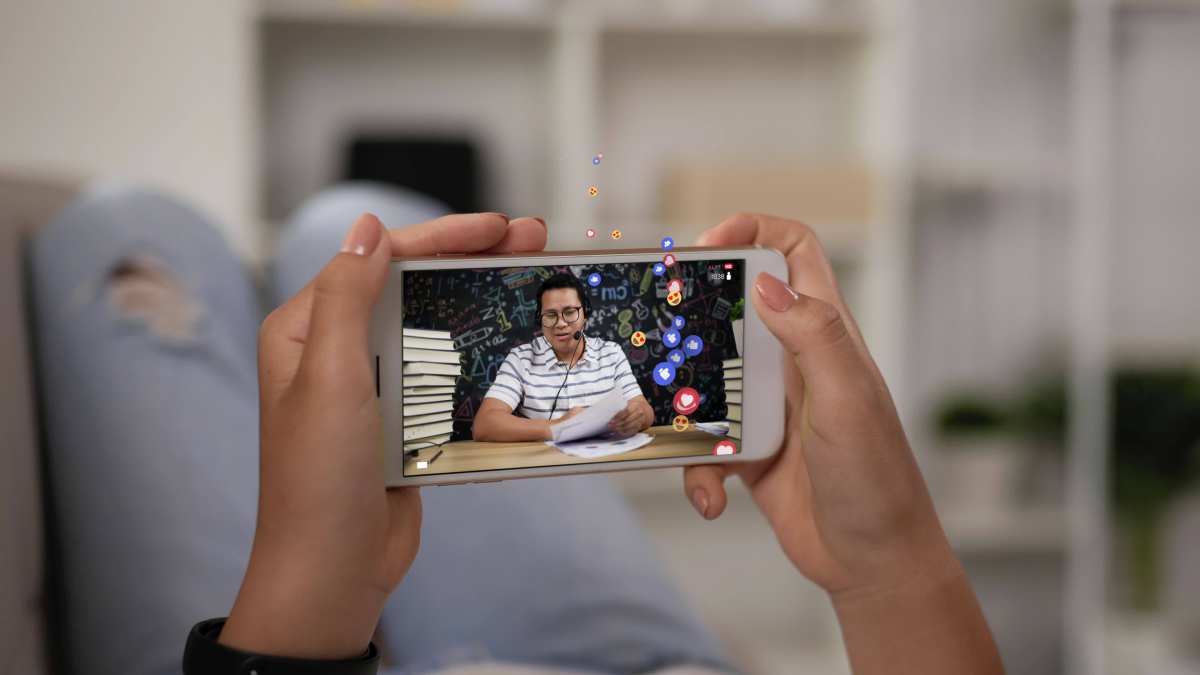
Quick Answer
Your YouTube video stops floating when you leave the app. The floating feature is called Picture-in-Picture (PiP). Free YouTube accounts lose this ability on most devices.
YouTube Premium keeps it working. Apple's Safari browser is the one exception for free users. Your device settings also control whether PiP is allowed.
The Core Problem: Free vs. Premium – The Biggest Dealbreaker
Here's the simple truth that catches most people off guard. If you're using a free YouTube account, the app is designed to stop playing video the moment you switch to another app or lock your screen. That's not a glitch.
It's an intentional restriction baked into the app by Google.
YouTube Premium, which costs roughly $13.99 per month in the US (pricing varies by region), removes that restriction entirely. With Premium, you get full Picture-in-PiP mode across virtually all videos on both iPhone and Android. You also get background audio playback, meaning you can lock your phone and keep listening.
Let's lay out exactly what each account type gets you so there's no confusion.
| Feature | Free Account | YouTube Premium |
|---|---|---|
| PiP on iPhone (YouTube app) | No | Yes |
| PiP on Android (YouTube app) | No | Yes |
| PiP on iPhone (Safari browser) | Yes (workaround) | Yes |
| Background audio (screen off) | No | Yes |
| PiP on desktop browsers | Yes (limited) | Yes |
The key takeaway here is that a free account, by itself, blocks the floating window on mobile. If that's your situation, don't waste time digging through settings. The app is working exactly as intended.
Condition Variable #1: What Device Are You Using?
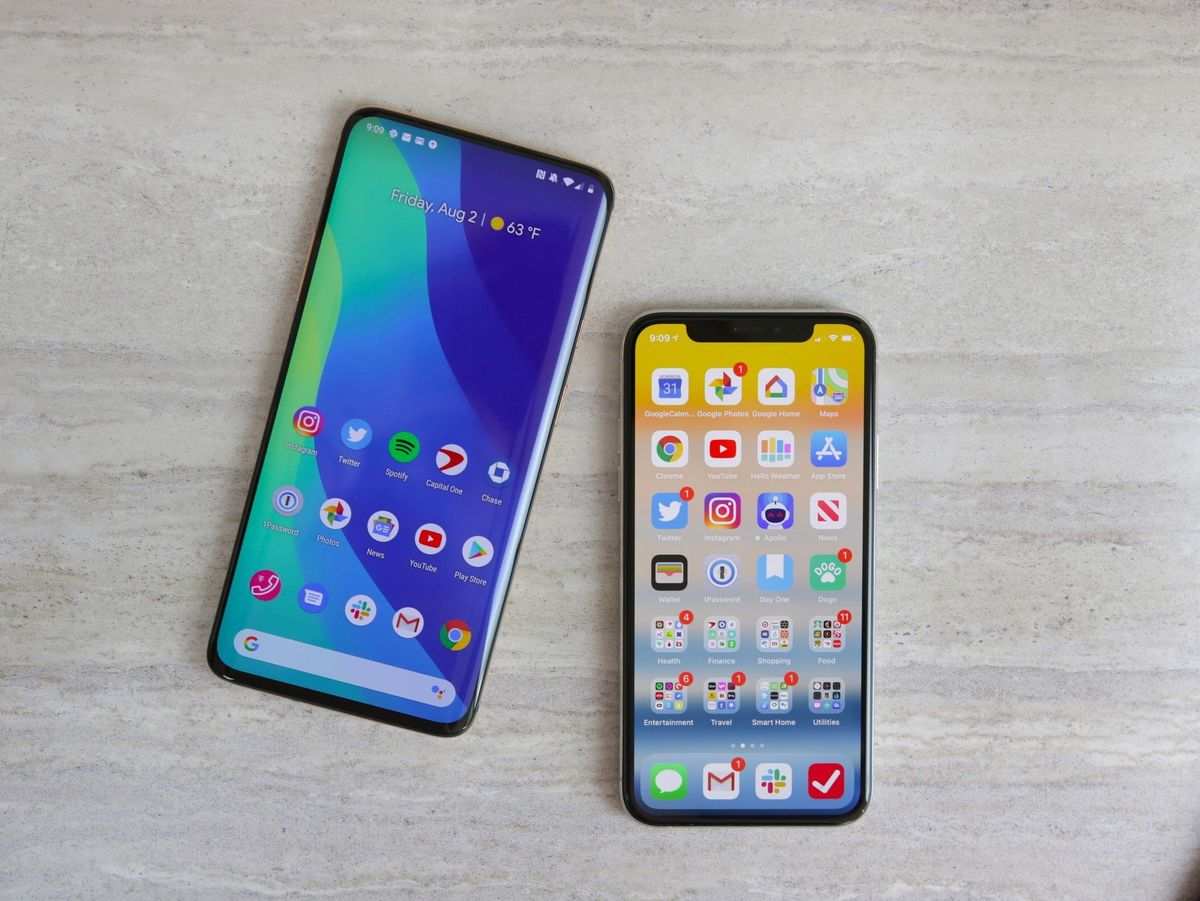
The device you're holding matters more than you might think. iOS and Android handle PiP very differently, and even within each platform, older operating systems simply don't support the feature.
iPhone / iPad (iOS)
Apple introduced system-wide Picture-in-Picture with iOS 14 back in 2020. That means any iPhone from the iPhone 6S onward can technically support PiP, provided you're running iOS 14 or newer. But here's the catch: the YouTube app itself blocks PiP for free accounts.
Apple's own Safari browser, however, does not. That distinction is the entire reason the Safari workaround exists.
To check your iOS version, go to Settings > General > About. If you're on iOS 13 or older, PiP won't work at all regardless of what you try.
Android Phone or Tablet
Android has supported PiP since Android 8.0 (Oreo). Most modern phones from Samsung, Google, OnePlus, and others are well past that version. The difference with Android is that the YouTube app for free accounts does allow PiP for some content, but not all.
Music videos and licensed content are frequently blocked due to licensing agreements. Regular user uploads and educational content usually work fine.
Android also has a permission system that iOS lacks. The YouTube app needs "Draw over other apps" permission enabled, or PiP simply won't activate. We'll cover that in the Android fix section.
Desktop Browser
Desktop browsers are a different story entirely. YouTube's website on Chrome, Firefox, Edge, and Safari all support some form of floating video, regardless of your account type. Chrome has a hidden flag that enables a dedicated PiP button.
Firefox and Edge have it built right into the video player. Safari on Mac has native PiP support as well.
If your desktop PiP isn't working, it's usually a browser setting, not an account restriction.
Condition Variable #2: Which App or Browser Are You Using?
The specific app or browser you're using to watch YouTube is another major variable in this equation. Different software handles PiP in completely different ways.
YouTube App (iOS): The official app blocks PiP for free accounts entirely. No workaround exists within the app itself. You either need Premium or you need to use a different app.
YouTube App (Android): The official app allows PiP for free accounts, but only on certain videos. You'll see a greyed-out PiP button for blocked content. Music videos and official channel content from major labels are the most common culprits.
Safari Browser (iOS): This is the biggest loophole. If you open YouTube in Safari and play a video, you can swipe home and the video will keep playing in a floating window. This works because Safari uses a system-level PiP that isn't tied to YouTube's app restrictions.
It works with a free account.
Chrome / Firefox / Edge (Desktop): All three support floating video natively. Chrome requires enabling a flag the first time. Firefox and Edge show a PiP button when you hover over the video.
Third-Party Browsers (iOS): Browsers like Brave and Firefox on iOS are technically using Safari's rendering engine underneath. That means they also support PiP for YouTube, same as Safari. This is a solid backup option if Safari isn't your main browser.
Decision Branch: Check Your YouTube Account Type First
Before you touch any settings or permissions, you need to know exactly what kind of YouTube account you're working with. This single detail determines almost everything else.
Free Account – No Background Play (Exception: Safari on iOS)
If you have a free account, the YouTube app is designed to stop playback when you leave it. That's not a bug. It's the intended behavior.
The only exception is if you're on an iPhone or iPad and you use Safari (or a Safari-based browser). In that specific scenario, PiP works because the browser handles video playback at the system level, not through YouTube's app.
On Android, a free account gets partial PiP. You can float some videos, but music and licensed content will still stop. On desktop, a free account gets full PiP through the browser.
YouTube Premium – Full Picture-in-Picture Access
With YouTube Premium, PiP works everywhere. The app on iPhone and Android supports it for every video. The desktop site supports it through the miniplayer.
Screen-off listening works on mobile. There are no restrictions.
If you're unsure whether you have Premium, open the YouTube app and tap your profile picture. If you see "YouTube Premium" listed, you're good. If you see a "Get YouTube Premium" option, you're on a free account.
Here's a quick decision guide to match your situation to the right fix.
| Your Situation | What to Do |
|---|---|
| Free account, iPhone, YouTube app | Use Safari instead, or upgrade to Premium |
| Free account, Android, YouTube app | Check video type (music vs. regular). Use browser as fallback |
| Free account, desktop browser | Enable PiP flag in Chrome or use built-in button in Firefox/Edge |
| Premium account, any device | Check device permissions and app settings |
| Premium account, PiP still broken | Update app and OS, then reinstall YouTube |


Similar Posts





















