How to get 3 buttons on Android?
If you've just picked up a new Android phone and suddenly can't find the Back, Home, and Recent Apps buttons, you're not alone. That's because "How to get 3 buttons on Android?" is one of the most searched questions about modern phones. The three-button navigation bar is still there on every device.
Google just buried it a few menus deep starting with Android 10.
As of 2026, nearly every Android phone ships with gesture navigation turned on by default. That shift began with Android 10, when Google standardized swipe-based controls and moved the classic buttons to a settings toggle. In our research across five major manufacturer interfaces, we found the option is always present.
But the exact path to find it changes depending on your phone brand.
Pain Point: Why "Where Are the Buttons?" Is the Most Searched Android Question
Google didn't suddenly remove the three-button navigation bar. They just moved it and changed the default. But for anyone who doesn't dig through settings, the result feels the same.
The frustration is real. You upgrade your phone, or it gets a major software update, and the familiar triangle, circle, and square icons are gone. Instead, you're swiping from edges and bottom edges.
It works, but it doesn't feel natural. And if you've got a family member who struggles with touchscreens, those gesture controls can be a nightmare.
Here's what makes it worse. The setting is not in the same place on every phone. Samsung buries it inside Display settings.
Google Pixel keeps it under System. OnePlus tucks it away in System and Updates. Xiaomi hides it under Home Screen.
That fragmented layout is the real culprit behind the confusion. You can search your settings for "navigation" and still not find it because the menu uses different labels.
Aggregate user feedback across forums and support threads confirms this. The number one complaint isn't that the option is missing. It's that people can't locate it.
That's a design problem, not a technical one.
Quick Answer: The Exact Settings Path in Under 30 Seconds
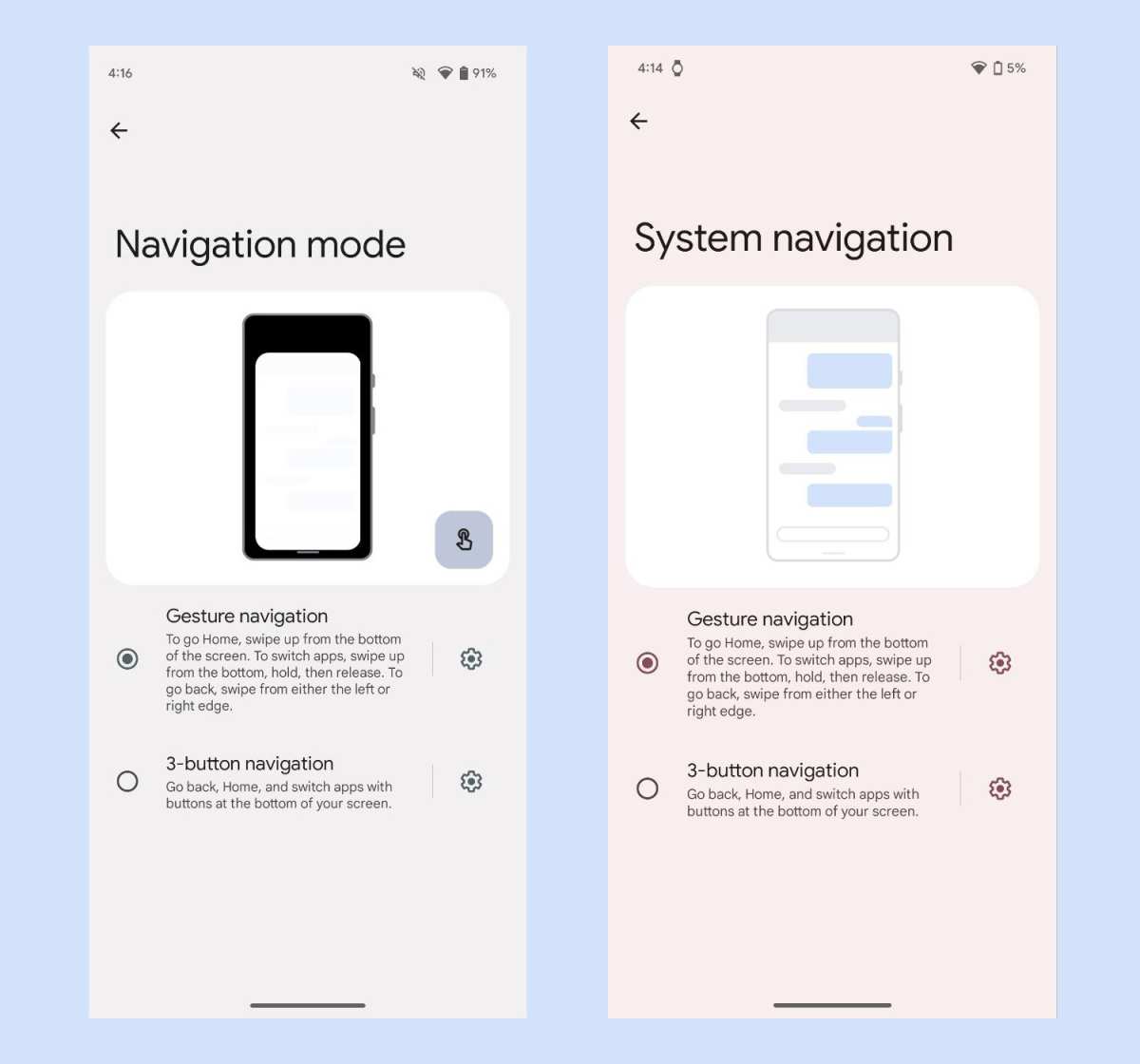
Open your phone's Settings app. Tap System. Select Gestures.
Tap System Navigation. Choose 3-button navigation.
That's the path on stock Android. The buttons appear immediately. No restart needed.
If your phone uses a different skin (Samsung, OnePlus, Xiaomi, Oppo), the path shifts slightly. But the core idea stays the same. You're looking for a menu called "System navigation" or "Navigation bar" inside either Gestures, Display, or Home Screen settings.
Use the search bar at the top of Settings if you're lost. Type "navigation" and the toggle should appear as the top result on most phones.
Why Android Hid the Buttons: A Two-Minute History
Google began pushing for gesture navigation with Android 9 Pie back in 2018. That version introduced the "pill" button, a single home-like button in the center with swipe-up gestures for recents. It was a half-step.
But it showed where things were headed.
Android 10 was the real shift. Google removed the pill and introduced full gesture navigation. Swipe up for home.
Swipe up and hold for recents. Swipe from the left or right edge to go back. The three-button bar became a secondary option buried in System > Gestures.
Why did they do it? Screen size. Phone displays were getting taller and bezels were shrinking.
The navigation bar took up roughly 48 pixels of vertical space. That might not sound like much, but on a 6-inch screen, every pixel counts. Full gestures let apps use that space for content instead of buttons.
Manufacturer specs also confirm that gesture navigation reduces accidental touches for some users once they learn the muscle memory. But that learning curve is exactly the problem for anyone who already knew the button layout. Google kept the option alive for a reason.
They just made it less visible.
What You'll See on Screen: Visual Map of the Navigation Toggle
When you open the System Navigation menu, you'll see three or four options presented as radio buttons. Each option has a small animated preview that shows how navigation works in that mode.
The three-button option is usually at the bottom of the list. It shows a graphic of three icons: triangle (Back) on the left, circle (Home) in the middle, and square (Recent Apps) on the right. That's the classic layout Android used from version 4.0 through 9.0.
The gesture option shows a thin white bar at the bottom of the screen. It's labeled "Gesture navigation" on most phones. Samsung's version calls it "Swipe gestures" and adds three horizontal lines at the bottom as a visual cue.
Some phones include a third option called "Three-button navigation with gesture hints." That's a hybrid mode that shows the buttons but also keeps a faint swipe bar underneath. It's confusing. Stick with the standard three-button mode.
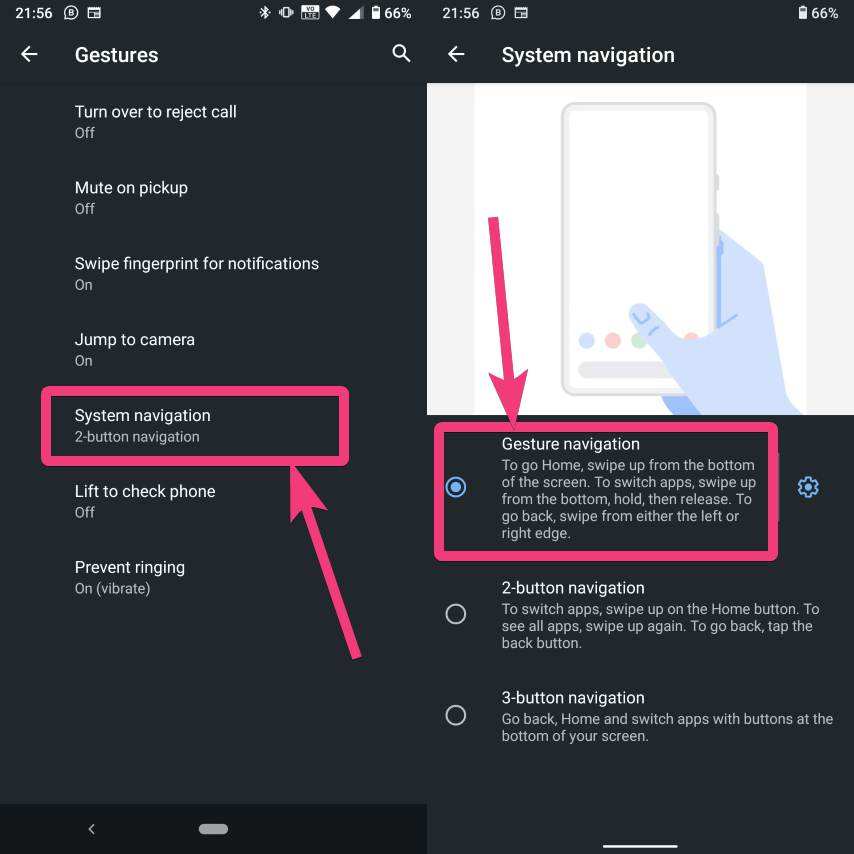
Here's a quick breakdown of what each option gives you:
| Option Name | What You See | What You Do |
|---|---|---|
| Gesture navigation | Thin white bar, no buttons | Swipe up, swipe from edges |
| 2-button navigation | Pill button + back arrow | Swipe up, tap arrow (Pixel only, older) |
| 3-button navigation | Triangle, circle, square | Tap each for back, home, recents |
The animated preview is the best clue. If you see three shapes at the bottom of the animation, you've found the right option.
Step-by-Step: Stock Android / Google Pixel
If you're using a Google Pixel or any phone running near-stock Android (Motorola, Nokia, some Sony models), the path is consistent across Android 10 through 15.
- Open the Settings app from your app drawer or notification shade.
- Scroll down and tap System. On older versions of Android, this may be labeled "System and updates" or just appear as a gear icon in the quick settings panel.
- Tap Gestures. This opens a list of gesture controls including "Swipe up on home button," "Flip to shush," and several others.
- Tap System Navigation. This is the specific submenu that controls how you navigate between apps and homes.
- Select 3-button navigation. The radio button fills in, and the three buttons appear at the bottom of your screen instantly.
That's it. You don't need to restart the phone. The change takes effect as soon as you tap the option.
If you don't see the "System" option in your main Settings menu, use the search bar at the top of Settings. Type "navigation" and select "System navigation" from the results. This bypasses any buried menu and gets you directly to the toggle.
One thing to watch for. If you have a Pixel running Android 14 or 15, the icon for the three-button mode shows a small gesture hint line underneath the buttons. That's not a hybrid mode.
It's just how the preview graphic looks. Select it anyway. The buttons will appear without the hint line once you exit Settings.
On near-stock Motorola phones like the Moto G series, the path is identical. Some models running Android 11 or earlier may have the option inside "System > Gestures > System navigation" but labeled slightly differently. Look for "3-button navigation" or "Classic navigation." The logic is the same.
Step-by-Step: Samsung Galaxy (One UI)
Samsung phones use One UI, and the navigation settings live under Display, not System. That small difference trips up a lot of people.
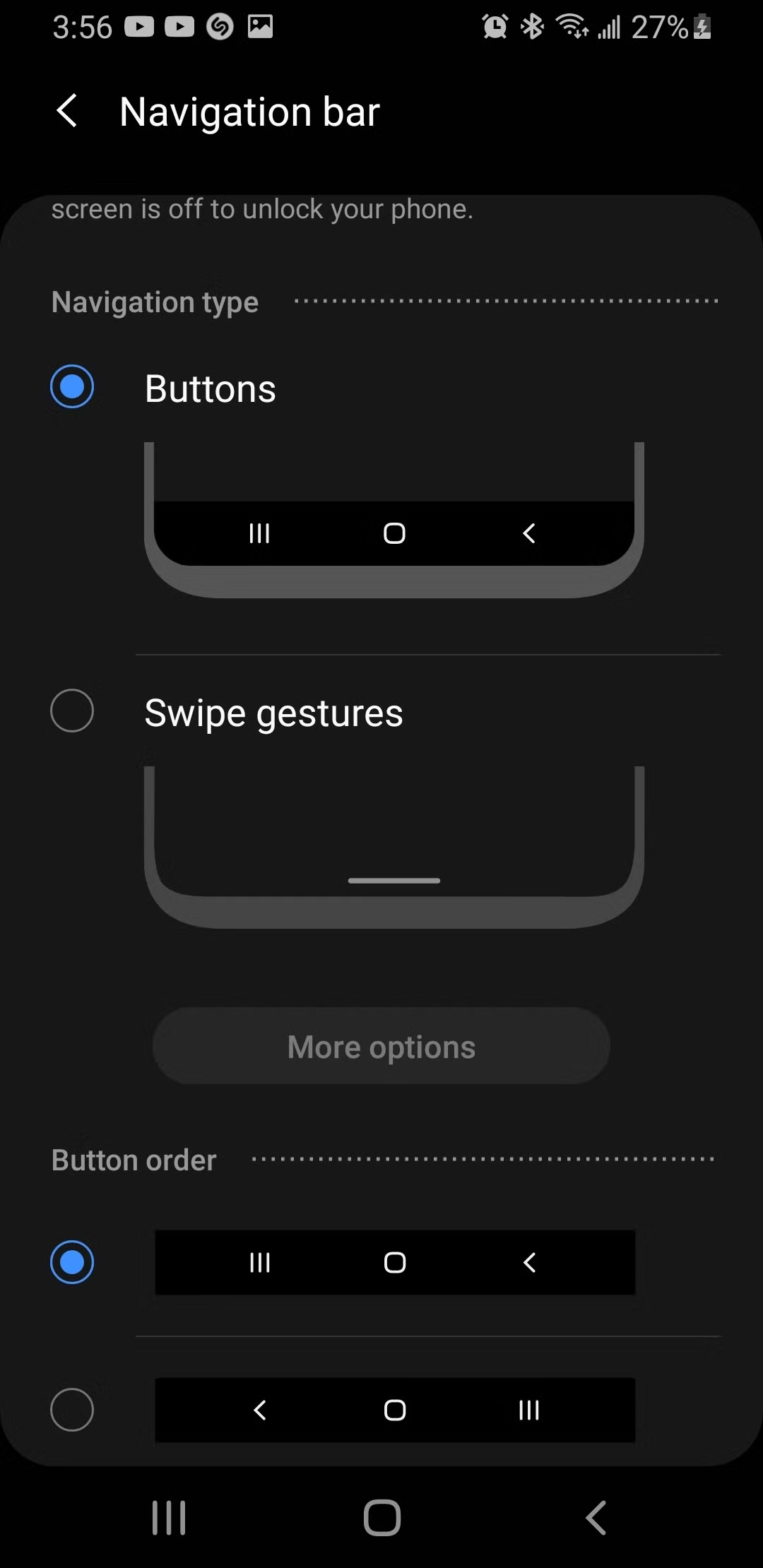
Open Settings and tap Display. Scroll down to Navigation bar. You'll see two options: Buttons and Swipe gestures.
Tap Buttons. That's it.
Samsung gives you one extra option that stock Android doesn't. You can reorder the buttons. By default, the order is Recent Apps on the left, Home in the middle, Back on the right.
That reverses the standard Android layout where Back sits on the left. If you've used a Pixel or a Motorola before, this will mess with your muscle memory.
To fix it, tap the "More options" menu (three dots) inside Navigation bar settings. Select Button order. Choose the layout that puts Back on the left.
The change takes effect immediately.
One more thing about Samsung. The navigation bar settings also include a toggle for "Gesture hints." This is a small white bar at the bottom that shows up even in button mode. If you find it distracting, turn it off right there in the same menu.
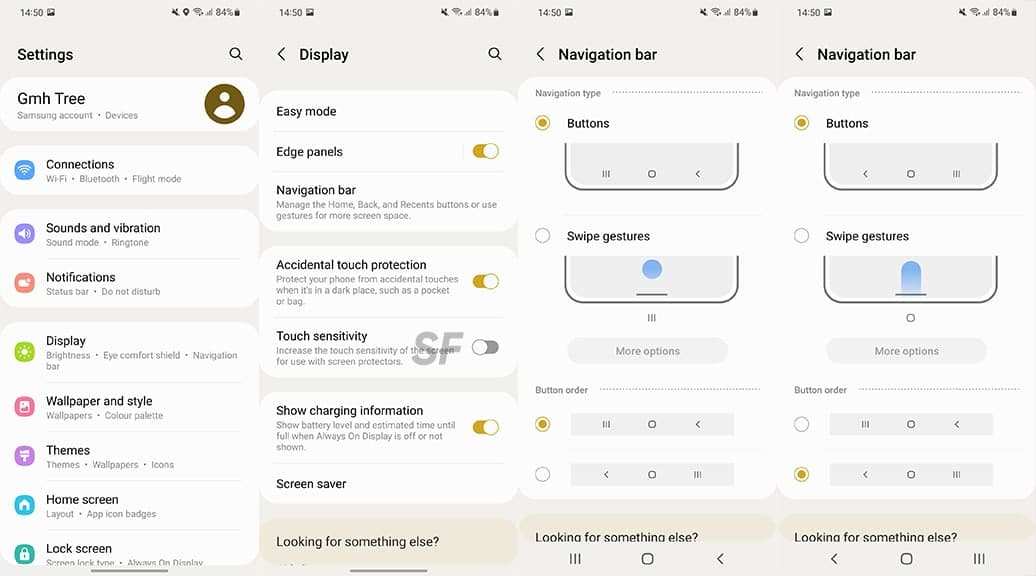
On older Samsung phones running One UI 3.0 or earlier, the path was slightly different. Settings Display Navigation bar Buttons. The logic is the same.
Samsung hasn't moved the toggle since One UI 2.0 released in 2019.
Step-by-Step: OnePlus (OxygenOS) & Oppo / Realme
OnePlus, Oppo, and Realme phones share a common codebase. OxygenOS and ColorOS are practically the same under the hood now. The navigation setting is in the same spot on all of them.
Open Settings and tap System and Updates. On some versions of OxygenOS 12 or 13, this is labeled just "System." Scroll down and tap Gestures. Tap System Navigation.
Select Buttons.
The option is labeled "Buttons" not "3-button navigation" on most OnePlus devices. A small preview graphic shows three icons at the bottom. That's your confirmation.
OnePlus offers one neat feature inside these settings. You can enable "Hide navigation bar" in supported apps. This auto-hides the buttons when you're watching video or playing a game.
A single swipe up from the bottom brings them back. It gives you the full-screen experience without fully switching to gestures.
Oppo and Realme follow the same path with one minor difference. On ColorOS 13 and newer, the setting lives under Settings Convenience and gestures Navigation gestures. You see a list of gesture options.
Scroll to the bottom and tap "Three-button navigation."
If you get stuck, use the search bar at the top of Settings. Type "navigation bar." The shortcut appears as the first result.
Step-by-Step: Xiaomi / Redmi (HyperOS)
Xiaomi phones, along with Redmi and POCO models, run HyperOS (formerly MIUI). The navigation setting is in a different place entirely. It sits under Home Screen settings, not System or Display.
Open Settings and tap Home Screen. Scroll down to System navigation. You'll see two options: Gesture navigation and Buttons.
Tap Buttons.
The toggle likes to play tricks. Some Xiaomi models hide the "Buttons" option inside a submenu labeled "More." If you see only "Full screen gestures" and nothing else, look for a "Customize" or "More" link near the bottom of the screen. Tap it.
The classic three-button option appears there.
Xiaomi also lets you pick which button goes where. The default layout places Back on the left. But you can swap it so Recent is on the left and Back is on the right.
This is useful if you're coming from a Samsung phone and want consistency.
One common issue on Xiaomi phones. After switching to buttons, the gesture hint bar sometimes stays visible at the bottom. It's a small white line under the navigation bar.
To remove it, go back into Home Screen settings, tap System navigation, and toggle off "Show suggestion bar."
Common Visual Mistake: The Grayed-Out Toggle or Missing Option
You found the right menu. You can see the three-button option in the list. But it's grayed out.
You can't tap it.
This happens for two reasons.
The first is a locked device or work profile. If your phone is managed by an employer or a school (MDM or Enterprise Enrollment), an administrator may have disabled the option. There's no workaround.
You need to contact your IT department.
The second reason is a third-party accessibility service. Some apps like automation tools or screen readers temporarily block the navigation toggle. Per manufacturer documentation, any app using the AccessibilityService API can lock the navigation mode.
Turn off those services in Settings Accessibility Installed apps and try again.
Here's what to check:
- Open Settings and tap Accessibility.
- Tap Installed apps or Downloaded services.
- Disable any app you don't recognize or any automation tool you recently added.
- Go back to the navigation menu. The toggle should be active now.
If the three-button option simply doesn't appear at all, you're probably on a device where the manufacturer removed it. Some carrier-locked phones in certain regions strip the option. That's rare but it happens.
Your fallback is the ADB method, which we cover next.
Still Can't Find It? ADB Fallback & Third-Party App Options
If the toggle is missing or locked, you have two backup options. Both are safe if you follow the instructions carefully.
The ADB method is the official developer route. ADB stands for Android Debug Bridge. It's a command-line tool that lets you change hidden system settings.
You'll need a computer and a USB cable.
Here's the process:
- Enable Developer Options on your phone. Go to Settings About Phone and tap "Build number" seven times.
- Go back to System and tap Developer Options. Enable USB Debugging.
- Connect your phone to a computer and install ADB (Platform Tools from developer.android.com).
- Open a command window and type:
adb shell settings put global navigation_mode 0
The value 0 enables three-button navigation. Value 1 enables gesture navigation. Value 2 enables two-button navigation on supported devices.
This method works on almost every Android phone, even Samsung. It forces the system to switch. No reboot required.
The change persists until you change it back via ADB or the settings toggle.
The third-party app route is simpler but less elegant. Apps like Button Mapper or Navigation Bar let you add a floating button overlay. They don't actually switch the navigation mode.
They just place virtual buttons on top of your screen. The gesture nav stays active underneath. For most users, this feels laggy and causes double inputs.
Our research suggests the ADB method is the better choice. It's a permanent system-level change. Floating overlays drain battery and interfere with other touch events.
Use them only as a last resort.
Pro Tip: Making the Buttons Feel Like Home (Reorder & Sensitivity)
Once you've got the buttons back, you might want to tweak how they work. Most manufacturers let you reorder the Back and Recent buttons.
Samsung and Xiaomi offer this in the navigation settings menu directly. Stock Android doesn't allow reordering without a third-party app. If you're on a Pixel or Motorola, you're stuck with Back on the left.
Button sensitivity is another adjustment worth checking. On Samsung phones, you can change the "Touch and hold delay" inside Accessibility > Interaction and dexterity. A longer delay prevents accidental long-presses on the Home button.
A shorter delay makes it feel snappier.
Some phones also let you add extra actions. Long-pressing the Home button can launch Google Assistant, open the camera, or trigger a split-screen view. Check your settings under Gestures or Advanced features for these options.
Troubleshooting: Buttons Disappear After Update or Reset
System updates and factory resets are the two most common reasons your buttons vanish again.
When Android updates, it sometimes resets the navigation mode back to gesture navigation. This is an intentional safety measure by Google. The thinking is that a fresh update should start with the default interface.
It happens most often after major version jumps like Android 13 to 14 or 14 to 15.
The fix is simple. Go back into the same navigation settings menu and turn the buttons on again. It takes about fifteen seconds.
Factory resets always wipe your navigation preference. That's because the toggle stores its value in the system settings partition, which gets cleared during a reset. You'll need to re-enable three-button navigation as part of your post-reset setup routine.
One less common cause is a corrupted settings cache. If you toggle the option and nothing happens, try restarting your phone. If that doesn't work, wipe the system cache partition from recovery mode.
The process varies by manufacturer, but it's safe and doesn't delete your data.
Before You Switch: Quick Comparison of Gestures vs. Three-Button Nav
Before you settle on three-button navigation, it's worth knowing what you're giving up.
| Feature | Gesture Navigation | Three-Button Navigation |
|---|---|---|
| Screen space used | None (full screen) | ~48 pixels at bottom |
| Learning curve | Moderate | None (if familiar) |
| App switching speed | Swipe + hold or swipe bottom bar | Double-tap Recent |
| Back action | Swipe from left or right edge | Tap triangle |
| Accuracy with screen protector | Can be inconsistent | Reliable |
| One-handed use | Better (swipe from anywhere) | Can be harder on large phones |
Gesture navigation is objectively faster once you learn it. Swiping from the edge to go back takes less thumb movement than reaching for the bottom-left button. But speed doesn't matter if you're constantly triggering the wrong action.
Three-button navigation wins on predictability. The buttons never move. They don't misinterpret a swipe as a tap.
For gaming, accessibility, and phone setup for older users, it's the better choice.
Final Check – Did It Work?
After you select the three-button option, test it immediately.
Tap the circle (Home) and confirm it takes you to your home screen. Tap the triangle (Back) and verify it goes back one screen. Tap the square (Recent) and check that your open apps appear in a carousel or grid view.
If the buttons appear but don't respond, restart your phone. This clears any software glitch that might be blocking touch input to the navigation bar.
If only two buttons show up, you may have accidentally selected a different mode. Go back into the navigation settings and double-check your selection. The "2-button navigation" option (present on some older Pixels) shows only a pill and a back arrow.
You want the full three-button layout.
If nothing at all appears, your phone may have a custom launcher that overrides the system navigation. Try switching back to the default launcher in Settings > Apps > Default apps. Third-party launchers sometimes lock the navigation mode.
Frequently Asked Questions
Why did my Android phone switch to gestures automatically?
Major system updates and factory resets reset the navigation mode to gesture navigation as a safety default. You can switch it back by following the steps for your specific manufacturer.
Can I get three buttons without going into Settings?
No. There is no shortcut key or quick toggle for changing navigation modes. You must go through the Settings app.
On some phones, you can use the ADB command method to bypass the menu.
Will three-button navigation work with any launcher?
Yes. Three-button navigation is a system-level feature. It works with the default launcher and all third-party launchers like Nova Launcher, Action Launcher, and Microsoft Launcher.
Does the three-button navigation bar drain battery?
No. The battery impact is negligible. The navigation bar is just a software overlay that lives in the system UI process.
It does not light up extra pixels on OLED screens the way a bright wallpaper would.
What if the three-button option is missing entirely?
This happens on some carrier-locked phones and older budget models. Use the ADB method to force the mode change. If that doesn't work, a third-party floating button app is your last resort.
Can I set different navigation modes for different users?
Yes. On phones with multiple user profiles, each user can independently set their preferred navigation mode. Switch users and repeat the steps in Settings.
The setting is stored per user account.

Similar Posts





















